

Introduction to Extrac32
Extrac32 is the Windows Cabinet Extraction Tool, available as extrac32.exe in Windows. Its job is narrow but useful: list or extract files from Cabinet archives, extract compressed single-file sources, and handle a few older cabinet chain scenarios. On Windows 11, most users will never type it during ordinary work, but administrators, repair technicians, driver testers, and curious power users still run into it when a vendor package, recovery folder, old installer, or downloaded support archive contains a .cab file.
The important thing to understand is that Extrac32 is an extraction tool, not an installer, driver manager, or Windows Update engine. If a CAB file contains a driver package, Extrac32 can extract the files so you can inspect the INF, catalog, DLL, or SYS files. If a CAB file is a Windows servicing package, extracting it does not install the update. For installation, package applicability, feature servicing, and image repair, Microsoft documents DISM as the servicing tool for .cab and .msu packages.
This guide explains what Extrac32 does, how its switches work, how to list and extract Cabinet files safely, when to prefer Expand or DISM, and how to avoid common mistakes such as extracting untrusted files into system folders or overwriting known-good files with /Y. The examples are written for Windows 11, but the habits are deliberately conservative: list first, extract into a clean folder, verify what changed, and use the right tool for the actual job.
For official context, Microsoft documents the related Expand command, the Makecab command, the equivalent cabinet creation command Diantz, the Microsoft Cabinet format, and DISM package servicing. Extrac32 itself is best verified through its built-in help output, which is included with Windows.
Table of contents
Key Takeaways
- Extrac32 is a Cabinet extraction utility. It lists and extracts files from CAB archives and compressed single-file sources.
- It is not a package installer. For Windows update CABs, language packs, features, or offline image servicing, use DISM or the documented servicing method.
- Use
/Dbefore extracting. Listing contents first helps you avoid wrong filenames, unexpected payloads, and accidental overwrites. - Use
/Lfor a controlled output folder. Do not let extracted files scatter into the current working directory. - Avoid
/Yunless you control the destination. Silent overwrite is convenient for automation but risky on system paths. - Expand is the better documented extraction command. Extrac32 still works, but Expand has current Microsoft Learn documentation for compressed files and CAB extraction.
- Cabinet files are containers. The same .cab extension can mean a driver archive, an installer payload, a Windows servicing package, or a vendor bundle.
What Is Extrac32?
Extrac32 is the executable form of the Microsoft Cabinet Extraction Tool. On a Windows 11 computer, you can usually find it at C:\Windows\System32\extrac32.exe. The built-in help banner uses the older command name EXTRACT, which is why some examples on the web appear to use Extract while the actual file on modern Windows is Extrac32. The behavior is focused on cabinet extraction and compressed file expansion, not on archive creation.
Cabinet files, commonly ending in .cab, are Microsoft archive containers. The Microsoft Cabinet format documentation describes cabinets as compressed packages that can store multiple related files and use compression across file boundaries. That design is useful for installers and distribution packages, but it also means you should inspect a CAB before assuming what it contains. A driver CAB, a Windows update CAB, and a vendor application CAB may all need different next steps after extraction.
Extrac32 is most useful when you need a built-in command-line tool and you only need to extract files. It can show the directory of a cabinet, extract a specific filename, extract multiple filenames or wildcards, extract all files, place output in a chosen directory, and handle cabinet chains. It is less appropriate when you need modern package servicing, detailed update metadata, dependency checks, or long-term automation where a documented tool such as Expand or DISM is easier to justify.
The practical rule is simple: use Extrac32 when the question is, what files are inside this CAB and how do I extract them safely? Use something else when the question is, how do I install this package, add this update to Windows, create a CAB, or change system servicing state?
Extrac32 Syntax on Windows 11
The built-in help for extrac32 /? shows three syntax patterns. The first pattern handles a cabinet that contains two or more files. The second handles a compressed source that contains one file. The third is a legacy copy mode. In normal Windows 11 troubleshooting, the first pattern is the one most people need.
extrac32 [/Y] [/A] [/D | /E] [/L dir] cabinet [filename ...]
extrac32 [/Y] source [newname]
extrac32 [/Y] /C source destination
The command is case-insensitive, so extrac32, Extrac32, and EXTRAC32 behave the same in Command Prompt. PowerShell can run it as well, although you may prefer to call extrac32.exe explicitly from scripts so it is obvious that an external executable is being used.
The key parameters are the cabinet path, the optional file names to extract, and the destination folder specified by /L. If you omit /L, files are extracted to the current directory. That sounds harmless until your current directory is System32, a downloads folder with existing files, or a script location that you did not intend to change. Always be explicit in repair and documentation work.
Extrac32 Switches Explained
| Switch | Purpose | Practical note |
|---|---|---|
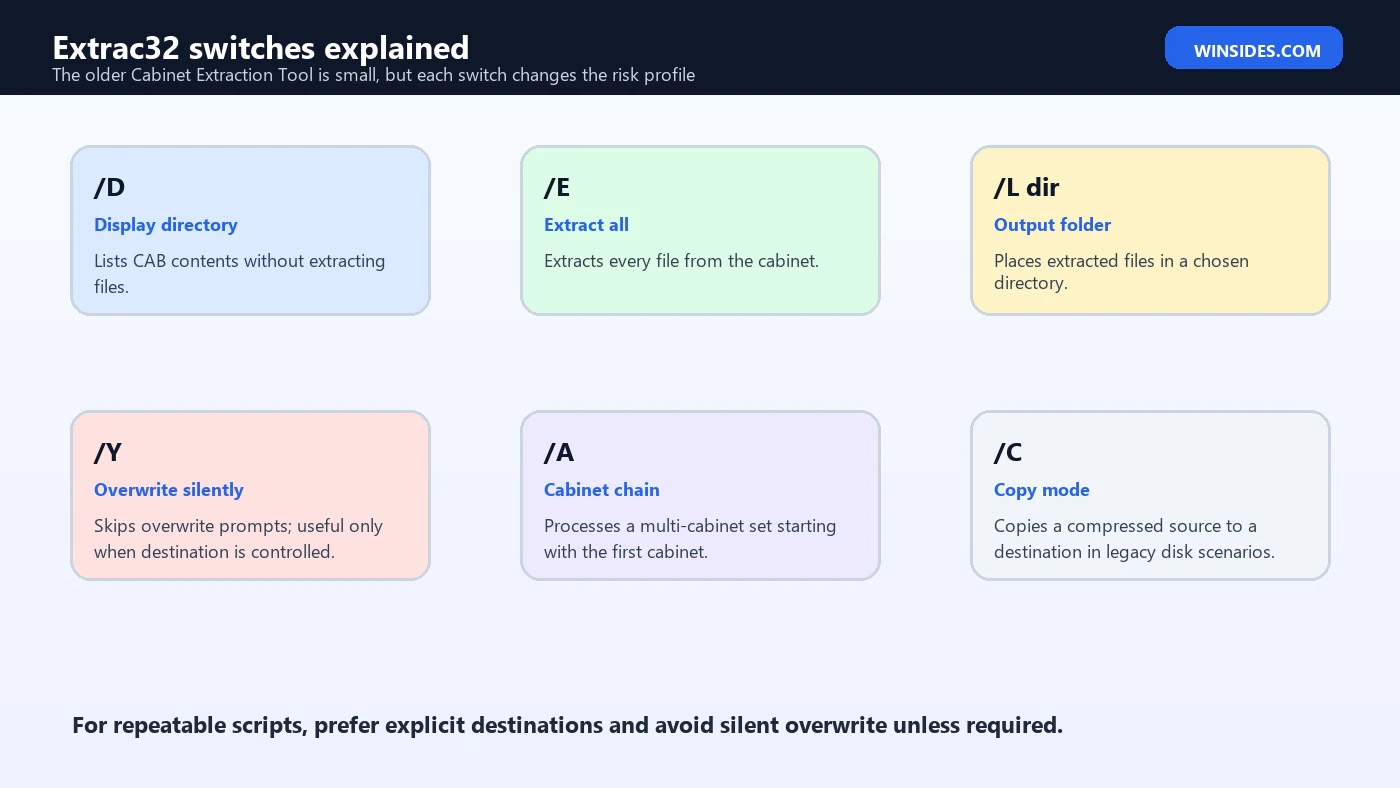
/D | Display cabinet directory | Lists contents without extraction. Use it before touching files. |
/E | Extract all files | Clearer than relying on wildcard behavior when you want everything. |
/L dir | Destination folder | Keeps extracted files in a controlled location. |
/Y | Overwrite without prompt | Useful in controlled automation, risky in system folders. |
/A | Process cabinet chain | Used for multi-cabinet sets that continue across files. |
/C | Copy source to destination | Legacy copy mode, rarely needed in normal Windows 11 work. |
The most important switch for safe use is /D. It lets you read the directory of the cabinet before extraction. That gives you exact file names, lets you spot unexpected content, and helps you decide whether you need one file, a wildcard group, or the whole archive. It also reduces the chance of extracting a package that is not what its file name suggests.
The second most important switch is /L. A dedicated output folder makes every later step easier. You can compare before and after, remove the folder if you made a mistake, scan extracted files, inspect digital signatures, and avoid mixing the payload with unrelated downloads. If a repair guide tells you to extract directly into a Windows system folder, slow down and understand why before doing it.
The /Y switch deserves caution. It suppresses overwrite prompts, which is helpful when a script creates a fresh folder every time. It is not helpful when you are experimenting in a folder that already contains files. If your goal is to replace a damaged system file, the safe workflow is usually to back up the old file, confirm the replacement version, and use proper servicing tools whenever possible.
How to List CAB Contents with Extrac32
Start with a folder that contains the CAB file and a separate output folder. You do not need administrative rights just to list or extract into a folder you own, such as a temporary folder under your user profile. Administrative rights become relevant only when the source or destination requires elevated access.
mkdir C:\Temp\CabExtract
extrac32 /D C:\Temp\driver-package.cab
The output will list the files that Extrac32 can see inside the cabinet. Pay attention to exact file names and extensions. Driver archives often contain .inf, .cat, .sys, and vendor DLL files. Installer archives may contain setup resources that are not meant to be copied manually. Windows update packages may contain manifests and payloads that should be serviced with DISM rather than manually scattered into Windows folders.
If /D fails, do not jump straight to extraction. Confirm the file path, confirm the file extension, check whether the file is actually a Microsoft Cabinet file, and consider opening it with File Explorer or using expand -d for comparison. A file can have a .cab extension and still be damaged, incomplete, blocked by permissions, or in a format expected by a specific installer.
How to Extract All Files with Extrac32
When you want every file in the CAB, use /E with an explicit destination. Create the destination first so you know the command has a clean landing zone. This is especially useful when the next step is inspection, not installation.
mkdir C:\Temp\CabExtract
extrac32 /E /L C:\Temp\CabExtract C:\Temp\driver-package.cab
After extraction, open the output folder and review what was created. If the CAB came from a driver download, look for the INF and catalog files. If the CAB came from an update download, stop and decide whether you are looking at a package that should be installed by DISM. If the CAB came from an unknown source, scan it before running any executable file from it.
Do not assume extraction is reversible. Extracting into a clean folder is easy to undo. Extracting into a program folder, a driver store, or C:\Windows is much harder to reason about. The difference between a tidy extraction and a messy repair attempt is usually one /L parameter.
How to Extract One File or a Wildcard Group
Extrac32 accepts one filename, multiple filenames, and wildcards after the cabinet path. This is useful when a CAB contains many files but you only need an INF, a readme, or a matching set of driver binaries. The exact names should come from /D, not from guessing.
extrac32 /L C:\Temp\CabExtract C:\Temp\driver-package.cab netdriver.inf
extrac32 /L C:\Temp\CabExtract C:\Temp\driver-package.cab *.inf *.cat
Wildcard extraction is convenient, but it can hide mistakes. If a CAB contains multiple architecture folders or multiple driver versions, a broad wildcard may extract more than you intended. For driver testing, extract the whole package into a folder and let Device Manager or pnputil inspect the INF rather than copying individual files into system folders.
If the file name contains spaces, quote the full path or file name. Quoting paths is good habit even when the current example does not require it. It makes commands safer to paste into documentation and less likely to fail on a different computer where the folder names are not as simple.
Extracting a Compressed Single File
Older Microsoft distribution media and some support packages used compressed single files where the last character of the extension is replaced by an underscore, such as .dl_, .ex_, or .sy_. Extrac32 can expand that kind of source to a normal filename. This is not the same as installing a component; it only turns the compressed file into its expanded form.
extrac32 C:\Temp\example.dl_ C:\Temp\example.dllThis syntax is helpful when working with old media, recovery examples, or a vendor package that still ships compressed individual files. It is less common in modern Windows 11 maintenance because most users receive packages through Windows Update, Microsoft Store, driver installers, or standard archives. Still, understanding the syntax prevents confusion when you see an underscore extension in a support folder.
Use version checks before replacing any existing file with an expanded copy. A filename alone does not prove the file is right for your build, architecture, or language. System file replacement is rarely the best first repair method on Windows 11. Tools such as SFC, DISM image repair, driver reinstall, or application repair usually produce a safer and more traceable result.
Using Extrac32 with Multi-Cabinet Sets
The /A switch tells Extrac32 to process all cabinets in a chain, starting with the first cabinet mentioned. Multi-cabinet sets were common when packages were split across disks or media boundaries. They are less common for everyday Windows 11 downloads, but the switch still appears in help output and can matter when you are unpacking an older installer source.
extrac32 /A /E /L C:\Temp\CabExtract C:\Temp\disk1.cabFor a cabinet chain, keep all cabinet files in the expected folder and start with the first cabinet. If one file in the chain is missing, renamed, or downloaded incompletely, extraction can fail even though the first file appears valid. Do not rename split CAB files unless the vendor documentation tells you to do so; chain metadata can depend on adjacent cabinet names.
If the package is important, copy the cabinet set to a working folder before experimenting. That leaves the original media untouched and makes retrying easier. When extraction fails halfway through, delete the partial output folder and start again after confirming the cabinet set is complete. Partial extractions can be misleading because some files may be valid while later files are missing.
Extrac32 vs Expand
Extrac32 and Expand overlap, but they are not the same from a documentation and maintenance standpoint. Microsoft Learn documents Expand as a Windows command that expands compressed files and can retrieve compressed files from distribution disks. The documented Expand syntax includes listing CAB contents with -d, selecting files with -f:, and expanding source files to a destination.
For a one-off extraction, either tool may work. For a guide, help desk script, or repeatable process, Expand has the advantage of current Microsoft Learn documentation and clearer syntax for many administrators. Extrac32 has the advantage of being a small, direct cabinet extraction utility with familiar legacy switches. The best choice depends on your audience and why the command is being used.
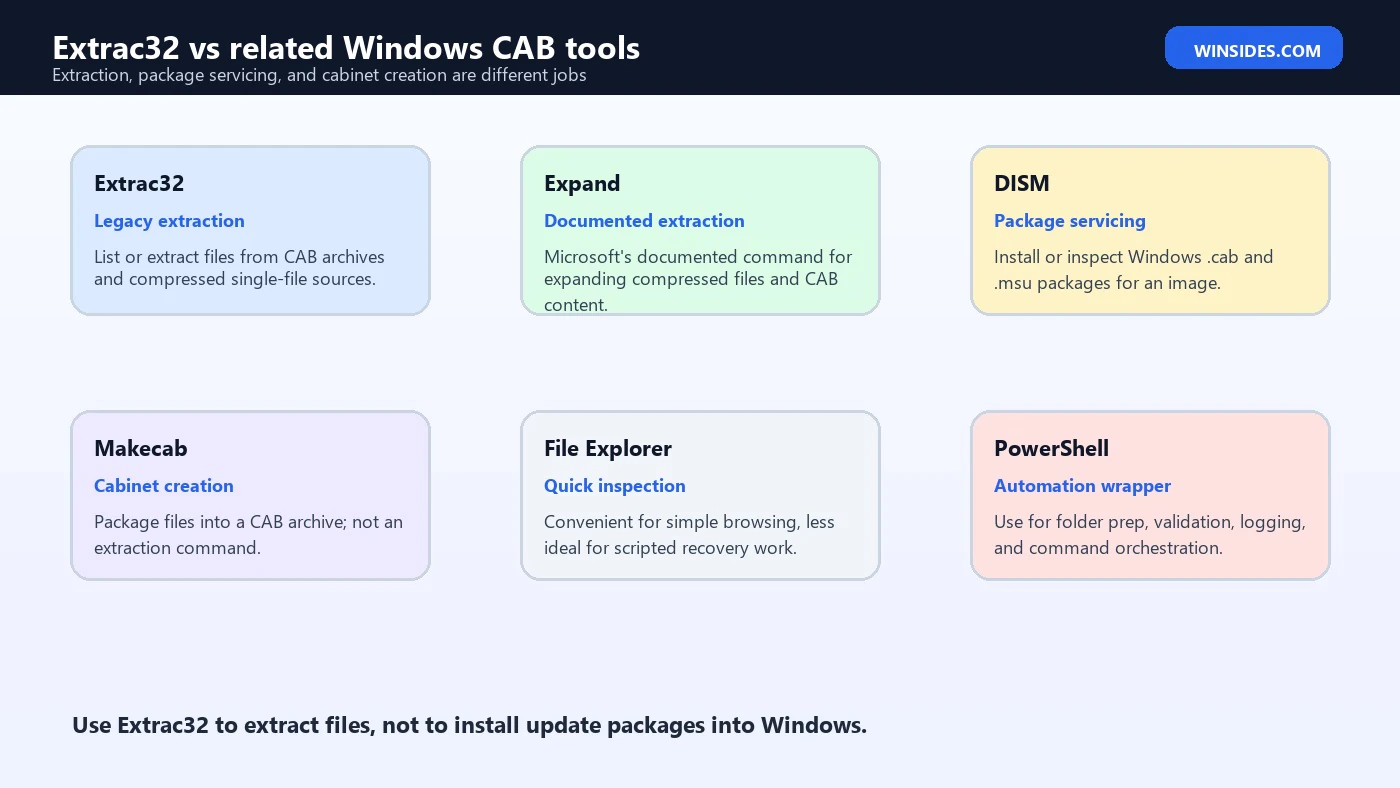
| Need | Better fit | Why |
|---|---|---|
| List a CAB quickly | Extrac32 or Expand | Both can show contents before extraction. |
| Document a supported Windows command | Expand | Microsoft Learn has current Expand documentation. |
| Extract files from an old cabinet set | Extrac32 | The /A switch handles cabinet chains. |
| Create a CAB file | Makecab or Diantz | Extrac32 extracts; Makecab and Diantz package files. |
| Install an update CAB | DISM | Package servicing is not the same as extraction. |
A useful admin habit is to keep both commands in your mental toolbox. If one tool gives an unclear error, listing the same CAB with the other can help distinguish a syntax mistake from a damaged archive. That comparison should happen in a temporary folder, not in a system location.
Extrac32 vs DISM for CAB Files
This is the mistake that causes the most confusion: a CAB file can be an archive, but it can also be a Windows servicing package. Extrac32 extracts files. DISM services Windows images. Microsoft DISM package-servicing documentation describes using DISM with Windows cabinet and MSU files to install or remove updates, language packs, and features in online or offline images.
If you downloaded a Windows update as a .cab file, extracting it with Extrac32 is usually not the goal. You may be able to see internal manifests and payload files, but Windows has not installed the package. The correct next step is normally DISM with /Add-Package, Windows Update, or another documented installer path. Extracting an update CAB and copying files manually can leave Windows in an unsupported or inconsistent state.
Dism /Online /Add-Package /PackagePath:C:\Packages\update.cabUse Extrac32 when you need to inspect files inside a CAB or pull out a vendor payload. Use DISM when the CAB is a package that Windows must evaluate, stage, install, remove, or query. That distinction matters because package servicing includes applicability checks, dependency handling, pending actions, and component store state. An extraction command cannot replace that logic.
Extrac32 vs Makecab and Diantz
Makecab and Diantz go in the opposite direction. Microsoft documents Makecab as a command that packages existing files into a Cabinet file, and Diantz as a command that performs the same cabinet packaging actions as the updated Makecab command. Extrac32 does not create a CAB file. It reads a CAB or compressed source and writes extracted files to disk.
That difference sounds obvious, but it matters in troubleshooting. If you are trying to reduce the size of a folder, bundle logs for support, or create an installer payload, Extrac32 is not the right command. If you are trying to open a CAB from a driver download, Extrac32 may be exactly the right small tool. The direction of the workflow tells you the tool: Makecab creates, Extrac32 extracts, DISM services.
The Microsoft Cabinet format page is useful background because it explains why a cabinet is not just a ZIP file with another extension. Cabinets can store multiple files, compress across file boundaries, and contain folder structures that extractors may handle differently. When paths matter, test in a temporary folder and check the result rather than assuming every extractor will reproduce the same folder layout.
Safe Extrac32 Workflow
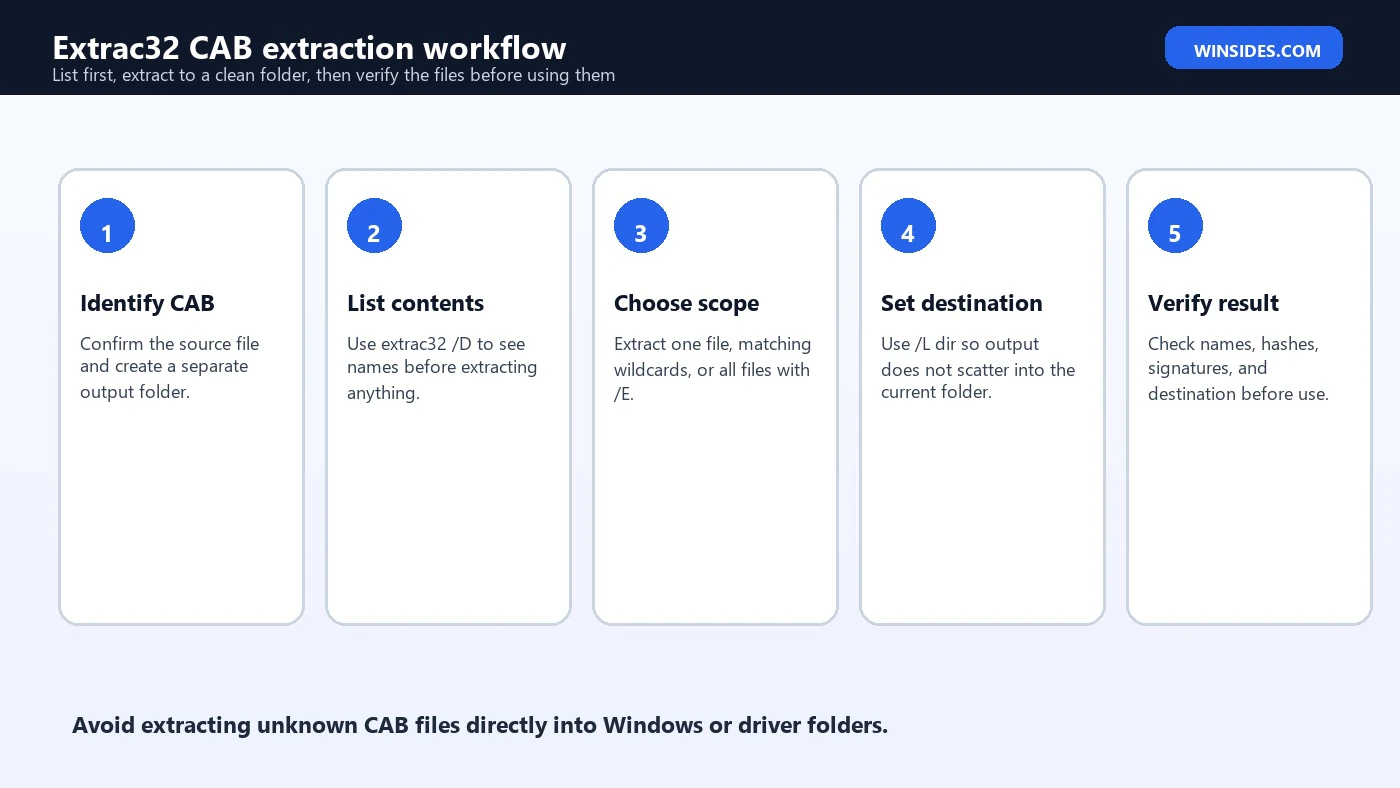
A safe Extrac32 workflow is boring in the best way. You create a clean output folder, list the cabinet, extract only what you need, and verify the files before doing anything else. This takes a little longer than double-clicking a CAB or running a copied command, but it prevents the common problems: wrong destination, overwritten files, unexpected payloads, and confusion between extraction and installation.
- Create a temporary output folder for each CAB.
- Use
extrac32 /Dto list contents before extraction. - Use
/Lto direct output into the temporary folder. - Avoid
/Yunless the output folder is newly created and disposable. - Inspect file names, sizes, and signatures after extraction.
- Use DISM or a vendor installer when the CAB is a package, not a simple archive.
- Delete the temporary folder when the inspection is complete.
For files from the internet, also consider SmartScreen, antivirus scanning, and source trust. A CAB is an archive format, not a trust guarantee. The first four bytes of a Microsoft Cabinet identify the format, but they do not prove the payload is safe or intended for your machine. Treat extracted executables and scripts with the same caution you would apply to a downloaded EXE.
Common Extrac32 Examples
Here are practical commands you can adapt. These examples use C:\Temp because it makes the separation between source and destination obvious. Replace the paths with your own folder names and quote paths if they contain spaces.
mkdir C:\Temp\CabExtract
extrac32 /D C:\Temp\sample.cab
extrac32 /E /L C:\Temp\CabExtract C:\Temp\sample.cabextrac32 /L C:\Temp\CabExtract C:\Temp\sample.cab *.inf *.catextrac32 /Y /L C:\Temp\CabExtract C:\Temp\sample.cab readme.txtThe first command lists contents. The second extracts everything. The third extracts INF and catalog files into the output folder. The fourth overwrites without prompting, which is why it should be used only when the output folder is controlled and disposable. If you are unsure whether the destination already has files you care about, do not use /Y.
Troubleshooting Extrac32 Errors
| Symptom | Likely cause | Better next step |
|---|---|---|
| Extrac32 is not recognized | Path or shell environment issue | Run C:\Windows\System32\extrac32.exe /? or open a normal Command Prompt. |
| Cabinet not found | Wrong path or unquoted spaces | Use full paths and quote folders with spaces. |
| Cannot open cabinet | Damaged, incomplete, or unsupported file | Download again, verify source, and compare with Expand or File Explorer. |
| Access denied | Destination permissions or locked files | Extract into a user-owned temp folder first. |
| Nothing extracted | Filename filter did not match | Run /D and copy exact names from the listing. |
| Files overwrite unexpectedly | Used /Y or reused output folder | Create a fresh folder and avoid silent overwrite. |
| CAB extracted but update not installed | Extraction was confused with servicing | Use DISM or the documented installer path. |
When troubleshooting, reduce the command to the smallest test. First run extrac32 /?. Then run /D against the CAB. Then extract one harmless file to a new folder. If those steps work, the problem is probably with the file filter, destination, or expectation. If those steps fail, the problem is probably the source file, path, permissions, or format.
If you are running the command from PowerShell and paths behave strangely, try a standard Command Prompt. PowerShell is perfectly capable of launching Extrac32, but quoting rules and wildcard expansion expectations can differ from older Command Prompt examples. Calling extrac32.exe explicitly and quoting full paths removes most ambiguity.
Mistakes to Avoid with Extrac32
The biggest mistake is treating every CAB as something to extract and copy manually. Some CAB files are just archives. Some are package containers that Windows must service. Some are installer internals. Some are vendor-specific payloads. The extension gives you a clue, not a complete maintenance plan.
- Do not extract unknown CAB files directly into
C:\Windows. - Do not use
/Yagainst folders containing files you care about. - Do not assume extracting an update CAB installs the update.
- Do not copy driver files manually when an INF installation path is available.
- Do not ignore architecture, version, and signature checks.
- Do not rename cabinet chain files without understanding the set.
- Do not use Extrac32 to create CAB files; use Makecab or Diantz instead.
A careful extraction workflow makes later decisions easier. Once files are in a clean folder, you can inspect the INF, read documentation, upload hashes to your inventory notes, or decide whether the package belongs in DISM, Device Manager, a vendor installer, or nowhere at all. That clarity is the real benefit of using a command-line extractor instead of rushing through the archive.
Frequently Asked Questions
What is Extrac32 used for?
Extrac32 is used to list and extract files from Microsoft Cabinet files and compressed single-file sources. It is a file extraction utility, not a package installer.
Is Extrac32 available in Windows 11?
Yes. On a normal Windows 11 installation, extrac32.exe is available from the Windows system folder. You can check it with extrac32 /?.
Is Extrac32 the same as Expand?
No. They overlap for extraction tasks, but Expand has current Microsoft Learn documentation and different syntax. Extrac32 is the older Cabinet Extraction Tool with switches such as /D, /E, and /L.
Can Extrac32 install a CAB update?
No. It can extract files from the CAB, but Windows package installation should use DISM, Windows Update, or another documented installer path.
Should I run Extrac32 as administrator?
Only when the source or destination requires elevated access. For safe inspection, extract into a user-owned temporary folder without elevation.
What does Extrac32 /D do?
It displays the directory of a cabinet without extracting files. Use it before extraction so you know the exact file names and contents.
Conclusion: Use Extrac32 as an Extractor, Not an Installer
Extrac32 is still useful on Windows 11 when you need a built-in way to list or extract files from a Cabinet archive. Its best use is controlled inspection: list the CAB, extract into a clean folder, verify the payload, and then decide what tool should handle the next step. That next step might be DISM, Device Manager, a vendor installer, a support upload, or simply deleting the temporary folder after confirming the CAB was not needed.
The command becomes risky only when it is used without context. Silent overwrite, system-folder extraction, manual update copying, and broad wildcard extraction can create more confusion than they solve. Keep Extrac32 in the right lane: it extracts files. It does not validate update applicability, install packages, repair the component store, or create cabinets. Once that boundary is clear, the tool is small, predictable, and helpful.
For official background, keep Microsoft pages for Expand, Makecab, Diantz, the Microsoft Cabinet format, and DISM package servicing nearby when deciding whether a CAB should be extracted or serviced.
For more interesting articles, stay tuned to Winsides.com!









Community
Comments (0)