

Introduction to GETMAC
GETMAC is a built-in Windows command that displays the media access control address, usually called the MAC address, for network adapters on a computer. On Windows 11, it is useful when you need a quick adapter identifier from Command Prompt without opening Settings, Control Panel, Device Manager, or PowerShell. It can show local addresses, query a remote computer, and format the output as a table, list, or CSV.
A MAC address is a hardware-layer address associated with a network interface. It is commonly used for switch tables, DHCP reservations, access-control lists, asset inventory, network troubleshooting, and confirming which adapter is being seen by a router or management system. It is not the same as an IP address, it does not identify your public internet connection, and it may not be permanent if adapter randomization or virtualization is involved.
The GETMAC command is small, but the context around it matters. A laptop can have Ethernet, Wi-Fi, Bluetooth, virtual switches, VPN interfaces, Hyper-V adapters, and disconnected devices. GETMAC can return more than one address, and the shortest output may not tell you which adapter is currently active. The safer workflow is to use GETMAC for fast lookup, then verify the adapter with verbose output, ipconfig /all, PowerShell Get-NetAdapter, or your network device console when the address will be used for a reservation or security rule.
Microsoft documents GETMAC as a command that returns MAC addresses and associated network protocols for network cards locally or across a network. For related context, Microsoft also documents ipconfig, the PowerShell Get-NetAdapter cmdlet, and the WMI Win32_NetworkAdapter class. This guide keeps those tools in their right roles.
Table of contents
Key Takeaways
- GETMAC shows adapter MAC addresses. It is a fast Command Prompt tool for local or remote MAC address lookup.
- Use
/Vfor context. Verbose output helps connect the address to a connection name and adapter details. - Use
/FO CSVfor automation. CSV output is easier to parse than a human-readable table. - Use
/Scarefully. Remote queries require the target to be reachable and the account to have suitable permissions. - Do not expose passwords with
/P. If possible, omit the password so the command prompts instead of storing it in history. - GETMAC is not full network diagnostics. Use
ipconfig /allorGet-NetAdapterwhen you need IP, DNS, DHCP, driver, status, or hidden adapter details. - MAC addresses can be randomized or virtual. Wi-Fi privacy features, VPN clients, Hyper-V, and virtual adapters can change what you see.
What GETMAC Does in Windows 11
GETMAC reads network adapter information and prints one or more MAC addresses. In the default table format, the output usually includes a physical address and a transport name. With verbose output, it can show additional adapter context so the address is easier to match to a connection. This makes it useful when someone asks for the MAC address of a machine, when you need to add a DHCP reservation, or when you are building a quick inventory list from multiple computers.
The command is available as getmac.exe in the Windows system folder. You can run it from Command Prompt, Windows Terminal, PowerShell, or many remote-support shells. It does not require administrator rights for basic local output on a normal system. Remote usage and access to some management information can depend on network reachability, firewall rules, remote management configuration, and credentials.
GETMAC is deliberately narrow. It does not show your current IP configuration, DNS servers, gateway, DHCP lease details, Wi-Fi SSID, link speed, signal strength, or driver version. That narrowness is a benefit when you only need MAC addresses, but it is a limitation if you are troubleshooting connectivity. A MAC address is one piece of the adapter identity puzzle, not the whole network state.
Another important point is that many modern Windows 11 systems have more network adapters than users expect. Virtualization platforms create virtual Ethernet adapters. VPN clients create tunnel adapters. Bluetooth can expose network-related interfaces. Wi-Fi can use randomized hardware addresses. Docking stations add USB Ethernet adapters. GETMAC may show all or some of these, so the correct question is not only what is the MAC address, but which adapter does this address belong to?
GETMAC Syntax
Microsoft documents the GETMAC syntax with options for remote computer name, user context, password, output format, no header, and verbose display. The basic local command has no required parameters. For most users, the first useful commands are getmac, getmac /v, and getmac /fo csv /v.
getmac
getmac /v
getmac /fo list /v
getmac /fo csv /v
getmac /fo table /nh /v
The command is case-insensitive. GETMAC, getmac, and GetMac launch the same utility. Output format values are also case-insensitive in practice, though Microsoft documents valid values as table, list, and csv. If you are writing examples for other people, lowercase command names with uppercase concepts are often easiest to read.
GETMAC does not change network configuration. It is a read-only lookup command. That makes it safe to run during troubleshooting because it will not release DHCP leases, reset adapters, flush DNS, or modify routes. If a guide tells you to use GETMAC, it should be asking you to collect identity information, not to repair a connection.
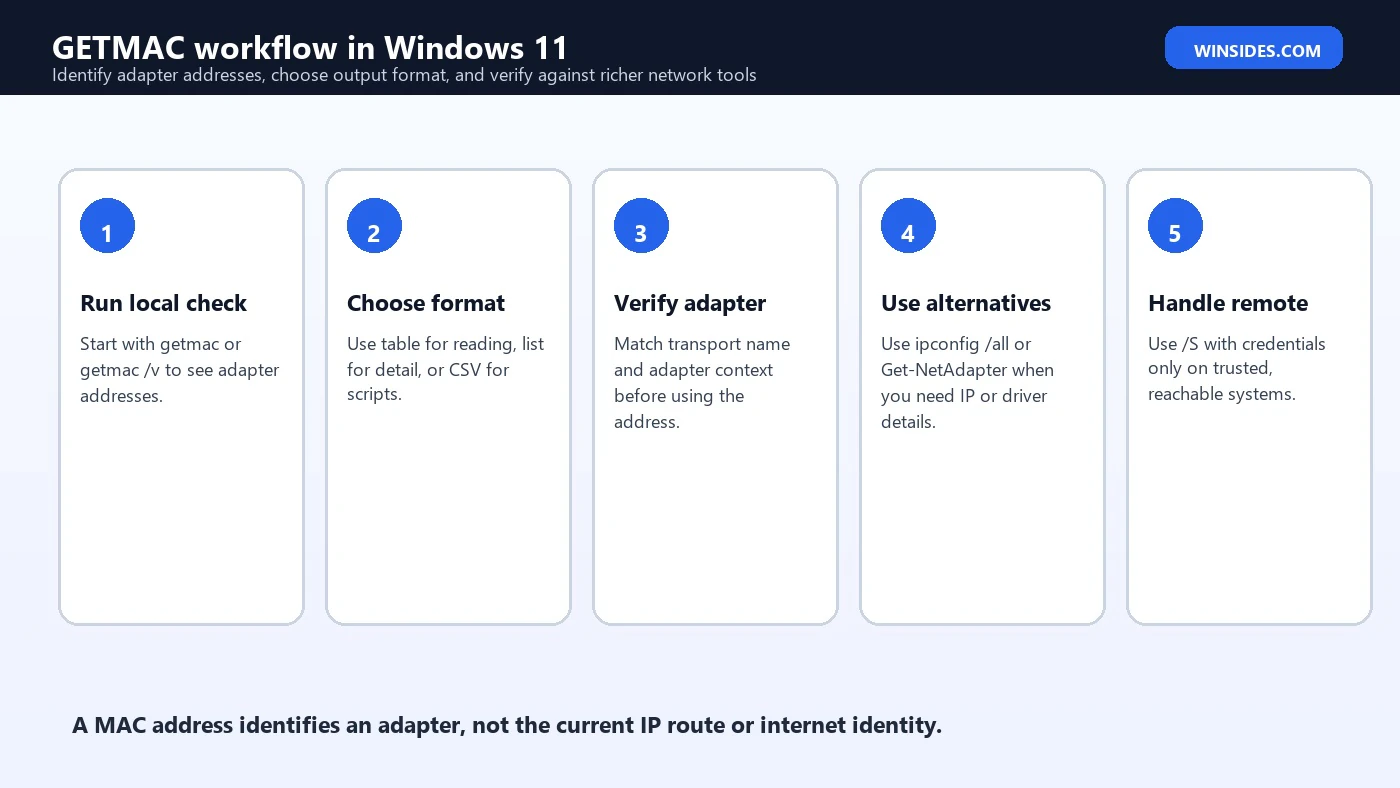
Understanding GETMAC Output
The default output is compact. You usually see a physical address formatted as six hexadecimal pairs separated by hyphens, such as 00-11-22-33-44-55, and a transport name. The transport name may look cryptic because it can include a long device identifier rather than a friendly adapter name. That is why verbose mode is often more useful for humans.
getmac /vVerbose output helps you connect the physical address to connection details. On a machine with several adapters, this prevents the common mistake of copying the first MAC address from the table and assuming it belongs to Wi-Fi or Ethernet. If your goal is to add a router reservation, compare GETMAC with what the router sees. If your goal is to identify a specific adapter in Windows, compare GETMAC with ipconfig /all or Get-NetAdapter.
A disconnected adapter may still have a MAC address. A virtual adapter may have a perfectly valid-looking MAC address. A Wi-Fi adapter may use a randomized address for a specific wireless network. This is why the phrase physical address can be slightly misleading in everyday support conversations. It is the adapter address reported by Windows, but it may represent physical hardware, virtual hardware, or a privacy-generated wireless address depending on the adapter type and configuration.
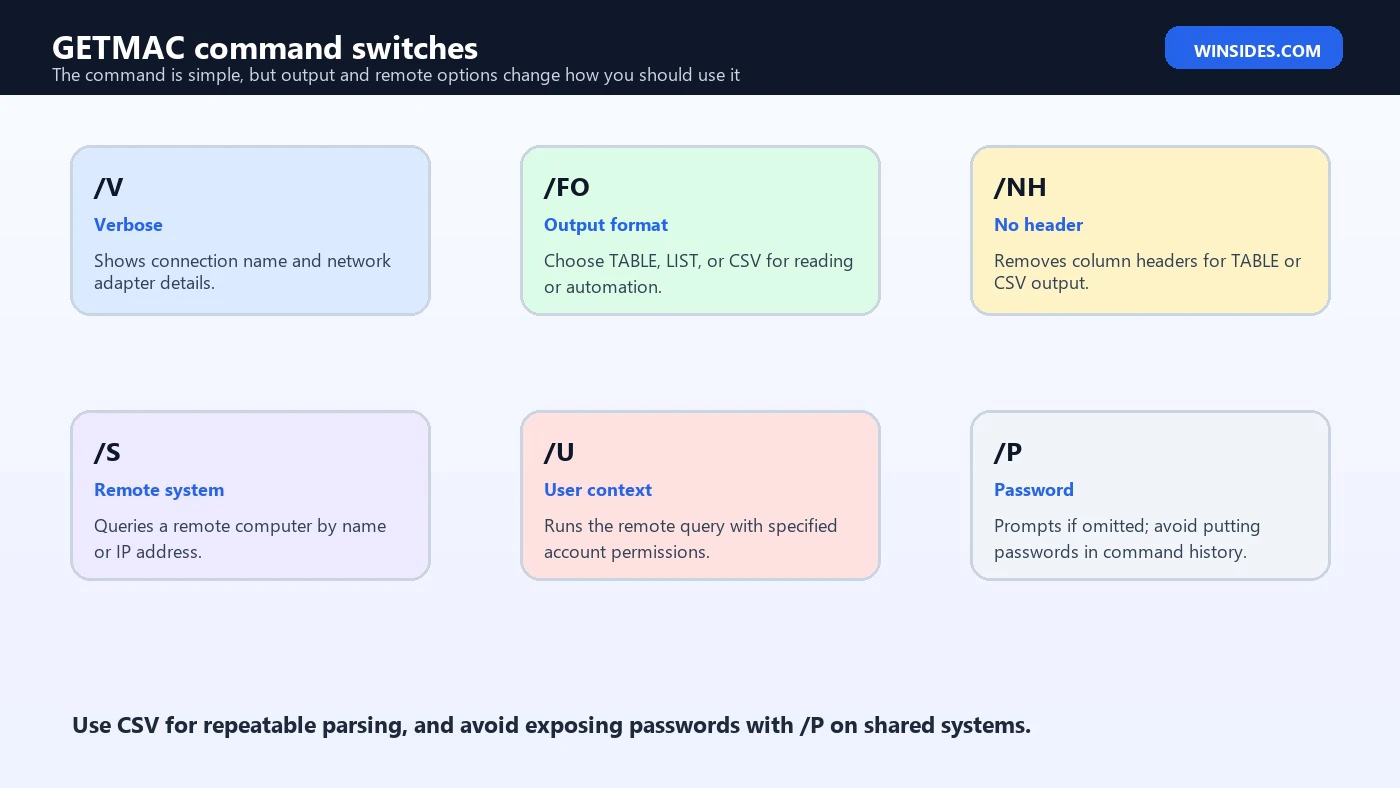
GETMAC Parameters Explained
| Parameter | Purpose | Practical note |
|---|---|---|
/S system | Query a remote computer | Use a computer name or IP address without backslashes. |
/U domain\user | Run with specified user context | Used mainly with remote queries. |
/P password | Specify password | Omit it to be prompted when possible; avoid command-history exposure. |
/FO table | Table output | Default format and easiest for quick reading. |
/FO list | List output | Useful when verbose output wraps badly in a table. |
/FO csv | CSV output | Best for scripts and spreadsheets. |
/NH | No header | Valid with table and CSV output. |
/V | Verbose output | Adds context that helps identify the adapter. |
The most useful combination for human troubleshooting is often getmac /fo list /v. List format is easier to scan when adapter names are long and the table view wraps awkwardly. The most useful combination for scripts is usually getmac /fo csv /nh /v, because CSV output can be parsed or imported without scraping table spacing.
The remote options are powerful but easy to misuse. /S points GETMAC at another computer. /U and /P provide credentials for that query. If you type a password directly after /P, it can be visible in command history, logs, screen recordings, or process listings. When a command supports prompting, prompting is usually safer than embedding passwords in examples.
How to Find the Local MAC Address with GETMAC
For a quick local lookup, open Command Prompt or Windows Terminal and run the command without parameters. This is enough when the system has only one obvious adapter or when you simply need a list of addresses to compare later.
getmacIf more than one address appears, rerun with verbose output. The additional context reduces the chance of copying the wrong address. In support work, the wrong MAC address can waste time because DHCP reservations, switch port lookups, and allow-list entries will not match the adapter that is actually connected.
getmac /v
getmac /fo list /v
If you need to paste the result into a ticket, list format is often cleaner than table format. If you need to paste into a spreadsheet, CSV is cleaner. The content is similar, but the output format changes how easy it is to use the data without manual cleanup.
How to Export GETMAC Output as CSV
CSV output is the best GETMAC format for repeatable work. It avoids table spacing issues and lets you redirect output to a file. If you include /NH, the header row is removed. For one-off spreadsheet import, keep headers. For scripts that already know the field order, removing headers can be convenient.
getmac /fo csv /v
getmac /fo csv /v > C:\Temp\getmac-report.csv
getmac /fo csv /nh /v > C:\Temp\getmac-no-header.csv
When redirecting output, make sure the destination folder exists. Command Prompt will not create the folder for you. Also remember that CSV output is still a snapshot. It tells you what Windows reported at that moment. If a docking station is unplugged, a virtual adapter is disabled, or Wi-Fi randomization changes per network, later output may differ.
For managed inventory, GETMAC can be a quick fallback, but PowerShell objects are usually better. Get-NetAdapter returns structured data that can be filtered, sorted, and exported without parsing command text. Use GETMAC when you need compatibility with Command Prompt or a very small command surface; use PowerShell when you need richer automation.
How to Use GETMAC for a Remote Computer
GETMAC can query another computer with /S. Microsoft documents the remote system value as a name or IP address, and it specifically notes not to use backslashes. In a domain or managed network, remote use can be helpful for help desk inventory, server checks, or quick confirmation of adapter addresses without signing in interactively to the target computer.
getmac /s PC-NAME
getmac /s 192.168.1.25 /v
getmac /s PC-NAME /u DOMAIN\UserName /fo list /v
Remote queries depend on more than the GETMAC syntax. The target must be reachable. Name resolution or IP routing must work. Firewalls and remote management policies must allow the required management call. The account must have permission. If any of those pieces fail, GETMAC may show an access or connection error even though the command itself is typed correctly.
Avoid putting a password directly into a shared command example. Microsoft documents /P as the password parameter, and local help says the command prompts if the password is omitted. That is usually better for security. A typed password in a command line can be captured in screenshots, terminal scrollback, shell history, remote-support recordings, or process-monitoring tools.
getmac /s PC-NAME /u DOMAIN\UserName /p /fo csv /vIf remote GETMAC fails, do not immediately assume the adapter is missing. Test reachability, confirm the machine name, check whether the target is online, and try a management tool that gives clearer error information. For larger environments, PowerShell remoting, CIM sessions, endpoint management inventory, or network access control logs are often better than one-off GETMAC remote calls.
GETMAC vs ipconfig /all
GETMAC is faster when you only need adapter MAC addresses. ipconfig /all is better when you need TCP/IP context. Microsoft documents ipconfig as a command that displays current TCP/IP configuration values and can refresh DHCP and DNS settings. With /all, it shows the full TCP/IP configuration for adapters, including physical address, IPv4 and IPv6 details, DNS, DHCP, gateway, and lease information.
ipconfig /allUse ipconfig /all when the MAC address needs to be connected to an IP address, DHCP server, default gateway, DNS suffix, or adapter description. For example, if a router shows an IP address and you want to know which Windows adapter owns it, GETMAC alone may not be enough. The IP context from ipconfig /all can make the match obvious.
Use GETMAC when you need a compact list, when a script expects the older command, or when you want a simple remote query without the full TCP/IP dump. Both commands can be correct. The difference is whether the question is adapter identity or full connection configuration.
GETMAC vs Get-NetAdapter
PowerShell Get-NetAdapter is the richer modern option. Microsoft documents it as a cmdlet that gets basic network adapter properties and supports visible adapters, hidden adapters, physical adapters, CIM sessions, and multiple views. It returns objects rather than formatted text, so it is much easier to filter and export in scripts.
Get-NetAdapter
Get-NetAdapter -Physical
Get-NetAdapter -Name * | Select-Object Name, MacAddress, Status, LinkSpeed
Use Get-NetAdapter when you need adapter status, link speed, interface description, interface index, hidden adapters, or object-based automation. Use GETMAC when you are in Command Prompt, writing a very small batch example, or working on an older habit where CSV text output is enough.
The best practical workflow on Windows 11 is not to argue for one tool forever. Start with the smallest tool that answers the question. If someone asks only for a MAC address, GETMAC is fine. If the result is ambiguous, move to ipconfig /all or Get-NetAdapter. If you need inventory across many systems, use PowerShell, CIM, or your endpoint management platform.
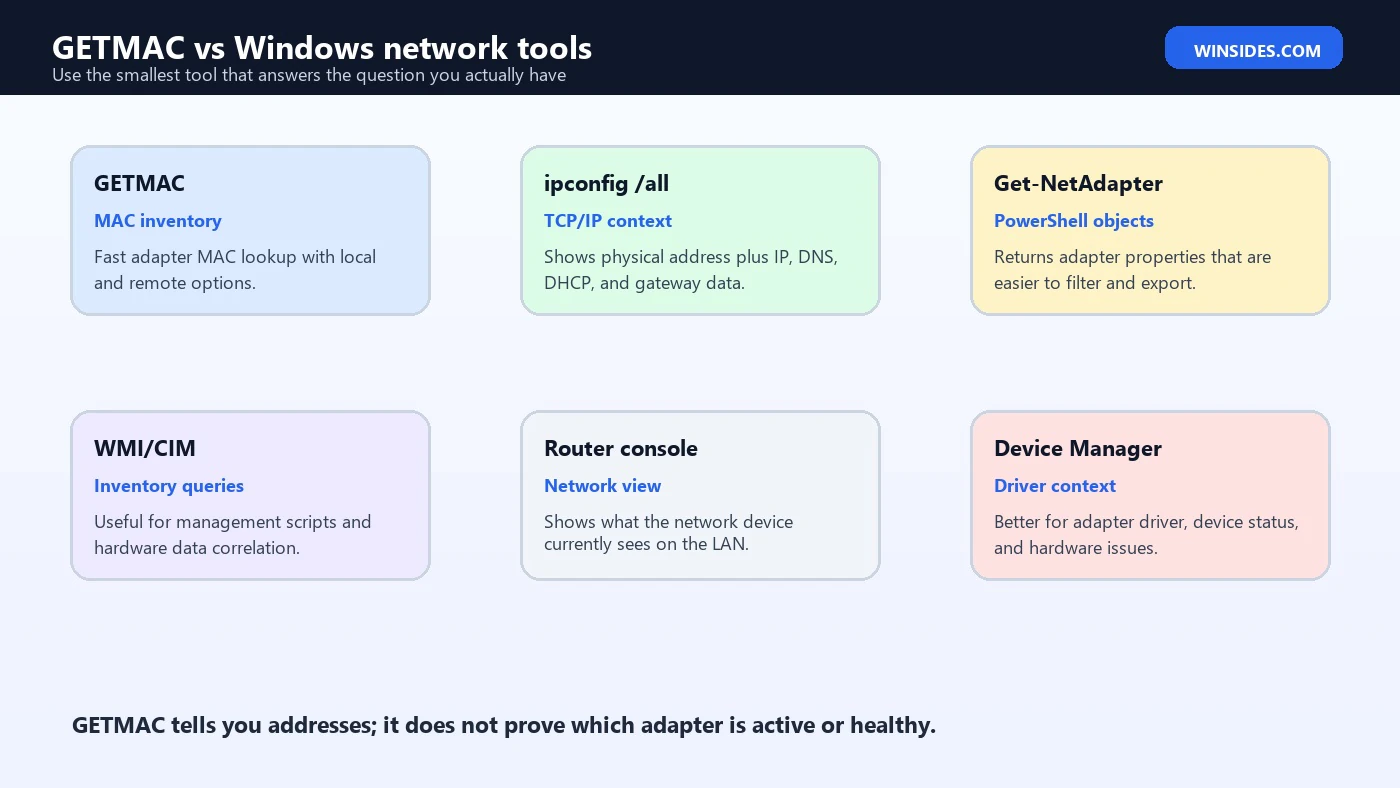
GETMAC and WMI or CIM Inventory
Microsoft documents the Win32_NetworkAdapter class for network adapter information in WMI. This matters because many inventory systems and scripts do not rely on GETMAC text output at all. They query adapter objects and select properties such as name, MAC address, adapter type, service name, manufacturer, device ID, or physical adapter status.
For one computer, GETMAC is simpler. For a fleet, object-based inventory is easier to validate. You can filter virtual adapters, exclude disconnected devices, capture timestamps, and combine adapter data with computer identity. If you only redirect GETMAC output from many machines, you still need a later parsing and cleanup step.
There is also a privacy and governance angle. MAC addresses are device identifiers. In a business environment, collect them only for legitimate operational purposes such as DHCP reservations, network access control, asset tracking, or troubleshooting. Avoid publishing real MAC addresses in screenshots, public support posts, or documentation samples. Use fake examples like 00-11-22-33-44-55 when teaching.
Why GETMAC Shows Multiple Addresses
Multiple GETMAC rows are normal on Windows 11. A laptop might have Wi-Fi, Ethernet, Bluetooth, a USB dock, a VPN adapter, a Hyper-V virtual switch, a Windows Sandbox adapter, and one or more disconnected miniports. Some rows may represent virtual networking components rather than a physical port you can touch.
The right address depends on the job. For a router DHCP reservation, you usually want the MAC address that the router sees for the active Ethernet or Wi-Fi connection. For a switch port lookup, you want the wired adapter that is plugged into that switch. For a VPN issue, the physical MAC address may be less relevant than the tunnel interface or assigned VPN IP. GETMAC gives you candidates; the network context tells you which candidate matters.
Wi-Fi random hardware addresses can add another layer. Windows can use randomized MAC addresses for wireless privacy. If that setting is enabled for a network, the Wi-Fi MAC address reported or seen by the router may differ from the adapter’s permanent hardware address. This is helpful for privacy, but it can confuse allow-lists and reservations that expect a stable MAC address.
Remote GETMAC Security Notes
Remote GETMAC should be treated as an administrative lookup, not a casual scan. Query only systems you are responsible for. Use accounts with appropriate permissions. Avoid embedding passwords. Keep the output file in a controlled location because it may contain device identifiers that are useful for network mapping.
- Use a trusted admin shell for remote queries.
- Prefer prompting for passwords instead of writing them in commands.
- Do not paste real MAC addresses into public tickets or screenshots.
- Confirm that remote management is allowed by policy before troubleshooting syntax.
- Use CSV output when collecting many systems so the data can be reviewed consistently.
- Document which adapter was intended, not only the address value.
If a remote GETMAC command fails with access denied, fix permissions or use the approved management channel for that environment. If it fails with a network error, test name resolution, firewall policy, and whether the target is online. A syntax-perfect command cannot bypass those environmental requirements.
Common GETMAC Examples
These examples cover the practical patterns most Windows 11 users need. They are intentionally conservative: verbose output when identification matters, CSV when data will be reused, and no visible password in the command examples.
getmacgetmac /vgetmac /fo list /vgetmac /fo csv /v > C:\Temp\mac-addresses.csvgetmac /s PC-NAME /u DOMAIN\UserName /p /fo csv /vFor a single local question, getmac /v is usually enough. For a support ticket, list format is more readable. For export, use CSV. For remote work, include the remote system and user context only when your network and permissions support that workflow.
Troubleshooting GETMAC Problems
| Problem | Likely cause | Better next step |
|---|---|---|
| GETMAC is not recognized | Path or shell issue | Run C:\Windows\System32\getmac.exe or open a standard Command Prompt. |
| Too many MAC addresses | Multiple physical, virtual, or hidden adapters | Use /V, ipconfig /all, or Get-NetAdapter to identify the right adapter. |
| Remote access denied | Credentials or permissions | Use an approved admin account and avoid exposing passwords. |
| Remote system not found | Name resolution or reachability | Try IP address, ping, DNS checks, or your management console. |
| CSV parsing breaks | Table output or headers used by mistake | Use /FO CSV and optionally /NH. |
| Router shows a different MAC | Wi-Fi randomization, wrong adapter, or virtualization | Compare with router client list and Windows adapter settings. |
| MAC changes between networks | Random hardware addresses enabled | Check Wi-Fi privacy settings for that network. |
Troubleshooting GETMAC is usually about context, not the command itself. The command either returns addresses or fails to reach the system. The harder part is deciding whether the returned address belongs to the adapter you intend to configure. That is why verbose output and comparison with network context matter.
Mistakes to Avoid with GETMAC
The most common mistake is copying the first MAC address without identifying the adapter. On a modern Windows 11 system, the first row may not be the active Wi-Fi or Ethernet adapter. It could be a virtual adapter or a disconnected interface. The second common mistake is treating a MAC address like a permanent person-level identity. It is an adapter-level value and can be changed, randomized, spoofed, or replaced with a dock or USB adapter.
- Do not assume the first GETMAC row is the active adapter.
- Do not confuse MAC address with IP address.
- Do not publish real MAC addresses in public screenshots.
- Do not use
/P passwordin shared scripts when prompting is possible. - Do not rely on GETMAC alone for DHCP, DNS, gateway, or driver troubleshooting.
- Do not ignore Wi-Fi randomized hardware address settings.
- Do not create router reservations until you confirm the adapter that actually connects to that router.
A careful support note should include the adapter name, connection type, MAC address, and why the address was collected. For example, Ethernet adapter through USB-C dock for DHCP reservation is much clearer than just a raw MAC address. That extra context prevents future confusion when the user undocks, switches to Wi-Fi, or replaces the adapter.
Quick Checklist Before Using GETMAC in a Ticket
Before you paste a GETMAC result into a support ticket or router configuration page, add enough context for the next person to understand it. A raw address by itself is easy to misuse. The useful record includes the computer name, adapter name, connection type, whether the adapter is currently connected, and why the address was collected. That small note prevents someone from later applying a Wi-Fi reservation to an Ethernet adapter or treating a virtual adapter as physical hardware.
For home users, the same habit helps with router reservations and parental-control lists. Check the router client list, compare it with Windows output, and confirm whether the device is connected by Wi-Fi, Ethernet, USB dock, or VPN. If Windows shows one address and the router shows another, investigate Wi-Fi randomization or the possibility that the router is seeing a different adapter.
For business environments, record whether the output came from local GETMAC, remote GETMAC, PowerShell, endpoint inventory, or a network device. The collection method matters because each tool has a slightly different view. GETMAC is quick, but a switch, wireless controller, DHCP server, and endpoint agent may each describe the same device from a different layer of the network.
- Record the computer name and user context.
- Identify whether the adapter is Wi-Fi, Ethernet, dock, VPN, or virtual.
- Use verbose output when more than one adapter appears.
- Compare the address with the router, switch, DHCP server, or endpoint tool when the value will drive a rule.
- Mask real MAC addresses before posting screenshots publicly.
- Note whether Wi-Fi random hardware addresses are enabled for the network.
Frequently Asked Questions
What is GETMAC used for?
GETMAC is used to display MAC addresses for network adapters on a local or remote Windows computer.
Does GETMAC work on Windows 11?
Yes. Microsoft lists GETMAC as applicable to Windows 11, and the command is available as getmac.exe on Windows systems.
What is the difference between GETMAC and ipconfig /all?
GETMAC focuses on MAC addresses. ipconfig /all shows broader TCP/IP configuration, including physical address, IP addresses, DNS, DHCP, and gateway information.
How do I get GETMAC output in CSV format?
Use getmac /fo csv /v. Add /nh if you need CSV output without a header row.
Can GETMAC show remote computer MAC addresses?
Yes, use /S with the remote computer name or IP address. Remote access depends on reachability, firewall policy, and credentials.
Why does GETMAC show more than one MAC address?
Windows may have several physical, virtual, VPN, Bluetooth, or hidden network adapters. Use verbose output or PowerShell to identify the adapter you actually need.
Conclusion: Use GETMAC for Fast Adapter Identity
GETMAC is a useful Windows 11 command when the job is simple: find adapter MAC addresses quickly from Command Prompt. It is read-only, easy to run, and flexible enough to output table, list, or CSV data. With /V, it becomes more practical because the address has more adapter context attached to it.
The main discipline is knowing when GETMAC is enough and when it is not. Use it for quick MAC lookup and lightweight remote checks. Use ipconfig /all when you need IP configuration. Use Get-NetAdapter or WMI/CIM when you need structured inventory, status, driver context, hidden adapters, or reliable automation. Once that boundary is clear, GETMAC becomes a clean little tool rather than a source of wrong adapter IDs.
For official context, keep Microsoft pages for GETMAC, ipconfig, Get-NetAdapter, and Win32_NetworkAdapter nearby when deciding how much adapter information you actually need.
For more interesting articles, stay tuned to Winsides.com!









Community
Comments (0)