

Introduction to Windows 11 Sound Themes
Windows 11 offers a sophisticated yet often overlooked avenue for personal expression: sound themes. These aren’t just trivial background noises; they are carefully curated collections of audio cues that define the auditory landscape of your operating system. Every click, notification, error, and system event can be accompanied by a distinct sound, transforming your interaction with the PC into a more personalized and immersive experience. For additional context, see change sound settings in Windows 11, Windows 11 sound design guidance, and how to change system sounds on Windows 11.
Beyond the visual aesthetics of wallpapers and color schemes, sound themes for Windows 11 allow you to infuse your personality into the very fabric of your digital workspace. Whether you prefer a minimalist, almost silent environment, or a vibrant symphony of custom alerts, the power to tailor these audio cues is entirely in your hands. This guide will walk you through the intricacies of understanding, modifying, and creating your own unique sound themes.
Default sound schemes provide a baseline experience, but true personalization comes from customizing these settings. We’ll explore how to move beyond the standard “Windows Default” sounds and craft an auditory environment that truly resonates with your preferences. Get ready to transform your Windows 11 experience, one sound event at a time.
Table of contents
Key Takeaways
- Sound themes for Windows 11 allow comprehensive customization of system audio cues for various events.
- Windows 11 features a default sound scheme, but users can easily modify individual sounds or create entirely new themes.
- Customization involves accessing the Sound Control Panel, which provides granular control over each sound event.
- Users can prepare their own audio files (WAV format, short duration) to assign to specific system events.
- Saving a custom sound theme ensures that your personalized audio settings can be easily applied and switched between.
- Effective management includes knowing how to switch between themes and how to delete unwanted sound profiles.
- Troubleshooting steps are available for common issues like sounds not playing or themes failing to save correctly.
Understanding Sound Events in Windows 11
At the heart of any sound theme for Windows 11 lies the concept of a sound event. These are specific actions or occurrences within the operating system that are designed to trigger an audio cue. Think of them as auditory signals that provide feedback, alert you to changes, or simply enhance the user experience. From logging in to receiving a new email, each event can have a unique sound associated with it.
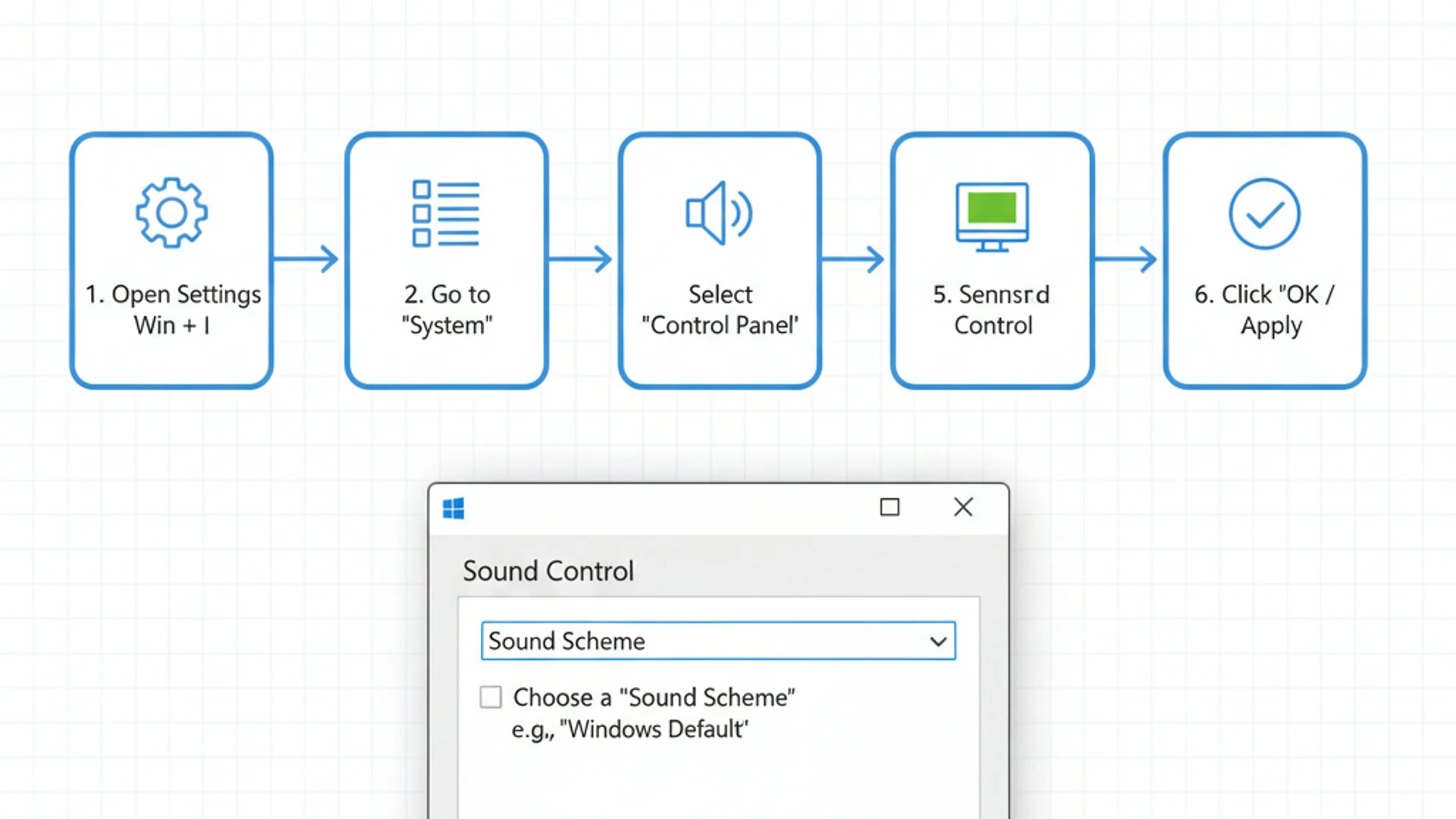
Understanding these events is the first step towards effective customization. Windows 11 categorizes a vast array of interactions, ensuring that almost every significant system action can be accompanied by a distinct auditory response. This granular control is what makes sound themes such a powerful tool for personalization.
The system relies on these events to communicate with you, often without requiring visual attention. A subtle chime might indicate a successful task, while a more urgent tone could signal an error. Recognizing the purpose of each event helps in choosing appropriate sounds that enhance, rather than detract from, your workflow.
Default Sound Schemes and Their Components
Windows 11 comes pre-loaded with several default sound schemes, with “Windows Default” being the most common. These schemes are essentially pre-packaged collections of sounds assigned to a wide range of system events. They are designed to offer a consistent and recognizable auditory experience right out of the box.
Each default scheme comprises numerous individual sound files, typically in the WAV format, that are mapped to specific events. When you select a scheme, Windows automatically applies all the associated sounds to their respective events. This provides a quick way to change the overall auditory feel of your system without individual adjustments.
While the default schemes offer a good starting point, their primary purpose is to demonstrate the potential for customization. They serve as templates that users can either adopt wholesale or modify to create something truly unique. Exploring these components reveals the depth of audio personalization available.
Exploring the Windows Default Sound Scheme
The Windows Default sound scheme is the most familiar auditory experience for many users. It’s characterized by a set of distinct, often subtle, sounds that have evolved over various Windows iterations. These sounds are designed to be informative without being intrusive, providing clear feedback for common actions and notifications.
For instance, the sound for “Device Connect” is typically a gentle chime, while “Critical Stop” is a more assertive, attention-grabbing tone. These choices reflect a design philosophy aimed at clarity and immediate recognition. Each sound is carefully chosen to convey specific information quickly.
Understanding the existing sounds in the default scheme can inspire your own custom creations. You might find certain default sounds perfectly suitable, while others you wish to replace with something more personal. This scheme acts as a reference point for all your future sound theme endeavors.
System Sound Categories Explained
Windows organizes its myriad sound events into logical categories, making them easier to manage and customize. These categories help users navigate the extensive list of events and understand their context. By grouping related events, Windows streamlines the process of assigning sounds.
Common categories include: Windows Explorer (for file operations), Notifications (for alerts and pop-ups), Program Events (for application-specific actions), and Hardware Events (for device connections/disconnections). Each category contains multiple specific events.
For example, under “Notifications,” you might find events like “New Mail Notification” or “Calendar Reminder.” Under “Windows Explorer,” you’ll see “Empty Recycle Bin” or “Start Navigation.” This structured approach is crucial for effectively creating custom sound themes for Windows 11.
Accessing and Modifying Sound Settings in Windows 11
To begin customizing your sound themes for Windows 11, you need to access the appropriate settings. While Windows 11’s modern Settings app handles many configurations, the most granular control over system sounds and themes still resides within the classic Sound Control Panel. This interface provides a comprehensive list of all customizable sound events.
Navigating to this panel is straightforward, but it’s a slightly different path than some other Windows 11 settings. Once there, you’ll be presented with a clear layout that allows you to preview existing sounds, change them, and ultimately save your modifications as a new sound theme. This is where the real work of personalization begins.
Familiarizing yourself with this control panel is essential for anyone looking to deeply customize their system’s auditory feedback. It’s the central hub for all sound theme related activities, from simple adjustments to complex theme creation.
Navigating to Sound Control Panel
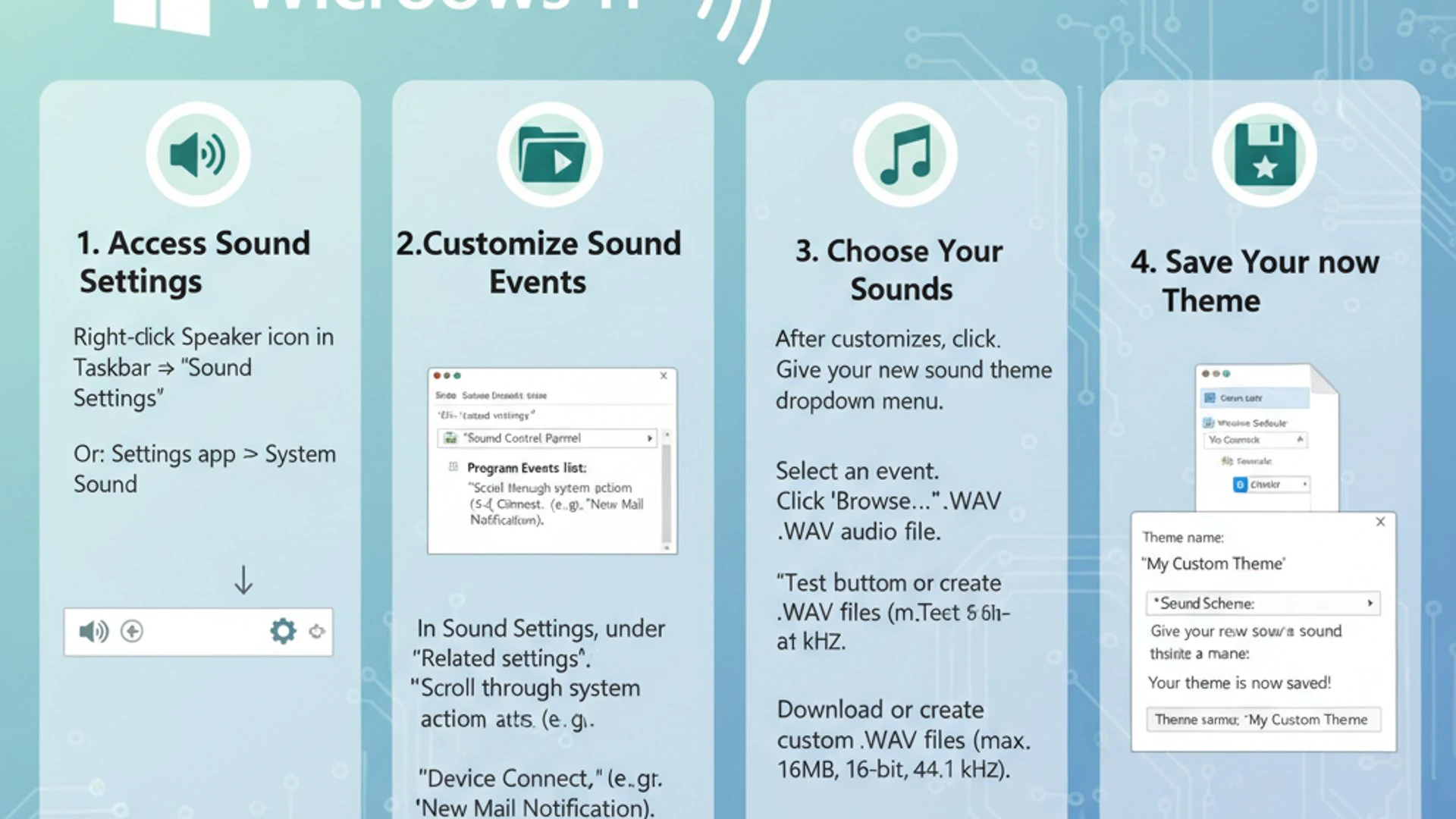
Accessing the Sound Control Panel in Windows 11 can be done through a couple of methods. The quickest way is often through the search bar or by right-clicking the speaker icon in your taskbar. This will open the door to all your sound customization options.
- Right-click the Speaker icon in the system tray (bottom-right corner of the taskbar).
- Select “Sound settings” from the context menu. This will open the modern Settings app.
- Scroll down or look for the “Related settings” section on the right side of the Sound settings page.
- Click on “More sound settings”. This will launch the classic Sound Control Panel window.
Alternatively, you can type “Change system sounds” into the Windows Search bar and select the relevant result. Both methods lead you to the same destination, the “Sound” dialog box, which is your gateway to customizing sound themes for Windows 11.
Changing Individual System Sounds
Once you are in the Sound Control Panel, you’ll see a tab labeled “Sounds.” This is where all the magic happens. Here, you can browse through the various system events and assign different audio files to them, paving the way for your custom sound themes for Windows 11.
- In the Sound Control Panel, click on the “Sounds” tab.
- Under the “Program Events” box, you’ll see a long list of events categorized by application or system function.
- Click on an event you wish to change, for example, “Asterisk” or “New Mail Notification.”
- Below the “Program Events” box, you’ll find a dropdown menu labeled “Sounds.” This menu lists available sound files.
- You can select a different sound from the dropdown, or click the “Browse…” button to locate your own custom WAV file.
- Click “Test” to preview the selected sound.
- Repeat this process for all the events you wish to customize.
Remember, changes made here are temporary until you save them as a new sound theme. This step-by-step approach allows for meticulous customization of every single auditory cue in your system.
Creating Your Own Custom Sound Theme
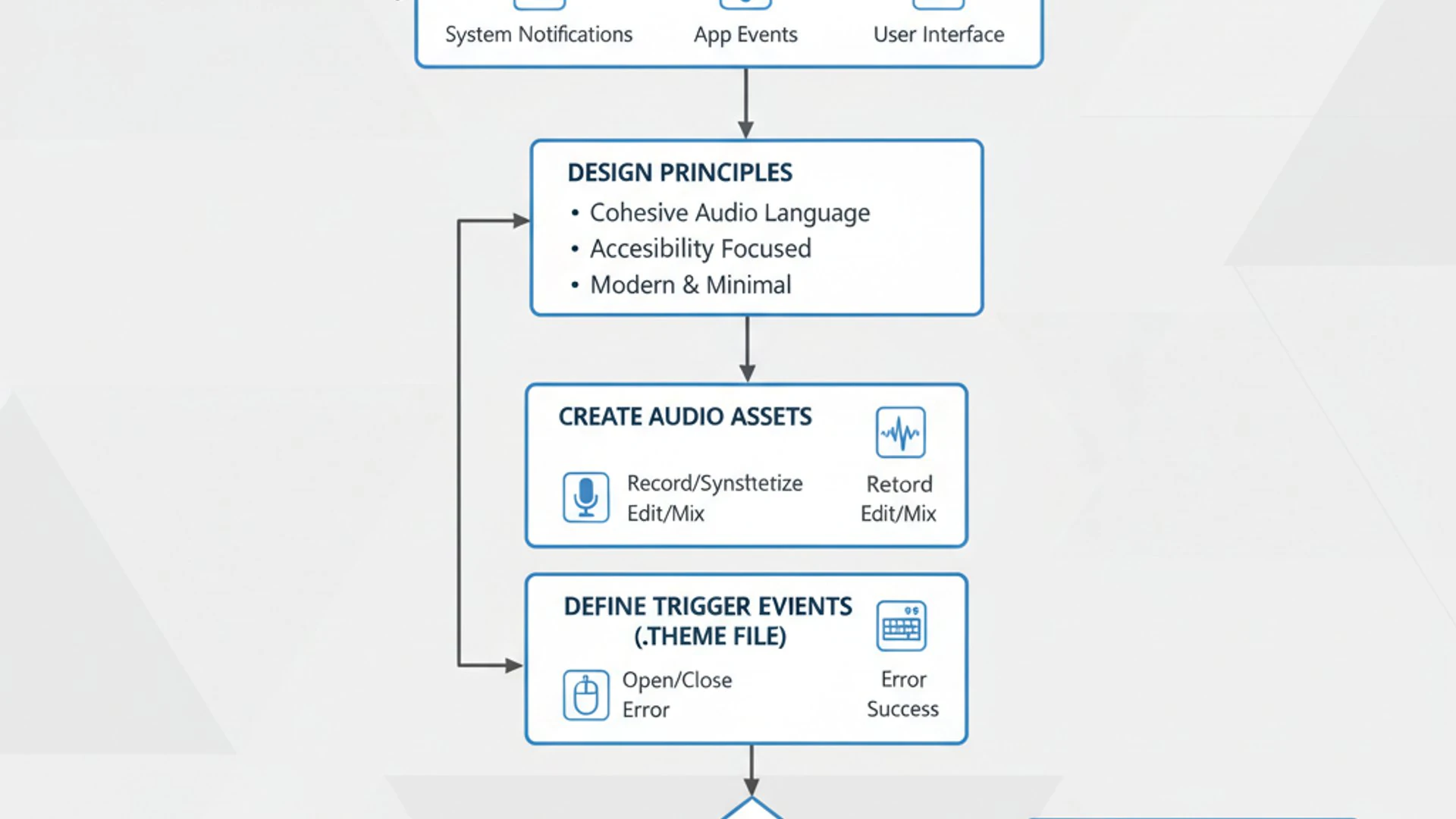
The true power of sound themes for Windows 11 lies in the ability to create your own bespoke collection of audio cues. This process involves two main stages: preparing the audio files you intend to use and then meticulously assigning these files to the various system events. This level of customization allows for a truly unique auditory environment.
By crafting your own theme, you move beyond the limitations of pre-defined schemes and infuse your personal style into every interaction with your computer. Whether you want retro game sounds, nature-inspired chimes, or even your own recorded voice, the possibilities are virtually endless. This section will guide you through making that vision a reality.
A well-designed custom sound theme can significantly enhance your user experience, making your Windows 11 machine feel more like an extension of yourself. It’s an opportunity to make your digital space truly your own, setting it apart from generic setups.
Preparing Your Audio Files for Custom Themes
Before you start assigning sounds, you need to ensure your audio files are in the correct format and length. This preparation is a crucial step in creating seamless and effective sound themes for Windows 11. Incorrect file types or overly long sounds can lead to a jarring user experience or even system issues.
Gathering and editing your desired audio clips is part of the creative process. You might source sounds from online libraries, create them yourself, or even extract them from other media. The key is to have them ready and optimized for their intended purpose as system event sounds.
Consider the overall coherence of your chosen sounds. A theme works best when the individual audio cues complement each other, creating a harmonious rather than chaotic auditory landscape. This thoughtful selection contributes significantly to the quality of your custom theme.
Recommended Audio Formats and Lengths
For optimal performance and compatibility, Windows 11 primarily uses WAV files for system sounds. While other formats might technically play, WAV is the native and most reliable choice. It’s uncompressed, ensuring high-quality playback for short bursts of audio.
When selecting or creating your audio files, keep the following recommendations in mind:
- Format: Use .WAV files. Convert any MP3s or other formats to WAV using an audio editor or online converter.
- Length: Keep sounds very short, ideally between 0.5 to 2 seconds. Longer sounds can become annoying or delay system responsiveness.
- Bit Depth/Sample Rate: Standard CD quality (16-bit, 44.1 kHz) is usually sufficient, but lower settings (e.g., 8-bit, 22.05 kHz) can also work and result in smaller file sizes.
- Volume: Ensure consistent volume levels across all your custom sounds to avoid sudden loud or quiet alerts.
Store all your custom WAV files in a dedicated folder, perhaps within your Documents or Music directory, to keep them organized and easily accessible when assigning them to events. A well-organized library makes managing your sound themes for Windows 11 much simpler.
Assigning Custom Sounds to Events
With your prepared audio files in hand, the next step is to assign them to the specific system events within the Sound Control Panel. This is where your vision for a custom sound theme for Windows 11 truly comes to life, as you map each auditory cue to its corresponding action.
- Open the Sound Control Panel and navigate to the “Sounds” tab, as described earlier.
- Under “Program Events,” scroll through the list and select an event you wish to customize (e.g., “Device Connect”).
- Click the “Browse…” button located below the “Sounds” dropdown menu.
- Navigate to the folder where you saved your custom WAV files.
- Select the desired WAV file for that specific event and click “Open.”
- Click the “Test” button to hear your new sound in action.
- Repeat this process for every single event you want to change. It can be a meticulous process, but the result is a truly personalized experience.
It’s important to be patient and systematic during this phase. Assigning sounds thoughtfully ensures that your custom sound theme for Windows 11 is both functional and enjoyable. Don’t forget to save your progress regularly.
Saving and Applying Your Personalized Sound Theme
Once you’ve meticulously assigned all your custom sounds to their respective events, the next critical step is to save your work as a new sound theme. This action preserves your selections, allowing you to apply your personalized auditory experience with a single click and switch between different themes effortlessly. Saving your theme is essential for long-term use.
Without saving, all your hard work in assigning individual sounds would be lost the moment you switch to another theme or restart your system. This section will guide you through the process of naming, saving, and then activating your newly created sound theme, ensuring your custom sound themes for Windows 11 are always available.
The ability to save and apply themes is a cornerstone of Windows’ personalization features. It provides flexibility and convenience, letting you tailor your system’s sounds to suit different moods, tasks, or even times of day.
Naming and Saving Your New Theme
After assigning all the custom sounds, you need to give your new sound theme a recognizable name and save it. This makes it easy to identify and select later from the list of available sound schemes. A descriptive name helps in managing multiple custom sound themes for Windows 11.
- In the Sound Control Panel’s “Sounds” tab, after making all your desired changes, look for the “Sound Scheme” dropdown menu.
- Below this dropdown, click the “Save As…” button.
- A small dialog box will appear, prompting you to enter a name for your new sound scheme.
- Type a descriptive name, such as “My Retro Theme” or “Nature Chimes,” and click “OK.”
- Your new theme will now appear in the “Sound Scheme” dropdown list.
- Click “Apply” and then “OK” to close the Sound Control Panel and apply your theme immediately.
Congratulations! You have successfully created and saved your first custom sound theme for Windows 11. This theme is now permanently available for selection, alongside the default Windows schemes.
Activating a Custom Sound Theme
Once your custom sound theme is saved, activating it is a simple process. You can switch between any saved sound themes, including your custom creations and the default Windows schemes, at any time. This flexibility is a key benefit of creating sound themes for Windows 11.
- Open the Sound Control Panel and navigate to the “Sounds” tab.
- From the “Sound Scheme” dropdown menu, click on it to reveal a list of all available sound themes.
- Select the name of your custom sound theme from the list (e.g., “My Retro Theme”).
- Click “Apply” to instantly activate the chosen theme.
- Finally, click “OK” to close the Sound Control Panel.
Your Windows 11 system will now be using the sounds defined in your selected theme. You can switch back to the “Windows Default” theme or any other saved theme using the same steps whenever you wish to change your auditory experience.
Managing and Deleting Existing Sound Themes
As you experiment with different audio cues and create multiple custom sound themes for Windows 11, you’ll eventually need to manage them. This includes switching between your various creations or removing themes that you no longer use. Efficient management ensures your system remains organized and free of clutter.
The Sound Control Panel not only allows for theme creation but also provides the tools necessary for their ongoing management. Understanding these functions is crucial for maintaining a personalized yet streamlined auditory environment. This section will guide you through these essential management tasks.
Keeping your list of sound themes tidy helps in quickly finding and applying the one you desire. It’s an important aspect of long-term personalization and system maintenance.
Switching Between Different Sound Themes
Windows 11 makes it incredibly easy to switch between any of your saved sound themes, whether they are default schemes or your own custom creations. This flexibility allows you to adapt your system’s auditory feedback to different contexts or moods.
- Access the Sound Control Panel by right-clicking the speaker icon and selecting “Sound settings,” then “More sound settings.”
- Navigate to the “Sounds” tab.
- Locate the “Sound Scheme” dropdown menu.
- Click the dropdown arrow to view all available sound themes.
- Select the desired theme from the list. This could be “Windows Default,” “No Sounds,” or any of your custom sound themes for Windows 11.
- Click “Apply” to activate the selected theme immediately.
- Click “OK” to close the window.
The system’s sounds will instantly update to reflect the newly chosen theme. This seamless switching capability is one of the most convenient features of Windows sound customization.
Removing Unwanted Sound Themes
Over time, you might accumulate several custom sound themes for Windows 11 that you no longer use or that didn’t quite turn out as expected. Deleting these unwanted themes helps keep your sound scheme list clean and manageable.
- Open the Sound Control Panel and go to the “Sounds” tab.
- From the “Sound Scheme” dropdown menu, select the custom theme you wish to delete. Ensure it is not the currently active theme. You cannot delete an active theme. Switch to another theme first if necessary.
- Once the unwanted theme is selected, click the “Delete” button located next to the “Save As…” button.
- A confirmation dialog box will appear, asking if you are sure you want to delete the scheme. Click “Yes.”
- The theme will be removed from the list. Click “OK” to close the Sound Control Panel.
This action only removes the theme profile from Windows; it does not delete the actual WAV sound files you used to create it. If you wish to remove those files, you’ll need to do so manually from their storage location.
Troubleshooting Common Sound Theme Issues
While creating and managing sound themes for Windows 11 is generally straightforward, you might occasionally encounter issues. Sounds might not play as expected, or a theme might fail to save correctly. Understanding how to diagnose and resolve these common problems is crucial for a smooth customization experience.
This section provides practical solutions and diagnostic steps to help you overcome typical hurdles. By following these tips, you can often resolve issues independently, ensuring your personalized sound themes function perfectly. A little troubleshooting can save a lot of frustration.
Knowing common pitfalls and their remedies empowers you to maintain your custom auditory environment effectively. Don’t let minor glitches deter you from enjoying your unique soundscape.
No Sound or Incorrect Sounds Playing
If your custom sound themes for Windows 11 aren’t playing any sounds, or if the wrong sounds are triggering, several factors could be at play. It’s important to systematically check potential causes to identify the root of the problem.
- Check System Volume: Ensure your main system volume is not muted or set too low. Also, check individual application volumes in the Volume Mixer.
- Verify Speaker/Headphone Connection: Confirm your audio output device is properly connected and selected as the default playback device.
- Test Individual Sounds: In the Sound Control Panel, select the problematic event and click “Test” to see if the sound plays. If not, the WAV file itself might be corrupt or inaccessible.
- File Path Issues: If you moved or deleted the custom WAV files after assigning them, Windows won’t be able to find them. Ensure the files remain in their original location.
- Correct Sound File: Double-check that you assigned the correct WAV file to the intended event. Sometimes, files can be accidentally swapped.
- Audio Drivers: Outdated or corrupt audio drivers can cause sound issues. Consider updating your audio drivers through Device Manager or your manufacturer’s website.
Pro Tip: Always keep your custom WAV files in a stable, permanent location (e.g., a dedicated folder in your Documents) to prevent “file not found” errors when Windows tries to play them.
Sound Theme Not Saving Properly
Occasionally, you might find that your custom sound themes for Windows 11 aren’t saving correctly, or changes revert after a restart. This can be frustrating, but there are usually straightforward solutions.
- Permissions Issues: Ensure your user account has the necessary permissions to modify system settings. Running the Sound Control Panel as an administrator might sometimes resolve this, though usually not required for saving themes.
- Conflicting Software: Some third-party audio enhancement software or system customization tools might interfere with Windows’ ability to save sound schemes. Try temporarily disabling such software.
- Corrupt User Profile: In rare cases, a corrupt user profile can prevent settings from saving. Creating a new user profile and testing sound theme saving there can help diagnose this.
- System File Corruption: Run a System File Checker (SFC) scan to check for and repair any corrupt system files that might be affecting settings saving. Open Command Prompt as administrator and type
sfc /scannow. - Windows Updates: Ensure your Windows 11 is fully updated. Sometimes, bugs related to settings are resolved in newer updates.
If all else fails, consider reverting to a system image backup on Windows 11 if you have one from before the issue started. This can restore your system to a previous working state, though it’s a more drastic measure.
Enhancing Your Windows 11 Experience Beyond Sounds
While sound themes for Windows 11 offer a fantastic way to personalize your system, the customization journey doesn’t have to end there. Windows 11 provides a rich ecosystem of personalization options that extend far beyond auditory cues, allowing you to craft a truly unique digital environment that reflects your style and preferences.
Consider pairing your custom sound theme with a complementary visual theme. This could involve changing your desktop background, accent colors, and even mouse pointers to create a cohesive aesthetic. A harmonious blend of sights and sounds can significantly elevate your overall user experience.
Explore other customization features like dynamic wallpapers, custom icon packs, and personalized lock screen messages. You can also delve into advanced settings like optimizing specific services, such as the GameInput Redist Service on Windows 11, to fine-tune performance alongside aesthetics. The goal is to make your Windows 11 machine feel truly your own, both audibly and visually.
Conclusion: Personalizing Your Digital Workspace
Personalizing your Windows 11 experience through custom sound themes is a powerful way to transform a generic operating system into a truly unique digital workspace. From the subtle chime of a new notification to the robust feedback of a system error, every auditory cue can be tailored to your preference, creating an environment that is both functional and deeply personal.
We’ve journeyed from understanding the fundamental concept of sound events and default schemes to the intricate process of preparing audio files, assigning them to specific actions, and finally saving your bespoke creations. The ability to manage and troubleshoot these themes ensures that your personalized soundscape remains consistent and enjoyable.
Embrace the opportunity to move beyond the standard “Windows Default” and craft an auditory identity for your PC. Whether you opt for a minimalist approach or a vibrant symphony of custom alerts, the effort invested in creating your own sound themes for Windows 11 will undoubtedly enhance your daily interactions and make your computer feel more like an extension of yourself. So, go ahead, experiment, create, and let your Windows 11 sound exactly the way you want it to.
For more interesting articles, stay tuned to Winsides.com!









Community
Comments (0)