

Introduction to KLIST
KLIST is the Windows command-line tool for viewing and managing Kerberos tickets cached on a computer. On Windows 11, it is mainly useful on domain-joined or Entra hybrid environments where Kerberos authentication is used to access file shares, web applications, SQL services, print services, line-of-business apps, and other domain resources. If you have ever had a resource suddenly work after signing out and signing back in, KLIST is one of the tools that can show what changed in the ticket cache.
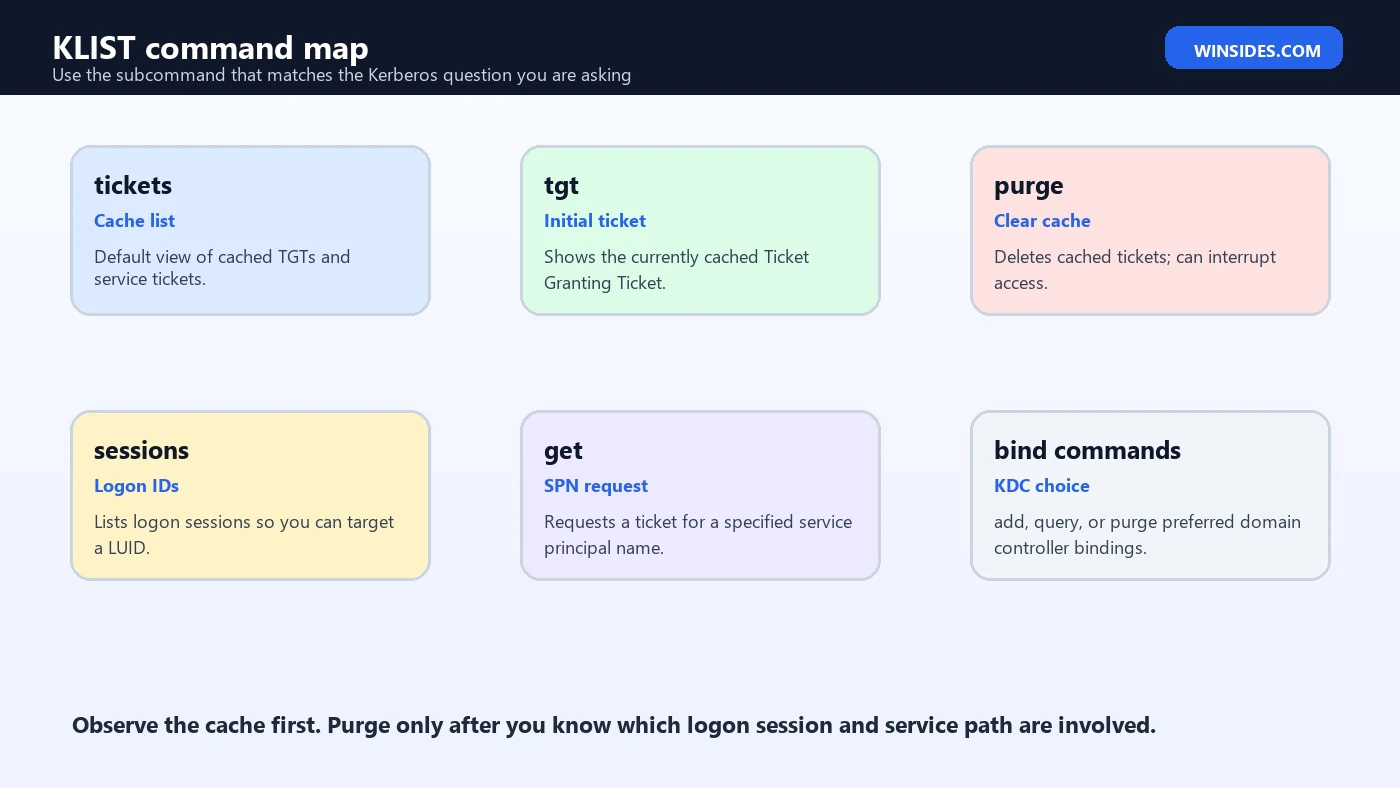
Microsoft documents KLIST as a command that displays currently cached Kerberos tickets. It can list service tickets, display the initial Ticket Granting Ticket, purge cached tickets, show logon sessions, inspect constrained delegation cache information, request a ticket for a specific service principal name, and manage preferred domain controller bindings used by Kerberos. That makes it a diagnostic tool, not a general network repair command.
The safest way to use KLIST is to observe first. Run klist, look at the client, server, encryption type, ticket flags, start time, end time, renew time, and session key type, then decide what question you are actually trying to answer. Purging tickets can be useful, but it can also stop current access until tickets are reacquired. Requesting a ticket with klist get can be useful, but only if you know the correct service principal name.
For official context, Microsoft documents the KLIST command, the Kerberos authentication model, Kerberos constrained delegation, and the SetSPN command. For low-level KDC option names, Microsoft points to RFC 4120.
Table of contents
Key Takeaways
- KLIST is a Kerberos ticket cache tool. It shows tickets for the current or specified logon session.
- The default command lists tickets. Running
klistwithout parameters retrieves cached tickets for the signed-in user. klist tgtfocuses on the Ticket Granting Ticket. This helps confirm initial Kerberos authentication state and timing.klist purgeis disruptive. It deletes cached tickets and can interrupt access until tickets are reacquired or the user signs in again.klist gettests an SPN. It requests a service ticket for a specific service principal name, which helps isolate SPN or encryption problems.- Logon IDs matter.
-lhand-litarget a specific locally unique identifier when diagnosing another session. - KLIST does not prove authorization. A valid service ticket can exist while the application, file share, or database still denies access.
What KLIST Shows
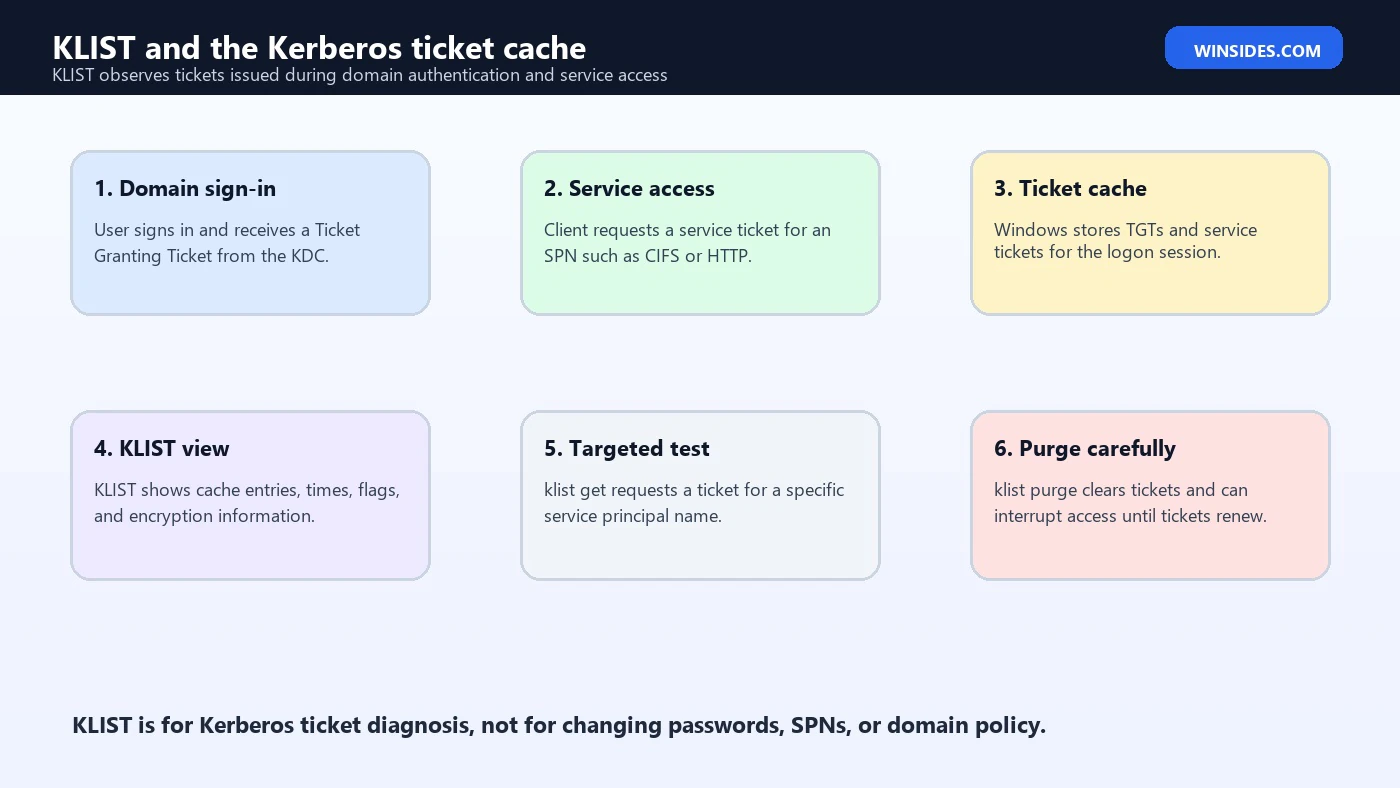
KLIST shows Kerberos ticket cache information. Microsoft explains that Kerberos is an authentication protocol used to verify the identity of a user or host. In a Windows domain, the Kerberos Key Distribution Center runs on domain controllers and uses Active Directory Domain Services as its security account database. After domain sign-in, Kerberos lets users and services access permitted resources without repeatedly typing credentials.
The ticket cache is part of that single sign-on behavior. A user signs in and receives an initial Ticket Granting Ticket, commonly shortened to TGT. When the user accesses a service, the client can obtain a service ticket for the service principal name, or SPN, of that service. KLIST lets you see those cached tickets and their timing, target, encryption, and flag information.
The default output is useful because it answers a specific question: what Kerberos tickets does this logon session currently have? If a user cannot access a file share, web app, or service, KLIST can show whether a service ticket was obtained, whether it is expired, whether the encryption type looks unexpected, and whether the target service name is what you intended. It does not replace event logs, SPN checks, DNS checks, or authorization troubleshooting, but it gives you a concrete view of the client-side Kerberos state.
KLIST is most valuable in domain troubleshooting. On a personal Windows 11 computer that is not joined to a domain and is not accessing Kerberos-backed services, the command may show little or nothing useful. That is normal. Kerberos diagnostics matter most when a domain account, domain controller, SPN, service account, delegated service, or network resource is involved.
KLIST Syntax on Windows 11
Microsoft documents the KLIST syntax as a set of subcommands. The most common are tickets, tgt, purge, sessions, kcd_cache, get, add_bind, query_bind, and purge_bind. Local Windows help also shows the same main command groups and adds implementation-specific help entries that should not distract from the supported Kerberos workflow.
klist
klist tickets
klist tgt
klist purge
klist sessions
klist kcd_cache
klist get cifs/server01.contoso.com
klist query_bind
The command also accepts logon ID targeting with -lh and -li. These values refer to the high and low parts of the locally unique identifier, or LUID, for a logon session. If you do not specify them, KLIST defaults to the current signed-in user’s LUID. This is why the same command can show different results in a normal user shell, an elevated shell, a service context, or a scheduled task context.
Microsoft notes that you must be at least a Domain Admin, or equivalent, to run all parameters of the command. In practice, simple viewing for the current user is often available, but advanced session targeting, system ticket work, constrained delegation investigation, and domain-controller binding workflows should be treated as administrative tasks. Use the least privileged context that answers the question.
Reading KLIST Ticket Output
Run klist first. The default behavior is equivalent to listing tickets for the current logon session. Microsoft describes the ticket output as including the logon ID, client, server, Kerberos ticket encryption type, ticket flags, start time, end time, renew time, and session key type. These fields are the map for most troubleshooting.
klist
klist tickets| Field | What it tells you | Why it matters |
|---|---|---|
| Client | The user and domain represented by the ticket | Confirms which identity requested the ticket. |
| Server | The target service principal for the ticket | Shows whether the service name matches the resource. |
| Encryption type | Algorithm used for the Kerberos ticket | Can reveal legacy or unsupported encryption issues. |
| Ticket flags | Kerberos ticket capabilities and constraints | Useful for delegation, renewability, and forwarding clues. |
| Start and end time | Ticket validity window | Expired tickets cannot authenticate to services. |
| Renew time | Latest time a new initial authentication is required | Explains long-session behavior and renewal limits. |
| Session key type | Encryption algorithm for the session key | Helps compare client, service, and domain policy expectations. |
Do not read one field in isolation. A ticket for the correct server name with an expired end time is a different problem from a ticket for the wrong server name. A missing ticket is different from a valid ticket followed by access denied in the application. KLIST shows authentication evidence. Authorization and application logic still need separate checks.
Using klist tgt
The klist tgt command displays the initial Kerberos Ticket Granting Ticket for the current or specified logon session. This is useful when you want to know whether initial domain Kerberos authentication exists and when that ticket expires. Microsoft lists fields such as service name krbtgt, domain name, ticket flags, session key, start time, end time, renew until, time skew, and encoded ticket.
klist tgtThe TGT is not the same as a service ticket. A user can have a valid TGT and still fail to obtain a service ticket for a specific SPN. That can happen when the SPN is missing, duplicated, tied to the wrong account, blocked by encryption policy, or affected by delegation configuration. Start with klist tgt for the sign-in layer, then move to klist get or service ticket output for the target layer.
Time matters. Kerberos relies on reasonably synchronized time between clients and domain controllers. If ticket times look strange, compare system time, time zone, domain controller time, and event logs. KLIST can show ticket timing, but it does not repair time synchronization or domain policy.
Using klist sessions and Logon IDs
The klist sessions command lists logon sessions on the computer. This is useful when the Kerberos issue does not belong to your interactive user context. Services, scheduled tasks, elevated processes, and remote sessions can each have different ticket caches. A normal user shell may not show the ticket cache used by a service account.
klist sessionsOnce you know a logon ID, you can use -lh and -li to target that session. Microsoft documents these as the high and low parts of the LUID, expressed in hexadecimal. The common system logon ID 0x3e7 appears in Microsoft examples, but do not target it casually. System context ticket work is administrative and can affect services.
klist -li 0x3e7
klist purge -li 0x3e7
Targeting the wrong logon session is a classic KLIST mistake. You purge or inspect your own cache, then wonder why the service still fails. Or worse, you purge a service or system cache without understanding which running workload depends on it. Use klist sessions as a map, not as permission to purge everything.
Using klist get for SPN Tests
The klist get command requests a ticket for a target service principal name. Microsoft describes it as allowing you to request a ticket to the target computer specified by the SPN. This is one of the most practical KLIST tests because it forces the client to ask the KDC for a specific service ticket and gives you immediate evidence about SPN, KDC, and ticket acquisition behavior.
klist get cifs/server01.contoso.com
klist get host/%computername%
klist get http/app01.contoso.com
The SPN must match the service you are testing. File shares often use cifs/server. Host-based services may use host/server. Web applications using Kerberos may use http/name. SQL Server and other services use their own SPN patterns. If you request the wrong SPN, a failure or a misleading success can send you in the wrong direction.
When klist get fails, move from the client outward. Is the client joined to the domain or using a domain credential? Can it contact a domain controller? Is the target SPN registered? Is the SPN duplicated? Does the service account support the encryption type being requested? Does DNS resolve the target name in the same form the SPN uses? KLIST gives you the symptom; SetSPN, DNS, event logs, and domain policy usually explain the cause.
Using klist purge Safely
The klist purge command deletes cached Kerberos tickets for the specified logon session. Microsoft explicitly warns that purging tickets destroys cached tickets and can stop you from authenticating to resources. If that happens, you may need to sign out and sign back in. In many cases, Windows can reacquire tickets automatically when you access resources again, but you should not assume that every app will recover cleanly.
klist purgePurging can be useful after group membership changes, service account changes, encryption policy corrections, SPN corrections, password resets, or troubleshooting where an old ticket may be masking the current state. It is not a universal fix. If the underlying SPN or policy is still wrong, purging simply removes the old evidence and forces the same failure to happen again.
Use purge after you capture the before-state. Run klist, note the client, server, ticket times, encryption type, and any unexpected ticket. Then purge if the test requires it. After purge, access the resource again and rerun KLIST. The comparison between before and after is more valuable than the purge itself.
KLIST Bind Commands for Domain Controller Targeting
KLIST includes add_bind, query_bind, and purge_bind for preferred domain controller bindings. Microsoft examples show using add_bind to target a specific domain controller, query_bind to view recently contacted domain controllers, and purge_bind to remove cached preferred domain controllers. These commands are useful in controlled domain-controller troubleshooting, especially replication or DC selection scenarios.
klist query_bind
klist add_bind CONTOSO.COM KDC.CONTOSO.COM
klist purge_bind
Do not use bind commands as a normal user workaround. If authentication only works when pinned to one domain controller, the real issue may be replication, DNS, site topology, time, password state, key version mismatch, or domain controller health. Binding can help isolate the problem, but it should not become a permanent hidden dependency unless your directory team intentionally designed it.
After a binding test, clean up with klist purge_bind when appropriate so the client can rediscover domain controllers normally. Document which domain controller was targeted, why, and what changed in the KLIST output or event logs. Without that note, a later technician may inherit a machine that behaves differently from the rest of the domain for no obvious reason.
Using klist kcd_cache for Delegation Issues
The klist kcd_cache command displays Kerberos constrained delegation cache information. Microsoft lists it as a diagnostic command for constrained delegation failure and last error information. Constrained delegation is used when one service needs to act on behalf of a user to access another service, but only within configured boundaries. That makes it common in multi-tier applications.
klist kcd_cacheMicrosoft’s constrained delegation overview explains that constrained delegation restricts the services to which a server can act on behalf of a user, and that modern resource-based constrained delegation lets the resource service administrator decide which front-end services can delegate. KLIST does not configure those relationships. It helps you inspect client-side or session-side information while you troubleshoot the configured delegation path.
Delegation failures can look like normal access denied errors to end users. A front-end app works, but the back-end call fails. KLIST can help confirm whether ticket and delegation cache information exists, but you still need to check service account settings, SPNs, resource-based constrained delegation attributes, event logs, application identity, and whether the back-end service accepts the delegated identity.
KLIST and SetSPN Work Together
KLIST shows what tickets the client has or can request. SetSPN shows and manages Service Principal Names in Active Directory. Microsoft documents SetSPN as the command-line utility that reads, modifies, and deletes the SPN directory property for an Active Directory service account. It also recommends setspn -S rather than -A when adding an SPN because -S verifies that no duplicate SPN exists.
setspn -L SERVER01
setspn -Q http/app01.contoso.com
setspn -T * -X
If klist get http/app01.contoso.com fails, SetSPN can help answer whether that SPN exists, where it is registered, and whether a duplicate exists. Duplicate SPNs are especially harmful because the KDC cannot safely know which account key should decrypt the ticket. Missing SPNs can cause Kerberos to fail or fall back to another authentication method depending on the application.
Do not change SPNs casually. SPNs are part of service identity. Moving an SPN to the wrong account can break production services or create security risk. KLIST is often the safer first step because it observes and tests. SetSPN is a directory change tool and deserves a separate change process.
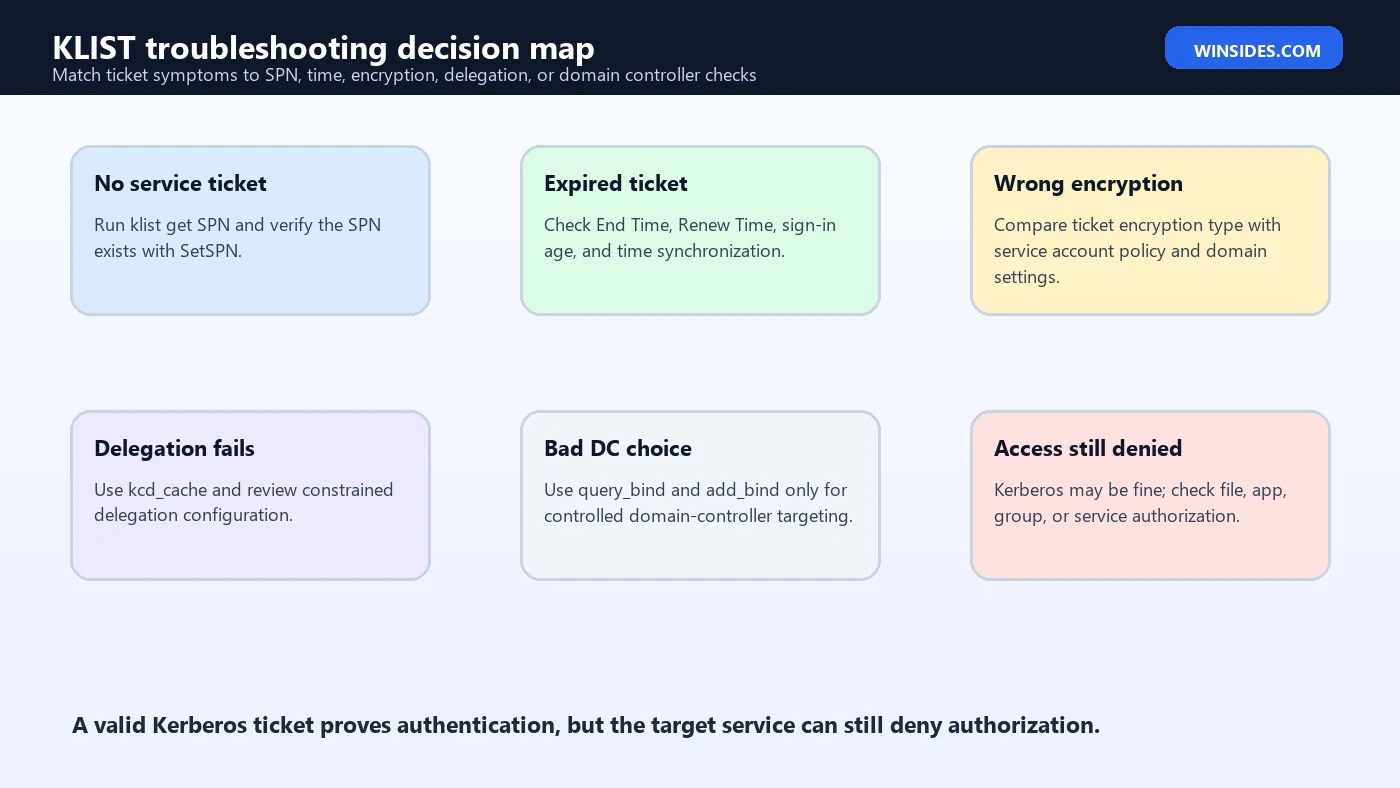
KLIST Troubleshooting Matrix
| Symptom | KLIST clue | Likely next step |
|---|---|---|
| User gets repeated credential prompts | No useful service ticket or wrong target | Run klist get SPN and verify SPN registration. |
| Access works after sign-out | Old ticket or group token state | Compare before and after purge or sign-in; review group changes. |
| Service ticket has unexpected encryption | Encryption type differs from policy expectation | Check service account Kerberos encryption settings and domain policy. |
| Ticket expired | End Time is in the past | Purge or reacquire tickets; verify time sync and ticket lifetime policy. |
| Delegated back-end access fails | kcd_cache missing or shows errors | Review constrained delegation and resource service configuration. |
| Works against one DC only | Binding or DC selection affects result | Check replication, DNS, site topology, and KDC health. |
| Ticket exists but access denied | Authentication succeeded, authorization failed | Check file, app, database, or service permissions. |
A good KLIST troubleshooting note includes the command used, user context, target resource, SPN, ticket encryption type, ticket end time, and whether the test was before or after purge. Without that context, a screenshot of KLIST output is easy to misread. Kerberos issues are often timing and identity problems, so the timeline matters.
Encryption Types and Ticket Flags
KLIST output can show ticket encryption type and session key type. Microsoft KLIST documentation mentions these fields, and the Kerberos overview notes encryption type changes and policy considerations in modern Windows environments. Encryption type mismatches can appear when old service accounts, domain policy, or unsupported algorithms meet newer clients and domain controllers.
Do not conclude too much from an encryption type alone. It is a clue. Compare it with domain policy, service account settings, key version state, and server support. If an application recently moved from an old service account to a managed service account, or if an environment hardened Kerberos encryption types, KLIST can help show whether clients are actually receiving tickets with the expected algorithm.
Ticket flags are also clues, not a final answer. Flags can indicate properties such as forwardable, renewable, pre-authenticated, or delegation-related behavior. When delegation is involved, flags and KCD cache information become more important. When simple file share access is involved, server name, ticket time, and authorization may matter more.
Time, Renewal, and Sign-In State
Kerberos tickets have lifetimes. KLIST shows start time, end time, and renew time for service tickets, and the TGT view shows related timing information. If a user stays signed in for a long time, group membership, policy changes, service account changes, or domain controller replication state may not be reflected in the current tickets immediately. That is one reason signing out and signing back in can appear to fix authentication issues.
Purging tickets is sometimes a faster test than sign-out, but it is not identical to a clean logon. A clean sign-out and sign-in can refresh the logon session, token, TGT, and service tickets more completely. If the issue is group membership in the user’s token, purging Kerberos tickets alone may not be enough. KLIST helps you inspect tickets; it does not rebuild every part of the Windows logon session.
Time synchronization is another foundation. Kerberos depends on acceptable time skew between clients and domain controllers. If ticket times are impossible, expired immediately, or inconsistent across machines, check the Windows Time service, domain hierarchy, virtualization host time, time zone settings, and domain controller health. KLIST can reveal weird times, but time repair happens elsewhere.
Safe KLIST Checklist
- Run
klistbeforeklist purgeso you capture the current ticket state. - Confirm the shell context: normal user, elevated admin, service, scheduled task, or system session.
- Use
klist sessionsbefore targeting another logon ID. - Use the exact SPN when testing with
klist get. - Use SetSPN for SPN verification, not KLIST alone.
- Treat bind commands as controlled domain-controller diagnostics, not everyday fixes.
- Remember that a valid ticket proves authentication, not application authorization.
- Document before and after output when purging or testing service tickets.
For help desk work, the most useful KLIST workflow is small: run klist, test the resource, run klist get for the SPN if you know it, then compare with event logs and SetSPN output. Only purge when the test requires a fresh ticket. That keeps the ticket cache useful as evidence instead of wiping it too early.
Common KLIST Examples
klistklist tgtklist sessionsklist get cifs/fileserver01.contoso.comklist purgeklist query_bindThe examples are intentionally simple. Real Kerberos troubleshooting depends on your domain, SPN names, service accounts, user context, domain controllers, and application design. Do not copy an SPN from an example and assume it matches your environment. Ask what service class and hostname the application actually uses.
Before You Purge Tickets
The moment before klist purge is where most mistakes can be avoided. A purge can be the right test, but it also removes evidence. If a service ticket shows the wrong SPN, wrong encryption type, stale timing, or unexpected client identity, capture that output first. The before-state often tells you more than the after-state because it shows what Windows was actually using when the failure occurred.
For a user-facing support case, ask what resource failed and how it was reached. A file share opened through a short name, a fully qualified domain name, a DFS path, or an IP address can lead to different Kerberos behavior. A web application accessed through a load balancer name may require an HTTP SPN on a service account rather than on a computer account. KLIST is only useful when the ticket target is compared with the real access path.
For a service case, confirm the process identity before looking at tickets. An IIS app pool identity, Windows service account, scheduled task account, and interactive admin shell can all have different logon sessions. Purging your own cache will not fix a service running as another account. Use klist sessions, service configuration, and event logs to identify the right context before targeting a LUID.
- Save the current KLIST output before purge.
- Write down the exact resource path or URL that failed.
- Identify the expected SPN for that access path.
- Confirm whether the failure belongs to a user, service, scheduled task, or system context.
- Check ticket end time and renew time before deciding that cache age is the problem.
- After purge, retest the resource and compare the new ticket with the old one.
Example KLIST Troubleshooting Scenario
Imagine a user can open \\fileserver01\finance but cannot open \\files.contoso.com\finance. KLIST might show a service ticket for cifs/fileserver01.contoso.com after the first access and no ticket, or a different ticket, after the second access. That clue points you toward SPN registration, DNS aliases, or how the file service name is presented to clients. The problem is not simply file permissions if the Kerberos service ticket for the alias cannot be obtained.
In that case, the next tool is usually SetSPN, not repeated purge. You would verify whether cifs/files.contoso.com is registered on the correct computer or service account and whether duplicates exist. You would also check whether DFS, aliases, load balancing, or service account design changes the expected SPN. KLIST shows the ticket symptom; SetSPN and directory configuration explain the identity mapping.
Now imagine the service ticket exists and targets the expected SPN, but the file share still denies access. That is a different branch. Kerberos authentication may be working, and the issue may be NTFS permissions, share permissions, group membership, token refresh, conditional access in an application layer, or the server-side authorization model. This is why KLIST should be paired with authorization checks instead of being treated as the whole diagnosis.
Frequently Asked Questions
What is KLIST used for?
KLIST is used to display and manage cached Kerberos tickets on Windows, including service tickets, the initial TGT, logon sessions, constrained delegation cache information, and preferred domain controller bindings.
Does KLIST work on Windows 11?
Yes. Microsoft lists KLIST as applicable to Windows 11, Windows 10, and supported Windows Server versions.
Is klist purge safe?
It is safe when used intentionally, but it deletes cached Kerberos tickets and can interrupt access until tickets are reacquired or the user signs in again.
What is the difference between klist and klist tgt?
klist lists cached tickets for the current logon session. klist tgt focuses on the initial Ticket Granting Ticket.
What does klist get do?
klist get requests a service ticket for a specified SPN, which helps test whether the client can obtain a ticket for that service.
Can KLIST fix Kerberos problems by itself?
Usually no. It can observe, purge, request, or target Kerberos ticket behavior, but SPN registration, delegation configuration, time sync, encryption policy, and application authorization may need other tools.
Conclusion: Use KLIST to See the Kerberos State
KLIST is a focused Windows 11 Kerberos tool. It shows which tickets are cached, when they expire, which service names they target, what encryption they use, and which logon session they belong to. It can request a ticket for a specific SPN, show the TGT, inspect constrained delegation cache information, and manage preferred KDC bindings for controlled diagnostics.
The discipline is to observe before changing. Do not purge tickets before capturing the cache state. Do not target another logon ID until you know which session matters. Do not treat a valid ticket as proof that the application should allow access. Pair KLIST with SetSPN, event logs, time checks, delegation settings, and service authorization review. Used that way, KLIST turns Kerberos troubleshooting from guesswork into a sequence of visible ticket checks.
For official background, keep Microsoft pages for KLIST, Kerberos authentication, constrained delegation, SetSPN, and RFC 4120 nearby when interpreting ticket options and service names.
For more interesting articles, stay tuned to Winsides.com!









Community
Comments (0)