

Introduction to iCACLS
iCACLS is the Windows command-line tool for viewing and changing NTFS file and folder permissions. On Windows 11, it is most often used when File Explorer is too slow, when a permission repair must be repeated, when a folder tree needs a DACL backup, or when an administrator needs to grant, remove, reset, verify, or restore access control entries from a script. It is powerful because it works directly with file system security descriptors; that is also why it deserves caution.
Microsoft documents iCACLS as a command that displays or modifies discretionary access control lists, called DACLs, on specified files and applies stored DACLs to files in specified directories. A DACL is the part of a security descriptor that decides which trustees are allowed or denied access. If you grant the wrong group too much access, remove inheritance from the wrong folder, or reset permissions recursively on the wrong path, the damage can spread quickly.
This guide explains how iCACLS works in Windows 11, how to read its output, how to grant and replace permissions safely, how inheritance flags work, when to use /save and /restore, how ownership relates to takeown, and when PowerShell Get-Acl or Set-Acl is a better fit. The examples use demo folders rather than system folders because permission commands should never be copied blindly into sensitive paths.
For official context, Microsoft documents iCACLS, the Windows access control list model, the ownership recovery command takeown, and the PowerShell Get-Acl and Set-Acl cmdlets. Those pages are the backbone for the command behavior covered here.
Table of contents
Key Takeaways
- iCACLS manages DACLs. It displays and modifies discretionary access control lists on NTFS files and folders.
- Always view before changing. Run
icacls pathfirst so you understand inherited and explicit entries. - Back up before recursive changes.
/savestores DACLs that can later be restored with/restore. /grantadds, while/grant:rreplaces. That single:rchanges the meaning of the command.- Use
/denyrarely. Explicit deny entries can override grants and cause confusing access failures. - Ownership is separate from permissions.
/setownerchanges owner entries, buttakeownmay be needed to recover access first. - Do not reset system folders casually. Recursive
/reset, inheritance removal, and broad grants can break apps or weaken security.
What iCACLS Changes
iCACLS works with security information on files and folders. The most common target is the DACL, which controls allowed and denied access. A security descriptor can also contain owner information, a group, and a system access control list, or SACL, used for auditing. Microsoft ACL documentation explains that a DACL identifies trustees allowed or denied access, while a SACL can be used by administrators to log access attempts. iCACLS is mainly a DACL tool, though it also has owner and integrity-level operations.
This distinction matters because people often say permissions when they really mean several separate security fields. A user can be the owner but still not have the desired allow entries. A user can have an inherited read entry but be blocked by an explicit deny entry. A folder can look correct at the top level but fail for child files because inheritance flags were not applied to objects and containers. iCACLS exposes these details in a compact syntax that must be read carefully.
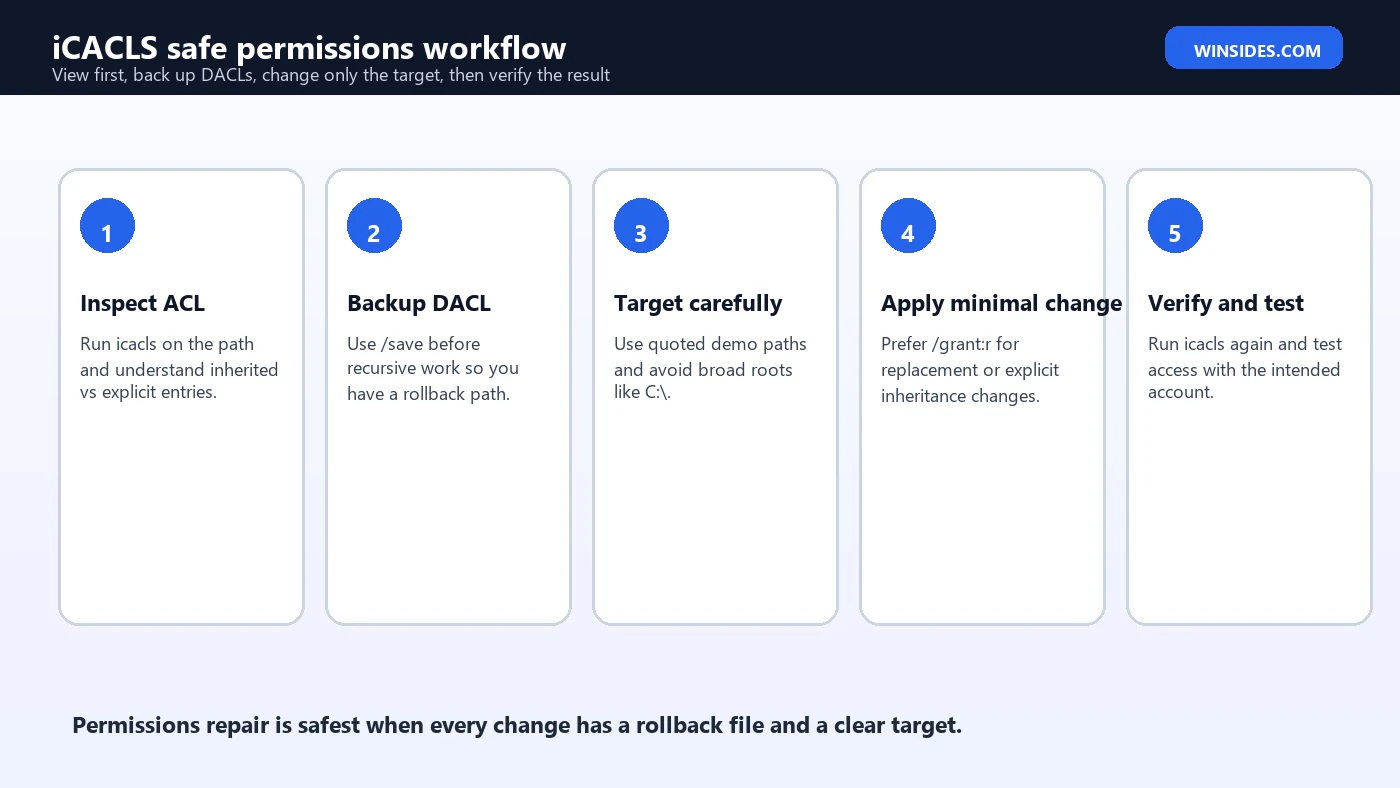
In normal support work, iCACLS is useful for four jobs. First, it can show current permissions. Second, it can add, replace, or remove explicit entries. Third, it can back up and restore DACLs for a folder tree. Fourth, it can reset items back to default inherited permissions. Each of those jobs has different risk. Viewing is safe. Backing up is safe. A targeted grant on a test folder is usually safe. A recursive reset on a production data tree deserves planning, review, and a rollback file.
You should also remember that NTFS permissions are evaluated with user tokens and group membership. If a user is in several groups, Windows evaluates the relevant ACEs. The canonical order Microsoft describes for iCACLS is explicit denials, explicit grants, inherited denials, and inherited grants. That ordering helps Windows evaluate access consistently, but it does not make a messy permission design easy to understand. Keep ACLs simple whenever possible.
iCACLS Syntax on Windows 11
The iCACLS syntax has several forms because the command covers viewing, saving, ownership, SID search, verification, reset, grants, denies, removal, integrity levels, inheritance, substitution, and restore operations. You do not need every form for everyday work. Most practical tasks use one of these patterns: view a path, grant or replace a permission, remove an entry, save and restore DACLs, or reset inheritance.
icacls C:\Test\Reports
icacls C:\Test\Reports /grant Users:(OI)(CI)RX
icacls C:\Test\Reports /grant:r Users:(OI)(CI)M
icacls C:\Test\Reports /remove:g Users
icacls C:\Test\Reports\* /save C:\Temp\Reports-DACL.txt /T
icacls C:\Test\Reports /restore C:\Temp\Reports-DACL.txt
The path comes first. Quote it if it contains spaces. The command then receives one or more operations such as /grant, /remove, /reset, or /save. Recursive work uses /T. Continue-on-error uses /C. Symbolic-link handling uses /L. Quiet output uses /Q. These switches look small, but they decide whether the command touches a whole tree, keeps going through errors, or acts on a link rather than its target.
The safest habit is to run a viewing command first and a narrow change second. Do not start with /T unless you know the top folder, child folders, and files are all intended targets. Do not use root paths, profile roots, program folders, or Windows directories as examples unless you are doing a controlled recovery on a test machine. The command is not dangerous by itself; broad targeting is dangerous.
How to View Permissions with iCACLS
Viewing permissions is the right first step. It lets you see explicit and inherited entries before deciding whether to grant, replace, reset, or remove anything. For a folder, run iCACLS against the folder path. For a single file, run it against the file path. If the path contains spaces, use quotation marks.
icacls C:\Test\Reports
icacls "C:\Test Folder\Report.docx"
The output shows entries in a compact form, often with account names followed by permission codes. You may see inheritance markers such as (I), (OI), and (CI). Inherited entries come from a parent folder. Explicit entries were placed directly on that item. A common repair mistake is removing inherited entries because they look unfamiliar. Inheritance is often the reason a permission design remains manageable.
If the output is confusing, compare it with File Explorer’s Advanced Security dialog or PowerShell Get-Acl. The GUI can be easier for a single folder, while Get-Acl is better when you want object output and SDDL text. iCACLS is compact and script-friendly, but that compactness means you must know what the flags mean before making changes.
Permission Codes and Inheritance Flags
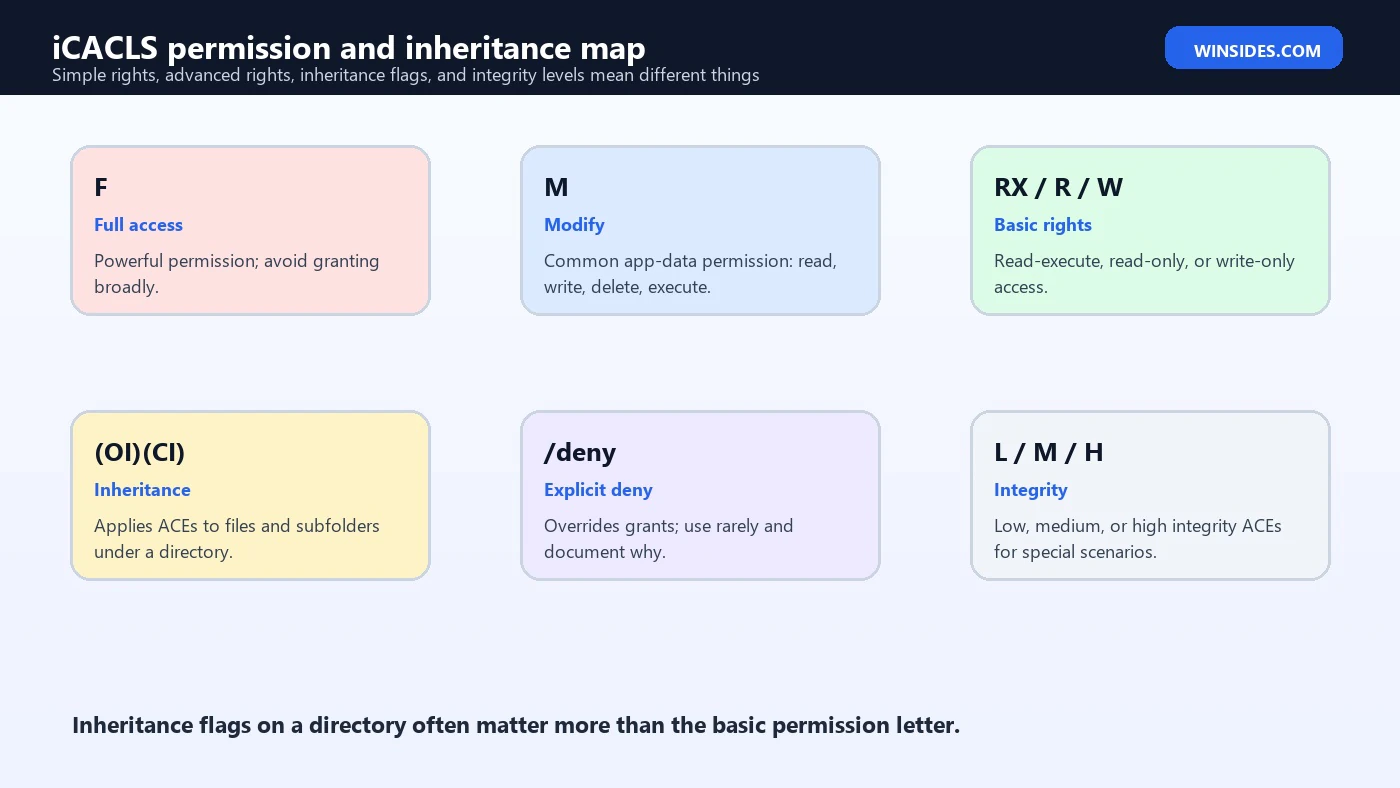
Microsoft documents simple permission masks such as F for full access, M for modify, RX for read and execute, R for read-only, W for write-only, and D for delete. It also documents advanced rights such as WDAC for write DAC, WO for write owner, RD for read data or list directory, and X for execute or traverse. Basic rights are easier to read; advanced rights are for precise cases.
| Code | Meaning | Typical use |
|---|---|---|
F | Full access | Administrators or tightly controlled service accounts. |
M | Modify | Users who need read, write, and delete in app data folders. |
RX | Read and execute | Running tools or reading shared content without changing it. |
R | Read-only | Documentation, templates, or reference files. |
W | Write-only | Rare drop-folder scenarios, usually with careful testing. |
D | Delete | Specific advanced scenarios, not a normal broad grant. |
Inheritance flags decide where a permission applies. (OI) means object inherit, so files inside the folder can inherit the ACE. (CI) means container inherit, so subfolders can inherit it. (IO) means inherit only, so the ACE does not apply to the folder itself. (NP) means do not propagate inheritance beyond the immediate child level. (I) indicates that the ACE was inherited from a parent.
For a normal folder tree where a group should read files and subfolders, (OI)(CI)RX is a common pattern. For a folder where users should modify current and future child items, (OI)(CI)M is more appropriate than full control. Full control includes permission-changing power; most users do not need that. The difference between modify and full control is one of the most important safety boundaries in iCACLS work.
Granting Permissions Safely
The /grant operation adds permissions for a trustee. The trustee can be a friendly name such as Users, a domain account, a local group, or a SID. If you use a numerical SID, Microsoft notes that you should prefix it with an asterisk, such as *S-1-1-0. For most Windows 11 support examples, friendly names are easier to read, but SIDs are useful when names may resolve differently across machines.
icacls C:\Test\Reports /grant Users:(OI)(CI)RX
icacls C:\Test\Reports /grant "VIGNESH-PC\Alex":(OI)(CI)M
The first example grants Users read and execute permission on the folder and its child files and folders. The second grants a named local user modify permission. Notice that the examples target a demo folder. Real data folders should be backed up and reviewed first, especially when the command will run recursively or affect shared data.
Use group-based permissions when possible. Granting access to a group is easier to audit and maintain than granting direct access to many individual users. If a user changes role, you can adjust group membership instead of rewriting ACLs across many folders. This is also easier to document in support tickets and change records.
Using /grant:r to Replace Existing Grants
The difference between /grant and /grant:r is easy to miss. Without :r, iCACLS adds permissions to any previously granted explicit permissions for that trustee. With :r, the permissions replace previously granted explicit permissions. That makes /grant:r useful when you want the final explicit permission to be exactly what you specify rather than an accumulation of old grants.
icacls C:\Test\Reports /grant:r Users:(OI)(CI)RXThis command replaces explicit grants for Users on the target with read and execute inheritance. It does not magically redesign the entire folder security model. Inherited permissions may still apply, and other trustees may still have access. Always view the ACL afterward to confirm the resulting effective design.
Replacement is often safer than repeated additions in scripted repair because the output becomes predictable. However, it can still remove an explicit right that someone intentionally added earlier. Before using /grant:r on production data, capture the current DACL with /save and record the reason for the replacement.
Using /deny and /remove
The /deny operation creates an explicit deny ACE. Microsoft notes that an explicit deny ACE is added for the stated permissions and the same permissions in any explicit grant are removed. Deny entries can be useful for special cases, but they make access troubleshooting harder because they can override otherwise valid group grants. In many environments, a cleaner approach is to remove an allow entry or use group membership rather than adding denies.
icacls C:\Test\Reports /deny Users:WTreat the deny example as a demonstration, not a default recommendation. A deny entry against a broad group can surprise you later when a user belongs to multiple groups. If a folder should be read-only, granting read and execute without granting modify is usually easier to reason about than granting modify somewhere and denying write somewhere else.
The /remove operation removes entries for a SID or name. With /remove:g, iCACLS removes granted rights for that trustee. With /remove:d, it removes denied rights. This is more controlled than wiping the entire ACL, but it still deserves review because removing a direct entry may reveal inherited access or leave the user with access through another group.
icacls C:\Test\Reports /remove:g Users
icacls C:\Test\Reports /remove:d Users
Saving and Restoring DACLs
One of the strongest safety features in iCACLS is /save and /restore. The local help output clarifies an important limitation: /save stores DACLs for matching files and folders, but it does not save SACLs, owner, or integrity labels. That means a DACL backup is not a complete security descriptor backup. It is still extremely useful before permission repairs, but you need to know what it covers.
mkdir C:\Temp
icacls C:\Test\Reports\* /save C:\Temp\Reports-DACL.txt /T
The restore form is different. It takes a directory and applies the stored DACLs to files under that directory. Use the same root relationship you used when creating the backup. Test restore behavior in a lab or with a copy before relying on it for a large recovery.
icacls C:\Test\Reports /restore C:\Temp\Reports-DACL.txtA DACL backup file is especially valuable before recursive /grant, /remove, /reset, or inheritance changes. Store it somewhere outside the folder being repaired so it is not affected by the same permission operation. For important data, combine DACL backup with a normal file backup and a change note that explains why the ACLs are being changed.
Resetting Permissions with /reset
The /reset operation replaces ACLs with default inherited ACLs for matching files. It can be useful when a folder tree has accumulated broken explicit entries and you want child items to inherit from the parent again. It can also be destructive if used on the wrong parent, because intentional custom entries may disappear. Reset is not an undo button; it is a permission redesign toward inheritance.
icacls C:\Test\Reports /reset
icacls C:\Test\Reports /reset /T /C
Before running recursive reset, verify the parent folder permissions. Resetting children to inherit from a parent only helps if the parent is correct. If the parent ACL is wrong, a recursive reset spreads the wrong design to the whole tree. This is why the safe order is view parent, back up DACLs, test on a small subfolder, then run wider if the test result is correct.
The /C switch continues through file errors. That is useful during large operations because one locked or inaccessible file does not stop the whole job. It also means you need to read the errors afterward. Continue-on-error is not ignore-the-errors. Keep the command output or redirect it to a log when changing many files.
Managing Inheritance Levels
iCACLS can change inheritance behavior with /inheritance:e, /inheritance:d, and /inheritance:r. Microsoft documents these as enabling inheritance, disabling inheritance and copying ACEs, or disabling inheritance and removing inherited ACEs. The difference between copying and removing inherited ACEs is major. Copying preserves the current effective access as explicit entries; removing inherited ACEs can immediately reduce access.
icacls C:\Test\Reports /inheritance:e
icacls C:\Test\Reports /inheritance:d
icacls C:\Test\Reports /inheritance:r
Use inheritance changes sparingly. Inheritance is what keeps large permission structures manageable. If every child folder has unique explicit entries, future audits become painful. Disable inheritance only when the folder really needs a different boundary, and document why the boundary exists. For most shared folders, group design and parent permissions are better than many custom child ACLs.
Ownership, /setowner, and takeown
Ownership and permissions are related but separate. iCACLS has /setowner, which changes the owner for matching files. The local help output adds a crucial caveat: this option does not force a change of ownership; use takeown.exe for that purpose. Microsoft documents takeown as a command that enables an administrator to recover access by making the administrator the owner of a file.
icacls C:\Test\Reports /setowner "Administrators" /T /C
takeown /f C:\Test\Reports /r /d Y
The usual recovery sequence is not always the same as the usual maintenance sequence. If you already have rights to manage the ACL, iCACLS may be enough. If access is denied because the owner and ACL prevent administrative work, take ownership first, then use iCACLS to set appropriate permissions. Do not leave broad full-control grants in place after recovery just because they fixed access. Restore the intended least-privilege design.
Taking ownership of personal data, application folders, or system folders can have side effects. Some applications expect specific owners or inherited permissions. On Windows system folders, use Windows repair tools, SFC, DISM, or documented recovery steps before manually rewriting ownership and ACLs. iCACLS is a scalpel when used carefully and a very large hammer when used broadly.
Integrity Levels with /setintegritylevel
iCACLS can explicitly add an integrity ACE with /setintegritylevel. Microsoft documents levels such as low, medium, and high, with inheritance options available for directories. Integrity levels are not everyday file-share permissions. They are part of Windows integrity control behavior and are normally used in specific application isolation or security scenarios.
icacls C:\Test\Sandbox /setintegritylevel (OI)(CI)LDo not set integrity levels just because a permissions issue is confusing. Most access denied problems are DACL, ownership, inheritance, or application-state problems, not integrity-level problems. If an integrity level is involved, document the application scenario and test carefully. A low-integrity folder may be appropriate for sandboxed writes, but it is not a generic fix for file access problems.
Verifying and Finding Problem ACLs
The /verify switch finds files whose ACLs are not canonical or whose lengths are inconsistent with ACE counts. This is an inspection tool, not a repair by itself. It helps identify folders or files that deserve closer review. Because iCACLS preserves canonical ACE order, verification can be useful before and after a repair job.
icacls C:\Test\Reports /verify
icacls C:\Test\Reports /verify /T /C
The /findsid switch searches for items whose DACL explicitly mentions a SID. This is helpful after user migrations, domain changes, profile cleanup, or when you suspect orphaned account entries. If you use a numerical SID, prefix it with an asterisk.
icacls C:\Test\Reports /findsid *S-1-5-21-1111111111-2222222222-3333333333-1001 /T /CFinding a SID does not automatically mean you should remove it. First identify what the SID represented and why the entry exists. In a domain migration, you may need substitution or a planned group replacement. In a local machine cleanup, the entry may be stale. The context decides the repair.
iCACLS vs Get-Acl and Set-Acl
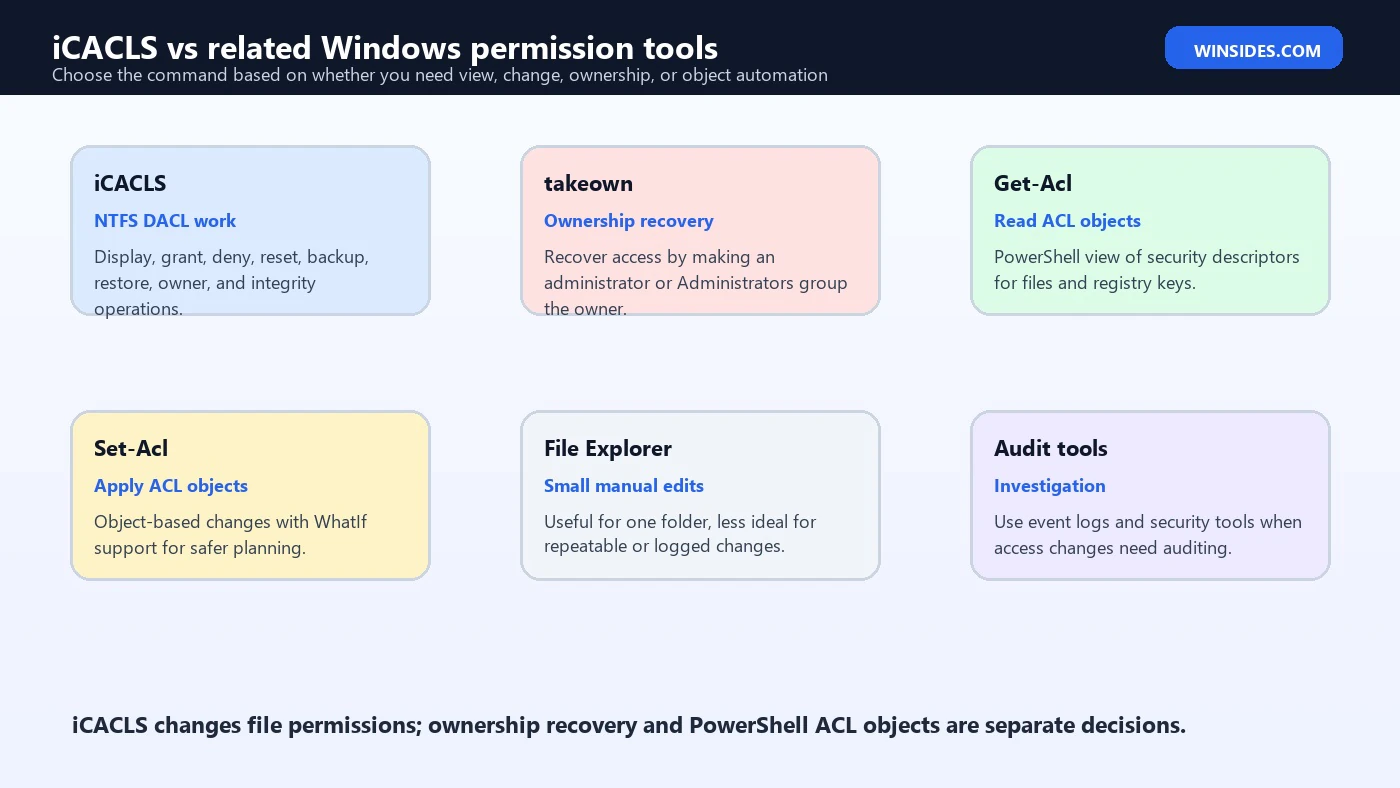
PowerShell Get-Acl and Set-Acl are better when you want object-based scripting rather than command text. Microsoft documents Get-Acl as returning security descriptor objects for resources such as files and registry keys. It also notes that SDDL can be displayed as a single text string containing security descriptor information. Set-Acl changes a security descriptor to match a supplied security descriptor and supports safety features such as -WhatIf in broader PowerShell workflows.
Use iCACLS when you need a concise command-line tool, DACL backup and restore, quick permission repair, or compatibility with batch scripts. Use PowerShell when you need to inspect ACLs as objects, filter many items, use -WhatIf, copy a descriptor from one item to another, or handle registry keys and file system objects consistently. The right tool is the one that makes the change easiest to review and easiest to reverse.
| Task | Better fit | Reason |
|---|---|---|
| View a folder DACL quickly | iCACLS | Compact output from Command Prompt or Terminal. |
| Back up and restore DACLs | iCACLS | Built-in /save and /restore workflow. |
| Preview a scripted ACL change | Set-Acl | PowerShell -WhatIf can show intended changes. |
| Recover ownership | takeown then iCACLS | Ownership recovery and permission repair are separate steps. |
| Copy one descriptor to another | Get-Acl and Set-Acl | Object-based copy is clearer than rebuilding every ACE manually. |
| Small manual folder edit | File Explorer | The GUI is often clearer for one-off edits. |
Troubleshooting Common iCACLS Problems
| Problem | Likely cause | Better next step |
|---|---|---|
| Access is denied | You lack ownership or permission to change the DACL | Use an elevated shell, verify owner, and consider takeown when recovery is appropriate. |
| Command changed too many files | Broad path or recursive /T | Stop, review output, and restore from the DACL backup if needed. |
| User still cannot access | Wrong group, deny entry, missing inheritance, or different account token | Run iCACLS again and test group membership and effective path. |
| Permissions keep returning | Parent inheritance or application policy reapplies them | Inspect parent folders and any management software. |
| Restore did not fix owner | /save stored DACLs only | Restore owner separately if needed and understand the backup limitation. |
| Symbolic link target changed | Command followed the target instead of link | Use /L when the link itself is the intended object. |
| Output is hard to read | Compact ACE syntax | Compare with File Explorer Advanced Security or PowerShell Get-Acl. |
Most iCACLS troubleshooting starts with one question: what path did the command actually touch? Confirm the path, whether it was quoted, whether wildcards expanded, and whether /T was used. Then ask what kind of change was made: grant, replace, deny, remove, reset, owner change, inheritance change, or restore. The repair path depends on that answer.
If a command partially succeeds, do not assume everything is fixed. With /C, iCACLS continues through errors and still shows error messages. Save the output if you are repairing a large tree. The files that failed may be locked, protected, owned differently, or blocked by path length or reparse-point behavior. A partial permissions repair can be more confusing than a clear failure.
Safe iCACLS Checklist
Before using iCACLS on anything important, write down the goal in plain language. For example: grant the Support group modify rights to this application data folder and all future child files. That goal is easier to validate than a command copied from a forum. Once the goal is clear, translate it into a path, trustee, permission, and inheritance pattern.
- Confirm the exact target path and quote it if it contains spaces.
- View the current ACL with
icacls pathbefore changing it. - Back up DACLs with
/savebefore recursive changes. - Use a demo folder or small subfolder to test the command first.
- Prefer group-based grants over many direct user grants.
- Use
/grant:rwhen you need replacement, not accumulation. - Avoid broad explicit deny entries unless there is a documented reason.
- Verify the result with iCACLS and a real access test from the intended user context.
For shared folders, also check how the share permission and NTFS permission interact. iCACLS changes NTFS permissions, not SMB share permissions. A user can have NTFS modify rights and still be blocked by a restrictive share permission. Conversely, a permissive share does not override restrictive NTFS permissions. Troubleshoot both layers when the path is accessed over the network.
Examples for Common Scenarios
These examples are intentionally written against C:\Test paths. Replace them only after you understand what each command does. Do not paste them into Windows, Program Files, profile roots, or production shares without a backup and a clear change plan.
icacls C:\Test\Reportsicacls C:\Test\Reports /grant "BUILTIN\Users":(OI)(CI)RXicacls C:\Test\AppData /grant:r "VIGNESH-PC\SupportUser":(OI)(CI)Micacls C:\Test\Reports\* /save C:\Temp\Reports-DACL.txt /T /Cicacls C:\Test\Reports /restore C:\Temp\Reports-DACL.txticacls C:\Test\Reports /reset /T /CThe first command views permissions. The second grants read and execute to local Users with inheritance. The third replaces explicit permissions for a named support user with modify rights. The fourth saves DACLs recursively. The fifth restores them. The sixth resets permissions to inherited defaults. These are different operations with different risk levels; treat them that way.
Frequently Asked Questions
What is iCACLS used for?
iCACLS is used to display and modify NTFS file and folder permissions, including grants, denies, inheritance, DACL backup, DACL restore, reset, owner changes, and integrity levels.
Does iCACLS work on Windows 11?
Yes. Microsoft lists iCACLS as applicable to Windows 11, Windows 10, and supported Windows Server versions.
What is the difference between /grant and /grant:r?
/grant adds permissions to existing explicit grants for that trustee. /grant:r replaces previously granted explicit permissions for that trustee.
Does iCACLS /save back up everything?
No. The local help output states that /save stores DACLs but does not save SACLs, owner, or integrity labels.
When should I use takeown with iCACLS?
Use takeown when access recovery requires changing ownership first. After ownership is recovered, use iCACLS to set the intended permissions.
Is iCACLS safer than Set-Acl?
Neither is automatically safer. iCACLS is concise and has DACL backup and restore options. PowerShell Set-Acl is object-based and can fit workflows with -WhatIf. Safety depends on targeting, backup, review, and testing.
Conclusion: Use iCACLS with a Backup and a Target
iCACLS is one of the most useful built-in Windows 11 commands for NTFS permission work. It can show permissions, grant or replace access, remove entries, reset inheritance, save and restore DACLs, search for SIDs, verify ACL structure, set owners, and add integrity ACEs. That range makes it valuable for administrators and risky for rushed repairs.
The safe pattern is consistent: view first, back up DACLs, choose the exact path, use groups where possible, avoid broad deny entries, understand inheritance flags, and verify after the change. For ownership recovery, bring takeown into the plan. For object-based scripting or dry-run planning, consider Get-Acl and Set-Acl. iCACLS is not just a permissions hammer; used carefully, it is a precise repair and documentation tool.
For official background, keep Microsoft pages for iCACLS, access control lists, takeown, Get-Acl, and Set-Acl nearby when planning permission changes.
For more interesting articles, stay tuned to Winsides.com!









Community
Comments (0)