

In the fast-paced digital world, a stable and reliable operating system is not just a luxury; it’s a fundamental necessity. Whether you’re a student, a professional, or a casual user, unexpected crashes, freezes, or performance hiccups can disrupt your workflow and cause significant frustration. Windows 11, with its sleek interface and enhanced features, aims to provide a robust computing experience, but even the most advanced systems can encounter issues.
Understanding what’s happening under the hood when your system falters is crucial for effective troubleshooting. This is where the Reliability Monitor on Windows 11 steps in as an indispensable diagnostic tool. Often overlooked, this built-in utility provides a historical overview of your system’s stability, pinpointing exactly when and why problems occurred.
This comprehensive guide will demystify the Reliability Monitor, transforming it from an obscure system tool into your go-to resource for maintaining a healthy Windows 11 environment. We’ll explore how to access it, interpret its data, and leverage its insights to diagnose and resolve common system issues. By the end of this article, you’ll be equipped to proactively manage your system’s health, ensuring a smoother and more productive computing experience.
Table of contents
Key Takeaways
- The Reliability Monitor on Windows 11 is a built-in tool that tracks system stability and performance over time.
- It provides a visual graph, the Stability Index, which summarizes your system’s reliability from 1 (least stable) to 10 (most stable).
- The monitor logs various events, including application failures, Windows failures, and hardware issues, offering crucial diagnostic data.
- Accessing it is straightforward, either through the Windows Search bar or via the Control Panel’s Security and Maintenance section.
- It helps in proactive troubleshooting by identifying recurring patterns and correlating events with system behavior.
- Users can generate detailed system health reports and export reliability history for in-depth analysis or sharing with support.
- While distinct, it complements other tools like Event Viewer and Task Manager, providing a holistic view of system health.
What is Reliability Monitor and Why is it Important?
The Reliability Monitor is a powerful, yet often underutilized, diagnostic utility integrated directly into Windows 11. It acts as a historical ledger for your computer’s operational health, meticulously recording software installations, updates, crashes, and other significant system events. Unlike real-time monitoring tools, its strength lies in its ability to present a long-term perspective on system stability. For additional context, see diagnose problems with Reliability Monitor, how to use Reliability Monitor in Windows, and use the Reliability Monitor on Windows.
Think of it as a flight recorder for your PC. When your system experiences an unexpected shutdown, an application freezes, or a driver fails, the Reliability Monitor logs these incidents. Over time, this data accumulates, allowing you to identify trends and patterns that might otherwise go unnoticed. This historical context is invaluable for understanding the root causes of persistent issues.
Its importance cannot be overstated for anyone serious about maintaining a stable and efficient Windows 11 machine. Without it, diagnosing intermittent problems can feel like searching for a needle in a haystack. The monitor provides concrete data points, transforming vague complaints like “my computer keeps crashing” into actionable insights, such as “Application X failed repeatedly after the last Windows update.”
This tool empowers users to move beyond reactive fixes to proactive system management. By regularly reviewing the Reliability Monitor, you can anticipate potential problems, identify problematic software or hardware, and take corrective action before minor glitches escalate into major system failures. It’s a cornerstone of effective system maintenance.
Understanding System Stability and Performance
System stability refers to how consistently and reliably your operating system and its applications perform without crashing, freezing, or exhibiting errors. A highly stable system runs smoothly, allowing you to complete tasks without interruption. Performance, on the other hand, relates to the speed and responsiveness of your system, how quickly applications launch, and how efficiently tasks are executed.
The Reliability Monitor on Windows 11 directly addresses stability by tracking events that negatively impact it. Every application crash, every driver failure, and every unexpected shutdown contributes to a decrease in your system’s overall stability score. By visualizing these events over time, the tool offers a clear picture of your PC’s health trajectory.
While it doesn’t directly measure performance metrics like CPU usage or disk I/O, instability often correlates with poor performance. A system prone to crashes or hangs will inherently feel slower and less responsive. Therefore, improving stability, often guided by insights from the Reliability Monitor, frequently leads to a noticeable improvement in overall system performance.
Understanding this relationship is key to leveraging the tool effectively. A declining stability index isn’t just a number; it’s a warning sign that something is amiss, potentially impacting your productivity and the longevity of your hardware. Addressing these underlying stability issues is a critical step towards achieving optimal system performance on Windows 11.
Proactive Troubleshooting with Reliability Monitor
One of the most significant benefits of the Reliability Monitor is its capacity for proactive troubleshooting. Instead of waiting for a critical failure to occur, you can use the historical data to identify emerging patterns and address them before they become severe. This approach saves time, reduces frustration, and minimizes potential data loss.
For instance, if you notice a particular application consistently crashing every few days, the Reliability Monitor will highlight these occurrences. You can then investigate whether a specific action triggers the crash, if it started after a recent update, or if reinstalling the application might resolve the issue. This targeted approach is far more efficient than general troubleshooting.
The tool can also help correlate seemingly unrelated events. Perhaps your system experiences random freezes, and the Reliability Monitor shows a pattern of driver failures preceding these freezes. This suggests a driver-related issue, guiding you towards updating or rolling back specific drivers rather than performing a full system reset.
“The Reliability Monitor transforms reactive problem-solving into proactive system management, allowing users to anticipate and mitigate issues before they escalate.”
By regularly checking the Reliability Monitor, especially after installing new software, hardware, or system updates, you can quickly spot anomalies. This vigilance allows you to take corrective action early, such as uninstalling a problematic program or reverting a driver, thereby maintaining a consistently stable and reliable Windows 11 environment.
How to Access Reliability Monitor on Windows 11
Accessing the Reliability Monitor on Windows 11 is straightforward, offering a couple of convenient methods. Both approaches lead you to the same valuable diagnostic interface, allowing you to choose the one that best suits your workflow. Familiarity with these methods ensures you can quickly pull up the tool whenever system issues arise.
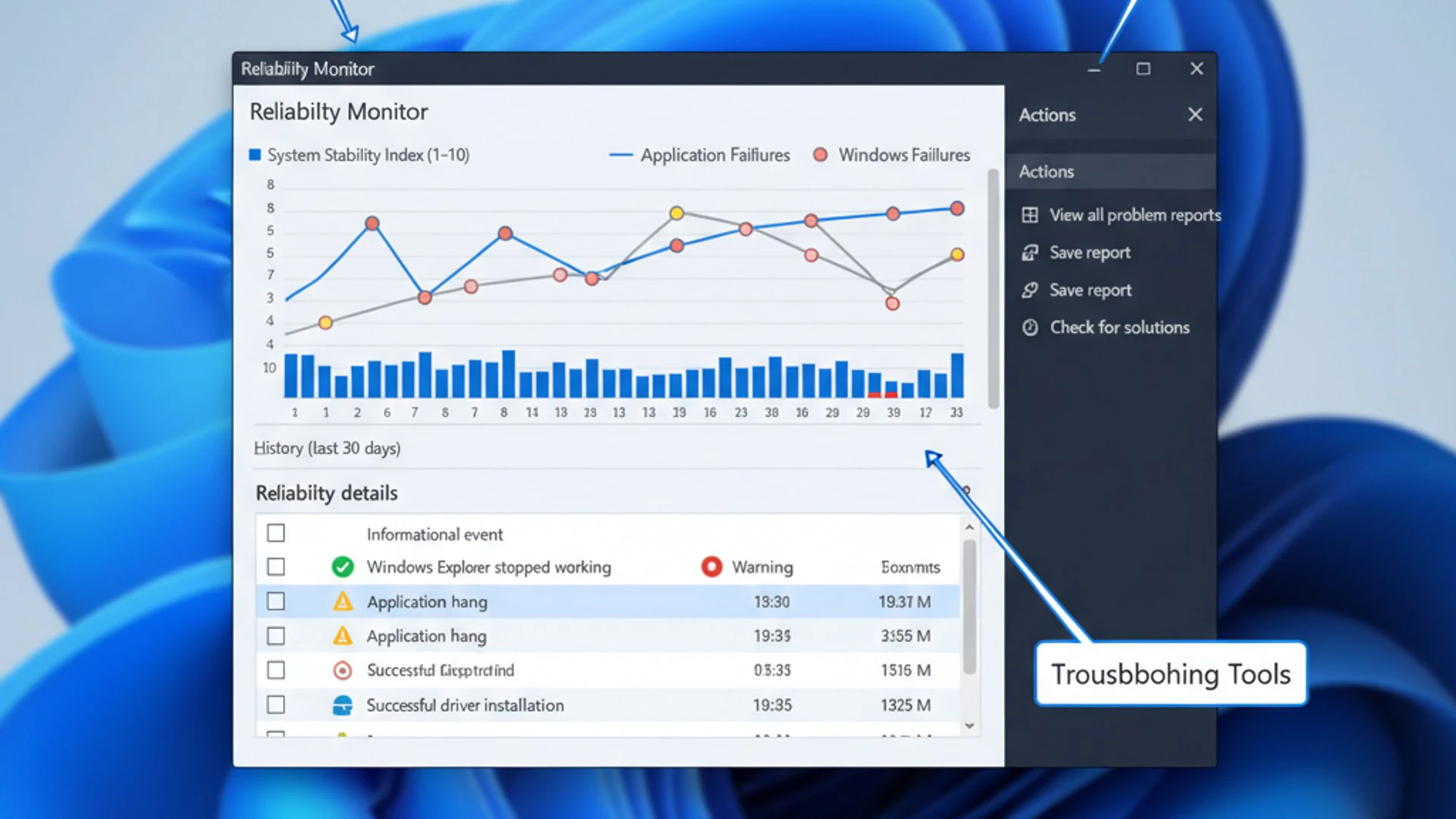
The beauty of Windows 11 is its emphasis on user-friendly navigation, and the Reliability Monitor is no exception. Whether you prefer using the search bar for quick access or navigating through traditional control panel menus, Microsoft has ensured that this crucial diagnostic utility is readily available to all users.
It’s a good practice to know both methods, as sometimes one might be more convenient depending on what other tasks you’re performing. Regardless of the path you choose, the destination is a wealth of information about your system’s health, ready for your analysis and interpretation.
Using the Search Bar
The quickest and most common way to open the Reliability Monitor is by using the Windows Search bar. This method is efficient and requires minimal clicks, making it ideal for immediate access.
- Click on the Start button or press the
Windows keyon your keyboard. - In the search bar that appears, type “Reliability Monitor” or “View reliability history.”
- From the search results, select “View reliability history” (which is the official name for the Reliability Monitor utility).
The Reliability Monitor window will then open, displaying your system’s stability graph and event history. This method is incredibly fast and bypasses multiple menu navigations, making it a favorite for many users.
Via Control Panel
For those who prefer navigating through traditional Windows interfaces, accessing the Reliability Monitor through the Control Panel is another viable option. This method involves a few more steps but is equally effective.
- Click on the Start button, then type “Control Panel” in the search bar and select it from the results.
- In the Control Panel window, ensure “View by” is set to “Category”.
- Click on “System and Security.”
- Under “Security and Maintenance,” you will see an option labeled “Review your computer’s status and resolve issues.” Click on this.
This will open the Security and Maintenance window, which serves as a central hub for various system health tools. From here, you can proceed to the Reliability Monitor.
Navigating to Security and Maintenance
Once you are in the Security and Maintenance window, locating the Reliability Monitor is the next step. This section provides an overview of your system’s security, maintenance, and reliability status.
- In the Security and Maintenance window, expand the “Maintenance” section by clicking the down arrow next to it.
- Look for the option titled “View reliability history.”
- Click on this link, and the Reliability Monitor will launch, presenting you with the detailed historical data of your system’s stability.
Both the search bar and Control Panel methods effectively bring you to the same powerful diagnostic tool. Choose the one that feels most intuitive for you, and remember that consistent access is key to leveraging the Reliability Monitor on Windows 11 for optimal system health.
Interpreting the Reliability Monitor Graph and Events
Once you’ve launched the Reliability Monitor, you’ll be greeted by a visual representation of your system’s stability over time. This interface might seem daunting at first, but understanding its components is crucial for extracting valuable insights. The main elements are the stability index graph and the detailed event logs below it.
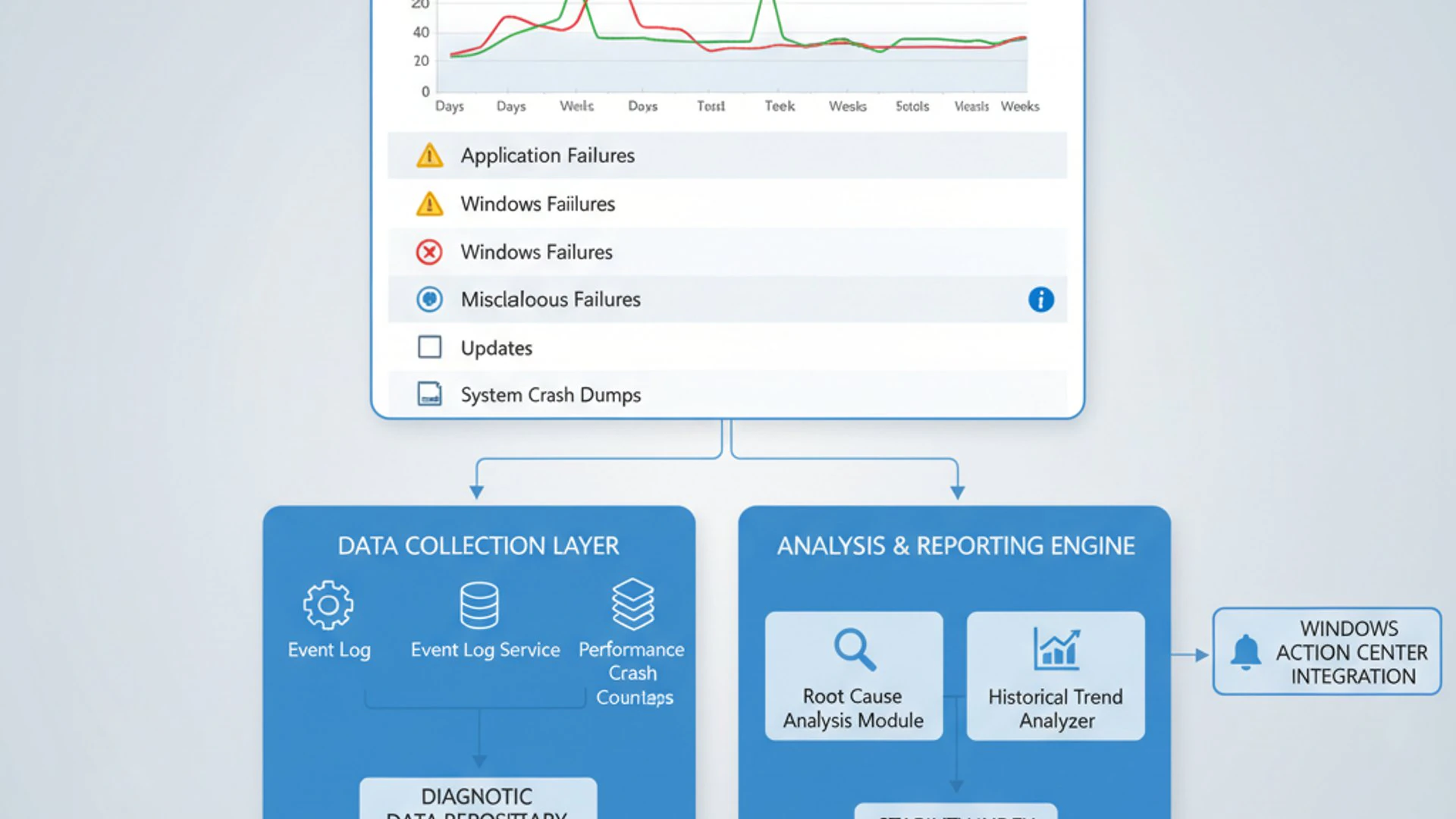
The graph provides an at-a-glance overview, while the events section offers the granular data needed for in-depth analysis. Learning to interpret both will empower you to quickly identify periods of instability and pinpoint the specific incidents that contributed to them. This dual approach makes the Reliability Monitor a remarkably effective diagnostic tool.
Don’t be intimidated by the amount of information presented. We’ll break down each part, explaining what the numbers and icons mean, and how they relate to your system’s overall health. With a little practice, you’ll be able to read your system’s reliability history like an open book.
The Stability Index Explained
The most prominent feature of the Reliability Monitor is the Stability Index, represented by a graph that typically spans several weeks or months. This index is a numerical score ranging from 1 to 10, where 1 indicates the least stable system and 10 signifies the most stable.
A higher score means your system has experienced fewer crashes, freezes, or other critical errors. Conversely, a drop in the stability index suggests a period of increased instability. Each point on the graph corresponds to a specific day, and the line connects these daily scores, illustrating trends over time.
When you hover your mouse over a specific day on the graph, a tooltip will appear, showing the stability index for that day and a summary of events. Days with critical events, such as application or Windows failures, will typically show a lower score. Days without issues will maintain a higher score, ideally close to 10.
A sudden, sharp decline in the stability index is a clear indicator that something significant went wrong on or around that date. This visual cue helps you quickly narrow down the timeframe for investigation, allowing you to focus on events that occurred immediately before the drop. It’s a powerful visual summary of your system’s recent history.
Event Categories and Their Significance
Below the stability index graph, the Reliability Monitor lists various events categorized by type and date. These events are the raw data that inform the stability index and are essential for detailed troubleshooting. Understanding these categories is key to pinpointing specific problems.
The events are typically grouped into several categories, each represented by a distinct icon:
- Application Failures: These are indicated by a red ‘X’ icon and signify instances where an application crashed or stopped responding. This is often due to software bugs, conflicts, or corrupted installations.
- Windows Failures: Also marked with a red ‘X’, these represent critical operating system errors, such as unexpected shutdowns, system freezes, or core Windows component failures. These are usually more severe than application failures.
- Miscellaneous Failures: These events, often marked with a red ‘X’ or a yellow warning triangle, cover a broad range of issues that don’t fit neatly into application or Windows failures. This can include hardware errors, driver issues, or other system-level problems.
- Warnings: Indicated by a yellow warning triangle, these events are less critical than failures but still noteworthy. They might include issues like a driver failing to load properly but not causing a full system crash, or a service experiencing delays.
- Information: Marked with a blue ‘i’ icon, these are non-critical events that provide useful context. This includes successful software installations, Windows updates, or driver installations. These can be crucial for correlating with subsequent failures.
By clicking on any specific event, you can view more details, including the exact time, the affected component (e.g., application name, driver name), and sometimes an error code. This granular information is invaluable for diagnosing the precise nature of the problem. For example, if you see repeated “Application Failure” entries for Microsoft Edge, it suggests an issue with that specific browser, potentially requiring a reinstall or update.
Common Issues Identified by Reliability Monitor
The Reliability Monitor on Windows 11 excels at identifying a wide array of common system issues that can plague any user. Its historical logging capabilities make it particularly adept at spotting recurring problems or those that manifest after specific changes to your system. By understanding what types of issues it highlights, you can more effectively use its data for diagnosis.
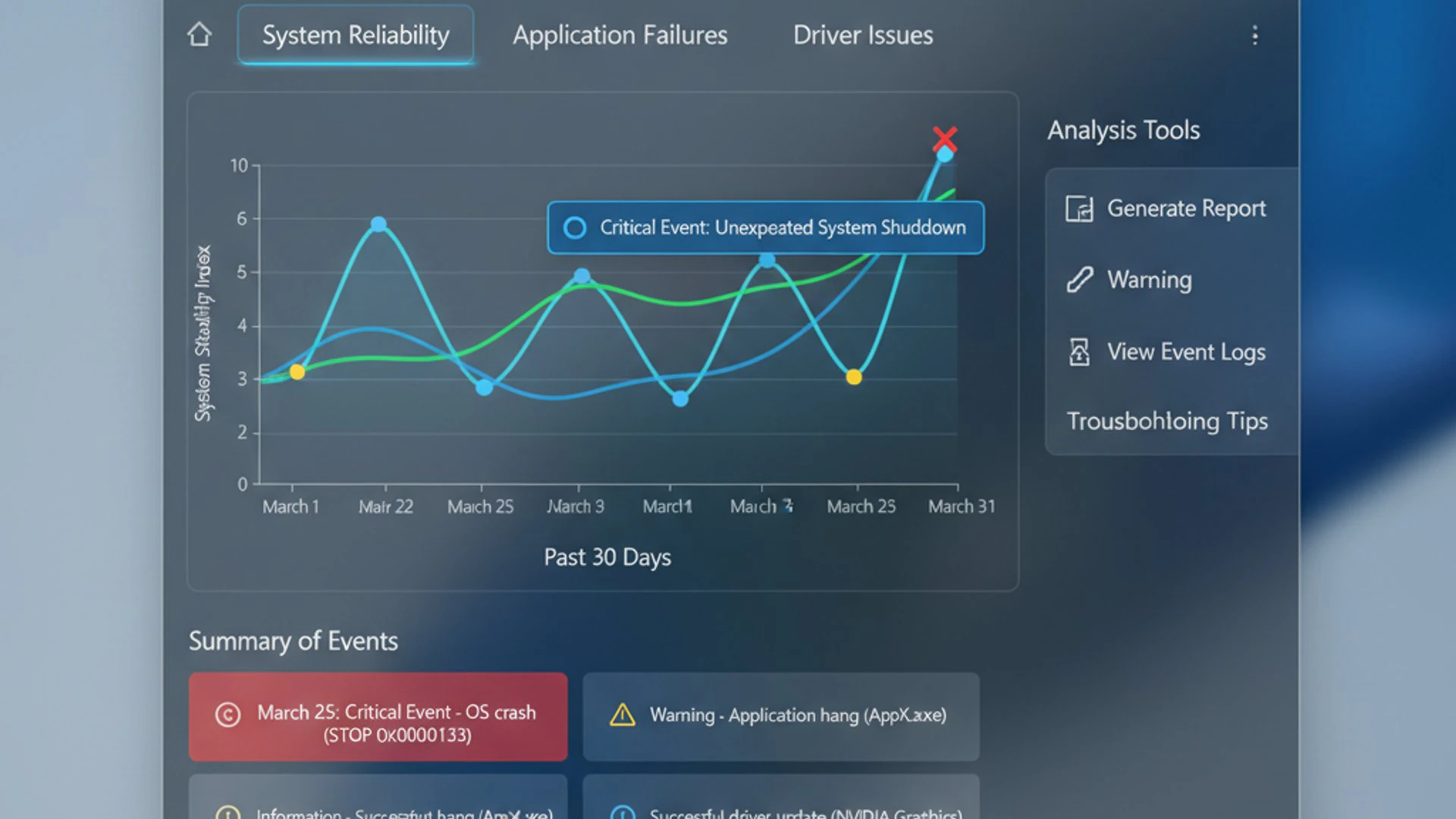
From frustrating software crashes to elusive hardware glitches and even problems stemming from Windows Updates, the monitor captures a comprehensive picture. Knowing these common patterns will help you quickly interpret the event logs and move towards a resolution, rather than getting lost in a sea of technical jargon.
Let’s delve into some of the most frequent problems that the Reliability Monitor can help you uncover, providing specific examples and context for each category. This knowledge will enhance your troubleshooting prowess significantly.
Software Failures and Crashes
One of the most frequent types of events logged by the Reliability Monitor is software failures and crashes. These occur when an application stops responding, closes unexpectedly, or encounters a critical error that prevents it from functioning correctly. You’ll typically see these marked with a red ‘X’ under “Application Failures.”
The monitor will often list the name of the problematic application, along with details like the faulting module and exception code. For example, you might see entries for “explorer.exe” crashing, indicating issues with the Windows File Explorer, or repeated failures for a specific third-party program like a video editor or a game.
If you observe a pattern of a particular application consistently failing, it’s a strong indicator of a problem with that software itself. This could be due to a bug in the application, incompatibility with your Windows 11 version, corrupted installation files, or conflicts with other software or drivers. The Reliability Monitor provides the evidence to initiate targeted troubleshooting, such as reinstalling the application, checking for updates, or contacting the software vendor.
Hardware Problems and Driver Issues
While the Reliability Monitor primarily tracks software events, it also logs issues that originate from underlying hardware problems and driver malfunctions. These often manifest as “Windows Failures” or “Miscellaneous Failures” because a faulty driver can cause the operating system itself to become unstable.
For example, if your graphics card driver is unstable, you might see entries related to display driver crashes or system freezes that point to the graphics driver file (e.g., nvlddmkm.sys for NVIDIA or amdkmdap.sys for AMD). Similarly, issues with network adapters, sound cards, or USB devices can lead to driver-related failures logged here.
A sudden increase in “Hardware error” entries, especially after installing a new component or updating drivers, is a clear red flag. The monitor helps correlate these events with specific dates, allowing you to recall recent changes. This insight is critical for troubleshooting hardware by updating, rolling back, or reinstalling drivers, or even considering hardware replacement.
Windows Updates and Installation Failures
Windows Updates are essential for security and functionality, but sometimes they can introduce instability or fail to install correctly. The Reliability Monitor is an excellent tool for tracking issues related to Windows Updates and installation failures.
You might see “Windows Failures” or “Miscellaneous Failures” immediately following a “Successful installation of Windows Update” entry (which would be an “Information” event). This correlation suggests that the recent update might be the culprit behind the new stability issues. This information is invaluable for deciding whether to uninstall a problematic update or pause future updates.
Similarly, if a software installation fails repeatedly, or if a new program causes system instability, the Reliability Monitor will log these events. It can show if a particular installation process itself crashed or if the newly installed software immediately led to application or Windows failures. This helps in deciding whether to uninstall the recently added program.
By providing a historical record of these events, the Reliability Monitor on Windows 11 allows users to make informed decisions about managing their system’s software and updates, preventing them from becoming sources of ongoing instability.
Leveraging Reliability Monitor for Troubleshooting
The true power of the Reliability Monitor lies not just in its ability to record events, but in its potential to guide your troubleshooting efforts. Once you understand how to interpret the graph and event categories, the next step is to use this information strategically to diagnose and resolve problems. This involves a methodical approach to analyzing the data.
Effective troubleshooting with the Reliability Monitor means moving beyond simply observing issues to actively identifying their underlying causes. This often involves looking for patterns, correlating events with specific actions you took, and using the timestamps to reconstruct the sequence of events leading up to an error.
This section will provide practical advice on how to transform the raw data from the Reliability Monitor into actionable insights. By adopting these techniques, you’ll significantly improve your ability to maintain a stable and efficient Windows 11 environment.
Identifying Patterns and Root Causes
The Reliability Monitor is exceptionally good at helping you identify patterns and root causes of system instability. Rather than focusing on isolated incidents, look for recurring events or clusters of failures around specific dates.
For example, if you see the same application crashing every day at roughly the same time, this points to a recurring issue with that specific program. The root cause could be a corrupted installation, a conflict with another scheduled task, or even a memory leak. Similarly, if your stability index consistently drops every time you launch a particular game, the game itself or its associated drivers are likely the culprits.
Pay close attention to the “Information” events. These entries record successful installations of software, drivers, and Windows updates. If a period of instability immediately follows one of these informational events, it strongly suggests that the recently installed component or update is the cause. This correlation is a powerful diagnostic clue.
Consider this scenario: Your PC starts experiencing random freezes. You open the Reliability Monitor and notice a sharp drop in stability starting last Tuesday. Looking at the events for Tuesday, you see “Successful installation of driver update for graphics card.” This immediately points you towards troubleshooting the graphics driver, perhaps by rolling it back or checking for a newer, more stable version.
Correlating Events with System Behavior
Beyond identifying patterns, effectively leveraging the Reliability Monitor involves correlating events with your system’s actual behavior. This means thinking about what you were doing on your computer when a particular issue occurred.
When you see an “Application Failure” for a specific program, ask yourself: “What was I doing when this crashed?” Were you performing a specific action within the application? Was another resource-intensive program running simultaneously? This contextual information can help narrow down the cause.
For instance, if your system experiences a “Windows Failure” (unexpected shutdown) and the Reliability Monitor shows a “Hardware error” related to a storage device just before it, you can correlate this with recent behavior like large file transfers or heavy disk usage. This might indicate a failing hard drive or SSD, prompting you to check its health using tools like System Image Backup on Windows 11 or third-party diagnostic software.
“Correlating Reliability Monitor events with your real-world system interactions transforms abstract data into concrete troubleshooting steps.”
The timestamps associated with each event are critical here. If you remember your computer froze around 2:30 PM yesterday, check the Reliability Monitor for events around that exact time. This precision helps you connect the dots between reported issues and your system’s operational history, making your troubleshooting efforts far more targeted and successful.
Advanced Tips for Using Reliability Monitor
While the basic interpretation of the Reliability Monitor’s graph and events is powerful, there are advanced features that can further enhance your diagnostic capabilities. These tips allow for deeper analysis, better reporting, and more effective collaboration when seeking technical support. Mastering these functions will elevate your troubleshooting skills.
The Reliability Monitor isn’t just a passive viewer; it offers options to generate comprehensive reports and export data. These functionalities are particularly useful for IT professionals, advanced users, or anyone who needs to document system issues thoroughly. Let’s explore how to unlock these advanced capabilities.
Generating a System Health Report
One of the most powerful advanced features within the Reliability Monitor is the ability to generate a detailed system health report. This report provides a comprehensive snapshot of your system’s performance, resource usage, and configuration, alongside reliability data.
To generate this report:
- Open the Reliability Monitor as described earlier.
- In the top menu bar, click on “View all problem reports.” This will open a new window listing all recorded application and Windows failures.
- In this “Problem Reports” window, click on “Create a system health report” in the left-hand pane.
Windows will then collect data, which can take a few minutes. Once complete, it will open a detailed HTML report in your web browser. This report includes sections on:
- Diagnostics Results: Information about system services, hardware devices, and software configurations.
- Performance: Data on CPU, disk, network, and memory usage.
- Resource Overview: Details on processes, services, and hardware resources.
- Reliability: A summary of critical errors and warnings, similar to the main Reliability Monitor view but often with more technical depth.
This system health report is an invaluable resource for advanced troubleshooting. It consolidates a vast amount of system information into a single, navigable document, making it easier to spot correlations between performance issues, resource bottlenecks, and reliability events. It’s particularly useful when diagnosing complex or intermittent problems that might not be immediately obvious from just the reliability graph.
Exporting Reliability History
For situations requiring external analysis or when you need to share your system’s reliability data with technical support, the Reliability Monitor allows you to export your reliability history. This feature is crucial for collaborative troubleshooting or for archiving your system’s health data.
To export the data:
- Open the Reliability Monitor.
- In the “Actions” pane on the right side of the window, click on “Save reliability history…”
- A “Save As” dialog box will appear. Choose a location to save the file, give it a descriptive name (e.g., “MyPC_Reliability_History_2023-10-27”), and click “Save.”
The file will be saved in an XML (Extensible Markup Language) format. While not directly human-readable in its raw form, this XML file can be opened and parsed by various tools or provided to support technicians who can use it for in-depth analysis. It contains all the detailed event information, including timestamps, faulting modules, and error codes.
Exporting your reliability history ensures that you have a complete record of your system’s past behavior, even if you reinstall Windows or encounter a catastrophic failure. It’s a proactive step for serious users and a vital tool for effective communication with IT support, providing them with concrete data rather than anecdotal descriptions of problems.
Comparing Reliability Monitor with Other Diagnostic Tools
Windows 11 offers a suite of diagnostic tools, each with its unique purpose. While the Reliability Monitor provides a historical overview of system stability, it’s important to understand how it fits into the broader ecosystem of troubleshooting utilities. Comparing it with tools like Event Viewer, Task Manager, and Resource Monitor helps clarify their distinct roles and how they complement each other for a holistic approach to system health.
No single tool can provide all the answers. Effective troubleshooting often involves consulting multiple utilities to gather a complete picture. By understanding the strengths and weaknesses of each, you can choose the right tool for the job or combine their insights for a more comprehensive diagnosis.
Let’s explore how the Reliability Monitor stands alongside these other essential Windows diagnostic utilities, highlighting their differences and how they can be used in conjunction.
Event Viewer vs. Reliability Monitor
The Event Viewer is often confused with the Reliability Monitor, and while they both deal with system events, their scope and presentation are quite different.
The Event Viewer is a low-level, highly detailed log of virtually every event that occurs on your system. It records everything from successful logins and system startup events to application errors, security audits, and driver issues. It categorizes these into various logs (Application, Security, System, Setup, etc.) and provides extensive technical details for each event.
However, the sheer volume of information in Event Viewer can be overwhelming. It’s like looking at every single brick in a building. Finding specific issues requires filtering and advanced knowledge of event IDs and sources. Its strength lies in its granularity and comprehensive logging.
The Reliability Monitor, on the other hand, acts as a high-level summary and filter for critical events. It selectively pulls the most impactful stability-related events from the Event Viewer logs and presents them in an easy-to-understand graphical format. It’s like looking at the building’s structural integrity report.
Key Difference: Reliability Monitor offers a summarized, visual history of stability, making it excellent for identifying trends and specific dates of instability. Event Viewer provides the raw, unadulterated, and extremely detailed logs for deep-dive analysis once a problem area has been identified by the Reliability Monitor. You might use Reliability Monitor to spot a recurring application crash, then use Event Viewer to dig into the specific error codes and faulting modules for that crash.
Task Manager and Resource Monitor Integration
While the Reliability Monitor focuses on historical stability, Task Manager and Resource Monitor are real-time tools that provide insights into your system’s current performance and resource utilization.
Task Manager (accessed via Ctrl+Shift+Esc) gives you an immediate overview of running applications, processes, and services. It shows real-time CPU, memory, disk, and network usage. It’s invaluable for identifying which applications are consuming the most resources right now, or for force-quitting unresponsive programs.
Resource Monitor (accessible from Task Manager’s “Performance” tab or by searching “Resource Monitor”) offers a more detailed, real-time breakdown of CPU, disk, network, and memory usage by individual processes. It can help pinpoint specific processes causing bottlenecks or excessive resource consumption.
Integration: These tools complement the Reliability Monitor perfectly. If the Reliability Monitor indicates a period of instability, and you suspect it’s related to resource exhaustion, you can use Task Manager or Resource Monitor to observe your system’s behavior in real-time when the issue occurs. For example, if an application consistently crashes (as shown in Reliability Monitor), you can monitor its resource usage in Task Manager to see if it’s consuming excessive memory or CPU just before the crash.
Together, the Reliability Monitor provides the “what and when” of past problems, while Task Manager and Resource Monitor provide the “what’s happening now” for current performance issues. This combined approach offers a comprehensive toolkit for maintaining a healthy and responsive Windows 11 system.
Maintaining Optimal System Reliability on Windows 11
Understanding and utilizing the Reliability Monitor is a crucial step towards effective troubleshooting, but the ultimate goal is to prevent issues from occurring in the first place. Maintaining optimal system reliability on Windows 11 requires a proactive approach, combining regular maintenance with best practices for software and hardware management. This section outlines key strategies to keep your system running smoothly.
Prevention is always better than cure, especially when it comes to computer systems. By adopting a few simple habits and adhering to recommended guidelines, you can significantly reduce the frequency of crashes, errors, and performance degradation. These practices will not only improve your daily computing experience but also extend the lifespan of your hardware.
Let’s explore the essential steps you can take to foster a consistently reliable and high-performing Windows 11 environment, ensuring your Reliability Monitor on Windows 11 graph stays consistently high.
Regular Software Updates and Driver Management
Keeping your software and drivers up to date is perhaps the single most important step in maintaining system reliability. Updates often include critical bug fixes, security patches, and performance enhancements that address known issues and improve compatibility.
Windows Updates: Ensure your Windows 11 operating system is always up to date. Go to Settings > Windows Update and check for pending updates regularly. While updates can sometimes introduce new issues (as identified by Reliability Monitor), the benefits of security and stability improvements generally outweigh the risks. If an update causes problems, the Reliability Monitor will help you identify it, allowing you to roll it back.
Application Updates: Regularly update all your installed applications, especially frequently used ones. Many applications have built-in update mechanisms, or you can check their respective websites. Outdated software can lead to crashes, security vulnerabilities, and conflicts with the operating system.
Driver Management: Device drivers are the software that allows your hardware components to communicate with Windows. Outdated or corrupted drivers are a common source of system instability. Always ensure your graphics card, chipset, network adapter, and other critical device drivers are up to date. You can usually find the latest drivers on the manufacturer’s website (e.g., NVIDIA, AMD, Intel, Realtek). Use Device Manager to check for driver updates or roll back problematic ones.
Pro Tip: After any major driver or software update, check the Reliability Monitor. If you notice a sudden drop in stability, the recent update is a prime suspect, allowing you to take immediate corrective action.
Best Practices for System Health
Beyond updates, several other best practices contribute significantly to overall system health and reliability:
- Keep Your System Clean: Regularly uninstall unused programs to free up disk space and reduce potential conflicts. Use Disk Cleanup or Storage Sense (Settings > System > Storage) to remove temporary files and system junk. A cluttered system can lead to slower performance and increased instability.
- Run Antivirus/Antimalware Scans: Malicious software can cause severe system instability, crashes, and performance issues. Ensure your antivirus software is up to date and perform full system scans regularly. Windows Security provides robust built-in protection.
- Monitor Disk Health: Hard drive or SSD failures can lead to data loss and system crashes. Use tools like ‘chkdsk’ (Command Prompt) or third-party utilities to monitor your drive’s health. Consider a system image backup as a preventative measure against drive failure.
- Manage Startup Programs: Too many programs launching with Windows can slow down boot times and consume valuable resources, potentially leading to instability. Use Task Manager (Startup tab) to disable unnecessary startup items.
- Maintain Good Ventilation: Overheating components (CPU, GPU) can lead to throttling, performance degradation, and system crashes. Ensure your computer’s fans are clean and that airflow is unobstructed.
- Regular Backups: While not directly preventing instability, regular backups of your important data and system images are the ultimate safeguard against data loss caused by system failures.
By consistently applying these best practices, you create a resilient computing environment. The Reliability Monitor on Windows 11 will then serve as a confirmation of your diligent maintenance, showing a consistently high stability index, rather than a constant alert system for ongoing problems.
Conclusion
The Reliability Monitor on Windows 11 is far more than just another obscure system utility; it is a powerful, yet often underestimated, diagnostic tool that every Windows 11 user should be familiar with. It provides an invaluable historical perspective on your system’s stability, transforming vague frustrations into actionable insights. By offering a clear, visual representation of your PC’s health over time, it empowers you to move from reactive problem-solving to proactive system management.
Throughout this guide, we’ve explored how to access this critical tool, interpret its stability index and event logs, and leverage its data for effective troubleshooting. From identifying recurring software crashes and elusive hardware issues to pinpointing the impact of Windows updates, the Reliability Monitor serves as your personal system health detective. Its ability to correlate events with specific dates and changes on your system is unparalleled, making it an indispensable asset in your troubleshooting arsenal.
While it works in concert with other diagnostic tools like Event Viewer and Task Manager, the Reliability Monitor stands out for its user-friendly summary of critical stability data. By integrating its insights with best practices for system maintenance – such as regular updates, driver management, and system hygiene – you can significantly enhance your Windows 11 experience, ensuring it remains fast, secure, and most importantly, reliable.
Embrace the Reliability Monitor as a fundamental part of your routine system checks. A consistently high stability index is not just a number; it’s a testament to a healthy, well-maintained computing environment, allowing you to focus on productivity and enjoyment rather than troubleshooting woes. Keep your Windows 11 system stable, and it will serve you reliably for years to come.
For more interesting articles, stay tuned to Winsides.com!









Community
Comments (0)