

Introduction to LOGMAN
LOGMAN is the built-in Windows command-line tool for creating, querying, starting, stopping, updating, importing, and exporting performance logs and Event Trace Sessions. On Windows 11, it is useful when you need repeatable evidence about CPU usage, memory pressure, disk activity, network behavior, service activity, or an Event Tracing for Windows provider without depending on a graphical Performance Monitor session.
Microsoft describes LOGMAN as a command that creates and manages Event Trace Session and Performance logs, while supporting many Performance Monitor functions from the command line. That single sentence explains why the tool matters. Performance Monitor is excellent for visual exploration, but LOGMAN is better when the capture must be scripted, repeated, scheduled, limited by size or duration, run against a remote computer, or documented as part of a troubleshooting process.
LOGMAN is not only one command. It is a family of operations around data collectors and Data Collector Sets. You can create a counter collector for sampled performance counters, a trace collector for ETW providers, an alert collector for thresholds, a configuration collector for system configuration data, or an API collector for specialized tracing scenarios. You can then query the collector, start it, stop it, update it, delete it, export it to XML, or import it on another system.
For official context, Microsoft documents the LOGMAN command, LOGMAN create, LOGMAN query, LOGMAN start and stop, LOGMAN update, and LOGMAN import and export. Microsoft also documents related tools such as TYPEPERF, RELOG, and the Windows Performance Counters platform.
Table of contents
Key Takeaways
- LOGMAN is for repeatable diagnostics. It creates and controls performance counter logs, Event Trace Sessions, alerts, configuration collectors, and API collectors.
- The basic lifecycle is create, query, start, stop, and analyze. A collector definition is separate from the log data it records.
- Counter collectors are best for trends. Use them for CPU, memory, disk, network, process, and other sampled performance counter data.
- Trace collectors are best for events. Use ETW providers when you need event-level detail instead of sampled counters.
- Always set limits. Use sample intervals, run duration, maximum size, and output folders so a capture does not run forever or fill a drive.
- Use TYPEPERF and RELOG beside LOGMAN. TYPEPERF is useful for quick counter discovery or simple output, while RELOG can reduce or convert performance log files.
- Keep captures focused. The best LOGMAN session answers one question clearly instead of collecting every possible signal.
What LOGMAN Does in Windows 11
LOGMAN gives Windows 11 a command-line way to work with the same diagnostic building blocks that administrators often touch through Performance Monitor. The important idea is the data collector. A data collector defines what to gather, how often to gather it, where to write it, and how the collection should start or stop. A Data Collector Set is a named collection of one or more collectors that can be queried, started, stopped, exported, or reused.
That model is useful because performance issues are often intermittent. A machine may be fine while you are watching it and then fail at 2:00 AM, during sign-in, during a backup, during a driver crash, or when a scheduled task runs. A LOGMAN definition can sit ready, start manually or on schedule, collect bounded data, and stop cleanly. This makes it easier to compare before and after results or hand a reproducible capture process to another technician.
LOGMAN can be used on a single Windows 11 PC, but it also supports remote targets through options such as -s in many command forms. Remote use should be planned carefully because permissions, firewall rules, remote registry behavior, Performance Logs and Alerts service state, output paths, and credentials can all change the outcome. Start locally first, then expand remote collection only after the command is understood.
The tool is most useful when you already know what evidence you need. If the question is whether CPU is saturated every time an app freezes, a counter log may be enough. If the question is which kernel or user-mode provider is emitting events around a driver issue, a trace collector may be better. If the question is whether a counter crosses a threshold, an alert collector may be more appropriate. LOGMAN is powerful because it lets you choose the collection type instead of forcing every problem into one format.
LOGMAN Syntax and Command Families
The top-level LOGMAN syntax is simple: choose an action, choose a target or collector type, and add options. Microsoft lists the major actions as create, query, start, stop, delete, update, import, and export. Local Windows help also shows collector categories such as counter, trace, alert, cfg, api, and providers.
logman /?
logman query
logman query providers
logman create counter MyCounterSet [options]
logman start MyCounterSet
logman stop MyCounterSet
logman export MyCounterSet -xml C:\PerfLogs\MyCounterSet.xml
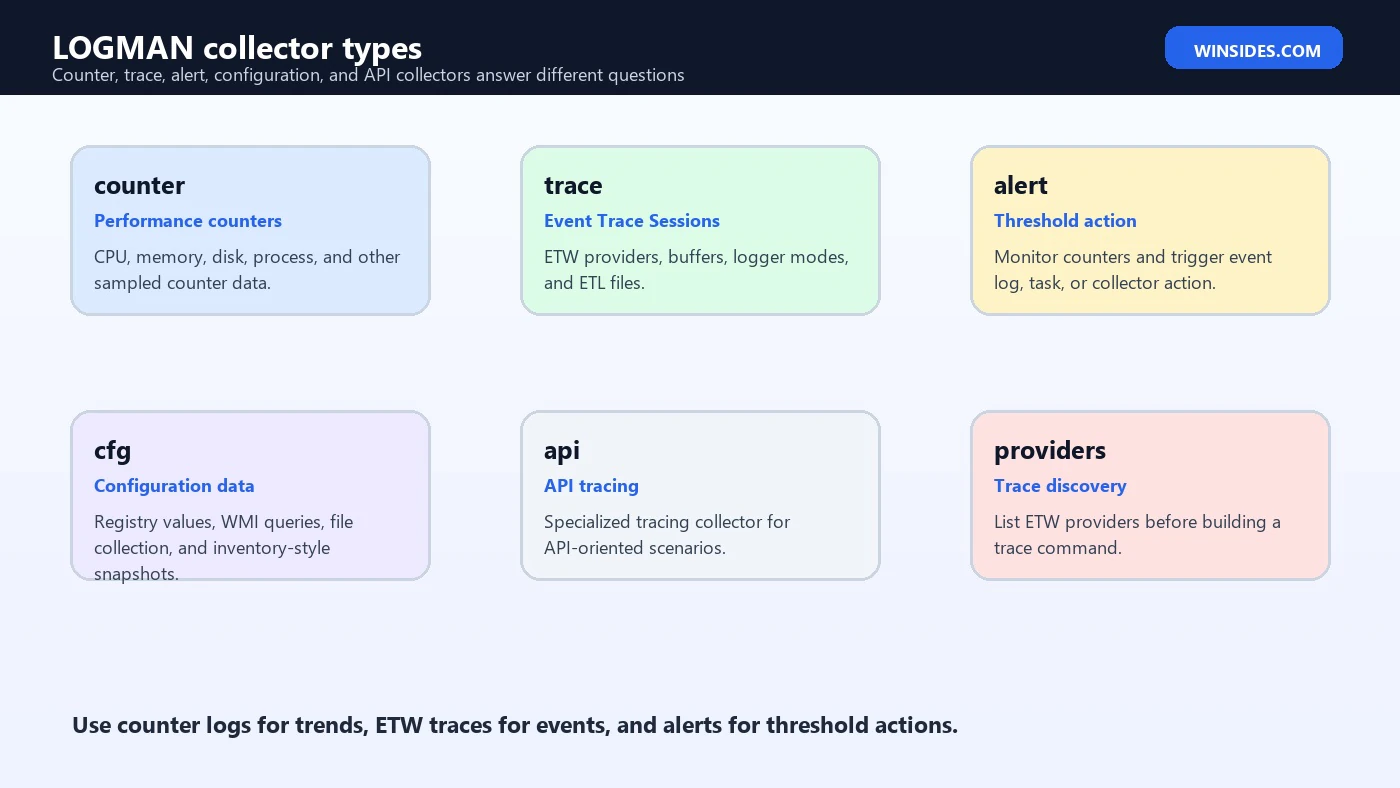
The word after create matters. logman create counter creates a performance counter collector. logman create trace creates an ETW trace collector. logman create alert creates a threshold-based alert collector. logman create cfg creates a configuration data collector. logman create api creates an API tracing collector. The same pattern applies to update commands for supported collector types.
Many options are shared. For example, -s targets a remote computer, -config reads a settings file, -n names a target object, -o defines output, -b and -e can define begin and end time, -rf can define run duration, -y answers yes to prompts, and -ets sends commands directly to Event Trace Sessions instead of saving or scheduling a collector. Other options are collector-specific.
The Safe LOGMAN Workflow
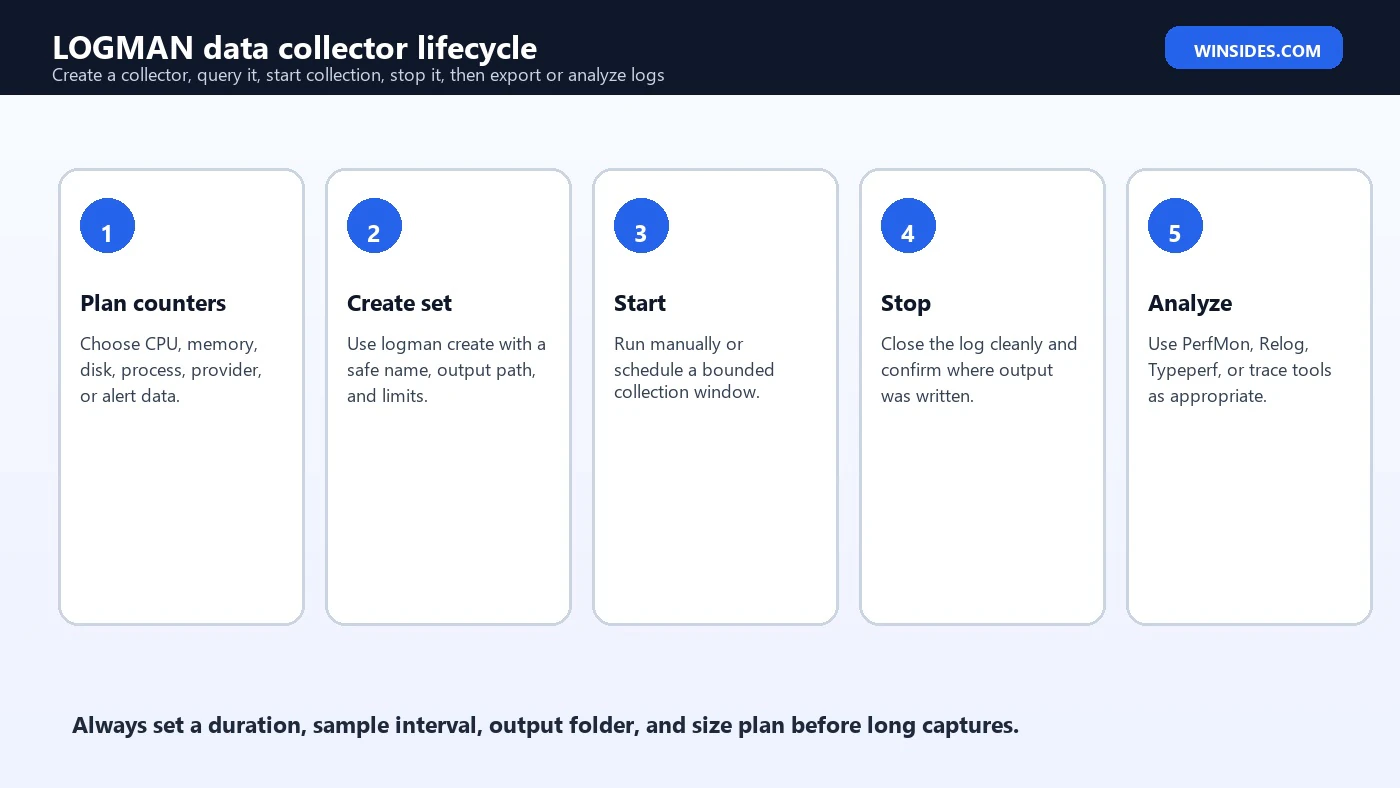
A safe LOGMAN workflow starts with a question, not with a command. Ask what you need to prove. Is the computer running out of memory? Is a process spiking CPU? Is disk latency increasing during a backup? Is a provider emitting events before a crash? Is a threshold being crossed? Once the question is clear, choose the smallest collector that can answer it.
The basic lifecycle is plan, create, query, start, stop, and analyze. Planning includes counter selection, provider selection, sample interval, output format, output folder, maximum size, run duration, and naming. Creating defines the collector. Querying confirms the definition. Starting begins collection. Stopping closes the log. Analysis happens in Performance Monitor, Windows Performance Analyzer, Event Viewer, RELOG, a spreadsheet, or another tool depending on the format.
- Plan the problem statement and expected evidence.
- Choose counter, trace, alert, cfg, or api based on the question.
- Create the collector with a clear name and output path.
- Query the collector before starting it so you catch bad paths early.
- Start the collector only when you are ready to reproduce or observe the issue.
- Stop the collector cleanly and record the output file location.
- Analyze a copy of the log so the original evidence remains unchanged.
This lifecycle prevents the most common mistakes: running an unlimited capture, collecting the wrong counters, forgetting where the output went, overwriting a useful file, or producing a log that is too large to share. LOGMAN is not difficult, but it is exact. Small command-line choices change the value of the evidence.
Creating a Counter Log
Counter logs are the most approachable LOGMAN use case. They sample Windows performance counters at a defined interval and write the results to a log file. Microsoft describes Windows Performance Counters as a consistent interface for system data such as CPU, memory, and disk usage. That makes counters useful for slowdowns, freezes, resource pressure, and trend questions.
A counter path must be exact. A typical path looks like \Processor(_Total)\% Processor Time or \Memory\Available MBytes. Instance-based objects such as Process, LogicalDisk, PhysicalDisk, and Network Interface can require instance names. If the counter path is wrong, LOGMAN will not collect the intended data. Use Performance Monitor, TYPEPERF, or local counter discovery before building a long-running collector.
typeperf -qx Processor

typeperf -qx PhysicalDisk

logman create counter WinsidesCpu -c "\Processor(_Total)\% Processor Time" -si 00:00:05 -f bin -o C:\PerfLogs\WinsidesCpu -rf 00:10:00 -max 200 -cnf 01:00:00
This example creates a counter collector named WinsidesCpu. It samples total processor time every five seconds, writes a binary performance log under C:\PerfLogs, stops after ten minutes, sets a maximum size, and includes a rollover-style duration plan. The exact options you use should match your environment, but the pattern is important: name the collector, specify counters, choose an interval, choose an output format, choose an output location, and set limits.
Binary logs are often better for native performance analysis because they preserve counter data in a format Performance Monitor understands. CSV and TSV are easier to inspect in text tools or spreadsheets. SQL output is more specialized and requires database planning. Do not pick a format only because it is familiar. Pick the format that matches the analysis tool you plan to use.
Starting, Stopping, and Querying Collectors
After a collector exists, use logman query to inspect it. Microsoft documents logman query as the command for data collector or Data Collector Set properties. Querying is an underrated step. It confirms that the named collector exists and that your command created the expected type. It is better to catch a bad name or output folder before the issue is reproduced.
logman query
logman query WinsidesCpu
logman start WinsidesCpu
logman stop WinsidesCpu
Microsoft documents logman start as starting a data collector and setting the begin time to manual, and logman stop as stopping a Data Collector Set and setting the end time to manual. In practical terms, start begins writing evidence, and stop finishes the file cleanly. If a collector is left running, the output can grow, roll over, or become difficult to interpret.
When troubleshooting, write down the exact time you start and stop the collector. Later analysis is much easier when you can match a log timeline to the user action, application error, Event Viewer entry, blue screen time, freeze time, or network outage. A LOGMAN file without a timeline is still useful, but a LOGMAN file with a timeline is much more persuasive.
Trace Collectors and ETW Providers
Performance counters answer sampled state questions. Trace collectors answer event questions. A trace collector works with Event Tracing for Windows providers. This is useful when you need detailed event streams from a provider, driver, subsystem, or application component rather than periodic counter values. LOGMAN can query providers and create trace sessions that use provider names or GUIDs.
logman query providers
logman query providers Microsoft-Windows-Kernel-Process
logman create trace WinsidesTrace -p Microsoft-Windows-Kernel-Process -o C:\PerfLogs\WinsidesTrace.etl -ets
logman start WinsidesTrace -ets
logman stop WinsidesTrace -ets
Trace sessions deserve more care than counter logs because provider flags, levels, buffers, clock type, and real-time behavior can affect output size and usefulness. The -ets option is especially important to understand. Microsoft notes that it sends commands to Event Trace Sessions directly without saving or scheduling. That can be useful for temporary sessions, but it also means you are controlling a live trace session differently than a saved Data Collector Set.
Do not enable broad tracing without a reason. ETW can produce very large files and may capture sensitive operational details. When the goal is a driver, process, service, or subsystem issue, narrow the provider list and collection window. If you do not know which provider matters, start by querying providers and checking official vendor or Microsoft troubleshooting guidance for the component.
Collector Types Explained
LOGMAN supports several collector types because Windows diagnostics are not one-dimensional. A performance counter sample, an ETW event, a threshold alert, and a configuration snapshot answer different questions. Using the wrong collector type can make an article-length troubleshooting effort produce almost no evidence.
| Collector type | Best use | Typical output or action |
|---|---|---|
| counter | CPU, memory, disk, network, process, and other sampled performance counter trends | BLG, CSV, TSV, SQL, or related counter log output |
| trace | Event-level ETW provider activity and time-ordered event captures | ETL trace files or live Event Trace Sessions |
| alert | Threshold monitoring when a counter crosses a defined value | Event log entry, task, or collector action depending on configuration |
| cfg | Configuration data collection such as registry, WMI, management, or file inventory style data | Configuration snapshot style output |
| api | Specialized API tracing scenarios | Trace data for supported API-oriented collection |
For most Windows 11 users, counter and trace are the most relevant. alert is useful for monitoring a threshold without constantly watching a screen. cfg is useful when configuration state is part of the evidence. api is specialized and should be used only when you know why that collector type is appropriate.
Choosing Counters Without Guessing
Counter selection determines whether a LOGMAN capture is helpful. A slow PC article can easily tell people to collect CPU, memory, and disk counters, but a real troubleshooting workflow should be more deliberate. If the symptom is application hangs, process CPU, private bytes, handle count, thread count, disk queue length, and storage latency may matter. If the symptom is network transfer dropouts, network interface counters and TCP-related evidence may matter more.
TYPEPERF is a good companion because Microsoft documents it as a command that writes performance data to the command window or to a log file, and it can query installed counters with or without instances. Use typeperf -q or typeperf -qx to discover exact counter paths before placing them into a LOGMAN command. This reduces the risk of starting a collector that records nothing useful.
typeperf -q Memory

typeperf -qx Process

typeperf -qx "Network Interface"
For repeated work, place counters in a text file and reference that file. A counter file is easier to review, reuse, and version than a long command line. It also reduces quoting mistakes. Keep the file focused. A small set of meaningful counters sampled at the right interval beats a huge set of counters sampled so aggressively that the log becomes noisy.
logman create counter WinsidesPerf -cf C:\PerfLogs\counters.txt -si 00:00:10 -f bin -o C:\PerfLogs\WinsidesPerf -rf 01:00:00 -max 512Output Formats, Paths, and File Size
LOGMAN can write different formats depending on collector type and options. Counter collectors commonly use binary, binary circular, CSV, TSV, or SQL formats. Trace collectors typically write ETL files. The output path is usually controlled with -o. If you do not define a careful output location, the default may land under the system drive performance log folders, which is not always where you want a large diagnostic file.
Before starting a capture, decide how much disk space you can spend. A ten-second counter interval for one hour is very different from a one-second interval for a full day. A focused ETW trace is different from broad provider logging. Use -rf for a run duration, -max for maximum size, and collector-specific rollover settings where appropriate. The safest capture is bounded by time and size.
If the log will be shared with another person, consider format and privacy. A counter log may include process names, computer names, instance names, timestamps, and operational patterns. ETL traces can contain much more detailed data. Do not upload raw diagnostic files publicly unless you understand what they contain. For a public support forum, summarize the result instead of posting the whole file.
Scheduling and Running Reproducible Captures
LOGMAN becomes especially valuable when the issue happens outside your working window. You can create a collector with a defined run duration and schedule it through command options or through Windows task automation that starts and stops LOGMAN commands. The goal is not to create a permanent monitoring platform. The goal is to catch a specific problem window with enough evidence to move the diagnosis forward.
If a problem happens during startup, sign-in, backup, gaming, app launch, or sleep-resume, design the capture around that event. For short scenarios, start the collector just before reproducing the issue and stop it right after. For long scenarios, use a sane sample interval and duration. A one-second counter interval across a whole day is rarely necessary and can be counterproductive.
Name collectors and files so they explain themselves. WinsidesCpu, DiskFreezeJune22, or AudioDropTrace is easier to understand than test1. Include the target machine or symptom in your notes. LOGMAN output is evidence, and evidence needs context.
Importing, Exporting, and Reusing Collector Sets
Microsoft documents logman export and logman import as the way to export a Data Collector Set to XML and import a Data Collector Set from XML. This matters when you want to reuse a known-good collector definition on another computer or keep a standardized troubleshooting template.
logman export WinsidesCpu -xml C:\PerfLogs\WinsidesCpu.xml
logman import WinsidesCpu -xml C:\PerfLogs\WinsidesCpu.xml
Exported XML can be useful for internal documentation. Instead of telling another technician to copy a long command line, you can provide a collector definition that can be reviewed and imported. Still, imported collectors should be inspected before use. Paths, account context, output locations, remote computer names, and schedules may not match the new system.
Do not import unknown collector XML from untrusted sources. A collector definition can influence what is collected, where data is written, and how it runs. Treat it as operational configuration. Review it the same way you would review a script.
Updating and Deleting Collectors
LOGMAN can update existing collectors. Microsoft documents logman update for supported collector types such as counter, alert, cfg, and api. In practice, updating is useful when the collector name is already part of a workflow and you only need to adjust counters, intervals, paths, or other options.
logman update counter WinsidesCpu -si 00:00:10
logman query WinsidesCpu
After updating, query the collector again. This habit catches mistakes before the next capture. If the old collector definition is no longer needed, delete it. Leaving old collectors behind can confuse later troubleshooting because someone may start the wrong collector or assume an outdated configuration is still valid.
logman stop WinsidesCpu
logman delete WinsidesCpu
Deleting the collector definition is not the same as deleting every output file it previously created. Keep useful logs in a clear folder, and clean up obsolete logs separately. If you are working on a production machine, follow your organization’s retention and evidence handling rules.
LOGMAN vs Performance Monitor, TYPEPERF, and RELOG
LOGMAN is part of a family of Windows performance tools. It overlaps with Performance Monitor, TYPEPERF, and RELOG, but it does not replace all of them. Performance Monitor is the most visual. TYPEPERF is the fastest for simple counter output and counter discovery. LOGMAN is strong at defining and controlling collectors. RELOG is strong after collection, when you need to extract, reduce, convert, or resample performance counter logs.
| Tool | Use it when | Main strength |
|---|---|---|
| Performance Monitor | You want interactive charts, counter browsing, and visual inspection | Exploration and review |
| TYPEPERF | You want quick counter discovery or command-line counter output | Fast sampling and exact counter names |
| LOGMAN | You want repeatable collectors, scheduled captures, ETW sessions, alerts, or reusable definitions | Controlled collection |
| RELOG | You already have a performance log and need to convert, filter, or resample it | Post-processing |
A practical workflow often uses all four. Use Performance Monitor or TYPEPERF to discover counters, LOGMAN to collect them during the problem window, then RELOG to reduce or convert the log before sharing or importing it. That flow keeps each tool in its strongest role.
Troubleshooting LOGMAN Problems
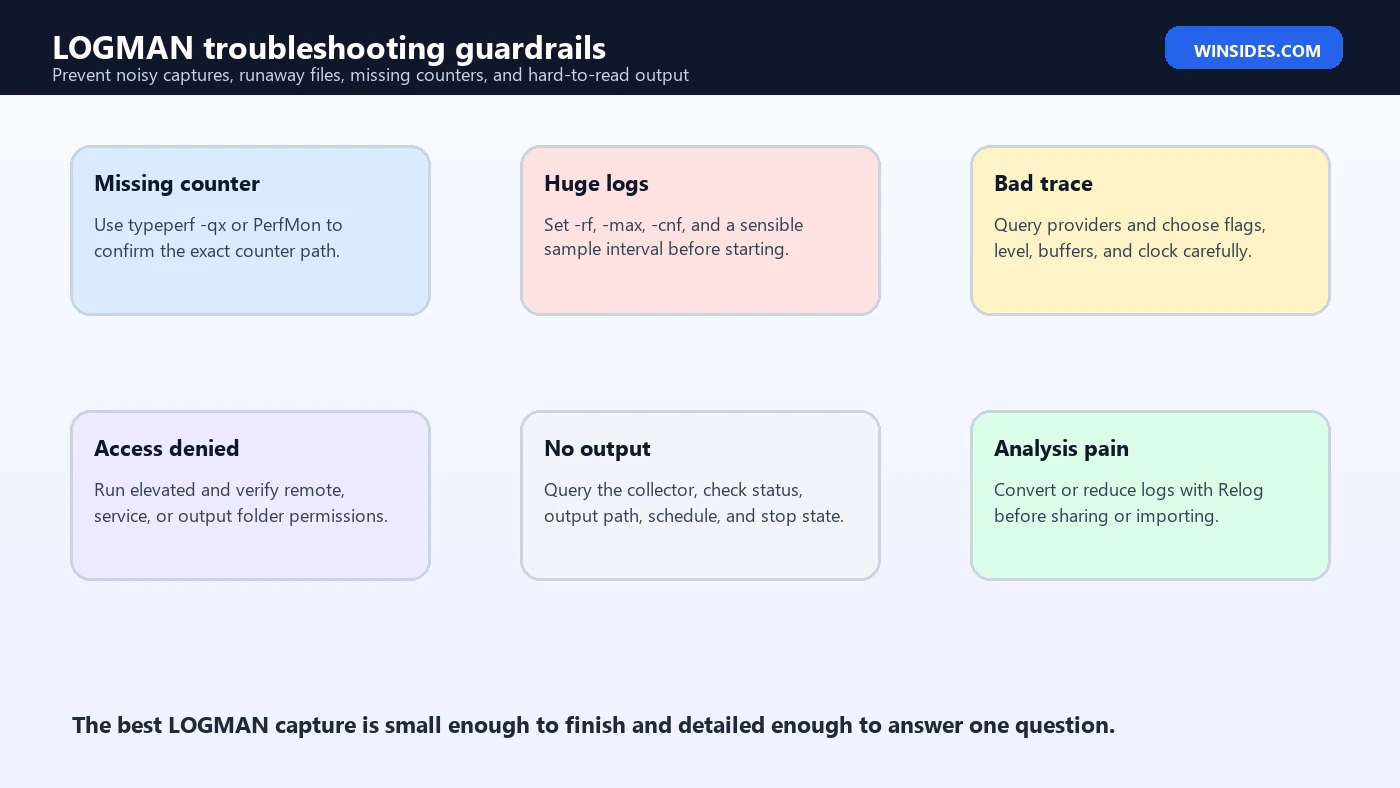
Most LOGMAN problems fall into a few categories: bad counter paths, missing permissions, running the command in the wrong context, output folder mistakes, collectors left running, traces that are too broad, or logs that are too large to analyze. These issues are preventable with query checks, short test runs, and explicit paths.
| Problem | Likely cause | Fix |
|---|---|---|
| Counter does not collect | Wrong counter path or missing instance | Use typeperf -q, typeperf -qx, or Performance Monitor to confirm the exact path. |
| Access denied | Insufficient rights, remote permission issue, or folder permission problem | Run an elevated shell and verify output folder and remote permissions. |
| No output file | Collector was not started, output path was different, or session stopped too soon | Run logman query, check status, and use an explicit -o path. |
| Huge output | Interval too short, trace too broad, or no duration limit | Set -si, -rf, -max, and narrow providers or counters. |
| Trace is hard to read | Wrong provider, missing flags, or too much event noise | Query providers, reduce scope, and use the right ETW analysis tool. |
| Remote collection fails | Connectivity, permission, service, or firewall restriction | Test locally first, then verify remote management requirements one by one. |
When a command fails, simplify it. Run logman query. Create a tiny collector with one known counter. Start it. Stop it. Confirm output. Then add the real counters, duration, format, remote target, or provider. Debugging a ten-option command all at once wastes time because every option becomes a suspect.
Practical Counter Log Examples
These examples are starting points, not universal prescriptions. Adjust paths, intervals, file formats, and counters to match the problem. Use a folder that exists, and run Command Prompt or PowerShell as administrator when the collector requires elevated rights.
logman create counter CpuShort -c "\Processor(_Total)\% Processor Time" -si 00:00:05 -f csv -o C:\PerfLogs\CpuShort -rf 00:05:00
logman start CpuShort
logman stop CpuShort
The CPU example is useful for a short reproduction. It is intentionally small. It samples one counter every five seconds for five minutes. That is enough to prove whether total CPU was saturated during a short action without producing an enormous file.
logman create counter DiskWatch -c "\PhysicalDisk(_Total)\Avg. Disk sec/Read" "\PhysicalDisk(_Total)\Avg. Disk sec/Write" "\PhysicalDisk(_Total)\Current Disk Queue Length" -si 00:00:10 -f bin -o C:\PerfLogs\DiskWatch -rf 01:00:00
logman start DiskWatch
The disk example is better for storage latency symptoms. It records read latency, write latency, and queue length. The right counters vary by device, driver, workload, and storage stack, so treat this as a framework. If you are diagnosing an NVMe issue, driver issue, or controller problem, pair counters with event logs and vendor tools.
logman create counter ProcessWatch -c "\Process(*)\% Processor Time" "\Process(*)\Working Set" "\Process(*)\Handle Count" -si 00:00:15 -f bin -o C:\PerfLogs\ProcessWatch -rf 00:30:00The process example is broader and can become noisy because Process(*) records many instances. Use it when you need to identify which process grows, spikes, or leaks during a reproduction. If you already know the process name, narrow the instance instead of collecting every process.
Interpreting the Results
LOGMAN creates evidence, but it does not interpret every cause. A high CPU counter does not automatically identify the faulty code path. A high disk queue does not automatically prove hardware failure. An ETW trace can show events, but the events still need to be correlated with the symptom and with other logs. Treat LOGMAN as a way to make invisible behavior measurable.
Start analysis by matching time. If the user says the freeze happened at 10:42, inspect the log around 10:42. Then look for correlation. Did CPU rise before the freeze or after it? Did available memory decline steadily? Did disk latency spike during a backup? Did a provider emit warnings before the visible problem? Correlation is not proof, but it guides the next test.
If the log is too large, RELOG can help. Microsoft documents RELOG as extracting performance counters from performance counter logs into formats such as TSV, CSV, BIN, or SQL. It can also resample by including every nth data point. That is useful when you collected a long BLG file but only need a smaller CSV for review.
Security and Privacy Considerations
Performance and trace logs can contain sensitive operational information. Counter logs may reveal computer names, process names, user activity timing, service names, workload patterns, and resource usage. ETW traces can be much more detailed depending on providers and flags. Do not assume a diagnostic file is safe to share just because it is not a document or screenshot.
When working on a business computer, follow internal policy. Store logs in an approved location, limit access, and delete temporary captures when they are no longer needed. If a vendor requests logs, understand what is being collected and send only the necessary file. If you are writing a public support post, summarize the finding instead of uploading raw traces.
Also avoid collecting for too long. Long captures increase privacy exposure and make analysis harder. A short, targeted, bounded capture is usually safer and more useful than a broad capture that records hours of unrelated activity.
Best Practices for Reliable LOGMAN Captures
- Use a descriptive collector name and output folder.
- Create the output folder before starting the capture.
- Run a one-minute test capture before the real reproduction.
- Use exact counter paths verified through TYPEPERF or Performance Monitor.
- Set sample interval, run duration, and maximum size.
- Keep ETW provider lists narrow and purposeful.
- Record start time, stop time, symptom time, and user action.
- Stop collectors cleanly before copying logs.
- Export reusable collector definitions only after they are tested.
- Clean up old collectors and obsolete logs so future tests are not confused.
These habits may feel slow, but they save time. A collector that was planned, bounded, queried, and tested is much more likely to produce useful evidence on the first real attempt.
Common Mistakes to Avoid
The biggest mistake is starting with too much data. New users often add every counter they recognize, choose a very short interval, and let the collector run too long. The resulting file is large, noisy, and hard to interpret. Start with the minimum set of counters or providers that can answer the question, then expand only if the first capture is inconclusive.
Another mistake is forgetting the context of the problem. A log created after the issue disappears may prove only that the machine was healthy at the wrong time. For intermittent problems, the capture must overlap the symptom. If the symptom cannot be reproduced, schedule a bounded capture around the likely time window instead of watching manually.
A third mistake is using LOGMAN as a repair tool. LOGMAN does not fix Windows components, drivers, storage devices, services, or applications. It collects evidence. Repairs happen after the evidence points to a cause. This distinction keeps the workflow honest.
Frequently Asked Questions
What is LOGMAN used for?
LOGMAN is used to create and manage Windows data collectors, including performance counter logs, Event Trace Sessions, alerts, configuration collectors, and API tracing collectors.
Does LOGMAN work on Windows 11?
Yes. Microsoft lists LOGMAN as applicable to Windows 11, Windows 10, and supported Windows Server versions.
Is LOGMAN the same as Performance Monitor?
No. Performance Monitor is a graphical tool for browsing, charting, and reviewing counters. LOGMAN controls similar collection capabilities from the command line and is better for scripted or repeatable captures.
What is the difference between LOGMAN and TYPEPERF?
TYPEPERF is useful for writing performance data to the command window or a log file and for discovering counters. LOGMAN is better for creating named collectors, controlling start and stop behavior, and managing Data Collector Sets.
What is the difference between LOGMAN and RELOG?
LOGMAN collects data. RELOG works after collection by extracting, converting, filtering, or resampling existing performance counter logs.
Can LOGMAN create ETW traces?
Yes. LOGMAN can create and control trace collectors and Event Trace Sessions with ETW providers. Use provider discovery and narrow scope to avoid huge trace files.
Where does LOGMAN save files?
The location depends on the collector and the -o option. Use an explicit output path so you know exactly where logs are written.
Do I need administrator rights for LOGMAN?
Some simple queries may work without elevation, but many collector, trace, remote, and system-level tasks require an elevated Command Prompt or PowerShell session.
Conclusion: Use LOGMAN as a Controlled Evidence Tool
LOGMAN is one of the most practical diagnostic commands built into Windows 11 because it turns performance and trace collection into something repeatable. It can create counter logs for resource trends, trace collectors for ETW events, alerts for thresholds, configuration collectors for system state, and reusable Data Collector Sets that can be queried, started, stopped, exported, and imported.
The right way to use LOGMAN is deliberate. Define the problem, choose the collector type, verify counters or providers, set output path and limits, run a short test, capture the symptom window, stop the collector, and analyze the result with the right tool. That process prevents runaway logs and produces cleaner evidence.
For official background, keep Microsoft pages for LOGMAN, LOGMAN create, LOGMAN query, LOGMAN start and stop, LOGMAN update, LOGMAN import and export, TYPEPERF, RELOG, and Windows Performance Counters nearby when building capture plans.
For more interesting articles, stay tuned to Winsides.com!









Community
Comments (0)