

Introduction to the MBR2GPT Cannot Find OS Partition Error
The mbr2gpt cannot find os partition error appears when Windows MBR2GPT validation cannot confidently identify the Windows operating system partition on the disk you asked it to convert. This usually happens before conversion begins, which is good news. MBR2GPT is stopping because it cannot prove that the selected disk has a valid bootable Windows installation that can be converted safely from MBR to GPT.
MBR2GPT is Microsoft’s supported command-line tool for converting a disk from Master Boot Record to GUID Partition Table without deleting the existing data on the disk. It is commonly used when a Windows 11 system needs to move from legacy BIOS boot to UEFI boot, because Windows 11 requirements and modern firmware features expect UEFI, Secure Boot, and GPT layouts in many scenarios. The tool is powerful, but it has strict validation rules.
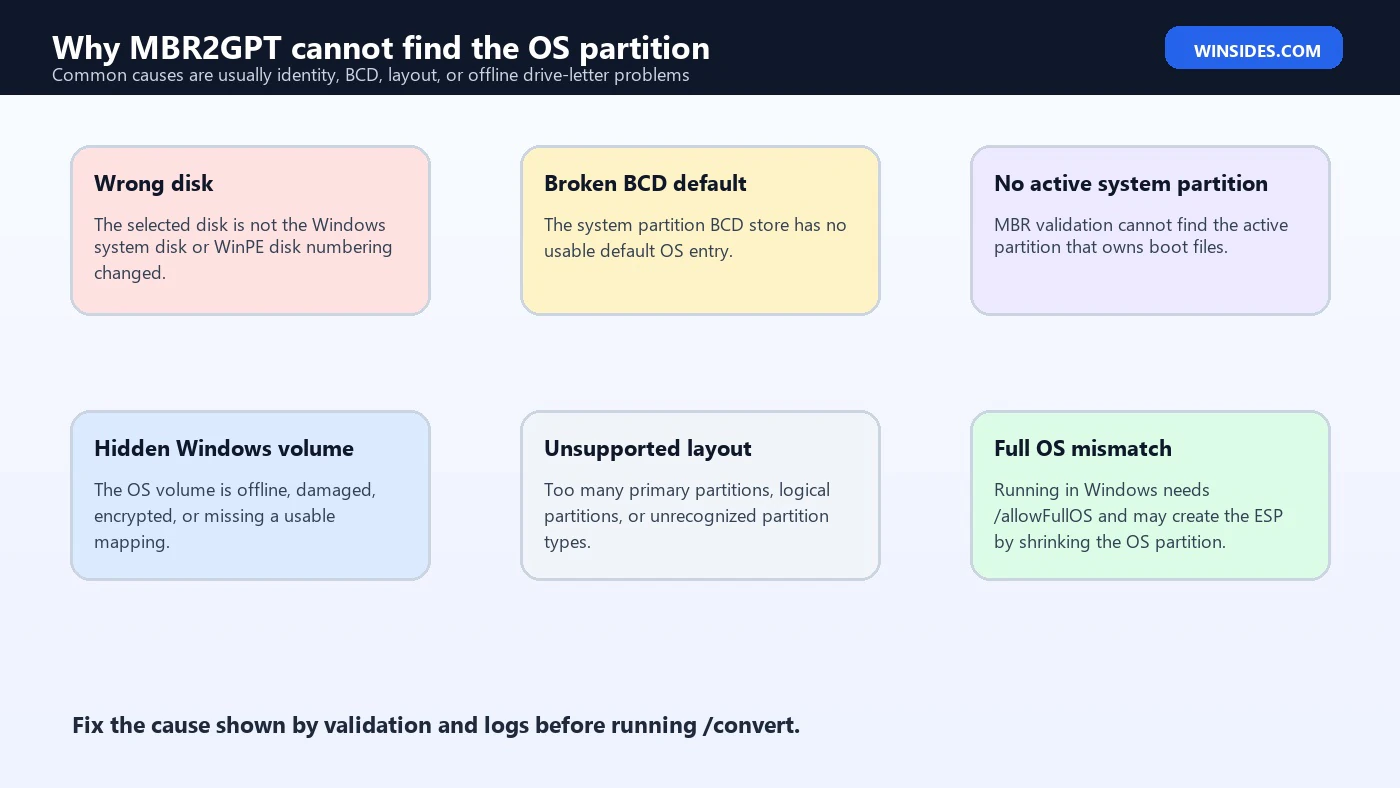
The phrase cannot find OS partition does not mean your Windows folder is definitely gone. It means MBR2GPT could not match the selected disk, the existing partition layout, the boot configuration data, and the Windows installation in the way it expects. The cause can be as simple as selecting the wrong disk in Windows PE, or as serious as a damaged BCD store, missing active system partition, unsupported partition layout, offline volume, or boot files pointing to the wrong location.
For official context, Microsoft documents MBR2GPT, BCDBoot command-line options, BCDEdit, DiskPart. Use those references as the baseline when you inspect boot configuration or repair boot files.
Table of contents
Key Takeaways
- Do not run /convert first. Run
mbr2gpt /validateand read the log output before changing the disk. - The selected disk must be the real Windows system disk. Disk numbers can change in Windows PE, especially when USB drives or multiple disks are attached.
- The BCD store matters. MBR2GPT needs boot configuration data that points to the Windows OS partition.
- The active system partition matters on MBR disks. A missing or wrong active partition can prevent the OS partition from being identified.
- BCDBoot can repair boot files, but only after you identify the Windows and system partitions correctly.
- Unsupported partition layouts can trigger nearby errors. Too many primary partitions, logical partitions, or unusual layouts may need cleanup before validation can pass.
- Revalidate after every fix. Do not switch to conversion until validation succeeds on the intended disk.
What MBR2GPT Checks Before Conversion
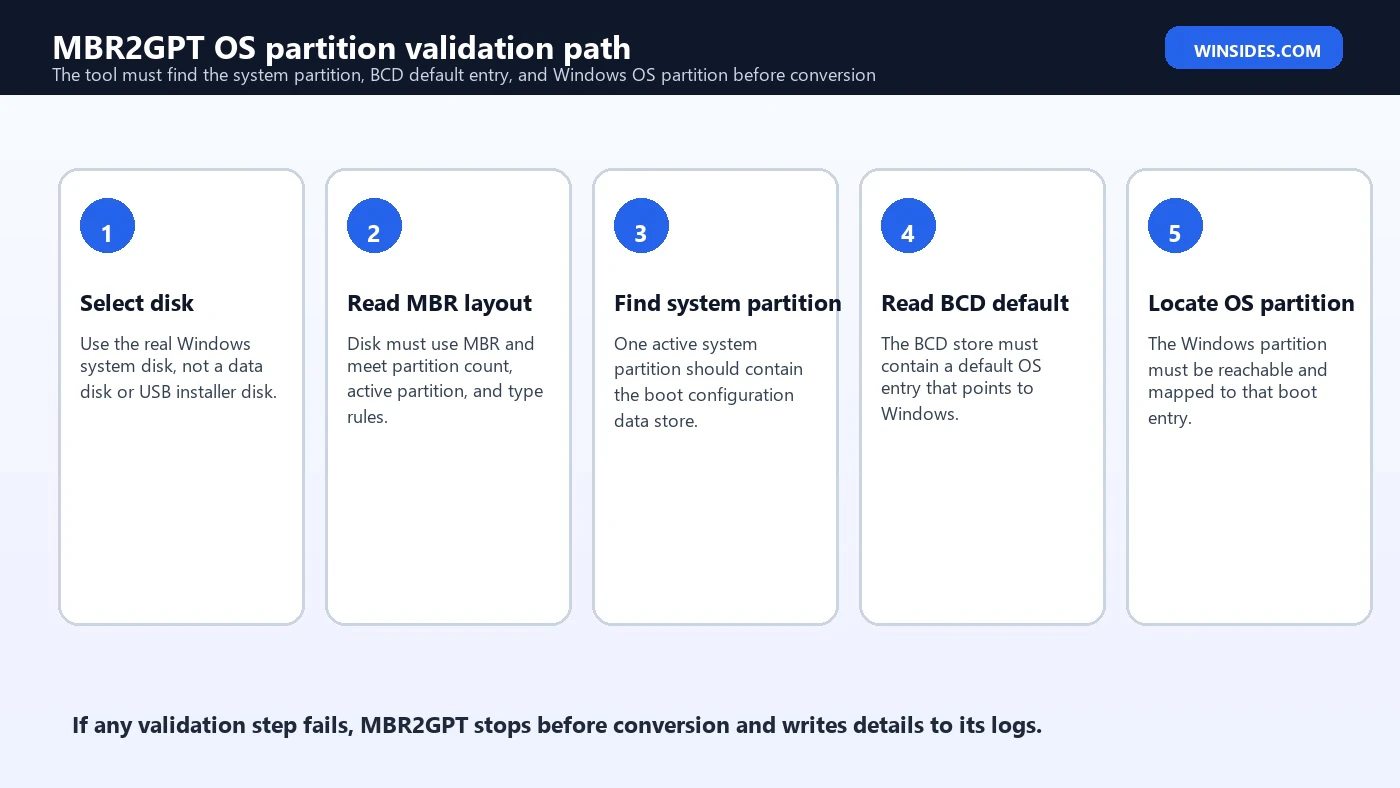
Microsoft explains that MBR2GPT validates the selected disk layout before conversion. That validation exists to prevent a bootable system disk from being converted into an unusable state. Validation checks the disk type, partition layout, available room for EFI system partition creation, and whether the disk appears to contain an operating system that MBR2GPT can update for UEFI boot.
In a healthy conversion path, MBR2GPT finds the MBR disk, identifies the system partition, reads the boot configuration, locates the Windows OS partition, creates or uses space for an EFI system partition, installs UEFI boot files, updates boot configuration, and changes partition metadata. If it cannot identify the OS partition early in the process, it should stop instead of guessing.
This is why the error must be treated as a validation failure, not as a simple typo. The tool is saying that an assumption required for safe conversion is missing. The fix is to identify which assumption failed: wrong disk, bad boot data, missing active partition, wrong Windows volume mapping, damaged file system, unsupported partition layout, or a full-OS versus WinPE command mismatch.
Start by collecting the exact command used, where it was run, and the logs. A command run from full Windows with /allowFullOS is not the same as a command run from Windows PE. A disk number shown as disk 0 in the installed OS may not be disk 0 after booting from USB recovery media. A drive letter shown as C: in Windows may be different in WinPE. Those details change the diagnosis.
Run Validation With Logs First
The safest first command is validation. If you are running MBR2GPT from the full Windows environment, Microsoft requires the /allowFullOS option. If you are running from Windows PE, that option is not normally needed. Use /logs so the result is saved somewhere easy to find.
mbr2gpt /validate /disk:0 /allowFullOS /logs:C:\MBR2GPTLogsIf you are in Windows PE, adapt the command to the disk number you verified there.
mbr2gpt /validate /disk:0 /logs:X:\MBR2GPTLogsRead the log after validation fails. The visible console message may be short, but the log usually gives more context about the selected disk, partitions, BCD lookup, and validation step. Do not assume the fix until you have seen which disk and partition MBR2GPT was evaluating. This is especially important on laptops with recovery partitions, dual-drive desktops, systems upgraded many times, or machines repaired previously with boot tools.
Confirm You Selected the Correct Disk
Wrong disk selection is one of the easiest ways to trigger confusing MBR2GPT errors. The command accepts /disk:<diskNumber>. If that disk is a data disk, an installer USB, an old cloned drive, or a disk that does not contain the active Windows installation, MBR2GPT cannot find the expected OS partition because it is looking in the wrong place.
Use DiskPart to list disks, volumes, and partitions. Do this in the same environment where you run MBR2GPT. If you booted into recovery media, do not rely on the disk numbers you remember from full Windows. Check again.
diskpart
list disk
select disk 0
detail disk
list partition
list volume
exit
Look for the disk that contains the Windows volume, the boot or system partition, and any recovery partitions. The Windows partition normally contains a Windows folder, Program Files, and Users. In Windows PE, it may not be C:. Use dir against likely drive letters to confirm the real OS partition.
dir C:\Windows
dir D:\Windows
dir E:\Windows
If the Windows folder is on D: in WinPE, that does not automatically mean anything is wrong. Drive letters can shift outside the installed OS. The key is to identify the physical disk and partition that contain the installed Windows directory, then run validation against that disk number.
Check the Active System Partition on an MBR Disk
Before conversion, a legacy BIOS boot disk normally uses an active system partition. That partition contains boot files and the BCD store used to start Windows. MBR2GPT validation can fail if the disk does not have a clear active system partition or if the active flag points to the wrong partition.
Use DiskPart to inspect the selected disk and partitions. Do not mark partitions active casually. Marking the wrong partition active can make a BIOS-booting system fail to start. The goal is inspection first.
diskpart
select disk 0
list partition
select partition 1
detail partition
exit
On many systems, the active system partition may be a small System Reserved partition. On others, the Windows partition itself may be active. Older installs, cloned disks, OEM layouts, and manual repairs can vary. The important point is that the active partition should correspond to the partition that contains the boot files and BCD store used by the installed Windows instance.
If there is no active partition, or the active partition is clearly unrelated to Windows boot, repair planning is needed before conversion. This is not the moment to guess. Confirm the Windows partition, confirm the system partition, and only then use boot repair tools if required.
Inspect the BCD Store
The Boot Configuration Data store is often the center of the cannot find OS partition error. MBR2GPT needs to read boot configuration and identify the default Windows OS entry. If the BCD store is damaged, missing, points to the wrong partition, or has no usable default entry, MBR2GPT may not be able to map the boot entry back to the Windows partition.
BCDEdit can show boot entries. Start with read-only inspection. In full Windows, run an elevated Command Prompt or PowerShell window.
bcdedit /enum allLook for the Windows Boot Manager and Windows Boot Loader entries. The loader entry should point to the Windows installation. On BIOS/MBR systems, device paths may reference a partition. If the default entry is missing, points to an old partition, or references a volume that no longer exists, MBR2GPT may fail validation.
Do not delete or rewrite BCD entries just because they look unfamiliar. Recovery entries, resume entries, memory diagnostic entries, and OEM entries can be normal. The question for this error is narrower: can the default Windows loader entry be matched to the actual Windows partition on the selected disk?
Repair Boot Files Only After Mapping the Partitions
BCDBoot is the Microsoft tool used to create or repair boot files on a system partition. It can be useful when the Windows installation is present but the boot files or BCD store no longer describe it correctly. However, it must be used with the correct Windows partition and system partition. If those are wrong, you can repair the wrong thing and make troubleshooting harder.
In a recovery environment, first identify the Windows partition and the system partition. If the Windows installation is on D: in WinPE and the active system partition is temporarily assigned S:, a BCDBoot command might look like this:
bcdboot D:\Windows /s S: /f BIOSThat example is not a universal command. It demonstrates the shape of the command after you have already confirmed the letters. Before conversion, the disk is still MBR and booting through BIOS/legacy mode, so /f BIOS is often the relevant repair mode. After conversion to GPT/UEFI, boot files are written for UEFI. Mixing the phases is a common source of confusion.
If you are not sure which partition is the system partition, stop and gather more evidence. Use DiskPart details, directory listings, and BCDEdit output. The safest repair is the one based on the actual layout, not on a generic command copied from another machine.
When Full Windows and Windows PE Behave Differently
MBR2GPT can run from the full Windows environment with /allowFullOS, or from Windows PE. These environments can show different drive letters, have different access to encrypted volumes, and expose disks in a different order. That is why a command that seems obvious in one environment may fail in another.
If validation fails in full Windows, try to understand whether another process, security software, BitLocker state, or the active OS environment is blocking clean validation. If validation fails in WinPE, make sure the Windows volume is unlocked and visible, and that the disk number is still correct. A BitLocker-protected OS volume that is locked in recovery media can make the Windows partition appear inaccessible until it is unlocked.
For most users, the practical rule is simple: inspect in the same environment where you convert. If you plan to convert from WinPE, identify disk and partition letters there. If you plan to convert from full Windows, use /allowFullOS, close unnecessary applications, ensure backups are current, and validate before conversion.
Unsupported Layouts That Can Look Related
The exact message cannot find OS partition is often tied to boot metadata, but unsupported disk layout can produce adjacent validation failures. Microsoft’s MBR2GPT documentation lists validation requirements, including that the disk must use MBR, have enough room for required GPT structures, and not exceed the supported partition layout for conversion. If the disk has too many primary partitions or unusual partition types, MBR2GPT may fail before it can prepare the UEFI layout.
Many Windows 10 to Windows 11 upgrade-era machines have a system partition, Windows partition, recovery partition, and OEM utility partition. Some older machines have additional vendor partitions or logical partitions inside an extended partition. MBR2GPT is not a general partition cleanup tool. It validates and converts a supported boot disk layout. If the layout is unsupported, you must plan partition cleanup separately and carefully.
Do not delete recovery or OEM partitions just to make an error disappear. First identify which partitions exist, what they contain, and whether you have recovery media. If a partition must be moved, resized, or removed, use a backup-first process. A successful conversion is not useful if it destroys recovery capability or user data.
A Safe Diagnosis Sequence
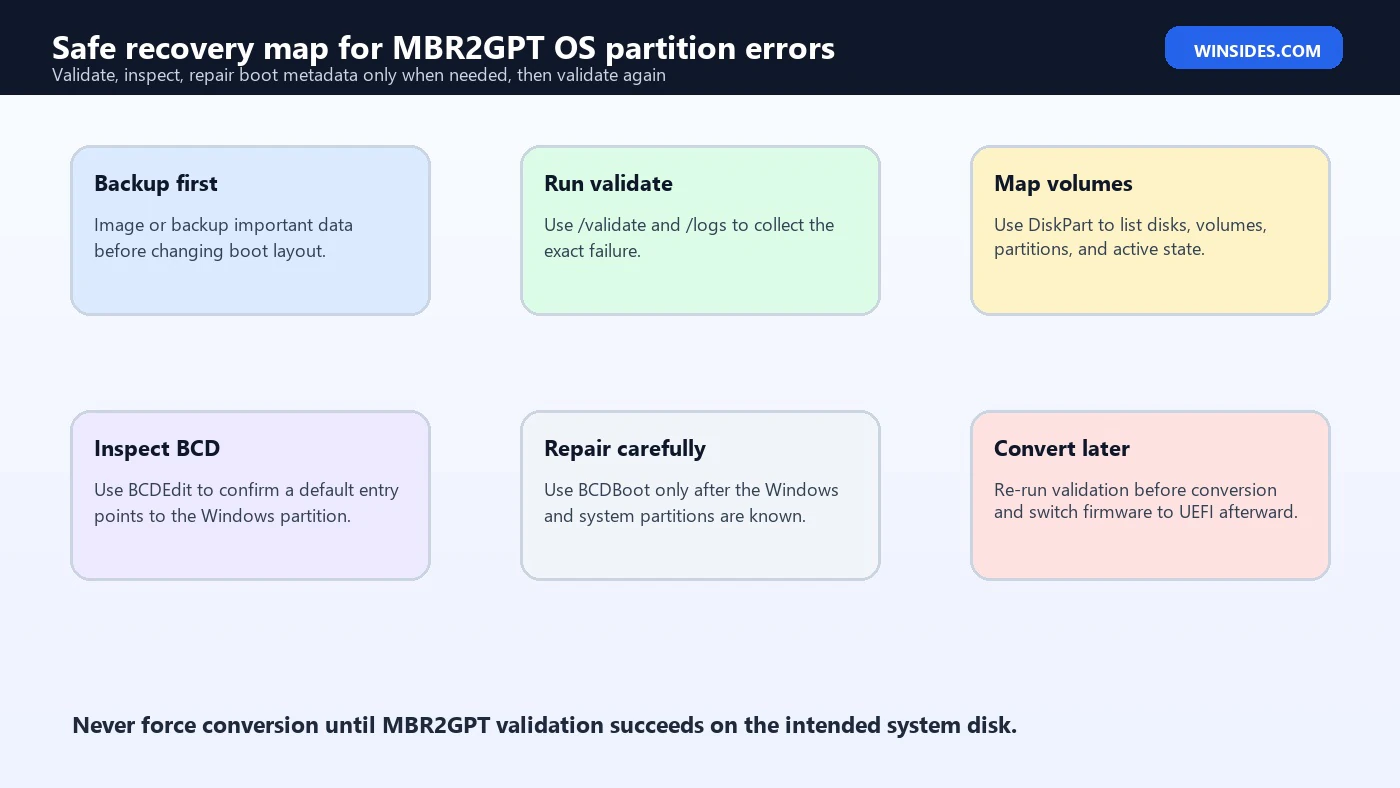
The safest workflow is methodical. It avoids forcing conversion, avoids guessing drive letters, and avoids repairing boot files until the Windows and system partitions are known. Use this sequence as a checklist rather than a rigid script.
- Back up important data or create a full image backup before changing boot layout.
- Run
mbr2gpt /validatewith/logsand the correct/allowFullOSchoice for your environment. - Use DiskPart to confirm the selected disk, partition list, active partition, and volume letters.
- Use directory listings to confirm which volume contains the real
Windowsfolder. - Use
bcdedit /enum allto inspect whether the default boot entry points to that Windows installation. - If boot files are wrong, use BCDBoot only after assigning and verifying the correct system partition letter.
- Re-run MBR2GPT validation after each repair.
- Run
/convertonly after validation succeeds, then switch firmware boot mode to UEFI as Microsoft describes.
Example Walkthrough: Wrong Disk Number in WinPE
Consider a desktop with one internal Windows SSD and a USB installer. In full Windows, the internal SSD may appear as disk 0. After booting from USB recovery media, the USB drive or another storage controller can change ordering. If you run mbr2gpt /validate /disk:0 in WinPE without checking, you may be validating the wrong disk.
The fix is not to keep trying /convert. The fix is to run DiskPart, list disks, compare sizes, inspect volumes, and confirm which disk contains the installed Windows directory. Once the correct disk number is known in that environment, validation can be run against that disk. This single step prevents a surprising number of misleading errors.
diskpart
list disk
select disk 1
detail disk
list volume
exit

dir D:\Windows

mbr2gpt /validate /disk:1 /logs:X:\MBR2GPTLogs
The example uses disk 1 only to show that the correct disk may not be disk 0. Your system may be different. The point is to verify, not to memorize a disk number.
Example Walkthrough: BCD Points to the Wrong Partition
Another common pattern appears after cloning, partition recovery, dual-boot experiments, or old repair attempts. Windows is present, but the BCD default entry points to a partition that no longer matches the installed OS. The machine may still boot through a fragile legacy path, but MBR2GPT validation cannot cleanly map the BCD entry to the OS partition.
In this case, DiskPart may show the Windows partition clearly, and dir may confirm the Windows folder. BCDEdit then becomes the next inspection tool. If the default loader is missing or points to the wrong device, boot files may need repair. BCDBoot can rebuild boot files for the identified Windows installation and system partition, but only after letters are assigned correctly.
diskpart
select disk 0
list volume
select volume 2
assign letter=S
exit

bcdboot C:\Windows /s S: /f BIOS

mbr2gpt /validate /disk:0 /allowFullOS /logs:C:\MBR2GPTLogs
Again, treat the letters as examples. On your system, the Windows partition may not be C: in recovery media, and the system partition may not be volume 2. The command should follow the verified layout, not the other way around.
What to Do After Validation Succeeds
Once validation succeeds, conversion is the next phase. Do not skip the firmware step. MBR2GPT conversion prepares the disk for GPT and UEFI boot, but the computer firmware must boot in UEFI mode afterward. If the firmware remains in legacy BIOS or CSM mode, the machine may not boot from the converted disk.
mbr2gpt /convert /disk:0 /allowFullOS /logs:C:\MBR2GPTLogsAfter conversion, enter firmware settings and switch the boot mode to UEFI. On some systems, you may need to disable Compatibility Support Module, choose Windows Boot Manager, and confirm Secure Boot settings. Do not delete the old boot option until the new UEFI path is working.
If conversion succeeds but boot fails, do not immediately wipe the disk. Check firmware mode, boot order, Windows Boot Manager entry, and whether the EFI system partition was created. The failure point after conversion is different from the original cannot find OS partition validation error, so keep the troubleshooting phases separate.
When to Stop and Use a Different Approach
Not every disk should be converted in place. If the disk has a messy partition history, failing storage, unknown encryption state, corrupted file system, missing recovery media, or an unclear boot chain, a clean backup and reinstall may be safer than repeated boot repairs. MBR2GPT is excellent when the layout is valid and boot metadata is healthy enough to update. It is not a magic repair tool for every legacy boot problem.
Stop if DiskPart shows a disk that does not match what you expect, if the Windows partition cannot be read, if the drive reports errors, if BitLocker recovery information is unavailable, or if you cannot identify the system partition with confidence. Boot layout changes are recoverable when planned, but painful when guessed.
For business devices, follow the organization’s imaging and recovery process. Many managed environments have policies around UEFI conversion, Secure Boot, BitLocker, TPM, recovery keys, and deployment tooling. A one-off manual conversion can conflict with those policies if it is done outside the standard process.
Troubleshooting Matrix
| Symptom | Likely cause | Best next step |
|---|---|---|
| MBR2GPT says it cannot find OS partition | Wrong disk, bad BCD default, inaccessible OS volume, or unsupported layout | Run validation with logs and inspect disk/BCD mapping. |
| Disk 0 does not contain Windows in WinPE | Disk numbering changed after booting from USB | Use DiskPart to find the real Windows disk and rerun validation on that disk. |
| Windows folder exists but BCD looks wrong | Boot files or default loader entry may not match the OS partition | Inspect with BCDEdit; repair with BCDBoot only after mapping partitions. |
| No active partition on MBR disk | System partition state is missing or incorrect | Inspect partition details and repair boot layout carefully before conversion. |
| Validation complains about layout | Too many partitions or unsupported layout | Review partition list and backup before any cleanup. |
| Validation passes but boot fails after conversion | Firmware still set to legacy BIOS/CSM or wrong boot order | Switch firmware to UEFI and boot Windows Boot Manager. |
Document the Disk State Before Changing Anything
Before repairing boot files or converting the disk, document the current state. This is especially important for the mbr2gpt cannot find os partition error because the fix depends on matching four things: the selected physical disk, the Windows partition, the system partition, and the BCD default loader. If you change one of those pieces without recording the original layout, troubleshooting becomes harder if the next step fails.
A good note does not need to be fancy. Write down the disk number, disk size, partition numbers, volume letters, active partition, Windows partition letter in the current environment, and the exact validation command. Save the MBR2GPT logs. If you are working from Windows PE, mention that too, because drive letters and disk numbers may differ from the installed operating system.
mbr2gpt /validate /disk:0 /allowFullOS /logs:C:\MBR2GPTLogsdiskpart
list disk
select disk 0
list partition
list volume
exitScreenshots can help, but text notes are usually easier to compare. If validation says it cannot find the OS partition, compare the disk number in the command with the disk that contains the Windows folder. Then compare the active system partition with the BCD store. If the BCD default loader points somewhere unexpected, the problem is probably boot metadata rather than the Windows files themselves.
This documentation step also protects you from a common trap: solving a different error than the one you actually have. Disk layout validation errors, missing OS partition errors, BCD repair errors, BitLocker access problems, and post-conversion firmware boot problems can appear close together, but each has a different fix. Clean notes let you keep the phases separate.
For home users, this step can be as simple as saving the logs and copying DiskPart output into a text file. For technicians, it should be part of the work order. For managed devices, it should line up with deployment documentation and recovery key handling. Either way, document before changing the boot path.
If the machine uses BitLocker, also confirm that the recovery key is available before conversion or boot repair. Firmware mode changes, BCD repair, and partition conversion can all trigger recovery prompts on protected devices. Having the key ready turns that prompt into a normal checkpoint instead of an emergency. If the key is not available, pause the conversion work and recover the key through the account or management system first.
Frequently Asked Questions
What does mbr2gpt cannot find os partition mean?
It means MBR2GPT validation could not confidently identify the Windows operating system partition on the selected disk, often because of wrong disk selection, BCD problems, missing active system partition, inaccessible volume, or unsupported layout.
Should I run mbr2gpt /convert after this error?
No. Run validation, inspect logs, identify the disk and Windows partition, and fix the cause first. Conversion should wait until validation succeeds.
Can the error happen even if Windows still boots?
Yes. A system can boot through a legacy path while its BCD or partition metadata is not clean enough for MBR2GPT validation.
Why does disk 0 matter?
MBR2GPT validates the disk number you specify. If disk 0 is not the installed Windows disk in the current environment, the tool may not find an OS partition there.
Can BCDBoot fix the issue?
BCDBoot can repair boot files and BCD data, but it should be used only after the Windows partition and system partition are correctly identified.
Do I need Windows PE?
Not always. MBR2GPT can run from full Windows with /allowFullOS, but Windows PE can be useful when full Windows access is limited. Disk letters and disk numbers must be verified in whichever environment you use.
Will MBR2GPT delete my files?
The tool is designed for nondestructive conversion, but boot and partition changes still carry risk. Back up important data before attempting conversion or repair.
Conclusion: Fix Validation Before Conversion
The mbr2gpt cannot find os partition error is a warning that MBR2GPT cannot safely match the selected MBR disk to a valid Windows installation for conversion. Treat it as a validation problem. Do not force conversion, do not guess disk numbers, and do not rewrite boot files until you know which partition contains Windows and which partition owns the boot configuration.
A safe repair path starts with logs, DiskPart inspection, BCD review, and careful mapping of the Windows and system partitions. If boot metadata is wrong, BCDBoot can help rebuild it, but only with the correct letters and firmware phase in mind. After each change, run validation again. Convert only when validation passes, then switch firmware to UEFI and boot through Windows Boot Manager.
For official reference, keep Microsoft pages for MBR2GPT, BCDBoot, BCDEdit, DiskPart nearby while working through boot conversion problems.
For more interesting articles, stay tuned to Winsides.com!









Community
Comments (0)