

Introduction to WHEA Logger on Windows 11
In the intricate world of modern computing, system stability is paramount. Every component, from the CPU to the memory modules, works in concert to deliver a seamless user experience. However, hardware is not infallible; errors can and do occur, often silently, leading to performance degradation, crashes, or even data loss. This is where the WHEA Logger on Windows 11 steps in as a critical guardian of your system’s health. For additional context, see Windows Hardware Error Architecture (WHEA), WHEA_UNCORRECTABLE_ERROR bug check (0x124), Intel Processor Support, and AMD Support.
The Windows Hardware Error Architecture (WHEA) Logger is a sophisticated mechanism designed to detect, report, and record hardware-related issues. It acts as an early warning system, providing invaluable insights into potential problems long before they escalate into catastrophic failures. Understanding and effectively utilizing the WHEA Logger can empower you to diagnose and resolve underlying hardware instabilities, ensuring your Windows 11 machine operates at its peak.
This comprehensive guide will delve deep into the nuances of the WHEA Logger, explaining its functions, how to interpret its messages, and crucially, how to troubleshoot the errors it reports. Whether you’re a casual user experiencing occasional glitches or a power user seeking to optimize system reliability, mastering the WHEA Logger is an essential skill for maintaining a robust and stable Windows 11 environment. Let’s embark on this journey to demystify hardware error reporting and fortify your PC against unexpected issues.
Table of contents
Key Takeaways
- The WHEA Logger on Windows 11 is a vital system component that detects and reports hardware errors, crucial for maintaining system stability.
- WHEA stands for Windows Hardware Error Architecture, a framework that standardizes how the operating system interacts with hardware error reporting mechanisms.
- WHEA Logger events can be found and analyzed within the Windows Event Viewer, specifically under “Windows Logs” -> “System”.
- Common WHEA Event IDs like 19 (Cache Hierarchy Error) and 18 (Processor Core/Machine Check Error) indicate specific types of hardware malfunctions.
- Diagnosing WHEA errors involves a systematic approach, starting with basic checks and progressing to driver updates, BIOS/UEFI adjustments, and hardware testing.
- Proactive measures such as maintaining optimal cooling, regular updates, and ensuring stable power supply can significantly prevent future WHEA Logger issues.
- Understanding WHEA Logger messages empowers users to identify and address hardware problems early, potentially preventing system crashes and data corruption.
What Exactly is WHEA and WHEA Logger?
To truly grasp the significance of the WHEA Logger on Windows 11, we must first understand the underlying architecture it represents. The Windows Hardware Error Architecture (WHEA) is not merely a logging service; it’s a comprehensive framework designed by Microsoft to standardize and improve the reliability of hardware error reporting within the Windows operating system.
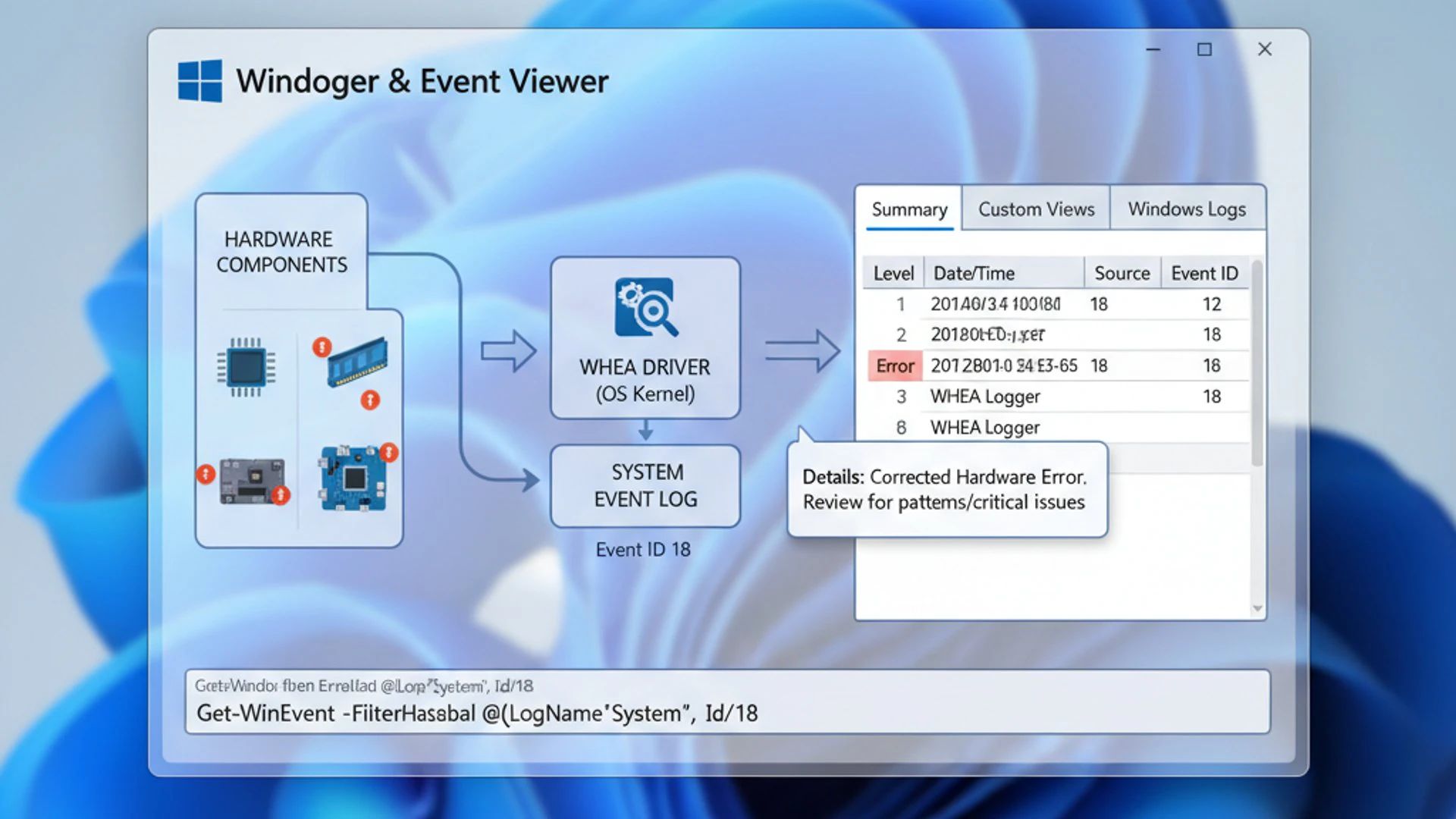
Before WHEA, hardware error reporting was often fragmented and inconsistent, varying greatly between different hardware manufacturers and system configurations. This made diagnosing complex hardware issues a challenging and often frustrating endeavor for both users and system administrators. WHEA was introduced to bring order to this chaos, providing a unified approach.
Understanding the Windows Hardware Error Architecture (WHEA)
The Windows Hardware Error Architecture (WHEA) is a robust infrastructure that allows the operating system to interact with various hardware error sources. These sources include processors, memory controllers, and I/O devices. It provides a standardized interface for these components to report errors to the operating system.
WHEA defines a common format for error records, regardless of the hardware vendor or type of error. This standardization is crucial because it allows Windows 11 to process and log these errors consistently. It supports a wide range of error types, from correctable errors that the system can recover from, to uncorrectable errors that often lead to system instability or crashes.
The architecture is designed to be extensible, meaning it can adapt to new hardware technologies and error reporting mechanisms as they emerge. This forward-thinking design ensures that WHEA remains relevant across generations of hardware, continuing to provide valuable insights into system health. It’s a fundamental layer of modern Windows stability.
Role of WHEA Logger in System Health
The WHEA Logger is the specific component within the WHEA framework responsible for recording these hardware error events. When a hardware component detects an error and reports it through the WHEA interface, the WHEA Logger captures this information and writes it to the Windows Event Log.
These logged events contain detailed information about the error, including the type of error, the affected component, and sometimes even specific error codes or addresses. This data is invaluable for diagnosing intermittent issues, identifying failing hardware, or understanding the root cause of system crashes.
Think of the WHEA Logger as your system’s black box recorder for hardware malfunctions. It meticulously documents critical events that might otherwise go unnoticed, providing a historical record that can be reviewed and analyzed. Without the WHEA Logger, many hardware-related stability problems would be far more difficult, if not impossible, to pinpoint and resolve.
By monitoring the WHEA Logger on Windows 11, users can gain proactive insights into their system’s health. For instance, a recurring WHEA event might indicate a component nearing failure, allowing for preventative action before a complete breakdown occurs. This proactive approach can save time, data, and the frustration of unexpected system downtime.
Where to Find WHEA Logger Events in Windows 11
When your Windows 11 system experiences a hardware-related hiccup, the WHEA Logger diligently records the details. The primary tool for accessing these crucial logs is the Event Viewer, a built-in Windows utility that provides a centralized repository for all system, security, and application logs.
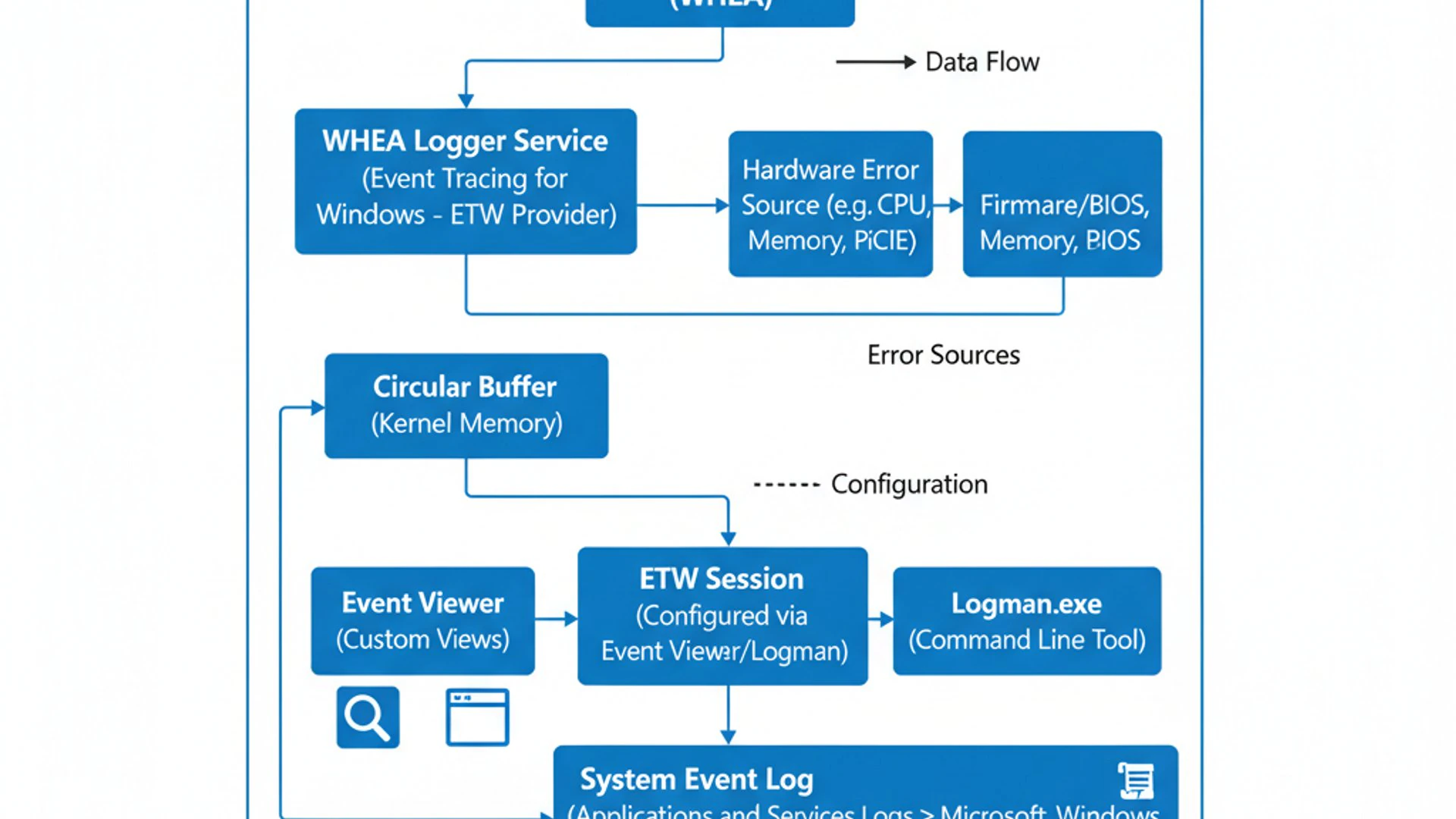
Navigating the Event Viewer might seem daunting at first due to the sheer volume of information it presents. However, with a few targeted steps, you can quickly filter and locate the specific WHEA Logger events that are relevant to your hardware diagnosis. This section will guide you through the process, ensuring you can effectively retrieve the information you need.
Navigating the Event Viewer
To begin, you need to open the Event Viewer. There are several ways to do this in Windows 11:
- Using Search: Click the Start button or press the Windows key, type “Event Viewer” into the search bar, and select the “Event Viewer” app from the results.
- Via Run Dialog: Press
Win + Rto open the Run dialog, typeeventvwr.msc, and press Enter. - Through Computer Management: Right-click the Start button, select “Computer Management,” and then navigate to “System Tools” > “Event Viewer.”
Once the Event Viewer window opens, you’ll see a tree-like structure on the left pane. Expand “Windows Logs,” and then click on “System.” This log contains a vast array of system-related events, including those generated by the WHEA Logger. You’ll observe a central pane displaying a list of events, often thousands of them, which is why filtering is essential.
Filtering for WHEA Logger Events
To efficiently locate WHEA Logger events, you’ll need to apply a filter. This significantly narrows down the displayed events, making it much easier to spot hardware-related issues. Follow these steps:
- With “System” selected in the left pane, click on “Filter Current Log…” in the right-hand “Actions” pane.
- In the “Filter Current Log” dialog box, locate the “Event sources” dropdown menu.
- Scroll down and check the box next to WHEA Logger.
- You can also filter by “Event level.” For hardware errors, you’ll typically be looking for “Error” or “Warning” events. Select these checkboxes.
- Optionally, you can specify a time range in the “Logged” dropdown, for example, “Last 7 days” if the issue is recent.
- Click “OK” to apply the filter.
The Event Viewer will now display only the events generated by the WHEA Logger, categorized as errors or warnings, within your specified timeframe. Each event entry will show details like “Level,” “Date and Time,” “Source” (which will be WHEA Logger), and “Event ID.” Double-clicking an event will open a new window with more detailed information, often including a description of the error and specific parameters.
“Filtering Event Viewer logs is a crucial skill for any Windows user. It transforms an overwhelming stream of data into actionable insights, especially when dealing with critical system components like the WHEA Logger.”
This detailed view is where you’ll find the specific error codes and additional context necessary for troubleshooting. Understanding how to navigate and filter these logs is the first step in diagnosing and resolving hardware stability issues on your Windows 11 machine.
Common WHEA Logger Event IDs and Their Meanings
Once you’ve successfully filtered for WHEA Logger events in the Event Viewer, you’ll notice that each event is assigned a unique “Event ID.” These IDs are crucial because they categorize the type of hardware error that has occurred. While there are many possible WHEA Event IDs, two of the most frequently encountered and significant ones are Event ID 19 and Event ID 18.
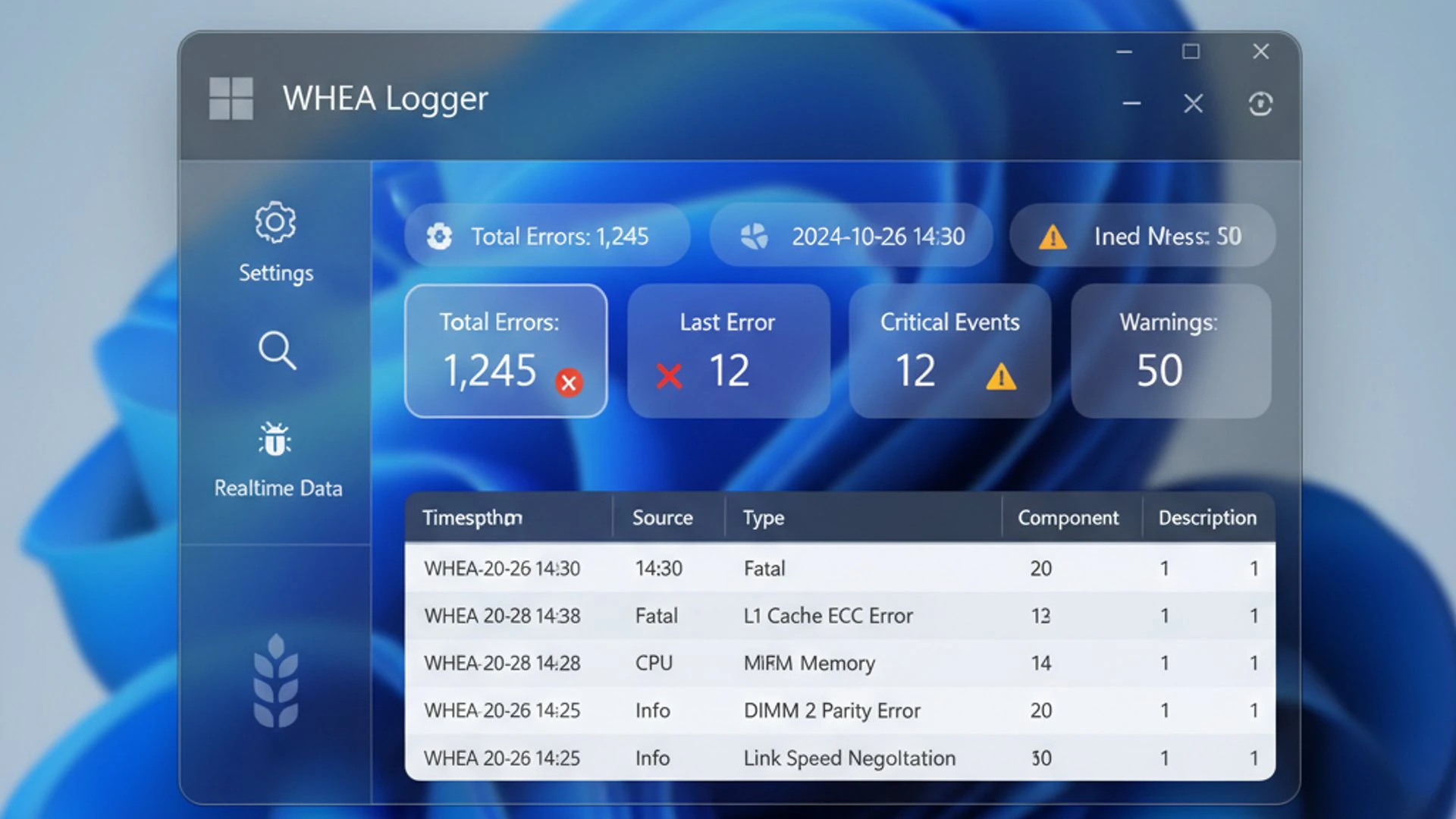
Understanding the meaning behind these common Event IDs is paramount to effectively diagnosing hardware problems. Each ID points to a specific subsystem or type of error, guiding your troubleshooting efforts in the right direction. Let’s delve into what these critical events signify.
Event ID 19: Cache Hierarchy Error
When you encounter a WHEA Logger event with Event ID 19, it typically indicates a Cache Hierarchy Error. This error points to a problem within the processor’s cache memory system. Modern CPUs utilize multiple levels of cache (L1, L2, L3) to store frequently accessed data, significantly speeding up operations. A malfunction in this hierarchy can severely impact performance and stability.
Cache hierarchy errors can manifest in various ways, from minor performance hiccups to system freezes and unexpected reboots. The underlying causes can be diverse, including:
- CPU Overclocking: Aggressive overclocking can destabilize the CPU’s cache, leading to errors.
- CPU Degradation: Over time, or due to excessive heat, the CPU itself might start to degrade, causing cache issues.
- Motherboard Issues: Problems with the motherboard’s power delivery or signaling to the CPU can also trigger these errors.
- BIOS/UEFI Settings: Incorrect or outdated BIOS/UEFI settings related to CPU voltage or cache timings.
Diagnosing Event ID 19 often requires a focus on the CPU and its immediate environment. It’s a strong indicator that your processor might be struggling, or that its operating conditions are not optimal.
Event ID 18: Processor Core/Machine Check Error
A WHEA Logger event with Event ID 18 is arguably one of the most critical hardware errors you can encounter. This event signifies a Processor Core/Machine Check Error, which indicates a severe, uncorrectable hardware error detected by the CPU itself. The “Machine Check Architecture” (MCA) is a feature within modern processors designed to detect and report internal hardware errors.
When a CPU detects a machine check error, it’s often a sign of a fundamental problem within the processor core, memory controller, or the interconnects between them. These errors are typically fatal and often lead to an immediate system crash (Blue Screen of Death, or BSOD). Common causes include:
- CPU Failure: The processor itself might be faulty or damaged.
- Memory Errors: While often reported as memory errors, severe memory issues can sometimes trigger machine check exceptions if the CPU’s memory controller is affected.
- Power Delivery Issues: Unstable or insufficient power supplied to the CPU from the motherboard’s voltage regulator modules (VRMs).
- Overheating: Extreme temperatures can cause CPU instability and lead to machine check errors.
- Corrupt BIOS/UEFI: An outdated or corrupted BIOS/UEFI firmware can misconfigure the CPU, resulting in errors.
Event ID 18 demands immediate attention as it points to a very serious hardware problem that directly impacts the core functionality of your system. Ignoring it will almost certainly lead to continued instability and potential data loss.
Identifying Specific Error Codes
While the Event ID provides a general category, the detailed information within the event log entry often contains more specific error codes. When you double-click a WHEA Logger event in Event Viewer, look for the “Details” tab. Here, you’ll often find an XML view or a “Friendly View” that includes parameters like:
- Error Source: e.g., “Processor APIC ID,” “Memory Controller.”
- Error Type: e.g., “Cache Hierarchy Error,” “TLB Error,” “Bus/Interconnect Error.”
- Error Code: A hexadecimal value that provides a highly specific description of the error. For instance, a specific MCE (Machine Check Exception) error code might point to a particular register or type of fault.
- Physical Address: Sometimes, the exact memory address where the error occurred is reported.
These specific codes are invaluable for advanced troubleshooting. You can often search online for these hexadecimal error codes alongside “WHEA” or “Machine Check Exception” to find more precise information or similar cases reported by others. Manufacturers’ documentation for your CPU or motherboard might also contain explanations for these specific error codes. This level of detail helps narrow down the problem from a general category to a highly specific component or condition.
Diagnosing WHEA Logger Errors: A Step-by-Step Approach
Encountering WHEA Logger errors can be unsettling, but a systematic approach to diagnosis can help pinpoint the root cause. This section outlines a step-by-step methodology, starting with basic checks and progressing to more in-depth diagnostic tools. Remember, patience and methodical testing are key to resolving these often elusive hardware issues.
Before diving into complex solutions, it’s crucial to rule out the simplest explanations. Many hardware problems stem from easily overlooked factors. By following a structured process, you can efficiently narrow down the possibilities and avoid unnecessary troubleshooting steps.
Initial System Checks and Basic Troubleshooting
When a WHEA Logger event appears, start with these fundamental checks:
- Check Physical Connections:
- Ensure all power cables are securely seated in the motherboard, CPU, and graphics card.
- Verify that RAM modules are firmly clicked into their slots. Reseat them if necessary.
- Check data cables (SATA, NVMe) for secure connections.
- Monitor Temperatures:
- Overheating is a common cause of hardware instability. Use monitoring software like HWMonitor or Core Temp to check CPU, GPU, and motherboard temperatures, especially under load.
- Ensure CPU cooler is properly mounted and fans are spinning. Clean any dust from fans and heatsinks.
- Remove Overclocking:
- If you’ve overclocked your CPU or RAM, revert to default settings in the BIOS/UEFI. Overclocking can push hardware beyond stable limits.
- Test with Minimal Hardware:
- If possible, remove non-essential components (e.g., extra RAM sticks, secondary drives, expansion cards) and test the system with only the CPU, one RAM stick, and the primary drive. This helps isolate a faulty component.
These initial steps can often resolve issues caused by loose connections, poor cooling, or aggressive configurations. Always perform these basic checks before moving on to more complex diagnostic procedures.
Utilizing System Information and Diagnostic Tools
Windows 11 offers several built-in tools that can provide valuable insights and aid in diagnosing WHEA Logger errors:
- Windows Memory Diagnostic:
- Memory errors can sometimes trigger WHEA events. To run this tool, type “Windows Memory Diagnostic” in the Start menu search and follow the prompts. It will restart your PC and perform a memory test.
- This test can take a significant amount of time, so plan accordingly.
- CHKDSK (Check Disk):
- While less directly related to WHEA, disk errors can sometimes cause system instability. Open Command Prompt as administrator and type
chkdsk /f /rto check and repair disk errors. You’ll likely need to restart for the scan to run.
- While less directly related to WHEA, disk errors can sometimes cause system instability. Open Command Prompt as administrator and type
- System Information (
msinfo32):- This tool provides a comprehensive overview of your system’s hardware and software configuration. It can help verify component models, BIOS versions, and other details that might be relevant for troubleshooting.
- Reliability Monitor:
- Type “Reliability Monitor” in the Start menu search. This tool provides a graphical history of system stability, including application crashes, hardware failures, and Windows errors. It can help identify patterns or specific dates when WHEA events started occurring.
These tools, combined with the detailed information from the Event Viewer, form a powerful arsenal for identifying the potential source of WHEA Logger errors. Documenting your findings at each step is crucial for effective troubleshooting.
Advanced Troubleshooting for Persistent WHEA Errors
If basic checks and built-in diagnostic tools haven’t resolved your WHEA Logger issues, it’s time to delve into more advanced troubleshooting methods. These steps often involve updating critical system components, adjusting firmware settings, or physically testing hardware. Proceed with caution, especially when making changes in the BIOS/UEFI, and always back up important data before undertaking significant system modifications.
Persistent WHEA errors typically point to more deeply rooted hardware or firmware problems. Addressing these requires a more technical approach, focusing on the core components that interact directly with the WHEA framework.
Updating Drivers and Firmware
Outdated or corrupted drivers and firmware are frequent culprits behind hardware instability and WHEA events. Ensuring all critical components are running the latest, stable versions is a vital troubleshooting step:
- Chipset Drivers:
- The chipset drivers are crucial as they manage communication between the CPU, memory, and other peripherals. Visit your motherboard manufacturer’s website and download the latest chipset drivers for your specific model. Install them and restart your PC.
- BIOS/UEFI Firmware:
- An outdated BIOS/UEFI can sometimes cause compatibility issues or misconfigure hardware, leading to WHEA errors. Check your motherboard manufacturer’s website for the latest BIOS/UEFI version. Follow their instructions carefully for updating, as a failed BIOS update can brick your motherboard.
- This is a critical step; ensure you have a stable power supply during the update process.
- Other Device Drivers:
- While less common for direct WHEA errors, ensuring your graphics card, network adapter, and other major device drivers are up-to-date can resolve underlying conflicts that might indirectly trigger hardware issues. Use Device Manager to check for updates or visit the component manufacturer’s websites.
Regularly updating these components is not just a troubleshooting step but a good practice for overall system health. It ensures your hardware is running with the latest bug fixes and performance enhancements.
BIOS/UEFI Settings Configuration
Incorrect or suboptimal settings in your system’s BIOS/UEFI can directly contribute to WHEA Logger errors, especially those related to the CPU and memory. Access your BIOS/UEFI (usually by pressing Del or F2 during boot) and consider these adjustments:
- Load Optimized Defaults: If you’ve made many changes, loading the “Optimized Defaults” or “Factory Defaults” can revert all settings to a known stable state. This is often the first step after a BIOS update or if you suspect misconfigurations.
- Disable XMP/DOCP (Memory Overclocking Profile): If you’re using XMP/DOCP profiles for your RAM, try disabling them and running your memory at its default JEDEC speeds. While XMP is generally safe, some memory modules or motherboards can be unstable with these profiles.
- CPU Voltage & Frequencies: Avoid manual CPU voltage or frequency adjustments unless you are an experienced overclocker. Ensure settings are on “Auto” or at stock values.
- C-States and Power Management: Some advanced power-saving features (like specific C-states) can occasionally cause instability with certain CPUs or motherboards. Try disabling them temporarily to see if the WHEA errors cease.
Always save your changes before exiting the BIOS/UEFI. If a particular setting change resolves the issue, you can then incrementally re-enable features to identify the exact culprit.
Hardware Component Testing and Replacement
If all software and firmware troubleshooting fails, the WHEA Logger events are almost certainly pointing to a faulty hardware component. This stage involves isolating and potentially replacing the problematic part:
- CPU Testing:
- A failing CPU is a common cause of Event ID 18 and 19. If you have access to a spare, compatible CPU, swap it out and test. This is often the most definitive way to confirm a CPU issue.
- Run CPU stress tests (e.g., Prime95, OCCT) to put the processor under heavy load and see if errors reappear. Monitor temperatures closely during these tests.
- RAM Testing:
- Even after running Windows Memory Diagnostic, more thorough tests are sometimes needed. Use a bootable memory testing utility like MemTest86. Run it for several passes (at least 4-8) to thoroughly check for errors.
- If you have multiple RAM sticks, test them one by one in different slots to isolate a faulty module or slot.
- Motherboard Inspection:
- Visually inspect the motherboard for any signs of damage, such as bulging capacitors, burn marks, or bent pins in the CPU socket. These can indicate a failing board.
- Testing a motherboard without swapping out other components is challenging, but if CPU and RAM are ruled out, the motherboard becomes a strong suspect.
- Power Supply Unit (PSU):
- An unstable or failing PSU can deliver inconsistent power, leading to hardware errors across various components. If you have a spare PSU, try swapping it.
- You can also use a PSU tester, but these only check basic voltage levels, not stability under load.
Replacing hardware should always be a last resort after exhausting all other troubleshooting steps. If you identify a faulty component, ensure you purchase a compatible replacement from a reputable vendor. Remember to create a System Image Backup on Windows 11 before making major hardware changes, if your system is stable enough to do so.
Preventing Future WHEA Logger Issues
While troubleshooting WHEA Logger errors is essential, taking proactive measures to prevent them from occurring in the first place is even better. Many hardware stability issues can be mitigated by maintaining optimal system conditions and following best practices. By implementing these preventative strategies, you can significantly reduce the likelihood of encountering disruptive WHEA events on your Windows 11 machine.
Prevention is always more efficient than cure, especially when it comes to hardware. A well-maintained system is a stable system, and these practices contribute directly to its longevity and reliability.
Maintaining Optimal System Cooling
Heat is the enemy of electronics. Excessive temperatures can accelerate component degradation, lead to thermal throttling, and directly cause hardware errors, including those reported by the WHEA Logger. Ensuring your system runs cool is paramount:
- Clean Dust Regularly: Dust acts as an insulator, trapping heat. Regularly clean out your PC’s interior, especially fans, heatsinks, and vents, using compressed air.
- Ensure Good Airflow: Make sure your PC case has adequate intake and exhaust fans, and that cables are managed to not obstruct airflow. Position your PC in a well-ventilated area, not cramped against a wall or in an enclosed cabinet.
- Check Thermal Paste: Over time, the thermal paste between your CPU/GPU and their heatsinks can dry out, reducing heat transfer efficiency. If temperatures are consistently high, consider reapplying fresh thermal paste.
- Monitor Temperatures: Continuously monitor CPU and GPU temperatures using software. If they consistently run hot, consider upgrading your cooling solution (e.g., a better CPU cooler, additional case fans).
Optimal cooling directly translates to increased hardware lifespan and reduced instances of heat-induced WHEA errors.
Regular System Updates and Driver Management
Keeping your Windows 11 operating system, drivers, and firmware up-to-date is a cornerstone of system stability. These updates often include critical bug fixes, security patches, and performance improvements that can prevent hardware-related issues:
- Windows Updates: Regularly install Windows Updates. These often contain microcode updates for CPUs and other system-level fixes that can address WHEA-related bugs.
- Driver Updates: Keep your chipset, graphics card, and other major component drivers updated. Always download drivers directly from the manufacturer’s official website (e.g., AMD, NVIDIA, Intel, motherboard vendor) rather than relying solely on Windows Update for critical drivers.
- BIOS/UEFI Updates: As mentioned in troubleshooting, periodic BIOS/UEFI updates can improve hardware compatibility and stability. Check your motherboard manufacturer’s website for new versions.
- Avoid Beta Drivers: Unless you have a specific need and understand the risks, stick to stable, WHQL-certified drivers. Beta drivers can sometimes introduce new instabilities.
A well-managed update strategy ensures your system benefits from the latest stability enhancements and compatibility improvements, minimizing the chances of encountering WHEA Logger events due to software conflicts or outdated firmware.
Power Supply and Stability Considerations
The power supply unit (PSU) is often overlooked but is a critical component for system stability. Inconsistent or insufficient power can lead to a wide array of hardware errors, including those reported by the WHEA Logger:
- Adequate Wattage: Ensure your PSU has sufficient wattage to comfortably power all your components, especially if you have a high-end graphics card or multiple drives. Use PSU calculators online to estimate your system’s power needs.
- Quality PSU: Invest in a reputable, high-quality PSU from a known brand. Cheap, generic PSUs often have poor voltage regulation and can deliver “dirty” power, leading to instability.
- Stable Power Source: Connect your PC to a surge protector or, ideally, an Uninterruptible Power Supply (UPS). A UPS provides clean, stable power and protects against power fluctuations, sags, and outages that can stress components.
- Dedicated Power Outlets: Avoid overloading a single electrical outlet by plugging in too many high-power devices.
A stable and reliable power delivery system is fundamental to preventing many hardware-related issues. By ensuring your components receive consistent, clean power, you significantly reduce the risk of power-induced WHEA Logger errors and enhance overall system reliability.
When to Seek Professional Help
While this guide provides extensive information and actionable steps for diagnosing and resolving WHEA Logger errors, there comes a point when professional assistance becomes necessary. Not everyone has the tools, spare parts, or expertise to perform advanced hardware troubleshooting, especially when it involves component replacement or complex BIOS configurations.
Knowing when to call in the experts can save you time, prevent further damage, and ultimately ensure your Windows 11 system is restored to a stable state. Here are some indicators that it might be time to seek professional help:
- Lack of Tools or Spare Parts: If you don’t have access to spare CPUs, RAM, or PSUs for testing, isolating a faulty component becomes extremely difficult.
- Uncomfortable with Hardware: If you’re not confident opening your PC case, handling components, or making changes in the BIOS/UEFI, attempting complex troubleshooting could lead to more problems.
- Persistent Errors After All Steps: You’ve diligently followed all troubleshooting steps outlined in this guide, including advanced ones, but WHEA Logger errors continue to occur. This suggests a deeply rooted or obscure issue.
- Intermittent and Unpredictable Crashes: If your system crashes are random, frequent, and without a clear pattern despite your efforts, a professional can use specialized diagnostic equipment to pinpoint the issue.
- Warranty Considerations: If your PC or a specific component is still under warranty, attempting advanced repairs yourself might void it. A professional repair service can often handle warranty claims.
- Data Loss Concerns: If the instability puts your valuable data at risk, a professional can often perform data recovery or ensure a safe repair process. Consider regular backups using solutions like System Image Backup on Windows 11 to mitigate this risk.
A reputable computer repair shop or IT professional has the experience, diagnostic tools, and access to replacement parts that most home users do not. They can accurately diagnose complex hardware failures and perform repairs safely and efficiently, ensuring your Windows 11 experience remains stable and reliable.
Conclusion: Ensuring a Stable Windows 11 Experience
The WHEA Logger on Windows 11 is far more than just another system log; it’s a critical diagnostic tool that provides invaluable insights into the health of your computer’s hardware. By diligently monitoring and understanding these hardware error events, you empower yourself to proactively address potential issues, prevent system crashes, and maintain the long-term stability and performance of your Windows 11 machine.
From deciphering common Event IDs like 19 and 18 to systematically troubleshooting with basic checks, advanced diagnostics, and component testing, the journey to a stable system is a methodical one. We’ve explored how crucial it is to keep drivers and firmware updated, optimize BIOS/UEFI settings, and ensure a robust power supply and adequate cooling. These proactive measures are the bedrock of a reliable computing experience, minimizing the incidence of disruptive WHEA Logger events.
Ultimately, a deep understanding of the WHEA Logger transforms you from a passive computer user into an informed system guardian. While some issues may eventually require professional intervention, the knowledge gained from this guide will enable you to handle the vast majority of hardware-related challenges. By embracing these practices, you’re not just fixing problems; you’re building a foundation for a consistently smooth, efficient, and stable Windows 11 environment for years to come.
For more interesting articles, stay tuned to Winsides.com!









Community
Comments (0)