

Introduction to MBR2GPT Disk Layout Validation Failed
The mbr2gpt disk layout validation failed error means MBR2GPT checked the selected disk and decided the current layout is not safe or suitable for automatic conversion from MBR to GPT. This usually happens before the disk is modified, which is exactly what you want from a boot conversion tool. Validation failure is frustrating, but it is also a protective stop.
MBR2GPT is Microsoft’s supported tool for converting a Windows system disk from Master Boot Record to GUID Partition Table. It is commonly used when a Windows 11 device needs to move from legacy BIOS or CSM boot to UEFI boot. The tool can preserve existing data, but only when the disk layout, boot configuration, and operating system partition can be identified and updated safely.
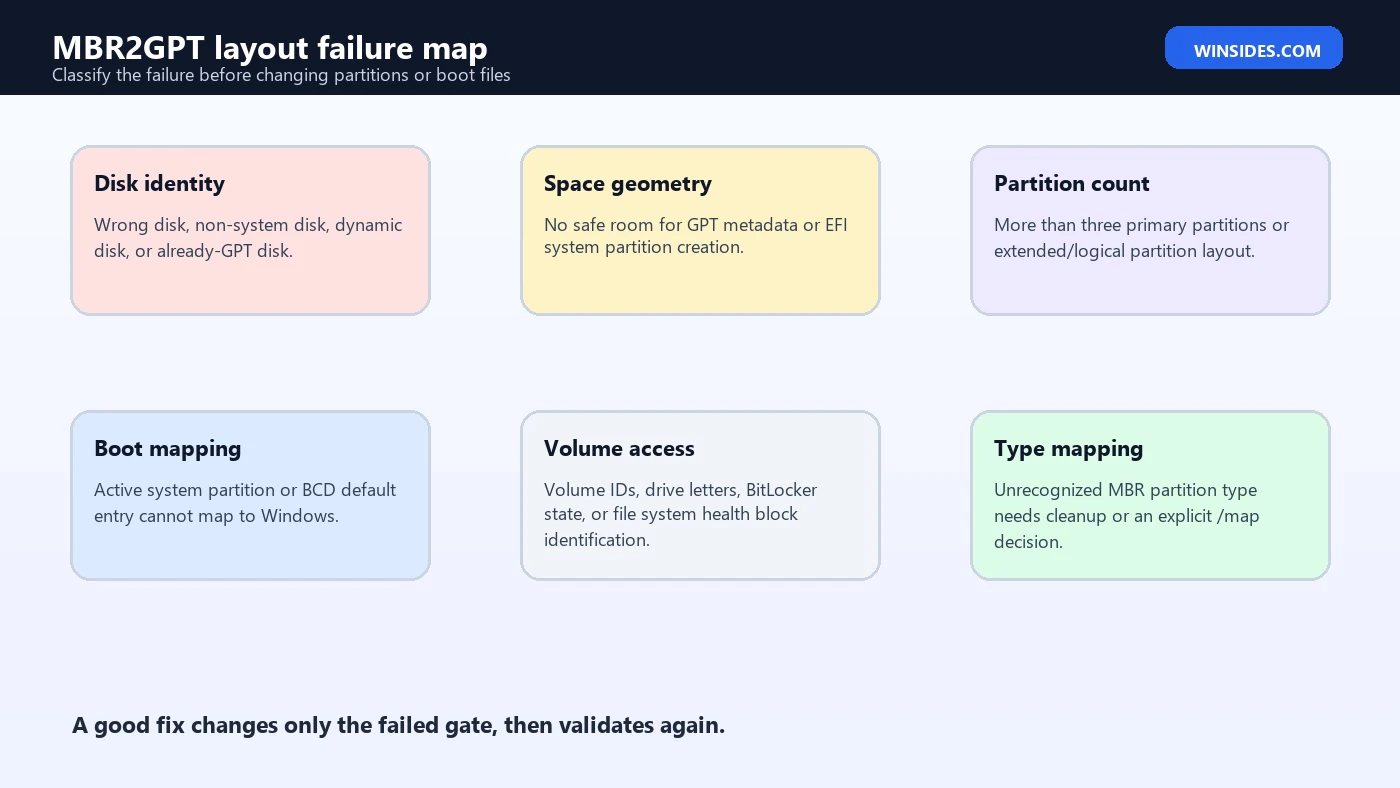
The error is not one single problem. It is a category. The failed gate may be disk identity, partition count, extended or logical partitions, active system partition state, boot configuration mapping, GPT metadata space, EFI system partition creation, volume access, unrecognized partition types, or a wrong environment such as using the wrong disk number in Windows PE. The fix depends on which gate failed.
For official grounding, use Microsoft documentation for MBR2GPT, DiskPart, BCDEdit, and BCDBoot. These are the safest references when working with disk layout, boot entries, and repair commands.
Table of contents
Key Takeaways
- Validation failure is a stop sign. MBR2GPT normally stops before conversion when layout requirements are not met.
- Read the logs before changing anything. The console message is often shorter than the actual reason in the MBR2GPT logs.
- Microsoft’s validation rules are specific. The disk must be MBR, have room for GPT metadata, have at most three primary partitions, include an active system partition, avoid extended/logical partitions, and map BCD to the OS partition.
- Disk number matters. Disk 0 in Windows PE is not guaranteed to be the installed Windows disk.
- Do not delete recovery partitions blindly. Identify system, Windows, recovery, OEM, and data partitions before cleanup.
- BCDBoot helps only with boot-file mapping issues. It does not fix every disk layout problem.
- Run
/convertonly after/validatesucceeds. Then switch firmware to UEFI and boot Windows Boot Manager.
What MBR2GPT Validates
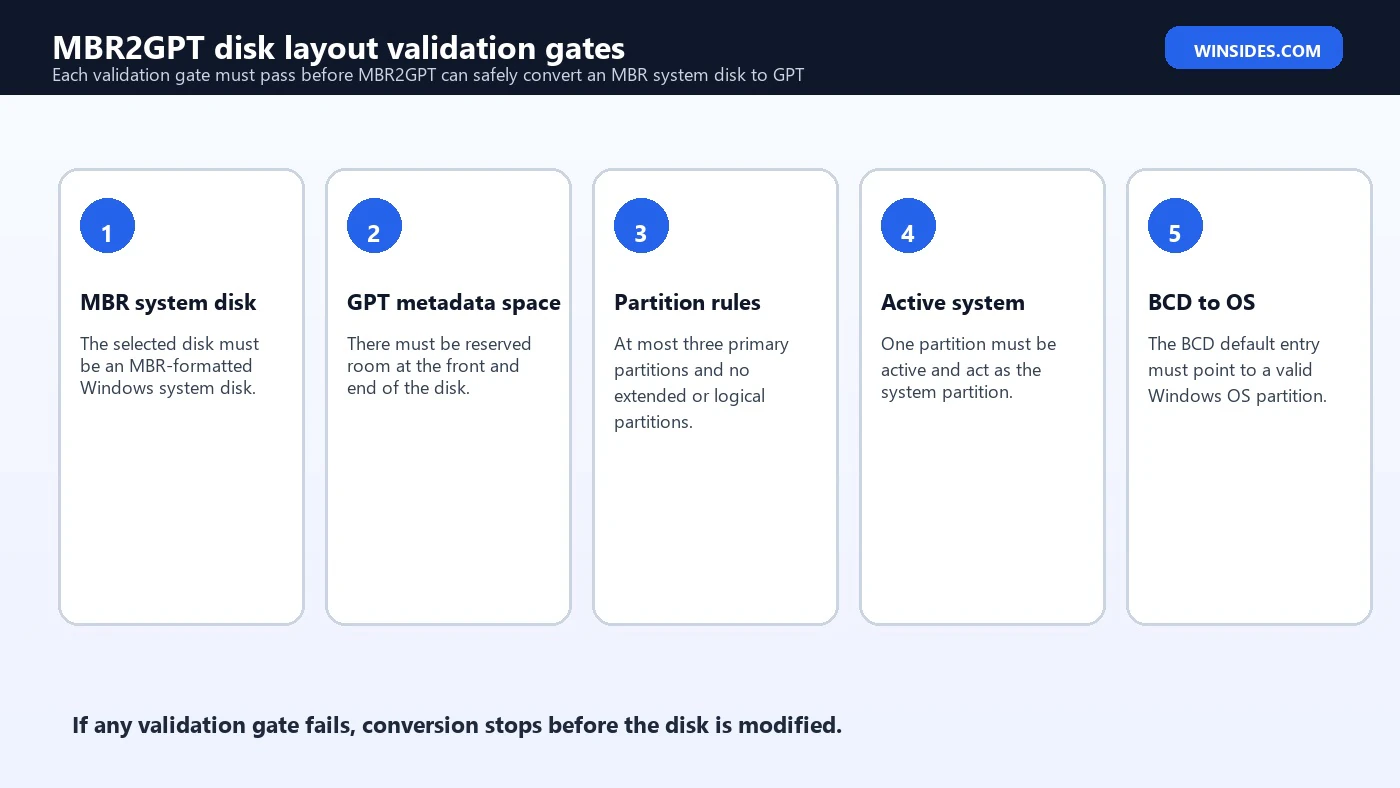
Microsoft’s MBR2GPT documentation explains that validation checks more than whether Windows exists. The selected disk must currently use MBR. There must be enough space not occupied by partitions to store primary and secondary GPT metadata. The disk can have at most three primary partitions because the conversion process needs room to create an EFI system partition. One partition must be active and act as the system partition.
The tool also checks for extended or logical partitions, which are not supported for this conversion path. It reads the BCD store on the system partition and checks the default operating system entry. It must retrieve volume IDs for each volume, assign drive letters where needed, and recognize all MBR partition types or have a mapping specified with /map. These checks are specific and practical. They protect the boot path.
A validation failure means one or more of those requirements did not pass. It does not automatically mean the disk is broken. It can mean the layout is too complex for automatic conversion, the wrong disk was selected, the boot configuration is stale, a partition type is unfamiliar, a volume cannot be assigned a drive letter, or there is no safe way to create the EFI system partition.
This distinction matters. If the cause is a wrong disk number, partition cleanup is the wrong fix. If the cause is too many primary partitions, BCDBoot is the wrong fix. If the cause is a broken BCD default entry, deleting a recovery partition is the wrong fix. The log tells you which branch to follow.
Start With Validation Logs
The first proper step is not conversion. It is validation with logs. If you are running the command inside the full Windows installation, use /allowFullOS. If you are running from Windows PE or recovery media, use the disk number as it appears in that environment and write logs to a known location.
mbr2gpt /validate /disk:0 /allowFullOS /logs:C:\MBR2GPTLogsmbr2gpt /validate /disk:0 /logs:X:\MBR2GPTLogsThe log path is important because the visible command window may not show enough detail. Keep the logs before changing partitions. If you later need help, include the command, the environment, DiskPart output, and the log message around the failure. A precise log-based diagnosis is much safer than generic instructions such as delete a partition or run BCDBoot.
Validation logs also help separate layout failures from boot failures. A layout failure happens before conversion. A firmware boot failure happens after conversion when the machine is not set to boot the new UEFI path. Do not mix those phases. Fix validation first, convert second, firmware third.
Confirm the Selected Disk
A surprising number of MBR2GPT validation failures begin with disk identity. Disk numbers are not universal. The installed Windows environment may call the system disk disk 0, while Windows PE may call the USB installer disk 0 and the internal Windows disk disk 1. Storage controllers, external drives, card readers, and firmware behavior can all change enumeration.
Use DiskPart in the same environment where you are running MBR2GPT. Compare disk sizes, volume labels, partition order, and the presence of the Windows folder. Do not rely on memory.
diskpart
list disk
select disk 0
detail disk
list partition
list volume
exit
dir C:\Windows
dir D:\Windows
dir E:\WindowsIf disk 0 does not contain the installed Windows partition, validate the correct disk number. This is especially important after booting from USB recovery media. The error may be completely accurate: disk 0’s layout is invalid because disk 0 is not the Windows system disk you meant to convert.
Check Partition Count and Partition Type
Partition count is one of the cleanest validation gates. Microsoft states that MBR2GPT validates that the disk has at most three primary partitions. The reason is practical: conversion needs to create an EFI system partition, and an MBR disk with four primary partitions has no spare primary slot for the process. If you already have four primary partitions, the tool may stop with a disk layout validation failure.
Use DiskPart to list the partitions and identify what each one does. Do not assume small partitions are useless. The active system partition may be small. A recovery partition may be small. OEM partitions can be small or large. Deleting the wrong partition can make the system unbootable or remove recovery capability.
diskpart
select disk 0
list partition
select partition 1
detail partition
exit
Extended and logical partitions are another issue. MBR2GPT validation does not support a disk that has extended or logical partitions for this conversion path. If your Windows system disk uses that older style, the safest answer may be backup and reinstall, backup and restore to a clean GPT layout, or carefully planned partition restructuring. Do not try to force an unsupported legacy layout into conversion without a recovery plan.
Understand the Active System Partition
On a legacy BIOS/MBR Windows disk, one partition is active. That active partition is where BIOS boot begins. MBR2GPT validation requires one partition to be active and to act as the system partition. If there is no active partition, if more than one partition appears suspicious, or if the active partition does not contain boot files, validation can fail or lead into OS-partition mapping errors.
The active partition is not always the Windows partition. Many older Windows installations use a small System Reserved partition as the active system partition. Some installations put boot files directly on the Windows partition. OEM and cloned layouts can be different. The correct answer comes from inspection, not a generic screenshot.
If you discover the active flag is wrong, do not change it casually. Marking the wrong partition active can prevent a legacy system from booting. First identify the Windows partition, the existing system partition, and the BCD store. Then decide whether BCDBoot, active flag correction, or a different recovery path is appropriate.
BCD Default Entry and OS Partition Mapping
Another major validation gate is the relationship between BCD and the Windows OS partition. Microsoft notes that MBR2GPT reads the BCD store on the system partition and checks the default OS entry. In plain language, the boot configuration must point to the Windows installation that is being converted. If the default entry is missing, stale, or points to the wrong device, validation can fail.
BCDEdit is the inspection tool. Start by viewing entries, not changing them. Look for Windows Boot Manager and Windows Boot Loader entries. The loader should point to the actual Windows partition on the selected disk.
bcdedit /enum allIf BCD metadata is the problem, BCDBoot can rebuild boot files from a known Windows installation to a known system partition. That should be done only after you know the correct letters in the current environment. In Windows PE, your installed Windows partition may be D:, not C:.
bcdboot D:\Windows /s S: /f BIOSThe example shows the shape of the command, not a universal fix. D: must be the real Windows partition and S: must be the correct system partition in that environment. Use BCDBoot to repair boot metadata only when boot metadata is the failed gate.
Volume IDs, Drive Letters, and Locked Volumes
MBR2GPT also needs to retrieve volume IDs and assign drive letters to each volume during validation. This is easy to overlook because normal users think in drive letters, but Windows boot tools also rely on volume identity. If a volume cannot be accessed, cannot receive a temporary drive letter, or is locked by encryption, validation may fail.
BitLocker is a common factor. A BitLocker-protected OS volume that is locked in Windows PE may not be readable in the way MBR2GPT needs. That is not the same as a missing OS partition. Unlock the volume using the proper recovery key or management process before diagnosing it as damaged. Also make sure the recovery key is available before any conversion, because firmware and boot changes can trigger recovery prompts.
File system health matters too. If the Windows partition has file system errors, storage errors, or cannot be mounted reliably, solve that before conversion. MBR2GPT is not a disk repair tool. It expects the selected system disk and its volumes to be readable enough for a boot conversion.
Recognized Partition Types and the /map Option
Microsoft’s validation list includes another detail: all partitions on the disk must be MBR types recognized by Windows or have a mapping specified with the /map command-line option. This matters on disks with OEM, vendor, utility, or unusual partition types. MBR2GPT needs to know how an MBR partition type should become a GPT partition type.
Most standard Windows system, OS, recovery, and data partitions are recognized. Problems are more likely on older OEM layouts, disks that have been through third-party partition tools, or machines that were cloned from vendor recovery images. If the validation log complains about partition type mapping, do not guess. Identify the partition, determine whether it is needed, then decide whether cleanup or a specific map is appropriate.
The /map option is powerful and should be treated as an advanced fix. It tells MBR2GPT how to translate a partition type. If you do not know what the partition is, mapping it blindly is not safer than deleting it blindly. The first step remains identification.
Safe Cleanup Rules
Partition cleanup is sometimes necessary, but it should be the last step after identification, not the first. A disk with four primary partitions may need one partition removed or the layout otherwise changed before conversion. A disk with an obsolete recovery partition may be a reasonable cleanup candidate. But a system partition, current Windows Recovery Environment partition, OEM recovery partition, or user data partition should not be removed casually.
- Create a full backup or image before partition changes.
- Save the MBR2GPT validation logs.
- List all disks, partitions, and volumes in the environment where conversion will run.
- Identify the Windows partition by checking for the real
Windowsfolder. - Identify the active system partition and BCD store.
- Classify recovery and OEM partitions before deleting or shrinking anything.
- Confirm BitLocker recovery keys are available.
- Make only the change required to pass the failed validation gate.
- Run
mbr2gpt /validateagain before/convert.
A safe cleanup should make the layout simpler and more understandable. If the cleanup plan makes the layout more confusing, pause. Backup and clean install may be safer than trying to rescue a heavily modified legacy layout.
Example: Four Primary Partitions
Imagine a legacy Windows disk with System Reserved, Windows, Recovery, and OEM Tools partitions. That can already be four primary partitions. If MBR2GPT needs to create an EFI system partition, validation can fail because the MBR layout has no spare primary slot. The error is not that Windows cannot boot today. The error is that the layout cannot be converted automatically as-is.
The right next step is not to delete the smallest partition. Inspect each partition. The System Reserved partition may contain boot files. The recovery partition may be current. The OEM partition may or may not be needed. If an obsolete recovery partition from an old upgrade is confirmed and backed up, cleanup may be reasonable. If the partition’s purpose is unclear, do not make it the sacrifice.
diskpart
select disk 0
list partition
select partition 4
detail partition
exit
After any cleanup, run validation again. Passing the partition-count gate does not guarantee every other gate will pass. You may still discover BCD mapping or volume access issues.
Example: Extended or Logical Partition Layout
Older systems sometimes use an extended partition containing logical drives. This layout helped work around MBR primary partition limits, but it is not a supported MBR2GPT conversion layout. If the disk contains an extended partition, validation may fail even if Windows currently boots.
The safe fix depends on what the logical partitions contain. If they contain data, back up the data before restructuring. If Windows itself is inside a layout that MBR2GPT cannot support, a backup-and-restore or clean install to a GPT layout may be safer than attempting manual surgery. The important thing is not to confuse a bootable legacy layout with a convertible layout.
Example: BCD Default Entry Is Stale
A disk may have a valid Windows partition and a reasonable partition count, but the BCD default entry may point to an old or wrong device. This can happen after cloning, dual-boot experiments, manual boot repair, or partition movement. MBR2GPT may stop because it cannot confidently map the default boot entry to the Windows OS partition.
In that case, BCDEdit inspection and BCDBoot repair are more relevant than partition deletion. First confirm the installed Windows folder. Then confirm the system partition. Then rebuild boot files if needed. After that, validate again. Keep boot repair and disk layout cleanup as separate operations so you know which change fixed which gate.
Full Windows vs Windows PE
MBR2GPT can be run from full Windows with /allowFullOS, or from Windows PE. Each environment has tradeoffs. Full Windows gives you familiar drive letters and access to the running OS, but the disk is also in use. Windows PE is cleaner for offline repair, but disk numbers and drive letters can change, and encrypted volumes may be locked.
Use the environment that gives you the clearest and safest path. If you are already in Windows and the system is healthy enough to run validation, full Windows may be convenient. If boot is damaged or you need offline inspection, Windows PE may be better. In either case, inspect the disk in the same environment where you run MBR2GPT. Do not mix drive-letter assumptions across environments.
After Validation Passes
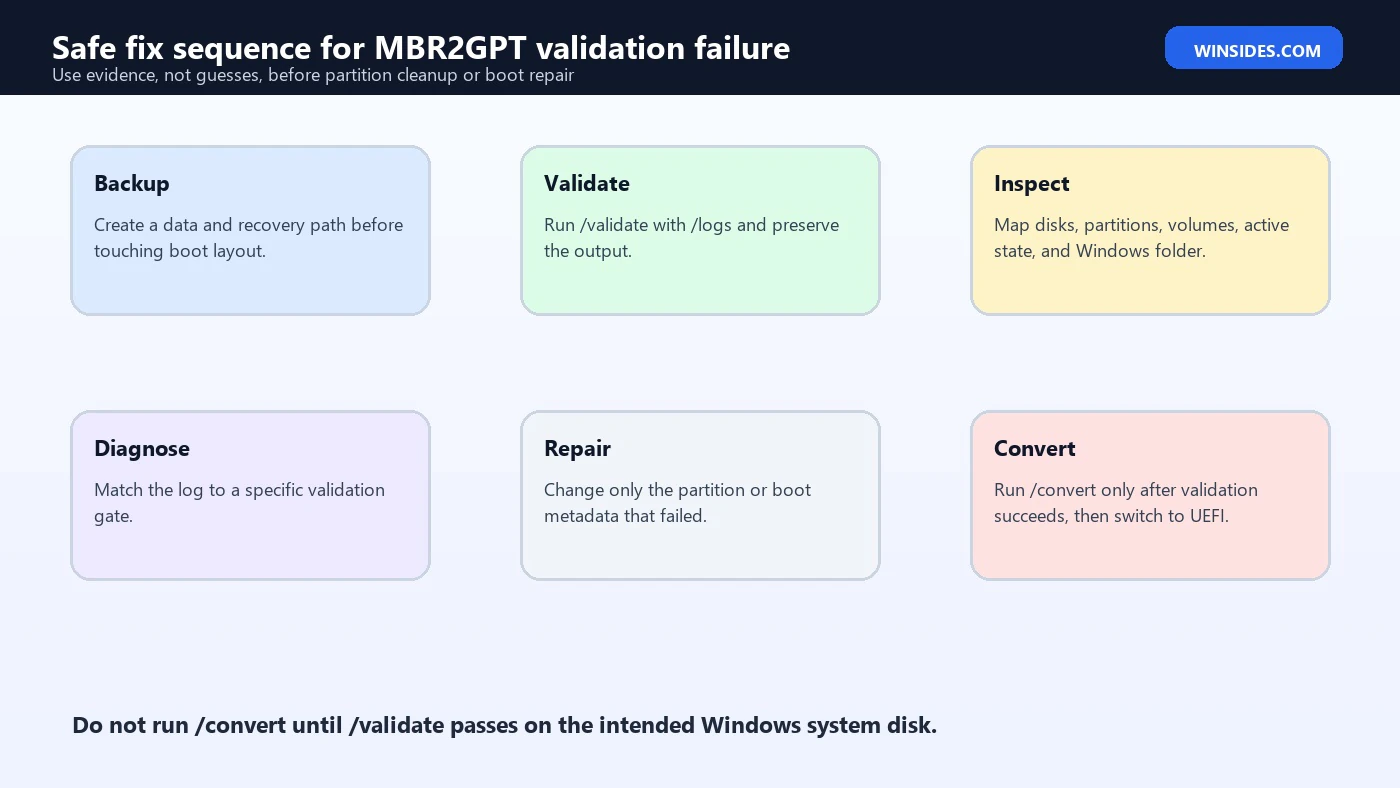
Once validation passes, conversion is the next phase. Run /convert only after validation succeeds on the intended system disk. If you are in full Windows, keep /allowFullOS. Keep logs enabled so there is a record of the conversion.
mbr2gpt /convert /disk:0 /allowFullOS /logs:C:\MBR2GPTLogsAfter conversion, the firmware must boot in UEFI mode. On many systems, that means disabling legacy BIOS or CSM boot and choosing Windows Boot Manager. If the firmware remains in legacy mode, the converted disk may not boot. This is a post-conversion firmware issue, not the original validation failure.
Do one careful boot test before cleanup. Confirm Windows starts, Disk Management shows GPT, BitLocker status is expected, recovery keys are safe, and the EFI system partition exists. Keep logs and recovery media until the new boot path is proven.
What Not to Do
Do not run /convert after validation fails. Do not delete the smallest partition because it looks unimportant. Do not mark a partition active unless you know it is the correct system partition for the current legacy boot path. Do not use BCDBoot with guessed drive letters. Do not switch firmware to UEFI before conversion. Do not ignore BitLocker recovery keys.
Also avoid trying every fix at once. If you delete a partition, rebuild BCD, resize the OS volume, unlock BitLocker, and change firmware settings in one session, you will not know which change solved the problem or which change caused a new one. Make one evidence-based change, then validate again.
Information to Collect Before Asking for Help
If you need outside help, collect enough information for someone to understand the layout without guessing. This protects you from generic advice and helps the helper identify the failed validation gate.
- The exact MBR2GPT command and whether it was run in full Windows or Windows PE.
- The validation log folder and relevant log lines.
- DiskPart output for
list disk,list partition, andlist volume. - Which volume contains the actual Windows folder in the current environment.
- Whether the disk has extended or logical partitions.
- Whether BitLocker is enabled and whether the recovery key is available.
- BCDEdit output if boot mapping is suspicious.
- Recent history such as cloning, dual boot, partition resizing, OEM recovery changes, or failed repairs.
Redact personal names, serial numbers, and sensitive labels if posting publicly, but preserve partition order, sizes, disk numbers, and the exact error wording. Those details decide the fix.
Match Each Validation Gate to the Right Fix
The cleanest way to solve MBR2GPT disk layout validation failed is to match the failed gate to the smallest safe fix. This prevents the common mistake of using a boot repair command for a partition-count problem or deleting a partition for a BCD problem. The command output and logs should drive the next step.
| Failed gate | Evidence to collect | Likely fix path |
|---|---|---|
| Wrong disk | DiskPart list disk, detail disk, and Windows folder check | Run validation against the actual Windows system disk in the current environment. |
| Too many primary partitions | DiskPart list partition and partition details | Identify partitions, back up, and remove or restructure only a confirmed unnecessary partition. |
| Extended or logical partition | DiskPart partition type details | Back up and migrate to a supported layout or consider clean install. |
| Active system partition | Detail partition and BCD location | Correct boot metadata only after identifying the real system partition. |
| BCD default entry | BCDEdit output and Windows folder path | Use BCDBoot with verified letters, then validate again. |
| Locked or unreadable volume | BitLocker status, drive-letter assignment, file system health | Unlock, repair, or inspect the volume before conversion. |
| Unrecognized partition type | Partition type from DiskPart and MBR2GPT logs | Identify the partition and use cleanup or /map only when its purpose is known. |
This table also shows why one-click fixes are risky. MBR2GPT validation is not only checking space. It is also checking boot identity, partition type, volume accessibility, and operating-system mapping. A fix that helps one gate can be irrelevant or harmful for another gate.
A Safe Work Log Template
Before changing the disk, create a small work log. This can be a text file, a support ticket note, or a paper note. The point is to preserve the original layout and the exact validation result. If a later step fails, the work log gives you a path back to the starting point.
- Command used:
mbr2gpt /validate ... - Environment: full Windows or Windows PE.
- Selected disk number and disk size.
- Partition list with sizes, labels, and active state.
- Volume list and current drive letters.
- Confirmed Windows folder location.
- BitLocker state and recovery key availability.
- BCD default loader target.
- Exact log line where validation failed.
- One planned fix and the validation result after that fix.
This may feel slow, but it is faster than guessing. If you know the exact before-state, you can make smaller changes and avoid stacking multiple repairs together. It also helps when you need to compare the same machine before and after firmware mode changes.
When Backup and Reinstall Is the Better Fix
MBR2GPT is excellent when a legacy Windows system disk has a clean, supported layout. It is less attractive when the disk has years of cloning history, unknown OEM partitions, logical partitions, damaged file systems, missing recovery keys, or unclear boot metadata. In those cases, a backup and clean GPT/UEFI install may be more reliable than forcing an in-place conversion workflow.
This is especially true when the validation failure is not one simple gate. If the disk has four primary partitions, a stale BCD store, a locked OS volume, and an unrecognized OEM partition, fixing each piece manually may take longer than reinstalling cleanly and restoring data. A clean install creates a predictable EFI system partition, Microsoft reserved partition, Windows partition, and recovery layout.
For managed PCs, use the organization’s deployment process. IT teams often have preferred methods for UEFI conversion, BitLocker recovery key escrow, Secure Boot policy, and Windows 11 deployment. A manual MBR2GPT conversion should not bypass those controls unless the device owner approves the risk.
Frequently Asked Questions
What does mbr2gpt disk layout validation failed mean?
It means MBR2GPT checked the selected disk and found that one or more layout, boot, volume, or partition-type requirements were not safe for conversion.
Does validation failure mean my disk is damaged?
Not necessarily. It can mean wrong disk selection, too many partitions, unsupported logical partitions, stale BCD entries, locked volumes, or unrecognized partition types.
Can I ignore validation and run convert?
No. Validation exists to prevent unsafe conversion. Run /convert only after /validate succeeds.
Why does MBR2GPT require at most three primary partitions?
The conversion process needs room to create the EFI system partition required for UEFI boot, and an MBR disk already using four primary partitions blocks that path.
Can BCDBoot fix this error?
Only if the failed gate is boot metadata or BCD mapping. BCDBoot will not fix too many partitions, extended partitions, or wrong disk selection.
Should I delete the recovery partition?
Only after confirming it is not needed and after creating a backup or recovery path. Many small partitions are important.
Does this apply to Windows 11?
Yes. The issue commonly appears when preparing a legacy Windows installation for UEFI/GPT boot on Windows 11-compatible hardware.
Conclusion: Fix the Failed Gate, Then Convert
The mbr2gpt disk layout validation failed error is not a single repair command. It is a signal that one of MBR2GPT’s conversion prerequisites did not pass. The safest fix is to identify the failed gate: disk identity, GPT space, primary partition count, extended/logical partitions, active system partition, BCD default OS entry, volume access, or partition type mapping.
Work from evidence. Save logs, inspect the disk with DiskPart, verify the Windows partition, check the active system partition, inspect BCD when needed, confirm BitLocker recovery keys, and understand every partition before deleting or resizing anything. Re-run validation after each change. Convert only after validation passes, then switch firmware to UEFI and boot Windows Boot Manager.
For official reference, keep Microsoft pages for MBR2GPT, DiskPart, BCDEdit, and BCDBoot nearby while troubleshooting conversion problems.
For more interesting articles, stay tuned to Winsides.com!









Community
Comments (0)