

Introduction to Disk Layout Validation Failed for Disk 0
The disk layout validation failed for disk 0 message usually appears when MBR2GPT checks a disk before conversion and decides that the selected disk does not meet the requirements for a safe MBR-to-GPT conversion. The phrase is frustrating because it sounds broad, and it is broad. It can point to the wrong disk, too many partitions, an unsupported partition type, missing boot metadata, no identifiable Windows partition, or not enough room to create the EFI boot structure needed for UEFI.
This error matters because MBR2GPT is commonly used before moving a Windows 11 PC from legacy BIOS boot to UEFI boot. The tool is designed to convert a system disk from Master Boot Record to GUID Partition Table without wiping data, but it only proceeds after validation. When validation fails, the safest response is not to force the conversion. The safest response is to identify which validation gate failed and fix that specific issue.
Disk 0 is not a guarantee that you are looking at the Windows disk. In the installed Windows environment, disk 0 often is the internal system disk. In Windows PE or recovery media, disk numbering can change. USB drives, card readers, storage controllers, secondary drives, RAID adapters, and firmware behavior can all affect numbering. That is why every serious fix starts with inspection, not assumptions.
For official background, Microsoft documents MBR2GPT, DiskPart, BCDEdit, and BCDBoot. Use those sources when validating disk layout, boot entries, and boot-file repair steps.
Table of contents
Key Takeaways
- The message is a validation stop, not a conversion result. MBR2GPT stops before changing the disk when required layout checks fail.
- Disk 0 must be verified. Confirm the selected disk contains the installed Windows partition in the same environment where you run MBR2GPT.
- Partition count matters. MBR2GPT must be able to create or use the required GPT and EFI boot layout.
- Logical and extended partition layouts can block conversion. MBR2GPT expects a supported system-disk layout, not every possible legacy partition design.
- The active system partition and BCD matter. The tool must map boot metadata to the Windows OS partition.
- Do not delete partitions blindly. OEM, recovery, and system partitions need identification before cleanup.
- Re-run validation after each change. Conversion should happen only after validation succeeds on the intended disk.
What the Error Means
MBR2GPT has a validation phase. During that phase, it checks whether the selected disk can be converted safely. A failure on disk 0 means the tool evaluated disk 0 and found that its layout, metadata, or operating-system mapping did not satisfy the requirements. The message does not automatically identify the exact cause, so the logs and disk layout inspection become important.
Think of validation as a checklist. The disk must be an MBR disk that is suitable for GPT conversion. The partition layout must leave room for required GPT metadata and an EFI system partition. The tool must identify the Windows operating system partition. The boot configuration must make sense. The existing layout must not contain unsupported structures that prevent safe conversion.
The error can occur on a perfectly working Windows installation if the legacy layout is unusual. For example, a PC may still boot, but the disk may have too many primary partitions for MBR2GPT to create the EFI system partition. Another PC may have been cloned from an older drive and have boot files on a different partition than expected. Another may show disk 0 as the USB recovery device, while the real Windows disk is disk 1.
The key is to avoid treating the phrase as one fixed error. Disk layout validation failed is a category. You need to determine whether your case is disk selection, partition count, partition type, boot metadata, OS partition detection, space, or firmware workflow.
Run MBR2GPT Validation With Logs
Start with validation and logging. If you are running from the full Windows environment, include /allowFullOS. If you are running from Windows PE, validate from that environment and choose a log path that will survive long enough for review.
mbr2gpt /validate /disk:0 /allowFullOS /logs:C:\MBR2GPTLogsmbr2gpt /validate /disk:0 /logs:X:\MBR2GPTLogsThe console message may be short, but the log is more useful. It can show the disk being evaluated, partition information, validation steps, and where the tool stopped. Save the log before changing partitions. If you later ask for help, the log and DiskPart output are far more useful than a screenshot of only the final error.
Do not run /convert repeatedly after validation fails. Conversion is the action phase. Validation is the diagnostic phase. If validation says no, the next step is inspection.
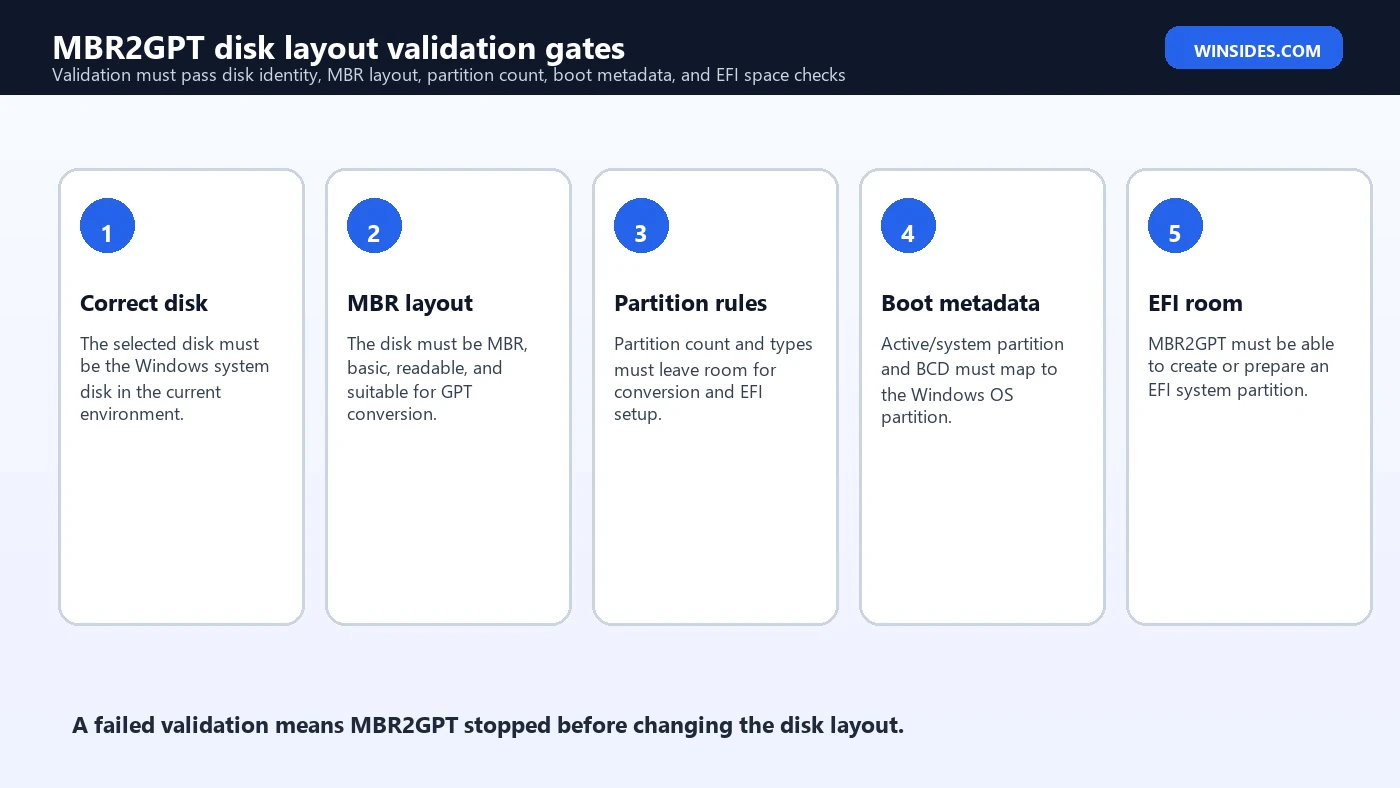
Confirm Disk 0 Is the Correct Disk
The simplest failure is the wrong disk. Disk 0 may be the Windows disk in full Windows but not in Windows PE. When a USB installer, external drive, or storage controller changes enumeration, the disk number can shift. If you validate the wrong disk, MBR2GPT cannot find a supported Windows system layout because the selected disk may not contain Windows at all.
diskpart
list disk
select disk 0
detail disk
list volume
exit
Compare disk size, volume labels, and whether a Windows folder exists on one of the volumes. In recovery media, the Windows partition may appear as D: or E: instead of C:. That is normal. Use directory checks to confirm the installed OS partition.
dir C:\Windows
dir D:\Windows
dir E:\Windows
If disk 0 does not contain the Windows installation, validate the correct disk number. Do not assume the error means the Windows disk is damaged. It may simply mean the command pointed at the wrong disk in the current boot environment.
Check the MBR Partition Count
MBR disks are limited by legacy partition design. MBR2GPT must be able to create the GPT structures and set up an EFI system partition for UEFI boot. If the disk already uses too many primary partitions, validation can fail because there is no safe way for the tool to create the required boot layout automatically.
Use DiskPart to list partitions on the selected disk. Count them, identify their types, and note which are system, Windows, recovery, OEM, or data partitions. A typical older Windows disk might include a System Reserved partition, the Windows partition, and a recovery partition. OEM systems may include additional utility or diagnostics partitions. Each partition needs to be understood before cleanup.
diskpart
select disk 0
list partition
select partition 1
detail partition
exit
Do not delete a partition simply because there are too many. A small partition may contain boot files. A recovery partition may be needed for Windows Recovery Environment. An OEM partition may contain vendor recovery tools. If cleanup is required, back up first and document what each partition contains. The conversion goal is not only to pass validation. The goal is to keep the computer bootable and recoverable.
Extended and Logical Partitions
Some older MBR disks use extended partitions that contain logical drives. That layout was common when users needed more volumes than MBR primary partition limits allowed. MBR2GPT is intended for supported Windows system disks, not every historical partition design. Extended and logical partition structures can prevent safe automatic conversion.
DiskPart can help you identify the partition types. If the Windows OS is inside a logical partition, or if boot-related files depend on an extended structure, treat the system as a special case. You may need to back up, simplify the layout, or use a clean reinstall instead of relying on in-place conversion.
This is one of the points where patience matters. It is tempting to delete a logical data partition to make the count look better. That may pass one check while destroying data or revealing another boot issue. Use a full backup and understand the layout before changing it.
Active System Partition and BCD Mapping
On a legacy BIOS/MBR Windows disk, the active system partition is important because it tells the firmware where boot starts. MBR2GPT also needs the boot configuration to map cleanly to the Windows OS partition. If the active partition is missing, points to the wrong location, or contains BCD data that does not match the installed Windows partition, disk layout validation can fail or lead into related OS partition errors.
Inspect before repairing. Use DiskPart to see which partition is active, then use BCDEdit to inspect boot entries. The Windows Boot Loader entry should correspond to the actual Windows installation on the selected disk. If the BCD store points to an old clone, missing volume, or wrong partition, MBR2GPT may not trust the layout enough to convert it.
bcdedit /enum allBCDBoot can recreate boot files, but it should not be used casually. First identify the Windows partition and the active system partition. In Windows PE, letters may differ from full Windows. If the Windows installation is D:\Windows and the active system partition is assigned S:, a repair might use bcdboot D:\Windows /s S: /f BIOS. Those letters are examples, not universal values.
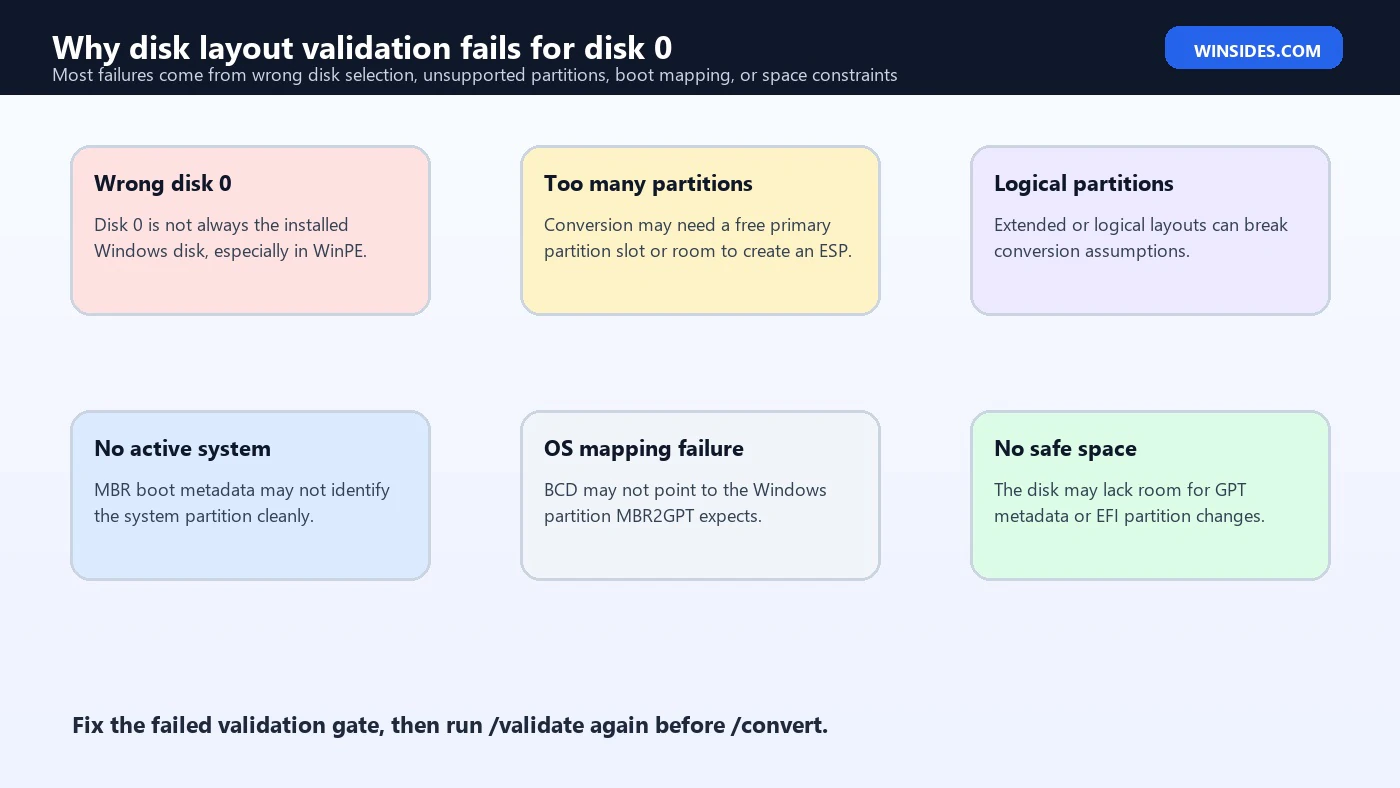
Room for EFI System Partition and GPT Metadata
A successful conversion must prepare the disk for UEFI boot. That means GPT metadata and an EFI system partition must exist after conversion. MBR2GPT can create the EFI system partition during conversion, often by using available space or by shrinking the OS partition when possible. If the layout leaves no safe room, validation can fail.
This is why free space inside the Windows volume and free partition slots are different things. Having 200 GB free inside C: does not automatically mean the partition layout can be converted. MBR2GPT needs the disk structure to support the required boot partition changes. Conversely, a small amount of unallocated space may not help if the partition count or layout is unsupported.
If space is the issue, do not immediately resize partitions with random tools. First confirm the exact validation reason in the logs. Then decide whether Windows Disk Management, DiskPart, a full backup and restore, or a clean install is the safer route. Partition edits are recoverable when planned and risky when guessed.
Recovery and OEM Partitions
Windows and OEM recovery partitions are common on MBR disks. They may be small, hidden, and easy to underestimate. They can also be the reason a disk has reached the partition count limit. The mistake is assuming every small partition is disposable. Some contain Windows Recovery Environment data, vendor diagnostics, or system recovery tools.
Before deleting or moving a recovery partition, confirm what recovery options you need. If BitLocker is enabled, make sure the recovery key is available. If the device belongs to an organization, follow the deployment and recovery process. If the PC is a personal device, create external recovery media or a full image backup before changing recovery partitions.
If the disk has several old recovery partitions from past upgrades, cleanup may be reasonable, but it should still be deliberate. Identify current Windows Recovery Environment status, backup the system, and keep only the change required to pass validation. The cleanest fix is the smallest fix that preserves boot and recovery paths.
Disk Layout Diagnosis Checklist
Use this checklist after the first validation failure. It keeps the process grounded in evidence instead of guesses.
- Save the MBR2GPT validation logs.
- Confirm whether the command ran in full Windows or Windows PE.
- Use DiskPart to verify that disk 0 is the actual Windows system disk.
- List partitions and classify system, Windows, recovery, OEM, and data partitions.
- Check whether any extended or logical partitions are involved.
- Confirm the active system partition on the MBR disk.
- Use BCDEdit to inspect the default Windows boot entry.
- Confirm there is a safe path for EFI system partition creation.
- Back up before deleting, shrinking, moving, or repairing partitions.
- Run
mbr2gpt /validateagain before conversion.
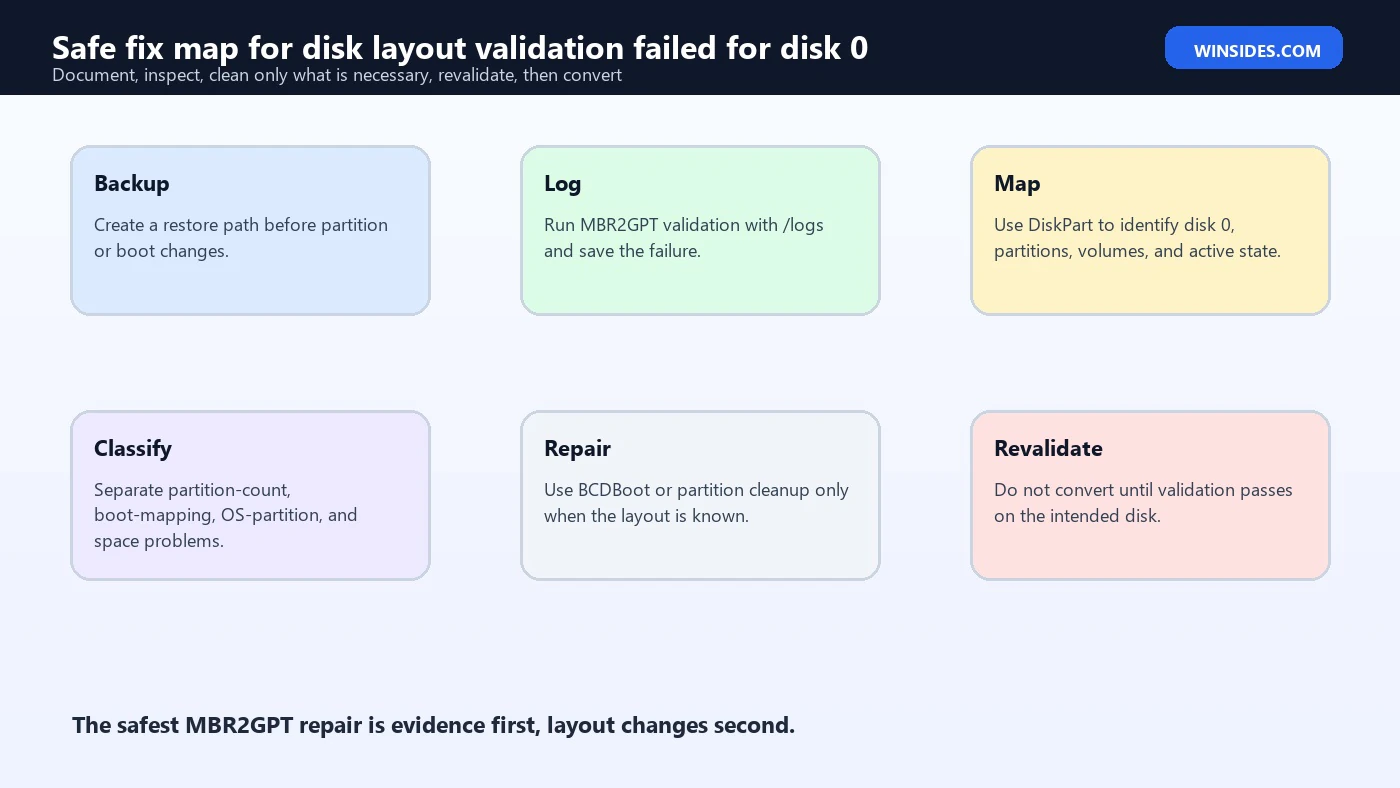
Example: Too Many Primary Partitions
A common layout includes a System Reserved partition, Windows partition, recovery partition, and OEM tools partition. If that layout leaves no safe way for MBR2GPT to create the EFI system partition, validation may fail. The tempting fix is to delete the smallest partition. The better fix is to identify each partition first.
Look at the partition sizes and contents. Check whether the recovery partition is active, current, or outdated. Check whether the OEM partition is still needed. If you decide a partition can be removed, back up first. Then remove only the partition you understand. After cleanup, validate again. Do not jump straight to conversion because another validation gate may still fail.
diskpart
select disk 0
list partition
select partition 4
detail partition
exit
The partition number in the example is not a recommendation. It only shows the inspection pattern. Your partition 4 may be important, empty, recovery-related, or something else entirely. Details decide the fix.
Example: Disk 0 Is Not the Windows Disk
If you boot from a USB drive, disk numbering can shift. A validation command against disk 0 may be checking the USB drive or another internal disk. The error can then look like a Windows conversion problem even though the selected disk never had Windows on it.
The fix is to identify the disk in the current environment. Compare sizes, list volumes, and search for the Windows folder. Once the correct disk number is known, run validation against that disk. If the Windows disk is disk 1 in WinPE, use disk 1 there. Do not rely on the disk number from a different environment.
diskpart
list disk
select disk 1
list volume
exit

dir D:\Windows

mbr2gpt /validate /disk:1 /logs:X:\MBR2GPTLogs
Example: BCD Does Not Match the Layout
A disk can boot through legacy firmware while still having messy boot metadata. Cloning, old dual-boot entries, recovery attempts, or moved partitions can leave the BCD default entry pointing somewhere unexpected. MBR2GPT may then fail validation because it cannot map the boot entry to the OS partition with confidence.
Use BCDEdit to inspect the boot entries. If the Windows partition is present but the boot entry is wrong, BCDBoot may be the repair tool. Use it only after you identify the correct Windows partition and system partition. Then validate again. This keeps boot repair and disk conversion as separate, testable steps.
bcdedit /enum all

bcdboot C:\Windows /s S: /f BIOS

mbr2gpt /validate /disk:0 /allowFullOS /logs:C:\MBR2GPTLogs
When a Clean Install Is Safer
In-place conversion is convenient, but it is not always the best route. If the disk layout is old, heavily modified, partly corrupted, or poorly documented, a clean backup and reinstall may be safer. This is especially true when the disk contains logical partitions, several obsolete recovery partitions, unknown OEM tools, failing storage, or boot metadata that has been repaired many times.
A clean install is not a failure. It may be the cleaner engineering choice when you need a reliable UEFI/GPT Windows 11 installation. The cost is reinstalling applications and restoring data, but the benefit is a clean boot path. For managed computers, imaging tools may already handle this better than manual conversion.
Use MBR2GPT when validation can be made clean and the layout is understandable. Use backup and reinstall when the layout itself has become the problem.
How to Decide What Can Be Changed
When disk layout validation fails, the most dangerous question is also the most common one: which partition can I delete? The honest answer is that you cannot know from size alone. A 100 MB partition may be the system partition. A 500 MB partition may be recovery. A larger OEM partition may contain factory recovery files. A data partition may have no label but still contain user files. Treat every partition as important until inspection proves otherwise.
Start with labels, file system, size, active state, and contents. Use DiskPart details and directory listings. If a partition has no drive letter, you can temporarily assign one for inspection, then remove it afterward. Do not format or delete it during identification. You are only trying to learn what it is.
diskpart
select disk 0
list partition
select partition 3
detail partition
assign letter=R
exit

dir R:\
After inspection, classify the partition. Is it the active system partition? Is it the Windows partition? Is it current recovery? Is it old recovery from a previous upgrade? Is it OEM diagnostics? Is it personal data? Only partitions that are understood, backed up, and no longer needed should be candidates for cleanup. If the partition belongs to Windows Recovery Environment, confirm recovery status and make external recovery media before removing anything.
For many users, shrinking the Windows partition or cleaning an obsolete recovery partition sounds easy, but the safest route may be a full image backup followed by a planned layout correction. If you cannot clearly identify the partition, do not make it the first thing you change. Unknown partitions are exactly where accidental boot failures and data loss begin.
BitLocker, Firmware Mode, and Recovery Keys
BitLocker adds another layer to MBR2GPT work. A firmware mode change, boot-file repair, BCD update, or partition conversion can trigger a BitLocker recovery prompt. That is expected on protected systems, but it becomes a crisis if the recovery key is not available. Before making boot layout changes, confirm that the recovery key is saved in the Microsoft account, Active Directory, Entra ID, management system, or another approved location.
If the OS volume is locked in Windows PE, MBR2GPT and simple directory checks may not see the Windows installation correctly. Unlock the volume through the proper BitLocker process before concluding that the OS partition is missing or unreadable. A locked encrypted volume is different from a damaged partition.
Firmware mode is the other half of the conversion. MBR2GPT prepares a disk for GPT and UEFI boot, but the firmware must be switched to UEFI afterward. If Compatibility Support Module or legacy boot remains active, the converted disk may not start. If Secure Boot is enabled too early or boot order points to the wrong entry, you can get a post-conversion boot problem that is separate from the original validation error.
The safe sequence is backup, validate, fix validation, convert, switch firmware to UEFI, choose Windows Boot Manager, and then confirm Windows starts. Keep the ability to return to firmware settings until the new boot path is proven. Do not erase old recovery media or logs immediately after the first successful boot.
What to Save Before Asking for Help
If the validation error does not become obvious, collect evidence before asking for help. Good evidence lets another person see the disk layout without guessing. Poor evidence produces generic advice, which is dangerous for partition problems.
- The exact MBR2GPT command you ran.
- Whether you ran it from full Windows or Windows PE.
- The MBR2GPT validation logs.
- DiskPart output for
list disk,list partition, andlist volume. - Which volume contains the
Windowsfolder in the current environment. - Whether BitLocker is enabled and whether the recovery key is available.
- BCDEdit output if boot metadata appears suspicious.
- A note about recent cloning, dual boot, partition resizing, or recovery repairs.
Remove personal information before sharing publicly. Disk output can include volume labels, computer-specific paths, and layout details. In a private support case, complete details are useful. In a public forum, redact names and serial-like details while preserving sizes, partition order, and the error text.
This evidence also helps you avoid contradictory fixes. If someone suggests deleting a partition, you can compare that suggestion with your notes. If someone suggests BCDBoot, you can verify whether the problem is actually boot metadata. If someone suggests changing firmware settings, you can confirm whether conversion has already completed. Good notes keep each step tied to the real failure.
After Conversion: Keep Validation and Firmware Separate
One reason this error causes confusion is that users mix three different phases: validation, conversion, and firmware boot. Disk layout validation failed for disk 0 belongs to the first phase. The disk has not been converted yet. A successful conversion belongs to the second phase. Switching the computer from legacy BIOS or CSM mode to UEFI belongs to the third phase. Each phase has different checks and different failures.
If validation fails, do not change firmware settings yet. The disk is still MBR and still expects the old boot path. If conversion succeeds, then firmware mode must change to UEFI and the boot option should usually be Windows Boot Manager. If the firmware change happens too early, the system may stop booting even though the original validation problem has not been fixed.
After a successful conversion, keep the logs and do one careful boot test before cleaning anything up. Confirm that Windows starts, Disk Management shows GPT, the EFI system partition exists, BitLocker status is expected, and recovery options still make sense. Only after that should you remove temporary drive letters, old notes, or recovery media from the workbench. A clean finish is part of the conversion process.
Frequently Asked Questions
What does disk layout validation failed for disk 0 mean?
It means MBR2GPT checked disk 0 and found that the disk layout, boot metadata, OS mapping, or available conversion path did not meet requirements for safe MBR-to-GPT conversion.
Does disk 0 always mean my Windows drive?
No. Disk numbering can change, especially in Windows PE or recovery media. Always verify the disk with DiskPart before running MBR2GPT.
Can too many partitions cause this error?
Yes. MBR2GPT must be able to create the required GPT and EFI boot layout. Too many primary partitions or unsupported layouts can block validation.
Should I delete the recovery partition?
Not blindly. First identify whether it is current, needed, or replaceable, and create a backup or recovery path before deleting or moving partitions.
Can BCDBoot fix disk layout validation errors?
BCDBoot can fix boot-file or BCD mapping problems, but it does not fix every layout problem. Use it only when boot metadata is the cause and the correct partitions are known.
Should I run /convert after validation fails?
No. Fix the validation failure and run /validate again. Use /convert only after validation succeeds.
Can this happen on Windows 11?
Yes. The error can appear when preparing or repairing a Windows 11 system that still uses an MBR legacy boot layout or when validating a disk from recovery media.
Conclusion: Fix the Layout Before Converting
The disk layout validation failed for disk 0 error is MBR2GPT telling you that the selected disk is not ready for conversion. That is a protective stop. It prevents the tool from changing a boot disk when the layout, partition count, boot metadata, OS mapping, or EFI setup path is not clear enough.
The fix is evidence-first. Save the logs, verify disk 0, list partitions, identify the active system partition, inspect BCD, classify recovery and OEM partitions, and confirm there is a safe path for EFI system partition creation. Make only the change that addresses the failed validation gate, then validate again.
For official reference, keep Microsoft pages for MBR2GPT, DiskPart, BCDEdit, and BCDBoot nearby while working through conversion problems.
For more interesting articles, stay tuned to Winsides.com!









Community
Comments (0)