

Introduction to Kernel Power Event 41 on Windows 11
Encountering an unexpected shutdown or restart on your Windows 11 system can be incredibly frustrating, often leading to lost work and a sense of unease. Among the various system events logged by Windows, Kernel Power Event 41 on Windows 11 stands out as a particularly critical indicator of underlying instability. This event signifies that your computer unexpectedly lost power or shut down improperly, without the operating system initiating a clean shutdown process. For additional context, see Event ID 41 troubleshooting guide, Intel processor power management settings, NVIDIA graphics driver updates, AMD graphics driver support, and MemTest86 for memory diagnostics.
This isn’t just a minor glitch; it’s a red flag that demands immediate attention. Persistent occurrences of Kernel Power Event 41 can point to serious hardware malfunctions, driver conflicts, or system corruption, all of which can severely impact your system’s stability and potentially lead to data loss. Ignoring this event could result in more frequent crashes, system unresponsiveness, and even permanent damage to components.
Our goal in this comprehensive guide is to equip you with the knowledge and practical steps necessary to diagnose and resolve the root causes of Kernel Power Event 41 on Windows 11. We’ll delve into its meaning, explore common culprits, and provide a systematic approach to troubleshooting, ensuring you can restore your system to a state of reliable performance. Addressing this issue promptly is crucial for maintaining the integrity and longevity of your Windows 11 machine.
Table of contents
Key Takeaways: Resolving Kernel Power Event 41
Before diving into the detailed troubleshooting steps, here’s a concise summary of the primary solutions and diagnostic approaches you’ll encounter. These key takeaways offer quick actionable advice for anyone experiencing Kernel Power Event 41 on Windows 11.
- Understand the Event: Kernel Power Event 41 indicates an unexpected shutdown; check Event Viewer for additional parameters to narrow down the cause.
- Check Physical Connections: Always start by ensuring all power cables, internal components, and peripherals are securely connected.
- Update Drivers and Windows: Outdated or corrupt drivers, especially graphics drivers, are frequent culprits. Keep your system and drivers current.
- Monitor Temperatures: Overheating is a common cause. Use monitoring software to check CPU and GPU temperatures under load.
- Test Power Supply (PSU): A failing PSU often triggers this event. Consider testing it or trying a known good replacement.
- Run Memory Diagnostics: Faulty RAM can lead to instability. Utilize Windows Memory Diagnostic or MemTest86 to check for errors.
- System File Integrity: Use SFC and DISM commands to repair corrupted system files that might be causing crashes.
Understanding Kernel Power Event 41: What It Means
When your Windows 11 system experiences an abrupt shutdown or restart without proper warning, the operating system logs a specific entry in the Event Viewer. This entry, known as Kernel Power Event 41 on Windows 11, serves as a critical indicator that something went wrong with the system’s power state. It essentially tells you that the computer lost power or became unresponsive in a way that prevented a graceful shutdown.
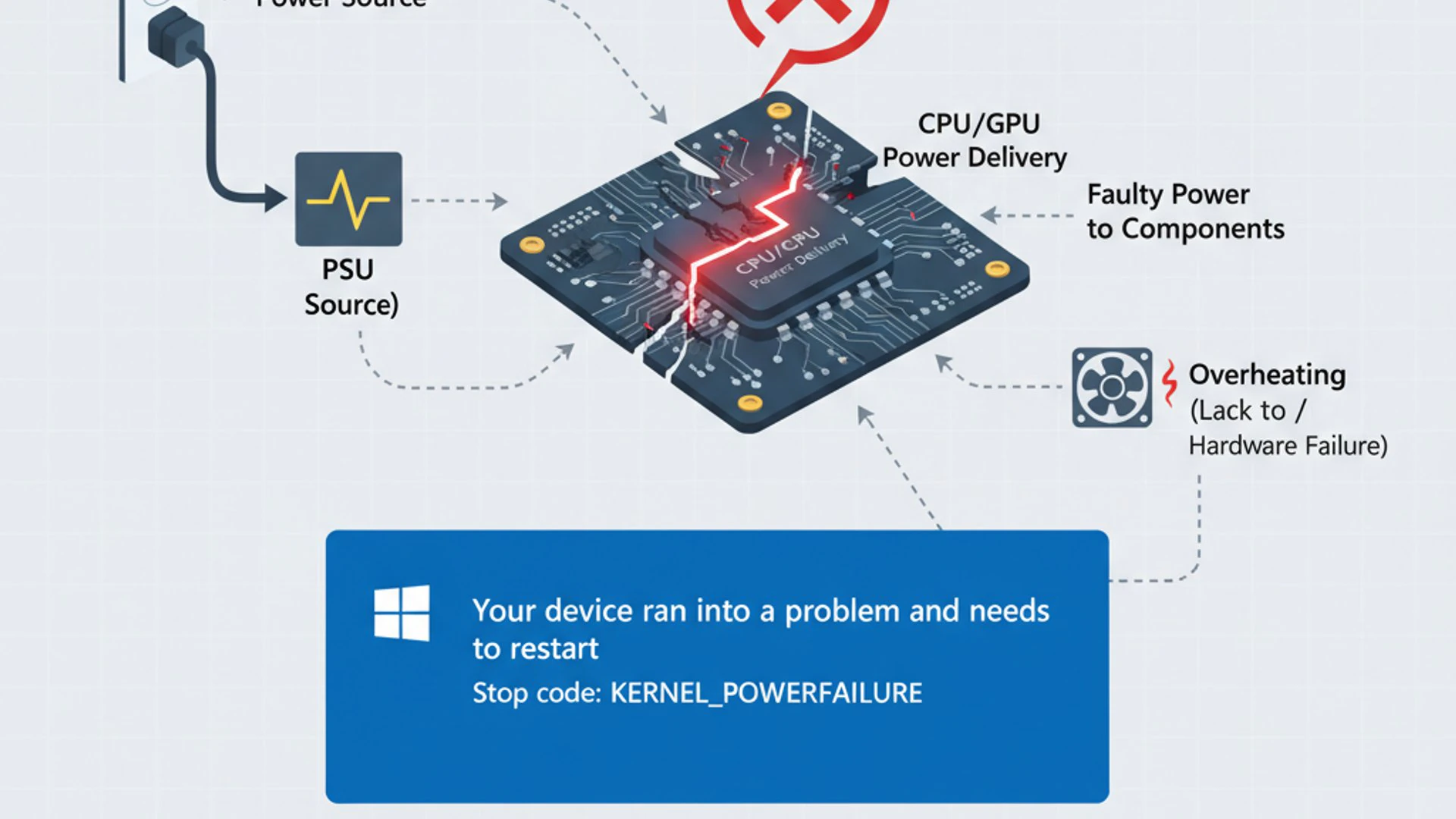
This event doesn’t directly tell you why the system crashed, but it confirms that an unexpected power cycle occurred. It’s often the first clue in a troubleshooting process, pointing towards a deeper underlying problem. Understanding its significance and how to interpret its details is the first step towards resolving the instability.
The Significance of Event ID 41
The Event ID 41, specifically within the “Kernel-Power” source, is a generic but crucial notification. It signifies that the system rebooted without cleanly shutting down first. This could be due to a complete power loss, a system freeze requiring a hard reset, or a critical error that forced an immediate shutdown.
Think of it as a black box flight recorder: it tells you the plane crashed, but not necessarily the cause. The absence of a prior shutdown event in the logs confirms the abrupt nature of the power loss. This event is a signal that your system’s stability has been compromised, and further investigation is required.
“Kernel Power Event 41 on Windows 11 is the system’s way of saying, ‘I crashed unexpectedly.’ It’s a starting point for diagnosis, not the final answer.”
Interpreting Event Viewer Details
While Event ID 41 itself is broad, the Event Viewer often provides additional parameters that can offer valuable clues. To access these details, you’ll need to open the Event Viewer:
- Press Windows Key + X and select Event Viewer.
- Navigate to Windows Logs > System.
- Look for events with Source: Kernel-Power and Event ID: 41.
- Double-click on the event to view its properties.
Inside the event properties, pay close attention to the “General” and “Details” tabs. You might see parameters like BugCheckCode, BugCheckParameter1, PowerButtonTimestamp, or SleepButtonTimestamp. A BugCheckCode other than 0 indicates a Blue Screen of Death (BSOD) occurred, and this code can be researched further to identify the specific error that led to the crash.
For instance, a BugCheckCode of 278 (0x00000116) often points to graphics driver issues, while 159 (0x0000009F) can indicate driver power state failure. If the BugCheckCode is 0, it usually means the system simply lost power without a prior BSOD, suggesting a power supply or overheating issue. Analyzing these parameters is crucial for narrowing down the potential causes of your Kernel Power Event 41 on Windows 11.
Common Causes of Kernel Power Event 41
The elusive nature of Kernel Power Event 41 on Windows 11 often stems from a variety of underlying issues, ranging from straightforward hardware failures to complex software conflicts. Pinpointing the exact cause requires a systematic approach, as the event itself is a symptom, not a diagnosis. We can broadly categorize these culprits into hardware and software categories, each demanding specific diagnostic attention.
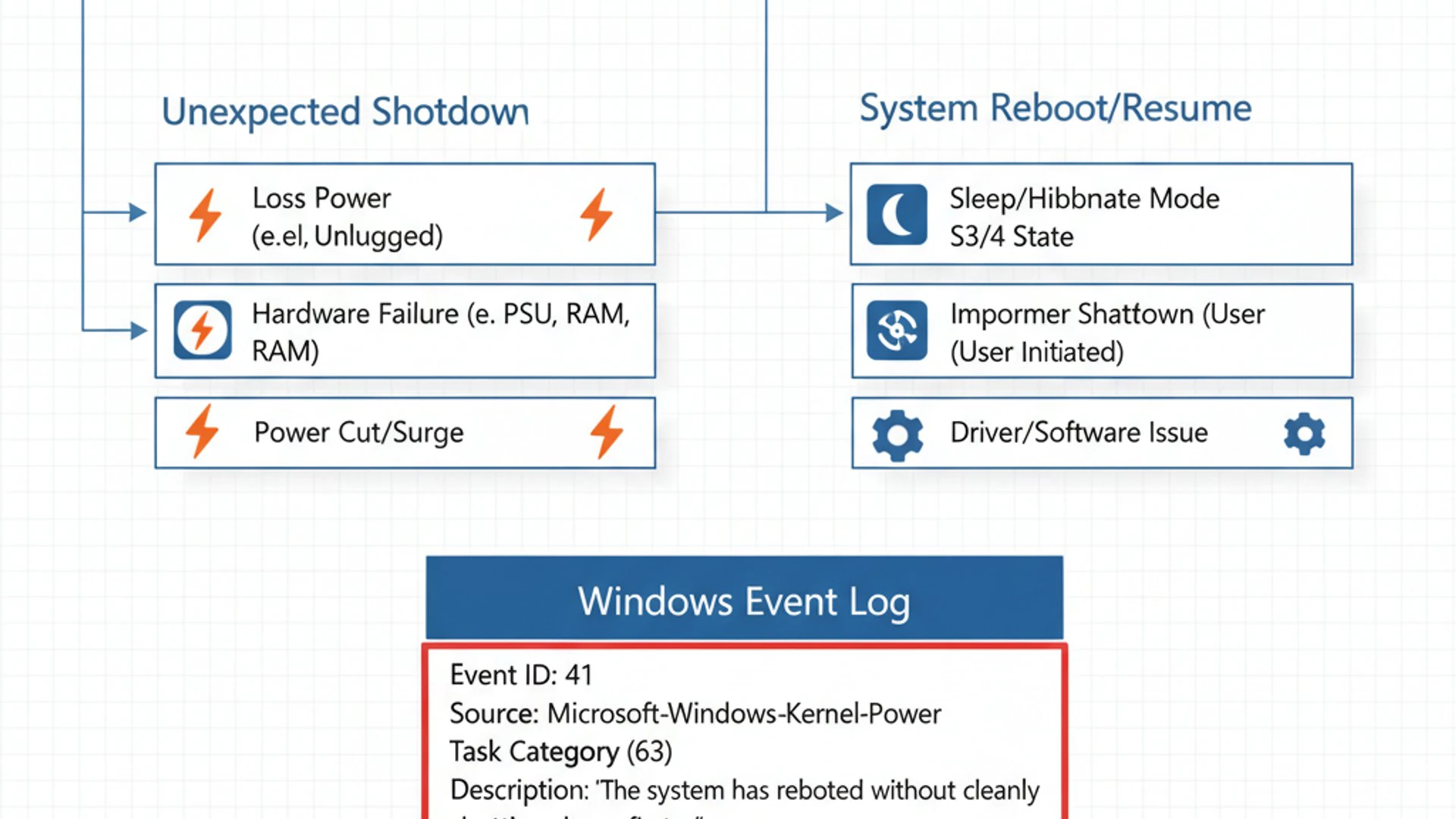
Understanding these common causes is the cornerstone of effective troubleshooting. Without this knowledge, you might find yourself chasing symptoms rather than addressing the root problem. Let’s explore the most frequent reasons behind this disruptive event.
Power Supply Unit (PSU) Issues
One of the most prevalent causes of unexpected shutdowns and, consequently, Kernel Power Event 41 on Windows 11, is a failing or inadequate Power Supply Unit (PSU). The PSU is responsible for delivering stable and sufficient power to all your computer’s components. If it can’t meet the demand, especially under load, the system will abruptly shut down to protect itself from instability or damage.
Symptoms of a failing PSU can include random reboots, system freezes, or even a complete failure to power on. An aging PSU might degrade over time, losing its ability to supply consistent wattage. Similarly, if you’ve upgraded components like a powerful new graphics card without upgrading your PSU, it might simply be underpowered for your system’s needs. This is a critical area to investigate early in your troubleshooting process.
Overheating Components
Excessive heat is a silent killer of computer components and a major contributor to system instability. When critical hardware like the CPU (Central Processing Unit) or GPU (Graphics Processing Unit) reaches dangerously high temperatures, they often trigger a protective shutdown mechanism to prevent permanent damage. This abrupt shutdown is then logged as a Kernel Power Event 41.
Overheating can be caused by several factors: dust buildup obstructing airflow, failing cooling fans, inadequate thermal paste application, or even simply operating in a hot environment. Modern CPUs and GPUs are designed to throttle performance or shut down when temperatures become critical. Monitoring these temperatures, especially during demanding tasks, is essential for diagnosis.
Outdated or Corrupt Drivers
Device drivers are the communication bridge between your operating system and your hardware. If these drivers become outdated, corrupted, or incompatible with your Windows 11 version, they can lead to system instability, crashes, and the dreaded Kernel Power Event 41 on Windows 11. This is particularly true for drivers that interact closely with system power states or high-performance components.
A common scenario involves a driver bug causing a “driver power state failure” or a general protection fault, which then forces the system to restart. Keeping your drivers updated is a fundamental maintenance task that can prevent a multitude of issues, including unexpected shutdowns. Always ensure you’re downloading drivers from official manufacturer websites.
Graphics Card Driver Conflicts
Among all drivers, graphics card drivers are perhaps the most frequent culprits behind system crashes and Kernel Power Event 41. These drivers are complex and constantly updated to support new games, applications, and operating system features. A buggy or incompatible graphics driver can lead to display issues, system freezes, and sudden reboots, especially when the GPU is under heavy load.
If you recently updated your graphics driver or installed a new game, and then started experiencing crashes, the graphics driver is a strong suspect. Rolling back to a previous stable version or performing a clean installation of the latest driver can often resolve these issues. This specific driver conflict is a very common cause of unexpected system restarts.
BIOS/UEFI Settings and Firmware
The BIOS (Basic Input/Output System) or its modern successor, UEFI (Unified Extensible Firmware Interface), is the firmware that initializes your computer’s hardware before the operating system loads. Incorrect or outdated BIOS/UEFI settings can lead to hardware conflicts, improper power management, or instability that results in Kernel Power Event 41. Overclocking settings, in particular, can push components beyond their stable limits, causing crashes.
An outdated BIOS/UEFI firmware might also lack compatibility with newer hardware or Windows 11 features, leading to unexpected behavior. While updating firmware is a more advanced step and carries some risk, it can be a crucial fix for persistent stability issues. Always proceed with caution and follow manufacturer instructions precisely when dealing with BIOS/UEFI updates.
Memory (RAM) Problems
Faulty or unstable RAM (Random Access Memory) can manifest as a wide range of system issues, from application crashes and data corruption to the dreaded Blue Screen of Death and, inevitably, Kernel Power Event 41 on Windows 11. If your RAM modules are defective, improperly seated, or incompatible, they can introduce errors into the data stream, leading to system instability.
Even subtle RAM errors can cause intermittent crashes that are difficult to diagnose. Testing your system memory thoroughly is a vital step in troubleshooting persistent Kernel Power Event 41 occurrences. Issues can arise from a single faulty stick, mismatched RAM speeds, or even simply loose connections within their slots.
Corrupted System Files
Windows 11 relies on a vast collection of system files to function correctly. If these critical files become corrupted due to malware, improper shutdowns, disk errors, or faulty updates, the operating system can become unstable. This instability can lead to various problems, including application failures, system freezes, and unexpected reboots, which are then logged as Kernel Power Event 41.
Corruption in core system files can prevent Windows from managing power states properly or from executing critical processes, leading to a forced shutdown. Fortunately, Windows provides built-in tools like System File Checker (SFC) and Deployment Image Servicing and Management (DISM) to identify and repair such damage, often resolving the underlying cause of the crashes.
Initial Troubleshooting Steps for Event 41
Before delving into more complex diagnostics, it’s always wise to start with the simplest, most common-sense troubleshooting steps. Many instances of Kernel Power Event 41 on Windows 11 can be resolved by addressing basic physical connections, power settings, or ensuring your system is up-to-date. These initial checks require minimal technical expertise and can save you a lot of time and effort.
Think of these as the fundamental checks in any troubleshooting process. They address common oversights and software glitches that can mimic more severe hardware problems. Let’s walk through these straightforward solutions.
Checking Power Connections and Cables
A surprising number of computer issues, including unexpected shutdowns, can be traced back to loose or faulty power connections. Start by performing a thorough physical inspection of your system’s power infrastructure. This includes both external and internal cables.
- External Power Cable: Ensure the power cable connecting your computer to the wall outlet or surge protector is securely plugged in at both ends. Try a different outlet or bypass the surge protector temporarily to rule out issues with them.
- Internal PSU Cables: Open your computer case and visually inspect all cables coming from the Power Supply Unit (PSU). Make sure the main 24-pin ATX connector to the motherboard, the 8-pin (or 4-pin) CPU power connector, and all PCIe power connectors to your graphics card are firmly seated.
- Component Seating: While the case is open, gently press down on RAM modules, graphics cards, and other expansion cards to ensure they are fully seated in their respective slots. A loose connection can cause intermittent power issues.
A loose cable can cause intermittent power loss, triggering Kernel Power Event 41 on Windows 11. This simple check often resolves the problem without needing further investigation.
Disabling Fast Startup
Windows 11’s Fast Startup feature is designed to reduce boot times by saving a hibernation file of the system state when you shut down. However, this feature can sometimes interfere with proper shutdown cycles, leading to power-related issues and unexpected restarts. Disabling it can resolve conflicts that contribute to Kernel Power Event 41.
To disable Fast Startup:
- Press Windows Key + R, type
powercfg.cpl, and press Enter to open Power Options. - Click Choose what the power buttons do on the left pane.
- Click Change settings that are currently unavailable.
- Scroll down and uncheck the box next to Turn on fast startup (recommended).
- Click Save changes and restart your computer.
This ensures a complete shutdown and fresh boot cycle, which can sometimes circumvent issues that Fast Startup might exacerbate. It’s a quick and harmless step to try.
Updating Windows 11 and Drivers
Keeping your operating system and device drivers up-to-date is fundamental for system stability and can often resolve issues causing Kernel Power Event 41 on Windows 11. Microsoft regularly releases updates that include bug fixes, security patches, and improved hardware compatibility. Similarly, hardware manufacturers release updated drivers to enhance performance and fix known issues.
To update Windows 11:
- Go to Settings > Windows Update.
- Click Check for updates and install any available updates.
For drivers, especially graphics drivers, it’s best to visit the manufacturer’s website (e.g., NVIDIA, AMD, Intel) directly. Download and install the latest stable drivers for your specific hardware model. For other drivers, you can use Device Manager (right-click Start, select Device Manager) to check for updates, though manufacturer websites are generally more reliable for critical components.
Outdated drivers, particularly for components like network adapters, chipsets, and storage controllers, can introduce instability. Ensuring everything is current minimizes potential conflicts and vulnerabilities that could lead to unexpected shutdowns.
Advanced Solutions for Hardware-Related Issues
If the initial troubleshooting steps haven’t resolved your Kernel Power Event 41 on Windows 11, it’s time to delve deeper into potential hardware problems. These advanced solutions involve more specific diagnostics and, in some cases, physical interaction with your computer’s internal components. It’s crucial to proceed with caution and ensure you understand each step before attempting it.
Hardware failures are often the most challenging to diagnose, as their symptoms can be inconsistent. However, by systematically testing each major component, you can isolate the faulty part and address the root cause of your system’s instability. Always remember to back up important data before performing extensive hardware troubleshooting.
Testing Your Power Supply Unit (PSU)
A failing Power Supply Unit (PSU) is a common culprit for random shutdowns and Kernel Power Event 41. Diagnosing a PSU can be tricky without specialized equipment, but there are a few approaches:
- Visual Inspection: Look for bulging capacitors, burn marks, or a burning smell coming from the PSU. These are clear signs of failure.
- PSU Tester: You can purchase an inexpensive PSU tester that connects to your PSU’s cables and displays voltage readings. This provides a quick way to check if voltages are within acceptable ranges.
- Multimeter Test: For more advanced users, a multimeter can be used to test individual voltage rails. Consult your PSU’s manual for expected voltage values.
- Swap with a Known Good PSU: The most definitive test is to temporarily replace your current PSU with a known good, compatible unit. If the crashes stop, your original PSU was likely the problem.
Intermittent power delivery from a faulty PSU can cause components to randomly lose power, leading to an abrupt system shutdown. If your PSU is old, underpowered, or shows any signs of distress, replacing it is often the most effective solution for persistent Kernel Power Event 41 issues.
Monitoring System Temperatures
Overheating is a significant cause of unexpected shutdowns. Monitoring your CPU and GPU temperatures can quickly reveal if thermal issues are at play. Several free tools can help with this:
- HWMonitor: Provides real-time readings for CPU, GPU, and other component temperatures, voltages, and fan speeds.
- Core Temp (for CPU): A lightweight tool focused specifically on CPU temperatures.
- MSI Afterburner (for GPU): Excellent for monitoring GPU temperatures, clock speeds, and fan usage, and can even be used for other brands.
Run these tools while performing demanding tasks that typically trigger your system crashes (e.g., gaming, video editing). If temperatures consistently exceed 85-90°C (185-194°F) for CPU or GPU, you have an overheating problem. Solutions include cleaning dust from fans and heatsinks, replacing thermal paste, improving case airflow, or upgrading your cooling solution. Addressing these thermal issues is crucial for preventing Kernel Power Event 41 on Windows 11.
Performing a Memory Diagnostic
Faulty RAM can cause a myriad of system instabilities, including random reboots. Windows 11 includes a built-in memory diagnostic tool, and more comprehensive third-party options are available.
- Windows Memory Diagnostic:
- Press Windows Key + R, type
mdsched.exe, and press Enter. - Choose Restart now and check for problems (recommended).
- Your computer will restart and run a memory test. Allow it to complete.
- Press Windows Key + R, type
- MemTest86: For a more thorough test, download and create a bootable USB drive with MemTest86. Boot from this USB and let it run for several passes (at least 4-8 hours, or overnight) to detect subtle errors.
If either tool reports errors, it indicates a problem with your RAM. If you have multiple RAM sticks, test them individually to pinpoint the faulty module. Replacing defective RAM is often a straightforward fix for persistent crashes and Kernel Power Event 41 on Windows 11.
Inspecting and Reseating Hardware Components
Loose connections can cause intermittent issues that are difficult to diagnose. A physical inspection and reseating of components can often resolve these problems. Ensure your computer is powered off and unplugged before performing these steps.
- RAM Modules: Gently unclip and remove each RAM stick, then firmly push it back into its slot until the clips on both sides snap into place.
- Graphics Card: Unscrew the retention screw, unclip the PCIe slot lock, remove the graphics card, and then reinsert it firmly until it clicks into place. Re-secure the screw.
- Other Expansion Cards: Repeat the process for any other PCIe cards (e.g., sound cards, network cards).
- Storage Drives: Ensure SATA data and power cables are securely connected to your hard drives or SSDs.
This process ensures that all components have a solid electrical connection, ruling out a common cause of unexpected shutdowns. Even a slight misalignment can lead to instability and trigger Kernel Power Event 41 on Windows 11.
Software and System-Related Fixes
While hardware issues are often the primary suspects for Kernel Power Event 41 on Windows 11, software and system-level problems can also play a significant role. Corrupted system files, misconfigured power settings, outdated firmware, or even malicious software can all lead to system instability and unexpected reboots. This section focuses on diagnosing and rectifying these software-centric causes.
Addressing these issues often involves utilizing Windows’ built-in diagnostic and repair tools, alongside ensuring your system’s core software components are optimized and secure. A systematic approach here can often resolve persistent power-related events without needing to replace hardware.
Running System File Checker (SFC) and DISM
Corrupted system files are a frequent cause of Windows instability, leading to crashes and Kernel Power Event 41. Windows 11 provides two powerful command-line tools to address this: System File Checker (SFC) and Deployment Image Servicing and Management (DISM).
First, run DISM to repair the Windows image, which SFC relies on:
- Open Command Prompt as an administrator (search for “cmd”, right-click, and select “Run as administrator”).
- Type
DISM /Online /Cleanup-Image /RestoreHealthand press Enter. This process can take some time.
Once DISM completes, run SFC:
- In the same elevated Command Prompt, type
sfc /scannowand press Enter. - Allow SFC to scan and repair any corrupted system files it finds.
After both tools have finished, restart your computer. These commands can fix underlying operating system issues that contribute to unexpected shutdowns, helping to resolve Kernel Power Event 41 on Windows 11.
Adjusting Power Plan Settings
Incorrect or aggressive power plan settings can sometimes contribute to system instability, especially if components are being put into low-power states too quickly or incorrectly. While less common, it’s worth reviewing your power plan settings to ensure they aren’t inadvertently causing issues.
- Press Windows Key + R, type
powercfg.cpl, and press Enter. - Click Change plan settings next to your active power plan.
- Click Change advanced power settings.
- Expand various sections, particularly Hard disk, Sleep, PCI Express (Link State Power Management), and Processor power management.
- Consider setting “Link State Power Management” under PCI Express to Off or Moderate power savings. Ensure “Minimum processor state” is not set too low.
- Apply changes and restart your system.
Experimenting with these settings, especially reverting to a balanced or high-performance plan, can sometimes alleviate power-related glitches that trigger Kernel Power Event 41 on Windows 11.
Updating BIOS/UEFI Firmware
The BIOS (Basic Input/Output System) or UEFI (Unified Extensible Firmware Interface) is your motherboard’s firmware. An outdated version can lead to compatibility issues with new hardware, Windows 11 updates, or simply contain bugs that cause system instability and unexpected shutdowns. Updating it can provide crucial stability fixes.
Important Considerations:
- This is an advanced procedure and carries a small risk of bricking your motherboard if done incorrectly or if power is lost during the process.
- Always download the BIOS/UEFI update directly from your motherboard manufacturer’s official website.
- Follow the manufacturer’s specific instructions meticulously. This usually involves placing the update file on a USB drive and using a utility within the BIOS/UEFI interface.
A successful BIOS/UEFI update can resolve deep-seated compatibility or power management issues, potentially eliminating the occurrence of Kernel Power Event 41 on Windows 11. Only proceed if you are comfortable with the process and have stable power.
Checking for Malware and Viruses
Malicious software can severely compromise your system’s stability. Viruses, rootkits, or other malware can consume excessive system resources, interfere with critical Windows processes, or even intentionally trigger system crashes as a denial-of-service attack. These actions can easily lead to unexpected shutdowns and the logging of Kernel Power Event 41 on Windows 11.
Perform a thorough scan of your system using reputable antivirus software. Ensure your antivirus definitions are up-to-date. Consider running a second opinion scan with a different tool, such as Malwarebytes, to catch anything your primary antivirus might have missed. If any threats are detected, follow the software’s instructions to quarantine or remove them, then restart your computer.
Regularly scanning for and removing malware is a crucial part of maintaining a healthy and stable Windows 11 system, preventing a wide array of issues, including unexpected power events. For more on system security, you might find information on services like the Web Threat Defense Service on Windows 11 helpful.
When to Consider Professional Help or Hardware Replacement
After meticulously working through all the troubleshooting steps for Kernel Power Event 41 on Windows 11, there might come a point where the problem persists. This is often the signal that the issue is beyond typical user-level diagnostics or requires specialized tools and expertise. Knowing when to call in the professionals or consider hardware replacement can save you further frustration and potential damage.
If you’ve exhausted all the detailed solutions provided, and your system continues to experience unexpected shutdowns, it’s time to evaluate your next steps. Persistent Kernel Power Event 41 indicates a serious underlying problem that needs definitive resolution.
Consider Professional Technical Assistance if:
- All troubleshooting steps have failed: You’ve systematically tried everything in this guide without success.
- You lack the necessary tools or expertise: Diagnosing certain hardware issues (like advanced PSU testing or motherboard component failure) often requires specialized equipment or a deeper understanding of electronics.
- You’re uncomfortable with hardware manipulation: If opening your computer case or handling components feels daunting, a professional can perform these tasks safely.
- The problem is intermittent and complex: Some issues are hard to reproduce, making professional diagnostic equipment invaluable.
A qualified technician can perform more in-depth diagnostics, potentially identifying issues with the motherboard, CPU, or other components that are difficult for an average user to test. They often have access to spare parts for testing, which can quickly isolate a faulty component.
Consider Hardware Replacement if:
- A specific component is identified as faulty: If memory diagnostics consistently show errors, or PSU tests indicate failure, replacing that specific part is the logical next step.
- Your hardware is old and out of warranty: Older components are more prone to failure. If a core component like the PSU, motherboard, or CPU is several years old, replacement might be more cost-effective than extensive repairs.
- The cost of repair approaches the cost of replacement: For older systems, sometimes replacing the entire machine or a major component (like the motherboard/CPU combo) is more economical than paying for labor and parts for a complex repair.
- You’re experiencing frequent, critical failures: If Kernel Power Event 41 on Windows 11 is a daily occurrence despite all efforts, it severely impacts productivity and indicates a critical hardware failure.
Before making any expensive decisions, always get a second opinion if possible, or a clear diagnosis from a reputable professional. They can provide an accurate assessment of whether a repair is feasible or if a replacement is the more sensible path forward for your Windows 11 system’s stability.
Preventing Future Kernel Power Event 41 Occurrences
Resolving an existing Kernel Power Event 41 on Windows 11 is a significant achievement, but preventing its recurrence is equally important for long-term system stability. Proactive maintenance and adopting best practices can significantly reduce the likelihood of unexpected shutdowns and ensure your Windows 11 machine runs smoothly and reliably. Prevention is always better than cure when it comes to critical system errors.
By integrating these habits into your routine, you can foster a healthier computing environment and minimize the stress associated with sudden system failures. Let’s explore the key strategies for maintaining a stable and robust Windows 11 system.
- Regular Updates: Consistently update Windows 11 and all device drivers. Microsoft and hardware manufacturers frequently release patches and driver updates that improve stability, fix bugs, and enhance compatibility. Set Windows Update to automatically install updates, and periodically check manufacturer websites for critical driver updates, especially for your graphics card and chipset.
- Proper Cooling and Airflow:
- Clean Dust Regularly: Dust buildup is a primary cause of overheating. Use compressed air to clean out fans, heatsinks, and vents at least every 3-6 months.
- Ensure Good Case Airflow: Make sure your computer case has adequate intake and exhaust fans, and that cables are managed to avoid obstructing airflow.
- Monitor Temperatures: Continue to use monitoring software (like HWMonitor) periodically, especially during demanding tasks, to catch rising temperatures before they become critical.
- Stable Power Source:
- Use a Surge Protector: Always plug your computer into a high-quality surge protector to guard against power spikes.
- Consider a UPS: For critical systems or areas with unstable power, an Uninterruptible Power Supply (UPS) provides battery backup during outages and filters dirty power, preventing abrupt shutdowns.
- Adequate PSU: Ensure your Power Supply Unit (PSU) is appropriately sized for your components and has enough headroom for future upgrades.
- Avoid Overclocking (Unless Experienced): While overclocking can boost performance, it pushes components beyond their factory specifications, increasing heat and instability. If not done correctly and with proper cooling, it’s a common cause of crashes and Kernel Power Event 41 on Windows 11. If you do overclock, do so incrementally and stress-test thoroughly.
- Regular System Scans: Periodically run full system scans with your antivirus and anti-malware software to ensure your system remains free of malicious software that could cause instability.
- Disk Health Checks: Run
chkdskperiodically to check for and repair disk errors. Navigate to This PC, right-click on your drive, select Properties > Tools > Check. - Backup Your Data: While not a preventative measure for the event itself, regularly backing up your important data ensures that even if a critical failure occurs, your valuable files are safe. Consider using Windows’ built-in backup features or third-party solutions. For more information, you can explore guides like System Image Backup on Windows 11: Comprehensive Guide.
By consistently applying these preventative measures, you can significantly enhance the stability and longevity of your Windows 11 system, making occurrences of Kernel Power Event 41 on Windows 11 a rare, if not non-existent, event.
Conclusion: Restoring Stability to Your Windows 11 System
The appearance of Kernel Power Event 41 on Windows 11 can be a distressing experience, signaling an underlying issue that compromises your system’s reliability. However, as we’ve explored, this critical event is not an insurmountable problem. By adopting a systematic and patient approach to diagnosis and troubleshooting, you can effectively pinpoint and resolve the root causes, restoring your computer to its optimal, stable state.
From understanding the cryptic messages within the Event Viewer to meticulously checking hardware connections, updating drivers, and running advanced diagnostics, each step plays a crucial role. We’ve covered a wide spectrum of potential culprits, including power supply failures, overheating components, driver conflicts, memory issues, and corrupted system files. The journey to a stable system often involves a process of elimination, patiently testing one hypothesis at a time.
Remember, consistency in maintenance, such as regular updates, proper cooling, and a clean power supply, is key to preventing future occurrences. While some issues may eventually necessitate professional intervention or hardware replacement, empowering yourself with the knowledge and tools to troubleshoot effectively is invaluable. By following this comprehensive guide, you are well-equipped to tackle Kernel Power Event 41 on Windows 11 head-on, ensuring a smooth, reliable, and frustration-free computing experience.
For more interesting articles, stay tuned to Winsides.com!









Community
Comments (0)