

Introduction to MKLINK
MKLINK is the Windows command-line tool for creating symbolic links, hard links, and directory junctions. On Windows 11, it is useful when you want one path to behave like another path without copying the same files into multiple locations. Developers use it for build folders and shared assets, administrators use it for folder redirection and compatibility paths, and advanced users use it to keep old application paths working after moving data.
Microsoft describes MKLINK as a command that creates a directory or file symbolic or hard link. The syntax is compact: mklink [[/d] | [/h] | [/j]] <link> <target>. The switch determines what kind of link you create. With no switch, MKLINK creates a file symbolic link. With /d, it creates a directory symbolic link. With /h, it creates a hard link. With /j, it creates a directory junction.
The important part is that these link types are not the same thing. A symbolic link stores a path to a target. A hard link is another directory entry for the same file data. A junction is a directory reparse point that redirects folder access. They can look similar in File Explorer, but they behave differently when you move, delete, back up, sync, or troubleshoot them.
For official context, Microsoft documents the MKLINK command, symbolic links, creating symbolic links, hard links and junctions, reparse points, FSUTIL hardlink, and PowerShell New-Item.
Table of contents
Key Takeaways
- MKLINK creates links, not copies. The link path redirects to or shares the target depending on the link type.
- No switch creates a file symbolic link. Use it when one file path should point to another file path.
/dcreates a directory symbolic link. Use it when a folder path should point to another folder path, including some remote targets./hcreates a hard link. Use it only for files, normally on the same volume, when two names should refer to the same file data./jcreates a directory junction. Use it for local folder compatibility paths and older Windows-style directory redirection.- Deleting a link should remove the link path, not the target. Know which path is the link before cleanup.
- PowerShell New-Item is a modern alternative. It supports SymbolicLink, Junction, and HardLink item types in file-system locations.
MKLINK Syntax
MKLINK is a Command Prompt command, not a native PowerShell cmdlet. If you are in Windows Terminal or PowerShell, run it through cmd /c or open Command Prompt directly. The basic structure is always the link first and the target second. That order is easy to mix up, and mixing it up is one of the most common mistakes.
mklink [[/d] | [/h] | [/j]] <link> <target>| Switch | Creates | Typical use |
|---|---|---|
| No switch | File symbolic link | A file path that redirects to another file path. |
| /d | Directory symbolic link | A folder path that redirects to another folder path. |
| /h | Hard link | A second file name for the same file data on the same volume. |
| /j | Directory junction | A folder redirection point for local directory compatibility. |
Quote paths that contain spaces. If the link or target path already exists, the command may fail because MKLINK expects to create a new link object at the link path. Create the target first, then create the link path that points to it.
mklink "C:\Work\readme-link.txt" "D:\Docs\readme.txt"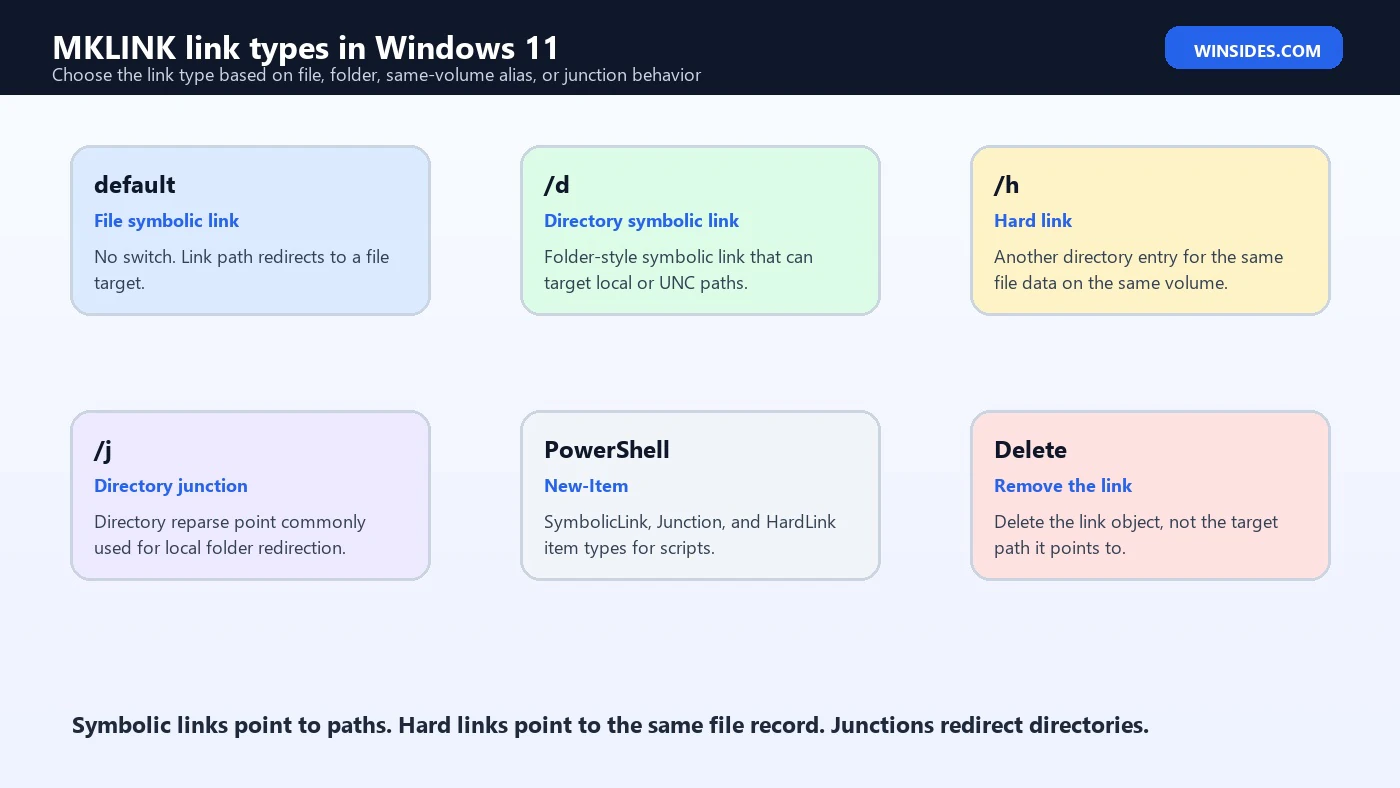
File Symbolic Links
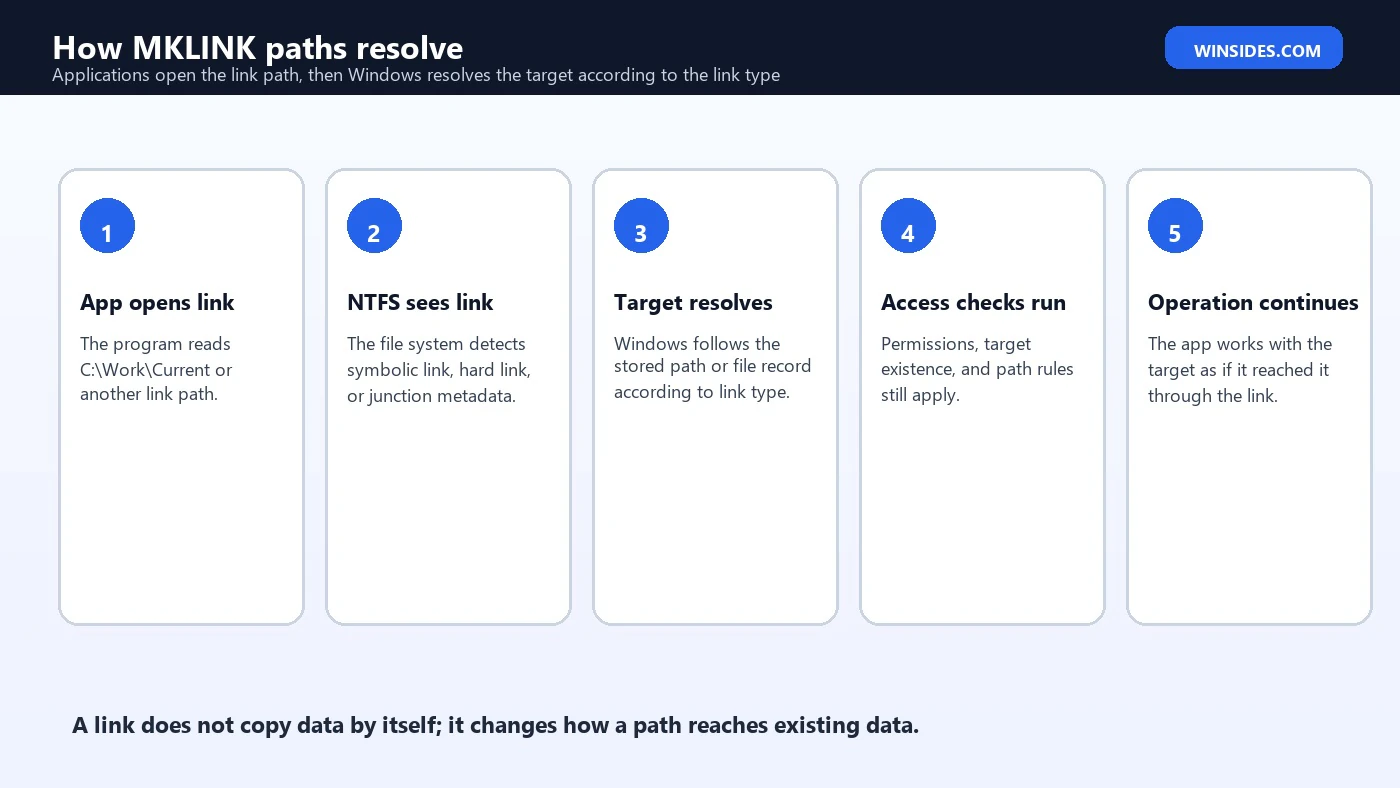
A file symbolic link is the default MKLINK behavior. It creates a file-system object that points to another file path. When an application opens the link path, Windows resolves the link to the target path. Microsoft describes symbolic links as file-system objects that point to another file-system object, and says they appear as normal files or directories to users and applications.
mklink "C:\Work\settings.json" "D:\Shared\settings.json"Use file symbolic links when software expects a file in one place but the real file lives somewhere else. This can help with development environments, configuration files, scripts, or compatibility paths. It is not a replacement for a backup. If the target file is deleted or moved, the symbolic link can become broken.
Symbolic links can use absolute or relative paths. Microsoft’s symbolic link documentation explains both models. Absolute links store a complete target path. Relative links are resolved relative to the link location, with rules for dot and dot-dot path components. For portable project folders, relative links can be helpful. For administrative clarity, absolute links are often easier to inspect.
Directory Symbolic Links
Use mklink /d when the link should behave like a folder. A directory symbolic link can make C:\Projects\Current point to D:\Projects\Release-2026, or make a compatibility folder point to a new location. Applications that open the link path generally follow the target path transparently, subject to normal permissions and path rules.
mklink /d "C:\Projects\Current" "D:\Projects\Release-2026"Directory symbolic links are flexible, including support for targets that are not always local. Microsoft’s documentation notes that symbolic links can point directly to remote files or directories using UNC paths. That flexibility is powerful, but it also means permissions, network availability, offline state, and backup behavior matter. A link that works on your machine may not work for another user if the target path is not reachable for them.
Use directory symbolic links when you specifically need symbolic-link behavior. If you only need local folder redirection for old software, a junction may be simpler. If you need cross-machine portability in a development repository, a relative symbolic link may be more appropriate than an absolute one. The right choice depends on how the folder will be moved, backed up, synced, and used by other tools.
Hard Links
Use mklink /h to create a hard link. A hard link is different from a symbolic link because it does not simply point to a path string. It creates another directory entry for the same file data. If you open either name, you reach the same file content. If you edit the file through one name, the other name reflects the same content because there is only one underlying file record.
mklink /h "C:\Work\report-copy.txt" "C:\Work\report.txt"Hard links are for files, not directories. They are normally constrained to the same volume because they refer to file-system metadata on that volume. They can be useful for deduplication-like workflows, build systems, or compatibility names, but they can confuse users because deleting one hard-link name does not necessarily delete the underlying file data while another hard link still exists.
Microsoft also documents fsutil hardlink, which can create and list hard links. MKLINK is simpler for many users, while FSUTIL can be useful when you need hard-link-specific inspection. If you suspect a file has multiple hard links, inspect before deleting so you understand what will remain.
Directory Junctions
Use mklink /j to create a directory junction. A junction is a directory reparse point. It is commonly used for local folder redirection and compatibility paths. Windows itself has historically used junctions and similar redirection points for compatibility between old folder names and newer folder layouts.
mklink /j "C:\OldApp\Data" "D:\AppData\OldApp"A junction can be very useful when an older application insists on a local path but you want the real data elsewhere on the same machine. It is not the same as a shortcut file. Programs that do not understand shortcut files often still work with junction paths because the file system resolves the path.
Junctions should be documented clearly. They are easy to forget, and recursive backup or sync tools may treat them differently. Before deleting a junction, confirm it is the junction path and not the target directory. Use dir /al or PowerShell properties to inspect link-like objects.
MKLINK vs Shortcut Files
A Windows shortcut, usually an .lnk file, is not the same as an MKLINK link. A shortcut is a file that the shell understands. Many applications treat it as a normal file, not as the target. MKLINK objects are file-system links. Programs that open a linked path generally reach the target path through the file system.
Use shortcuts for user convenience: desktop launchers, Start menu items, and navigation. Use MKLINK when a program, script, build process, or path requirement needs the file system path itself to resolve differently. This difference is why MKLINK can solve problems that shortcuts cannot, but it is also why MKLINK deserves more caution.
PowerShell New-Item Alternative
PowerShell provides a modern alternative with New-Item. Microsoft documents file-system item types including SymbolicLink, Junction, and HardLink. This is often clearer in scripts because the item type is named explicitly instead of selected through MKLINK switches.
New-Item -ItemType SymbolicLink -Path "C:\Work\Current" -Target "D:\Projects\Release-2026"
New-Item -ItemType Junction -Path "C:\OldApp\Data" -Target "D:\AppData\OldApp"
New-Item -ItemType HardLink -Path "C:\Work\report-copy.txt" -Target "C:\Work\report.txt"
PowerShell documentation notes that creating symbolic links on Windows traditionally requires elevation, but Windows 10 build 14972 or newer with Developer Mode enabled no longer requires elevation for creating symbolic links. In practice, permissions still matter. Folder permissions, target permissions, policy settings, and whether the shell is elevated can change the result.
Permissions and Developer Mode
If MKLINK reports that you do not have sufficient privilege, the problem is usually permissions. Symbolic link creation has historically required administrative rights or a specific user right. Developer Mode can make symbolic-link creation easier on modern Windows versions, especially for development workflows. Hard links and junctions have their own permission and file-system constraints.
Run Command Prompt as administrator only when needed and only after checking the command. Elevated link creation can place links in protected locations, and a wrong link in a protected folder can make cleanup more difficult. If you are working in a normal project folder, consider whether Developer Mode or PowerShell is the cleaner route.
Permissions also apply to the target. Creating the link does not grant access to the target. If another user opens the link, Windows still checks whether that user can access the target. This is especially important for directory symbolic links that point to network paths or protected folders.
Deleting MKLINK Links Safely
Deleting the link is not the same as deleting the target, but the command you use matters. For a file symbolic link or hard-link name, del removes that file-system entry. For a directory symbolic link or junction, rmdir or rd removes the link directory entry. Before deleting, inspect the path and confirm it is the link object.
dir /al "C:\Work"

rd "C:\Projects\Current"
del "C:\Work\settings.json"
Be careful with tools that recursively delete folder contents. Some tools follow links, some remove links, and some have options that change behavior. When cleaning up a junction or directory symbolic link, avoid broad recursive delete commands until you know how the tool treats reparse points. The safest cleanup is targeted: remove the link path itself.
Troubleshooting MKLINK Problems
| Problem | Likely cause | Fix |
|---|---|---|
| Access is denied | Missing privilege, protected location, or insufficient target permission | Use an elevated prompt when appropriate, check Developer Mode, and verify target permissions. |
| Cannot create a file when that file already exists | The link path already exists | Remove or rename the existing link path before creating the link. |
| The system cannot find the path specified | Target parent path or link parent path is wrong | Create the parent folder or correct the quoted path. |
| Link works for one user only | Target permissions or user-specific path | Use a target path and permissions available to every intended user. |
| Backup tool copies too much | Tool follows directory links | Configure the backup tool to handle reparse points safely. |
| Hard link fails across drives | Hard links require same-volume file-system metadata | Use a symbolic link instead if cross-volume behavior is needed. |
Most MKLINK issues become simple after you identify three things: the link path, the target path, and the link type. Write those down. Then check whether both parent folders exist, whether the target exists, whether the command was run in the correct shell, and whether permissions allow the operation.
Safe MKLINK Workflow
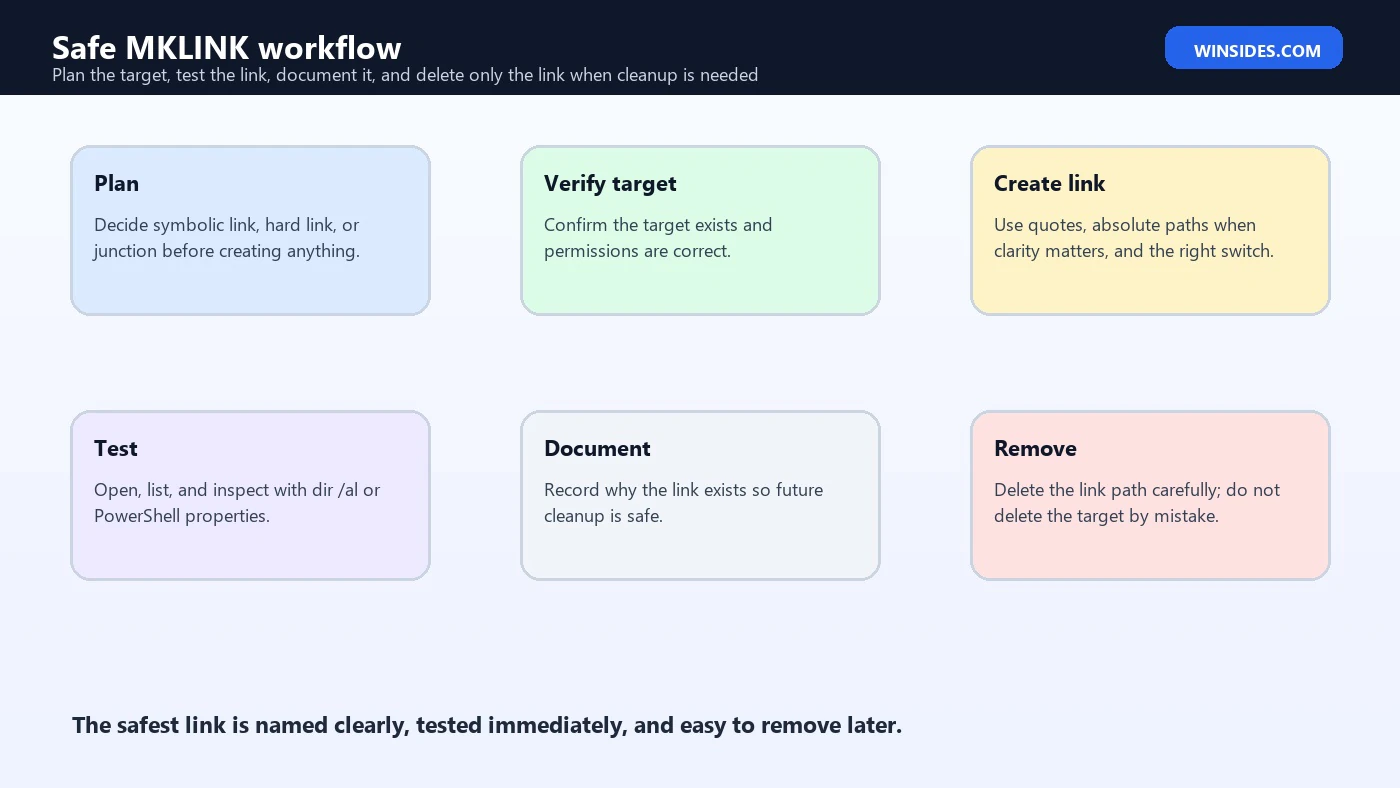
- Decide whether you need a symbolic link, hard link, or junction.
- Create or verify the target path first.
- Choose a clear link path that does not already exist.
- Use quotes around paths with spaces.
- Create the link with MKLINK or PowerShell New-Item.
- Inspect the result with
dir /alor PowerShell properties. - Test access through the link path as the intended user.
- Document why the link exists and how to remove it.
The documentation step is not busywork. Links are invisible infrastructure. Six months later, someone may wonder why a folder is redirecting or why deleting one file name did not remove data. A short note in a project README, admin ticket, or folder documentation can prevent accidental cleanup mistakes.
Common MKLINK Examples
mklink "C:\Work\config.json" "D:\Shared\config.json"This creates a file symbolic link. Use it when a file is expected in one location but maintained in another.
mklink /d "C:\Web\assets" "D:\SharedAssets"This creates a directory symbolic link. Use it when an entire folder path should resolve to another folder.
mklink /h "C:\Logs\today-copy.log" "C:\Logs\today.log"This creates a hard link to a file. Both names refer to the same file data, normally on the same volume.
mklink /j "C:\LegacyApp\Data" "D:\LegacyData"This creates a directory junction. Use it for local compatibility paths where an older app expects a folder in a fixed location.
When Not to Use MKLINK
Do not use MKLINK as a substitute for backups, synchronization, or storage planning. A link is a path relationship. It does not create a separate protected copy of data. If accidental deletion, disk failure, or a bad script affects the target, the link will not save you.
Avoid links in locations managed by applications that do not expect them unless you have tested the behavior. Some installers, updaters, backup tools, cloud sync clients, and security products handle reparse points differently. A link that is harmless in a development folder can be risky inside a system-managed application directory.
Also avoid link chains that are difficult to understand. A symbolic link to a junction to another symbolic link may work, but troubleshooting becomes harder. Microsoft’s reparse point documentation notes limits on reparse points in a path. Keep link paths simple and documented.
Relative vs Absolute Symbolic Links
A symbolic link can store either an absolute target path or a relative target path. An absolute path includes the full location, such as D:\Shared\settings.json. A relative target is interpreted from the location of the link. Relative links can be useful inside project folders because the whole folder tree can move together without breaking the link, as long as the relative relationship stays the same.
Absolute links are easier to understand during administration because the target is visible as a complete path. If a link in C:\Tools points to D:\Packages, anyone inspecting it can see where it goes. The downside is that moving the target drive, changing drive letters, or restoring the folder to another machine can break the link.
Relative links are better for repositories, portable tool folders, and repeatable development environments where the link and target move together. They are worse when a future administrator needs an immediately obvious target path. Choose based on who will maintain the link later, not only on what works today.
cd /d C:\Projects\App\config
mklink settings.json ..\shared\settings.json
When using relative targets, test from the link path, not only from the current command prompt folder. The relationship is between the link and its target, not between your shell and the target. If that sentence feels slippery, use absolute paths and document them. Clarity beats cleverness for production paths.
How to Inspect Existing Links
Before changing or deleting anything, inspect the link. Command Prompt can show reparse-point style entries with dir /al. PowerShell can show link target information through item properties. FSUTIL can help with hard-link inspection. Use these tools to prove which path is the link and which path is the target.
dir /al "C:\Work"

Get-Item "C:\Work\Current" | Format-List *

fsutil hardlink list "C:\Work\report.txt"
This is especially important when cleaning up old application folders. A directory junction can look like a normal folder in casual browsing. If you recursively delete it with the wrong tool, you may affect target contents. Inspection gives you confidence that you are removing the link path rather than the data behind it.
For hard links, inspection matters because there is no single obvious original file. Two hard-link names are peers for the same file data. If you remove one name, the other can keep the file alive. If your goal is to remove the data completely, you need to know whether other hard-link names still exist.
Backup, Sync, and Cloud Storage Behavior
Links become interesting when backup or sync tools enter the picture. Some tools copy the link itself. Some follow the link and copy the target contents. Some skip reparse points by default. Some have options that change behavior. This is why a link that works perfectly in File Explorer can still surprise you during backup, restore, or cloud sync.
Directory links deserve the most caution. If a backup tool follows a junction into a large target folder, the backup can become much larger than expected. If a sync tool follows a link into a parent folder or another synced folder, it may create loops or duplicate content. If a restore tool restores the target contents instead of the link, the restored layout may no longer match the original design.
Before placing links inside OneDrive, build folders, backup roots, or profile folders, test the tool behavior with a small sample. Create a test link, run the backup or sync operation, and inspect the result. Then document whether the tool preserves the link, follows the target, or skips it. That one test can prevent a confusing restore later.
- Check whether the tool preserves symbolic links and junctions.
- Check whether the tool follows directory links recursively.
- Avoid link loops inside backup or sync roots.
- Do not assume cloud sync clients handle hard links or junctions the way NTFS does.
- Test restore behavior, not only backup behavior.
Practical MKLINK Scenarios
One practical scenario is moving a large application data folder to another drive while keeping the old path. Suppose an older app expects C:\LegacyApp\Data, but you need the data on D:\LegacyData. A junction can keep the old path working locally. The app opens the old folder, and Windows redirects access to the new target.
Another scenario is sharing a configuration file between two local tool folders. A file symbolic link can keep both tools reading the same file without manual copying. This is convenient for development, but it should be documented so someone does not edit or delete what they think is an independent copy.
A third scenario is build output compatibility. A build script may expect assets in a fixed folder, while the real assets live in a shared repository folder. A directory symbolic link can bridge that expectation. This is often cleaner than changing every build script, but it should be created as part of setup documentation so new machines reproduce it reliably.
Hard links are narrower. They are useful when two file names on the same volume should refer to exactly the same file data. They are not useful for folder redirection, cross-drive moves, or network targets. If you are not intentionally using same-volume file aliasing, a symbolic link is often easier to reason about.
Naming and Documentation Tips
Good link names prevent future confusion. A link named Current, SharedAssets, or LegacyData tells the next person what the path is for. A link named New Folder or temp becomes a mystery later. If the link exists for an application workaround, include the application name in the path or in nearby documentation.
For project folders, add a short note to the README or setup guide. Include the link type, link path, target path, and command used to recreate it. For administrative folders, put the reason in a ticket, change note, or local documentation file. Links are powerful because they are quiet; documentation makes them quiet without making them invisible.
If the link is temporary, set a reminder to remove it or include a date in the note. Temporary links have a habit of becoming permanent infrastructure unless someone writes down why they were created.
Frequently Asked Questions
What is MKLINK used for?
MKLINK is used to create file symbolic links, directory symbolic links, hard links, and directory junctions in Windows.
Does MKLINK work on Windows 11?
Yes. Microsoft lists MKLINK as applicable to Windows 11, Windows 10, and supported Windows Server versions.
What is the difference between mklink /d and mklink /j?
/d creates a directory symbolic link. /j creates a directory junction. They both redirect folder access, but they are different link types with different compatibility and target behavior.
What is the difference between a symbolic link and a hard link?
A symbolic link points to a target path. A hard link is another file name for the same file data, normally on the same volume.
Can MKLINK point to another drive?
Symbolic links and junctions can be used for many cross-path scenarios, but hard links are normally same-volume file links. Test the exact link type you need.
Do I need administrator rights for MKLINK?
Symbolic link creation may require elevation unless Developer Mode or policy allows it. Permissions also depend on where the link is created and what the target allows.
How do I delete an MKLINK link?
Use del for file links or hard-link names and rd/rmdir for directory symbolic links or junctions. Confirm the path is the link before deleting.
Conclusion: Use MKLINK Deliberately
MKLINK is a small command with big file-system consequences. It can make one file path point to another file, one folder path point to another folder, one file have multiple names through hard links, or one local directory redirect through a junction. That power is useful for compatibility, development, administration, and organization, but it should be used deliberately.
Choose the link type first. Use file symbolic links for files, directory symbolic links for flexible folder redirection, hard links for same-volume file aliases, and junctions for local directory compatibility. Verify the target, quote paths, test the result, document the reason, and remove only the link path when cleanup is needed.
For official reference, keep Microsoft pages for MKLINK, symbolic links, creating symbolic links, hard links and junctions, reparse points, FSUTIL hardlink, and PowerShell New-Item nearby when building or troubleshooting Windows links.
For more interesting articles, stay tuned to Winsides.com!









Community
Comments (0)