Skip to content
Winsides.com

Windows Insides

Winsides.com

Windows Insides

  • Windows 11
  • Windows Features
  • Windows Security
  • Microsoft
    • Microsoft Copilot
    • Microsoft Powertoys
  • Shortcuts
    • Windows Shortcuts
    • Desktop Shortcuts
  • Video Tutorials
  • About
    • What’s New?!
    • About us
    • Contact us
    • Privacy Policy
    • Terms of Use
  • Follow us
    • Reddit
    • Dev.to
    • YouTube
    • Linked In
    • X
    • Tumblr
    • Facebook
    • Instagram
    • Buy Me A Coffee
  • Windows 11
  • Windows Features
  • Windows Security
  • Microsoft
    • Microsoft Copilot
    • Microsoft Powertoys
  • Shortcuts
    • Windows Shortcuts
    • Desktop Shortcuts
  • Video Tutorials
  • About
    • What’s New?!
    • About us
    • Contact us
    • Privacy Policy
    • Terms of Use
  • Follow us
    • Reddit
    • Dev.to
    • YouTube
    • Linked In
    • X
    • Tumblr
    • Facebook
    • Instagram
    • Buy Me A Coffee
Close

Search

Winsides.com

Windows Insides

Winsides.com

Windows Insides

  • Windows 11
  • Windows Features
  • Windows Security
  • Microsoft
    • Microsoft Copilot
    • Microsoft Powertoys
  • Shortcuts
    • Windows Shortcuts
    • Desktop Shortcuts
  • Video Tutorials
  • About
    • What’s New?!
    • About us
    • Contact us
    • Privacy Policy
    • Terms of Use
  • Follow us
    • Reddit
    • Dev.to
    • YouTube
    • Linked In
    • X
    • Tumblr
    • Facebook
    • Instagram
    • Buy Me A Coffee
  • Windows 11
  • Windows Features
  • Windows Security
  • Microsoft
    • Microsoft Copilot
    • Microsoft Powertoys
  • Shortcuts
    • Windows Shortcuts
    • Desktop Shortcuts
  • Video Tutorials
  • About
    • What’s New?!
    • About us
    • Contact us
    • Privacy Policy
    • Terms of Use
  • Follow us
    • Reddit
    • Dev.to
    • YouTube
    • Linked In
    • X
    • Tumblr
    • Facebook
    • Instagram
    • Buy Me A Coffee
Close

Search

Home/Shortcuts/Desktop Shortcuts/Desktop Shortcut for Adjust ClearType Text in Windows 11

Desktop Shortcut for Adjust ClearType Text in Windows 11

Vigneshwaran Vijayakumar
By Vigneshwaran Vijayakumar
October 22, 2024 3 Min Read
0

Adjust ClearType Text in Windows 11 is a useful feature from Microsoft that fine-tunes the fonts when connected to an external display for Screen Mirroring, Extended Displays, etc. Whether you are connecting your Windows 11 Laptop or PC to a Dell, HP, or Asus Monitor or Sony, Samsung LCD, or LED TV, Adjust ClearType Text can sharpen and smoothen the Fonts as per the user’s convenience. In this article, we will check out How to create a Desktop Shortcut for Adjust ClearType Text in Windows 11 using simple steps. We have an article explaining ClearType Text in Windows 11 in detail, kindly refer to it if you are looking to know more about this feature. Let’s get started.

Why is it beneficial to create a desktop shortcut for ClearType Text?
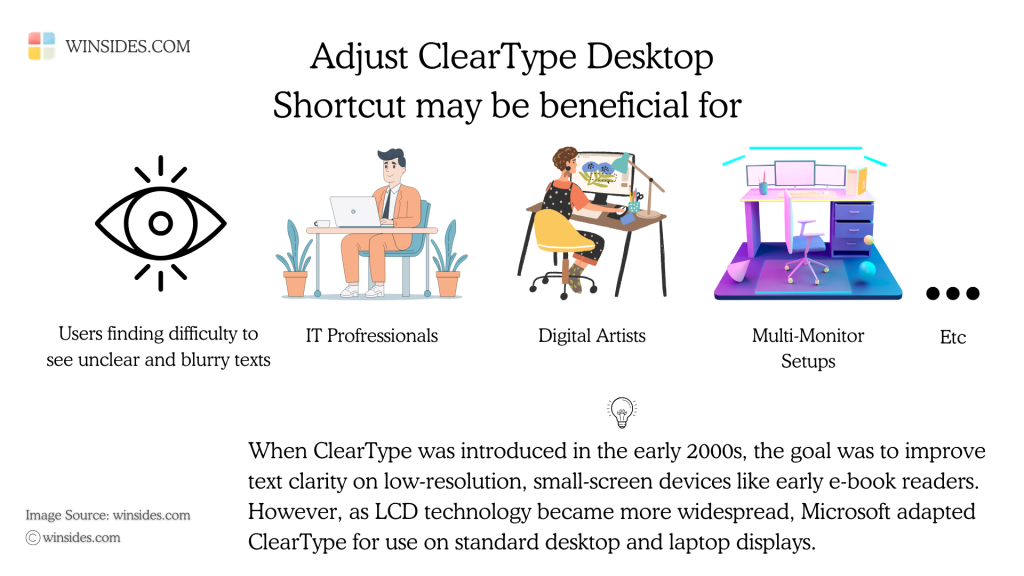
Facts of ClearType Text Feature from Microsoft
Facts about ClearType Text Feature from Microsoft

Though this feature can be quickly accessed via the start menu, it will be convenient if we have a desktop shortcut. It can be beneficial for users with Vision Challenges who might have difficulty reading small and blurry texts, for professionals who work long hours on screens, for graphic designers and digital artists who need to have higher precision, and more importantly for users with multi-monitor setups and for users who connect their laptops or Desktops to different projectors, external displays, TV, etc.

How to create ClearType Text Shortcut in Windows 11 – Quick Steps

  • Right-click on the Desktop, hover on New, and then click on Create Shortcut.
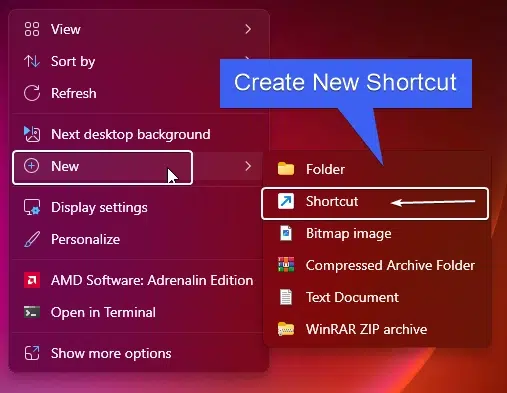
Create new Shortcut
Create new Shortcut
  • Now, the Create Shortcut window will open. In “Type the location of the item“, enter the following value. cttune.exe. Click Next.
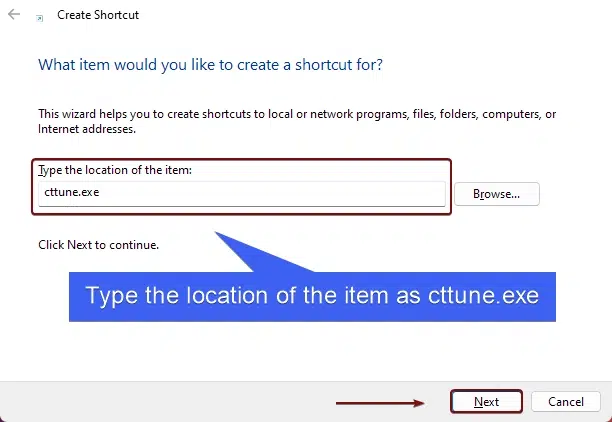
Type the location of the item
  • The next section is about naming the shortcut. Based on the value we entered, the system will assign the name as cttune. You can either change it or leave it. It is as per your convenience, keeping a different name will not affect the functionality of this shortcut. Finally, click Finish to complete the process.
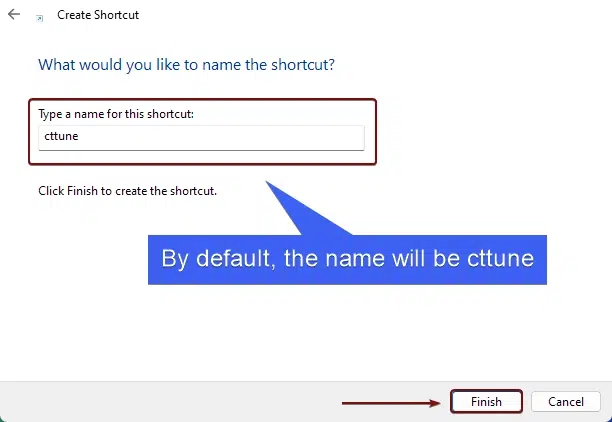
Enter the name of the Shortcut
  • That is it. You can find Adjust CearType Text Shortcut created in your Windows 11 Desktop!
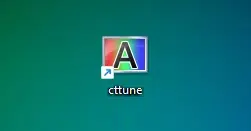
ClearType Text Desktop Shortcut Created

Take away:

Creating a desktop shortcut for ClearType Text in Windows 11 can greatly benefit individuals who frequently need to adjust text clarity for improved readability and it helps streamline the user experience, making it easier to maintain optimal text visibility in various environments. For more interesting articles, stay tuned to winsides.com. If you have any queries, do let us know in the comment section. Happy Connecting! Peace out!

Tags:

Adjust ClearType Text Desktop ShortcutDesktop ShortcutsHow to adjust ClearType Text in Windows 11windows 11
Vigneshwaran Vijayakumar
Author

Vigneshwaran Vijayakumar

Hello, I'm Vigneshwaran, the founder, owner, and author of WinSides.Com. With nearly a decade of experience in blogging across various domains and specializing in Windows-related tutorials for over five years, I bring a wealth of knowledge and expertise to WinSides.Com

Follow Me
Other Articles
How to use ClearType Text in Windows 11
Previous

How to use ClearType Text in Windows 11?

How to use Emoji Sticker in Windows 11
Next

How to use Emoji Picker in Windows 11?

No Comment! Be the first one.

Leave a Reply Cancel reply

Your email address will not be published. Required fields are marked *

  • How to check System Information in Windows 11?
  • How to Install and Run X Server in Windows 11?
  • How to Enable Client for NFS in Windows 11?
  • 5+ Easy Methods to Find/Search Video Files Only in Windows 11!
  • How to Enable TFTP Client in Windows 11?
  1. Vigneshwaran Vijayakumar
    Vigneshwaran Vijayakumar on How to Enable Windows PowerShell 2.0 in Windows 11?October 5, 2025

    Hello Mr. Mohamad El-Kheir, Thank you for contacting us. Microsoft has removed PowerShell version 2.0 completely from Windows 11 24H2…

  2. Avatar of Mohamad El-Kheir
    Mohamad El-Kheir on How to Enable Windows PowerShell 2.0 in Windows 11?October 5, 2025

    i have a MSI laptop with windows 11 Home Installed on it. how to install powershell v2.0 on it

  3. Vigneshwaran Vijayakumar
    Vigneshwaran Vijayakumar on DxDiag Windows 11 – What is it & How to use it for Troubleshooting?August 14, 2025

    Hey Myla Shannon Thank you for your valuable feedback. We are delighted to hear your compliment and excited to know…

  4. Avatar of Myla Shannon
    Myla Shannon on DxDiag Windows 11 – What is it & How to use it for Troubleshooting?August 14, 2025

    This content is incredibly informative.

  5. Avatar of seven
    seven on How to Enable IIS [Internet Information Services] in Windows 11?July 29, 2025

    I found this post very helpful.

  • About us
  • What’s New?!
  • Guest Posts on Winsides.com – Terms and Conditions
  • Publication Sitemap
  • Careers
  • Authors
  • Why Trust Winsides.com?
  • Content Removal Request
  • Terms of Use
  • Disclaimer
  • Contact us
Copyright 2024-2026 - Winsides.com. All rights reserved.