

Enable gpedit.msc on Windows 11 Home: The Group Policy Editor is a powerful tool in Windows that allows users to configure system settings, manage user permissions, and control advanced features. However, it is not included by default in Windows 11 Home, as Microsoft reserves this feature for the Pro, Enterprise, and Education editions. Windows 11 Home edition includes all the components required to Enable Group Policy Editor. We can use the Deployment Image Servicing and Management Tool to enable these tools and eventually enable the Group Policy Editor on Windows 11 Home. If you face Windows cannot find gpedit.msc error, and then kindly visit the fix to Windows can’t find gpedit.msc issue here. In this article, we will check out the detailed steps of this process with clear steps. Let’s get started.
Table of contents
IMPORTANT
As a Windows 11 Home user, exercise caution while making changes, and ensure you understand the impact of each policy before applying it using gpedit.msc. Avoid experimenting with unfamiliar settings, and always create a system restore point or backup before making significant modifications to safeguard your system.
Quick Steps to Enable gpedit.msc on Windows 11 Home Edition
By default, the Group Policy Editor is not enabled on Windows 11 Home Version. To enable this service, kindly follow the steps below.
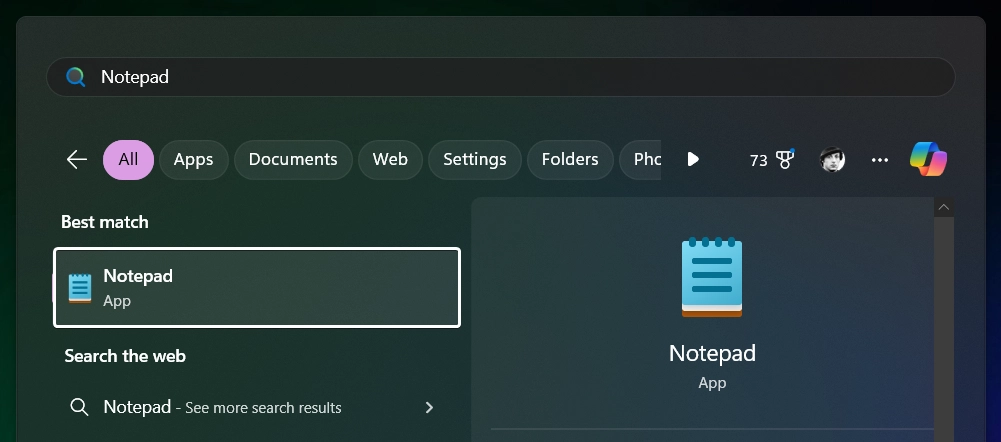
- Open Notepad and type or copy and paste below script in the Notepad. This script will use DISM and enable the necessary components for gpedit.msc.
@echo off
pushd "%~dp0"
dir /b %SystemRoot%\servicing\Packages\Microsoft-Windows-GroupPolicy-ClientTools-Package~*.mum >gpedit-install.txt
dir /b %SystemRoot%\servicing\Packages\Microsoft-Windows-GroupPolicy-ClientExtensions-Package~*.mum >>gpedit-install.txt
for /f %%i in ('findstr /i . gpedit-install.txt 2^>nul') do dism /online /norestart /add-package:"%SystemRoot%\servicing\Packages\%%i"
pause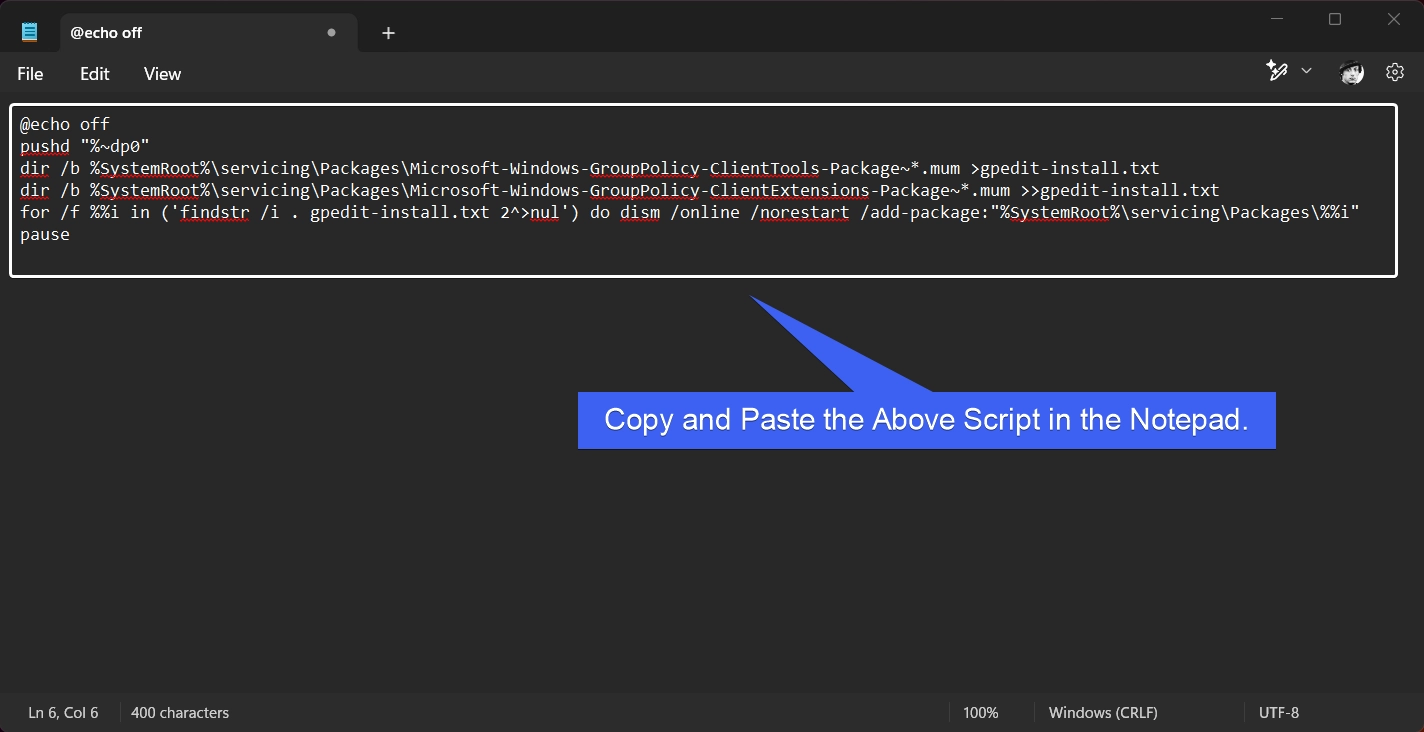
- Save the file as
gpedit-install.bat. Make sure the file type is All Files.
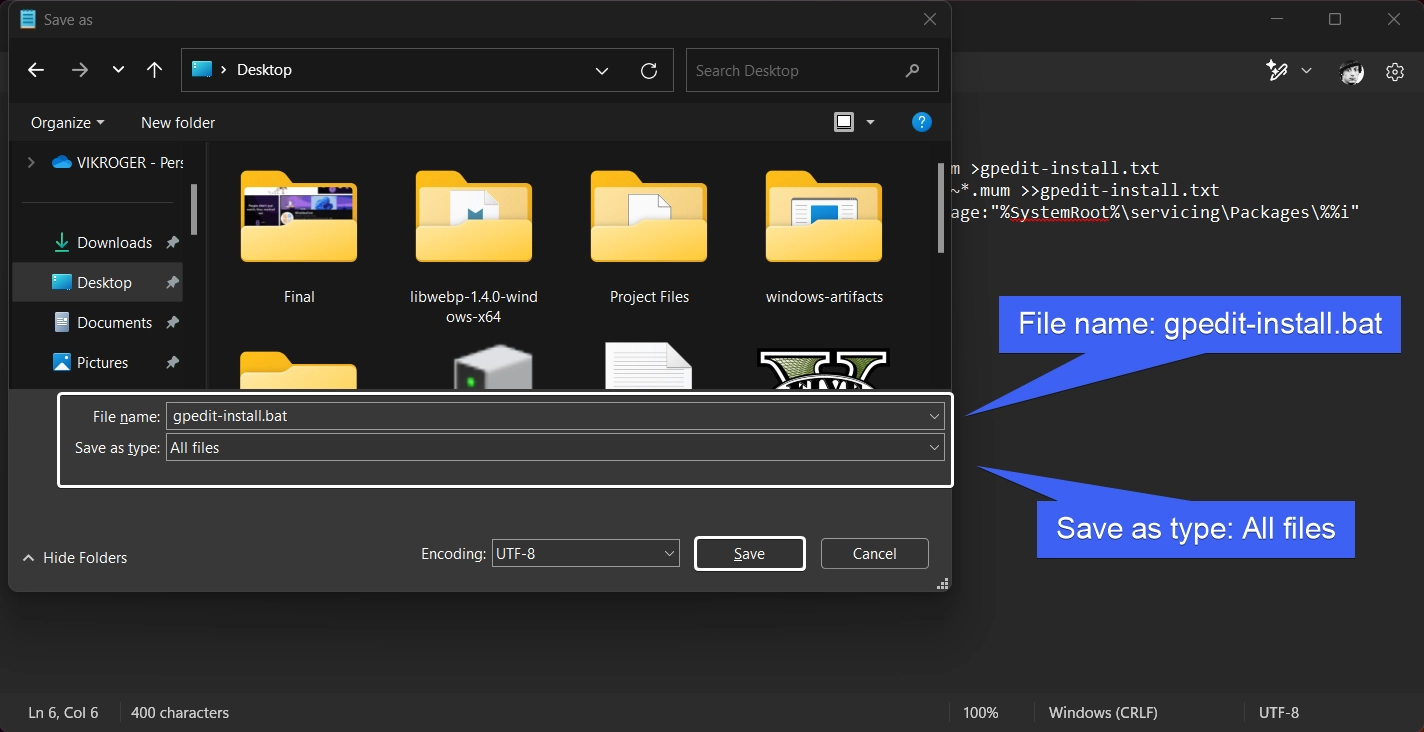
- For easy access, save this file to the Desktop.
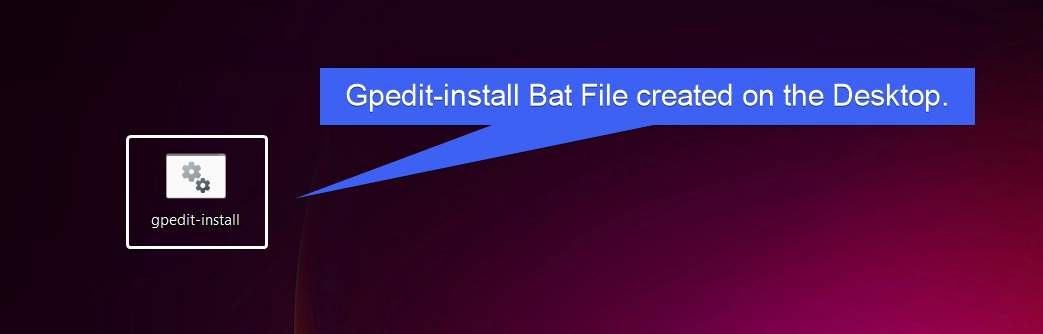
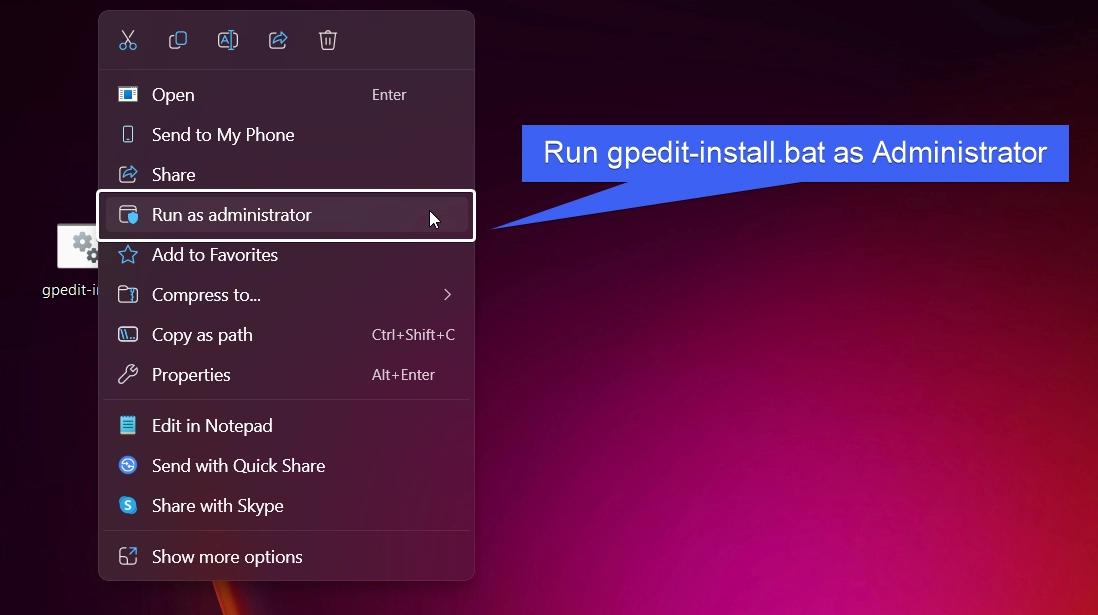
- Right-click on the file and click Run as Administrator.
- User Account Control will prompt for confirmation before allowing the app to make changes. Click Yes to proceed further.
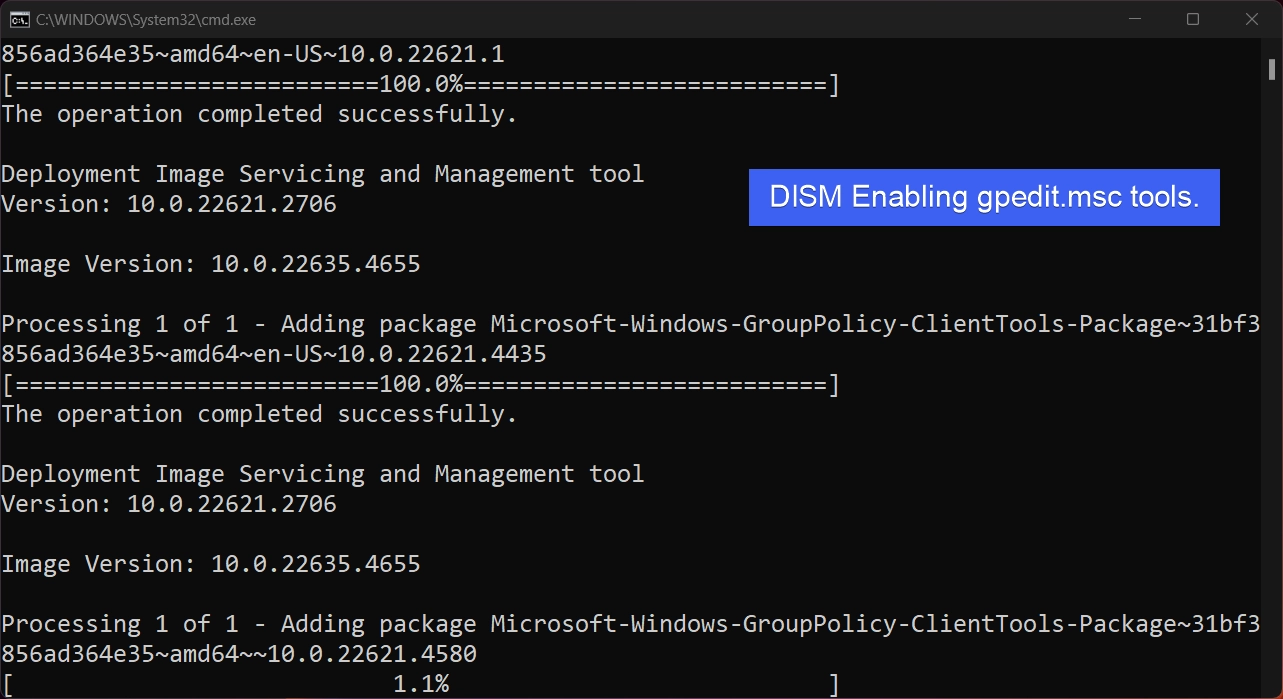
- The system will run this batch file as administrator. The necessary components, such as Client Tools and Client Extensions, already exist in Windows Home; this file will just enable them.
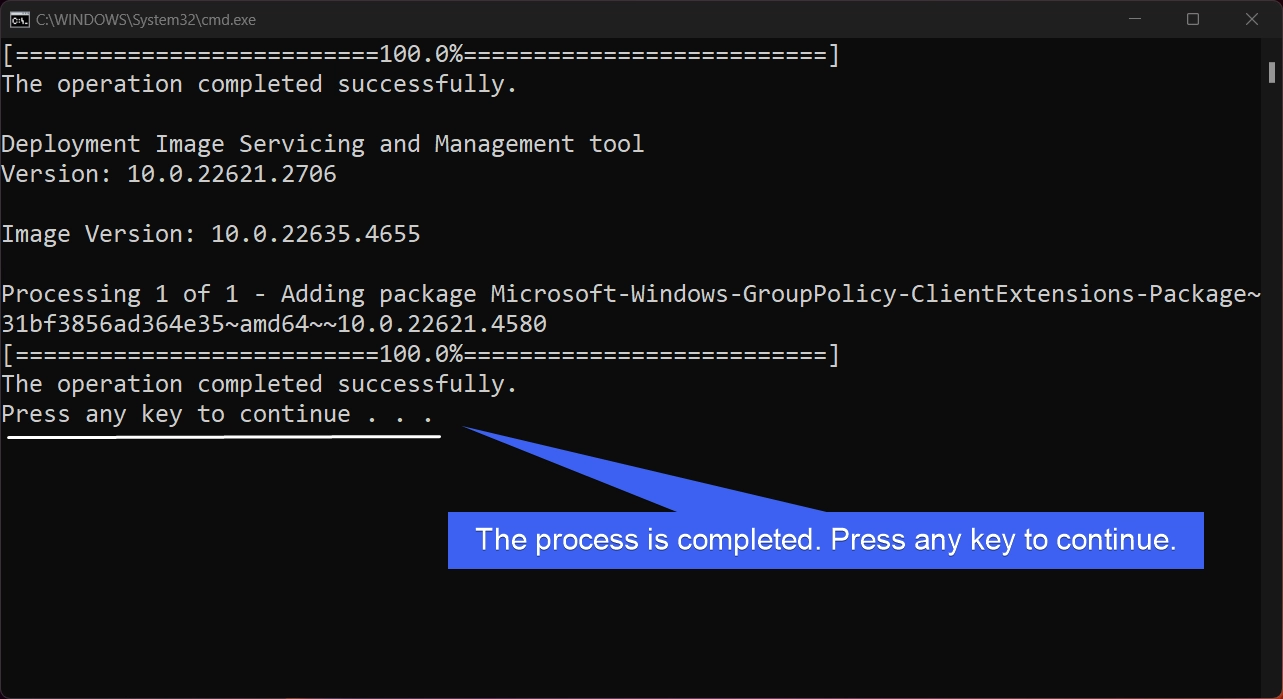
- After the operation has completed successfully, the system will prompt you to press any key to continue. Press any key, that’s it. The process is completed.
- You can now search for gpedit.msc in the Start menu.
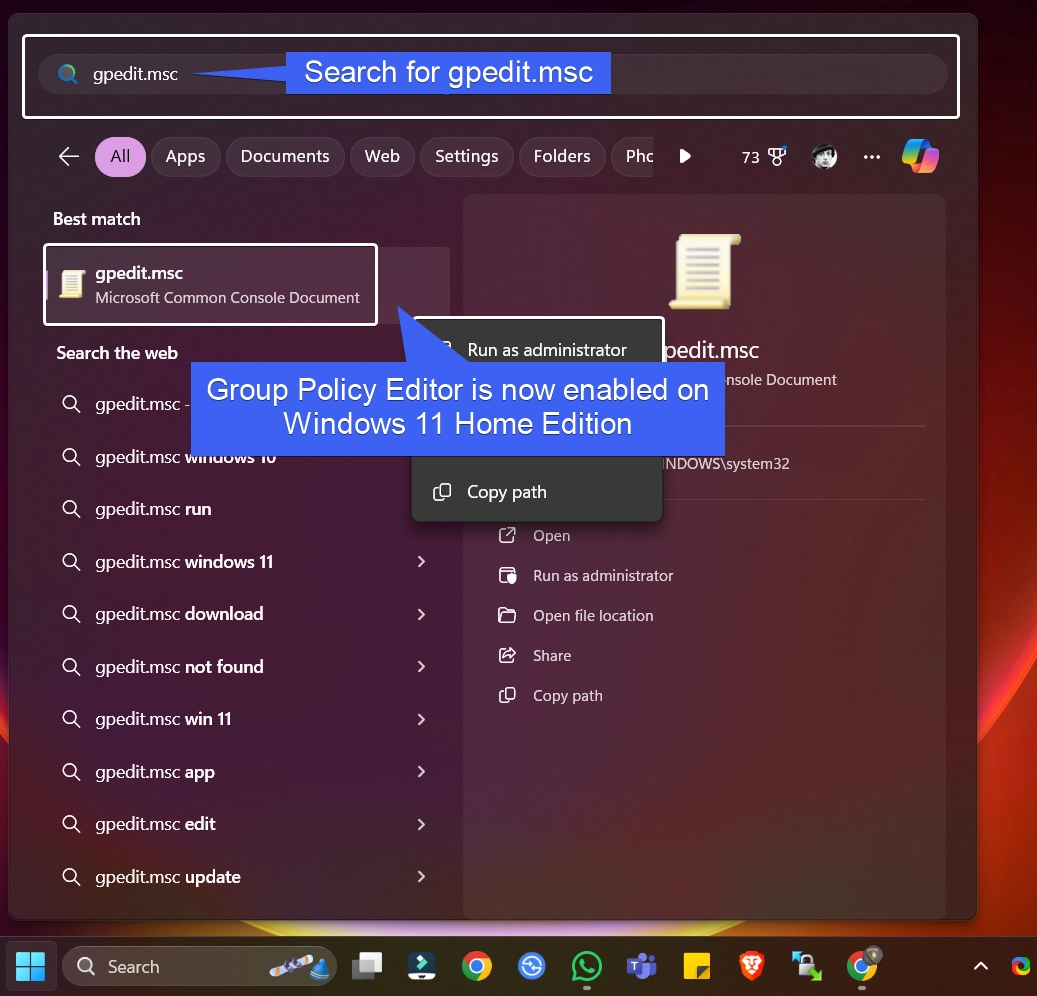
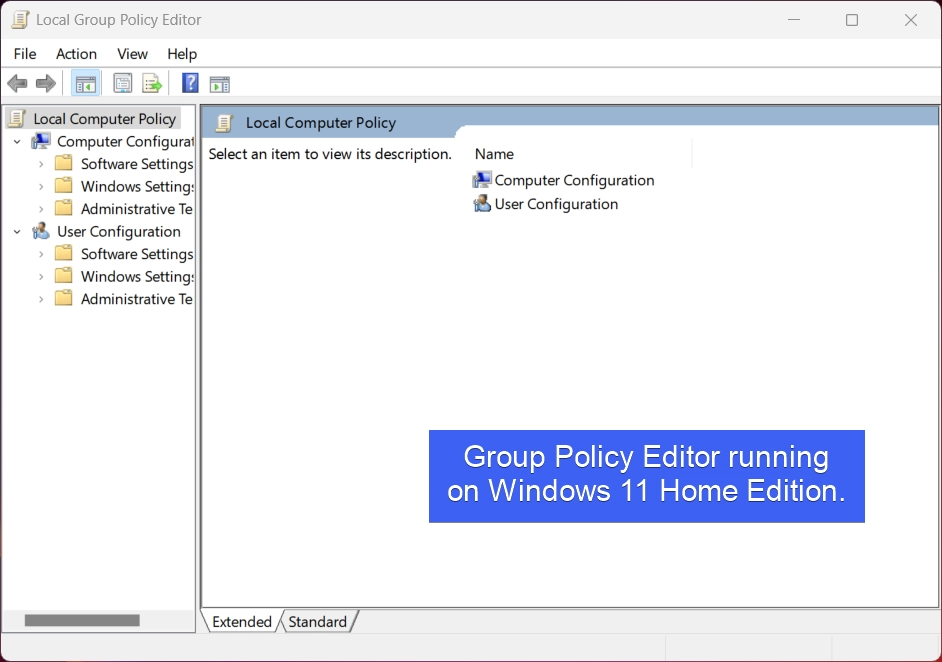
- You can open it and start using it on your Windows 11 Home Edition.
Frequently Asked Questions
Why isn’t the Group Policy Editor available by default in Windows 11 Home?
Microsoft positions the Home edition for casual users who typically don’t need to manage complex system behaviors or network-wide configurations. By restricting gpedit.msc to Pro and Enterprise, they simplify the interface for home users and create a clear distinction for business-tier products.
Will I need to re-enable it after every Windows Update?
Usually, no. Once the packages are initialized, they remain part of your active system configuration. However, major “feature updates” (like moving from version 23H2 to 24H2) can occasionally reset system files. If gpedit.msc stops working after a large update, simply running your activation script again typically fixes it.
Does enabling the Group Policy Editor on Windows 11 Home Edition give me “Pro” features like BitLocker or Remote Desktop?
Enabling the Group Policy Editor only gives you the interface to manage system policies. It does not unlock other Pro-exclusive features like BitLocker Drive Encryption, Windows Sandbox, or the ability to join a Domain.
Take away
By enabling the Group Policy editor on Windows 11 Home Edition, it can provide access to advanced system configurations, and hence, it is important to safely use this tool. Additionally, some policy settings applied through this editor may not function properly or could conflict with the default System Settings of Windows 11 Home.
Have Queries?
If you have any queries, kindly let us know in the comments section. For more interesting articles, stay tuned to Winsides.com. Safe Computing! Peace out!







Community
Comments (0)