

Enable IIS Management Service in Windows 11: It is a component of Internet Information Services and it allows administrators to connect to a web server using the IIS Manager, enabling configuration, deployment, and management of websites and applications over a network. This service enhances the flexibility and efficiency of managing IIS servers, especially when servers are distributed(remotely) across different locations. It helps streamline the process of configuring, deploying, and monitoring web applications, leading to better resource utilization and reduced downtime. To put the icing on the cake, Authentication and SSL/TLS support ensure secure management of web servers. Check out: Enable IIS Management Console in Windows 11
Table of contents
Quick Steps to Enable IIS Management Service in Windows 11
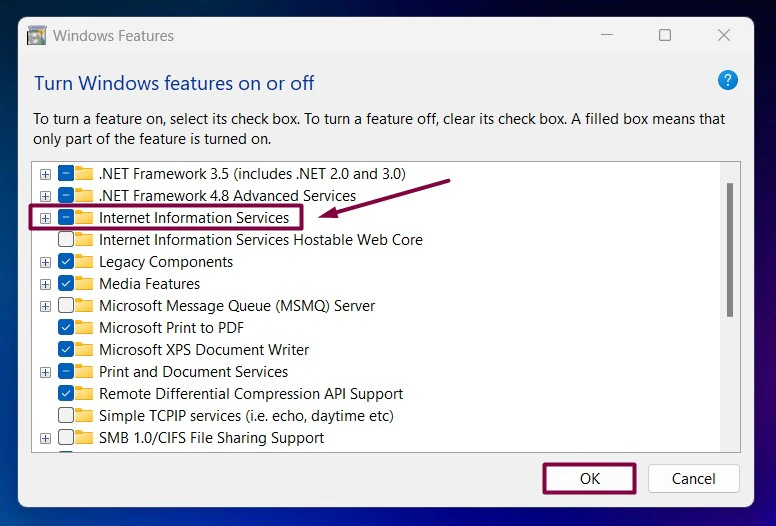
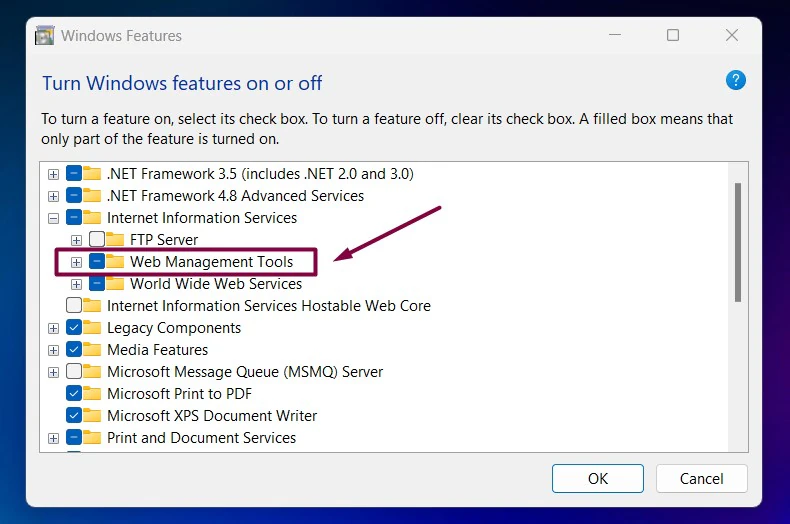
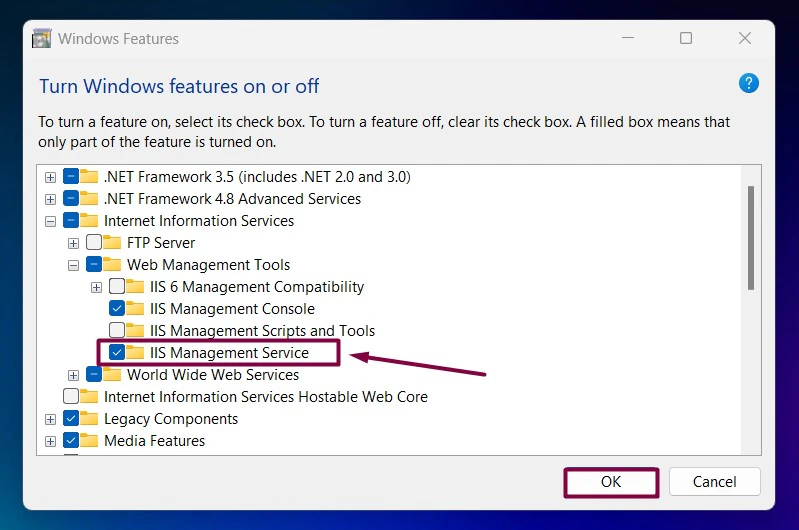
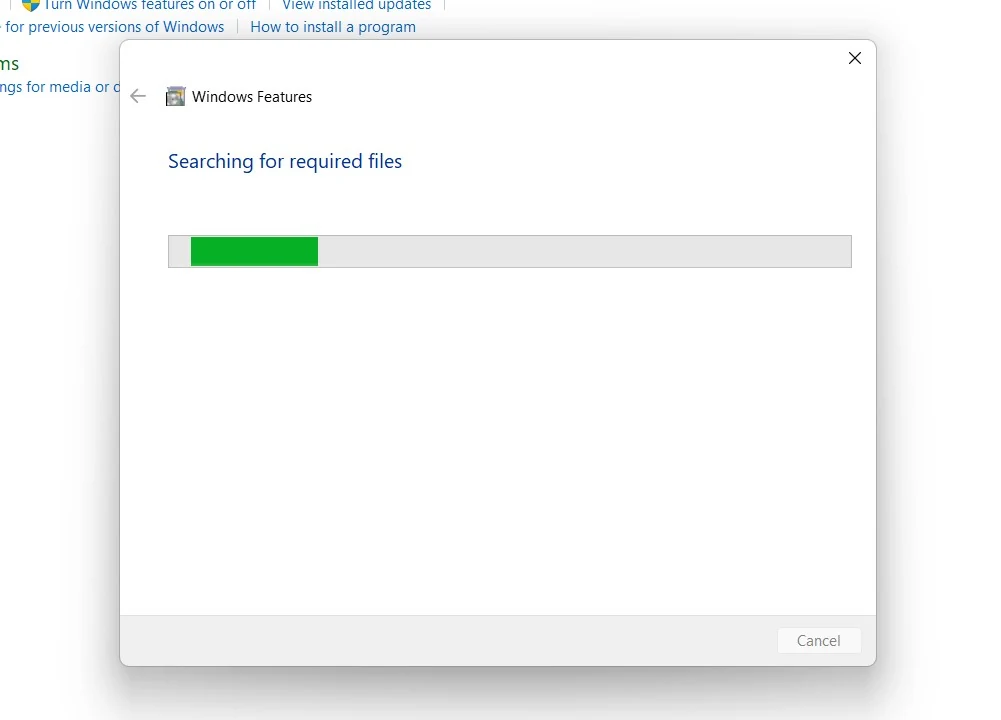
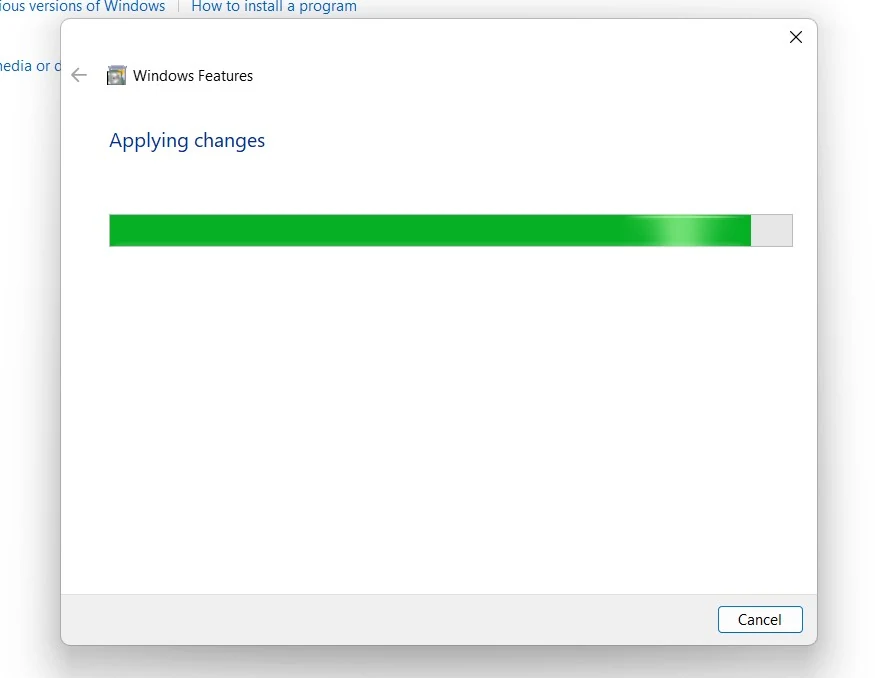
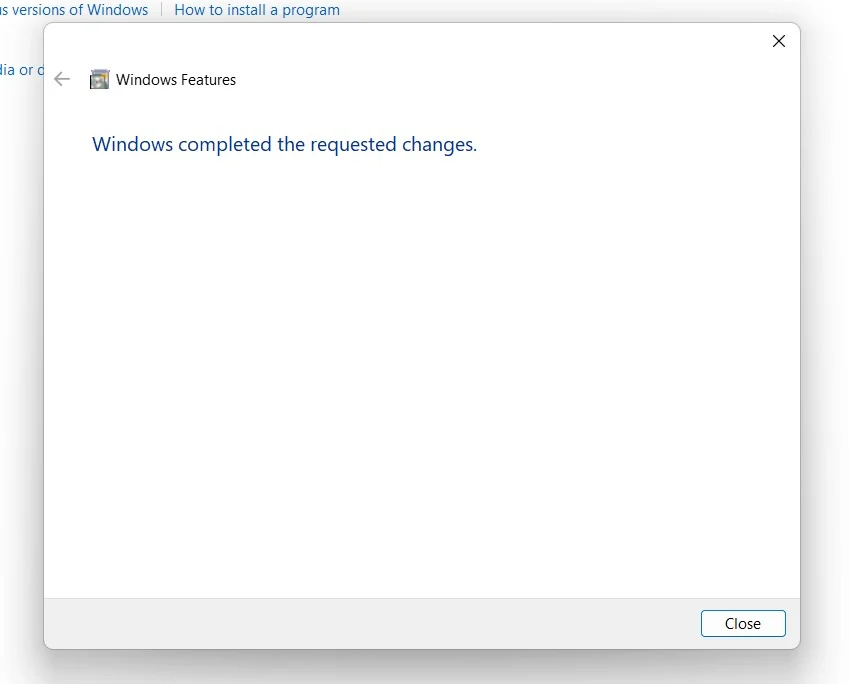
Let’s navigate through the steps on How to Enable IIS Management Service in Windows 11.
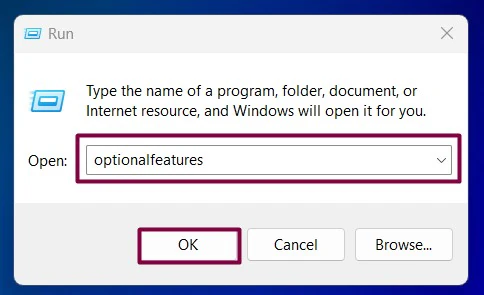
- Open the Run command box using the shortcut Win Key + R.
- Enter
optionalfeaturesin the run command box.
IIS Management Service Functionality:
- Remote Connections: The service allows remote connections to the IIS Manager, enabling administrators to manage web servers from different locations without needing direct access to the server.
- Authentication: IIS Management Service supports different authentication methods, including Windows Authentication and Basic Authentication. This ensures that only authorized users can access and manage the server.
- Ease of Deployment: Web applications and updates can be deployed remotely, simplifying the management of web servers across multiple locations.
- PowerShell Integration: This Service can be integrated with PowerShell scripts for automating repetitive tasks and bulk operations. Third-party tools can also interact with the IIS Management Service for enhanced functionality and customized management solutions.
Note: The IIS Management Service benefits several industries and services, particularly those that rely on web-based applications and services. Some are Web Hosting Providers, Software Development Companies, Online retailers, Payment Gateways, Online Banking Platforms, Streaming Services, VoIP and Communication Servers, Independent Developers, and more who use Windows Servers for hosting their web applications.
Frequently Asked Questions
I enabled everything, but my deployment tools still fail to connect to my Windows 11 machine. Why?
There are three distinct layers that have to align perfectly for the IIS Management Service to accept incoming traffic on Windows 11. The Registry Gate, The Service State, and the Port Guard. You will have to make sure that everything is open and good to go.
Does leaving the IIS Management Service active slow down my machine?
The IIS Management Service is incredibly light. However, because it opens up port 8172 to listen for incoming administration commands, it does increase your local network attack surface. It is highly recommended to stop the service when you are done with your project.
Can I run local IIS and a localized container environment (like Docker) at the same time?
Technically, you can run, but you will run into a massive traffic jam regarding Port 80 and Port 443. Both the native IIS service on your Windows 11 machine and your container engine want to bind to those default HTTP/HTTPS ports to listen for traffic.
Take away:
Maximize the potential of your web infrastructure and deliver exceptional performance and user experience by enabling IIS Management Service in Windows 11.
Have Queries?
We hope you are satisfied with our article on how to enable IIS Management Service in Windows 11. If you have any questions, kindly let us know in the comments. For more interesting articles on Windows 11, stay tuned to Winsides.com. Happy Coding! Peace out!









Community
Comments (0)