Skip to content
Winsides.com

Windows Insides

Winsides.com

Windows Insides

  • Windows 11
  • Windows Features
  • Windows Security
  • Microsoft
    • Microsoft Copilot
    • Microsoft Powertoys
  • Shortcuts
    • Windows Shortcuts
    • Desktop Shortcuts
  • Video Tutorials
  • About
    • What’s New?!
    • About us
    • Contact us
    • Privacy Policy
    • Terms of Use
  • Follow us
    • Reddit
    • Dev.to
    • YouTube
    • Linked In
    • X
    • Tumblr
    • Facebook
    • Instagram
    • Buy Me A Coffee
  • Windows 11
  • Windows Features
  • Windows Security
  • Microsoft
    • Microsoft Copilot
    • Microsoft Powertoys
  • Shortcuts
    • Windows Shortcuts
    • Desktop Shortcuts
  • Video Tutorials
  • About
    • What’s New?!
    • About us
    • Contact us
    • Privacy Policy
    • Terms of Use
  • Follow us
    • Reddit
    • Dev.to
    • YouTube
    • Linked In
    • X
    • Tumblr
    • Facebook
    • Instagram
    • Buy Me A Coffee
Close

Search

Winsides.com

Windows Insides

Winsides.com

Windows Insides

  • Windows 11
  • Windows Features
  • Windows Security
  • Microsoft
    • Microsoft Copilot
    • Microsoft Powertoys
  • Shortcuts
    • Windows Shortcuts
    • Desktop Shortcuts
  • Video Tutorials
  • About
    • What’s New?!
    • About us
    • Contact us
    • Privacy Policy
    • Terms of Use
  • Follow us
    • Reddit
    • Dev.to
    • YouTube
    • Linked In
    • X
    • Tumblr
    • Facebook
    • Instagram
    • Buy Me A Coffee
  • Windows 11
  • Windows Features
  • Windows Security
  • Microsoft
    • Microsoft Copilot
    • Microsoft Powertoys
  • Shortcuts
    • Windows Shortcuts
    • Desktop Shortcuts
  • Video Tutorials
  • About
    • What’s New?!
    • About us
    • Contact us
    • Privacy Policy
    • Terms of Use
  • Follow us
    • Reddit
    • Dev.to
    • YouTube
    • Linked In
    • X
    • Tumblr
    • Facebook
    • Instagram
    • Buy Me A Coffee
Close

Search

Home/Windows 11/How To?/Time and Language/Enable “Recognize Non-Native Accents for this Language” on Windows 11

Enable “Recognize Non-Native Accents for this Language” on Windows 11

Vigneshwaran Vijayakumar
By Vigneshwaran Vijayakumar
February 6, 2025 3 Min Read
0

Recognize Non-Native Accents for this Language on Windows 11: Artificial Intelligence is taking up the game to the new level, and Global Conglomerates like Google, Apple, Microsoft, Amazon, etc have been working on Voice Recognition for a long time and reaching Milestones. However, sometimes, it can be frustrating even for Native Speakers when a speech recognition software tries to recognize what we are trying to convey and misidentify it. For Non-Native Speakers, it can be even worse, and that is where this feature comes into play.

Microsoft has deprecated their Virtual Assistant Cortana, however, Voice Typing, Windows Speech Recognition, Third-party Apps using Windows Speech Services uses Windows 11’s built-in Speech Recognition, and this feature can improve the efficiency of the speech recognition particularly for Non-Native Accents. Here are the steps to enable in feature on Windows 11. Let’s get Started. Check out: Install Braille Display with Narrator on Windows 11

Languages Influenced by Foreign & Native Accents
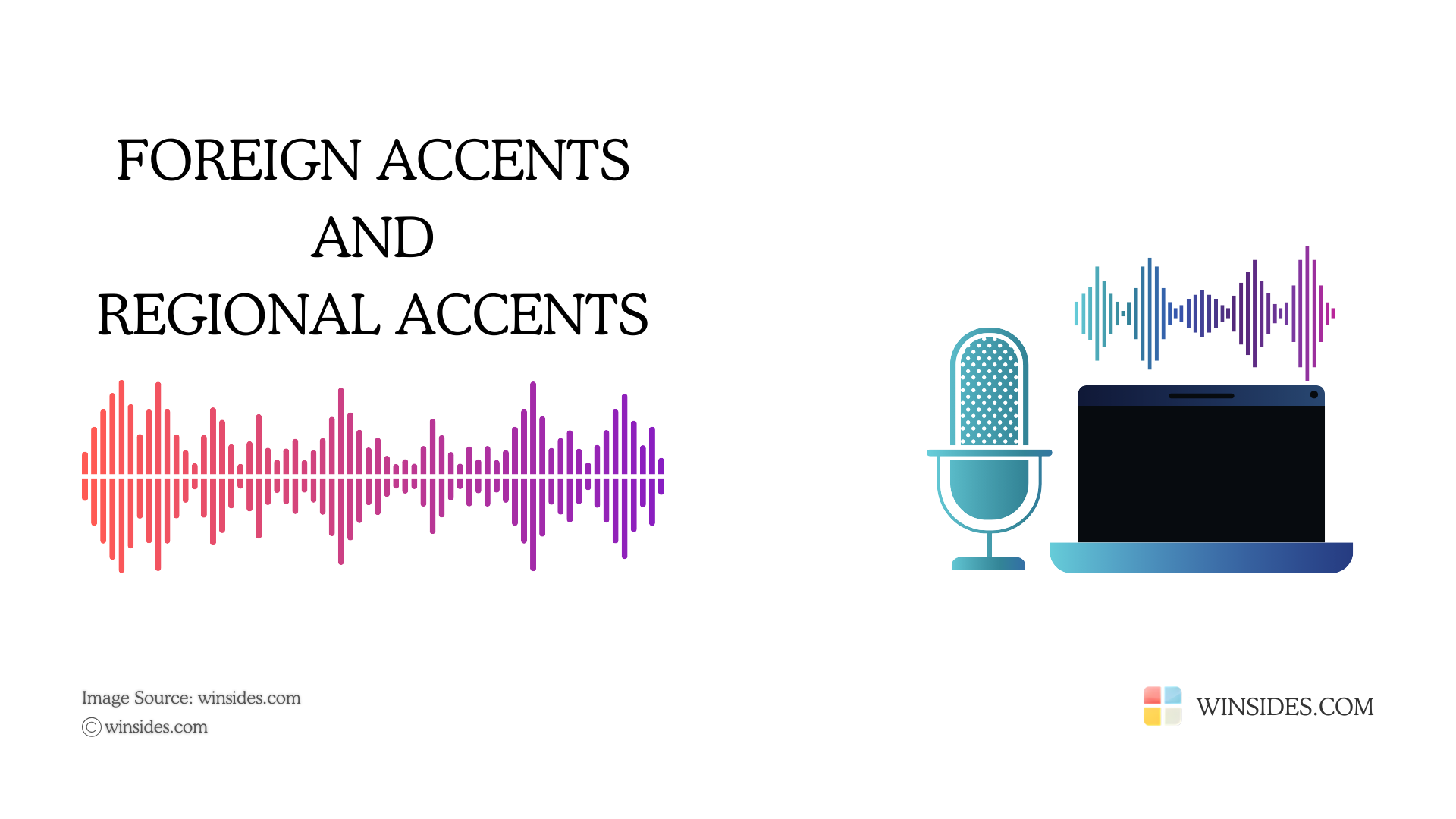
Foreign Accents and Regional Accents

For Example, English is spoken globally all over the world, however, the English Accent Varies, we have British English Accent, American English Accent, Indian English Accent, Australian English Accent, etc. These Accents can be a challenge for speech recognition software to recognize the speech accurately. By enabling Non-Native Accents for this Language on Windows 11, it may help improve the accuracy of the speech recognition software to process languages influenced by Accents.

Interesting Facts: Regional Accents are differences within the same language. Example, British English and American English. On the other hand, Foreign Accents are pronunciation influenced by Native Tongue. For Example, A French Person Speaking English.

These Accents does not affect Grammar or Vocabulary, just pronunciation.

How to Turn on “Recognize Non-Native Accents for this Language” Feature on Windows 11?

  • The first step of this process is to open the Windows Settings. Use the key combination WinKey + I.
  • Windows Settings will open now. From the left pane, click Time & Language.
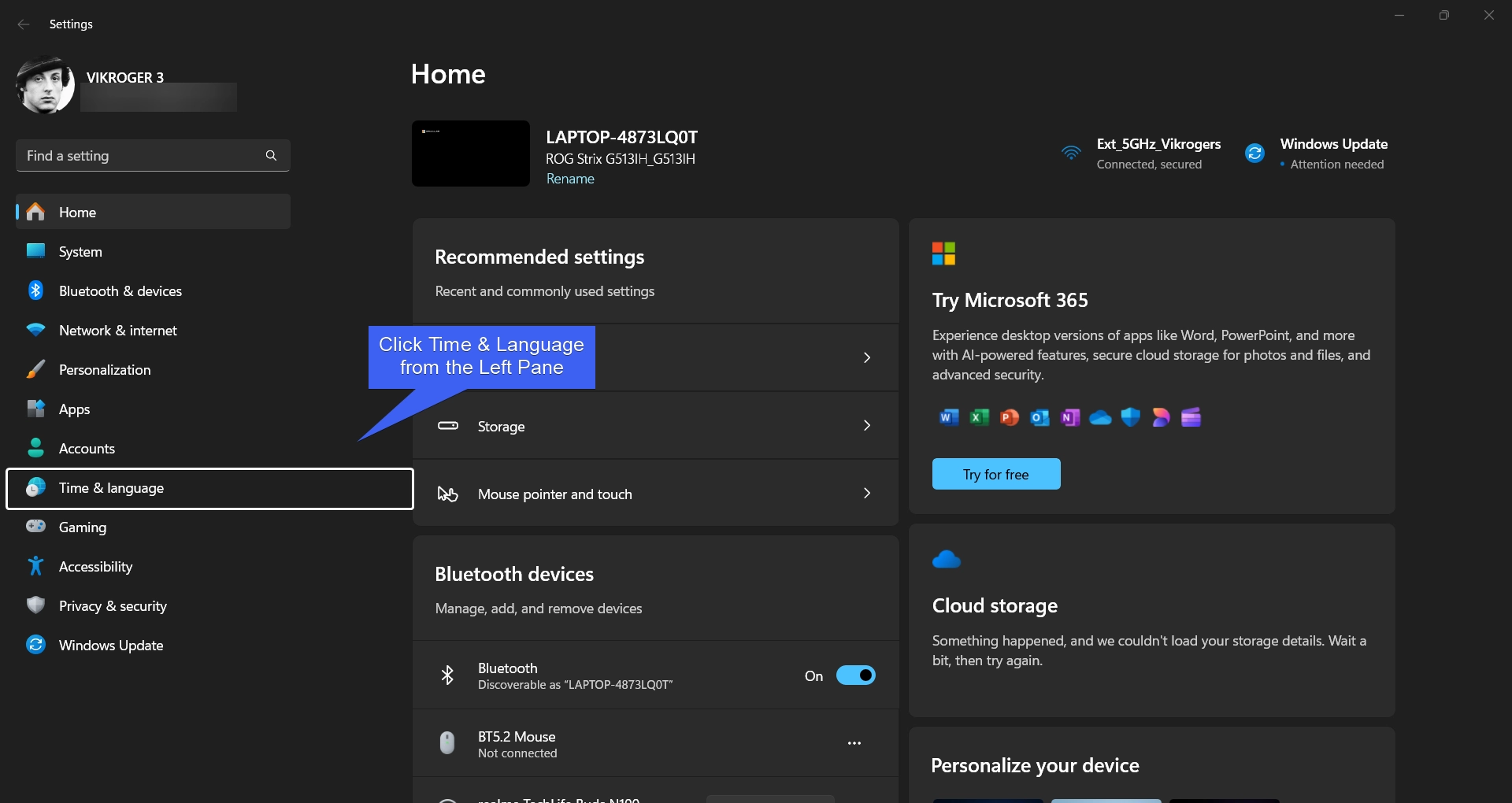
Click Time & Language
  • Under Time & Language, proceed with Speech.
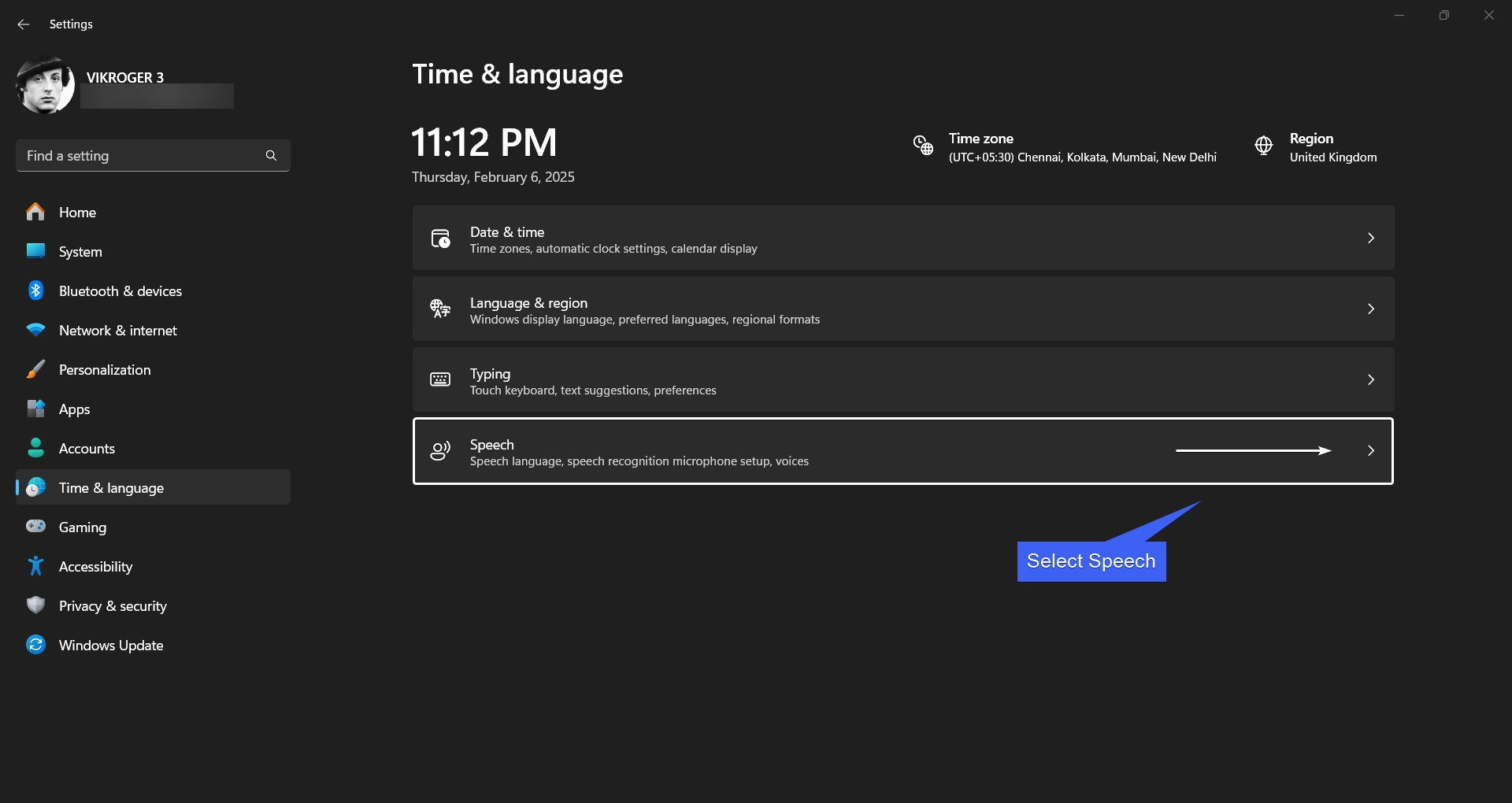
Select Speech
Select Speech
  • Now, you can find the option “Recognize non-native accents for this language under the Speech Language“.
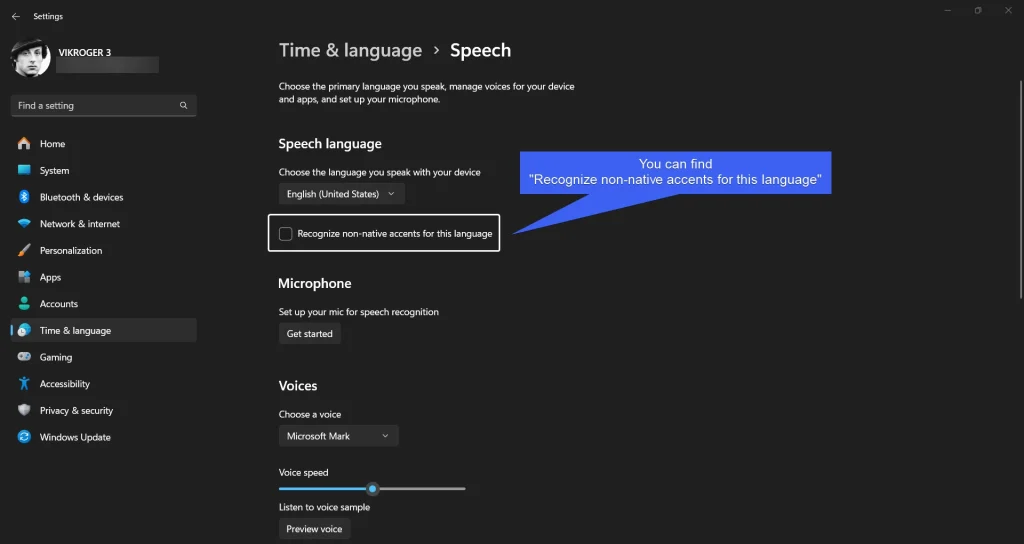
You can find Recognize non-native accents for this language
  • Click on the checkbox next to it to enable it. Once the feature is enabled, Windows 11 will recognize non-native accents for this language.
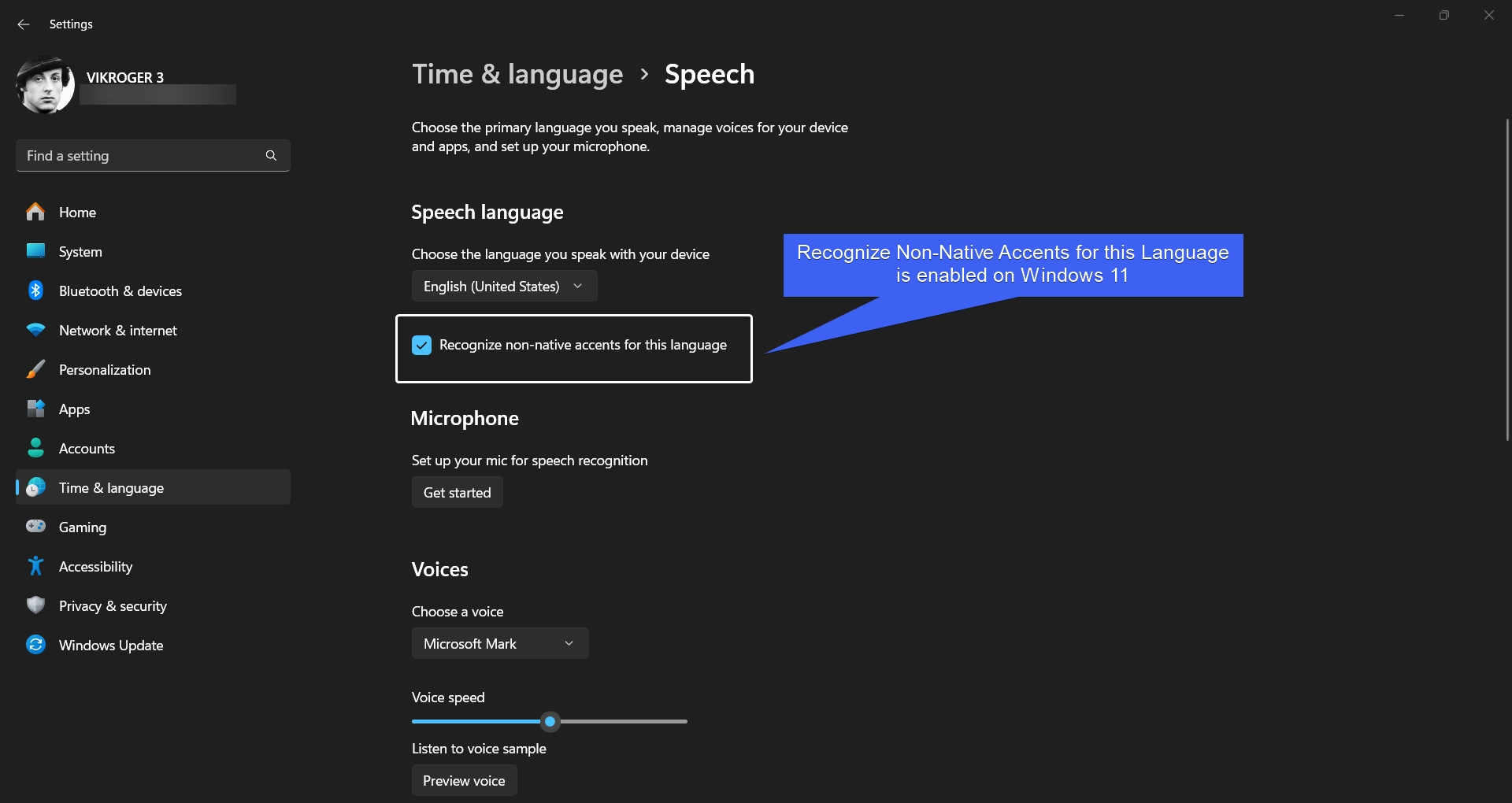
Recognize non-native accents for this language enabled on Windows 11
  • You can find the option “Choose the language you speak with your device“. I am personally using Windows 11 Home Single Language. Here, you can choose your desired language.
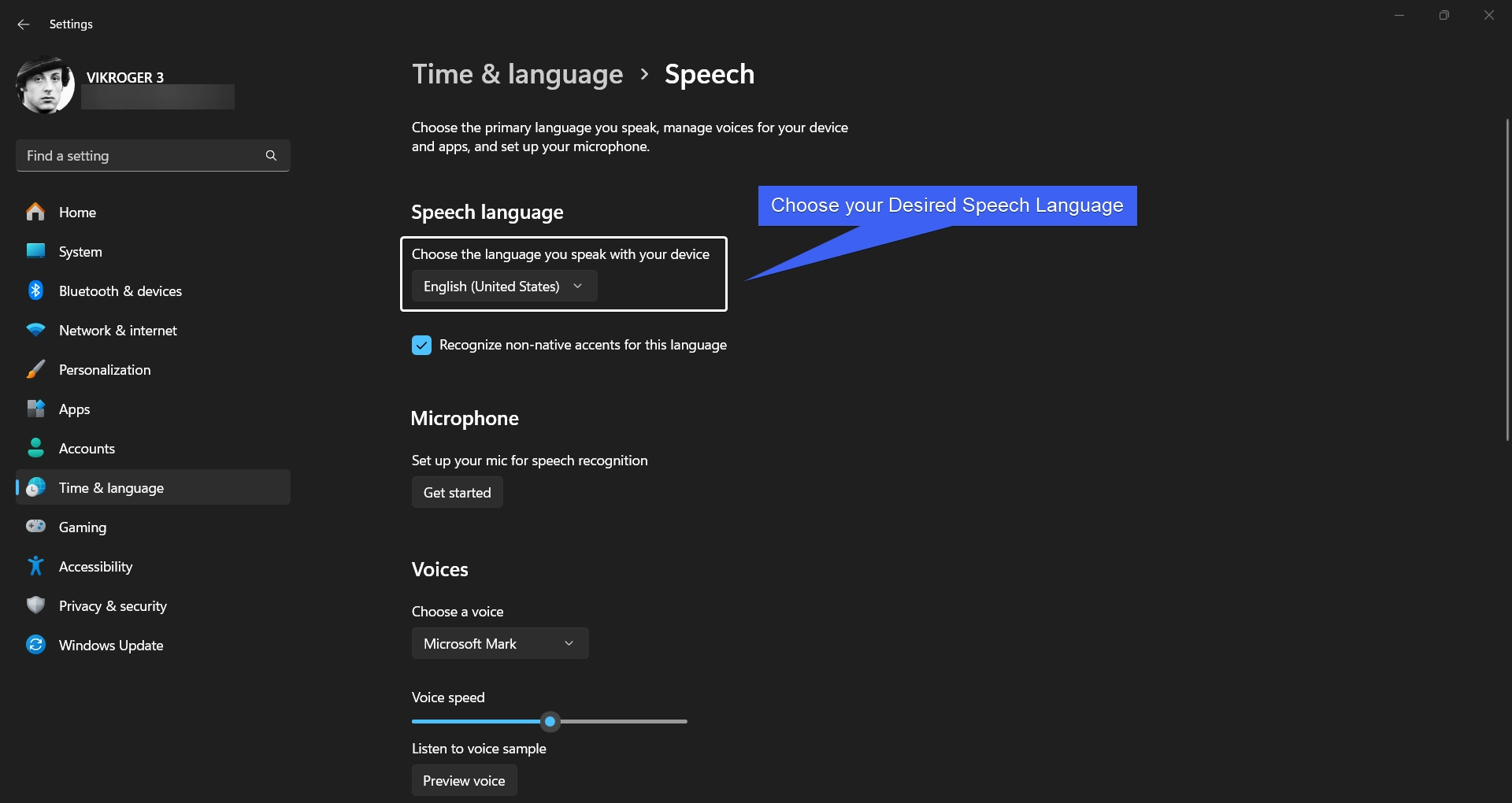
Choose your Desired Speech Language
  • Additionally, you can choose between different Microsoft Voices under Voices. I prefer to use Microsoft Mark, however, these voices are not very natural.
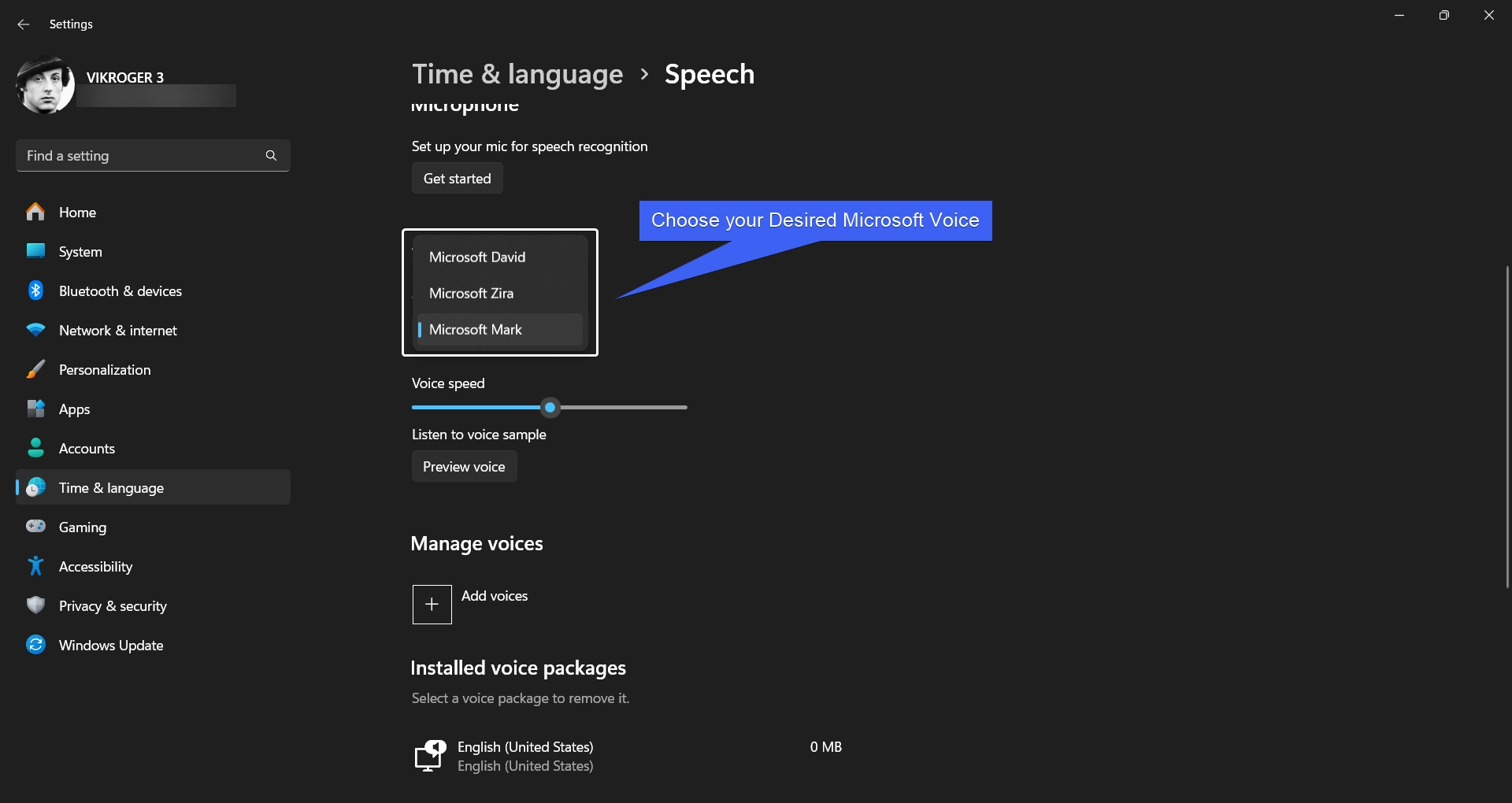
Choose your Desired Microsoft Language

Take Away:

This is an interesting feature from Microsoft which may help users to improve the Speech Recognition influenced by Accents. We hope you are satisfied with our article on How to Enable “Recognize Non-Native Accents for this Language” on Windows 11. If you have any queries, kindly let us know in the comment section. For more interesting articles, stay tuned to Winsides.com Happy Computing! Peace Out!
Tags:

Time & Languagewindows 11
Vigneshwaran Vijayakumar
Author

Vigneshwaran Vijayakumar

Hello, I'm Vigneshwaran, the founder, owner, and author of WinSides.Com. With nearly a decade of experience in blogging across various domains and specializing in Windows-related tutorials for over five years, I bring a wealth of knowledge and expertise to WinSides.Com

Follow Me
Other Articles
Allow an App through Windows Firewall 1
Previous

How to Allow an App through Windows Firewall?

Enable Dynamic Lock on Windows 11
Next

How to Enable Dynamic Lock on Windows 11?

No Comment! Be the first one.

Leave a Reply Cancel reply

Your email address will not be published. Required fields are marked *

  • How to Install and Run X Server in Windows 11?
  • How to Enable Client for NFS in Windows 11?
  • 5+ Easy Methods to Find/Search Video Files Only in Windows 11!
  • How to Enable TFTP Client in Windows 11?
  • Windows 10 officially ends on October 14, 2025
  1. Vigneshwaran Vijayakumar
    Vigneshwaran Vijayakumar on How to Enable Windows PowerShell 2.0 in Windows 11?October 5, 2025

    Hello Mr. Mohamad El-Kheir, Thank you for contacting us. Microsoft has removed PowerShell version 2.0 completely from Windows 11 24H2…

  2. Avatar of Mohamad El-Kheir
    Mohamad El-Kheir on How to Enable Windows PowerShell 2.0 in Windows 11?October 5, 2025

    i have a MSI laptop with windows 11 Home Installed on it. how to install powershell v2.0 on it

  3. Vigneshwaran Vijayakumar
    Vigneshwaran Vijayakumar on DxDiag Windows 11 – What is it & How to use it for Troubleshooting?August 14, 2025

    Hey Myla Shannon Thank you for your valuable feedback. We are delighted to hear your compliment and excited to know…

  4. Avatar of Myla Shannon
    Myla Shannon on DxDiag Windows 11 – What is it & How to use it for Troubleshooting?August 14, 2025

    This content is incredibly informative.

  5. Avatar of seven
    seven on How to Enable IIS [Internet Information Services] in Windows 11?July 29, 2025

    I found this post very helpful.

  • About us
  • What’s New?!
  • Guest Posts on Winsides.com – Terms and Conditions
  • Publication Sitemap
  • Careers
  • Authors
  • Why Trust Winsides.com?
  • Content Removal Request
  • Terms of Use
  • Disclaimer
  • Contact us
Copyright 2024-2026 - Winsides.com. All rights reserved.