

Windows Media Player Troubleshooter: Microsoft introduced a new, modern, stylish app called Media Player, which replaced the classic Windows Media Player (WMP). The last active version of Windows Media Player is WMP Version 12, which was a part of Windows 7 and was carried to the newer versions up until the Modern Player was introduced on Windows 11.
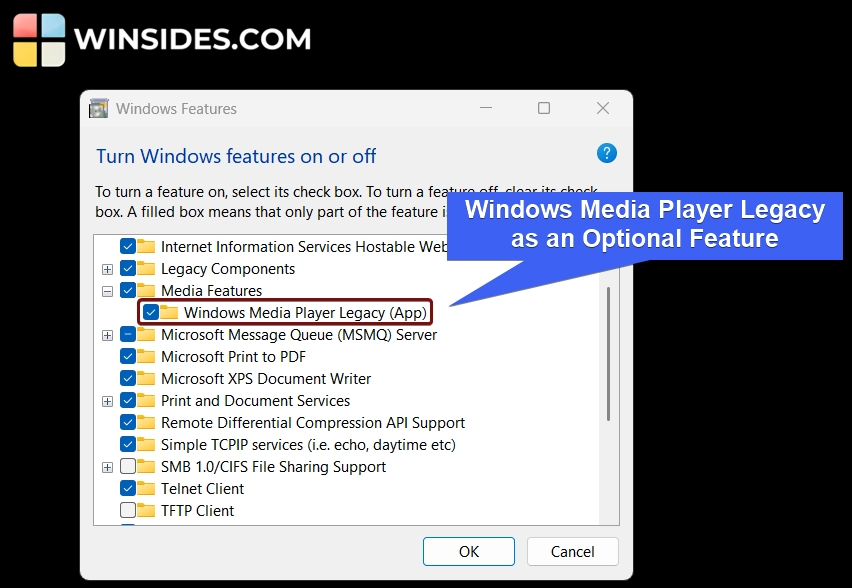
To this date, users can still access the Windows Media Player Legacy App. However, it is not enabled by default, and therefore, we have to enable it manually through Optional Features. We have crafted a detailed article on how to enable Windows Media Player Legacy App on Windows 11. Kindly refer to it.
Table of contents
Different Methods to Run Windows Media Player Troubleshooter on Windows 11
The troubleshooter we are talking about here is the Windows Media Player Legacy App, not the modern Media Player application. Here are some effective methods for running the Windows Media Player Troubleshooter on Windows 11.
- Using Windows Settings.
- Via the Run Command.
Run Windows Media Player (Legacy App) Troubleshooter using Windows Settings
- Open Windows Settings using the keyboard combination WinKey + I.
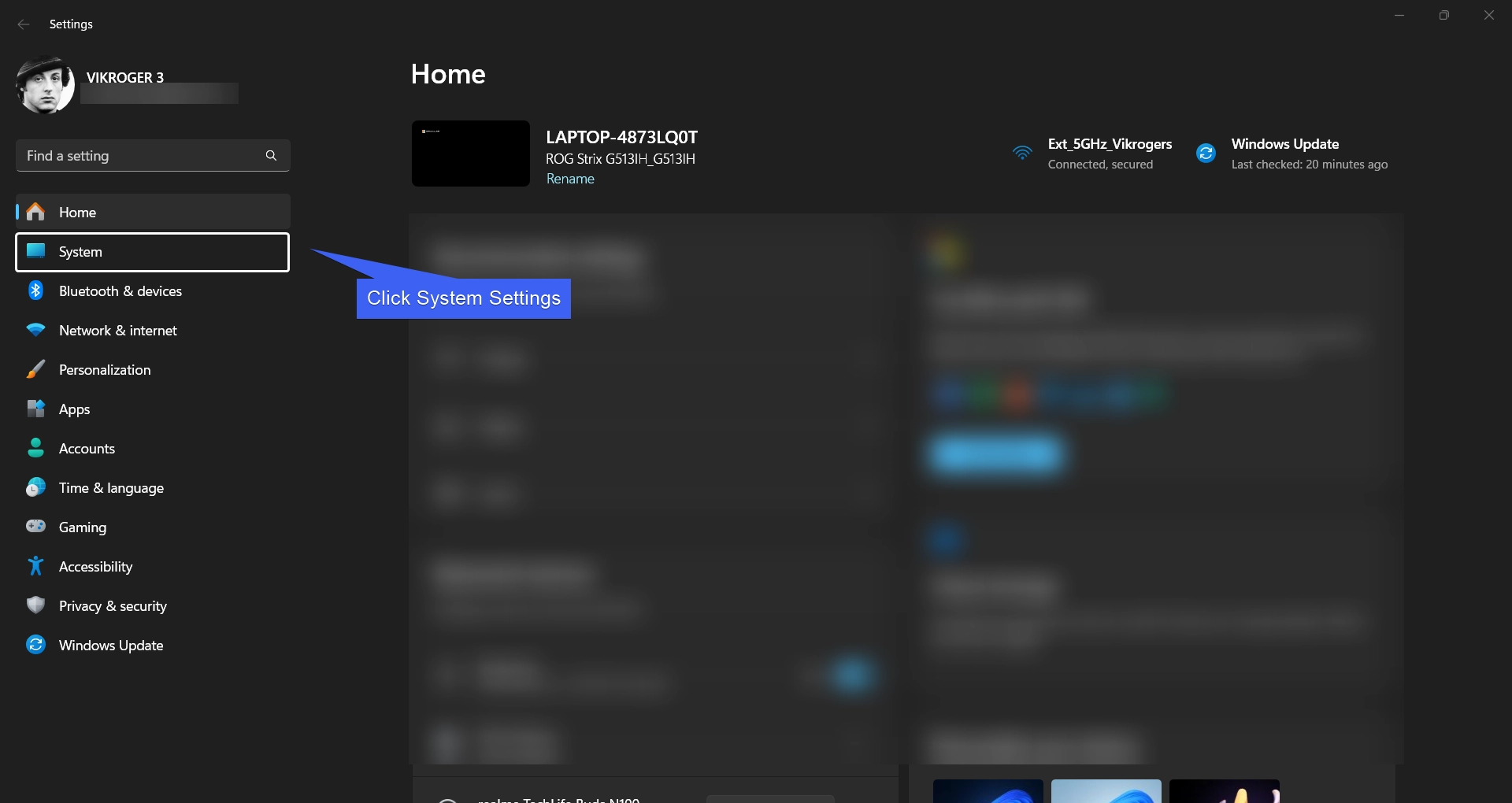
- In the Windows Settings, click on System from the left pane.
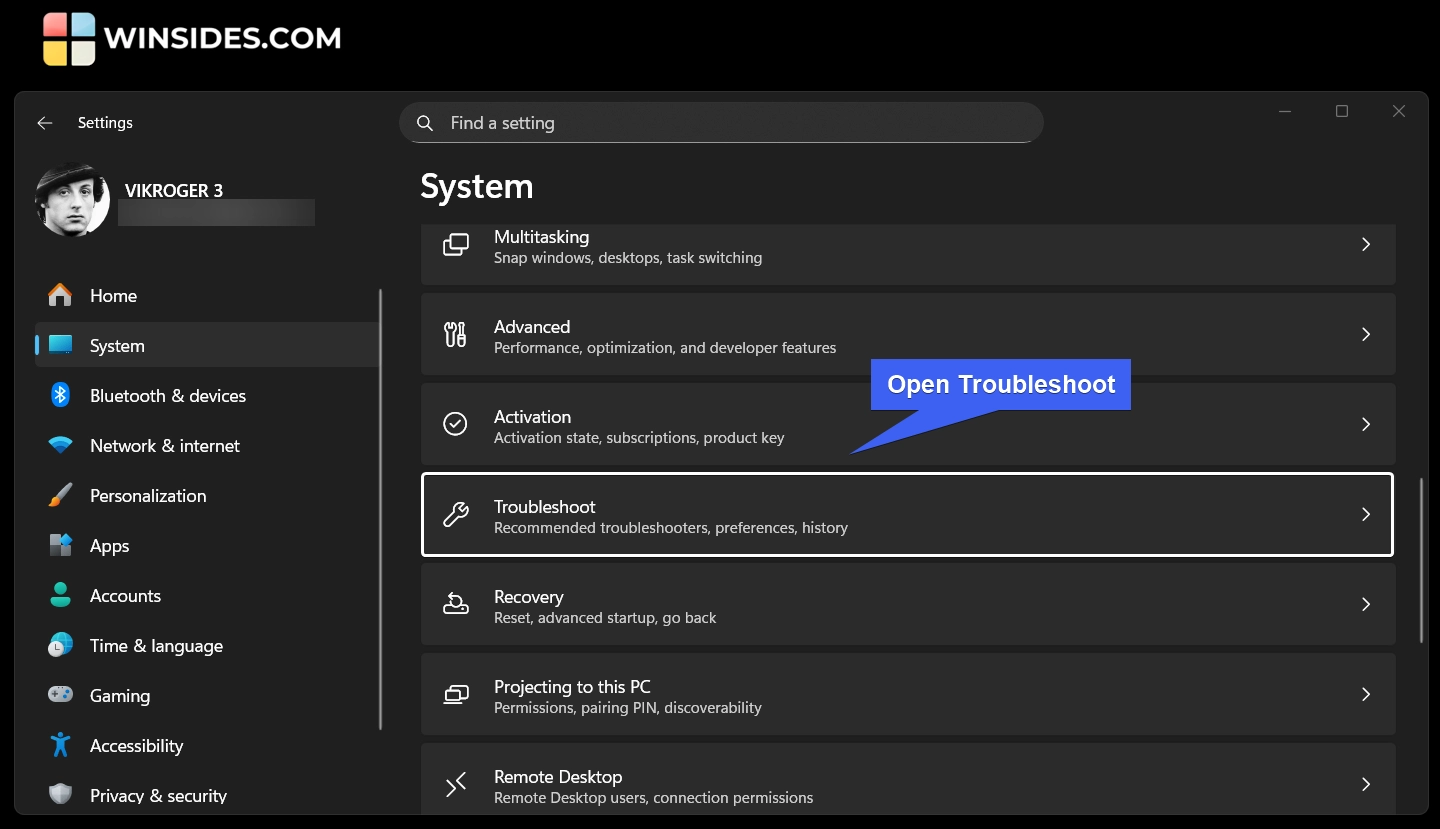
- Scroll down and locate Troubleshoot. Open Troubleshoot.
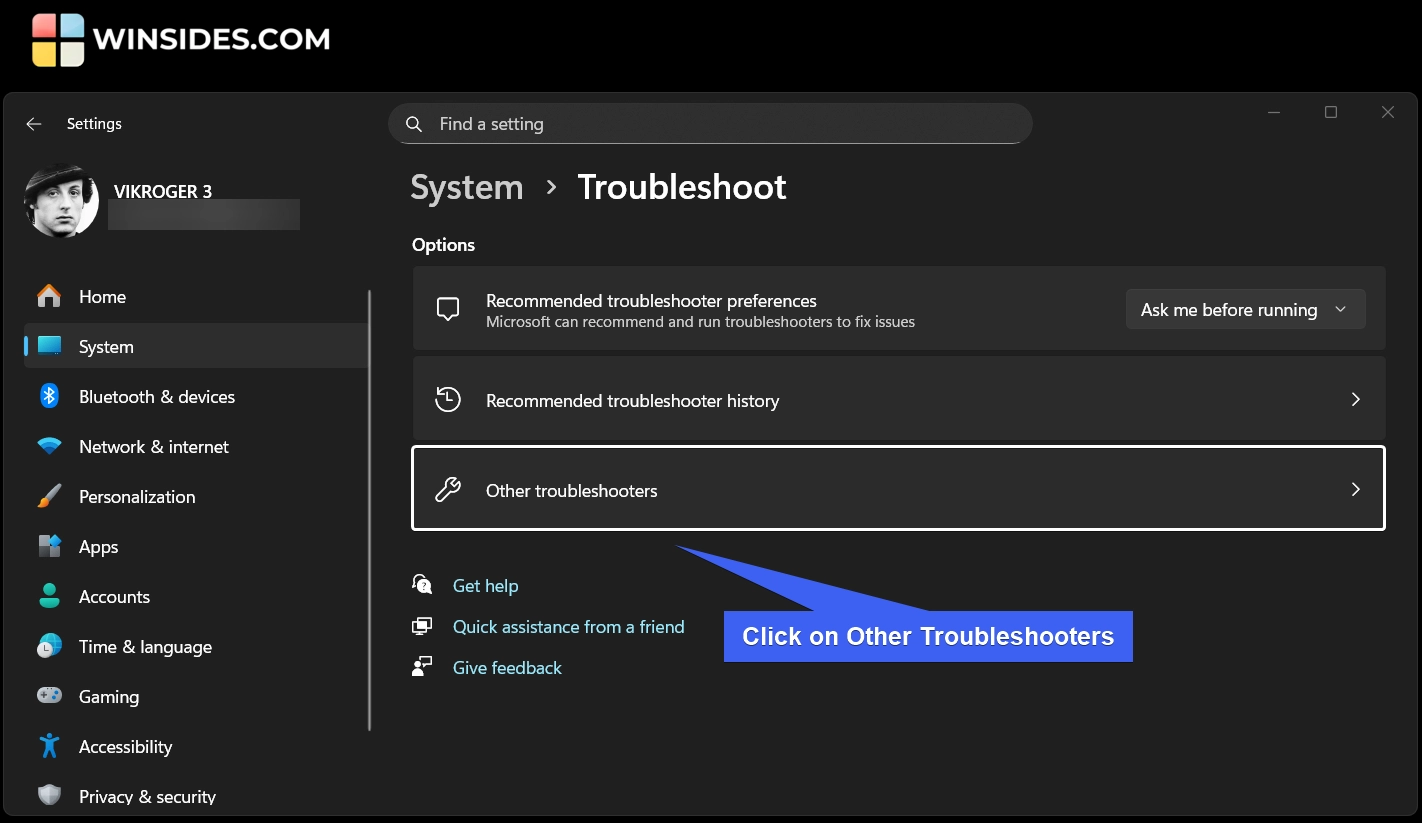
- Under Options, you can find “Other Troubleshooters“. Click on that.
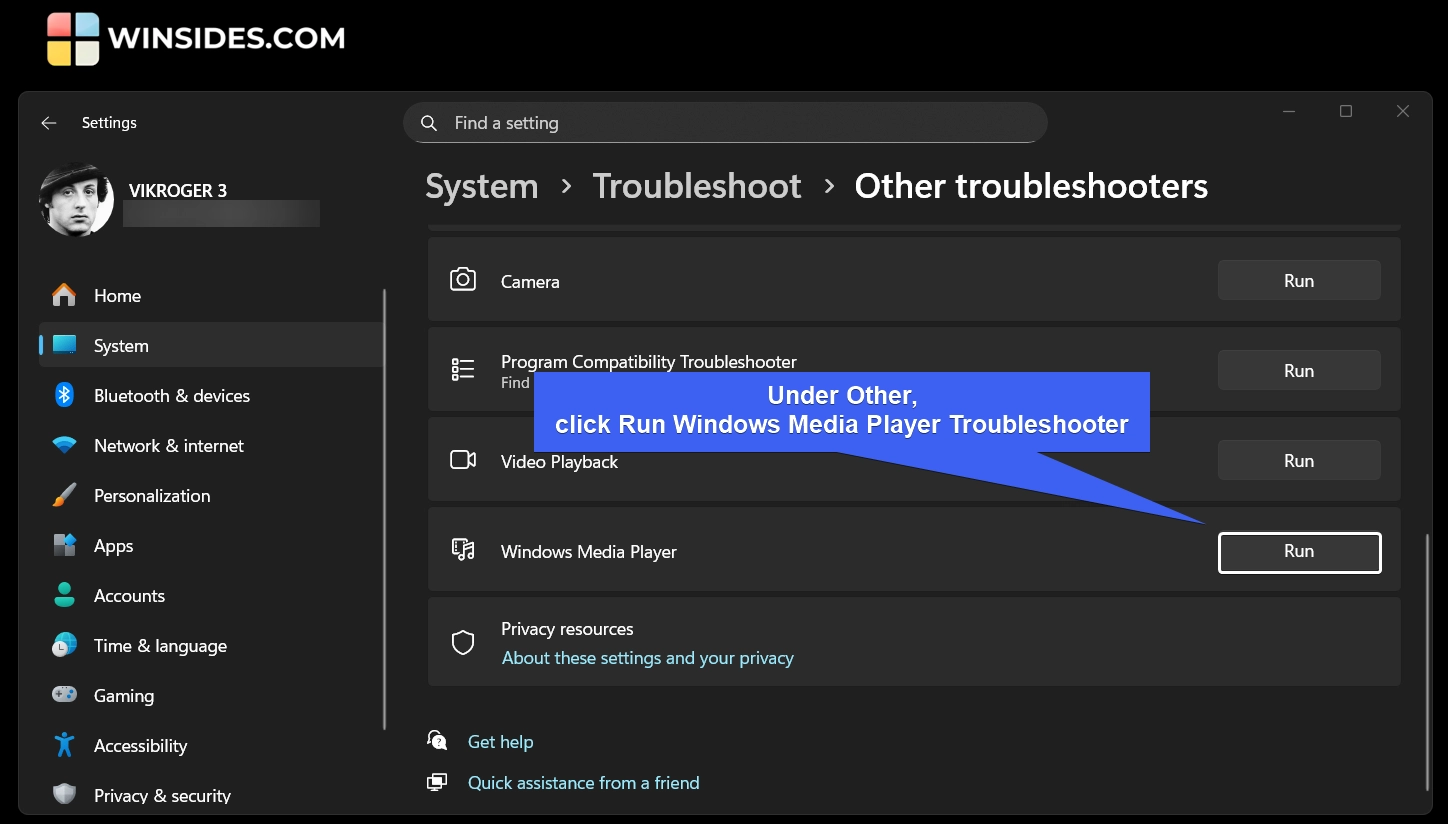
- Here, you can find various troubleshooting options like Audio, Network, Internet, and Background Intelligent Transfer Service, and more. Under Other, you can find the option “Windows Media Player“.
- Click on Run Windows Media Player Troubleshooter on Windows 11.
- The Get Help window will open now. The Get Help option will display the following message. “We can help diagnose your problem by running the Windows Media Player troubleshooter. During this process, we will run some diagnostics on your PC to detect the problem you’re experiencing and then run some automated steps to try to resolve it. Would you like us to run this troubleshooter on your device?“
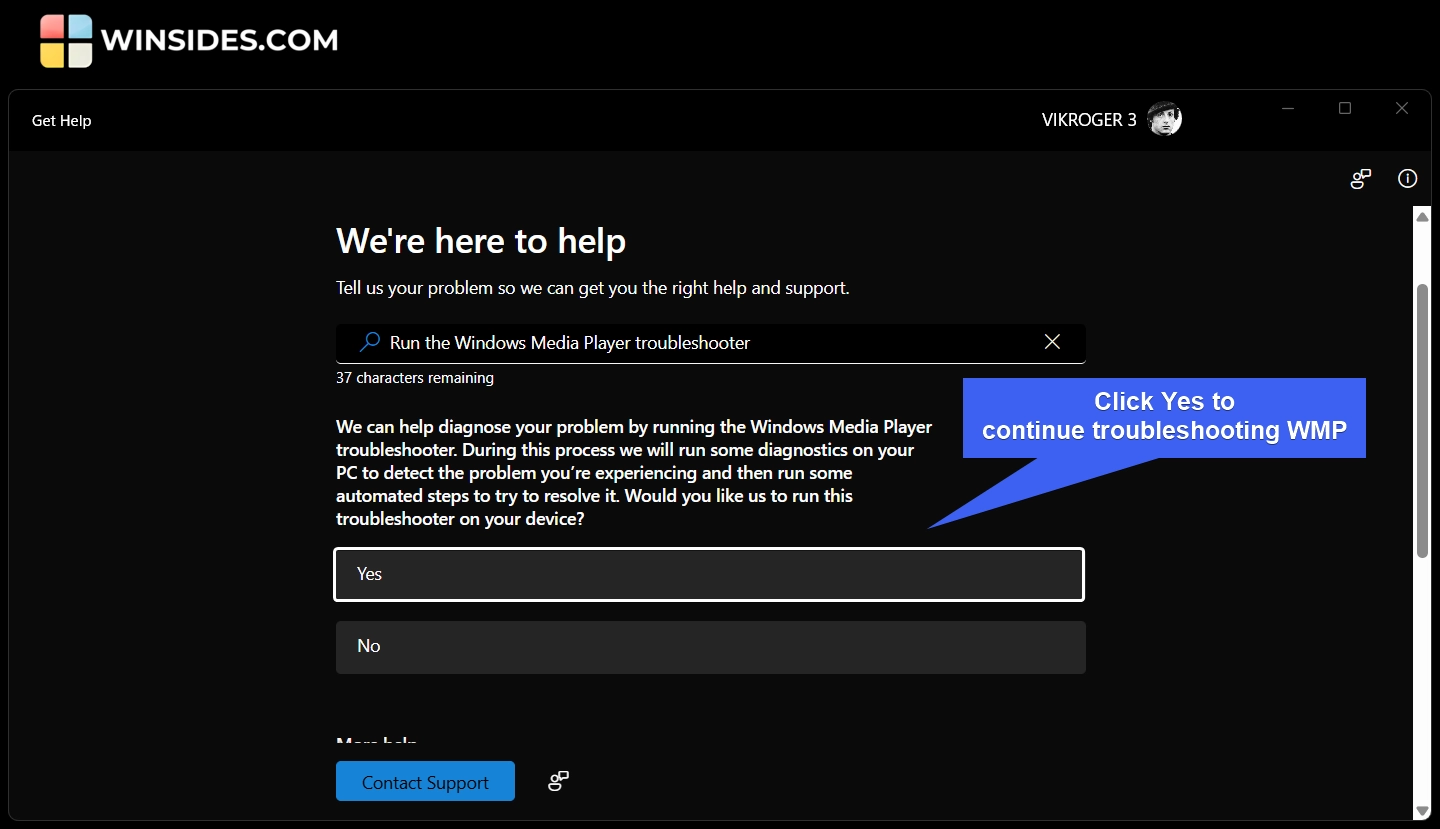
- Click Yes to continue troubleshooting the Windows Media Player Legacy Application on Windows 11.
Windows Media Player (Legacy Application) Troubleshooting via the Command Line Tools
For this method, we can either use the Command Prompt or the Windows PowerShell. For explanation, we will use the Command Prompt.
- To execute the WMP Troubleshoot command on Windows 11, we have to run Command Prompt with Administrative Privileges. Hence, Run Command Prompt as Administrator on Windows 11.
- Go to the Run Command using the keyboard shortcut WinKey + R.
- In the Run, type the command cmd and press CTRL + SHIFT + ENTER.
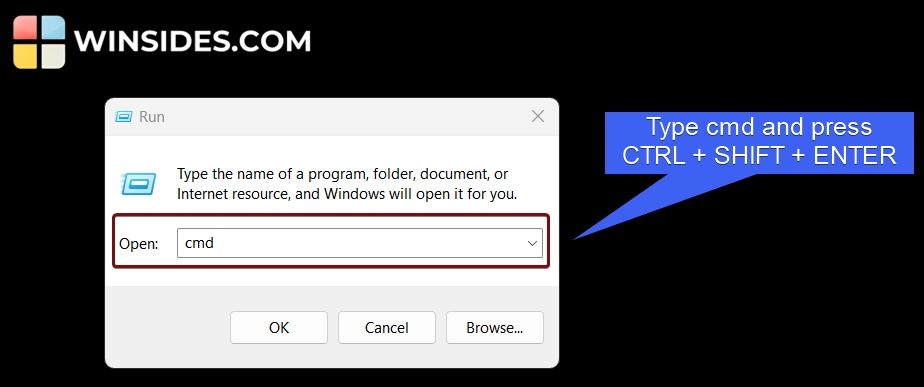
- The User Account Control will prompt for your confirmation and open Command Prompt with Elevated Privileges.
- We will use the Microsoft Support Diagnostic Tool (MSDT.EXE) to run this troubleshooter on Windows 11. MSDT is currently present on Windows 11 for Backward Compatibility. From the 22H2 update, Microsoft is retiring the Windows legacy inbox Troubleshooters and MSDT that runs them. Find more information on the Deprecation of MSDT and Legacy Troubleshooters.
- Kindly execute the following command in the command prompt.
msdt.exe -id WindowsMediaPlayerConfigurationDiagnostic
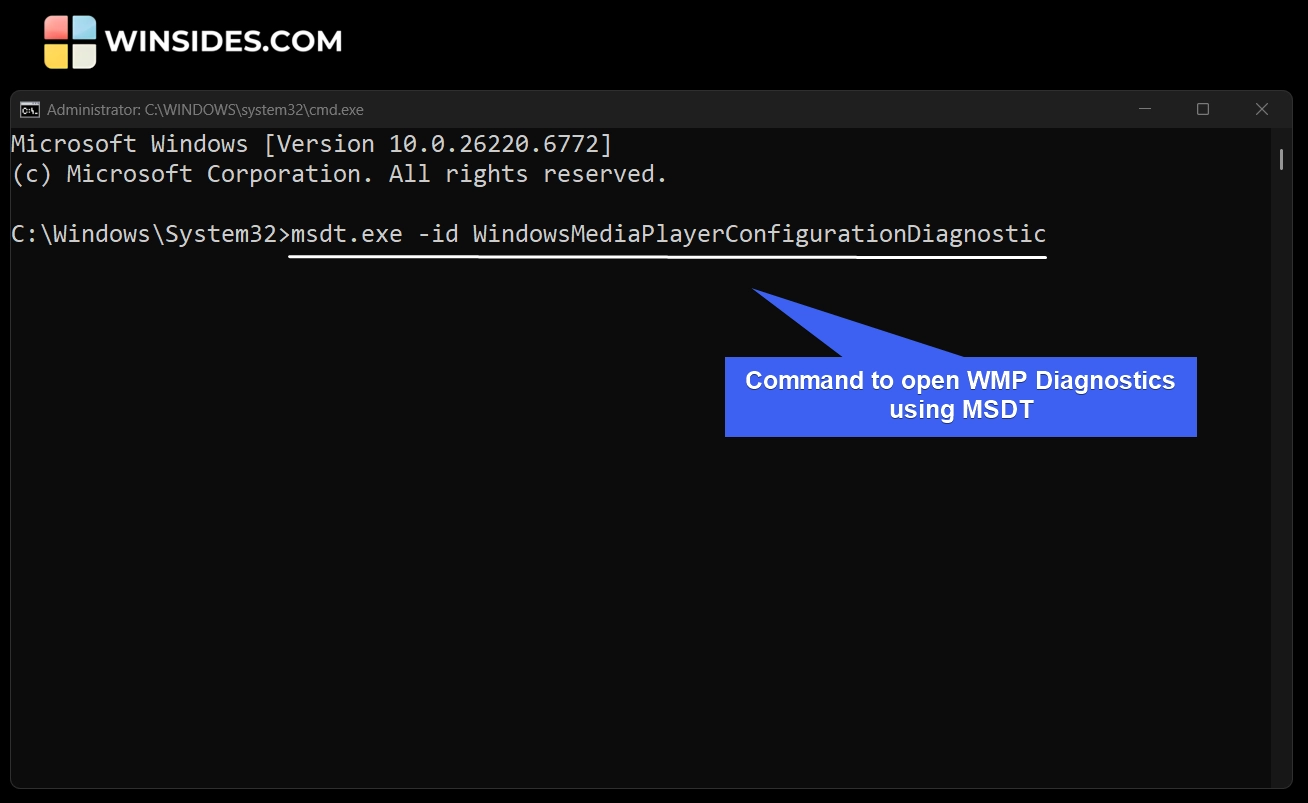
- This command will run Troubleshooter for Windows Media Player Settings issues.
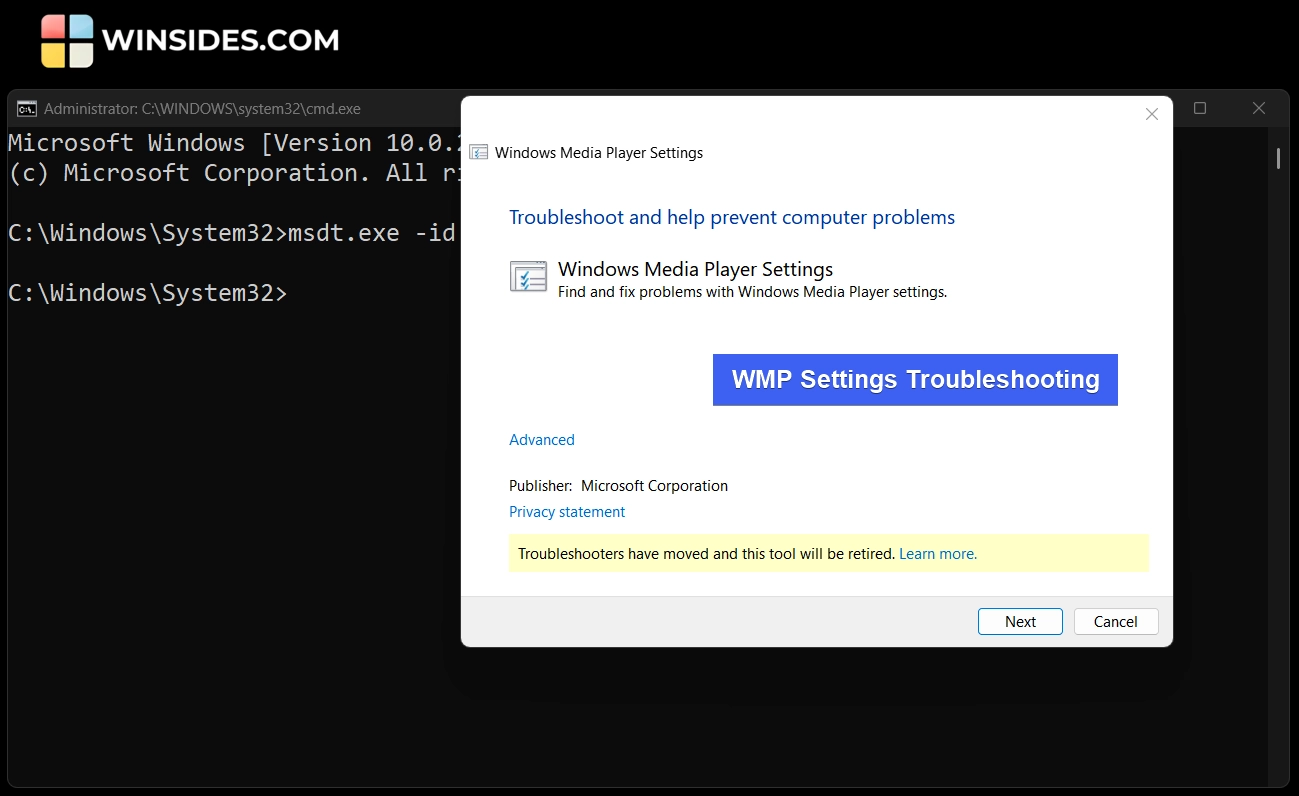
- For troubleshooting Library and DVD playback issues, kindly execute the following commands respectively.
Troubleshoot Windows Media Player Library Issues
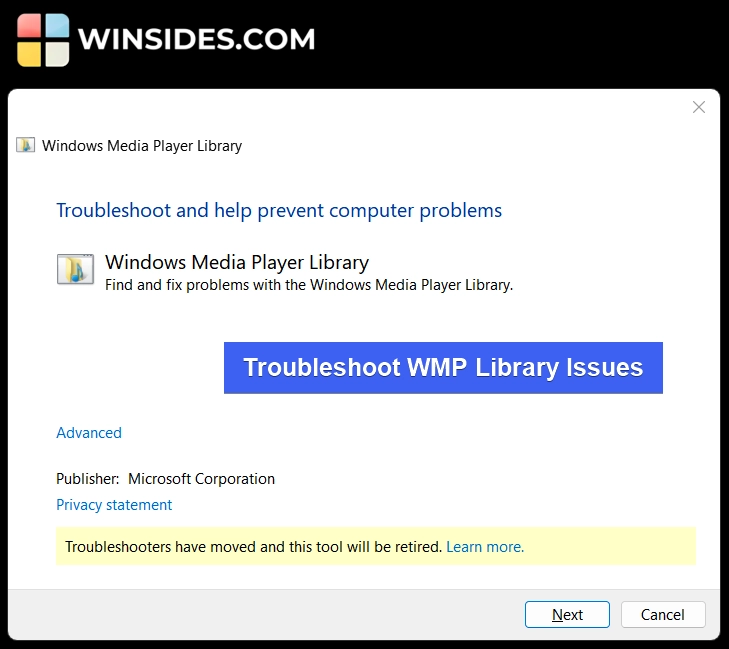
msdt.exe -id WindowsMediaPlayerLibraryDiagnostic- This command on CMD as Administrator will run the WMP Library issues troubleshoot.
Troubleshoot WMP (Legacy) DVD Playback Issues
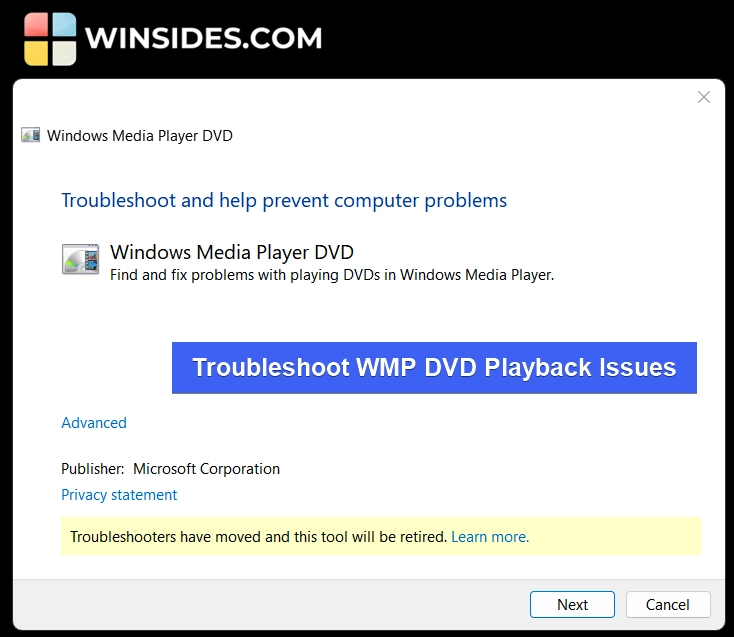
msdt.exe -id WindowsMediaPlayerDVDDiagnostic- The above command on CMD with Administrative Privileges will run WMP DVD Playback issues troubleshooting.
How to Repair and Reset Media Player on Windows 11?
In the above section, we saw how to troubleshoot the Windows Media Player Legacy App on Windows 11. The modern Media Player on Windows 11 is the successor of Groove Music Player. Unlike the legacy troubleshooting methodologies using the MSDT, Microsoft has shifted its Troubleshooting Direction, and as a part of that process, repairing and resetting the Media Player on Windows 11 is made easier. The following are the steps.
- Go to the Windows Settings using the keyboard shortcut WinKey + I.
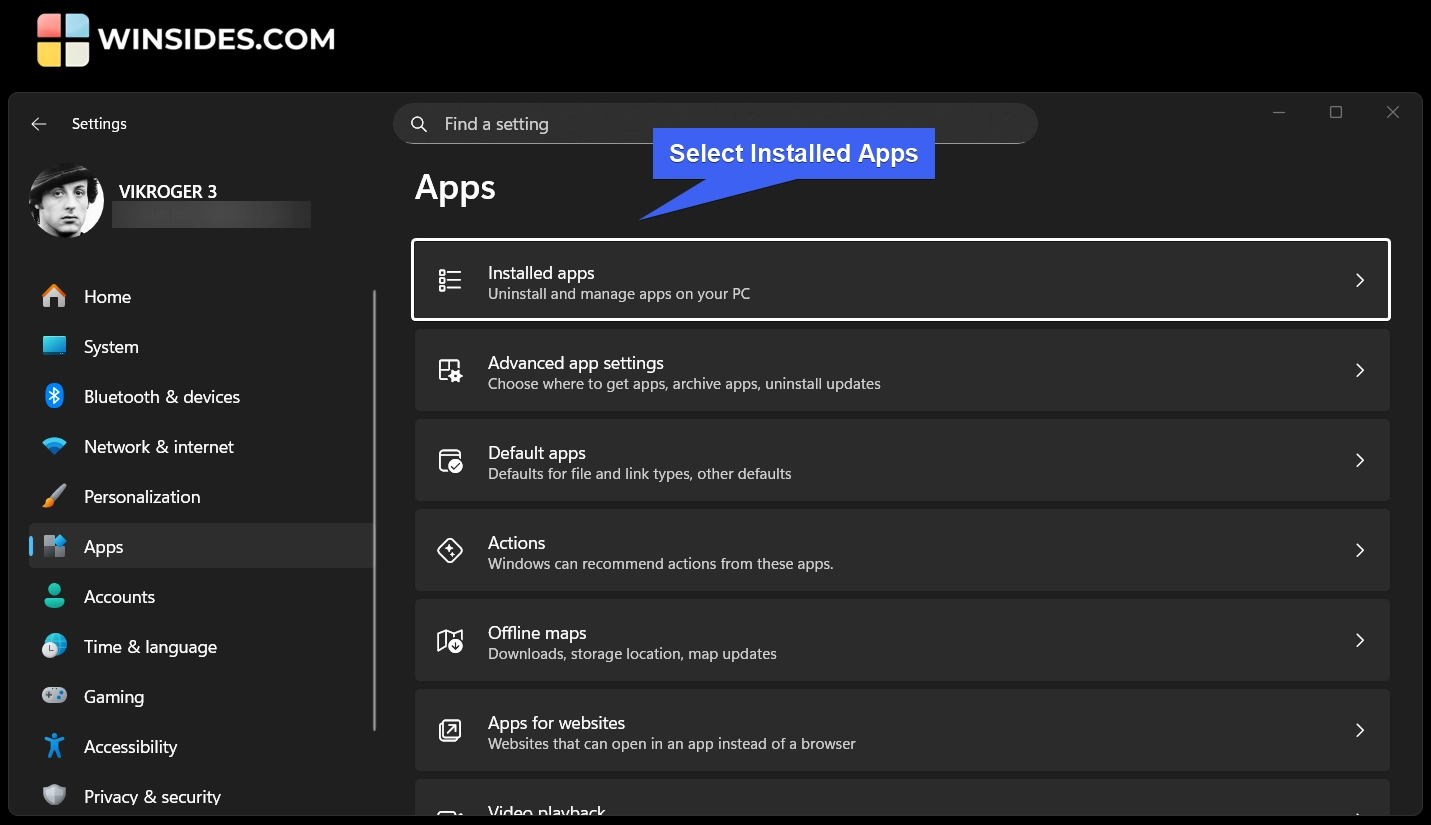
- Click on Apps from the left pane.
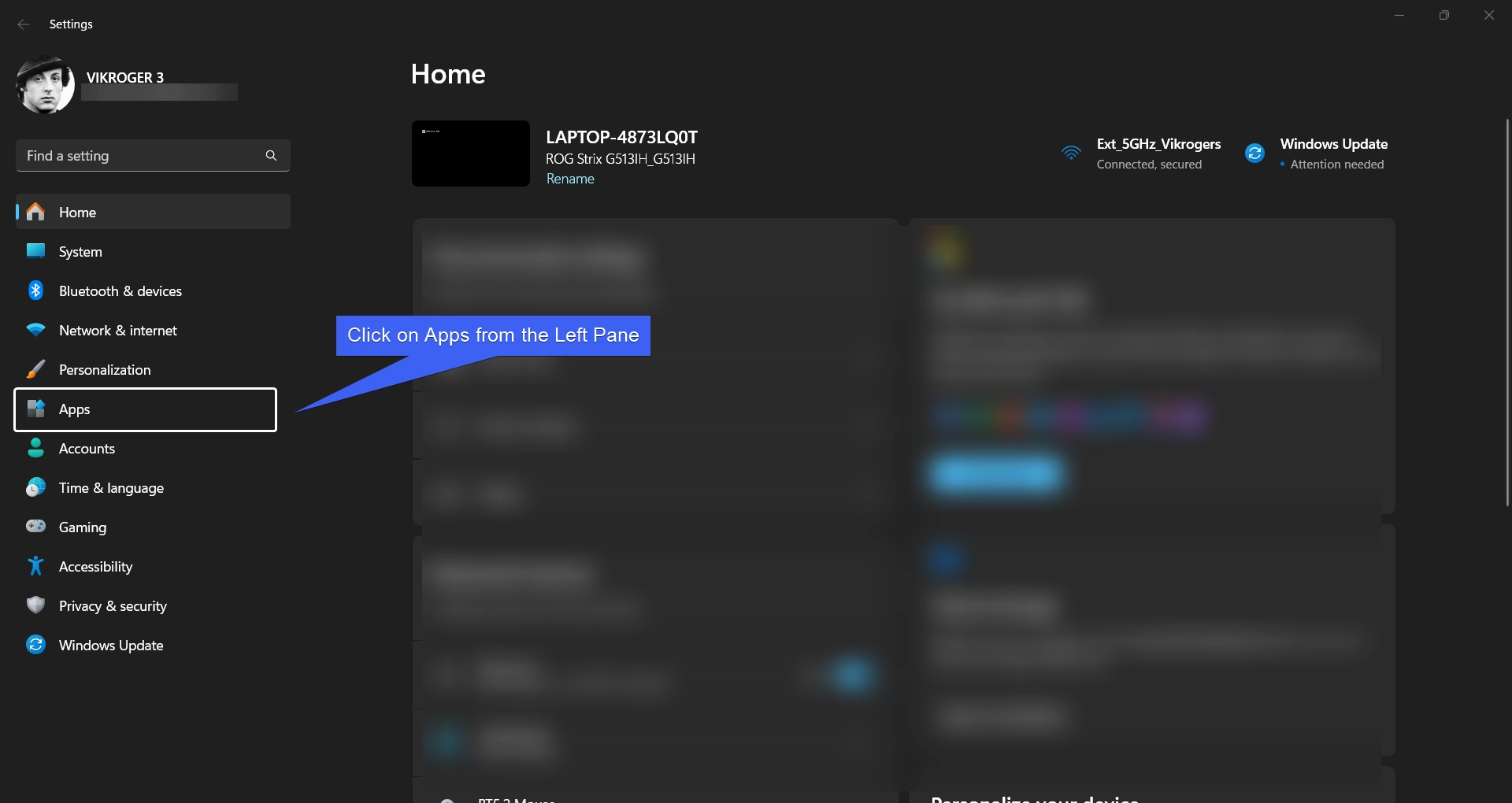
- Select Installed Apps.
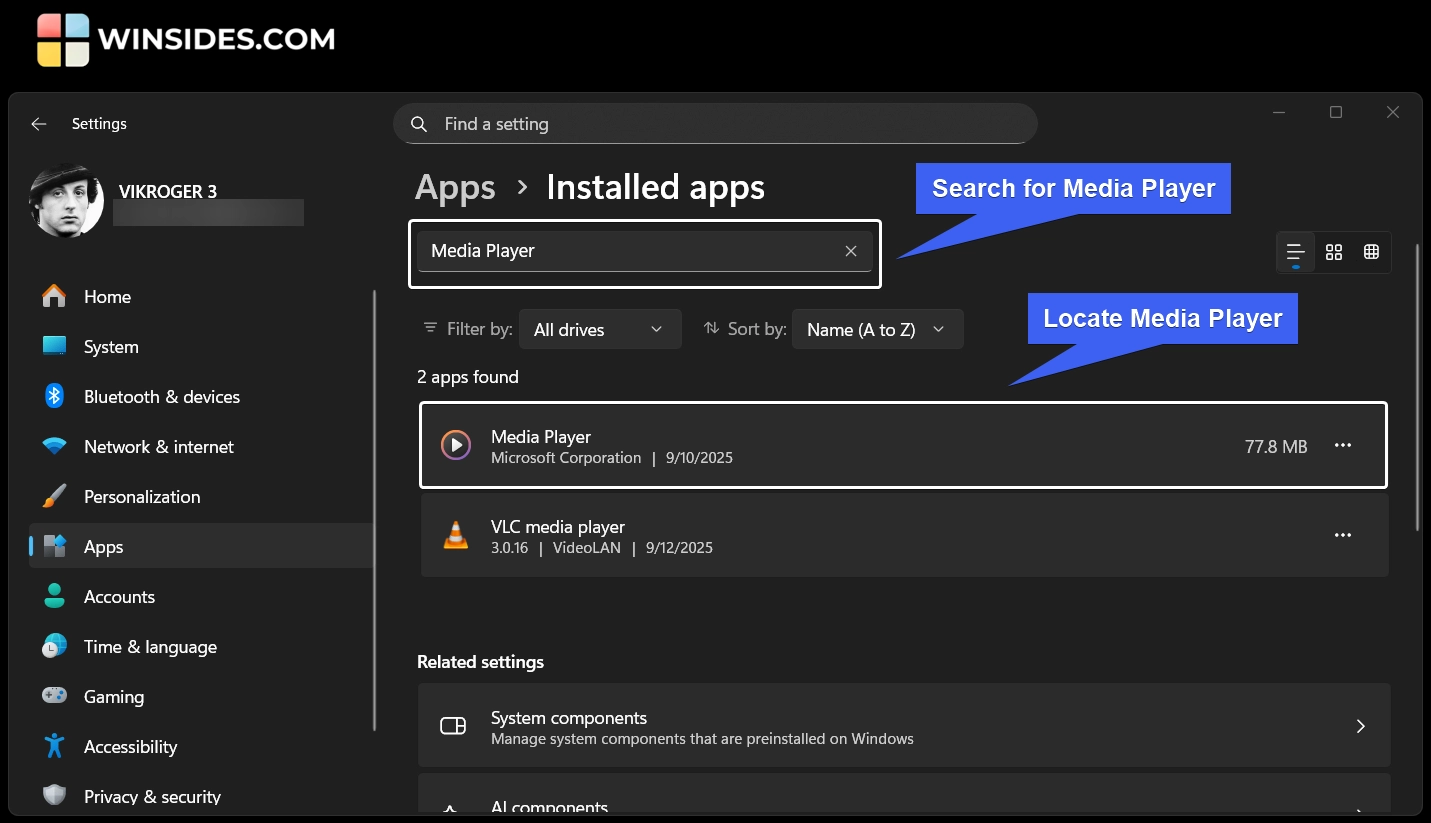
- Search for and locate Media Player.
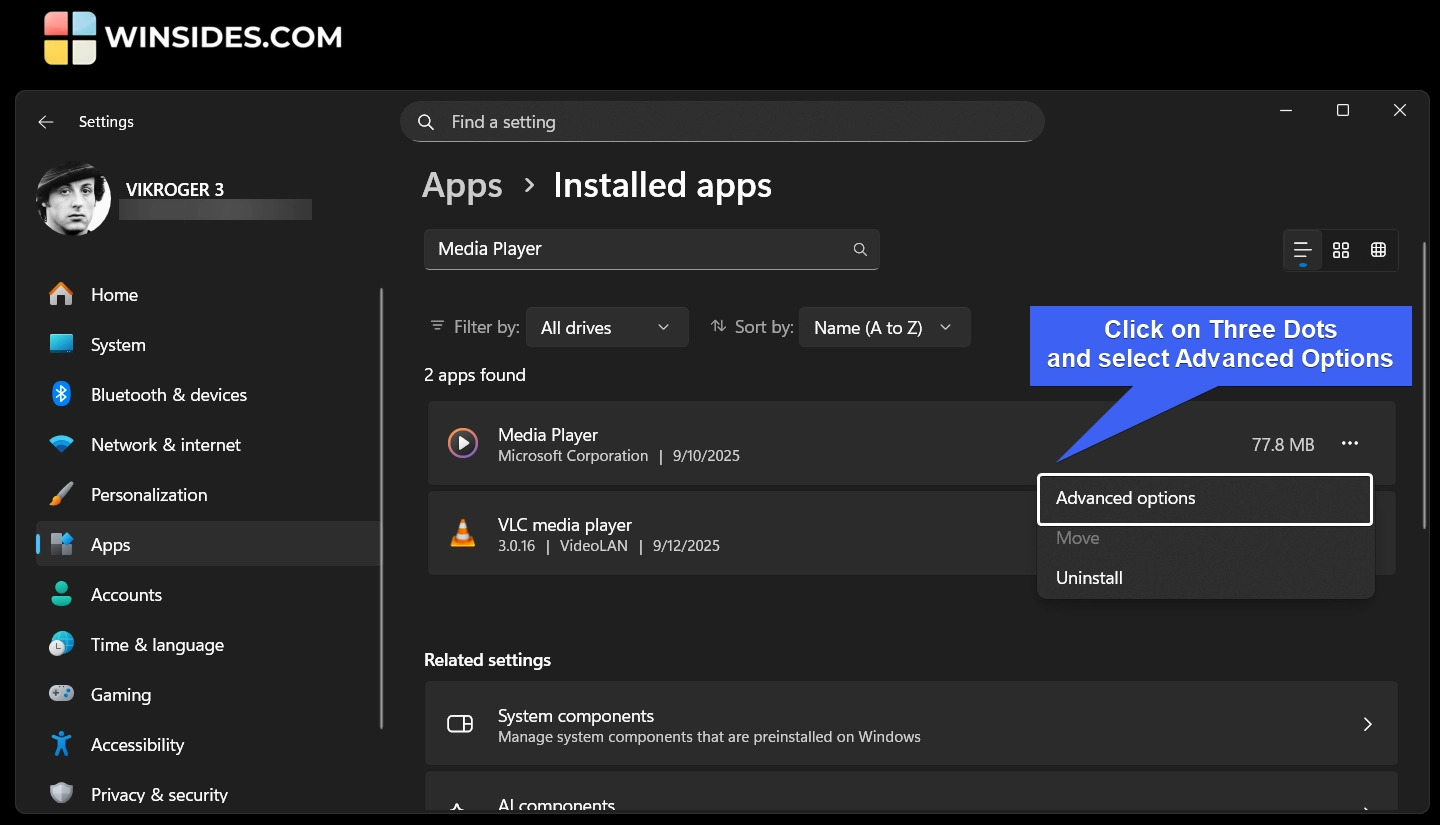
- Click on the three dots next to it and then click on Advanced options.
- Here, you can find various advanced options related to the application.
- Scroll down and locate the Reset and Repair options.
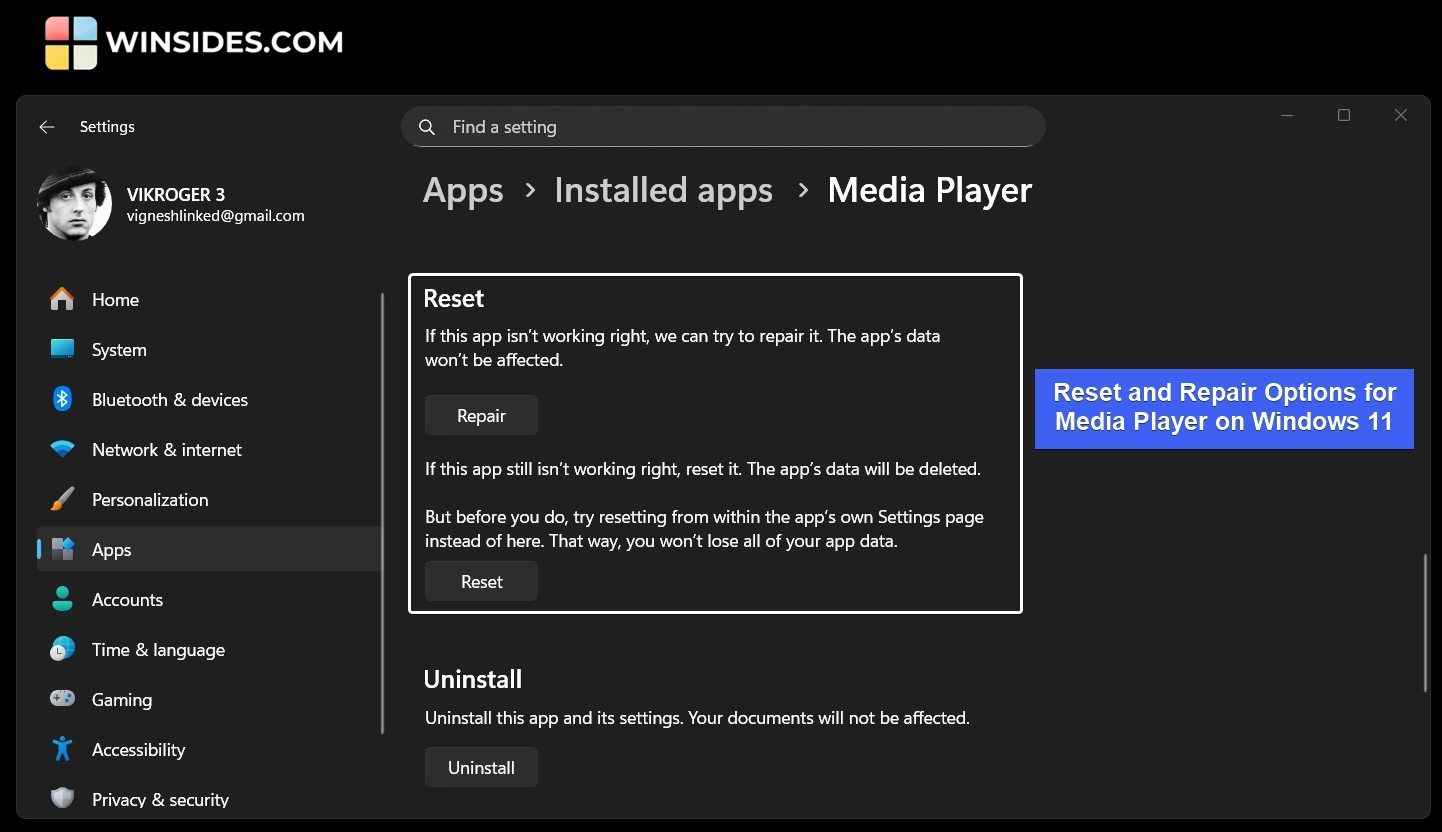
- It is always recommended to use the Repair option in the first place. This option will try to repair the application without affecting the App Data.
- If you are facing issues even after repairing, then you can try the Reset option. Kindly note that this option will delete the App Data.
Technical Comparison between Windows Media Player
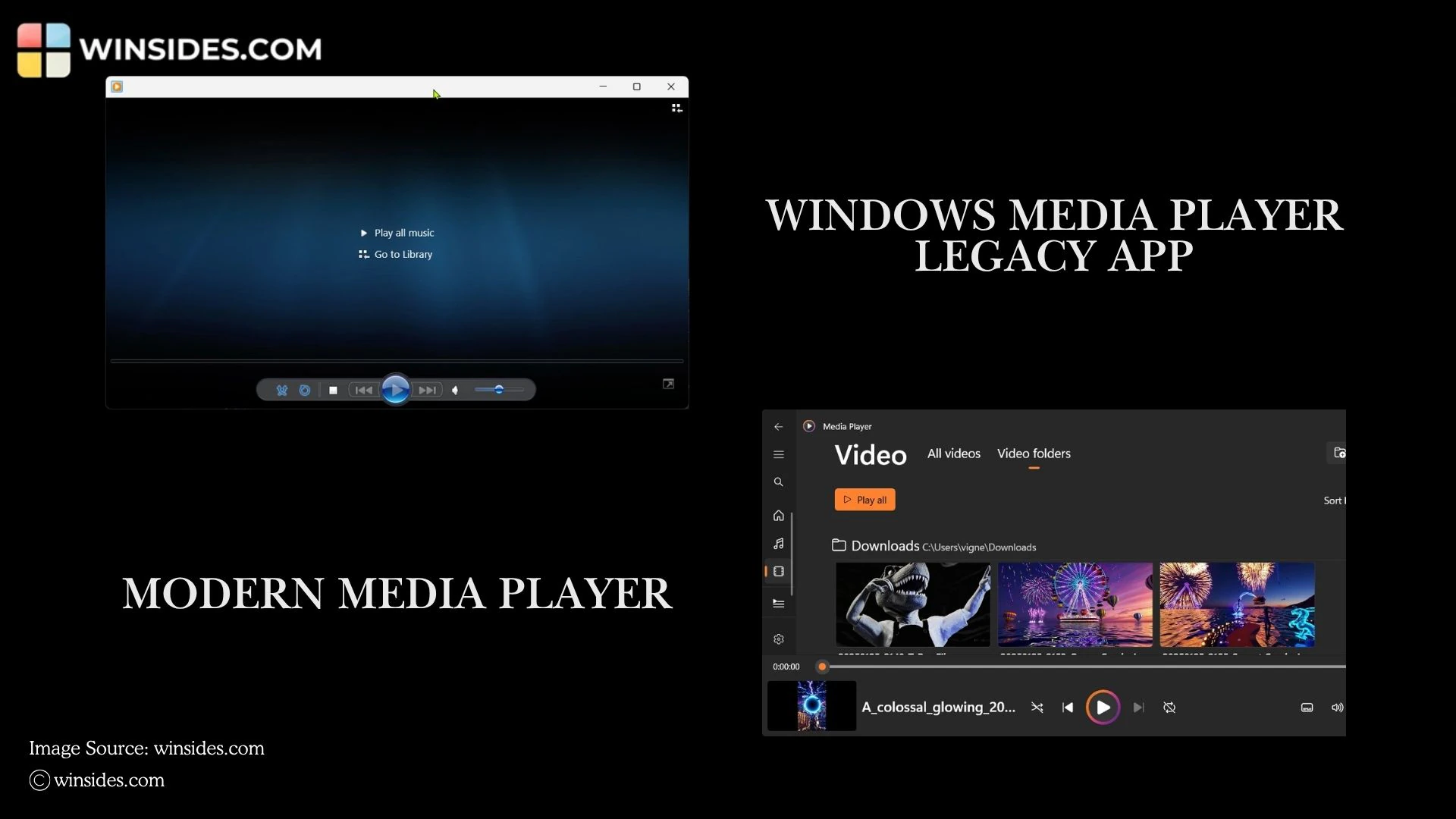
| Technicalities | Windows Media Player (Legacy) | Modern Media Player Windows 11 |
| Playback Core & Media Engine | Uses legacy DirectShow architecture for audio/video decoding. | Uses Media Foundation framework (modern, GPU-accelerated, supports HDR/modern codecs). |
| Codec Support | Limited to built-in codecs; requires external codec packs for newer formats | Native support for modern codecs: MP4, MKV, HEVC, AAC, FLAC, HDR video |
| Library Storage & Metadata | Stores library info in wmdb database files locally. | Uses a modern database with indexing and cloud sync support |
| Digital Rights Management | Supports Windows Media DRM, mainly for older protected WMA/WMV content | Supports modern DRM schemes via Microsoft Store apps and Media Foundation |
| API & Extensibility | COM-based plugin system | UWP / WinUI-based extensibility. Limited support for legacy plugins, modern apps rely on Windows APIs |
| Hardware Acceleration | Limited GPU acceleration and mostly CPU-based decoding | Full GPU-accelerated decoding for video (DXVA/H.264/H.265) and audio processing, improving performance and battery efficiency |
Information on the Go! With GPU Acceleration on Media Playback, GPU handles tasks like decoding high-resolution video, applying color corrections, and rendering smooth animations, allowing videos to play more efficiently. This makes operations faster and more efficient because GPUs are specialized for parallel processing.
Take Away
The above article covers detailed information on How to Run TroubleShooting for Windows Media Player Legacy App and repair and reset the Modern Media Player on Windows 11.
Have Queries?
If you have any queries, kindly let us know in the comments. For more interesting articles, stay tuned to Winsides.com. Happy Computing! Peace out!

Community
Comments (0)