

Introduction to ASIO Sys Windows 11
ASIO Sys Windows 11 can mean two different things, and that is why many fixes online feel confusing. Some users are talking about AsIO.sys, a kernel driver file commonly seen with ASUS utilities such as Armoury Crate, Aura, AI Suite, motherboard services, fan-control tools, lighting components, or other ASUS support software. Other users are talking about ASIO, the Audio Stream Input/Output audio model used by digital audio workstations and audio interfaces for low-latency recording and playback.
Those two topics overlap only because the names look similar. If Windows Security says an incompatible driver is blocking Memory integrity and the file name is AsIO.sys, you are probably dealing with an ASUS utility driver or a leftover driver package. If Cubase, FL Studio, Ableton Live, Reaper, OBS, or an audio interface control panel says ASIO is missing or unavailable, you are probably dealing with an audio driver configuration problem. Applying the wrong fix can waste time or break useful hardware controls.
This guide focuses on Windows 11 symptoms: Memory integrity cannot be turned on because of AsIO.sys, a blue screen mentions AsIO.sys, Armoury Crate or ASUS services behave badly, an old ASUS utility leaves behind a driver, or an audio application cannot find a proper ASIO driver. The safe approach is to identify the file, identify the parent software, update or uninstall cleanly, then verify the result. Deleting random SYS files from System32 should be the last resort, not the first step.
For official context, keep ASUS documentation for Armoury Crate installation and uninstallation and the Armoury Crate introduction nearby. Microsoft references on Memory integrity, Autoruns, Driver Verifier, and low-latency audio help separate driver security from audio latency issues.
Table of contents
Key Takeaways
- AsIO.sys and ASIO audio are not the same problem. AsIO.sys is usually a driver-file issue, often tied to ASUS utilities, while ASIO audio relates to low-latency audio drivers.
- Memory integrity errors usually mean an incompatible kernel driver. Windows 11 may block Core isolation until the old driver is updated, removed, or replaced.
- Do not delete AsIO.sys first. Identify the file path, publisher, version, and parent software before removing anything from Windows driver folders.
- Use ASUS tools for ASUS components. Armoury Crate, Aura, AI Suite, ROG Live Service, and related services should be updated or uninstalled cleanly with official ASUS guidance.
- BSODs naming AsIO.sys should be treated as driver instability. Update or remove the responsible ASUS package before using advanced tools like Driver Verifier.
- Audio ASIO issues need audio-driver fixes. Install the audio interface vendor driver, verify the DAW audio device, or use WASAPI/Windows low-latency options where appropriate.
- After every fix, reboot and verify. Recheck Windows Security, Device Manager, installed apps, Autoruns, and crash history before assuming the issue is gone.
What Is AsIO.sys on Windows 11?
AsIO.sys is a Windows kernel-mode driver file name most users encounter after installing ASUS-related software. It may arrive with motherboard utilities, system monitoring tools, fan or performance controls, lighting utilities, Armoury Crate components, Aura components, or older ASUS AI Suite packages. The driver is used by ASUS software to communicate with hardware or firmware-level controls that normal desktop apps cannot access directly.
Because it is a SYS driver, Windows treats it more seriously than a normal executable. A kernel driver can affect system stability, security, and boot behavior. That is why Windows 11 features such as Memory integrity may object to an older AsIO.sys build even if the related ASUS app still appears to run. The driver might be outdated, incompatible with Hypervisor-protected Code Integrity, left behind after an old utility, or loaded by a service you no longer use.
The exact meaning depends on where the file is, who signed it, and which package installed it. A driver under Windows driver directories with ASUS publisher details suggests an ASUS utility. A suspicious copy in a random folder should be treated differently. Always check properties, digital signature, path, version, and installed software before deciding what to remove.
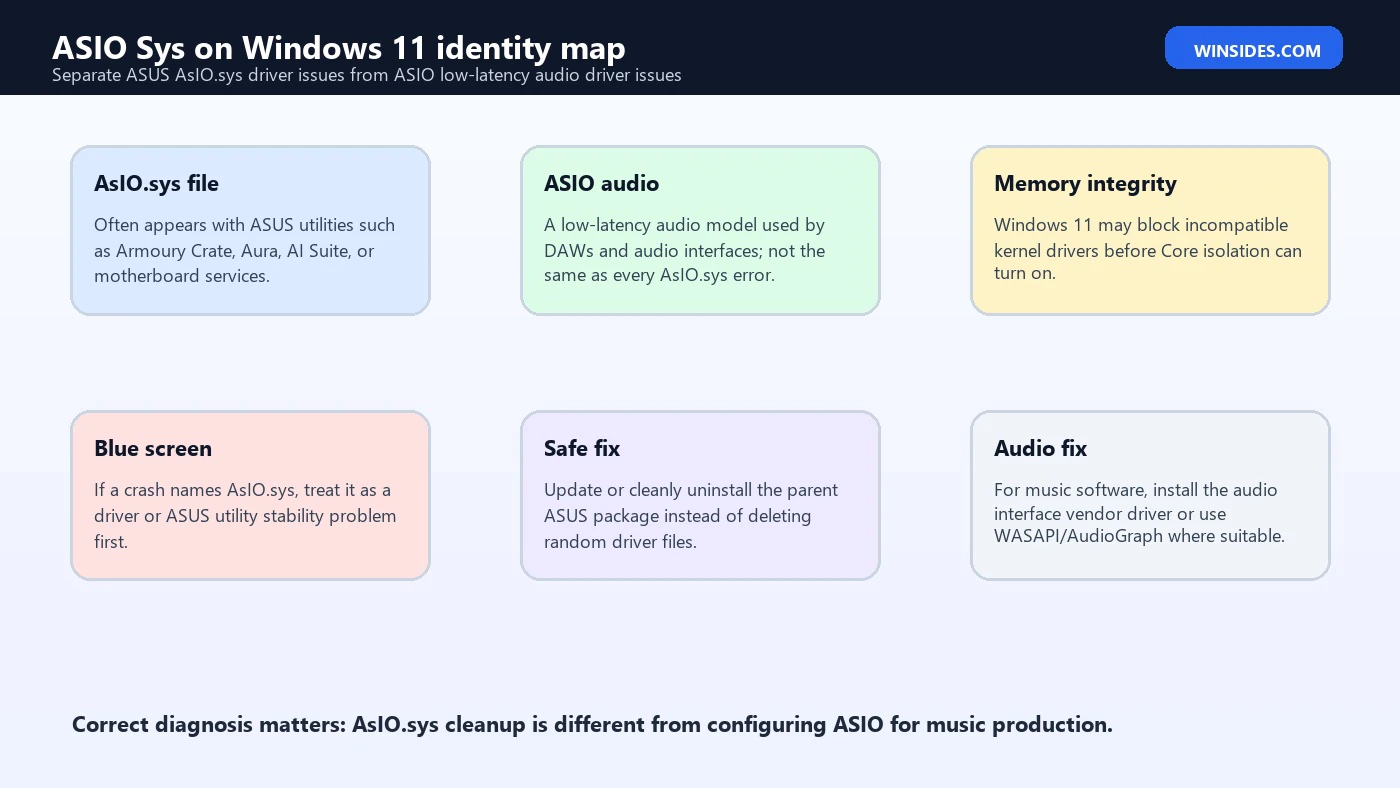
ASIO Audio vs AsIO.sys: Do Not Mix Them Up
ASIO audio is a low-latency audio model used by music-production applications and audio interfaces. Microsoft documentation on low-latency audio explains that ASIO is an alternative used by applications that need low latency, where an installed third-party ASIO driver lets the application communicate directly with that driver. That is a music-production and audio-interface topic.
AsIO.sys, with that file-style name, is usually not the same thing as your Focusrite, Steinberg, PreSonus, RME, Behringer, Universal Audio, or other audio-interface ASIO driver. If a DAW cannot open an ASIO device, reinstalling Armoury Crate will not help. If Windows Security flags AsIO.sys as an incompatible driver, changing your DAW buffer size will not help. The names look similar, but the troubleshooting paths are different.
A simple way to separate them is by symptom. If the issue appears in Windows Security, Core isolation, Device Manager, blue-screen dumps, or a driver file list, investigate AsIO.sys as a kernel driver. If the issue appears inside a DAW, audio interface control panel, recording app, or low-latency playback setting, investigate audio ASIO drivers and Windows audio configuration.
Why Windows 11 Flags AsIO.sys
Windows 11 Memory integrity is part of virtualization-based security. Microsoft explains that Memory integrity uses virtualization-based protection to harden kernel-mode code integrity and that some applications or hardware drivers may be incompatible. If a driver is incompatible, Windows may prevent Memory integrity from turning on or warn that the setting is off. This is exactly the kind of place where an old AsIO.sys driver can become visible.
This does not always mean the driver is malicious. It may simply be old, written for an earlier Windows security model, installed by an older ASUS utility, or not compatible with current HVCI requirements. Windows 11 is stricter because kernel drivers operate close to the core of the system. A driver that was accepted years ago may not meet the expectations of a newer Windows 11 security configuration.
The right response is not panic and not blind deletion. The right response is to update the parent software, replace the driver with a newer supported package, or remove the utility that no longer needs to run. If the PC is an ASUS ROG or TUF system that depends on Armoury Crate for fan profiles, hotkeys, lighting, or performance modes, removing everything without a plan may break useful controls.
Common Symptoms Linked to AsIO.sys
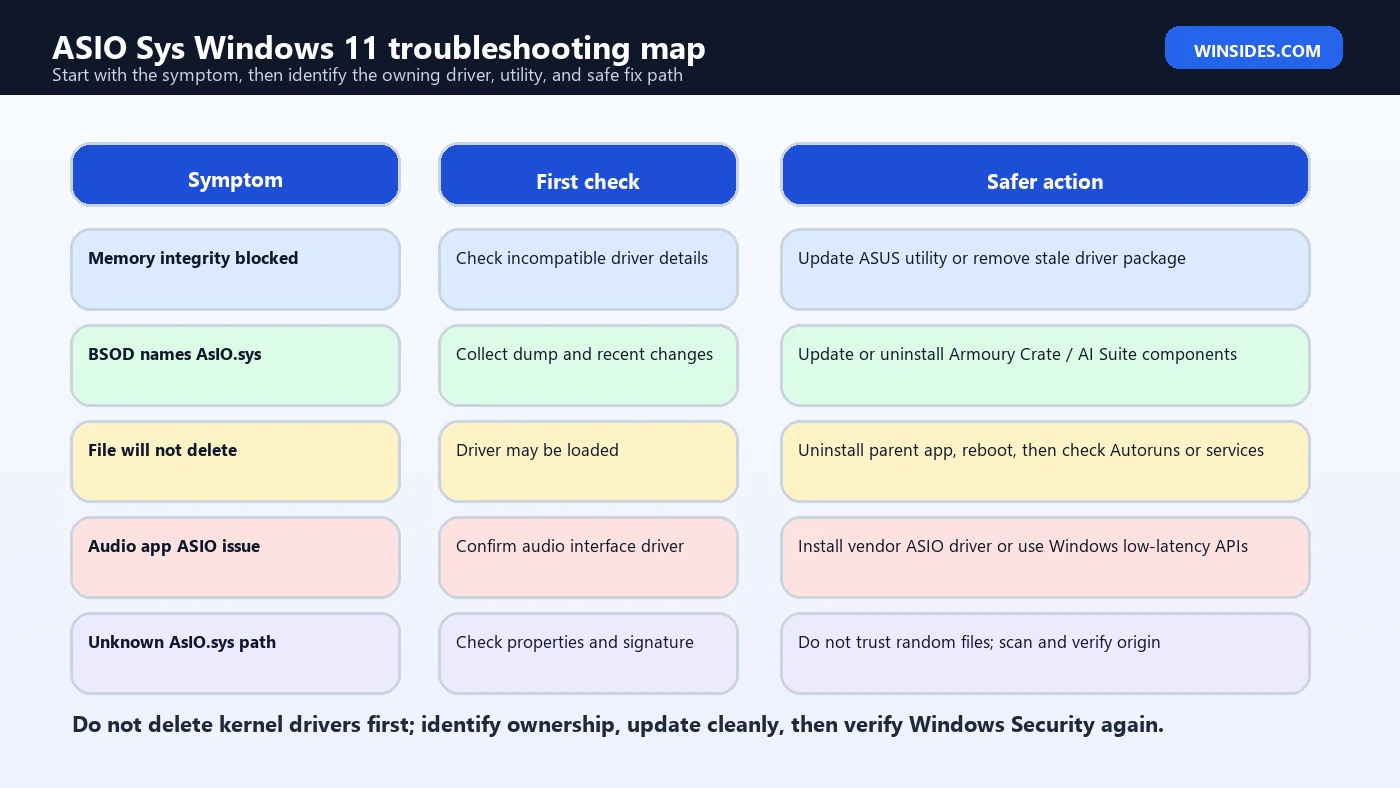
- Windows Security says Memory integrity cannot be turned on because of an incompatible driver named AsIO.sys.
- A blue screen, reliability report, or crash dump names AsIO.sys or an ASUS utility driver path.
- Armoury Crate, Aura Sync, AI Suite, or ASUS Framework Service fails after a Windows 11 update.
- A stale ASUS service remains after uninstalling an older motherboard or laptop utility.
- The file cannot be deleted because Windows says it is in use or protected.
- A user confuses AsIO.sys with an audio ASIO driver and tries to fix the wrong problem.
- Device security warnings remain even after uninstalling the visible ASUS app because a driver package or service remains registered.
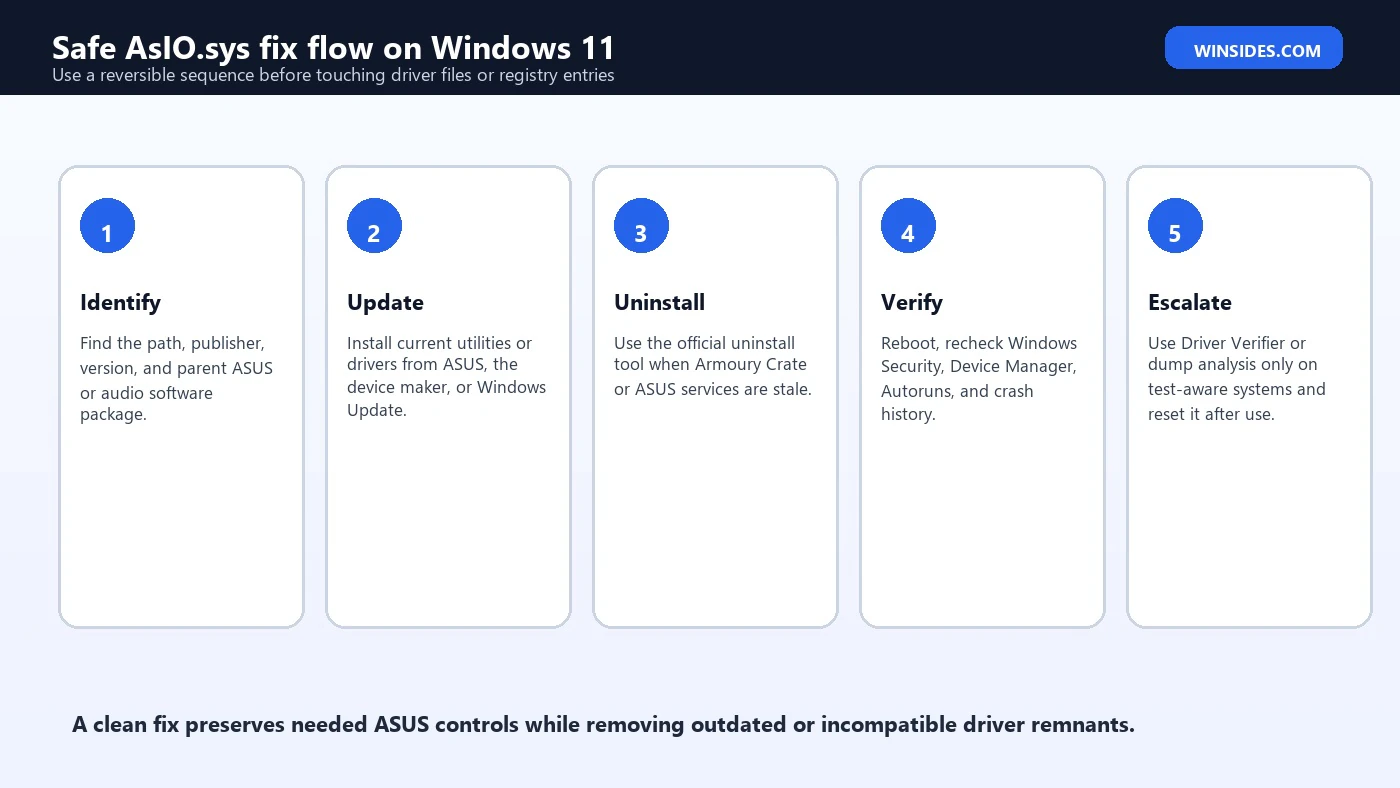
Step 1: Identify the Driver Before Removing It
Start by finding exactly what Windows is reporting. In Windows Security, go to Device security, then Core isolation details, and review the incompatible driver list if Memory integrity is blocked. Note the driver name, published name, version, date, and path if shown. Take a screenshot or write the details down before changing anything.
Next, check installed ASUS software. Look for Armoury Crate, Aura Creator, Aura Service, ASUS Framework Service, ROG Live Service, AI Suite, motherboard utilities, fan-control software, or older ASUS support tools. ASUS documentation says Armoury Crate supports Windows 10 and Windows 11 and provides official install and uninstall instructions, including the Armoury Crate Uninstall Tool for removing related apps and services. That is safer than manually deleting driver files.
If the driver path is visible, inspect the file properties. Check the digital signature, product name, company, and version. If the path or signature looks wrong, scan the file with Windows Security and treat it as suspicious. A legitimate driver should not be living in a random downloads folder with no trustworthy publisher information.
Step 2: Update ASUS Utilities and Drivers
If you still use ASUS features, update before uninstalling. On an ASUS laptop, ROG desktop, TUF system, or ASUS motherboard, Armoury Crate may control fan modes, lighting, performance profiles, keyboard hotkeys, device pages, BIOS-related utilities, or firmware-related services. ASUS documentation describes Armoury Crate as an integration application for ROG and TUF systems, combining performance adjustment, device settings, and lighting features. Removing it may be acceptable, but know what you are giving up first.
Use your ASUS model support page, Armoury Crate update section, MyASUS, Windows Update, or the official ASUS installer route for your model. Do not use driver bundles from random forums. If an updated ASUS package replaces the old AsIO.sys driver with a compatible version, Memory integrity may turn on after a reboot without any manual removal.
If the issue started after a Windows update, a clean update from ASUS may still be the best fix. Windows changes security checks over time, and OEM utilities must keep up. A stale utility that worked on Windows 10 or early Windows 11 may not be ideal on a current Windows 11 build.
Step 3: Cleanly Uninstall Armoury Crate or Old ASUS Software
If you do not need the ASUS utility anymore, or if updating does not help, uninstall cleanly. ASUS provides instructions for uninstalling Armoury Crate-related apps and services and points users to the Armoury Crate Uninstall Tool. This matters because Armoury Crate is not just one visible app. It can include services, frameworks, lighting components, live services, and device-specific packages. Normal Apps settings removal may not remove every related component.
After using an official uninstaller, restart Windows. Rebooting is not optional when kernel drivers are involved. A driver may remain loaded until the next restart even if its app is gone. After the reboot, check Windows Security again. If Memory integrity now turns on, the stale driver was likely the blocker. If not, review the incompatible driver list again because there may be more than one old driver involved.
If uninstallation fails, ASUS guidance suggests restarting and running the uninstall tool again, and collecting logs if the problem persists. That is better than forcing registry deletions. Forced removal can leave broken services, missing files, or startup entries that produce new errors on every boot.
Step 4: Use Autoruns to Find Leftover Startup Drivers
Microsoft Sysinternals Autoruns is useful when a driver or service remains after an app is supposedly removed. Microsoft describes Autoruns as a tool that shows programs and drivers configured to run during bootup or login, including services and many autostart locations. It can also hide signed Microsoft entries so third-party entries are easier to see.
Use Autoruns carefully. Run it as administrator, enable signature verification if needed, hide Microsoft entries, and search for ASUS, AsIO, Armoury, Aura, or related service names. If you find an old startup entry, disabling it is often safer than deleting it immediately. Disabling lets you reboot and test whether the system still works. Deleting removes the recovery path.
Autoruns is powerful enough to break things if used carelessly. Do not disable random drivers because they look unfamiliar. Focus on entries that match the incompatible driver, stale ASUS packages, or software you already chose to remove. If the PC depends on ASUS hotkeys or fan control, confirm those features still work after disabling anything.
Step 5: Check Device Manager and Installed Driver Packages
Device Manager can help when AsIO.sys is connected to a device, component, or service stack. Microsoft notes that Device Manager displays device information including type, status, manufacturer, properties, and driver details. It can also show hidden devices. This is useful when an old software component remains tied to a device or system component.
Open Device Manager, enable hidden devices from the View menu, and review system devices, software components, and ASUS-related devices. Do not uninstall every hidden item. Hidden devices may include legitimate disconnected hardware. Use the Driver tab and Details tab to understand what you are seeing. If an ASUS component has a driver date or provider that matches the incompatible driver, update or remove it using the correct package path.
Advanced users may also use pnputil to list and remove driver packages, but that should be done only when you know the published driver name and have a rollback plan. Removing the wrong driver package can break hardware controls. For most users, official ASUS uninstall/update tools and Device Manager are safer.
What to Do If AsIO.sys Causes a Blue Screen
A blue screen naming AsIO.sys means Windows crashed in or around that driver path. The most useful first question is what changed recently. Did Armoury Crate update? Did Windows Update install a new build? Did you install AI Suite, Aura, a motherboard utility, a fan-control tool, or a BIOS helper? Did you enable Memory integrity? Did you update BIOS or chipset drivers? The timeline often points to the cause.
Start with safe steps: update ASUS utilities, update chipset drivers from the device or motherboard support page, uninstall old ASUS tools you no longer need, and reboot. Check Reliability Monitor for repeated failures. If the PC crashes before you can work normally, use Safe Mode to remove the problematic utility or roll back recent changes. Avoid running stress tools before basic updates and cleanup are done.
Driver Verifier can help identify driver bugs, but Microsoft warns that running it can cause the computer to crash and says it should be used on computers used for testing and debugging. That warning matters. Driver Verifier is not a casual repair button. If you enable it on your daily PC without knowing how to turn it off from Safe Mode or recovery, you can create a boot loop. Use it only when you are prepared to debug and reset it.
Commands That Help Advanced Users
The following commands are useful for investigation, not blind removal. Run Command Prompt or Windows Terminal as administrator. Read the output carefully. If you are not sure what a driver package belongs to, stop and use the vendor tools first.
pnputil /enum-drivers | findstr /i "asus asio aura armoury"
sc query type= driver | findstr /i "asio asus aura armoury"
driverquery /v /fo table | findstr /i "asio asus"
These commands can show whether Windows still has ASUS or AsIO-related drivers registered. They do not prove that every entry is bad. A current ASUS laptop may legitimately need ASUS services. The goal is to identify stale or incompatible entries, then remove them through the correct uninstaller or updated package when possible.
If Your Problem Is Audio ASIO, Use a Different Fix
If your issue is inside music software, the fix is different. ASIO audio drivers are used for low-latency recording and playback, especially with audio interfaces. Microsoft documentation notes that ASIO can let applications send data directly to a third-party ASIO driver, but the application must be written to talk directly to that driver. In normal terms, your DAW needs the correct driver for your audio interface.
For audio ASIO problems, install the latest driver from your audio interface manufacturer. Then open the DAW audio settings and select the correct ASIO device. If the device is disconnected, powered off, already used exclusively by another app, or installed with the wrong driver, the DAW may show no ASIO device. This is unrelated to ASUS AsIO.sys unless the ASUS utility is separately causing system instability.
If you do not have a professional audio interface, consider WASAPI or the app’s built-in Windows audio options. Modern Windows has low-latency audio improvements, and many recording or streaming apps work acceptably without a third-party ASIO driver. Avoid installing random universal ASIO drivers unless you understand the trade-offs, because they can add another layer of audio troubleshooting.
Memory Integrity: Should You Turn It Off?
Turning off Memory integrity may make a warning disappear, but it does not fix the incompatible driver. Microsoft describes Memory integrity as a VBS feature that strengthens protection against malware trying to exploit the Windows kernel. If a driver blocks it, the cleaner fix is to update or remove the incompatible driver. Disabling security should be temporary, documented, and tied to a specific business or hardware requirement.
There are cases where a user may choose to keep Memory integrity off because essential hardware or software depends on a driver that has no compatible update. That should be a conscious decision, not a default workaround. If you must keep it off, reduce risk by keeping Windows updated, downloading drivers only from official vendors, avoiding unnecessary kernel utilities, and replacing unsupported software when possible.
For most home users, the better target is: remove stale ASUS components, install current ASUS software only if needed, reboot, and turn Memory integrity back on. If the PC is used for work, check organizational policy before changing Device security settings.
Safe Removal Decision Table
| Situation | Best first action | Avoid |
|---|---|---|
| Memory integrity lists AsIO.sys | Update or cleanly uninstall the parent ASUS utility | Deleting SYS files without knowing the package |
| Armoury Crate still needed | Install the latest ASUS-supported version for your model | Removing services that control fans or hotkeys |
| Old AI Suite no longer used | Uninstall with ASUS tools, reboot, then verify | Keeping stale monitoring drivers forever |
| Blue screen names AsIO.sys | Update/remove ASUS utilities and review crash timeline | Running Driver Verifier without a recovery plan |
| DAW cannot find ASIO driver | Install the audio interface vendor driver | Treating ASUS AsIO.sys as an audio driver fix |
| Unknown AsIO.sys file path | Check signature, scan, and identify publisher | Trusting random driver files from forums |
Why Deleting AsIO.sys Can Backfire
Deleting a driver file can leave Windows with a registered service that points to a missing file. The next boot may produce errors, failed services, broken ASUS controls, or repeated event logs. If the file is currently loaded, Windows may refuse to delete it anyway. If permissions are changed forcefully, you can create a messy state that is harder to repair than the original warning.
A clean uninstall removes the app, services, drivers, scheduled tasks, and package references in a coordinated way. That is why vendor uninstall tools matter. ASUS specifically documents an Armoury Crate Uninstall Tool for removing Armoury Crate-related apps and services. When a vendor provides a cleanup path, use it before manual file surgery.
Manual deletion belongs near the end of a careful repair process, and even then it should be guided by known package names, backups, restore points, and clear evidence that the file is orphaned. Most users should not need that path if they use current ASUS packages or the official uninstaller.
How to Verify the Fix Worked
- Restart Windows after updating or uninstalling the ASUS package.
- Open Windows Security and check Device security > Core isolation details.
- Try turning Memory integrity on if it was previously blocked.
- If Windows lists another incompatible driver, handle that driver separately.
- Open Armoury Crate, MyASUS, hotkey controls, fan mode, or lighting controls if you still depend on them.
- Check Reliability Monitor for new crashes after the reboot.
- Use Autoruns or Device Manager only if a stale entry still appears after normal cleanup.
Special Case: ASUS Laptop or ROG Ally Controls
On ASUS gaming laptops, desktops, handhelds, and ROG devices, Armoury Crate or Armoury Crate SE can be more than decorative software. It may control performance modes, fan curves, lighting, refresh-rate shortcuts, device profiles, game libraries, or hardware-specific settings. Removing it may fix a driver warning but create an everyday usability problem. That is why update-first is often better than remove-first on ASUS systems.
If you own a ROG or TUF system, check the model support page and ASUS guidance for the correct software line. A motherboard utility package is not the same as a handheld control center. A laptop hotkey package is not the same as a desktop lighting tool. Matching the package to the model reduces the chance of installing old or unnecessary drivers.
If a business or school manages the PC, do not independently remove vendor management components without confirming the support policy. Some utilities may be part of the approved image. Document the incompatible-driver warning and ask for an updated vendor package.
Special Case: Old Motherboard Utilities
Desktop builders often encounter AsIO.sys after years of ASUS motherboard utilities. A system may have started on Windows 10, upgraded to Windows 11, changed GPUs, updated BIOS, removed AI Suite, installed Armoury Crate, and accumulated old services along the way. In that environment, stale drivers are common.
For older desktop systems, list installed ASUS components and decide what you still need. If you no longer use AI Suite fan control, old Aura components, or motherboard monitoring tools, remove them cleanly. If you still need fan control, replace the old package with a current supported method. If the board is too old to receive compatible utilities, consider BIOS-level fan profiles instead of a kernel utility running in Windows.
The goal is a stable Windows 11 system with only necessary drivers. Every low-level monitoring utility adds another component that can conflict with security features, updates, or sleep behavior. Keep the useful pieces; remove the abandoned pieces.
Special Case: Audio Production PCs
A music-production PC may contain both topics at once: ASUS motherboard utilities and audio ASIO drivers. That can make searches for asio sys windows 11 especially confusing. Keep the layers separate. Your audio interface ASIO driver affects DAW latency and input/output selection. ASUS AsIO.sys affects ASUS hardware utility access and possibly Windows security compatibility. They are not interchangeable.
For audio work, prioritize the audio interface vendor driver and stable USB or Thunderbolt connection. Set the DAW to the correct ASIO device, choose a sensible buffer size, and test recording latency. If Windows Security also complains about AsIO.sys, handle the ASUS utility separately. Do not remove your audio interface driver because an ASUS file has a similar name.
If low-latency audio is the goal and you do not have vendor ASIO support, test WASAPI exclusive or the DAW’s recommended Windows driver mode. Microsoft documents Windows low-latency audio improvements and WASAPI options, so modern Windows may be more capable than older advice suggests.
Frequently Asked Questions
Is AsIO.sys a virus?
Not usually if it is a legitimate ASUS-signed driver installed by ASUS utilities. However, verify the path, publisher, and signature. A suspicious copy in an unusual folder should be scanned and investigated.
Why does Windows 11 say AsIO.sys is incompatible?
Most often because an older kernel driver is not compatible with Memory integrity or current Windows 11 security requirements. Updating or removing the parent ASUS utility is the safer fix.
Can I delete AsIO.sys?
Do not start by deleting it. Use the ASUS uninstall tool or update the related software first. Manual deletion can leave broken services or missing-driver errors.
Is AsIO.sys the same as an ASIO audio driver?
No. ASIO audio is a low-latency audio driver model for music software. AsIO.sys is commonly seen as an ASUS utility driver file. The similar names cause confusion.
Does Armoury Crate install AsIO.sys?
ASUS utilities such as Armoury Crate, Aura, AI Suite, or related services can install low-level components. The exact file and version depend on the model and package.
How do I fix Memory integrity blocked by AsIO.sys?
Update ASUS software and drivers, or cleanly uninstall Armoury Crate or older ASUS utilities with the official uninstall tool. Reboot and check Windows Security again.
What if AsIO.sys causes a blue screen?
Update or remove the related ASUS utility, check recent changes, use Safe Mode if needed, and avoid Driver Verifier unless you know how to recover from verifier-induced crashes.
Should I keep Memory integrity off?
Only if essential software or hardware has no compatible driver and you accept the risk. The better fix is a compatible driver or removal of the outdated driver.
What if my DAW cannot find ASIO?
Install the latest driver from your audio interface maker and select it inside the DAW. That is an audio-driver issue, not an ASUS AsIO.sys cleanup issue.
Conclusion: Fix the Right ASIO Sys Problem
ASIO Sys Windows 11 troubleshooting starts with one important distinction: AsIO.sys driver problems and audio ASIO problems are different. If Windows Security, Memory integrity, a blue screen, or a driver list mentions AsIO.sys, investigate ASUS utilities, stale kernel drivers, Armoury Crate, Aura, AI Suite, services, and driver packages. If a DAW or recording app cannot use ASIO, investigate the audio interface driver and Windows audio path instead.
For the ASUS driver path, update first if you still need ASUS controls. If you do not need them, use official ASUS uninstall guidance, reboot, and verify Windows Security again. Use Device Manager, Autoruns, and command-line tools only to identify leftovers, not to delete random items. Use Driver Verifier only with a recovery plan because Microsoft warns it can intentionally crash systems while testing drivers.
The clean fix is boring but reliable: identify the file, identify the owner, update or uninstall the owner, reboot, and verify. That approach protects useful ASUS hardware controls, avoids breaking Windows with manual driver deletion, and keeps Memory integrity as the long-term target whenever compatible drivers are available.
For more interesting articles, stay tuned to Winsides.com!









Community
Comments (0)