

Introduction to OneNote for Windows 11
OneNote for Windows 11 is the note-taking app most Windows users should choose when they want notebooks that sync across a PC, phone, tablet, browser, Microsoft 365 account, or school/work account. It can handle typed notes, handwritten ink, screenshots, meeting notes, research clippings, PDFs, checklists, audio notes, and shared notebooks. The confusing part is not whether OneNote works on Windows 11. The confusing part is which OneNote app to use.
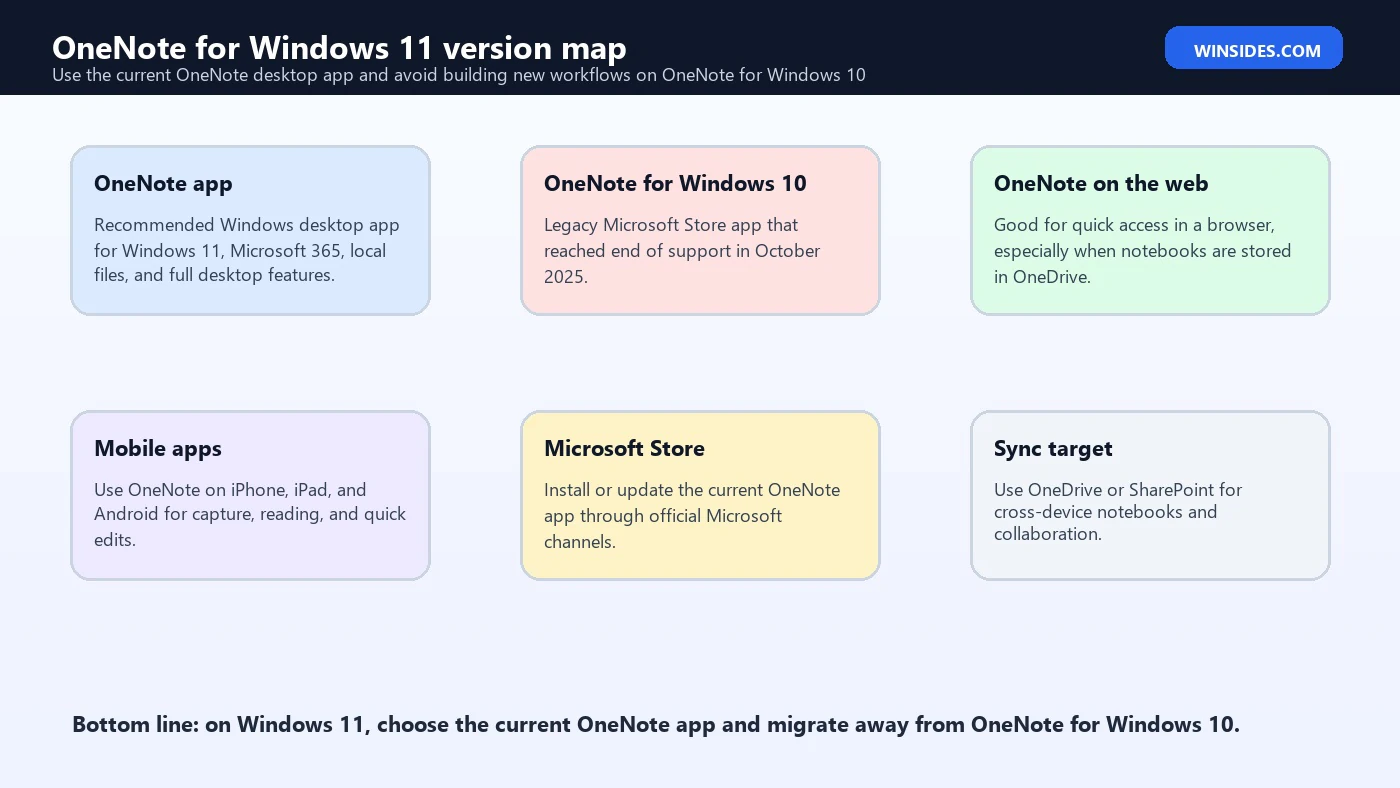
Microsoft has had multiple OneNote experiences on Windows over the years. The current recommendation for Windows 11 is the desktop OneNote app, usually called simply OneNote. It is the version included with Microsoft 365 and available through official Microsoft download and Store channels. The older Microsoft Store app called OneNote for Windows 10 reached end of support in October 2025, so it should not be the app you build a new workflow around in 2026.
That distinction matters for students, professionals, teachers, researchers, project managers, and anyone who keeps important notes in notebooks. A note app is not just a text editor. It is a sync system, a filing system, a search tool, and sometimes a collaboration hub. Choosing the wrong version, saving notebooks in the wrong place, or ignoring sync warnings can create confusion later when notes do not appear on another device.
This guide explains which OneNote app to use on Windows 11, how to install it, how to migrate from OneNote for Windows 10, how to organize notebooks, how sync works, which features matter, and how to troubleshoot common problems. It is written for practical Windows 11 users, not only Microsoft 365 administrators.
For official context, use Microsoft resources on the differences between OneNote versions, basic OneNote tasks on Windows, the official OneNote download page, and the OneNote listing in the Microsoft Store.
Table of contents
Key Takeaways
- Use the current OneNote desktop app on Windows 11. It is the main Windows app Microsoft points users toward now.
- OneNote for Windows 10 is legacy. Microsoft says OneNote for Windows 10 reached end of support in October 2025, so avoid building new note systems on it.
- Store important notebooks in OneDrive or SharePoint if you need sync. Local-only notebooks can be useful, but they are not the right choice for cross-device access.
- Keep notebooks broad and pages specific. A clean structure makes search, sync, sharing, and archiving easier.
- Check sync status before uninstalling or switching apps. Confirm your latest notes exist online before removing an old OneNote app.
- Use OneNote on the web as a recovery checkpoint. If a notebook opens correctly in the browser, the cloud copy is likely intact.
- OneNote is strongest when it becomes a system. Use sections, tags, search, templates, ink, and sharing deliberately instead of treating every page like a random scratchpad.
Which OneNote App Should You Use on Windows 11?
The best OneNote app for Windows 11 is the current desktop OneNote app, generally labeled OneNote. This is the app with the fuller desktop feature set and the long-term path for Windows users. It works with Microsoft 365, personal Microsoft accounts, work or school accounts, OneDrive, SharePoint, local notebooks in supported scenarios, ink, tags, search, templates, printouts, and the desktop-style ribbon experience.
The app you should avoid relying on for new workflows is OneNote for Windows 10. That older Store app had a different interface and was once common on Windows 10 systems, but Microsoft now identifies it as reaching end of support in October 2025. It may still exist on some upgraded PCs, but end of support means it should be treated as a migration source, not as the future home for your notebooks.
OneNote on the web is also useful, but it serves a different role. It is great for opening notebooks quickly in a browser, verifying cloud sync, editing from a device where the desktop app is not installed, and collaborating through a Microsoft account. It is not always a full replacement for the desktop app, especially if you use advanced desktop features, local files, printouts, or extensive keyboard workflows.
How to Install OneNote on Windows 11
Start from official Microsoft sources. If you have Microsoft 365 installed, OneNote may already be available from the Start menu. Search for OneNote, not only OneNote for Windows 10. If the app is missing, use the official OneNote download page or the Microsoft Store listing. Avoid random download sites because note apps handle account sign-ins and sensitive personal information.
After installation, sign in with the account that owns your notebooks. This detail is easy to miss. A personal Microsoft account, a work account, and a school account are different identities. If a notebook seems missing, you may simply be signed into the wrong account. In many cases, the account shown in OneNote must match the account that owns the OneDrive or SharePoint location.
Once signed in, open your existing notebooks from the cloud. If you are migrating from OneNote for Windows 10, open the same notebooks in the current OneNote app and confirm the latest pages, sections, and changes appear. Do not uninstall the old app until you know the notebooks are synced and accessible from the new app or from OneNote on the web.
Migrating from OneNote for Windows 10
Migration is usually straightforward if your notebooks are already stored in OneDrive or SharePoint. The notebook is not locked inside the old app. The app is a client that opens the notebook from the cloud location. Install the current OneNote app, sign in with the correct account, open the notebook, wait for sync, and compare important sections before removing the old app.
The most important step is sync verification. Open OneNote for Windows 10, check sync status, and let pending changes finish. Then open OneNote on the web and confirm the same latest notes are present. Then open the notebook in the current OneNote desktop app. If all three views agree, migration is low risk. If the old app has pages that do not appear online, fix sync before uninstalling anything.
If a notebook is stored locally or in an unusual location, be more careful. Local notebooks are easier to lose during app transitions, profile changes, PC resets, or drive failures. Back up important data first. If you want cross-device access, move the notebook into OneDrive or SharePoint using supported OneNote methods rather than manually moving random folders in File Explorer.
Understanding Notebooks, Sections, and Pages
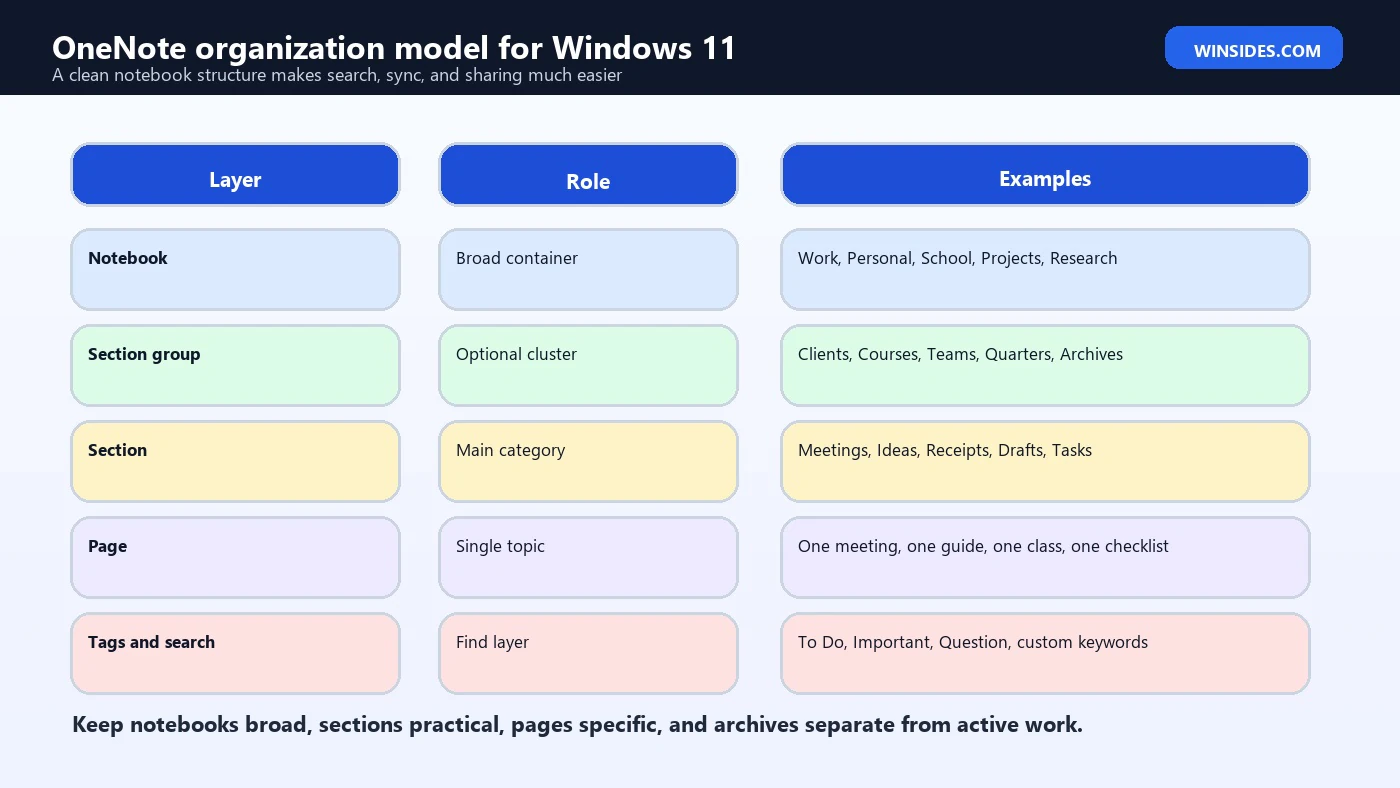
OneNote works best when you understand its structure. A notebook is the broad container. A section is a category inside that notebook. A page is an individual note. Section groups can add another layer when a notebook becomes large. This is different from a folder full of Word documents because OneNote encourages fast capture, flexible page layout, and search across many pages.
A common mistake is creating too many notebooks. If every small project becomes a separate notebook, sync, sharing, and search can become messy. Another mistake is creating one giant notebook with dozens of unrelated sections. A better balance is to create broad notebooks for major life or work areas, then use sections and pages for active topics. Archive old sections when they are no longer active.
For example, a student might use notebooks for each school year, section groups for semesters, sections for subjects, and pages for lectures. A professional might use notebooks for Work and Personal, section groups for clients or teams, sections for projects, and pages for meetings. A creator might use notebooks for Research, Drafts, Ideas, and References. The structure should match how you search later.
Best Organization Strategy for Windows 11 Users
A practical OneNote structure should make capture easy and retrieval predictable. Start with a default inbox section or quick notes area for things you need to capture quickly. Then review that section regularly and move pages into the correct notebook or section. Without a review habit, OneNote can become a pile of useful fragments that are hard to trust.
Use clear page titles. OneNote search is strong, but titles still matter. A page called Meeting is not useful six months later. A page called Client onboarding checklist – June 2026 is much easier to find. For recurring notes, use a consistent naming pattern such as weekly review 2026-06-24 or project sync 2026-Q3. Keep titles human, not cryptic.
Use tags sparingly but consistently. To Do, Important, Question, Contact, and custom tags can turn notes into an action system. However, tags work best when they mean something specific. If every line is tagged important, nothing is important. Use tags for things you will review, search, or act on later.
Sync: How OneNote Works Across Devices
OneNote sync depends on where the notebook lives. A cloud notebook stored in OneDrive or SharePoint can sync to Windows 11, web, mobile, and other devices. A local notebook stays tied to the PC unless you manually back it up or move it to a cloud location. If cross-device access matters, put the notebook in the cloud from the start.
Sync is not instant magic. Large printouts, images, PDFs, audio, and pasted files can take time. A weak network, VPN, account prompt, storage quota issue, permission change, or conflicted page can delay sync. Before shutting down a PC after heavy note capture, check whether OneNote still shows pending sync. This is especially important after meetings, classes, or handwritten note sessions.
OneNote on the web is the easiest checkpoint. If your latest notes appear in the browser, the cloud copy is likely updated. If they appear only on the Windows app, sync may still be pending. If they appear on the web but not Windows, the local app may need a refresh, account check, notebook close/reopen, update, or cache repair.
Fixing OneNote Sync Problems on Windows 11
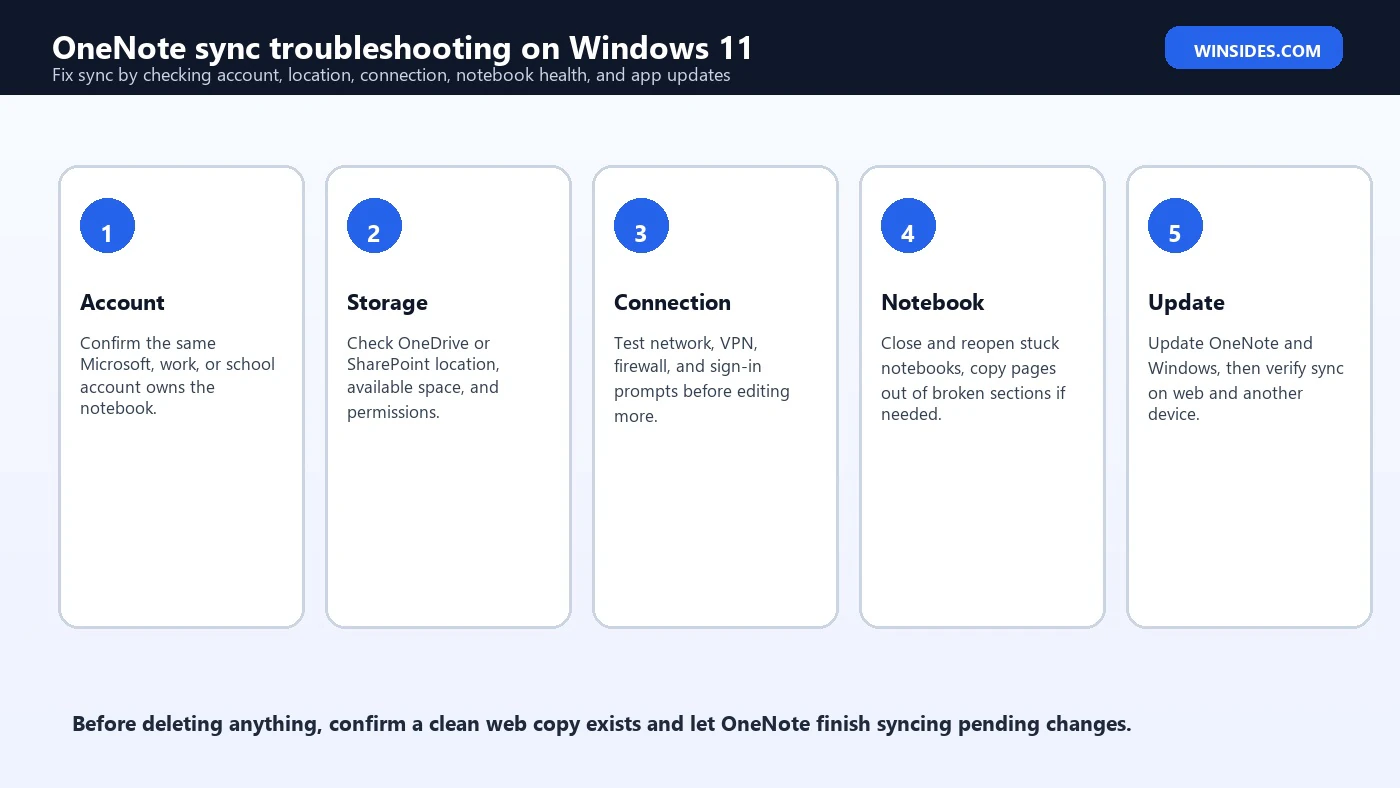
Start with the account. Many sync problems are really identity problems. Confirm that the signed-in account in OneNote is the account that owns the notebook. Work and school tenants can have restrictions, conditional access, or SharePoint permissions that personal accounts do not. If you were invited to a notebook, make sure your permission still exists.
Next, check the storage location. OneDrive may be out of space, SharePoint permissions may have changed, or a notebook may have been moved, renamed, or deleted by another user. Open the notebook in a browser from its cloud location. If it fails there too, the problem is probably not the Windows app. If the browser copy works, the Windows app or local cache is more likely involved.
Then check connectivity and app health. Temporarily disconnect VPN if allowed, test another network, update OneNote, update Windows, and restart the PC. If one section refuses to sync while the rest of the notebook works, create a new section and copy pages from the broken section into it. Do this only after confirming which copy has the latest content.
Using OneNote with Microsoft 365
OneNote becomes more powerful when used with Microsoft 365 because notebooks can live in OneDrive or SharePoint and integrate with Teams, Outlook, meetings, and shared workspaces. In a work environment, shared notebooks can hold meeting notes, project references, onboarding material, team procedures, and brainstorming pages. The key is permission design. Not every notebook should be shared with everyone.
For team use, create notebooks around stable areas rather than temporary tasks. A department notebook, project notebook, or client notebook can make sense. Random personal notebooks shared with many people can become messy because ownership, permissions, and naming are unclear. Decide who owns the notebook, who can edit, who can only read, and where the notebook should live.
OneNote is not a database or a formal document-control system. It is excellent for flexible notes, drafts, references, and shared thinking. For final policies, contracts, or regulated documents, use the right document system and link from OneNote where helpful. This keeps OneNote useful without making it responsible for every kind of information.
Handwriting, Ink, and Touch on Windows 11
OneNote is especially useful on Windows 11 tablets and 2-in-1 devices because it supports pen input. Students can write equations, annotate slides, draw diagrams, mark up PDFs, and mix handwriting with typed notes. Professionals can sketch layouts, mark up meeting notes, or capture ideas quickly during calls. A Surface-style device or pen-enabled laptop can make OneNote feel much more natural than a plain text app.
For ink-heavy use, create a notebook structure before the semester or project starts. Handwritten notes can become difficult to navigate if every page is an endless canvas with vague titles. Use page titles, dates, section names, and consistent templates. If you insert PDFs or slide printouts, give them time to sync before switching devices.
Ink recognition and search can be helpful, but do not rely on it as your only organization method. Clean handwriting, good page titles, and section structure still matter. If a page is important, add typed keywords at the top so search can find it reliably later.
Templates, Meeting Notes, and Checklists
Templates are one of the easiest ways to make OneNote more useful. A meeting-note template can include agenda, attendees, decisions, action items, links, and follow-up date. A class-note template can include topic, readings, questions, examples, and revision prompts. A project template can include objective, resources, risks, next steps, and reference links.
Checklists are useful, but they can also scatter tasks across many pages. If you use OneNote for tasks, create a review habit. Once or twice a day, search for To Do tags or review your action sections. Otherwise, tasks buried in notes can disappear. For formal task management, Microsoft To Do, Planner, or another task tool may be better, with OneNote holding the supporting detail.
Meeting notes should be searchable by project, date, and decision. Use titles that include the meeting subject and date. Keep decisions separate from discussion. Add links to files, tickets, Teams posts, or SharePoint pages. OneNote can become an excellent meeting memory if pages are titled and reviewed consistently.
Privacy, Backup, and Account Safety
OneNote often contains sensitive information: meeting notes, IDs, screenshots, private thoughts, class notes, customer details, account hints, receipts, medical notes, or financial planning. Treat notebooks as important data. Use strong Microsoft account security, enable multi-factor authentication where possible, and avoid storing plain-text passwords or recovery codes inside ordinary notebooks.
Cloud notebooks benefit from Microsoft account recovery and sync, but you still need discipline. If a work notebook belongs to an organization, leaving the organization may remove access. If a personal notebook belongs to the wrong Microsoft account, you may struggle to find it later. Keep a simple record of which account owns important notebooks. For business data, follow company retention and sharing rules.
Backups matter most for local notebooks and critical cloud notebooks. If you use desktop OneNote with local storage features, review backup settings. If you rely on OneDrive or SharePoint, remember that sync is not the same as a traditional offline backup. Deleted pages, accidental edits, and permission mistakes can sync too. Use version history and recycle bins where available, and export critical material when needed.
Performance Tips for Large Notebooks
Large notebooks can become slow if they contain years of PDFs, images, printouts, audio files, embedded attachments, and screen clippings. OneNote can handle a lot, but every sync client has limits in practice. If a notebook feels sluggish, archive old sections, split very large notebooks, reduce huge embedded files, and avoid using OneNote as a dumping ground for every document.
PDF printouts are especially important. Inserting a few pages is fine. Inserting hundreds of pages across many notebooks can make sync heavy. If a PDF is the source document, consider storing it in OneDrive or SharePoint and linking to it, then keeping only annotated or important pages in OneNote. This keeps the notebook responsive while preserving access to the file.
Search performance also improves with structure. A huge notebook full of untitled pages and pasted screenshots is harder to use than several well-labeled notebooks with clear sections. If you cannot find notes quickly, the problem may be organization rather than search technology.
Keyboard Shortcuts and Daily Workflow
OneNote becomes faster when you build a capture routine. Pin it to the taskbar, keep a quick notes section, and use consistent titles. Learn a handful of shortcuts for new page, new section, search, tags, bullets, checkboxes, and formatting. You do not need to memorize everything. Five useful shortcuts used daily are better than a long shortcut list you never use.
For research, use OneNote as a thinking space rather than a warehouse. Clip or paste only what you need, add your own summary, and include source links. A page full of copied text is less useful than a page that explains why the source matters. For study, convert notes into questions, summaries, and review prompts. For work, convert meeting notes into decisions and actions.
A good daily pattern is capture, clarify, organize, review. Capture quickly during the day. Clarify messy notes when you have a few minutes. Organize pages into the right sections. Review tasks and important tags at predictable times. This turns OneNote from a storage app into a reliable personal knowledge system.
OneNote vs Notepad, Word, and Loop
OneNote is not the best tool for every kind of writing. Notepad is better for plain temporary text. Word is better for polished documents, formal formatting, printed reports, and files that must be sent as documents. Microsoft Loop is better for certain collaborative components and live workspaces. OneNote is strongest when you need flexible notebooks, mixed media, search, ink, and ongoing reference material.
If a note needs to become a formal document, draft in OneNote if you like, then move the final version to Word. If a note is a quick scratch, Notepad may be faster. If a note is a living team component that belongs in a Loop workspace, use Loop. Do not force OneNote to be every tool. It works best when paired with the right Microsoft 365 app for the final output.
The advantage of OneNote is continuity. A Word document is often a finished artifact. A OneNote notebook can be a living place where ideas, links, meeting notes, sketches, references, and checklists accumulate over time. That makes it powerful when organized well and chaotic when ignored.
Recommended Setup for Most Windows 11 Users
- Install or update the current OneNote desktop app from Microsoft sources.
- Sign in with the Microsoft, work, or school account that owns your notebooks.
- Move important cross-device notebooks to OneDrive or SharePoint.
- Open OneNote on the web to confirm the cloud copy is current before uninstalling old apps.
- Create broad notebooks, practical sections, and specific page titles.
- Use tags for actions and review them regularly.
- Archive old sections instead of letting active notebooks grow forever.
- Avoid storing plain-text passwords, secret keys, or recovery codes in ordinary notebook pages.
Troubleshooting Checklist
| Problem | Likely cause | Best first action |
|---|---|---|
| Notebook missing | Wrong account or closed notebook | Check signed-in account and open from OneDrive or SharePoint |
| Notes not on phone | Sync pending on PC | Open OneNote on the web and confirm latest cloud copy |
| Sync error in one section | Corrupt or stuck section changes | Copy pages to a new section after confirming latest content |
| App feels slow | Large notebook or heavy printouts | Archive old sections and reduce huge embedded files |
| Old OneNote app still installed | OneNote for Windows 10 remains after upgrade | Migrate notebooks to current OneNote and verify sync before uninstalling |
| Cannot share notebook | Storage location or permission issue | Move to OneDrive or SharePoint and review permissions |
Frequently Asked Questions
Is OneNote available for Windows 11?
Yes. The current OneNote desktop app works on Windows 11 and is the recommended Windows app for most users.
Which OneNote should I use on Windows 11?
Use the current app called OneNote. Avoid building new workflows on OneNote for Windows 10 because Microsoft says it reached end of support in October 2025.
Is OneNote free on Windows 11?
OneNote is available from Microsoft, and many core note-taking features can be used without buying Microsoft 365. Some storage, account, or organizational features depend on your Microsoft account or Microsoft 365 environment.
Can I still use OneNote for Windows 10?
It may still exist on some PCs, but it is legacy and unsupported after October 2025. Migrate to the current OneNote app.
Where are OneNote notebooks stored?
Cloud notebooks are commonly stored in OneDrive or SharePoint. Some desktop scenarios can use local notebooks, but cloud storage is better for sync and cross-device access.
How do I move notes from OneNote for Windows 10 to OneNote?
Sync the notebooks fully, open them in the current OneNote app with the same account, verify the latest pages online and in the new app, then remove the old app only after checking important notebooks.
Why is OneNote not syncing on Windows 11?
Common causes include wrong account, network issues, VPN or firewall restrictions, OneDrive storage limits, changed permissions, large attachments, or a stuck section.
Is OneNote better than Word for notes?
For flexible notebooks, ink, search, screenshots, and ongoing reference material, yes. For polished formal documents, Word is better.
Can I use OneNote offline?
Yes, the desktop app can cache notebooks for offline use, but cloud notebooks sync when you reconnect. Check sync status before relying on another device.
Conclusion: Use the Current OneNote App on Windows 11
OneNote for Windows 11 is best handled by using the current OneNote desktop app, not the older OneNote for Windows 10 app. Microsoft has moved the Windows path toward the main OneNote app, while OneNote for Windows 10 reached end of support in October 2025. If you are starting fresh, install the current app. If you are migrating, verify sync before removing the old app.
A reliable OneNote setup depends on more than installation. Use the right account, store cross-device notebooks in OneDrive or SharePoint, keep notebooks broad, name pages clearly, use tags deliberately, and check sync status after heavy edits. OneNote is powerful because it can hold typed notes, ink, images, printouts, links, checklists, and shared project knowledge in one searchable place.
The safest workflow is simple: install from Microsoft, open notebooks with the correct account, verify cloud sync through OneNote on the web, organize before notebooks become messy, and troubleshoot sync from account and storage outward. Done well, OneNote can become one of the most useful Windows 11 apps on your PC.
If you already depend on OneNote every day, schedule a quick monthly cleanup. Rename vague pages, move finished projects into archive sections, delete duplicate scratch notes, confirm important notebooks still sync online, and review who can access shared notebooks. This small habit prevents OneNote from becoming slow, cluttered, or risky over time.
For more interesting articles, stay tuned to Winsides.com!









Community
Comments (0)