

Introduction to the Best Video Player for Windows 11
Choosing the best video player for Windows 11 is not as simple as picking the app with the longest feature list. A good video player has to open the files you actually watch, handle subtitles cleanly, play modern codecs smoothly, respect your preferred audio setup, and stay out of your way. Some users only need a simple player for MP4 files. Others need HEVC, AV1, HDR, Blu-ray folders, network shares, multiple audio tracks, subtitle timing controls, or a TV-friendly library interface.
The best overall answer for most Windows 11 users is VLC media player because it is free, widely trusted, format-friendly, and easy to recommend to people who do not want to think about codecs. However, VLC is not the only good answer. The built-in Windows Media Player is fine for simple local playback. mpv is excellent for users who care about rendering quality and keyboard-driven control. MPC-HC remains a great classic Windows-style player. PotPlayer is powerful for people who want deep settings. Kodi is better when the PC is part of a living-room media center.
This guide ranks the strongest options by real use case instead of pretending one app is perfect for every person. A laptop user watching downloaded lectures, a home-theater user playing a local movie library, a video editor previewing test files, and a power user tuning HDR playback all have different needs. The right player is the one that handles your files reliably without adding security risks or unnecessary complexity.
For official context, keep the project pages for VLC media player, mpv, MPC-HC, PotPlayer, and Kodi for Windows nearby. Downloading from official sources matters because media players handle untrusted files, subtitles, streams, and codecs.
Table of contents
Key Takeaways
- VLC is the best overall video player for Windows 11 for most users because it is free, familiar, and handles a wide range of formats without extra codec hunting.
- The built-in Windows Media Player is enough for simple use. If your files are common MP4 videos and you do not need advanced subtitle or renderer controls, start there.
- mpv is the best choice for enthusiasts. It is minimal, scriptable, highly configurable, and strong for high-quality rendering when you are comfortable with keyboard-first control.
- MPC-HC is ideal for a classic Windows player experience. It is lightweight, familiar, and useful for users who want menus, hotkeys, subtitles, and renderer flexibility.
- PotPlayer is powerful but settings-heavy. It suits advanced users who like many playback options, filters, and hardware acceleration controls.
- Kodi is not just a player; it is a media center. Use it when you want a couch-friendly library for local and network media, posters, metadata, and remote navigation.
- Avoid random codec packs and mirror downloads. Install players from official sources, test your real files, then set defaults in Windows Settings.
Best Overall: VLC Media Player
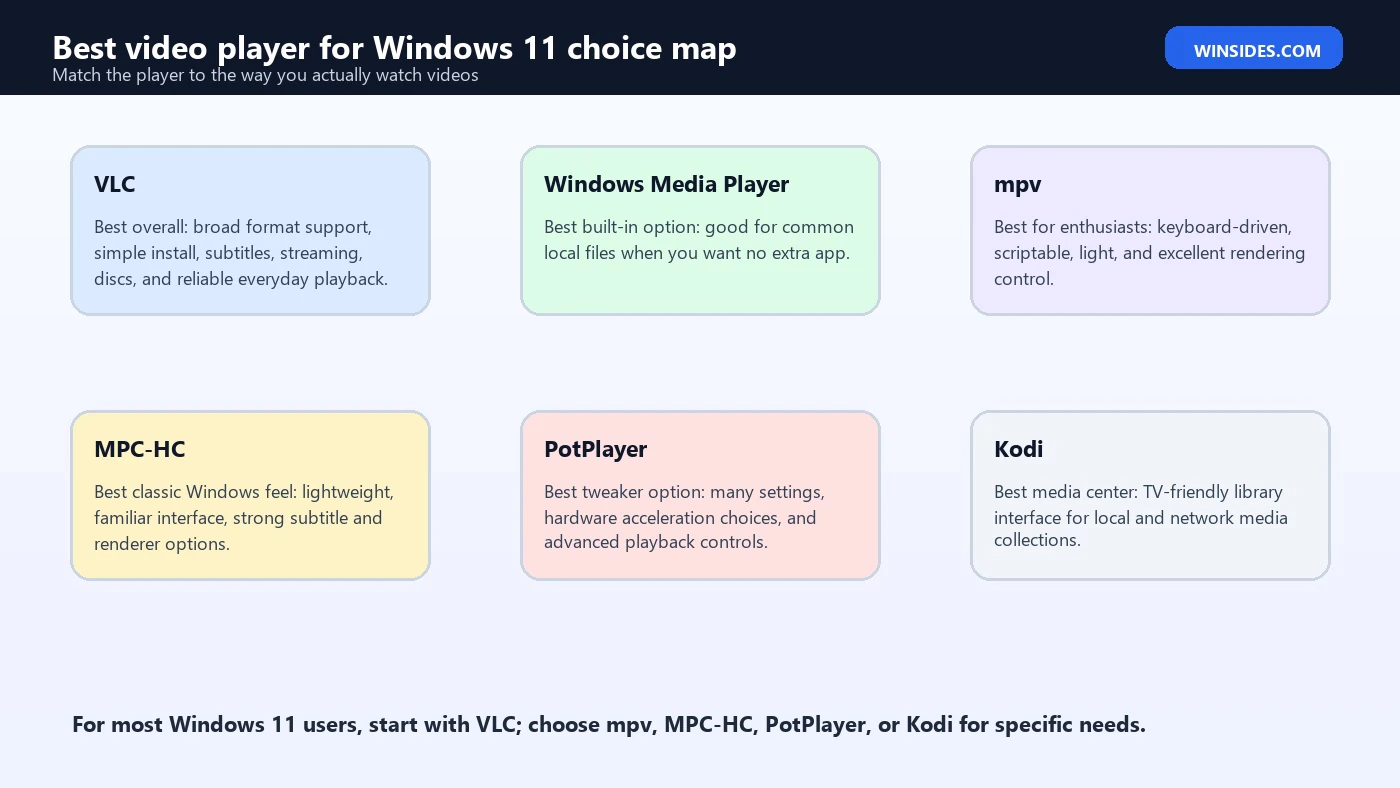
VLC is the safest first recommendation because it solves the most common Windows 11 video problems with the least friction. It plays many containers and codecs, opens local files, supports subtitles, handles playlists, can open network streams, and does not require most users to install separate codec packs. If a friend, family member, student, or office user asks for one reliable video player, VLC is usually the answer.
The biggest strength of VLC is practical compatibility. Windows users often collect videos from phones, cameras, downloads, screen recordings, messaging apps, external drives, and old archives. Those files may arrive as MP4, MKV, MOV, AVI, WebM, MTS, TS, or other containers. A player that opens more of them without complaining saves time. VLC also gives easy access to subtitle loading, audio track switching, aspect ratio changes, playback speed, and basic media information.
VLC is not perfect for every advanced home-theater setup. Some enthusiasts prefer mpv or MPC-HC with a specialized renderer for HDR tone mapping, scaling, or exact audio output behavior. VLC can also expose many settings that casual users never need. Still, its balance of trust, availability, format coverage, and ease makes it the best default third-party video player for Windows 11.
Best Built-In Choice: Windows Media Player
Windows 11 includes a modern Media Player experience, and it is worth trying before installing anything else. For common files, casual viewing, music, and simple playlists, the built-in player is clean and convenient. It integrates with Windows, avoids another installer, and keeps the setup simple for users who only play a handful of typical videos.
The limitation is that built-in simplicity also means fewer advanced controls. If a video has unusual subtitles, multiple audio tracks, a codec Windows does not currently handle, a broken timestamp, or a container that needs more forgiving parsing, you may hit a wall. That is when VLC, MPC-HC, or mpv becomes useful. The built-in player is best seen as the first stop, not the final answer for every media file.
For managed or shared PCs, the built-in option has another advantage: fewer apps to update and support. If the computer belongs to a school, office, family member, or kiosk-style setup, minimizing extra software can be a good decision. Install a third-party player only when there is a real file, subtitle, codec, or workflow requirement.
Best for Power Users: mpv
mpv is a favorite among enthusiasts because it is small, fast, scriptable, and focused on playback quality. It has a minimal interface by default, but behind that simplicity is a powerful configuration system. Users can tune rendering, scaling, HDR behavior, subtitles, audio output, keyboard shortcuts, profiles, scripts, and automation. If you like controlling exactly how playback behaves, mpv is hard to beat.
The trade-off is approachability. mpv does not feel like a traditional Windows media player at first. It has an on-screen controller, but many users operate it through keyboard shortcuts, configuration files, or front-end apps. That is efficient once learned, but it can be confusing for someone expecting menus for every setting. It rewards curiosity and punishes impatience.
Choose mpv if you care about clean rendering, low overhead, scripting, automation, and keyboard-driven control. It is excellent for users who watch high-bitrate files, compare video encodes, test media, or want a player that can be customized deeply. If you simply want to double-click a file and see familiar buttons, VLC or MPC-HC may feel easier.
Best Classic Windows Player: MPC-HC
MPC-HC, short for Media Player Classic – Home Cinema, keeps the classic Windows media-player feel alive while still being maintained through the clsid2 project. It is lightweight, fast, and familiar for people who prefer a compact desktop app instead of a modern oversized interface. Its GitHub page describes it as a free and open-source video and audio player for Windows, and it remains useful on Windows 11.
MPC-HC is especially appealing if you want menus, keyboard shortcuts, subtitle controls, playback history, external filters, renderer choices, and a player that does not try to become a media library. It opens quickly and does its job. Many users pair it with modern renderers or codec-related components, but the best approach is to start with the current official release and add extras only if you know why you need them.
The main caution is source hygiene. The original MPC-HC project stopped years ago, while the clsid2 fork is the actively maintained route. Download from the current project source rather than old download pages. If you want a classic Windows player that still feels sharp, MPC-HC is one of the strongest options.
Best Settings-Rich Player: PotPlayer
PotPlayer is powerful, fast, and loaded with options. It supports Windows 11, offers hardware acceleration paths, and exposes a huge amount of playback configuration. If you want to tweak filters, subtitles, output modes, audio behavior, capture tools, 3D options, playback speed, and interface behavior, PotPlayer can feel like a toolbox rather than a simple app.
That strength can also be a weakness. PotPlayer has so many settings that it can overwhelm users who only want a clean player. It is best for people who enjoy experimenting, not for someone who wants the quietest possible setup. If a setting breaks playback, troubleshooting may take longer because there are many places to look.
Use PotPlayer when you want deep Windows-specific controls and are comfortable reviewing options. Download it from the official PotPlayer site, decline anything you do not need during installation if prompted, and test your own files before making it the default for every video format.
Best Media Center: Kodi
Kodi is different from the other players in this list because it is a media center application, not just a file player. It is designed for a ten-foot interface, which means it makes sense on a TV, projector, living-room PC, or media box. If your goal is to browse a movie and TV library with posters, metadata, remote control, network shares, and a couch-friendly layout, Kodi is often the best fit.
Kodi is excellent for local and network media collections. It can organize libraries, scrape metadata, show artwork, handle media from local storage, and run on multiple platforms. The Windows download page also makes clear that installation is straightforward and that stable releases are recommended for normal users. That makes Kodi a serious option for a Windows 11 home-theater PC.
The caution is content and add-ons. Kodi itself does not provide movies or TV shows. You provide your own local or remote content. Be careful with third-party add-ons and avoid anything that encourages piracy or risky repositories. For a clean local library, Kodi can be excellent. For a single video file on a laptop, VLC or MPC-HC is simpler.
Which Player Should You Choose?
| Use case | Best choice | Reason |
|---|---|---|
| Most users and mixed file types | VLC | Broad format support, easy install, subtitles, streams, and dependable everyday playback |
| Only common local videos | Windows Media Player | Already included, simple, clean, and enough for basic MP4 playback |
| Rendering quality and keyboard control | mpv | Excellent customization, scripts, high-quality output, and low overhead |
| Classic desktop interface | MPC-HC | Lightweight Windows-style player with menus, hotkeys, and strong subtitle support |
| Advanced tweaking | PotPlayer | Many settings for filters, acceleration, subtitles, audio, and playback behavior |
| Living-room media library | Kodi | TV-friendly interface, metadata, posters, network media, and remote navigation |
How to Judge a Video Player on Windows 11
The most important test is your own file collection. A player can look great in a review but fail on the one MKV file, subtitle format, audio track, or camera recording you actually need. Before setting any player as the default, create a small test folder with representative files: a phone recording, a downloaded MP4, a high-bitrate MKV, a subtitle file, an HEVC or AV1 sample if you use those formats, and a file with multiple audio tracks.
Open each file and check the basics. Does video start quickly? Does audio stay in sync? Can you switch audio tracks? Are subtitles positioned correctly? Does seeking work without long delays? Does full-screen mode behave properly on your monitor? Does HDR look correct instead of washed out? Does the player remember position when you reopen a long video? These practical checks matter more than a long feature grid.
Also consider how much interface you want. Some people prefer a clean app with only play, pause, seek, and subtitles. Others want advanced filters, shader options, scripting, playlist automation, and media-library metadata. The best video player for Windows 11 is the one whose complexity matches your patience.
Subtitles and Multiple Audio Tracks
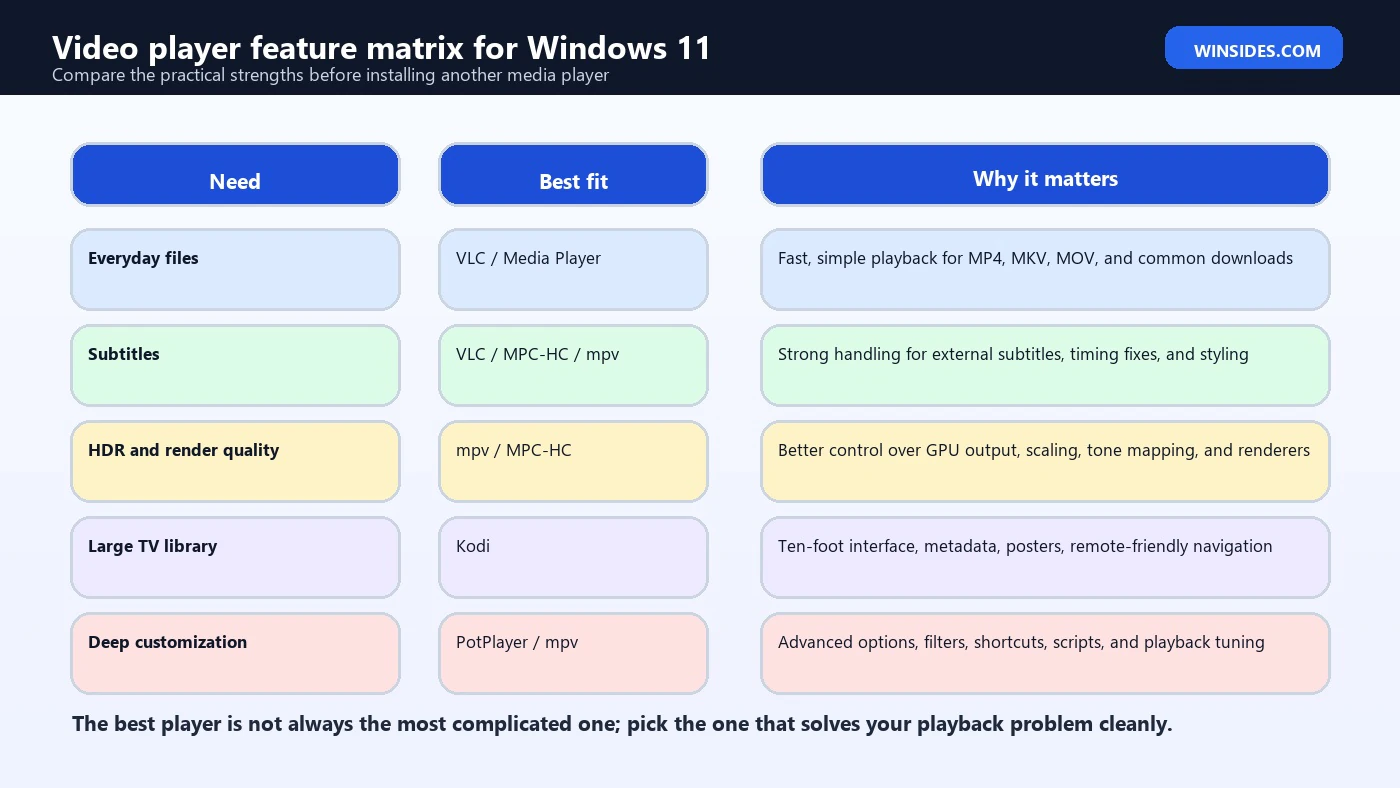
Subtitles are one of the biggest reasons to install a better player. Many Windows users watch anime, foreign films, lectures, downloaded courses, ripped discs, or videos with separate SRT files. Good subtitle support means the player can load external subtitle files, switch embedded subtitle tracks, adjust timing, control size and style, and display text clearly without breaking the video.
VLC is strong for ordinary subtitle use. MPC-HC is also excellent for users who like a traditional interface with detailed subtitle controls. mpv is powerful when configured well and is especially attractive to users who care about subtitle rendering quality. PotPlayer exposes many subtitle options, but the menu depth can be intimidating. The built-in Windows player may be enough for simple embedded captions but is not the best choice when subtitle control is the main requirement.
If subtitles appear too early or too late, do not assume the video is broken. Check whether the subtitle file matches the exact release, frame rate, or cut of the video. A player can shift timing, but it cannot magically match a subtitle made for a different version of a movie. For frequent subtitle use, learn the hotkeys for delay adjustment in your chosen player.
Codecs, Containers, and Why Files Fail
A video file has a container and one or more codecs. The container is the file wrapper, such as MP4, MKV, MOV, AVI, or WebM. The codec is how the video or audio inside is compressed, such as H.264, HEVC, AV1, VP9, AAC, FLAC, AC3, or DTS. A player may understand the container but not the codec, or it may play video but not audio. This is why one MKV file works while another MKV file fails.
VLC, mpv, MPC-HC, PotPlayer, and Kodi generally handle broad format coverage better than the built-in Windows app. That does not mean every file will be perfect. Corrupted downloads, incomplete transfers, unusual camera formats, DRM-protected files, and unsupported professional codecs can still cause trouble. But a capable player reduces how often you need to hunt for codecs.
Be cautious with codec packs. Years ago, codec packs were common because Windows often needed extra DirectShow components for many formats. Today, installing random codec packs can create conflicts, change system-wide behavior, and add unnecessary risk. Start with a good player that brings its own playback capability. Add codec packs only for a known, specific need.
HDR, 4K, HEVC, and AV1 Playback
Modern video playback is no longer just about opening a file. 4K, HDR, HEVC, AV1, high frame rate, 10-bit color, and large bitrates can stress both the player and the hardware. A smooth experience depends on the GPU, drivers, display, cable, Windows HDR settings, decoder support, and player output path. If a file stutters, the player may not be the only cause.
For most people, VLC is a practical first test because it can handle a wide range of formats. For enthusiasts, mpv and MPC-HC with suitable renderers can offer more control over scaling, tone mapping, frame timing, and output behavior. PotPlayer also exposes many acceleration and output settings. If HDR looks washed out, compare the same file in more than one player and check Windows HDR settings before assuming the file itself is bad.
AV1 and HEVC support can vary by hardware. Newer GPUs may decode them efficiently; older systems may fall back to CPU decoding and struggle. If your laptop fan spins loudly or playback drops frames, try hardware acceleration settings, update graphics drivers, use another player, or test a lower-bitrate version. The best player cannot fully overcome hardware that lacks the right decoder.
Audio Output, Surround Sound, and Passthrough
Video players also differ in audio handling. Simple stereo playback is easy, but home-theater audio can get complicated. You may need to choose the right output device, preserve 5.1 or 7.1 channels, handle AC3 or DTS, pass audio to an AV receiver, normalize quiet speech, or fix sync drift. The best player for a laptop is not always the best player for an HDMI receiver.
VLC offers accessible audio track and device controls for most users. MPC-HC and mpv can be excellent in more controlled setups. PotPlayer exposes many audio options. Kodi makes sense when the PC is connected to a TV or receiver and you want a living-room interface. If surround sound is important, test with known files and verify what your receiver reports instead of trusting the file name.
Audio sync problems can come from Bluetooth latency, TV processing, HDMI handshakes, old drivers, or the file itself. Most good players can shift audio timing, but permanent sync issues should be investigated at the device level too. A player setting can compensate; it may not fix the root cause.
Setting the Default Video Player in Windows 11
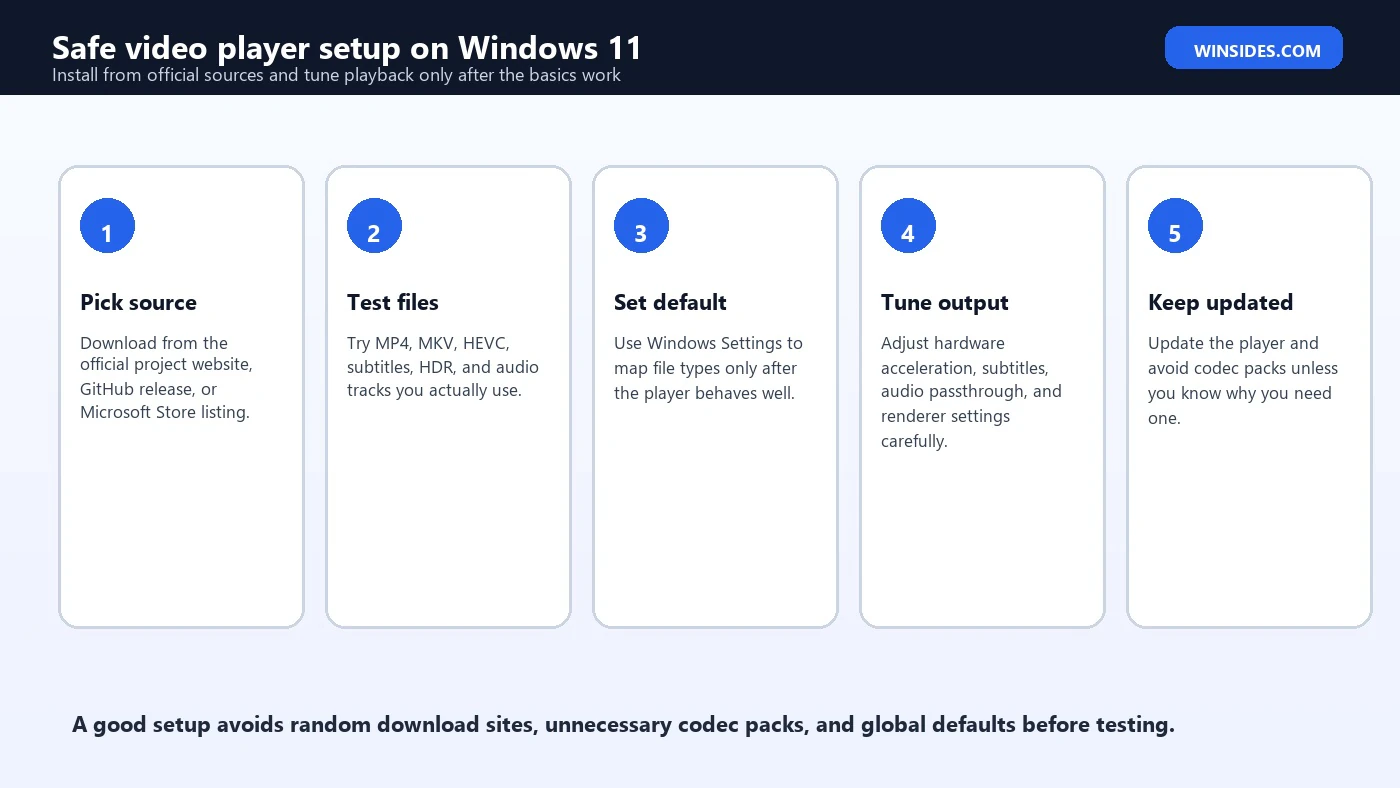
After you choose a player, set it as the default carefully. Open Settings, go to Apps, then Default apps, and search for your video player. Windows 11 lets you choose defaults by file type, so you can assign MP4, MKV, AVI, MOV, WebM, and other extensions one by one. This is better than blindly taking over every media format during installation.
A good setup is selective. You might use Windows Media Player for common MP4 files, VLC for odd formats, Kodi for a media-library folder, and mpv for testing or high-quality playback. Windows defaults should support your workflow, not force every video into one app. If a player starts opening files you do not want it to handle, return to Default apps and change those extensions back.
Also pin your chosen player to Start or the taskbar if you open files manually. Some users prefer dragging files into VLC or MPC-HC instead of changing defaults. That is perfectly fine. Defaults are useful, but they are not mandatory.
Safety: Where to Download Video Players
Media players are popular targets for sketchy download sites because people search for them by name. Avoid mirror pages that wrap installers, add download managers, or push fake update buttons. A media player has access to local files and opens untrusted media, so you should treat the installer with the same care as a browser or compression tool.
Use official project sites, official GitHub releases, or Microsoft Store listings where available. VLC should come from VideoLAN. mpv should come through the official mpv project links or trusted builds referenced by the project. MPC-HC should come from the current clsid2 project. PotPlayer should come from the official PotPlayer site. Kodi should come from Kodi or its Microsoft Store listing. Do not install a player just because a search result says it is free.
During installation, read prompts. Decline unrelated extras if any installer offers them. After installation, open the app once, check settings, then update it when the project provides updates. A clean install from a trustworthy source is part of what makes a player the best choice.
When the Built-In Player Is Enough
Not everyone needs a third-party player. If your Windows 11 PC mainly plays phone videos, screen recordings, downloaded MP4 clips, and simple local files, the built-in player may already satisfy the job. It is simple, already present, and easy for nontechnical users. Installing VLC just because everyone recommends it may not be necessary if your current files already work.
The reason to upgrade is friction. If you frequently see unsupported format errors, missing audio, subtitle problems, stuttering, wrong aspect ratio, or poor controls, then install a better player. If you never hit those problems, keep the setup simple. The best software choice is sometimes the one that avoids adding another app to maintain.
For family PCs, student laptops, or work machines, this matters. Every extra player creates another place where defaults, file associations, updates, and settings can confuse users. Install a third-party player because it solves a real issue, not just because a list said it was best.
Recommended Setup for Most Users
- Keep Windows Media Player for quick common files and simple playback.
- Install VLC from VideoLAN as the primary fallback for mixed formats, subtitles, and odd downloads.
- Use MPC-HC if you prefer a classic Windows desktop interface and detailed subtitle controls.
- Use mpv if you want keyboard control, scripts, rendering quality, and advanced configuration.
- Use Kodi only when you want a full media-center library for TV-style browsing.
- Avoid global codec packs unless you have a specific legacy workflow that requires one.
- Set file defaults manually in Windows Settings after testing your real files.
Common Mistakes to Avoid
The first mistake is installing several players at once and letting each one fight for defaults. This creates confusion when one app opens MP4 files, another opens MKV files, and a third opens subtitles unexpectedly. Install one player, test it, then add another only if you need a specific feature. More players do not automatically mean better playback.
The second mistake is assuming every playback problem is a codec problem. Stutter can be caused by a slow drive, network share, weak GPU, old graphics driver, high bitrate, power-saving mode, Bluetooth audio delay, or display settings. Before installing more software, test the same file locally, update graphics drivers, and compare another player.
The third mistake is downloading from the first result. Popular media players are often impersonated by third-party pages. Use official sources. This is especially important for users who search for VLC, codec packs, HEVC players, or free DVD players, because those searches attract questionable download pages.
Frequently Asked Questions
What is the best video player for Windows 11 overall?
VLC is the best overall choice for most users because it is free, familiar, widely supported, and handles many formats without extra setup.
Is Windows 11 Media Player good enough?
Yes, for common files and simple playback. Install another player when you need broader codec support, better subtitles, advanced audio, HDR tuning, or media-library features.
Is VLC better than Windows Media Player?
For mixed file types, subtitles, odd containers, and general compatibility, VLC is usually better. For simple local playback, the built-in player may be enough.
Is mpv better than VLC?
mpv can be better for enthusiasts who want rendering control, scripting, and keyboard-driven playback. VLC is easier for most casual users.
Is MPC-HC still worth using on Windows 11?
Yes, the maintained clsid2 project keeps MPC-HC useful for people who want a lightweight classic Windows media player with strong controls.
Should I install a codec pack on Windows 11?
Usually no. Start with VLC, MPC-HC, mpv, PotPlayer, or Kodi first. Use codec packs only for a specific known requirement.
Which player is best for 4K HDR files?
Try VLC first, then mpv or MPC-HC if you want more output and renderer control. Also check your GPU, display, cable, and Windows HDR settings.
Which player is best for a TV or home theater PC?
Kodi is best when you want a TV-friendly media center with posters, metadata, network shares, and remote-style navigation.
Can one player handle every file?
No player is perfect, but VLC, mpv, MPC-HC, PotPlayer, and Kodi cover most normal playback needs. DRM-protected or corrupted files may still fail.
Conclusion: Pick the Player That Matches Your Files
The best video player for Windows 11 is VLC for most people because it balances format support, reliability, subtitles, streams, and ease of use. It is the player to install when you want one dependable answer for mixed local videos. If you only play common files, the built-in Windows Media Player may already be enough. If you want more control, mpv, MPC-HC, PotPlayer, and Kodi each serve a different kind of user.
Choose mpv for rendering quality and scripting, MPC-HC for a classic lightweight Windows interface, PotPlayer for deep settings, and Kodi for a living-room media center. Test your real files before changing defaults. Pay attention to subtitles, audio tracks, HDR, hardware acceleration, and file associations. Most importantly, download from official sources and avoid random codec packs unless you have a clear reason.
A good player should make video playback boring in the best way: open the file, show the picture correctly, play audio in sync, display subtitles properly, and let you watch without fighting settings. Start with the simplest option that solves your problem, then move to advanced players only when your media collection asks for it.
For more interesting articles, stay tuned to Winsides.com!









Community
Comments (0)