

Introduction to Safari for Windows 11
Safari for Windows 11 is one of those searches that sounds simple but needs a careful answer. Many users remember that Apple once offered Safari for Windows, so they assume there must be a current Windows 11 installer hiding somewhere. Others want Safari because they use an iPhone, iPad, Mac, iCloud, Apple Passwords, or a website that behaves differently in Safari. The problem is that those are different needs, and installing an old Windows Safari build is almost never the right solution.
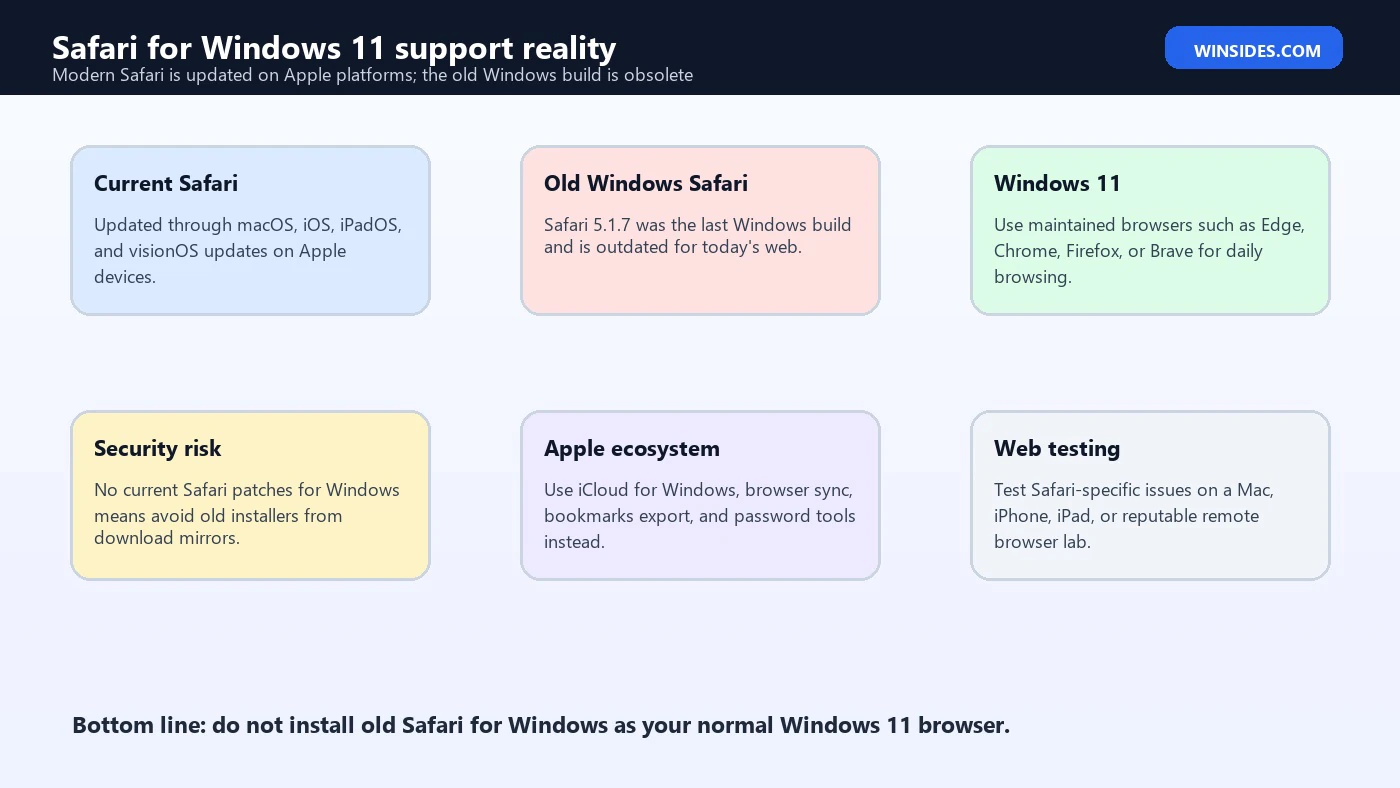
The short answer is this: Apple does not offer a supported modern Safari browser for Windows 11. Safari is actively developed for Apple platforms, and Apple distributes Safari updates through operating system updates on supported Apple devices. The last Windows version is old, outdated, and unsuitable for normal web browsing in 2026. A Windows 11 user should not treat it as an everyday browser, a secure login browser, or a compatibility fix for modern websites.
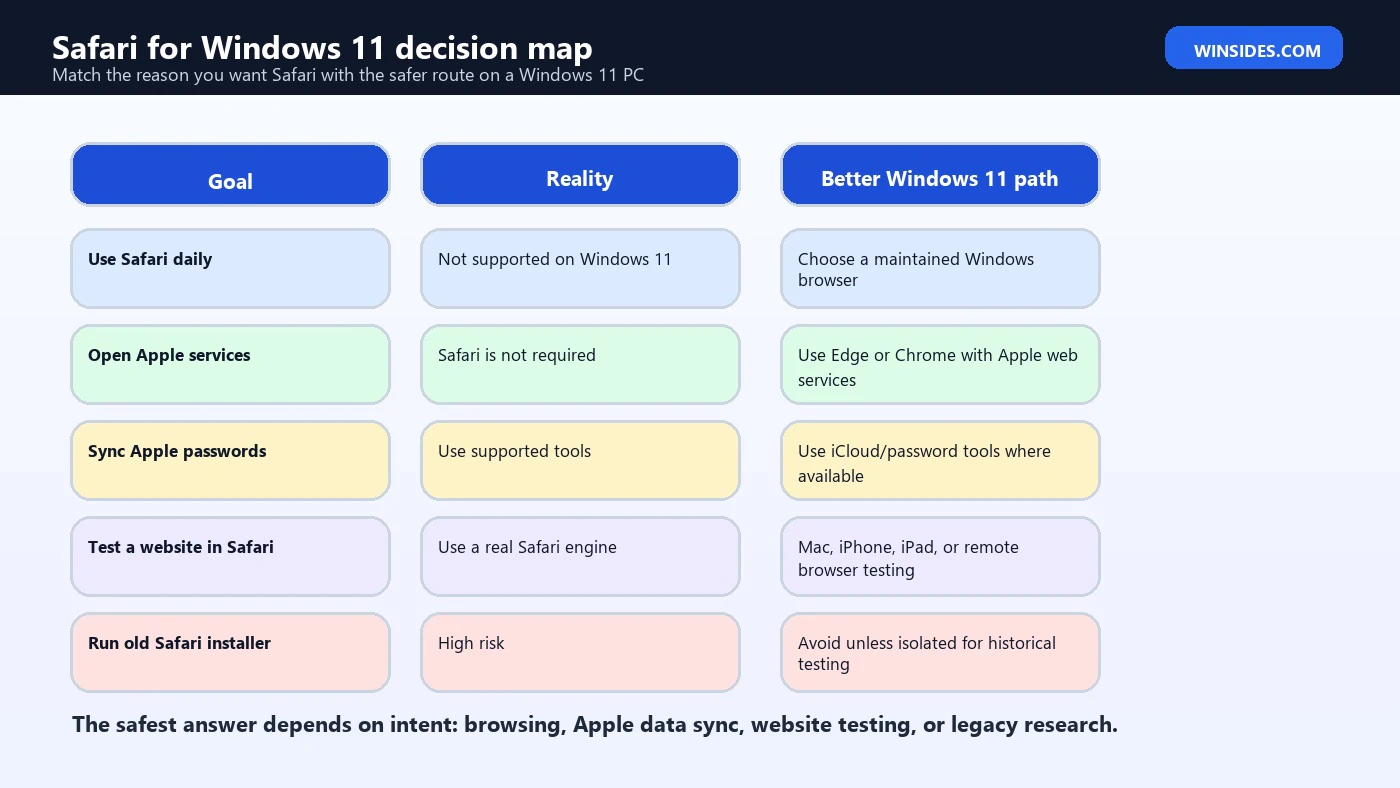
That does not mean the question is useless. It means the useful answer is broader than a download link. If you want Safari because you need Apple bookmarks, Apple passwords, iCloud services, browser privacy, Apple Pay testing, iPhone continuity, or Safari-specific website testing, there are safer ways to get close to the goal. Some involve iCloud for Windows or browser sync. Some require a Mac, iPhone, iPad, or remote testing service. Some simply require choosing a maintained Windows browser and configuring it properly.
The official context is straightforward: Apple explains that Safari updates are available through updates or upgrades to Apple operating systems and says it no longer offers Safari updates for Windows or other non-Apple systems. Apple also presents Safari as the browser for Apple devices, while Microsoft and Google provide actively maintained browsers for Windows. That combination should guide every decision in this article: do not chase an old installer when the real need can be handled in a safer way.
For reference, keep Apple’s pages on updating Safari, Apple’s current Safari overview, the Safari User Guide, and current Windows browser downloads for Microsoft Edge and Google Chrome nearby while choosing your setup.
Table of contents
Key Takeaways
- Safari for Windows 11 is not a supported current browser. Apple no longer provides Safari updates for Windows, so the old Windows build should not be used for daily browsing.
- Do not download Safari from random mirror sites. Old installers may be outdated, tampered with, bundled, or unsafe for sensitive accounts.
- Use Safari on Apple devices when you need real Safari. A Mac, iPhone, iPad, or reliable browser testing service is the correct route for Safari-specific behavior.
- Use a maintained Windows browser for normal browsing. Edge, Chrome, Firefox, Brave, and other current browsers are safer choices on Windows 11.
- Apple services do not require Safari on Windows. iCloud.com, iCloud for Windows, supported extensions, and web apps can cover many Apple ecosystem needs.
- Website testing is a separate workflow. If you build or troubleshoot websites, test Safari using WebKit/Safari on Apple hardware or a remote testing platform, not obsolete Safari for Windows.
- The right question is your goal. Browsing, syncing, password access, bookmarks, Apple Pay, and compatibility testing each require different solutions.
Can You Install Safari on Windows 11?
Technically, old Safari for Windows installers may still appear on third-party download sites, but that is not the same as having a supported Safari for Windows 11. The old Windows build belongs to a different web era. Modern websites rely on updated JavaScript engines, current TLS behavior, current certificate handling, modern CSS, secure browser sandboxes, new media support, and continuous patching. An obsolete browser is not just missing features; it is missing years of security work.
The practical answer is therefore no for normal users. You should not install old Safari on Windows 11 for banking, email, WordPress, admin panels, shopping, social media, work dashboards, or any site where credentials matter. Even if the program opens, the browser engine is outdated. It may fail to render modern pages, reject secure connections, mishandle scripts, or expose you to vulnerabilities that current browsers already fixed years ago.
There are rare historical or lab reasons someone may run old Safari for Windows inside an isolated virtual machine. For example, a researcher might document old browser behavior, test an archive, or reproduce a legacy bug. That kind of setup should be disconnected from sensitive accounts and treated like a museum environment. It should not be confused with a recommendation for a Windows 11 desktop.
Why Apple Stopped Safari for Windows
Safari for Windows existed for a limited period when Apple wanted to expand Safari’s reach and promote its browser engine beyond the Mac. That strategy did not continue. Over time, Safari became tightly associated with Apple hardware, Apple operating systems, Apple privacy features, battery optimization on Apple devices, and platform-specific integrations. Today, Apple’s own Safari messaging centers on Apple devices rather than Windows PCs.
This matters because a browser is not a static app. It is a constantly updated security boundary between your computer and the internet. The browser handles untrusted code, downloads, extensions, passwords, permissions, media, payment flows, certificates, and cross-site privacy protections. Once a browser vendor stops updating a platform build, that build becomes progressively less safe and less compatible.
Apple’s current support guidance makes the situation plain. Safari updates come by updating or upgrading the operating system on Apple devices. Apple also states that it no longer offers Safari updates for Windows or other non-Apple operating systems and identifies Safari 5.1.7 as the last Windows version. For a Windows 11 user, that means there is no supported update path, no current Windows Safari release channel, and no normal security maintenance story.
Why the Old Safari Installer Is a Bad Idea
The biggest danger is not only that old Safari is old. The bigger danger is that many people looking for it will end up on unofficial download sites. A browser installer is a high-trust file. If it has been modified, bundled, wrapped, or served by a questionable mirror, it can do real damage. Even when the installer itself is clean, the installed browser remains obsolete.
Old browsers also create a false sense of compatibility. A website that says it needs Safari usually means current Safari, not Safari 5.1.7 from the old Windows era. A banking site, streaming site, webmail interface, Apple service, or modern dashboard will not become safer or more compatible just because an old browser has the Safari name. In many cases it will work worse because the browser lacks modern web standards.
There is also the account-security problem. If you sign in to Apple ID, Google, Microsoft, WordPress, or financial accounts from an unsupported browser, you are trusting sensitive sessions to software that is not receiving modern security patches. A login page may open, but that does not make the session safe. The cost of a compromised account is much higher than the convenience of trying an old browser.
What If a Website Says It Works Best in Safari?
If a website says it works best in Safari, first identify what the site really means. Sometimes the message was written for iPhone and Mac users and does not apply to Windows. Sometimes the site needs modern WebKit behavior, Apple Pay, a media feature, or a mobile viewport. Sometimes the warning is outdated and the site works fine in current Chrome, Edge, or Firefox. The browser name alone is not enough information.
On Windows 11, the best first test is a current browser. Try Microsoft Edge and Google Chrome because they are widely supported by business and consumer websites. Try Firefox if you want a different engine and privacy model. Clear site data or test in a fresh profile before assuming the browser is the issue. Extensions, ad blockers, strict tracking settings, old cookies, and corrupted profiles can cause site-specific failures that look like compatibility problems.
If the site truly requires Safari, use a real Safari environment. That can be Safari on a Mac, iPhone, or iPad, or a reputable remote testing platform that provides actual Safari/WebKit sessions. This is especially important for developers. Testing a site in old Safari for Windows does not represent modern Safari on macOS, iOS, or iPadOS. It may hide the issue you need to find and create new unrelated problems.
Best Alternatives to Safari on Windows 11
For everyday browsing, Microsoft Edge is the simplest Windows 11 alternative because it is already integrated with Windows, updated regularly, and built for the platform. Edge supports profiles, vertical tabs, Microsoft account sync, enterprise controls, tracking prevention, SmartScreen, PDF viewing, and strong compatibility with websites designed for Chromium browsers. If you want a low-friction default browser on Windows 11, Edge is a practical starting point.
Google Chrome is another obvious choice, especially if your bookmarks, passwords, extensions, Android phone, or Google account already live there. Chrome has broad website support, frequent updates, the Chrome Web Store, Google Password Manager, profile sync, and developer tooling that many web professionals know well. If a website vendor says it supports Chrome on Windows, using Chrome is safer than trying to force old Safari into the workflow.
Firefox is useful when you want a browser outside the Chromium family. It has its own engine, strong extension support, privacy-oriented controls, and independent web compatibility. Brave, Vivaldi, Opera, and other browsers may also fit specific needs. The key requirement is not the brand name; it is active maintenance, security updates, modern standards support, and a trustworthy download source.
How to Keep Apple Services on Windows 11 Without Safari
Many users asking for Safari on Windows 11 actually want their Apple life to feel more connected to a Windows PC. That is understandable. You may use an iPhone but work on a Windows laptop. You may store photos in iCloud, use Apple Mail, keep bookmarks in Safari, or depend on Apple Passwords. Safari is not the only way to access that ecosystem from Windows.
Start with iCloud.com for web-based access to Apple services such as Mail, Photos, Drive, Notes, Calendar, Contacts, and Find Devices where available. For deeper Windows integration, iCloud for Windows can help with photos, drive files, bookmarks, and passwords depending on current feature availability and your setup. The exact browser extension support can change, so use Apple’s current iCloud for Windows guidance and official extension listings rather than random downloads.
If your main need is bookmarks, export and import may be enough. Safari on a Mac can export bookmarks, and modern Windows browsers can import HTML bookmark files. If your main need is passwords, use a supported password manager path rather than an old browser. If your main need is reading Apple services, try iCloud.com in Edge or Chrome and create a dedicated browser profile for Apple-related work.
Browser Sync, Passwords, and Bookmarks
Browser sync is where many Safari expectations need translation. Safari syncs well inside Apple’s ecosystem because it is part of that ecosystem. Windows 11 does not receive the same native Safari integration. Instead of chasing Safari, decide which data matters: bookmarks, passwords, history, open tabs, reading list, payment information, or extensions. Each category has a different migration path.
Bookmarks are the easiest. Export from Safari on a Mac if you have one, then import into Edge, Chrome, Firefox, or another Windows browser. Passwords need more care. Do not paste password lists into insecure files or upload them to unknown converters. Use official iCloud tools, a reputable password manager, or built-in browser import options where supported. If you migrate passwords, enable two-factor authentication and review saved credentials afterward.
Open tabs and history are usually not worth forcing across unsupported paths. If you need continuity between an iPhone and Windows PC, choose a browser available on both platforms, such as Edge, Chrome, Firefox, or Brave, and sign in to that browser on both devices. That approach may be less Apple-native than Safari, but it is safer and more reliable on Windows 11.
Developers: Testing Safari Behavior from Windows 11
Developers have a special version of this problem. A developer may use Windows 11 as the main workstation but still need to test Safari because customers use iPhone, iPad, or Mac. In that case, old Safari for Windows is not a valid substitute. Modern Safari behavior depends on current WebKit, platform APIs, media policies, privacy protections, form controls, viewport handling, and mobile-specific behavior. A discontinued Windows browser cannot represent that environment.
The better workflow is to test on real Apple devices or remote browser platforms. If you have a Mac, use the current Safari version where appropriate. If the issue is mobile, test on an iPhone or iPad, not only desktop Safari. If you do not own Apple hardware, use a reputable cross-browser testing service that provides current Safari versions. That gives you a real target instead of a misleading legacy result.
For local development on Windows, use standards-based testing first. Validate responsive layouts, avoid browser-specific assumptions, use feature detection rather than user-agent hacks, and test in multiple current browsers. When a Safari-specific issue remains, reproduce it in real Safari. Document the Safari version and device because a bug on iOS Safari may not be identical to a bug on desktop Safari.
What About WebKit on Windows?
Safari is not simply a skin around any browser engine you can install. Safari is Apple’s browser built around WebKit and Apple platform integrations. Developers may see WebKit-related tools, ports, or automation projects and assume they can recreate Safari on Windows. That assumption can be risky. A WebKit-based tool may help with some development tasks, but it is not the same as current Apple Safari on macOS or iOS.
This distinction matters for testing and support. If a customer reports that something breaks in Safari on iPhone, you need to test that environment or a close hosted equivalent. A Windows-only WebKit experiment may catch some layout patterns, but it cannot validate Apple Pay behavior, iOS viewport quirks, media permissions, touch behavior, platform fonts, or Safari privacy features accurately enough for final sign-off.
For ordinary users, WebKit discussions are even less useful. If you want a secure browser on Windows 11, choose a maintained Windows browser. If you want Safari itself, use an Apple device. Trying to assemble a Safari-like Windows experience from unofficial pieces creates more complexity than benefit.
Security Checklist for Anyone Who Already Installed Old Safari
If you already installed old Safari on Windows 11, treat it as a security cleanup task. First, stop using it for sign-ins. Do not open banking, email, Apple ID, Microsoft account, Google account, WordPress admin, payment, shopping, or work applications in that browser. Then uninstall it from Windows Settings or Control Panel, depending on how it appears on your system.
After uninstalling, check your default browser setting and make sure links open in a maintained browser. Review installed browser extensions and startup items if the installer came from a third-party mirror. Run Windows Security or your trusted endpoint protection scan. If you used old Safari to log into sensitive accounts, change those passwords from a modern browser and verify two-factor authentication settings.
Also remove downloaded installers you no longer trust. If the file came from an unofficial site, there is no reason to keep it. Clear temporary files if needed. The goal is not to panic; it is to avoid leaving old browser components or questionable installers around a system that you use for current web accounts.
Safe Setup: What to Do Instead on Windows 11
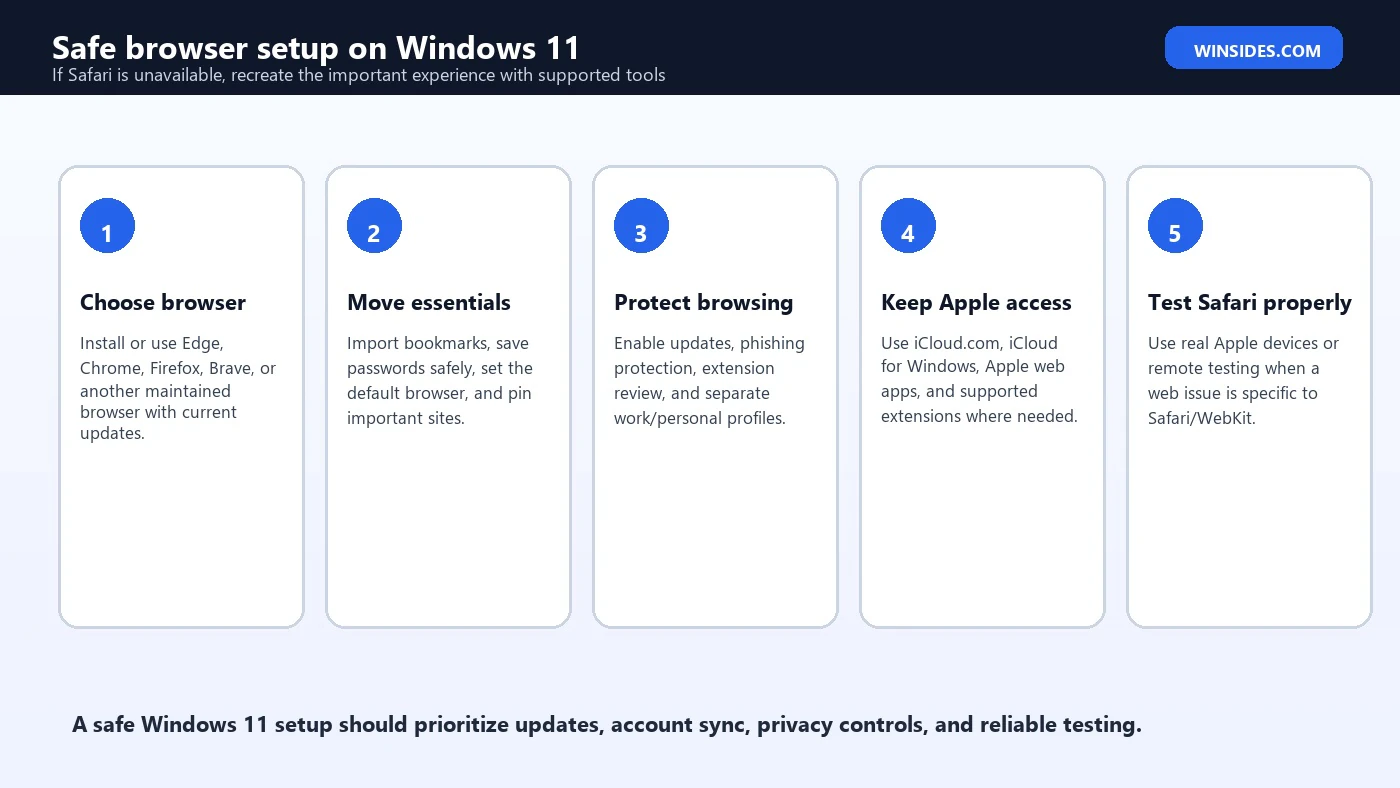
A safer setup starts with a current browser from an official source. Use Edge if you want tight Windows integration. Use Chrome if your Google account and extensions matter. Use Firefox if you want a non-Chromium option. Use another reputable browser only if you understand its update model and download it from the official publisher. Then make that browser your default and keep automatic updates enabled.
Next, recreate the features that made you look for Safari. Import bookmarks. Configure password sync or choose a dedicated password manager. Set privacy controls. Add only the extensions you truly use. Create separate browser profiles for work, personal browsing, Apple services, and testing if you need cleaner separation. A well-configured modern browser is much closer to the real goal than an unsupported Safari installer.
Finally, decide how you will handle Safari-only testing. If you own an iPhone, use it for quick mobile Safari checks. If you own a Mac, keep Safari updated through macOS. If your website earns money or supports customers, consider a proper browser testing service. Safari compatibility should be tested where Safari actually lives now.
Common Myths About Safari for Windows 11
One myth is that Safari for Windows 11 is hidden inside Apple Software Update. That is not a current supported path. Apple Software Update on Windows may still be associated with other Apple software in some environments, but it does not create a modern Safari release channel for Windows 11. If Safari is not receiving current Windows updates, it is not safe for normal browsing.
Another myth is that old Safari is acceptable because it opens pages. Page loading is not the same as security. A browser can display text and still fail at modern protection. It can open a login form and still be a poor place to enter credentials. The age of a browser matters because web threats, certificates, JavaScript, privacy techniques, and browser sandboxing evolve constantly.
A third myth is that developers can use old Safari for Windows as a Safari testing shortcut. That may have been tempting many years ago, but it is not a reliable modern testing strategy. If you need to support Safari users today, test current Safari on supported Apple platforms or remote environments that provide it.
When You Actually Need Safari
There are legitimate reasons to need Safari specifically. Apple Pay on the web, Safari extensions, iCloud Keychain behavior, iOS viewport bugs, content blockers, WebKit-specific rendering, media autoplay rules, and privacy behaviors can require real Safari. In those cases, the correct solution is not Windows Safari. The correct solution is access to a current Apple Safari environment.
For personal users, that may mean using your iPhone or iPad when a site behaves differently. For professionals, it may mean keeping a Mac mini, MacBook, or remote Mac service available for testing. For agencies and developers, it may mean adding Safari coverage to the QA process so you are not guessing from Chrome on Windows. The right tool depends on how important Safari accuracy is to your work.
If you only need an Apple-like reading experience, do not overcomplicate it. Edge and Chrome both support reader modes or extensions, password managers, profiles, favorites, and cross-device sync. You may not get Safari’s exact interface, but you can get a secure and comfortable browsing workflow on Windows 11.
Comparison: Goals and Safer Choices
| Goal | Avoid | Safer Windows 11 choice |
|---|---|---|
| Use a browser every day | Old Safari for Windows | Edge, Chrome, Firefox, Brave, or another maintained browser |
| Access iCloud services | Unsupported Safari installer | iCloud.com, iCloud for Windows, or supported browser extensions |
| Move Safari bookmarks | Manual copying from random tools | Export bookmarks from Safari and import into your Windows browser |
| Use Apple passwords | Typing passwords into old browsers | Official iCloud/password tools or a reputable password manager |
| Test Safari website bugs | Safari 5.1.7 on Windows | Current Safari on Mac/iPhone/iPad or a remote browser lab |
| Historical browser research | Using it on your main PC | Isolated VM with no sensitive accounts |
Troubleshooting If You Cannot Open Apple Sites in Windows 11
If Apple sites or iCloud pages do not work in your Windows browser, do not jump to Safari. Start with basic browser troubleshooting. Update the browser, disable suspicious or overly aggressive extensions, clear site data for the affected domain, and test in a private window or a fresh browser profile. If the issue disappears in a clean profile, the problem is likely local settings, cookies, extensions, or cached data.
Next, check system time, Windows updates, network filtering, VPNs, DNS, and security software. Authentication-heavy services can fail when time is wrong, certificates are intercepted, or network filters block required domains. Try another maintained browser before changing deep Windows settings. If Edge fails but Chrome works, or Chrome fails but Firefox works, you have narrowed the issue without installing obsolete software.
For Apple ID or iCloud sign-in problems, use Apple’s official account recovery and service-status resources rather than third-party fixes. Avoid tools that claim to unlock Apple services or install unofficial Safari components. The safest path is almost always a current browser, official Apple pages, and careful account verification.
Performance and Privacy Expectations
Some users want Safari because Apple markets it around speed, battery life, and privacy. Those strengths are real in the Apple ecosystem, but they do not transfer to Windows through an abandoned installer. Safari is optimized for Apple devices and current Apple operating systems. A Windows 11 PC will be better served by a browser actively optimized and updated for Windows.
Privacy also depends on updates. Modern privacy features are not a one-time checklist. Browsers adjust tracking protections, cookie behavior, fingerprinting defenses, private browsing controls, extension permissions, and site isolation over time. An old Safari build cannot provide the same current privacy posture as modern Safari on Apple devices or modern Windows browsers on Windows 11.
If privacy is your reason for wanting Safari, compare current privacy settings in maintained browsers. Edge, Chrome, Firefox, Brave, and others each have trade-offs. Choose the one that fits your account ecosystem and privacy preferences, then review settings instead of assuming a discontinued browser is private because the current Apple version has strong privacy messaging.
Frequently Asked Questions
Can I download Safari for Windows 11 from Apple?
No current supported Safari for Windows 11 is available from Apple. Apple says Safari updates are delivered through Apple operating system updates and that Safari updates are no longer offered for Windows.
What was the last Safari version for Windows?
Apple identifies Safari 5.1.7 as the last Windows version. It is outdated and should not be used as a normal browser on Windows 11.
Is Safari for Windows 11 safe if I only use it sometimes?
It is not a good idea for any account-based or sensitive browsing. If you run it for historical testing, isolate it and avoid real credentials.
Which browser is closest to Safari on Windows 11?
There is no exact Safari equivalent on Windows. For everyday use, choose Edge, Chrome, Firefox, Brave, or another maintained browser and configure bookmarks, passwords, and privacy settings.
How do I test my website in Safari from Windows?
Use a real Apple device, a Mac, or a remote browser testing service that provides current Safari. Old Safari for Windows is not a reliable test target.
Can I access iCloud without Safari?
Yes. Use iCloud.com, iCloud for Windows, and supported browser features or extensions where available.
Should I trust third-party Safari download sites?
No for normal use. Even if a download is the old installer, it is outdated. If it is modified or bundled, it may add extra risk.
Can I sync Safari bookmarks to Edge or Chrome?
Often yes through export/import workflows or supported iCloud/bookmark tools. The exact path depends on your devices and current Apple software support.
Conclusion: Treat Safari on Windows 11 as Unsupported
Safari for Windows 11 should be treated as unsupported, not merely hard to find. The modern Safari browser belongs to Apple platforms, while the old Windows build is outdated and unsuitable for everyday browsing. If you need a secure browser on Windows 11, use a browser that is actively maintained for Windows. If you need real Safari behavior, use Safari where it is currently supported: on Apple devices or a trusted remote testing environment.
The safest path depends on your goal. For daily browsing, use Edge, Chrome, Firefox, Brave, or another maintained browser. For Apple data, use iCloud.com, iCloud for Windows, bookmark export, or supported password tools. For web development, test current Safari on a Mac, iPhone, iPad, or a reputable remote platform. For historical research, isolate old Safari and keep it away from sensitive accounts.
Official guidance and current product pages from Apple, Microsoft, and Google make the direction clear: Safari is updated through Apple platforms, while Windows 11 users should rely on supported Windows browsers for daily security and compatibility. That is less exciting than finding a hidden installer, but it is the answer that protects your PC and your accounts.
For more interesting articles, stay tuned to Winsides.com!









Community
Comments (0)