Skip to content
Winsides.com

Windows Insides

Winsides.com

Windows Insides

  • Windows 11
  • Windows Features
  • Windows Security
  • Microsoft
    • Microsoft Copilot
    • Microsoft Powertoys
  • Shortcuts
    • Windows Shortcuts
    • Desktop Shortcuts
  • Video Tutorials
  • About
    • What’s New?!
    • About us
    • Contact us
    • Privacy Policy
    • Terms of Use
  • Follow us
    • Reddit
    • Dev.to
    • YouTube
    • Linked In
    • X
    • Tumblr
    • Facebook
    • Instagram
    • Buy Me A Coffee
  • Windows 11
  • Windows Features
  • Windows Security
  • Microsoft
    • Microsoft Copilot
    • Microsoft Powertoys
  • Shortcuts
    • Windows Shortcuts
    • Desktop Shortcuts
  • Video Tutorials
  • About
    • What’s New?!
    • About us
    • Contact us
    • Privacy Policy
    • Terms of Use
  • Follow us
    • Reddit
    • Dev.to
    • YouTube
    • Linked In
    • X
    • Tumblr
    • Facebook
    • Instagram
    • Buy Me A Coffee
Close

Search

Winsides.com

Windows Insides

Winsides.com

Windows Insides

  • Windows 11
  • Windows Features
  • Windows Security
  • Microsoft
    • Microsoft Copilot
    • Microsoft Powertoys
  • Shortcuts
    • Windows Shortcuts
    • Desktop Shortcuts
  • Video Tutorials
  • About
    • What’s New?!
    • About us
    • Contact us
    • Privacy Policy
    • Terms of Use
  • Follow us
    • Reddit
    • Dev.to
    • YouTube
    • Linked In
    • X
    • Tumblr
    • Facebook
    • Instagram
    • Buy Me A Coffee
  • Windows 11
  • Windows Features
  • Windows Security
  • Microsoft
    • Microsoft Copilot
    • Microsoft Powertoys
  • Shortcuts
    • Windows Shortcuts
    • Desktop Shortcuts
  • Video Tutorials
  • About
    • What’s New?!
    • About us
    • Contact us
    • Privacy Policy
    • Terms of Use
  • Follow us
    • Reddit
    • Dev.to
    • YouTube
    • Linked In
    • X
    • Tumblr
    • Facebook
    • Instagram
    • Buy Me A Coffee
Close

Search

Home/Windows 11/How To?/4 Easy Ways: Check Windows Experience Index Score in Windows 11!

4 Easy Ways: Check Windows Experience Index Score in Windows 11!

Narendhiran Vijayakumar
By Narendhiran Vijaykumar
April 3, 2026 5 Min Read
0

I’ve been using Windows since the Windows XP days. I still remember an update that came with Windows Vista, where you could check your PC’s Windows Experience Index score in the settings. This score gave you an idea of how well your PC was performing. Unfortunately, in Windows 11, you can no longer check your Windows Experience Index score, as Microsoft removed this feature from the settings. In this tutorial, I will show you 4+ methods to check the Windows Experience Index score on your Windows 11 PC.

Table of Contents

  • Method 1: Using Command Prompt:
  • Method 2: Using PowerShell:
  • Method 3: Using XML Report:
  • Method 4: Using 3rd Party Apps:
  • Read more:

Method 1: Using Command Prompt:

  • Click the Start Menu and search for Command Prompt
  • You need to choose the “Run as Administrator” option to launch the command prompt in admin mode.
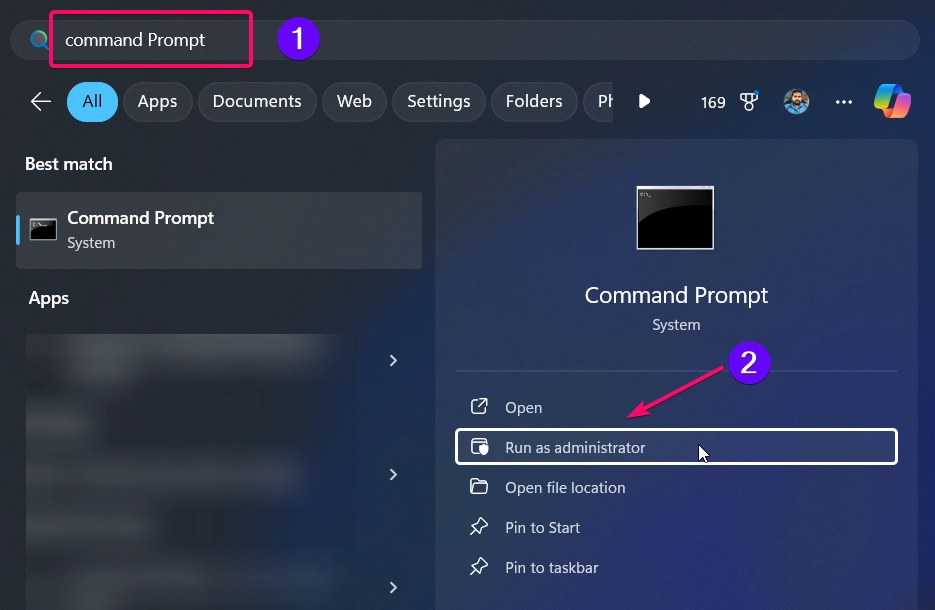
Open Command Prompt using Run as Administrator

  • Once the command prompt is launched, you need to execute the following command:
    • winsat formal
cmd HbH4nhqFWy
Running Multiple Tests by Winsat Formal command

The tool will run a series of tests and display performance metrics in different areas like CPU, Memory, Disk, and Graphics.
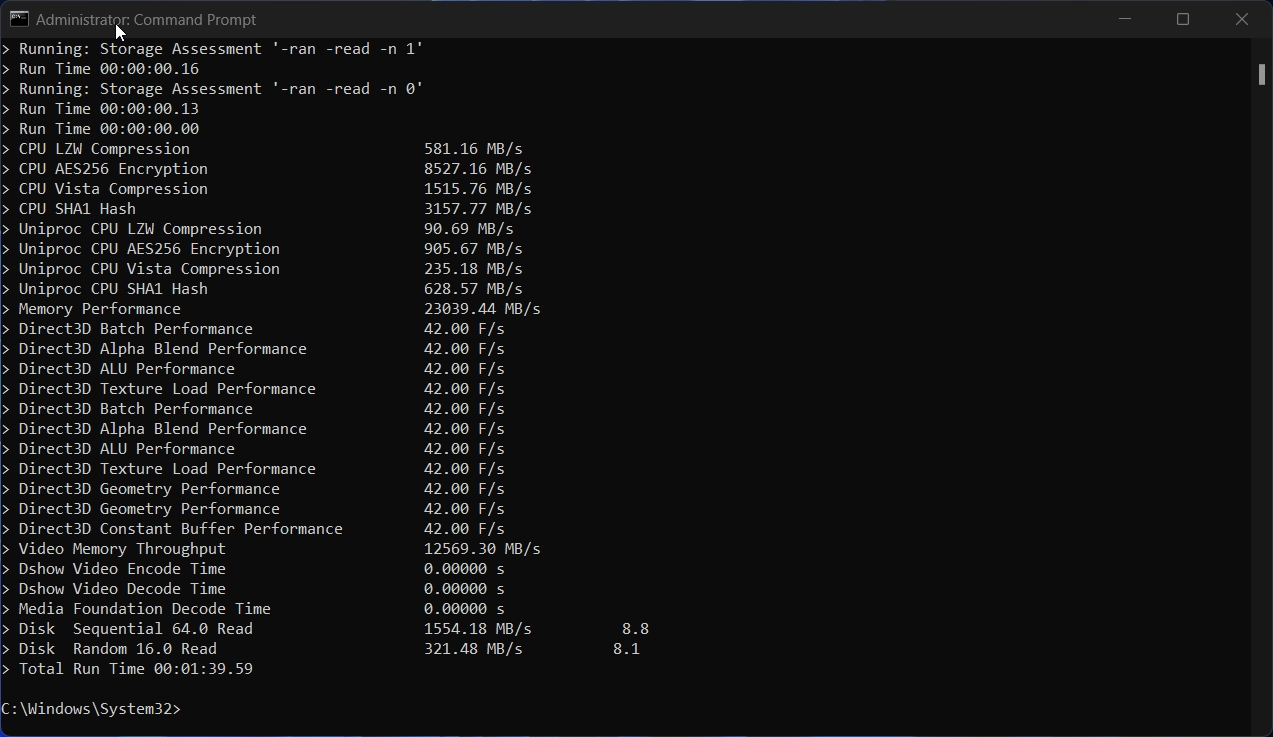
Final Report of Winsat Formal command

Once the tests are finished, you can view the final report generated by the ‘winsat formal‘ command in the Command Prompt. From the results, you can easily understand your PC’s Windows Experience score.

Method 2: Using PowerShell:

  • Click the Start Menu and search for PowerShell
  • You need to choose the “Run as Administrator” option to launch the powershell in admin mode.
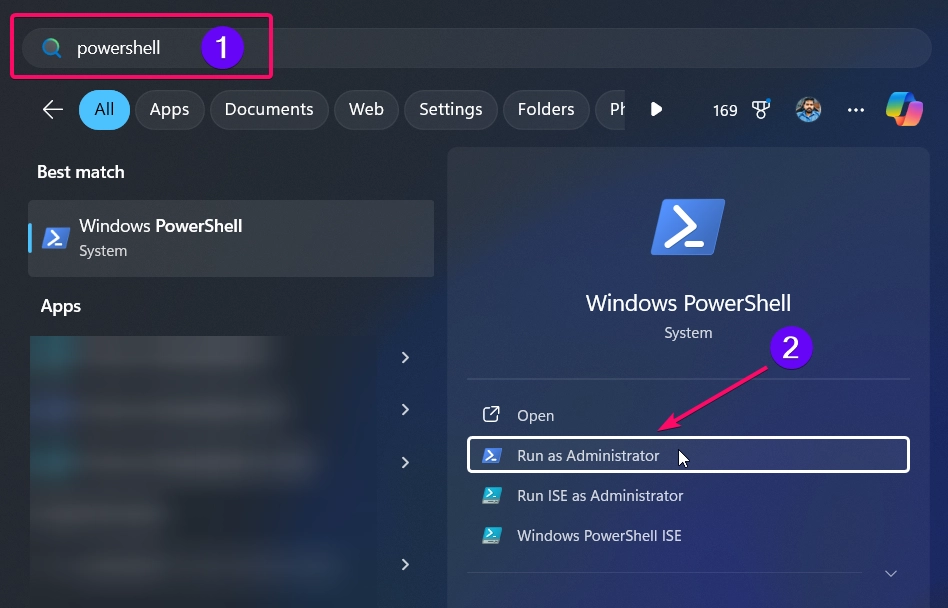
Opening PowerShell as Admin Mode
Opening PowerShell in Admin Mode

  • Now you need to execute the following command:
    • Get-WmiObject -Class Win32_WinSAT
Executing command will provide Windows Experience Index Score of your pc
Executing the command will provide the Windows Experience Index Score of your pc
  • The above command will provide your pc’s Windows Experience Index stats.
AttributeValue
CPU Score9.1
D3D Score9.9
Disk Score8.45
Graphics Score8
Memory Score9.1
Time TakenMostRecentAssessment
WinSAT Assessment State1
Win SPR Level8
PS Computer NameMSI
Sample PC’s Windows Experience Index Score.

Method 3: Using XML Report:

Though the Window 11 removed the Windows Experience report from the settings, Windows still generates a WEI report in XML format. Follow the steps below to view the XML files.

  • You need to navigate to the following folder:
    • C:\Windows\Performance\WinSAT\DataStore
  • Now, in the list of files, you need to look for the file name “Formal.Assessment (Initial).WinSAT.xml“,
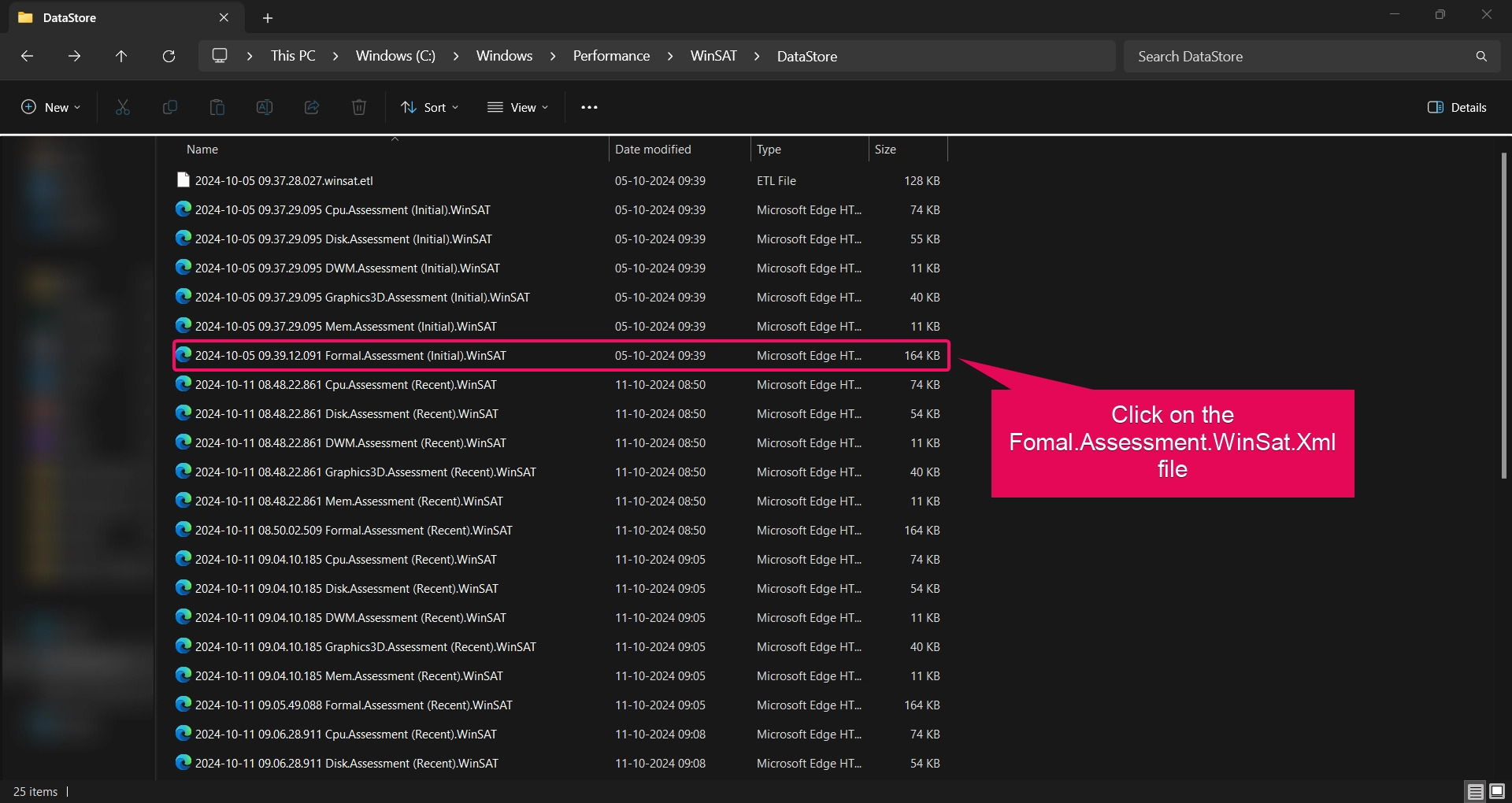
Finding the Formal.Assessment.WinSat.XML file from the folder
  • Once you found the file, you need to open the xml file using the website.
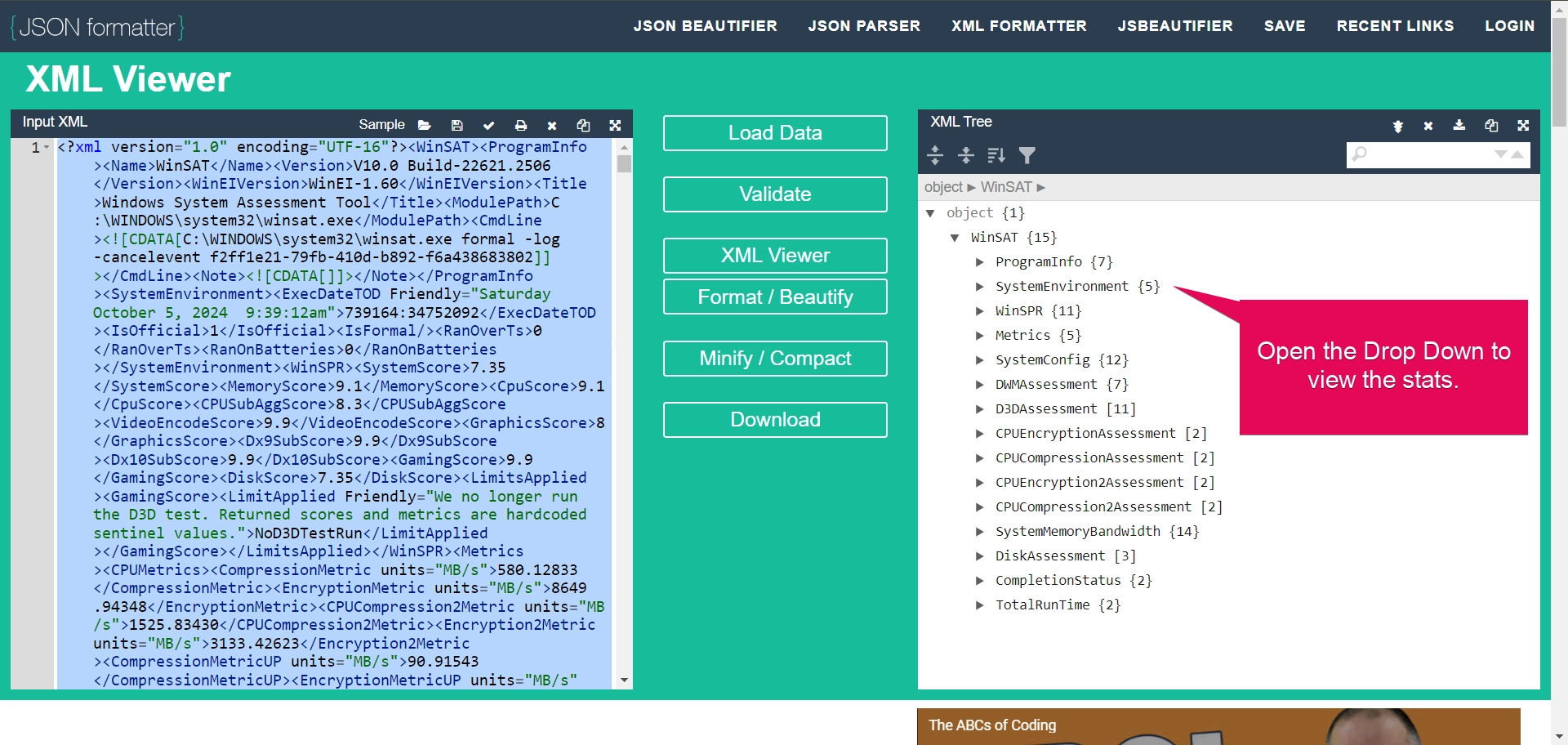
Viewing XML file using online website to view the score of your pc.
Viewing an XML file using an online website to view the score of your pc.

Method 4: Using 3rd Party Apps:

You can also use the Third-Party Tools to view performance reports, although it won’t show the WEI in the traditional format.

  1. ChrisPC Win Experience Index:

This app will help you rate your computer and gain access to the Windows Experience Index score on Windows 11.

  • You can download the software from the following link: Download ChrisPC Win Experience Index App.
  • Once you have downloaded the application, proceed with the installation.
  • Launch the application after the installation is complete.
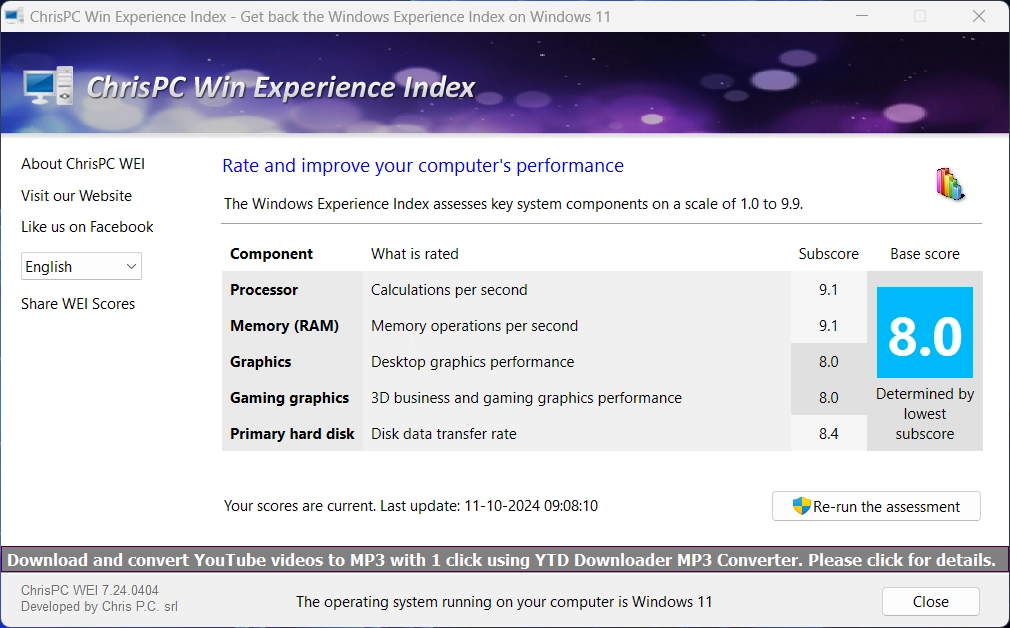
The Default Windows Experience Index Score will be displayed by this app
  • If you want to get the latest and detailed report of your pc, then you need to click the Re-run the assessment button.
  • The assessment will take more than a minute to complete. Once the assessment is completed, the rating will be displayed as a graph value.
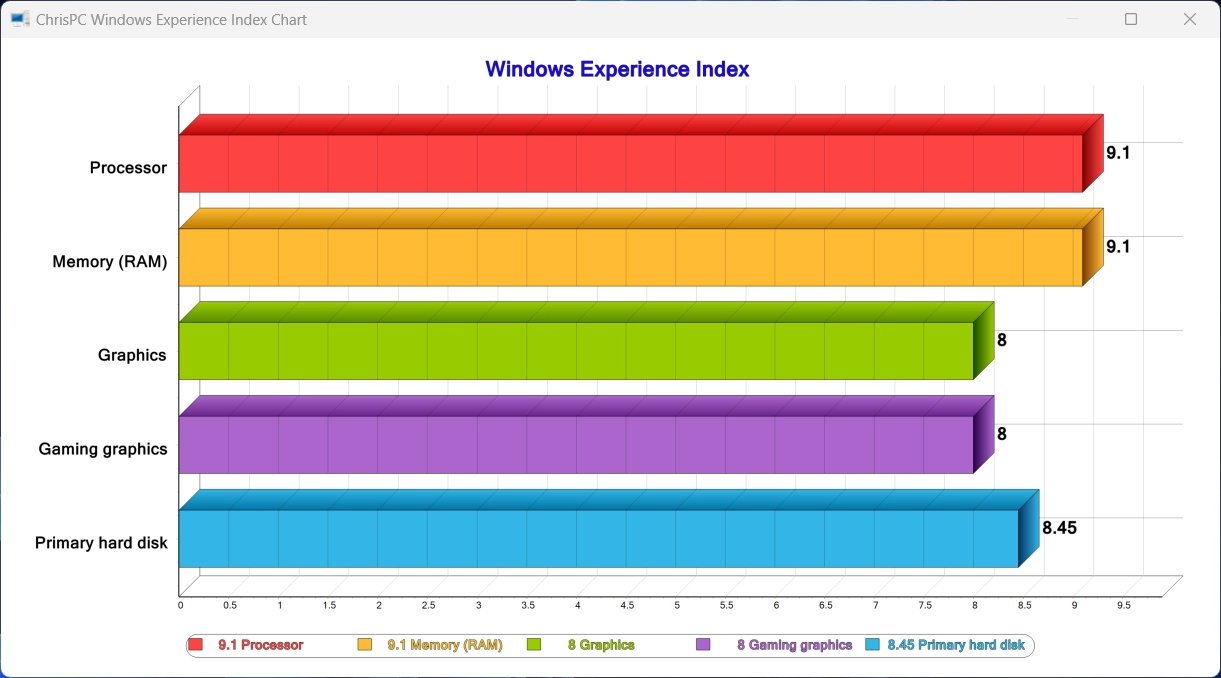
Showing Windows Experience Index Score as a Graph
  1. ExperienceIndexOK:

A lightweight utility that displays the WEI score without requiring an installation. You can download the app from the following link: Download ExperienceIndexOK app.

  • After the app is downloaded, extract the zip file and run the exe file to launch the application.
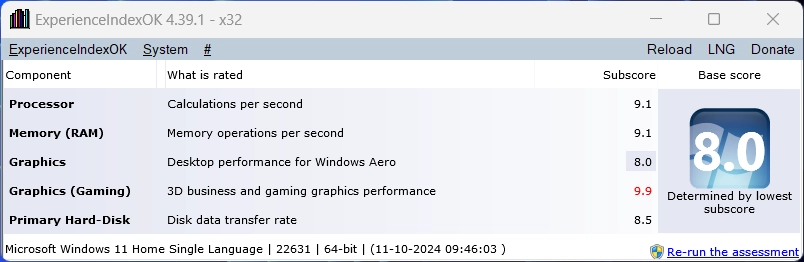
Windows Experience Index Score by ExperienceIndexOK app
Windows Experience Index Score by the ExperienceIndexOK app
  • You can re-run the assessment if you want to update the index score.
  • It will launch the Winsat.exe application in the Command Prompt and run multiple tests to determine the score. It will take more than a minute to complete.
  • The updated score will be displayed in the app after completing the assessment.
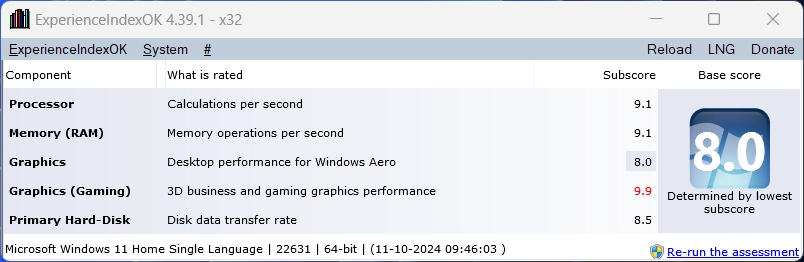
Updated Score after re-running the assessment

In conclusion, while Microsoft has removed the Windows Experience Index feature from Windows 11 settings, there are still several ways to check your system’s performance score. By following the methods outlined in this tutorial, you can easily assess your PC’s performance and gain insights into its capabilities. Whether you’re looking to upgrade your hardware or simply monitor how well your system is running, these alternatives provide a simple way to access the Windows Experience Index on Windows 11.


Read more:

  • Enable Unified Write Filter in Windows 11
  • How to Enable Unbranded Boot in Windows 11?
  • How to Empty The Recycle Bin in Windows 11?

Tags:

How toTipsTutorialswindows 11
Narendhiran Vijayakumar
Author

Narendhiran Vijaykumar

I Am a Frontend Developer, and Business Creator With Over 8 Years of Experience in Php and Frontend Web Development. I Have Over 15 Years of Experience Using Windows Os, From Windows Xp to Windows 11, and Possess Sound Knowledge in Using and Solving Real-time Problems. I Am Getting Proficient in Ai-based Technologies and Have Developed 3 Successful Web Apps and Saas Platforms.

Follow Me
Other Articles
6 Best Ways: Show Folder Size in Windows 11 File Explorer!
Previous

6 Best Ways: Show Folder Size in Windows 11 File Explorer!

ENABLE MICROSOFT MESSAGE QUEUE (MSMQ) SERVER IN WINDOWS 11
Next

Enable Microsoft Message Queue (MSMQ) Server in Windows 11

No Comment! Be the first one.

Leave a Reply Cancel reply

Your email address will not be published. Required fields are marked *

  • How to Run Group Policy Editor as Administrator on Windows 11?
  • Easy Way to Enable Windows Subsystem for Linux in Windows 11
  • Enable Windows Subsystem for Linux (WSL 2) using Command Prompt & PowerShell
  • Enable IIS Management Console in Windows 11 [GUI]
  • Quick Steps to Enable Core Isolation in Windows 11
  1. Vigneshwaran Vijayakumar
    Vigneshwaran Vijayakumar on How to Enable Windows PowerShell 2.0 in Windows 11?October 5, 2025

    Hello Mr. Mohamad El-Kheir, Thank you for contacting us. Microsoft has removed PowerShell version 2.0 completely from Windows 11 24H2…

  2. Avatar of Mohamad El-Kheir
    Mohamad El-Kheir on How to Enable Windows PowerShell 2.0 in Windows 11?October 5, 2025

    i have a MSI laptop with windows 11 Home Installed on it. how to install powershell v2.0 on it

  3. Vigneshwaran Vijayakumar
    Vigneshwaran Vijayakumar on DxDiag Windows 11 – What is it & How to use it for Troubleshooting?August 14, 2025

    Hey Myla Shannon Thank you for your valuable feedback. We are delighted to hear your compliment and excited to know…

  4. Avatar of Myla Shannon
    Myla Shannon on DxDiag Windows 11 – What is it & How to use it for Troubleshooting?August 14, 2025

    This content is incredibly informative.

  5. Avatar of seven
    seven on How to Enable IIS [Internet Information Services] in Windows 11?July 29, 2025

    I found this post very helpful.

  • About us
  • What’s New?!
  • Guest Posts on Winsides.com – Terms and Conditions
  • Publication Sitemap
  • Careers
  • Authors
  • Why Trust Winsides.com?
  • Content Removal Request
  • Terms of Use
  • Disclaimer
  • Contact us
Copyright 2024-2026 - Winsides.com. All rights reserved.