

Introduction to HyperTerminal Windows 11
HyperTerminal Windows 11 is a common search because many long-time Windows users remember HyperTerminal from Windows 95, Windows 98, Windows 2000, and Windows XP. It was the familiar tool for modem dialing, serial COM-port sessions, simple terminal emulation, Telnet connections, file transfers, and direct communication with routers, switches, embedded boards, lab equipment, and industrial devices. On a modern Windows 11 PC, though, the old built-in HyperTerminal experience is no longer part of Windows.
The practical answer is this: Windows 11 does not include the old Microsoft-bundled HyperTerminal app. If you specifically want the original-style commercial product, Hilgraeve offers HyperTerminal Private Edition for modern Windows versions, including Windows 11. If your real goal is serial console access, SSH, Telnet, modem dialing, or local command-line work, there may be a better tool than chasing the old Windows XP accessory.
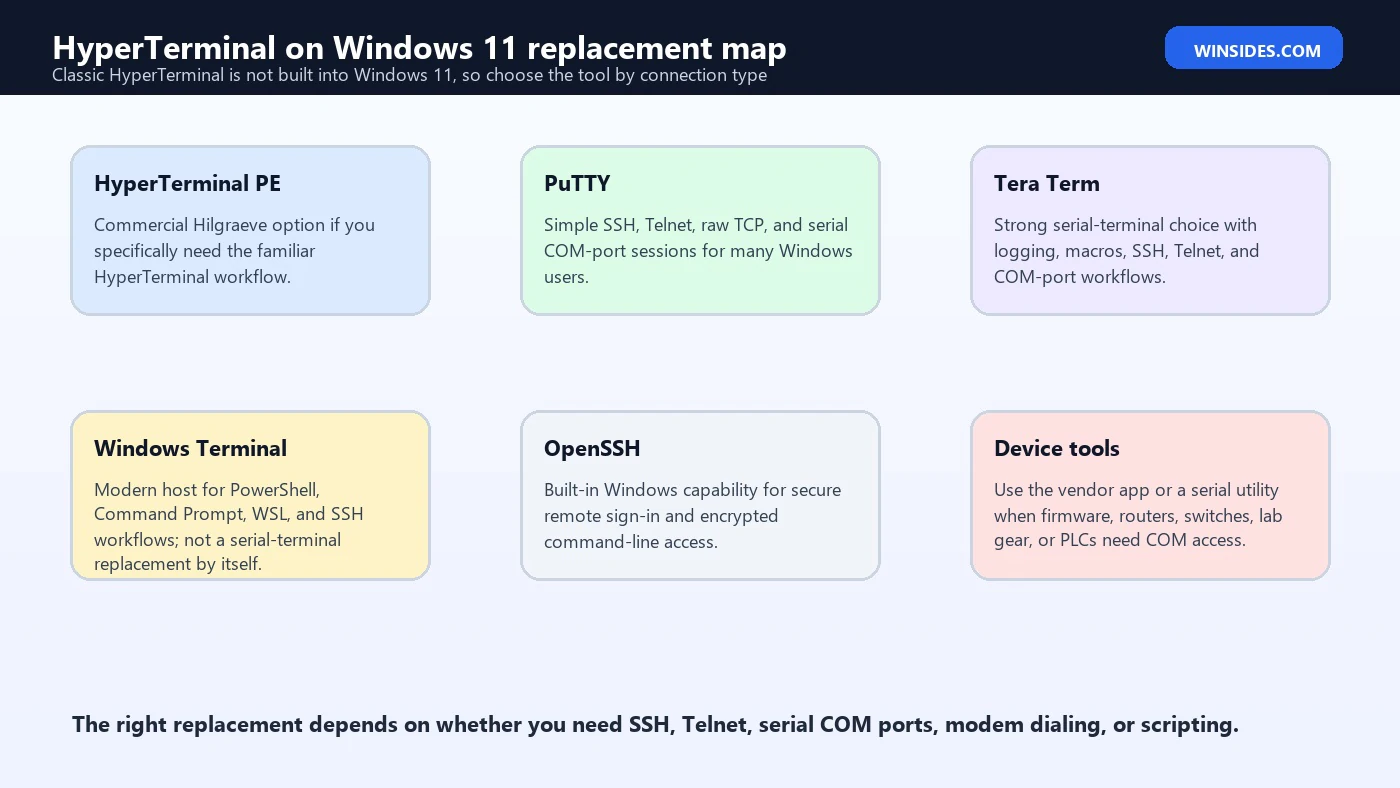
That distinction matters. A network engineer connecting to a switch console, a hobbyist programming a microcontroller, a technician using RS-232 lab gear, and a user who only wants an SSH window are not solving the same problem. HyperTerminal was a general communications tool. Windows 11 splits those jobs across better-targeted tools: Windows Terminal for local shells, OpenSSH for secure remote login, PuTTY or Tera Term for serial and network terminal sessions, and specialized vendor tools for some industrial hardware.
This guide explains what happened to HyperTerminal, whether you can use it on Windows 11, which replacement to choose, how to connect to serial COM ports, what settings matter, why Telnet is risky, how Windows Terminal differs from HyperTerminal, and what to avoid when handling old terminal workflows.
For official context, see Hilgraeve on HyperTerminal Private Edition, Microsoft Learn for Windows Terminal and OpenSSH for Windows, the official PuTTY page, and the Tera Term Open Source Project.
Table of contents
Key Takeaways
- HyperTerminal is not built into Windows 11. The old Windows accessory is gone, so you need a replacement or a commercial HyperTerminal edition.
- HyperTerminal Private Edition is the closest official successor. Hilgraeve offers it for modern Windows versions when you specifically need HyperTerminal-style terminal emulation.
- PuTTY and Tera Term are better fits for many users. They handle common SSH, Telnet, raw socket, and serial COM-port workflows without depending on old Windows XP files.
- Windows Terminal is not the same thing as HyperTerminal. It hosts PowerShell, Command Prompt, WSL, and SSH workflows, but it is not a built-in RS-232 serial terminal by itself.
- OpenSSH is the secure remote-login path. Microsoft documents OpenSSH for Windows 11, and SSH should be preferred over Telnet whenever the remote system supports it.
- Serial connections depend on exact settings. COM port, baud rate, data bits, parity, stop bits, flow control, and line endings must match the device manual.
- Do not copy HyperTerminal files from old Windows installs. Use a supported tool instead of moving old binaries into Windows 11 and hoping they behave safely.
Is HyperTerminal Included in Windows 11?
No. The classic HyperTerminal accessory that many people remember from Windows XP is not included in Windows 11. You will not find it in Start, Optional Features, Windows Tools, Control Panel, or the Microsoft Store as a built-in Windows component. If a tutorial tells you to open HyperTerminal from Communications tools on Windows 11, it is describing an old Windows version, not the current operating system.
This absence is not a bug. Windows moved on from the old accessory model. Modern Windows includes Windows Terminal for command-line shells, OpenSSH capabilities for secure remote sign-in, and a large ecosystem of dedicated terminal clients. Serial communications, SSH, Telnet, and modem workflows still exist, but Windows 11 no longer ships one old all-purpose HyperTerminal app for them.
If you need the actual HyperTerminal product, Hilgraeve sells HyperTerminal Private Edition and states that it is for Windows 7, 8, 10, 11, Vista, and XP. That is the legitimate route for users who specifically require HyperTerminal behavior, file-transfer protocols, terminal emulations, modem dialing, or an environment that matches legacy documentation. Many users, however, do not need the commercial product because their real goal can be handled with PuTTY, Tera Term, Windows Terminal, or OpenSSH.
What HyperTerminal Was Used For
HyperTerminal was useful because it handled several old and practical connection types in one app. It could talk through dial-up modems, connect to remote systems through Telnet, communicate over serial COM ports, emulate terminal types such as VT100, and transfer files through old protocols such as XMODEM, YMODEM, ZMODEM, and Kermit. That made it popular with technicians, network administrators, hobbyists, embedded developers, and people maintaining older equipment.
The most common modern reason people search for HyperTerminal Windows 11 is serial access. Routers, switches, firewall appliances, CNC systems, UPS controllers, laboratory instruments, GPS receivers, development boards, microcontrollers, point-of-sale devices, and industrial controllers may expose a serial console. The PC connects through a real serial port, USB-to-serial adapter, or virtual COM port, then a terminal app displays text from the device and sends commands back.
Another reason is Telnet or raw TCP access to legacy systems. Telnet still appears in older devices and private lab environments, but it is not secure for credentials because traffic is not encrypted. SSH is the modern preference when available. HyperTerminal also covered modem workflows, but true dial-up modem administration is now niche and often better handled by specialized tools or the commercial HyperTerminal edition.
Best HyperTerminal Alternatives for Windows 11
For most Windows 11 users, the best HyperTerminal replacement depends on connection type. If you need SSH into a server, router, Linux machine, or Windows OpenSSH server, use Windows Terminal with OpenSSH, PuTTY, or Tera Term. If you need a serial COM console, use PuTTY or Tera Term. If you need the exact HyperTerminal interface and file-transfer protocols, consider HyperTerminal Private Edition. If you only need PowerShell or Command Prompt tabs, use Windows Terminal.
PuTTY is a long-standing terminal client for Windows. Its official page describes it as a free SSH and Telnet client, and it is commonly used for SSH, Telnet, raw socket, and serial connections. It is simple, portable in many workflows, and familiar to network administrators. For a quick COM-port console or SSH session, PuTTY is often the fastest replacement for old HyperTerminal habits.
Tera Term is another strong option, especially for serial and scripted workflows. The Tera Term project describes it as open source software under the BSD license and provides current releases through GitHub. It supports terminal emulation, SSH, Telnet, serial COM ports, logging, macros, and automation. If you configure devices repeatedly or need logs from serial sessions, Tera Term can be more convenient than a bare-bones terminal window.
Windows Terminal vs HyperTerminal
Windows Terminal is not a direct HyperTerminal clone. Microsoft describes Windows Terminal as a modern host application for command-line shells such as Command Prompt, PowerShell, and bash through WSL. It has tabs, panes, Unicode and UTF-8 support, GPU-accelerated text rendering, themes, shortcuts, and profiles. It is excellent for local command-line work and shell-based SSH workflows.
HyperTerminal, by contrast, was a communications terminal for modems, COM ports, Telnet, and terminal emulation. Windows Terminal does not automatically become a serial terminal just because it has the word terminal in the name. It can host command-line programs, so if you use a command-line serial utility, it can run inside Windows Terminal. But Windows Terminal itself is not the simple GUI where you choose COM3, 9600 baud, 8 data bits, no parity, and one stop bit.
Use Windows Terminal when your goal is PowerShell, Command Prompt, WSL, Azure Cloud Shell, command-line tools, or OpenSSH. Use PuTTY, Tera Term, HyperTerminal Private Edition, or vendor tools when your goal is direct serial-device communication.
Using OpenSSH on Windows 11 Instead of Telnet
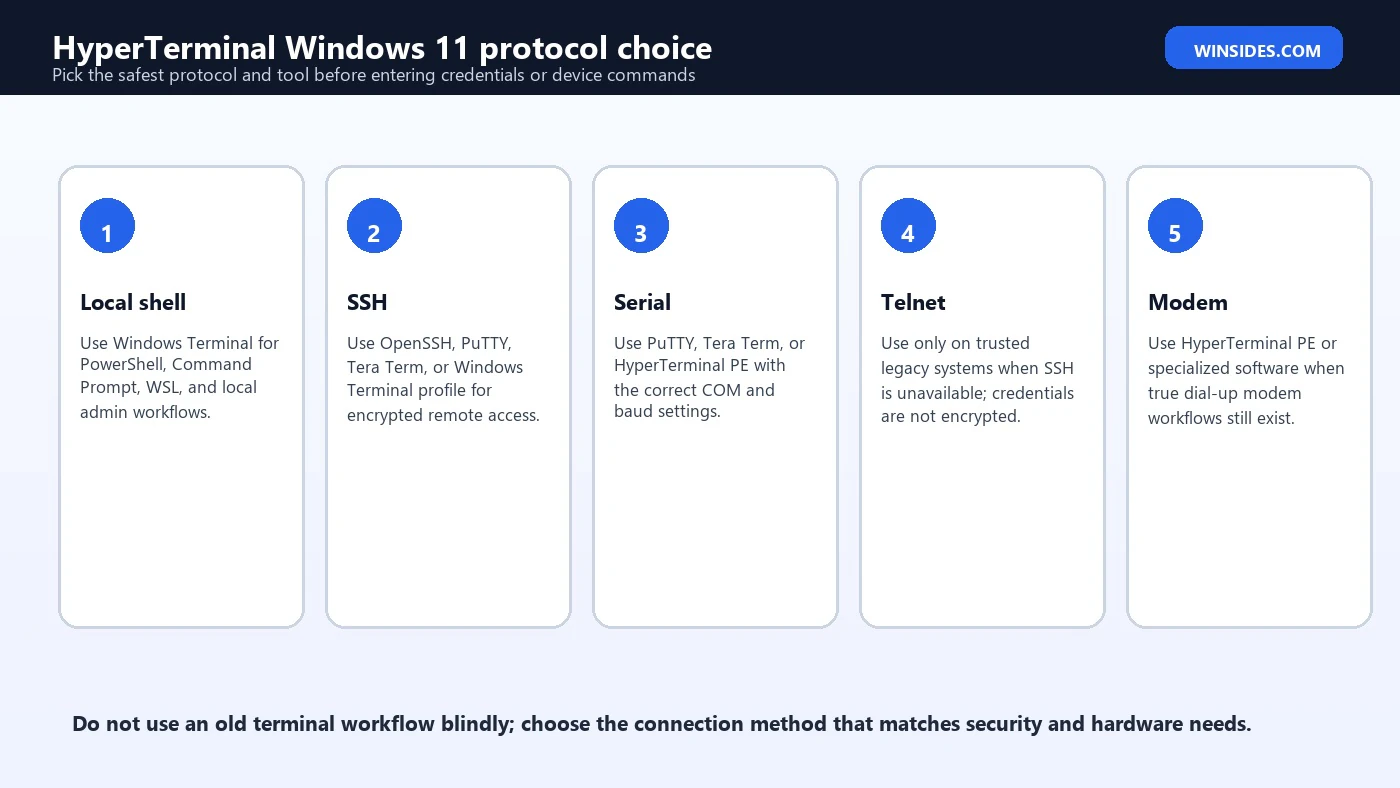
Microsoft documents OpenSSH for Windows 11 and describes OpenSSH as a connectivity tool for remote sign-in using the SSH protocol. SSH encrypts traffic between client and server, which protects against eavesdropping and session hijacking. That is why SSH should be your first choice when a remote device or server supports it.
Windows 11 can include the OpenSSH Client capability, and Microsoft documents how to install OpenSSH components through Optional Features or PowerShell when needed. Once the client is available, you can use the ssh command from Windows Terminal, PowerShell, or Command Prompt. For example, an administrator might run ssh admin@example-device or ssh user@192.168.1.10, depending on the device.
Telnet should be reserved for legacy systems where SSH is not available and the network is trusted. Telnet sends traffic without modern encryption, so passwords and commands can be exposed to anyone able to inspect the network path. If a device offers both SSH and Telnet, use SSH. If a device only offers Telnet, avoid sending sensitive credentials over untrusted networks and consider upgrading the device or firmware.
Serial COM Port Setup on Windows 11
Serial setup is where most HyperTerminal replacement problems happen. The terminal app is only one piece. You also need the correct COM port, working cable, correct adapter driver, correct device power state, and matching serial parameters. A single wrong setting can produce a blank screen, unreadable characters, or commands that never execute.
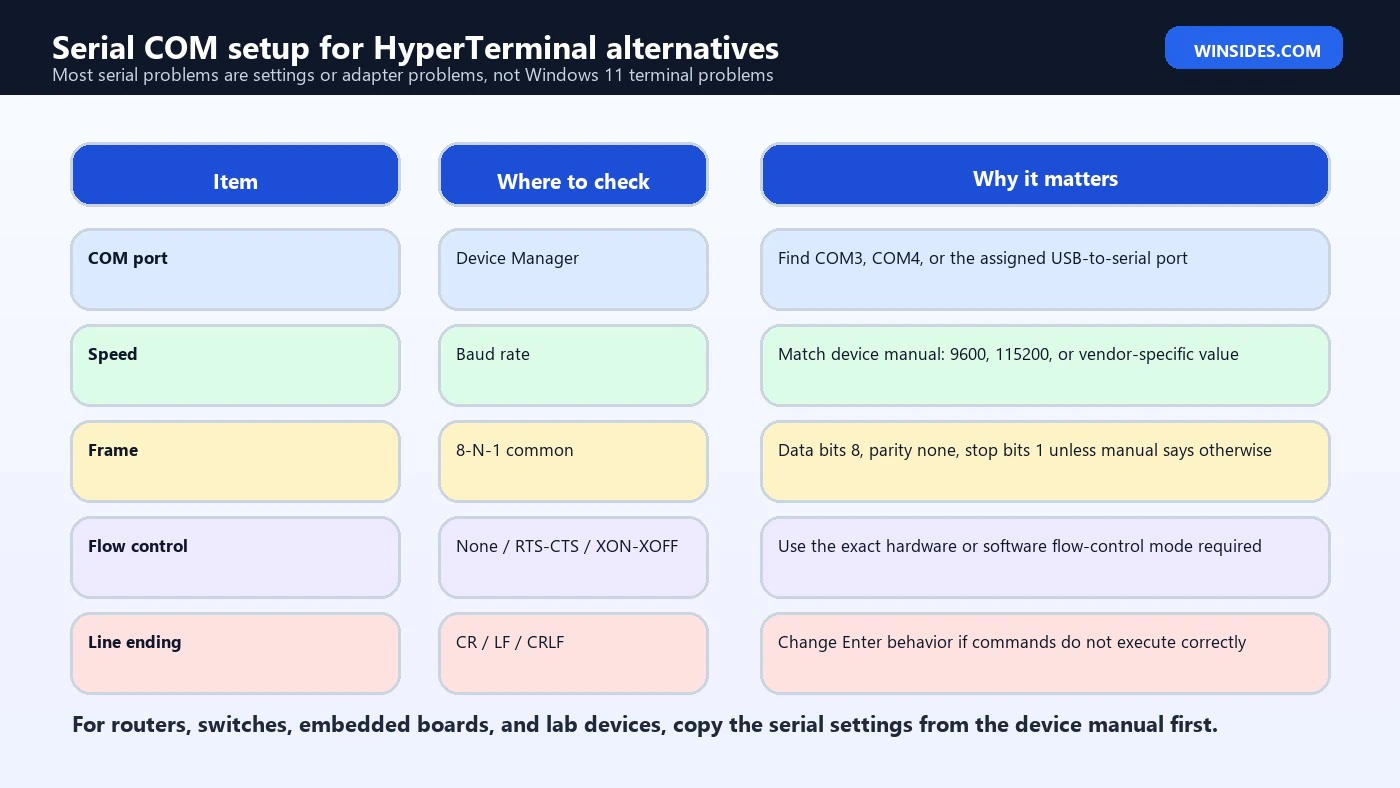
Start in Device Manager. Plug in the USB-to-serial adapter or device, then look under Ports (COM & LPT). Note the assigned COM number, such as COM3 or COM5. If no port appears, install the correct driver from the adapter or device manufacturer. Common adapter chip families include FTDI, Prolific, Silicon Labs, and WCH, but you should use the driver that matches your exact hardware.
Next, open PuTTY, Tera Term, or another serial-capable terminal. Select Serial, enter the COM port, and match the speed and frame settings from the device manual. Common settings are 9600 baud, 8 data bits, no parity, 1 stop bit, and no flow control, often written as 9600 8-N-1. Many network devices use 9600 or 115200 baud, but guessing is not ideal. Always check the manual first.
Common Serial Settings Explained
The COM port is the Windows name assigned to the serial connection. A real motherboard serial port might be COM1. A USB adapter might become COM3, COM4, or a much higher number. If your terminal app is pointed at the wrong COM port, nothing will happen. If another program already has the port open, your terminal app may fail to connect.
The baud rate controls speed. If the baud rate is wrong, you may see garbage characters or nothing useful. Data bits, parity, and stop bits define the frame format. The most common setting is 8-N-1, meaning 8 data bits, no parity, and 1 stop bit. Flow control controls whether hardware or software signaling pauses transmission. Many simple console sessions use none, while some devices require RTS/CTS or XON/XOFF.
Line endings matter too. Some devices execute a command when they receive carriage return, some expect line feed, and some expect both. If you type a command and the device echoes it but does nothing, check whether the terminal sends CR, LF, or CRLF when you press Enter. Tera Term and other terminal tools expose these settings because they matter in real serial workflows.
Should You Buy HyperTerminal Private Edition?
HyperTerminal Private Edition makes sense when you specifically need HyperTerminal, not just any terminal emulator. Hilgraeve describes it as a Windows terminal emulation program that can connect through TCP/IP networks, dial-up modems, and COM ports, and lists terminal emulations and file-transfer protocols such as XMODEM, YMODEM, ZMODEM, and Kermit. If your documentation, training, or workflow expects HyperTerminal, this may be the cleanest path.
It may also make sense when a business process is built around old modem, file-transfer, or terminal-emulation behavior and the cost of learning or validating another tool is higher than buying the commercial edition. In regulated, industrial, or support environments, matching the documented tool can reduce risk.
For casual use, though, try PuTTY or Tera Term first. If all you need is a serial console to a router or microcontroller, a free tool may be enough. If all you need is SSH, Windows Terminal plus OpenSSH or PuTTY may be better. Buy HyperTerminal Private Edition only when its specific features or familiar workflow are actually useful.
Can You Copy HyperTerminal from Windows XP?
Copying old HyperTerminal files from Windows XP into Windows 11 is not recommended. It may raise licensing issues, missing dependency issues, old help-file problems, compatibility problems, and security concerns. Even if you find hypertrm.exe and related files, moving them into a modern Windows installation is not a supportable repair strategy.
A copied binary also does not solve the bigger problem: Windows 11 is a different environment. USB-to-serial adapters, device drivers, security policy, display scaling, file locations, and network security expectations have changed. A supported terminal app is easier to update, easier to remove, and easier to document.
If you need the old HyperTerminal experience, use Hilgraeve’s current HyperTerminal Private Edition. If you only need terminal communication, use a modern maintained replacement. That keeps the workflow cleaner and avoids the weird edge cases that come from resurrecting old Windows accessories.
Recommended Tool by Use Case
| Need | Best fit | Why |
|---|---|---|
| Local PowerShell, Command Prompt, or WSL | Windows Terminal | Modern tabs, panes, profiles, Unicode support, and shell hosting |
| SSH to servers or network devices | OpenSSH, PuTTY, or Tera Term | Encrypted remote login and broad compatibility |
| Serial console to routers or switches | PuTTY or Tera Term | Simple COM-port setup with baud rate and flow-control options |
| Repeated serial automation | Tera Term | Logging and macro scripting are useful for repeated device workflows |
| Exact old HyperTerminal workflow | HyperTerminal Private Edition | Commercial successor with HyperTerminal-style terminal emulation |
| True dial-up modem workflow | HyperTerminal PE or specialized modem software | Modern SSH tools are not modem dialers |
| Legacy Telnet device | PuTTY or Tera Term | Use only on trusted networks when SSH is unavailable |
Basic PuTTY Serial Setup
PuTTY is often the quickest replacement for a HyperTerminal serial session. Open PuTTY, choose Serial as the connection type, enter the serial line such as COM3, set the speed such as 9600 or 115200, and open the session. If the screen is blank, press Enter once or power-cycle the device if the manual expects boot messages. If you see unreadable symbols, the baud rate or frame settings are probably wrong.
PuTTY keeps the interface simple, which is good for quick troubleshooting. It is less friendly for complex logging or scripted workflows, but it is excellent when you need to test whether a serial console works. For routers, switches, firewall appliances, and embedded boards, PuTTY is often enough.
Do not download PuTTY from random lookalike sites. Use the official PuTTY project page or trusted package sources. Terminal tools handle credentials and device access, so source matters.
Basic Tera Term Serial Setup
Tera Term is especially useful when you want serial access plus logging, macros, and repeatable device steps. After launching Tera Term, choose Serial, select the COM port, then configure speed, data, parity, stop bits, and flow control. Use the Setup menu to adjust terminal behavior, serial port settings, and logging. For many embedded or network-device workflows, Tera Term feels closer to what technicians expected from HyperTerminal while adding better automation.
Tera Term macros are valuable when you repeatedly connect to the same device, send the same login sequence, capture logs, or run the same diagnostic commands. Automation should still be used carefully. A macro that sends configuration commands to the wrong device can cause real outages. Label scripts clearly and test them on non-production equipment first.
The Tera Term project page points users to current releases on GitHub and notes that development continues there. Use the latest stable release when possible instead of old copies passed around in zip files.
Using Windows Terminal for SSH
Windows Terminal works well when SSH is command-line based. Open Windows Terminal, choose PowerShell or Command Prompt, and run an ssh command. If the OpenSSH Client is installed, you can connect directly to a host. Windows Terminal gives you tabs, split panes, profiles, fonts, colors, and copy/paste behavior that feels modern compared with old console windows.
A typical command looks like this:
ssh user@192.168.1.10
ssh admin@example.com
ssh -p 2222 user@example.com
This is not the same as choosing COM ports in a GUI, but it is excellent for secure remote shells. If you live in PowerShell, WSL, Git, cloud tools, and SSH, Windows Terminal may replace most of what you thought you needed HyperTerminal for. If you need RS-232 serial access, pair Windows Terminal with a command-line serial tool or use PuTTY, Tera Term, or HyperTerminal PE instead.
Telnet on Windows 11: Use Carefully
Telnet is still seen in old devices, lab gear, PBX systems, routers, embedded controllers, and historical workflows. The problem is security. Telnet does not provide the protection users expect from SSH. Credentials and commands can be exposed on the network. That makes Telnet unsuitable for normal administration across untrusted networks.
If a device supports SSH, use SSH. If it supports only Telnet and you cannot replace it, keep the connection on a trusted isolated network, avoid sensitive reusable passwords, and document why Telnet still exists. PuTTY and Tera Term can handle Telnet sessions, but support for Telnet should not be mistaken for a recommendation to use it whenever SSH is available.
In some environments, Telnet is acceptable for a lab bench, air-gapped system, or temporary recovery session. In production networks, it should be treated as legacy technical debt and replaced when possible.
USB-to-Serial Adapter Problems
Many Windows 11 serial failures come from the adapter rather than the terminal app. A cheap USB-to-serial cable may use a chip that needs a specific driver. Windows may assign a COM port but still fail under load. Counterfeit or old adapter chips can behave unpredictably with newer drivers. If a device never responds, test the adapter on another known-good device before blaming PuTTY or Tera Term.
Use Device Manager to confirm the port appears without a warning icon. If the port number is very high, some old software may not like it; you can change the COM port number in the device advanced settings. Avoid installing random driver packs. Download adapter drivers from the adapter manufacturer, the chip vendor, or the hardware vendor that supplied the equipment.
Cable type also matters. RS-232 console cables, null-modem cables, straight-through serial cables, USB TTL adapters, and RJ45 console cables are not interchangeable. A terminal app cannot fix the wrong physical wiring. If the device manual specifies a rollover cable, null modem, TTL voltage, or vendor cable, follow that requirement exactly.
Logging Serial and Terminal Sessions
One reason technicians liked HyperTerminal was easy session capture. Logs are still important on Windows 11. When diagnosing a router boot loop, embedded board startup, modem response, or lab device error, enable logging before the important event happens. Tera Term is especially popular for this because its logging and macro features are convenient. PuTTY also supports session logging in its settings.
Name log files clearly. Include device name, date, connection type, baud rate, and purpose. A file called switch-console-2026-06-24-115200.log is more useful than log.txt. Be careful with credentials in logs. Terminal logs can capture passwords, tokens, Wi-Fi keys, device serial numbers, and configuration secrets. Store and share them accordingly.
For support cases, a clean log can save hours. Capture boot messages from the start, include the commands you typed, and avoid editing the log unless you are redacting secrets. If you redact, mark where redaction occurred so the vendor understands the sequence.
Security Checklist for Terminal Tools
- Download terminal programs only from official project or vendor pages.
- Prefer SSH over Telnet whenever the remote system supports it.
- Do not reuse sensitive passwords on legacy Telnet or serial workflows.
- Treat session logs as sensitive because they may capture credentials and configuration data.
- Keep USB-to-serial drivers from trusted vendors, not random driver bundles.
- Avoid copying old HyperTerminal binaries from Windows XP into Windows 11.
- Document COM settings and cable requirements so future troubleshooting is repeatable.
Troubleshooting Blank Screen or Garbage Text
A blank terminal window usually means the port is wrong, the device is silent until reboot, the cable is wrong, the device is off, flow control is blocking traffic, or another program already opened the port. Press Enter, check the COM port, reboot the device while the terminal is open, and verify the cable. If you still get nothing, test with a known-good adapter and known-good device.
Garbage text usually means mismatched baud rate or frame settings. Try the speed from the device manual first. Common speeds include 9600, 38400, 57600, and 115200. Keep data bits, parity, and stop bits aligned with the manual. If the text looks almost readable but not quite, the baud rate is still likely wrong.
If commands appear but do not execute, check line endings and local echo. Some devices echo characters; others do not. Some require carriage return, some line feed, and some both. If you type help and nothing happens until you change Enter behavior, line endings were the issue.
Frequently Asked Questions
Is HyperTerminal available in Windows 11?
No. The old Microsoft-bundled HyperTerminal accessory is not included in Windows 11.
Can I install HyperTerminal on Windows 11?
Yes, if you use Hilgraeve HyperTerminal Private Edition. Otherwise, use modern alternatives such as PuTTY, Tera Term, Windows Terminal with OpenSSH, or vendor tools.
What is the best HyperTerminal alternative for Windows 11?
For most serial and SSH users, PuTTY or Tera Term is the best replacement. For local shells, Windows Terminal is best. For the exact HyperTerminal workflow, use HyperTerminal Private Edition.
Is Windows Terminal the same as HyperTerminal?
No. Windows Terminal hosts command-line shells such as PowerShell, Command Prompt, WSL, and SSH. HyperTerminal was a communications terminal for COM ports, modems, Telnet, and terminal emulation.
Can PuTTY connect to serial COM ports?
Yes. PuTTY can open serial sessions when you select Serial, enter the COM port, and match the speed and other serial settings.
Is Tera Term good for serial devices?
Yes. Tera Term is a strong choice for serial ports, logging, macros, SSH, and Telnet workflows.
Should I use Telnet on Windows 11?
Only for legacy systems on trusted networks when SSH is unavailable. SSH is preferred because it encrypts traffic.
Why does my serial terminal show unreadable characters?
The baud rate, parity, data bits, stop bits, or flow control probably does not match the device.
Can I copy hypertrm.exe from Windows XP?
It is not recommended. Use a supported current tool instead of moving old Windows accessory files into Windows 11.
Conclusion: Use the Right HyperTerminal Replacement
HyperTerminal Windows 11 troubleshooting starts with a simple reality: the old built-in HyperTerminal accessory is gone. That does not mean the work is impossible. It means you should choose the right modern tool. Use Windows Terminal and OpenSSH for secure command-line remote access. Use PuTTY or Tera Term for serial COM ports and legacy terminal sessions. Use HyperTerminal Private Edition if you specifically need the commercial HyperTerminal workflow.
For serial devices, success depends on the exact COM port, adapter driver, cable, baud rate, data bits, parity, stop bits, flow control, and line ending. For remote access, SSH should replace Telnet whenever possible. For modem workflows, use a tool that actually supports modem dialing. For logs and repeatable device work, Tera Term macros and session logging can be extremely useful.
The safest approach is to stop hunting for old Windows XP files and instead match the tool to the connection. That gives you a cleaner Windows 11 setup, fewer compatibility surprises, better security, and a workflow that another technician can reproduce later.
For more interesting articles, stay tuned to Winsides.com!









Community
Comments (0)