

Introduction to MS Gaming Overlay Windows 11
MS Gaming Overlay Windows 11 usually appears when Windows tries to open the Xbox Game Bar overlay through the ms-gamingoverlay link or protocol. The most common message is “You’ll need a new app to open this ms-gamingoverlay link.” It can appear when pressing Win+G, pressing the Xbox button on a controller, launching a game, opening capture controls, or when an app tries to call the Game Bar overlay.
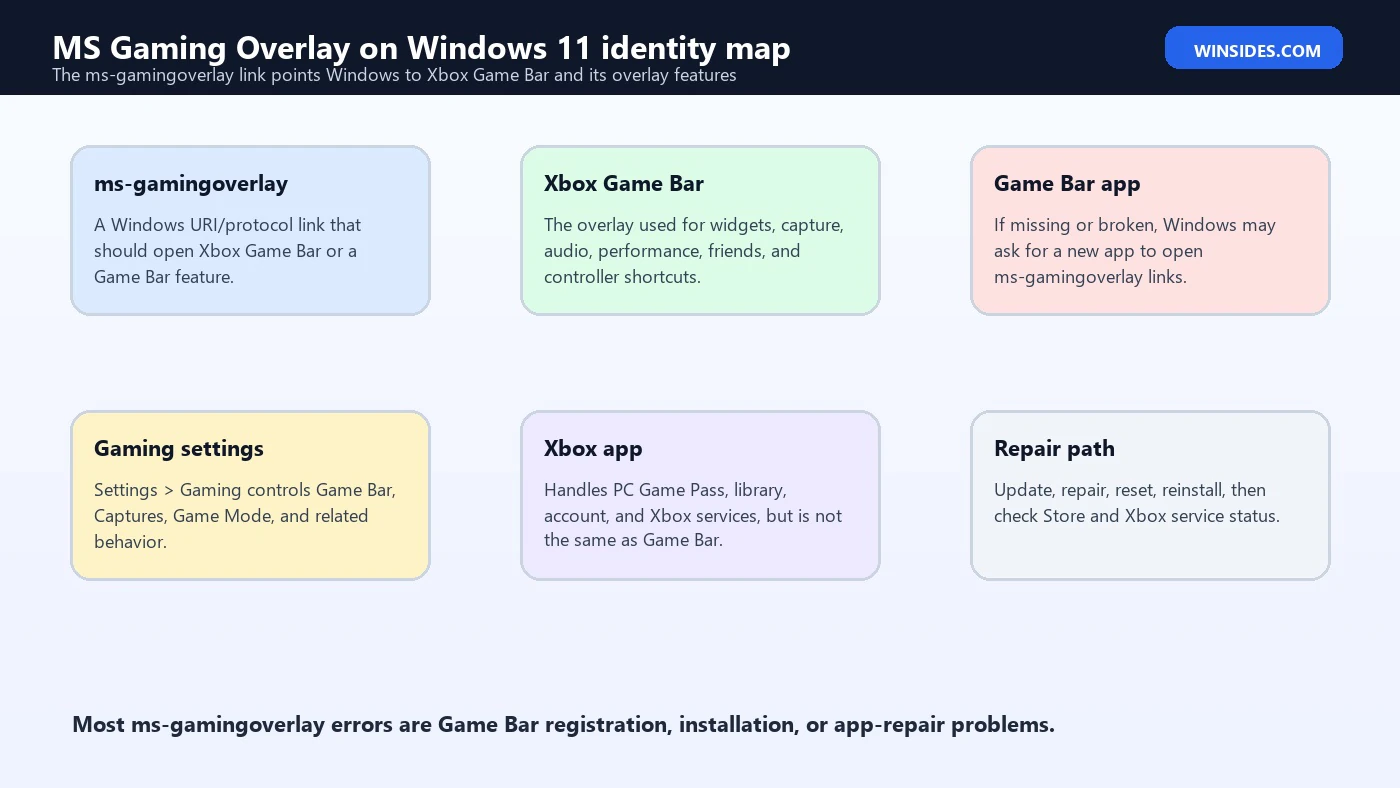
The short version is that ms-gamingoverlay is not a separate game, driver, or virus by itself. It is a Windows app-link style trigger associated with Game Bar. If the Game Bar package is missing, disabled, corrupted, unregistered, blocked by policy, or out of sync with Microsoft Store components, Windows may not know what app should handle that link. That is when the “new app” prompt or overlay failure appears.
This guide explains what ms-gamingoverlay means, how it relates to Xbox Game Bar, why the error appears on Windows 11, and how to fix it without causing more damage. The correct approach is to check Game Bar settings, update Microsoft Store apps, repair or reset Game Bar, reinstall it from the Microsoft Store if needed, and only then consider deeper account, policy, Gaming Services, or Windows component checks.
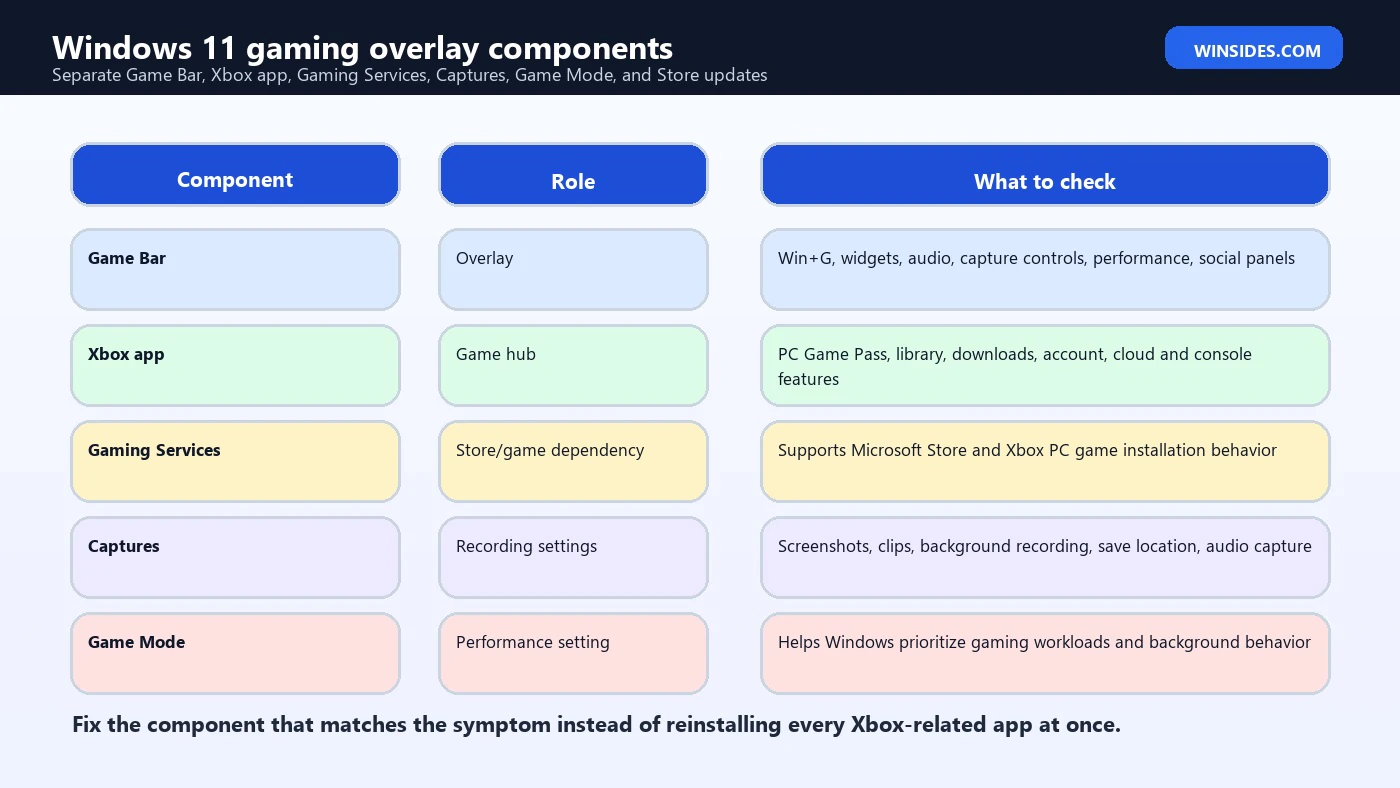
It is also important to separate Game Bar from the Xbox app. Game Bar is the overlay used for widgets, captures, audio controls, performance monitoring, social panels, and controller shortcuts. The Xbox app is the broader PC gaming hub for Game Pass, library management, downloads, Xbox account features, cloud or console-related experiences, and Store-connected gaming. They work together in the Windows gaming ecosystem, but fixing one does not always fix the other.
For official context, use Microsoft’s Game Bar listing in the Microsoft Store, Microsoft Support guidance to repair apps and programs in Windows, the official Xbox app for PC page, and Xbox status when sign-in or service behavior seems involved.
Table of contents
Key Takeaways
- ms-gamingoverlay belongs to the Game Bar path. It is the link Windows uses when something tries to open Xbox Game Bar or its overlay features.
- The “new app to open this ms-gamingoverlay link” error usually means Game Bar is missing, broken, disabled, or not registered correctly.
- Start with Win+G and Gaming settings. Make sure Game Bar is enabled and that the shortcut or Xbox button behavior is expected.
- Update Game Bar from Microsoft Store before using harsher fixes. Store updates can repair app registration and package version issues cleanly.
- Use Repair before Reset. Microsoft’s Windows app repair flow is safer because reset can clear local app data or widget state.
- Game Bar, Xbox app, Gaming Services, Captures, and Game Mode are different components. Fix the component matching the symptom.
- Do not remove Xbox packages blindly with PowerShell. Heavy removal commands can break captures, Store games, Xbox sign-in, or future updates.
What Is ms-gamingoverlay on Windows 11?
ms-gamingoverlay is best understood as a protocol-style link that tells Windows to open the gaming overlay handler. In normal use, the handler is Xbox Game Bar. When everything is working, you do not notice the link. You press Win+G, a controller button, or a game capture shortcut, and Game Bar opens over the game or desktop. When the handler is missing or broken, Windows exposes the underlying link name in an error message.
This is why the error wording feels strange. It does not say “Xbox Game Bar is broken.” It says Windows needs a new app for an ms-gamingoverlay link. The wording comes from the way Windows maps link types to apps. The fix is therefore not to search the web for a mysterious ms-gamingoverlay installer. The fix is to restore the Game Bar app and its registration.
Game Bar itself is the overlay used for captures, widgets, audio controls, performance panels, social features, and game-related shortcuts. Some games and controllers call it automatically. If you never use Game Bar, you may prefer to disable the shortcut behavior. If you do use captures or overlay widgets, you want the package working correctly.
Common Symptoms
- Windows shows “You’ll need a new app to open this ms-gamingoverlay link.”
- Win+G does nothing or opens an error instead of Xbox Game Bar.
- Pressing the Xbox button on a controller opens the ms-gamingoverlay prompt.
- A game launches but the overlay, capture controls, or performance widget does not open.
- Screenshots or game clips no longer work through Game Bar shortcuts.
- Game Bar appears in Settings but repair, reset, or Store updates are needed.
- The Xbox app works, but the overlay still fails, proving the issue is specifically Game Bar.
Why the Error Appears
The error can appear for several reasons. The Game Bar app may have been uninstalled, removed by a debloat script, disabled through policy, damaged by an interrupted Store update, blocked by a privacy or gaming setting, or left in a partially registered state after a Windows feature update. In some cases, the Xbox app is installed, but Game Bar is not. In others, Game Bar is installed but its protocol handler is broken.
Another common cause is aggressive cleanup. Many Windows tuning guides tell users to remove Xbox packages, Gaming Services, Game Bar, Store apps, background tasks, and capture components to reduce “bloat.” That may work for a narrow setup, but it can also break ms-gamingoverlay, Store games, controller shortcuts, captures, or PC Game Pass behavior. If you later press Win+G, Windows no longer knows what should answer.
The error may also happen after switching user accounts, changing Microsoft Store account state, using a local account after previously using a Microsoft account, or restoring Windows from a backup. Store apps are registered per user and per system in ways that can become inconsistent. That is why repair, reset, Store update, and reinstall steps are usually better than deleting more packages.
Step 1: Test Game Bar and Gaming Settings
Start with the simplest test. Press Windows logo key + G. If Game Bar opens, the ms-gamingoverlay handler exists, and the problem may be a shortcut, game, controller, widget, or capture setting rather than a missing app. If the error appears immediately, treat Game Bar installation or registration as the main suspect.
Open Settings, go to Gaming, and review Game Bar and Captures settings. Windows 11 gaming settings can change across builds, but the idea is consistent: confirm whether Game Bar is enabled, whether controller shortcuts are allowed, and whether captures are configured the way you expect. If you do not use Game Bar and only want the prompt gone, disabling the controller shortcut or overlay behavior may be enough.
If you rely on recording, screenshots, or performance widgets, do not simply disable everything. Keep Game Bar enabled and continue with app repair. Disabling a feature can hide the symptom, but it does not restore a broken Game Bar package.
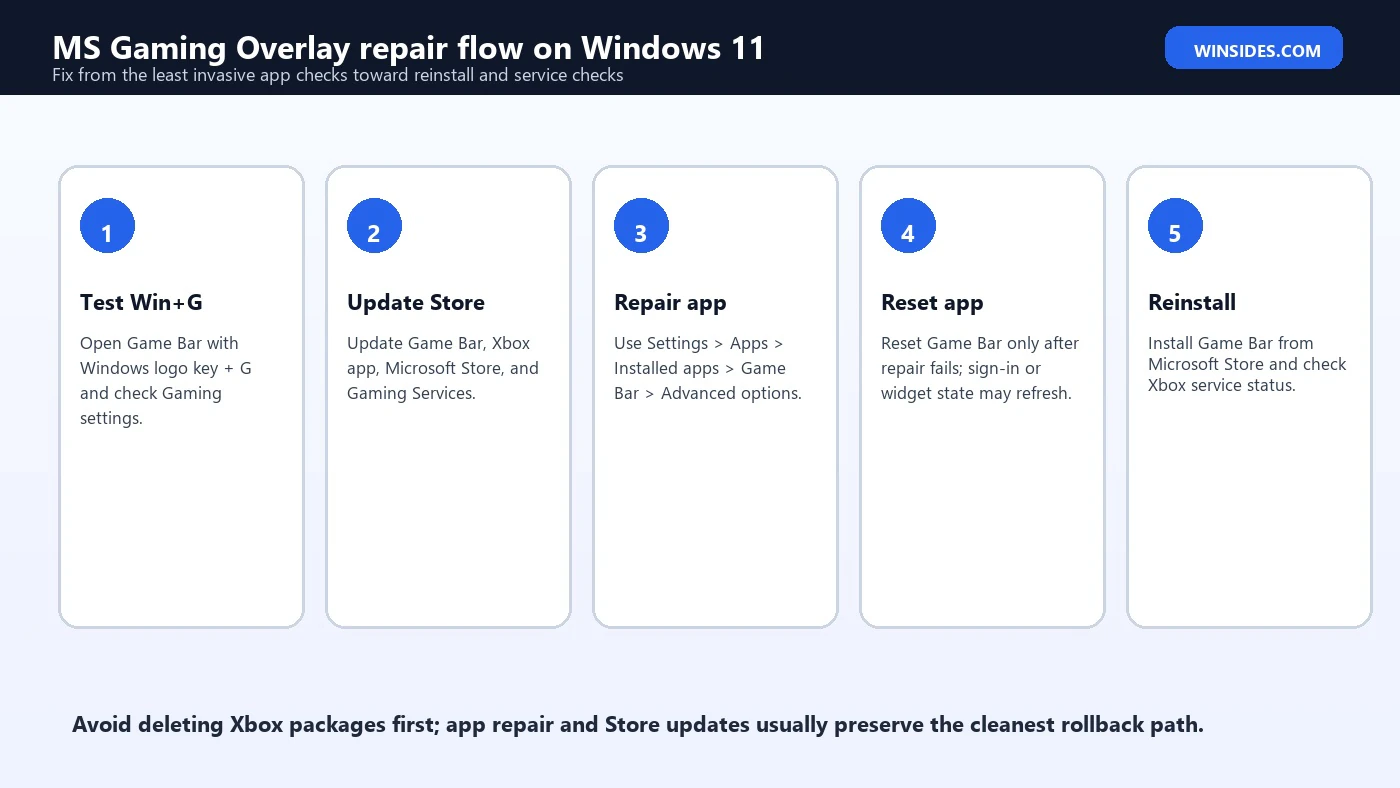
Step 2: Update Game Bar from Microsoft Store
The cleanest fix is often a Store update. Open Microsoft Store, go to Library, and update all Microsoft apps, especially Game Bar, Xbox, Gaming Services, Microsoft Store, and related Xbox components. If Game Bar does not appear, open its Microsoft Store page and install or update it from there. The official Game Bar Store listing is the right source, not a third-party download site.
Store updates matter because Game Bar is a packaged Windows app. Updating it can repair version mismatches, reinstall missing app files, and refresh registration. It also avoids the risk of running long PowerShell removal commands that may remove more Xbox components than intended. If Store is itself broken, fix Microsoft Store first before blaming Game Bar.
After updating, restart the PC. A restart is simple but useful because overlays, shortcuts, controller hooks, and package registration may not behave cleanly until the session restarts. Then press Win+G again and check whether the ms-gamingoverlay prompt is gone.
Step 3: Repair Game Bar in Windows Settings
If updating does not fix it, use Windows app repair. Microsoft Support documents the general process: open Settings, go to Apps, select Installed apps, choose the app, open Advanced options if available, and use Repair. If Repair is unavailable or does not fix the app, Reset is the next option. This is the right repair order for Game Bar too.
Repair tries to fix the app without removing its data. That is why it should come before Reset. Open Settings > Apps > Installed apps, search for Game Bar, select the more-options menu, choose Advanced options, and use Repair if available. Then test Win+G. If the prompt still appears, return to the same page and use Reset.
Reset can clear local state. That may remove widget arrangement, sign-in state, or local app data. It is usually safe, but it is still more invasive than Repair. After reset, open Game Bar again and let it rebuild its configuration. If sign-in is needed, sign in with the Microsoft account used for Xbox services.
Step 4: Reinstall Game Bar from Microsoft Store
If repair and reset fail, reinstall Game Bar from Microsoft Store. Use the official Game Bar Store listing. Avoid “ms-gamingoverlay fix” downloads from random websites. There is no separate trustworthy ms-gamingoverlay installer. The app that normally owns the link is Game Bar.
If Microsoft Store says Game Bar is already installed but the error continues, try updating Store apps again, restart, then use Repair and Reset once more. Store app repair sometimes needs a second pass after a package version changes. Also confirm you are testing from the same Windows user account where the error appears because Store app registration can differ by user.
If Game Bar will not install, check Windows Update, Microsoft Store app health, account sign-in, available disk space, and Xbox service status. If there is a broader Store outage or account issue, Game Bar may be only one visible symptom.
Game Bar vs Xbox App vs Gaming Services
Many users reinstall the Xbox app and expect ms-gamingoverlay to be fixed. Sometimes that helps indirectly, but the Xbox app and Game Bar are not the same thing. The Xbox app is the PC gaming hub for your library, Game Pass, downloads, cloud or console features, and Xbox account experience. Game Bar is the overlay that opens with Win+G and provides widgets and capture controls.
Gaming Services is another piece. It supports Microsoft Store and Xbox PC game installation and launch behavior. If PC Game Pass games fail to install, Gaming Services may be involved. If the only symptom is “new app to open ms-gamingoverlay,” Game Bar is the first target. If Game Bar works but Xbox games do not install, focus on Xbox app, Store, and Gaming Services instead.
This separation keeps troubleshooting sane. Do not reinstall every Xbox-related package at once. Identify the failing surface: overlay, captures, Xbox app, game install, account sign-in, or Store update. Fix the matching component first.
When the Xbox Button Opens the Error
On many Windows 11 PCs, pressing the Xbox button on a connected controller can open Game Bar. If Game Bar is missing or broken, the controller shortcut can trigger the ms-gamingoverlay error even when you never press Win+G. This can make the issue look like a controller driver problem when the real problem is still the Game Bar handler.
If you do not want the controller button to open Game Bar, review Game Bar settings under Gaming. If you do want the shortcut, repair or reinstall Game Bar instead. Also test the controller in a game or in Windows controller settings to separate controller hardware from overlay behavior. A working controller can still trigger a broken overlay link.
For handheld gaming PCs, this distinction matters even more because Xbox-style buttons, compact overlays, controller navigation, and game launchers are more tightly connected. Fixing Game Bar cleanly is better than removing gaming components from a handheld device.
Captures, Screenshots, and Recording Problems
Game Bar is often used for screenshots and clips, so ms-gamingoverlay issues may appear together with capture failures. Check Settings > Gaming > Captures. Confirm where screenshots and videos are saved, whether background recording is enabled, and whether audio capture settings match your needs. If the captures folder was moved, deleted, or redirected, capture behavior can break even if Game Bar opens.
If recording fails only in one game, test another game and the desktop. Some games block overlays or capture for anti-cheat, DRM, exclusive fullscreen, or protected content reasons. If every capture fails, focus on Game Bar, graphics driver, privacy settings, and storage location. If only one game fails, the game or its display mode may be the issue.
Large background recordings can consume storage and affect performance. If you do not use recording, disable background capture. If you do use it, keep an eye on the save folder and disk space. A full drive can cause capture errors that look like Game Bar failures.
Component Comparison
| Component | What it does | When to fix it |
|---|---|---|
| Game Bar | Overlay, widgets, Win+G, captures, audio and performance panels | ms-gamingoverlay prompt, Win+G failure, overlay missing |
| Xbox app | PC Game Pass, library, downloads, account, cloud and console features | Game library, installs, Xbox account, PC Game Pass problems |
| Gaming Services | Supports Store/Xbox PC game install and launch behavior | Game install or launch failures from Xbox app or Store |
| Captures | Screenshot and recording settings | Clips missing, recording fails, wrong save folder, audio missing |
| Game Mode | Windows gaming optimization setting | Performance tuning, stutter investigation, background behavior |
| Microsoft Store | Updates and installs packaged apps | Game Bar cannot update or reinstall, Store app errors |
PowerShell Fixes: Use Carefully
Advanced users often search for PowerShell commands to remove or reinstall Xbox Game Bar. Be careful. Some commands remove packages for the current user, some remove provisioned packages for future users, and some internet snippets remove more Xbox-related components than expected. That can break captures, Game Bar, Xbox app behavior, Store games, or future app updates.
Use Settings repair, Store updates, and Microsoft Store reinstall first. If you use PowerShell, start by inspecting rather than removing. You can check whether the package exists before doing anything destructive.
Get-AppxPackage Microsoft.XboxGamingOverlay
Get-AppxPackage Microsoft.XboxApp
Get-AppxPackage Microsoft.GamingServices
If the package is missing, reinstalling from Microsoft Store is usually cleaner than manually reconstructing packages. If you are managing enterprise devices, use your organization’s app deployment policy rather than ad-hoc consumer repair commands. If a script removed Game Bar, keep that script documented so you know what was changed.
If Game Bar Is Disabled by Policy
On work, school, esports, kiosk, streaming, or managed PCs, Game Bar may be disabled intentionally. An administrator can restrict gaming features, captures, Store apps, or Xbox components. In that case, the ms-gamingoverlay prompt may not be something you should “fix” on your own. The correct route is to ask the administrator whether Game Bar is allowed.
Group Policy, registry settings, device-management profiles, and security tools can affect game recording and overlay behavior. If repair and reinstall succeed but Game Bar still will not open, policy is worth considering. This is especially likely on business laptops or school devices where Store app installation is limited.
For personal PCs, policy issues are less common unless you used a privacy tool, debloat script, or registry tweak. Review any tool that claims to disable Xbox, Game DVR, Game Bar, telemetry, or Windows gaming features. It may have changed the setting that now blocks the overlay.
Performance and Privacy Considerations
Some users want to fix ms-gamingoverlay because they use Game Bar. Others want it gone because they dislike overlays. Both are reasonable. Game Bar can be helpful for screenshots, clips, audio controls, performance widgets, chat, and in-game tools. It can also be unnecessary if you use Steam Overlay, Discord Overlay, NVIDIA App, AMD Software, OBS, or a capture card workflow.
If you care about performance, disable features you do not use. Background recording is the main setting to review because it can use disk and system resources. Widgets, social panels, and browser-like game overlays can also distract or consume memory. A repaired Game Bar does not mean every feature must stay enabled.
If you care about privacy, review capture settings, microphone recording, background recording, widget permissions, account sign-in, and any optional gaming assistant or guide widgets. The best setup is intentional: enable the features you use, disable the ones you do not, and know where clips are saved.
Troubleshooting Order
- Press Win+G and note whether Game Bar opens, does nothing, or shows the ms-gamingoverlay prompt.
- Open Settings > Gaming and confirm Game Bar and Captures settings match your intention.
- Open Microsoft Store and update Game Bar, Xbox app, Microsoft Store, and Gaming Services.
- Restart Windows and test Win+G again.
- Use Settings > Apps > Installed apps > Game Bar > Advanced options > Repair.
- If Repair fails, use Reset and test again.
- Open the official Game Bar Store listing and reinstall if the app is missing.
- Check Xbox status if sign-in, services, or cloud/account behavior is involved.
- Investigate policy, debloat scripts, and PowerShell package removal only after normal app repair fails.
Common Mistakes to Avoid
Do not assume the Xbox app and Game Bar are the same. Reinstalling Xbox may not restore the ms-gamingoverlay handler if Game Bar is missing. Do not assume Gaming Services is the overlay. Gaming Services matters more for Microsoft Store and Xbox game installation behavior. Do not assume the controller is broken just because the Xbox button opens the error.
Do not install “ms-gamingoverlay fixer” utilities from random websites. The official repair path is through Windows Settings and Microsoft Store. Third-party fix tools can add more risk than the original problem. Also avoid copying package files from another PC. Store app packages are managed by Windows and should be installed through supported channels.
Do not run broad PowerShell removal scripts unless you understand exactly what they remove. Many users create the ms-gamingoverlay problem by removing XboxGamingOverlay, Xbox app packages, Gaming Services, or Store dependencies while trying to debloat Windows. If the goal is only to stop the overlay, use settings first.
If the Error Appears Only in One Game
When ms-gamingoverlay appears only in one game, do not assume the whole Game Bar installation is broken. Some games run with anti-cheat, administrator elevation, exclusive fullscreen behavior, or overlay restrictions that change how Game Bar works. Test Win+G on the desktop, then in another game, then in the affected game. This separates a system-wide Game Bar problem from a game-specific overlay conflict.
If Game Bar works everywhere except one title, try switching that game between borderless windowed mode and fullscreen mode, update the game, update graphics drivers, and disable competing overlays temporarily. Steam Overlay, Discord Overlay, NVIDIA overlay, AMD overlay, OBS hooks, and other capture tools can all compete for similar screen access. You do not need to remove them permanently; just test with fewer overlays active.
Also check whether the game is running as administrator while Game Bar is not, or the reverse. Mixed elevation can affect how overlays interact. For normal gaming, avoid running games as administrator unless a vendor specifically requires it. If a game needs administrator mode, test Game Bar behavior deliberately rather than changing global Windows settings first.
If the Error Appears at Startup
If the ms-gamingoverlay prompt appears immediately after signing in, something is trying to launch Game Bar automatically. It may be a controller service, startup utility, game launcher, overlay helper, shortcut, or scheduled task. Start by disconnecting controllers and rebooting once. If the prompt disappears, the Xbox button or controller helper path is likely involved. If it remains, review startup apps and recently installed gaming utilities.
Open Task Manager and check Startup apps. Disable nonessential game launchers or overlay helpers for one reboot as a test. Do not disable security software or hardware drivers randomly. The goal is to identify which startup item calls the broken overlay link. Once you know the caller, you can decide whether to repair Game Bar or stop that program from opening the overlay.
Startup prompts are especially common after debloat scripts because the trigger remains but the handler was removed. In that case, reinstalling Game Bar from Microsoft Store is cleaner than hunting for every caller. Once Game Bar is registered again, the startup link has something valid to open.
Repair Sequence for Different User Accounts
Store app registration can be per-user, so a fix that works in one Windows account may not fix another. If the ms-gamingoverlay error appears only for one user, sign in to that account and run the repair steps there. Update Game Bar from Microsoft Store, repair or reset the app in that account, and test Win+G. If the issue affects every account, the package or system-level registration may be broader.
Family PCs often have this situation because one account uses Xbox services and another local account does not. A child account, school account, or restricted account may also have different Store access or gaming permissions. Before making system-wide changes, check whether the issue follows the account or the device. This saves time and avoids unnecessary package removal.
If a newly created local test account can open Game Bar normally, the original account likely has a user-profile or app-registration problem. If a new account also fails, focus on the installed Game Bar package, Microsoft Store, Windows Update, and any system policy or debloat tool used on the PC.
Frequently Asked Questions
What is ms-gamingoverlay on Windows 11?
It is a Windows link/protocol used to open Xbox Game Bar or a Game Bar overlay feature. If the handler is missing or broken, Windows may ask for a new app.
Why does Windows say I need a new app to open ms-gamingoverlay?
Usually because Xbox Game Bar is missing, disabled, corrupted, not registered correctly, or blocked by policy.
Is ms-gamingoverlay a virus?
No, the name itself is associated with Windows gaming overlay behavior. However, do not download third-party “fixers” claiming to install it.
How do I fix ms-gamingoverlay on Windows 11?
Update Game Bar from Microsoft Store, repair it in Windows Settings, reset it if needed, and reinstall from the official Store listing if missing.
Can I disable ms-gamingoverlay?
You can disable Game Bar shortcut behavior or captures if you do not use them. That is different from repairing a broken handler.
Is Xbox Game Bar the same as the Xbox app?
No. Game Bar is the overlay opened by Win+G. The Xbox app is the broader PC gaming hub for library, Game Pass, downloads, and account features.
Will resetting Game Bar delete my games?
No. Resetting Game Bar should not uninstall games, but it may reset local Game Bar app state, widgets, or sign-in behavior.
Why does my controller open the ms-gamingoverlay error?
The Xbox button may be mapped to open Game Bar. If Game Bar is broken or missing, that shortcut can reveal the ms-gamingoverlay prompt.
Should I remove Xbox Game Bar with PowerShell?
Only if you deliberately do not want it and understand the consequences. For errors, repair or reinstall is safer than removal.
Conclusion: Repair Game Bar Before Removing Anything
MS Gaming Overlay Windows 11 errors are usually Game Bar handler problems, not mysterious malware or a missing standalone ms-gamingoverlay app. The link belongs to the Windows gaming overlay path. When Game Bar is missing, disabled, corrupted, or not registered correctly, Windows exposes that link name and asks for an app to open it.
The best fix order is simple: test Win+G, check Gaming settings, update Game Bar through Microsoft Store, repair the app in Windows Settings, reset it if repair fails, reinstall from the official Store listing if missing, then check Xbox app, Gaming Services, Store health, service status, policy, or debloat-script changes only if needed.
If you use Game Bar for captures and widgets, repair it cleanly. If you do not want the overlay, disable the shortcuts and capture features intentionally. Either path is better than running broad package-removal commands first and accidentally breaking Xbox, Store, captures, or controller behavior.
For more interesting articles, stay tuned to Winsides.com!









Community
Comments (0)