

Introduction to MSTSC Service
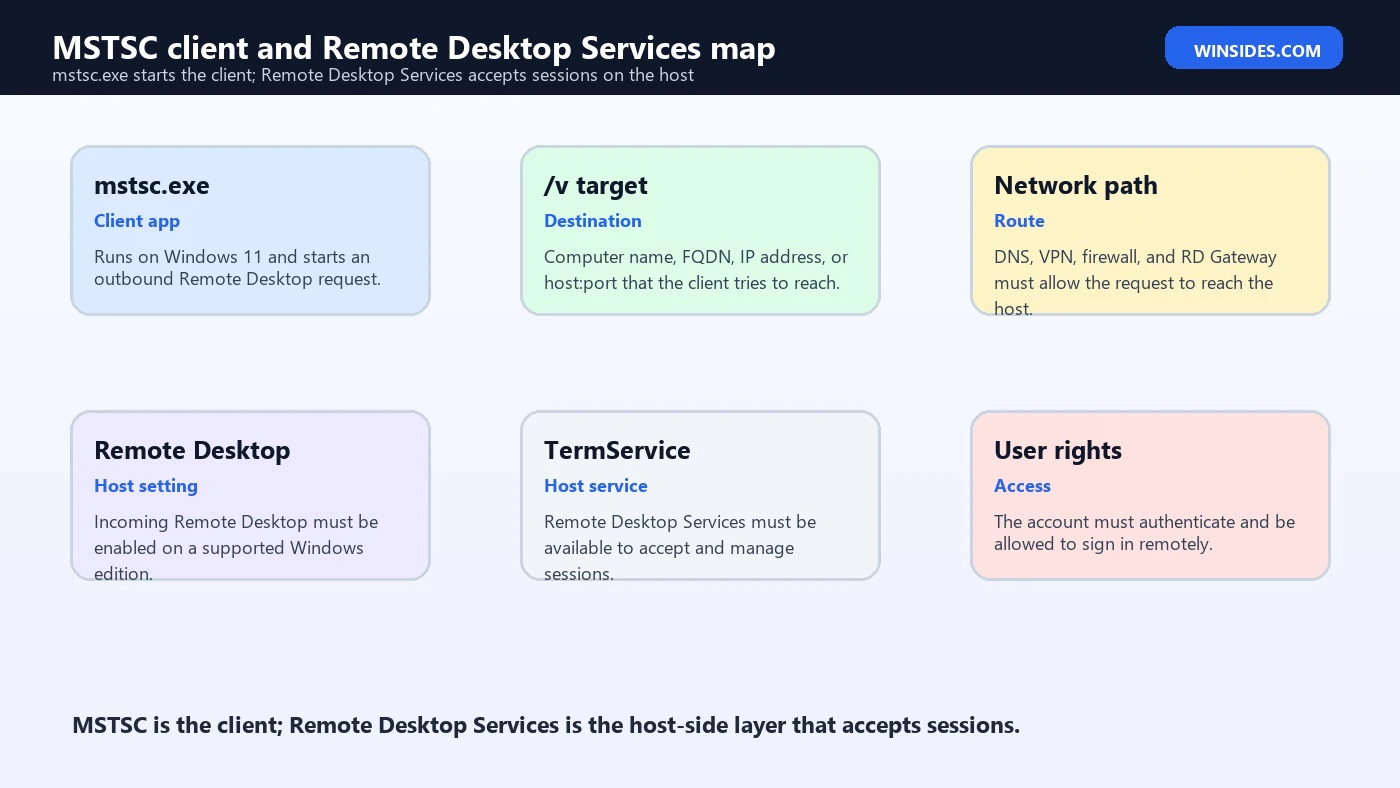
mstsc service is a search phrase that mixes two related but different parts of Windows Remote Desktop. mstsc.exe is the Remote Desktop Connection client you run from Windows 11. The service-side component that accepts Remote Desktop connections on a host is Remote Desktop Services, commonly associated with the service name TermService.
That distinction matters because troubleshooting depends on which side is failing. If MSTSC will not open on your Windows 11 computer, you are dealing with the client or the local Windows installation. If MSTSC opens but cannot connect to another PC, the issue may be the remote host, Remote Desktop Services, firewall rules, user rights, Network Level Authentication, RD Gateway, DNS, VPN, or saved credentials.
There is not a separate Windows service literally called MSTSC. The executable mstsc.exe launches the classic Remote Desktop Connection app. On the computer being accessed, Remote Desktop has to be enabled and the relevant service stack must be available so the host can listen for and accept an RDP session.
This guide explains how the MSTSC client and Remote Desktop Services fit together, what to check when someone says the mstsc service is not working, when restarting services may help, and when the real problem is policy, firewall, edition, account rights, or network access instead.
For official context, Microsoft documents the MSTSC command, Microsoft Support explains how to use Remote Desktop, Microsoft Learn covers connecting to Remote Desktop Services, and the Remote Desktop Services overview explains the broader platform.
Table of contents
Key Takeaways
- There is no separate service named MSTSC. MSTSC is the Remote Desktop Connection client executable,
mstsc.exe. - The host-side service layer is Remote Desktop Services. On Windows, it is commonly associated with
TermService. - Client issues and host issues are different. MSTSC opening locally does not prove the remote PC is ready to accept RDP.
- Remote Desktop must be enabled on the host. The remote PC also needs a supported Windows edition and allowed user rights.
- Firewall, DNS, VPN, and gateway settings matter. A running service cannot help if the route to the host is blocked.
- Restarting Remote Desktop Services is not always the answer. Restart only when the symptom points to a stuck host-side listener or service state.
- Troubleshoot in layers. Check client, target name, network, Remote Desktop setting, service state, firewall, authentication, account rights, and redirection separately.
MSTSC Syntax
The core MSTSC syntax is compact. You can launch the client by itself, pass a saved .rdp file, edit a saved file, or add command-line switches. The most common mistake is treating every option as a connection fix. Options change the client launch behavior, but they do not enable Remote Desktop on the host, open a firewall, grant account permissions, or repair a gateway.
mstsc
mstsc <connectionfile.rdp>
mstsc /v:<server[:port]>
mstsc /edit <connectionfile.rdp>
mstsc /f
mstsc /w:1600 /h:900
mstsc /multimon
Microsoft’s MSTSC page lists the main parameters, including <connectionfile>, /v, /g, /admin, /f, /w, /h, /public, /span, /multimon, /edit, /restrictedAdmin, /remoteGuard, /prompt, /shadow, /control, /noConsentPrompt, and /migrate. You do not need all of them for a normal connection, but knowing the categories helps you read commands written by others.
Connect to a Remote PC with /v
The /v switch specifies the remote computer. The target can be a computer name, fully qualified domain name, IP address, or host with a port. If the host listens on the default Remote Desktop port, you usually do not need to include the port. If it uses a nonstandard port, append it after a colon.
mstsc /v:PC-Office
mstsc /v:server01.contoso.com
mstsc /v:192.168.1.50
mstsc /v:rdp.example.com:3390
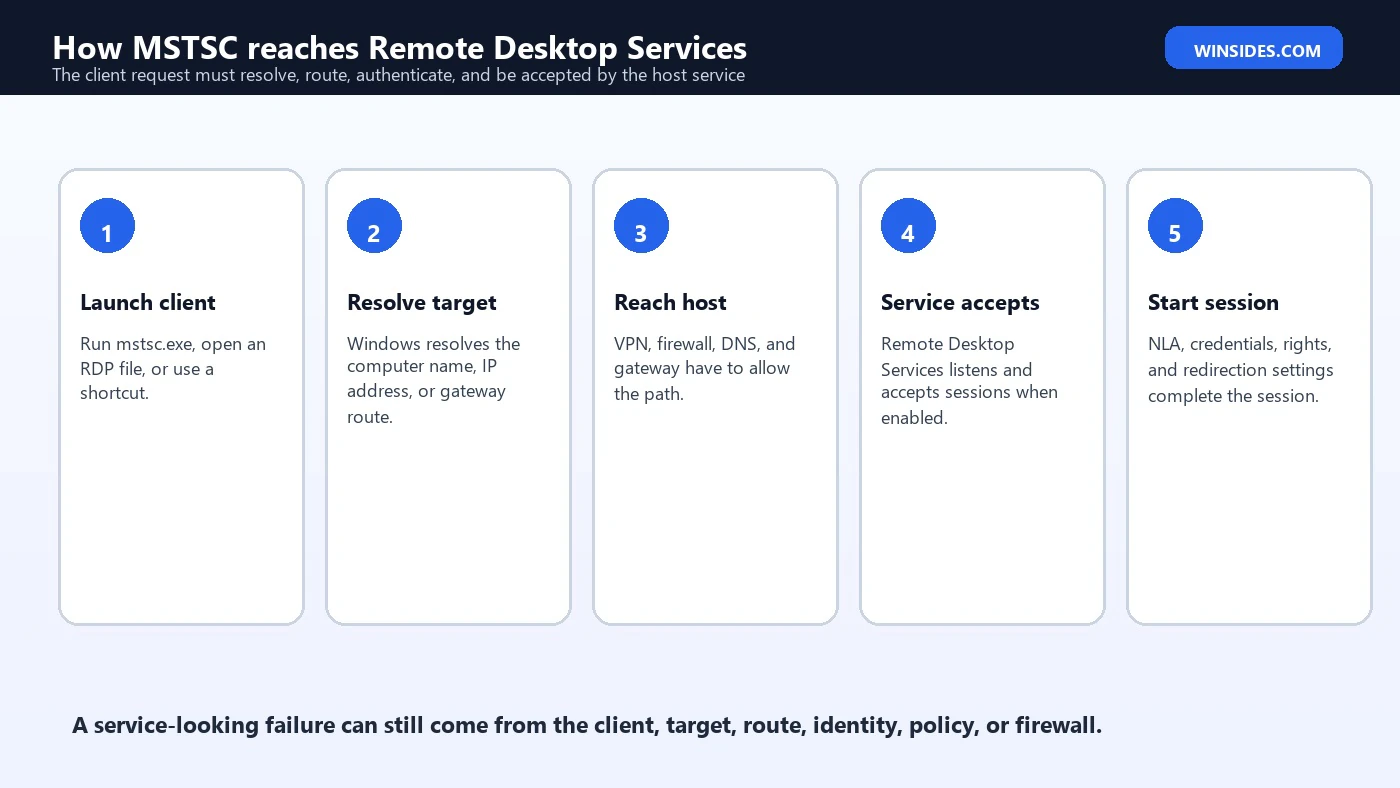
The target must be reachable from your network. If the name does not resolve, MSTSC cannot connect. If the host is behind a VPN, you need the VPN first. If a firewall blocks Remote Desktop, MSTSC cannot fix it from the client side. If Remote Desktop is not enabled on the host, the command can be perfectly written and still fail.
When troubleshooting target problems, separate name resolution from RDP access. Try the exact computer name and IP address if appropriate. Confirm that you are on the right network. For business environments, do not expose RDP directly to the internet just because /v accepts a public name. Use VPN, RD Gateway, or a managed remote access path.
Open and Edit RDP Files
A Remote Desktop Connection file, usually ending in .rdp, stores connection settings. It can include the target computer, display choices, device redirection options, gateway behavior, and other preferences. MSTSC can open one directly or edit it through the Remote Desktop Connection interface.
mstsc "C:\Users\Public\Desktop\OfficePC.rdp"
mstsc /edit "C:\Users\Public\Desktop\OfficePC.rdp"
RDP files are convenient when you connect to the same systems repeatedly. They are also useful for support teams because settings can be standardized. However, treat them as configuration files. Do not blindly open RDP files from untrusted sources. Review the target, gateway, and redirection settings before using them.
If a saved RDP file behaves strangely, open it with /edit and compare the settings with a new clean connection. Saved files can preserve old display settings, gateway choices, or redirection behavior that no longer fits the current network.
Display Options: Full Screen, Width, Height, Span, and Multimon
MSTSC display switches are useful when you want repeatable window behavior. Use /f for full screen. Use /w and /h for a specific width and height. Use /span when the remote desktop should span the local virtual desktop. Use /multimon when the session should match the local monitor layout across multiple monitors.
mstsc /v:PC-Office /f
mstsc /v:PC-Office /w:1600 /h:900
mstsc /v:PC-Office /span
mstsc /v:PC-Office /multimon
Display switches do not guarantee every remote app will scale perfectly. DPI, monitor arrangement, remote session policy, and saved RDP settings can all affect the result. If multi-monitor behavior is wrong, start with a simple one-monitor connection, then add /multimon. If a saved file is involved, edit the file and check display settings there too.
The /l switch is also useful because it enumerates local monitors and their IDs. Use it when you need to understand how MSTSC sees the monitor layout before launching a multi-monitor session.
mstsc /lRD Gateway with /g
The /g switch specifies an RD Gateway server. A gateway lets Remote Desktop clients reach internal resources through a managed gateway path instead of connecting directly to each remote host. In business environments, RD Gateway can be part of a safer design for access from outside the local network.
mstsc /v:server01.contoso.com /g:rdgateway.contoso.comA gateway connection still needs correct credentials, policy, certificate trust, and network reachability. If the gateway is wrong, the remote host may be fine but unreachable through that path. If the gateway certificate is not trusted, users may see warnings or connection failures. If the gateway policy blocks the user, changing the client command will not grant access.
Microsoft’s Remote Desktop Services guidance separates the client connection from the broader access design. If you are administering a business deployment, treat gateway planning as architecture, not as an MSTSC shortcut. The command can point to the gateway, but the gateway must be configured and secured correctly.
Is There an MSTSC Service?
No. In normal Windows terminology, mstsc.exe is not a Windows service. It is the client program for Remote Desktop Connection. You can launch it from Run, Windows Terminal, Command Prompt, PowerShell, a shortcut, or a saved .rdp file. It runs when you start it, and it closes when you close the client.
The service people usually mean is Remote Desktop Services on the machine being accessed. In service tools and command-line output, this is commonly represented by the service name TermService. That service is part of the host-side Remote Desktop stack. It helps the remote computer accept interactive Remote Desktop sessions when the operating system, edition, settings, firewall, and permissions allow it.
This is why the phrase mstsc service can be misleading. If your Windows 11 laptop is the client, checking a service on that laptop may not tell you why a remote server refuses the connection. You need to know whether the problem is on the client, the network path, the gateway, or the remote host.
MSTSC Client vs Remote Desktop Services
| Layer | What it does | What can go wrong |
|---|---|---|
mstsc.exe client | Opens the Remote Desktop Connection app and starts an outbound RDP connection. | Bad target, stale saved credentials, broken RDP file, display settings, or local client issue. |
| Network path | Carries the connection to the remote host or gateway. | DNS, VPN, routing, firewall, blocked port, or unreachable gateway. |
| Remote Desktop Services | Host-side service layer that accepts and manages Remote Desktop sessions. | Remote Desktop disabled, service stopped, policy restriction, NLA issue, or host-side listener problem. |
| User rights | Determines whether the account may sign in remotely. | Account not allowed, wrong account format, lockout, expired password, or deny policy. |
| Session settings | Controls display, clipboard, drives, audio, printer, and other redirection choices. | Connection works, but resources do not redirect as expected. |
A useful troubleshooting habit is to name the layer before changing settings. If MSTSC opens but cannot reach the remote host, do not reinstall the client first. If the host accepts the connection but rejects credentials, do not restart services first. If clipboard redirection fails, do not assume the whole Remote Desktop service is broken.
How to Check the Remote Desktop Services State
On a computer you administer, you can check the service state from Services, PowerShell, or Command Prompt. The display name is Remote Desktop Services, and the service name is commonly TermService. A stopped or disabled service can prevent that computer from accepting Remote Desktop sessions.
Get-Service TermService
sc query TermService
If you use the graphical Services console, press Win + R, type services.msc, and look for Remote Desktop Services. Be careful before changing startup settings. On managed devices, service startup behavior may be controlled by policy, security baselines, or endpoint management tools.
A running service is only one requirement. Remote Desktop must also be enabled in Windows settings, the Windows edition must support incoming Remote Desktop hosting, the firewall must allow the connection, the user must be allowed to sign in, and the network path must reach the host.
When Restarting Remote Desktop Services Helps
Restarting Remote Desktop Services may help when the host-side listener or session stack appears stuck. For example, the host may be reachable, Remote Desktop is enabled, user rights are correct, but new sessions fail after a service or network change. Restarting the service can refresh the listener and related session state.
Restart-Service TermServiceUse caution. Restarting Remote Desktop Services can disconnect existing Remote Desktop users. If you are connected to the host through RDP, you may disconnect your own session. On production systems, plan the restart, notify users, and keep another access method available when possible.
Do not use service restarts as a ritual. If DNS points to the wrong computer, a VPN is disconnected, the firewall blocks the port, or the account lacks Remote Desktop sign-in rights, restarting TermService will not fix the real problem.
When the Service Is Not the Real Problem
- MSTSC does not open locally. This is a client-side Windows issue, shortcut issue, or missing/corrupt system component problem.
- The host name cannot be found. Check spelling, DNS, VPN, and whether the target name is valid from your network.
- The connection times out. Check firewall, routing, VPN, gateway, power state, and whether the host is reachable.
- Credentials are rejected. Check username format, password, account lockout, NLA, domain trust, and saved credentials.
- The account is not allowed. Check Remote Desktop Users, Administrators membership, local policy, and domain policy.
- Clipboard or drive redirection fails. Check Local Resources, saved RDP file settings, and policy, not only the service state.
This is the heart of mstsc service troubleshooting: a service can be healthy while Remote Desktop still fails elsewhere. Conversely, a service can be stopped on the remote host while the MSTSC client on your Windows 11 PC is perfectly fine.
MSTSC Switches That Look Like Service Fixes
Several MSTSC switches can change connection behavior, but they do not repair the Remote Desktop Services service. /v chooses the target, /g chooses an RD Gateway, /prompt asks for credentials again, and display switches such as /f, /w, /h, and /multimon change the client window.
mstsc /v:PC-Office
mstsc /v:server01 /prompt
mstsc /v:server01 /g:rdgateway.contoso.com
mstsc /v:server01 /f
These switches are useful, but they operate from the client side. If Remote Desktop Services is stopped on the host, /v cannot start it. If a firewall blocks RDP, /prompt cannot open the port. If the user lacks permission, /f cannot grant it. Use switches to make the connection request precise, then check the host-side service and policy separately.
Shadow Sessions
The /shadow switch is for shadowing an existing session. It is mainly a Remote Desktop Services administration and support feature. You specify the session ID, and optional switches such as /control and /noConsentPrompt change whether you request control and whether consent is prompted, subject to policy.
mstsc /shadow:3
mstsc /shadow:3 /control
Shadowing should be used carefully. Consent, auditing, policy, and user privacy matter. If policy requires consent, the support technician should not try to work around it. If the command fails, check session ID, permissions, Remote Desktop Services policy, and whether the target environment supports shadowing.
Public Mode and Shared Computers
The /public switch runs Remote Desktop Connection in public mode. This is useful on shared or public computers because it reduces what is saved locally. If you use MSTSC on a computer that is not yours, avoid saving credentials, avoid saving sensitive RDP files, and close the session cleanly when finished.
mstsc /public /v:PC-OfficePublic mode does not make an unsafe computer safe. It is only one client-side behavior choice. If the local computer is untrusted, assume keystrokes, screen content, and saved files can be exposed. For sensitive administration, use a managed device and an approved access path.
MSTSC vs Newer Remote Desktop Clients
MSTSC is the classic in-box Remote Desktop Connection client. Microsoft also provides newer client experiences for Azure Virtual Desktop, Windows 365, Microsoft Dev Box, and Remote Desktop Services scenarios. The right client depends on what you are connecting to. MSTSC remains useful for traditional RDP connections to Windows PCs and servers, especially when you need direct command-line launch behavior or old .rdp files.
Do not assume every remote desktop service uses MSTSC. Some managed cloud or workspace environments use newer clients and feed-based subscriptions. If an organization gives you a workspace URL or modern client instructions, follow that deployment guidance. If the target is a normal RDP-enabled PC or server and you have the address, MSTSC is often the fastest tool to test the connection.
Troubleshooting MSTSC Connection Problems
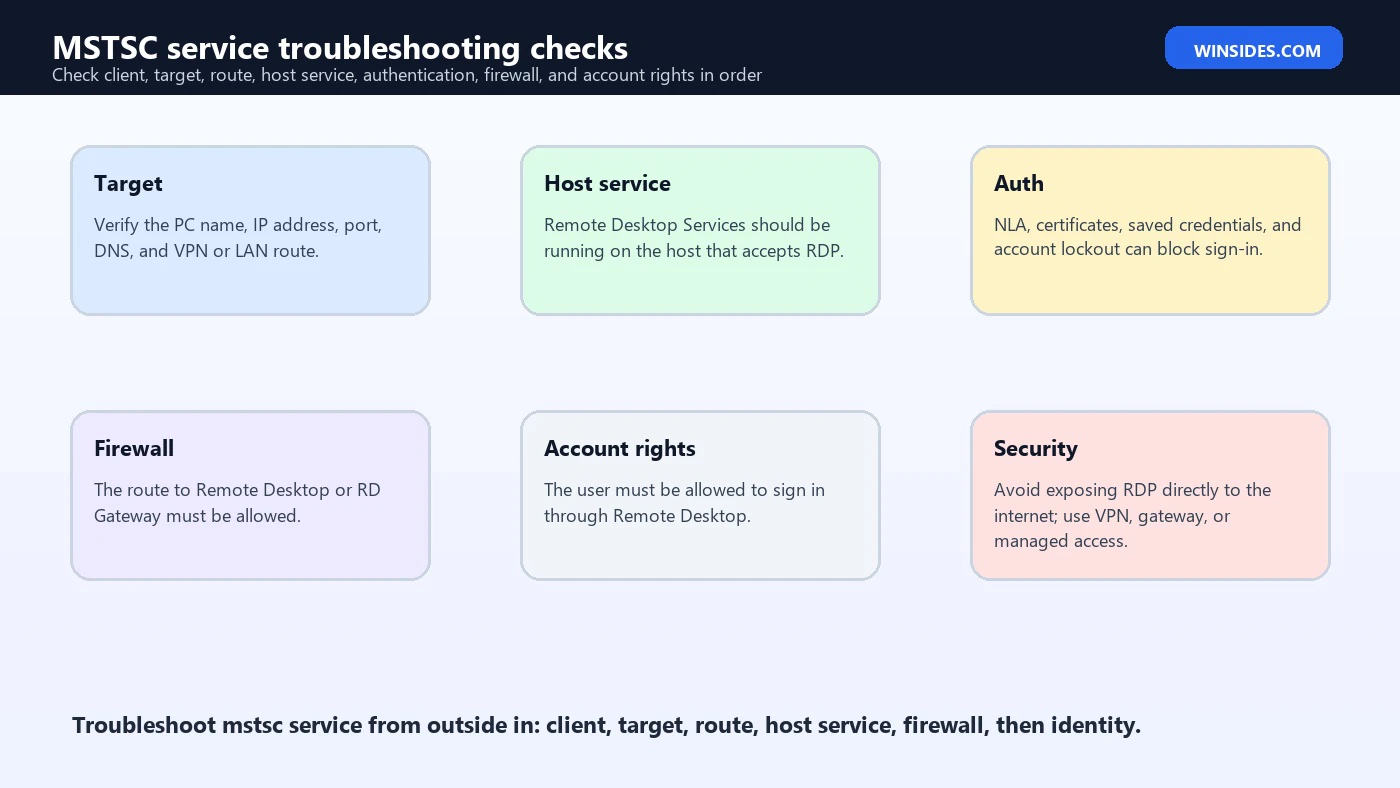
Troubleshoot MSTSC from outside in. First confirm the command is correct. Then confirm the target name, network path, Remote Desktop host settings, user permission, authentication, certificate trust, gateway, and redirection settings. A Remote Desktop error is often accurate but incomplete; it may tell you the connection failed without naming the exact layer.
| Symptom | Likely layer | What to check |
|---|---|---|
| Remote computer cannot be found | Name resolution or target typo | Check the computer name, FQDN, IP address, VPN, and DNS. |
| Cannot connect to remote computer | Network or host availability | Confirm the PC is on, reachable, Remote Desktop is enabled, and firewall allows it. |
| Credentials rejected | Identity or policy | Check username format, password, account lockout, domain, and Remote Desktop Users membership. |
| Certificate warning | Host identity | Verify the host name and certificate before continuing. |
| Gateway error | RD Gateway path | Check gateway name, certificate, policy, credentials, and network route. |
| Clipboard or drives missing | Redirection settings | Edit the RDP file or local resources settings. |
| Multi-monitor wrong | Display configuration | Use mstsc /l, test single monitor, then try /multimon. |
Do not change many things at once. If you switch networks, edit the RDP file, change credentials, and add a gateway at the same time, you will not know which change mattered. Test one layer at a time.
Security Best Practices
Remote Desktop is powerful because it gives interactive access to another computer. That also makes it a high-value target. Avoid exposing RDP directly to the internet. Use VPN, RD Gateway, managed remote access, conditional access, firewall rules, strong authentication, and account policies appropriate to the environment. For business systems, follow the organization’s remote access design rather than improvising public port forwarding.
Saved credentials should be handled carefully. They are convenient but can hide which account is being tested. When troubleshooting account problems, use /prompt or clear saved credentials so you know exactly which identity is used. On shared computers, use /public and avoid saving credentials or RDP files with sensitive targets.
Also pay attention to resource redirection. Clipboard, drive, printer, smart card, and audio redirection can be useful, but they also move data between local and remote environments. In a sensitive environment, only enable what the session needs.
Useful mstsc service Commands
mstscOpens the Remote Desktop Connection client. This tests whether the client app launches locally, not whether the remote host service is healthy.
mstsc /v:PC-OfficeStarts an outbound Remote Desktop connection to a target named PC-Office. The remote host still has to accept the connection.
Get-Service TermServiceChecks the Remote Desktop Services state on a computer you administer. Run it on the host that should accept incoming Remote Desktop connections.
sc query TermServiceShows the service state from Command Prompt. This is useful in recovery, remote support scripts, or systems where PowerShell is restricted.
Restart-Service TermServiceRestarts Remote Desktop Services on the host. Use caution because existing Remote Desktop users can be disconnected.
mstsc /v:server01 /promptForces a fresh credential prompt, which is useful when service state is fine but saved credentials may be wrong.
RDP File Hygiene
Saved RDP files are useful, but they should be maintained. Use descriptive filenames, avoid storing them in public locations when they point to sensitive systems, and periodically remove old files. If a connection starts behaving unexpectedly, compare the saved file with a fresh connection. Old RDP files can preserve display, gateway, printer, drive, or credential behavior that no longer fits.
If you distribute RDP files to users, keep them simple. Include the correct target and gateway settings, but avoid unnecessary redirection. Explain which account format should be used. If a file must be retired, remove it from shared locations so users do not keep launching stale settings.
Saved Credentials and Credential Testing
Saved credentials are convenient, but they can make troubleshooting confusing. If MSTSC keeps failing with an account you did not intend to use, Windows may be reusing stored credentials. When testing access, use /prompt, remove saved credentials from the Remote Desktop Connection prompt, or check Credential Manager so the sign-in attempt is clear.
Use the correct username format for the environment. A local account may need PCName\User. A domain account may need DOMAIN\User or a user principal name such as user@contoso.com. A Microsoft account sign-in may behave differently depending on how the remote PC is configured. The right format matters as much as the password.
If a password was recently changed, the remote PC may reject old saved credentials even though the connection target is correct. If an account is locked, disabled, missing Remote Desktop permission, blocked by policy, or not allowed through Network Level Authentication, MSTSC cannot solve that with a display switch. Treat credentials as their own troubleshooting layer.
Local Resource Redirection
Remote Desktop can redirect local resources such as clipboard, printers, drives, smart cards, audio, and sometimes USB-related devices depending on policy and client configuration. These settings live mostly in the graphical client and saved RDP files rather than simple command-line switches. They matter because a connection can succeed while clipboard, printers, or drive access fail.
If clipboard copy and paste does not work, check the Local Resources tab in the RDP file and confirm policy does not block clipboard redirection. If local drives do not appear, check More under Local devices and resources. If printers behave strangely, test with printer redirection disabled to isolate whether the connection problem is actually a redirected printer problem.
Security-sensitive environments often disable drive or clipboard redirection. That is not a client bug. It may be deliberate policy to prevent data moving between local and remote machines. When working on business systems, ask whether redirection is allowed before spending time trying to force it from the client side.
Certificates and Identity Warnings
When MSTSC connects, it may warn that the identity of the remote computer cannot be verified. Do not train yourself to click through this automatically. The certificate warning is asking whether the host you reached is the host you intended to reach. On a trusted internal network, a self-signed or internal certificate may be expected. On an unfamiliar network, the warning deserves more attention.
Check the computer name, gateway, VPN, and certificate details. If the name in the certificate does not match the name you used, decide whether that mismatch is expected. If you connect by IP address, name matching can be harder. In managed environments, certificate configuration should be part of the Remote Desktop Services design, not a warning that users ignore forever.
Certificate warnings can also appear after a computer is rebuilt, renamed, cloned, or rejoined to a domain. If a warning appears suddenly for a system that used to connect cleanly, verify the change history before trusting the session.
Event Logs and Host-Side Clues
Client-side errors are only half the story. If you administer the remote host, check Event Viewer for Remote Desktop Services, TerminalServices, security logon events, firewall events, and account lockout clues. A host-side event can tell you whether the connection reached the machine, whether authentication failed, or whether the session was rejected by policy.
This is especially useful when the client message is vague. A generic connection failure might be network reachability. A credential prompt loop might be account format or NLA policy. A black screen after sign-in might be session initialization, display driver, profile loading, or host resource pressure. The host event logs help separate those cases.
For users who do not administer the remote host, collect the time of the failed connection, the exact target used, the account format, whether a gateway was involved, and the error text. Those details let the administrator correlate your attempt with server-side logs.
Quick Pre-Connection Checklist
- Confirm the remote PC is powered on and reachable on the network.
- Confirm Remote Desktop is enabled on the host edition and policy allows access.
- Confirm the user account is allowed to sign in through Remote Desktop.
- Confirm the target name, FQDN, IP address, and optional port are correct.
- Confirm VPN or RD Gateway is connected when required.
- Use
/promptwhen testing credentials instead of relying on saved entries. - Start with one monitor and basic redirection, then add display and device options later.
- Avoid exposing RDP directly to the internet; use an approved access path.
A checklist keeps MSTSC troubleshooting calm. The client is often blamed because it is the visible tool, but many failures live on the network, gateway, account, policy, or host side. Confirming the basics prevents unnecessary command-line experiments.
Using MSTSC in Shortcuts and Scripts
MSTSC is often launched from shortcuts, batch files, documentation snippets, and support runbooks. That is useful, but keep the command readable. A shortcut named Office PC with mstsc /v:PC-Office /f is easy to understand. A shortcut with many switches and no explanation becomes hard to troubleshoot later.
For repeatable support commands, prefer clear targets and minimal switches. Start with /v, then add display options only if they are required. Add /prompt when testing credentials. Add /g only when the connection must go through a specific RD Gateway. Avoid stacking special security or shadowing switches unless the runbook explains why they are needed.
mstsc /v:PC-Office /prompt
mstsc /v:server01.contoso.com /g:rdgateway.contoso.com /w:1600 /h:900
If the shortcut opens a saved RDP file, keep the file next to the runbook or in a predictable location. If the file changes, update the documentation. A shortcut can look unchanged while the RDP file behind it has a different gateway, redirection setting, or target computer.
Client Settings vs Host Configuration
A common MSTSC troubleshooting mistake is trying to fix host configuration with client switches. MSTSC can choose a target, display size, gateway, credential prompt, admin mode, or RDP file. It cannot turn on Remote Desktop on the remote PC, add a user to the allowed list, repair a firewall rule, approve a gateway policy, or unlock a disabled account.
When a connection fails, ask whether the issue belongs to the client or the host. Client-side issues include wrong target text, stale RDP files, saved credentials, display settings, and redirection choices. Host-side issues include Remote Desktop being disabled, Windows edition limitations, firewall rules, account permission, Network Level Authentication policy, and service availability.
This separation saves time. If every user fails to reach the host, look at the host, network, gateway, or firewall. If only one user fails, check that user’s permissions, credentials, saved RDP file, and account state. If only one client device fails, check local network path, cached credentials, display settings, and client policy.
Default.rdp and Resetting Stale Settings
Remote Desktop Connection can remember settings between sessions, including display choices and local resource preferences. If MSTSC behaves strangely even before you open a saved connection file, the default saved settings may be involved. Compare the behavior with a newly created connection and review saved settings before assuming the remote host is broken.
When troubleshooting, document whether the issue happens with a saved RDP file, a plain mstsc /v:target command, or the graphical client after manually typing the target. That distinction helps separate stale client settings from host or network problems.
Frequently Asked Questions
Is there a Windows service called MSTSC?
No. mstsc.exe is the Remote Desktop Connection client. The host-side service people usually mean is Remote Desktop Services, commonly associated with TermService.
What service is needed for Remote Desktop in Windows 11?
For incoming Remote Desktop sessions, the host-side Remote Desktop Services service layer must be available, and Remote Desktop must be enabled on a supported edition of Windows.
Why does MSTSC open but not connect?
The client can open locally while the remote host, network path, firewall, account rights, NLA, gateway, or Remote Desktop Services state blocks the session.
How do I check Remote Desktop Services?
On a computer you administer, use Get-Service TermService, sc query TermService, or the Services console to inspect Remote Desktop Services.
Should I restart TermService to fix MSTSC?
Only if the symptom points to a stuck host-side service or listener. Restarting it can disconnect users and will not fix DNS, firewall, VPN, account, or policy problems.
Does Windows 11 Home host Remote Desktop?
Windows 11 Home can use Remote Desktop clients, but hosting incoming Remote Desktop sessions requires a supported edition such as Windows 11 Pro, Enterprise, or Education.
Can MSTSC start the service on a remote host?
No. MSTSC is the client. If the host-side service is stopped or Remote Desktop is disabled, you need another administrative path to fix the host.
What is the best first test for mstsc service problems?
Separate the layers: confirm MSTSC opens locally, confirm the target resolves, confirm the network path, then check Remote Desktop settings, service state, firewall, and user rights on the host.
Conclusion: Treat mstsc service as Client and Host Troubleshooting
mstsc service is best understood as a shorthand for two separate things: the MSTSC Remote Desktop Connection client on Windows 11 and the Remote Desktop Services layer on the remote host. The client starts the request. The host-side service, Remote Desktop settings, firewall, account rights, authentication, and network path decide whether the session can actually begin.
When Remote Desktop fails, avoid guessing. First confirm that mstsc.exe opens locally. Then confirm the target name, network path, host Remote Desktop setting, TermService state, firewall, NLA, gateway, credentials, and user rights. Restart services only when the evidence points to a host-side service problem, and remember that existing sessions may disconnect.
For official reference, keep Microsoft pages for MSTSC, using Remote Desktop, connecting to Remote Desktop Services, and the Remote Desktop Services overview nearby while troubleshooting client and service-side Remote Desktop problems.
For more interesting articles, stay tuned to Winsides.com!









Community
Comments (0)