

Introduction to Windows Mobile Device Center Windows 11
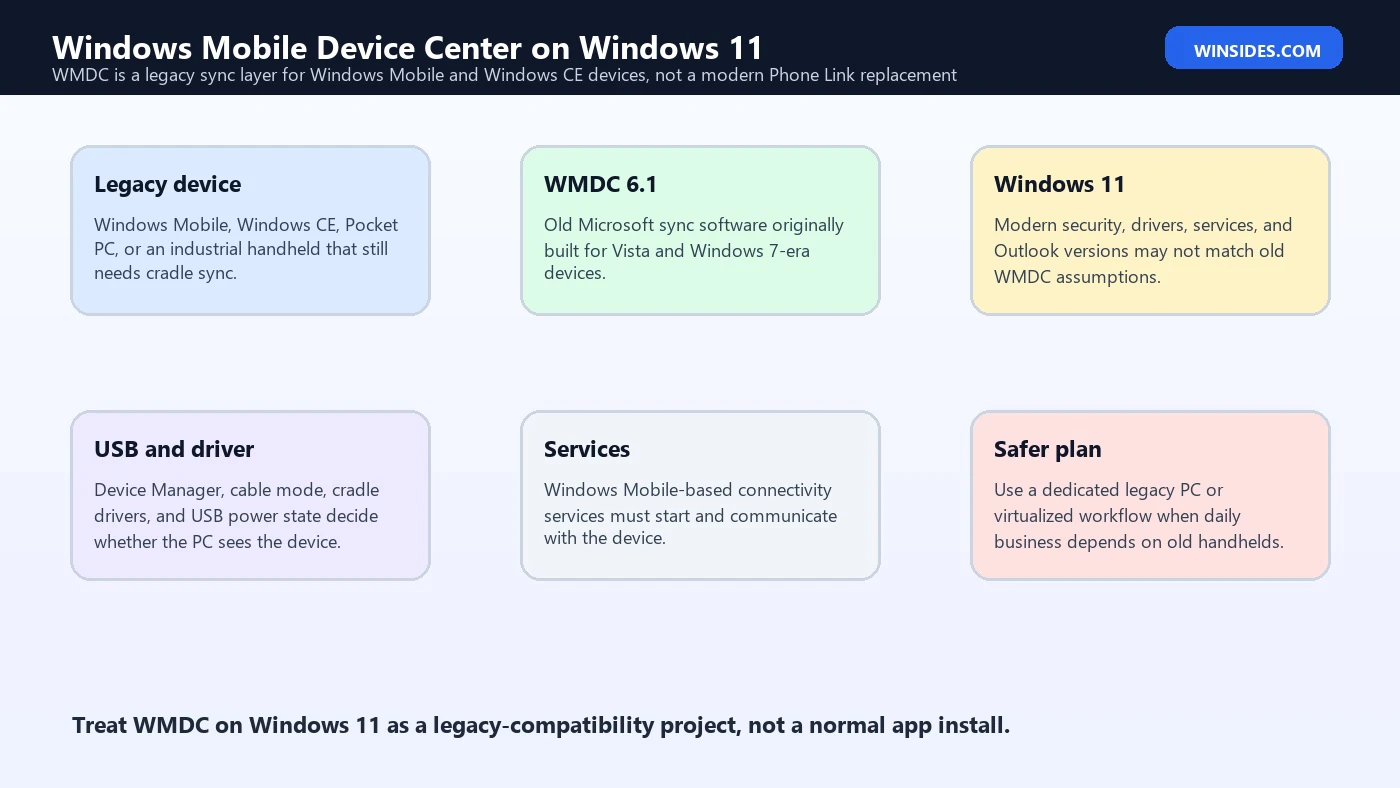
Windows Mobile Device Center Windows 11 is a tricky topic because Windows Mobile Device Center, also called WMDC, belongs to a much older Microsoft mobile era. It was built for Windows Mobile, Windows CE, Pocket PC, and industrial handheld workflows that depended on USB cradle synchronization. Windows 11 belongs to a very different driver, security, Office, and mobile-device ecosystem.
The short answer is that Windows Mobile Device Center is not a modern Windows 11 feature. It is legacy synchronization software. Some users still try to run it because warehouses, barcode scanners, medical devices, field-service terminals, lab equipment, and rugged handhelds can remain useful long after the original platform is obsolete. The hardware may still scan, collect data, and run custom line-of-business apps, but the desktop sync layer is fragile.
This guide explains what WMDC was meant to do, why it is difficult on Windows 11, which troubleshooting steps are reasonable, and when a dedicated legacy PC, virtual machine, vendor sync utility, or device replacement plan is safer. The goal is not to pretend that old software is fully supported. The goal is to help you separate practical recovery steps from risky guesswork.
For context, keep Microsoft references for Windows Mobile Device Center, the modern Phone Link experience, Microsoft documentation around Device Manager and drivers, and Microsoft lifecycle information for Windows Embedded Compact 2013 nearby while deciding whether to repair or retire an old workflow.
Table of contents
Key Takeaways
- Windows Mobile Device Center is legacy software. It was designed for older Windows Mobile and Windows CE devices, not for modern Windows 11 phones.
- Windows 11 does not make WMDC a supported modern sync platform. Some installations may be made to work, but reliability varies by device, driver, Office version, and policy.
- File browsing and Outlook sync are different problems. A handheld may appear in File Explorer while contacts, calendar, or partnership sync still fails.
- USB and drivers matter first. Bad cables, cradles, Device Manager errors, and power management can block WMDC before the app opens.
- Services can be a failure point. Windows Mobile connectivity services may stop, fail to start, or be blocked by modern security settings.
- Do not depend on WMDC for a mission-critical future. If scanners or handhelds run daily operations, plan a supported replacement path.
- Keep legacy workflows isolated. A dedicated Windows 7 or vendor-supported workstation can be safer than constantly forcing WMDC onto production Windows 11 PCs.
What Windows Mobile Device Center Was Built For
Windows Mobile Device Center replaced Microsoft ActiveSync for the Windows Vista and Windows 7 era. Its job was to connect a Windows PC to older mobile devices that ran Windows Mobile or related Windows CE platforms. In practical terms, WMDC handled device partnerships, file browsing, media transfer, application deployment, and personal information management synchronization with Outlook in supported combinations.
That original purpose is important because many people now search for WMDC after plugging a rugged scanner into a Windows 11 PC. They are not usually trying to sync a consumer phone. They are often trying to rescue an inventory device, configure a handheld terminal, transfer a database, install a CAB file, or keep a warehouse application alive until a migration project is ready.
WMDC was never designed around current Android, iPhone, Phone Link, Microsoft 365 cloud sync, or modern mobile device management. It expects an older USB and synchronization model. When it fails on Windows 11, the failure is often a mismatch between a legacy sync stack and a modern operating system rather than one simple missing checkbox.
Is Windows Mobile Device Center Supported on Windows 11?
For planning purposes, treat WMDC on Windows 11 as unsupported legacy compatibility work. That does not mean nobody has ever made it run. It means you should not build a fresh, long-term business process around Windows 11 plus WMDC unless the device vendor explicitly supports that configuration and gives you a tested installer, driver, and procedure.
This distinction matters in business environments. If a handheld syncs once after several registry edits, service restarts, and driver experiments, that is not the same as a supported workflow. A supported workflow has a vendor statement, tested versions, documented recovery steps, replacement hardware availability, backup procedures, and someone accountable when Windows updates change behavior.
If the device is part of shipping, stock counting, lab capture, point-of-sale work, or manufacturing, do not confuse a successful one-time connection with a reliable platform. WMDC can be useful for emergency access, but the safer long-term target is a supported handheld platform, vendor bridge, cloud sync, network file transfer, or isolated legacy station.
Why WMDC Breaks on Windows 11
WMDC problems on Windows 11 usually come from several layers meeting at once. The device is old, the cable or cradle may be old, the USB driver model has changed, Windows security is stricter, Outlook may be much newer, and background services may not start the way old WMDC expects. That is why reinstalling the app repeatedly often does not solve the issue.
Another common reason is that the device itself is not in the right connection mode. Some handhelds can present themselves as a storage device, serial device, network adapter, ActiveSync device, or vendor-specific USB device depending on settings. Windows 11 may see something, but not the thing WMDC needs.
The final reason is business drift. Many organizations have kept the handheld but changed everything around it: new PCs, new Office, new endpoint security, new USB policies, new user permissions, and no original installer. WMDC then becomes the visible failure even though the environment around it changed years after the device was purchased.
Check the Device Before Changing Windows
Start with the handheld, not the PC. Confirm that the device powers on, charges, boots normally, and has the correct USB or PC connection mode selected. If the battery is weak or the cradle has poor contacts, Windows 11 may repeatedly detect and lose the device. That can look like a driver problem when the physical connection is the real issue.
Use a known-good cable and a direct USB port on the PC. Avoid unpowered hubs, front-panel ports with flaky wiring, docking stations, and long extension cables during the first test. If the device requires a cradle, inspect the pins and make sure the device sits firmly. Industrial handheld cradles can survive years of use, but they also collect dust, corrosion, and loose contacts.
If possible, test the same device on the last PC where it worked. If it fails there too, the handheld, cable, cradle, or device-side configuration is suspect. If it works on the old PC but not Windows 11, you can focus on drivers, services, policies, and compatibility on the new machine.
Check Device Manager and USB Detection
Device Manager is the first Windows-side checkpoint. When the handheld is connected, look for new entries under Portable Devices, Network adapters, Universal Serial Bus controllers, Other devices, or vendor-specific categories. A yellow warning icon means Windows sees hardware but cannot load a suitable driver. No change at all may mean cable, port, cradle, device power, or device mode.
Do not assume the name will say Windows Mobile Device Center. Some devices appear as a USB network adapter, a remote NDIS device, a portable device, or an unknown device. The exact label depends on the handheld, firmware, driver package, and connection mode. If you see an unknown device, note the hardware ID before guessing at drivers.
Power management can also interfere. A handheld that disconnects when idle may be affected by USB selective suspend, a weak battery, or a hub that cannot provide stable power. For testing, use a direct rear motherboard USB port on a desktop or a reliable built-in laptop port, then add docks and hubs only after the basic connection is stable.
Understand the WMDC Service Layer
WMDC is not only a visible control panel. It relies on background connectivity services that help the PC communicate with older Windows Mobile devices. If the services stop immediately, fail to start, or are blocked by policy, the main WMDC window may never connect even though the software is installed.
In many troubleshooting notes, people look for Windows Mobile-based device connectivity services and try to adjust their startup behavior. That may help when the service is the failed layer. However, service changes do not fix a bad driver, bad cable, missing device mode, unsupported Outlook combination, or a handheld that no longer boots properly.
Use Event Viewer when possible. If a service starts and stops, Windows may log dependency failures, access problems, or application errors. Those clues are better than reinstalling WMDC blindly. If endpoint security or hardening tools block old components, the security logs or vendor console may also show why the service cannot run.
File Browsing vs Full Synchronization
One of the most important distinctions is file access versus full synchronization. A Windows Mobile or Windows CE handheld may allow you to browse folders or copy files even when Outlook contacts, calendar, tasks, or partnership sync does not work. That can be enough for some industrial workflows where the real need is moving database files, logs, exports, or application installers.
Full synchronization is harder because it involves the WMDC partnership, Outlook or another PIM target, profile access, permissions, and sometimes old assumptions about 32-bit Office components. A modern Microsoft 365 installation may not behave like Outlook 2007 or Outlook 2010-era setups. If your only business requirement is file transfer, avoid forcing full PIM sync unless it is truly required.
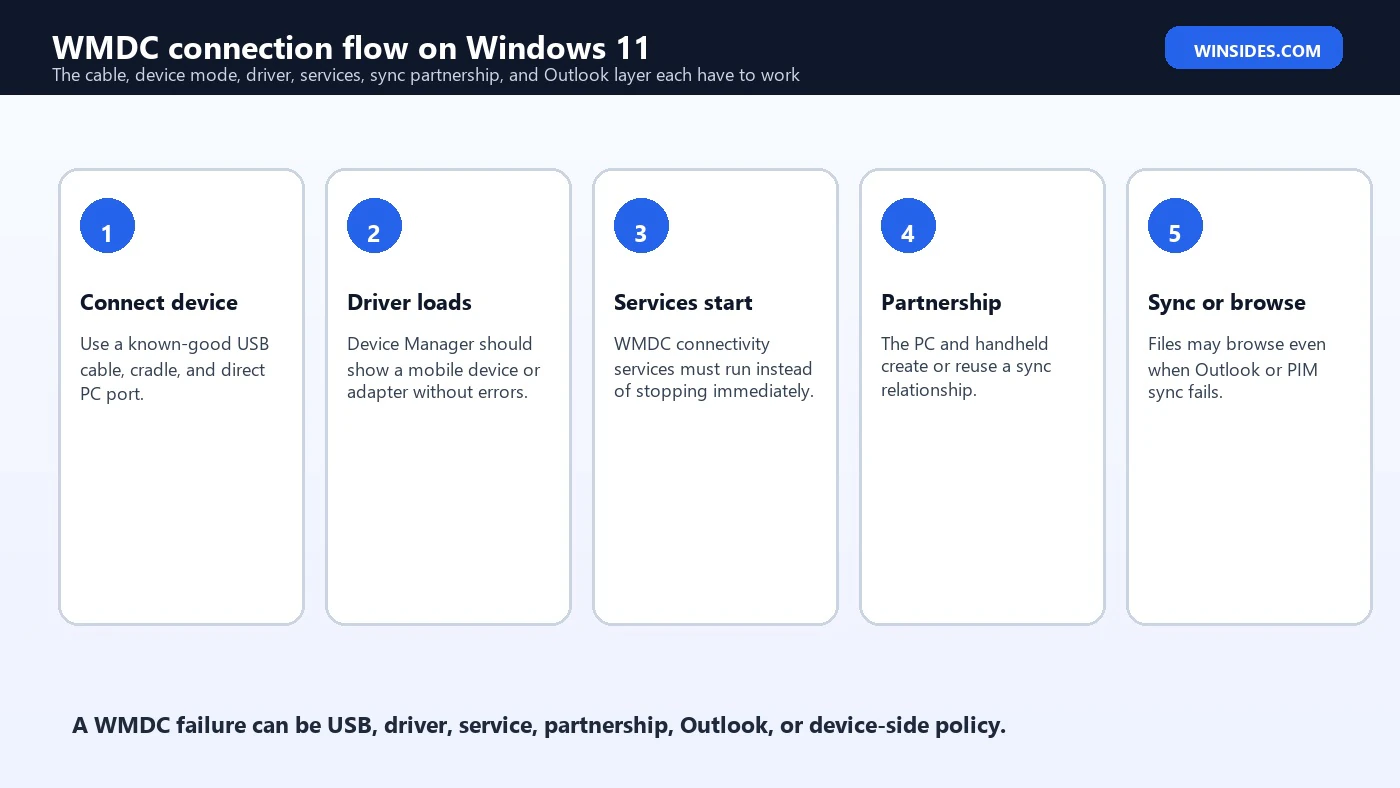
For troubleshooting, test file browsing first. If the device can be browsed, the USB and driver path is at least partly working. Then test the partnership. Then test Outlook or application-specific sync. This layered approach prevents you from blaming Outlook when Windows cannot even detect the handheld, or blaming the cable when only calendar sync is failing.
Outlook and Office Compatibility Problems
Many WMDC workflows were built around Outlook synchronization. That is often where Windows 11 users run into a wall. The handheld may connect, but contacts or calendar entries do not sync, or WMDC reports messaging or default mail client errors. The cause can be Outlook profile state, bitness, permissions, default app registration, or simply an unsupported combination.
Modern Microsoft 365 Apps and current Outlook experiences are far removed from the desktop Outlook versions common when WMDC was maintained. If a business absolutely needs Outlook PIM sync with an old handheld, the safest route is usually a dedicated legacy workstation with the exact Office and WMDC combination the vendor supports. Trying to bend a fully patched Windows 11 production PC around an obsolete sync stack can create more risk than value.
If file transfer is enough, keep Outlook out of the test. If Outlook sync is mandatory, document the exact Outlook version, bitness, mail profile, mailbox type, and whether the handheld already contains data that could be overwritten. Old sync tools can duplicate, delete, or conflict with existing contacts if partnerships are recreated carelessly.
Reasonable Windows 11 Troubleshooting Order
- Confirm that the handheld, battery, cable, and cradle are physically reliable.
- Connect directly to the PC with no hub or docking station during the first test.
- Check Device Manager for unknown devices, driver errors, or changing hardware entries.
- Confirm the handheld is in the correct PC connection or ActiveSync mode.
- Check whether WMDC services start and stay running.
- Test file browsing before Outlook or full partnership synchronization.
- Remove stale partnerships only after backing up data that matters.
- Check endpoint security, USB control, and application control policies.
- Use a vendor-supported driver package when the device maker provides one.
- Plan a supported replacement instead of making WMDC the long-term dependency.
This order keeps the investigation practical. It starts with the things that commonly fail and are easy to verify, then moves toward the fragile software layers. It also protects data by delaying partnership deletion until you know what is on the device and what is backed up.
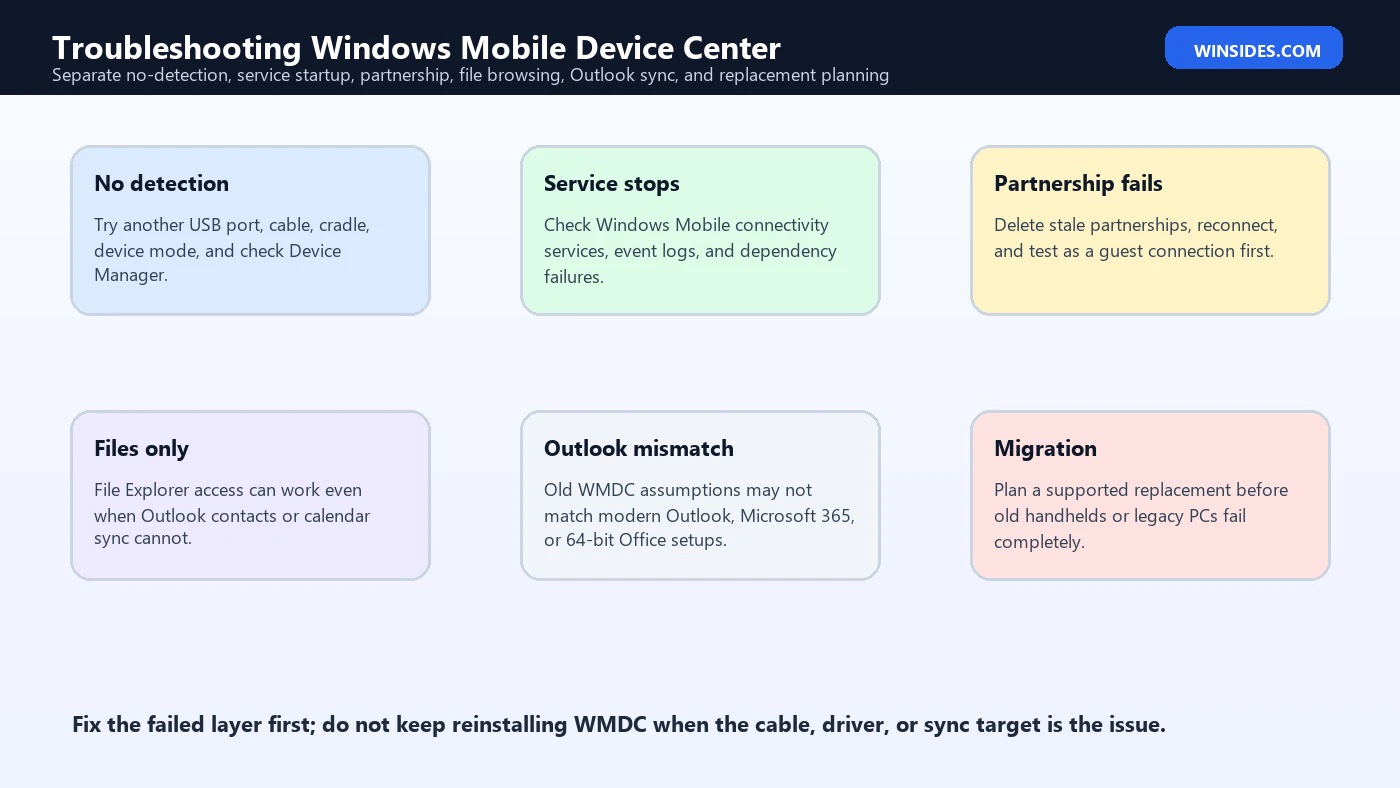
Common WMDC Failure Patterns
| Symptom | Likely layer | What to check |
|---|---|---|
| Device does not appear at all | Cable, cradle, power, or device mode | Try a direct USB port, another cable, another cradle, and confirm device settings. |
| Unknown device in Device Manager | Driver | Record hardware IDs and use the vendor-supported driver package if available. |
| WMDC opens but never connects | Service, driver, or partnership | Check services, Device Manager state, stale partnerships, and event logs. |
| Files browse but Outlook does not sync | PIM or Office layer | Check Outlook version, profile, default mail client, and whether file-only transfer is enough. |
| Works on old PC but not Windows 11 | Compatibility | Keep the old PC isolated for sync while planning migration. |
| Works until Windows update or security change | Policy or component change | Review endpoint security, USB policy, service changes, and update history. |
Should You Install WMDC on a Production Windows 11 PC?
Be careful. A production Windows 11 PC is usually managed, patched, secured, and used for many tasks. Installing old synchronization software and adjusting legacy services can conflict with security expectations. It may also be difficult to support later when the next Windows update, Office update, or security baseline changes behavior again.
A better model is to isolate the legacy dependency. Use a dedicated workstation, restricted user account, stable USB hardware, documented installers, and a backup process. Keep the machine off unnecessary internet exposure and use it only for device sync. This is not glamorous, but it is often safer than spreading WMDC experiments across multiple modern PCs.
If the handheld drives daily revenue or compliance work, make the risk visible. A legacy sync station should have spare hardware, backup images, device vendor contacts, exported data paths, and a migration deadline. Without that, one failed cradle or Windows update can stop a workflow that everyone assumed was harmless.
Virtual Machines and Legacy PCs
A virtual machine can help in some cases, but it is not automatic. USB passthrough must be stable, the VM must support the device connection mode, and the older guest operating system must have the right WMDC version and drivers. For some rugged handhelds, physical USB timing and cradle behavior are sensitive enough that a real legacy PC is more reliable than a VM.
If you try virtualization, test the entire workflow, not only device detection. Confirm file transfer, application deployment, database import/export, Outlook sync if required, and disconnect/reconnect behavior. Also test what happens after rebooting the host, updating the hypervisor, and reconnecting the USB cradle.
A dedicated legacy PC may be boring, but it gives the old stack the environment it expects. The tradeoff is security. Keep it limited, backed up, documented, and segmented from sensitive networks where possible. If it must exchange files with Windows 11 PCs, use a controlled folder, scanned removable media, or a managed network share.
Modern Alternatives to WMDC
For consumer phones, WMDC is the wrong tool. Windows 11 has modern options such as Phone Link for supported Android and iPhone scenarios, File Explorer access for many USB media devices, OneDrive photo upload, cloud contacts, and vendor apps. Those tools do not replace WMDC for old Windows CE handhelds, but they do replace it for most modern phone tasks.
For industrial devices, alternatives depend on the vendor. Some manufacturers provide modern sync utilities, USB drivers, Android replacements, web dashboards, MDM support, or cloud data capture. Others may recommend exporting files over Wi-Fi, FTP, SMB, browser-based portals, or a device-specific bridge utility. The right replacement is not always a phone app; it is the supported workflow for the business process.
If the old handheld runs a custom app, identify the data path. Does it write CSV files, a local database, scanned logs, XML exports, or a proprietary format? Once you know the data path, you may be able to migrate the transfer method without preserving the entire WMDC stack.
Data Safety Before Recreating Partnerships
Before deleting a partnership or reconnecting a handheld to a new PC, protect the data. Old sync partnerships can merge, overwrite, duplicate, or remove items depending on configuration. If the device contains unique contacts, calendar data, field records, scanned inventory, or app databases, copy or export what you can before making sync changes.
For business devices, ask where the system of record lives. If the handheld only collects temporary scans that are uploaded nightly, the risk is different from a device that contains the only copy of customer signatures or inspection records. Do not treat all handheld data as disposable.
If file browsing works, copy the application data folders before experimenting with Outlook sync or partnership resets. If file browsing does not work, consider using the old working PC, vendor tools, or device-side export features before making Windows 11 changes.
Security Considerations
Legacy mobile devices often carry security risk. They may not support modern encryption, authentication, certificate handling, or patching. WMDC itself belongs to an older trust model where a cabled device and desktop partnership were normal. On a modern Windows 11 network, that model deserves scrutiny.
Avoid installing random WMDC packages from untrusted download sites. Old Microsoft downloads may be unavailable or archived, which tempts users into risky sources. If your device vendor supplies a tested package, prefer that. If not, verify hashes where possible, keep the machine isolated, and do not use a privileged everyday account for repeated experiments.
USB control policies may block old devices for good reasons. Security teams may restrict unknown USB hardware, RNDIS adapters, removable storage, or old driver installation. If policy blocks the handheld, do not bypass it silently. Document the business requirement and use an approved exception or isolated workstation.
Planning a Migration Away from WMDC
A Windows 11 compatibility fix can buy time, but it should not be the whole plan. Start by listing every task the old handheld performs: scanning, data entry, route work, inventory, device configuration, firmware update, application deployment, contact sync, or file export. Then identify which tasks still require the device and which can move to a newer tool.
Next, talk to the device vendor or software vendor. Ask for supported Windows 11 drivers, supported sync software, replacement handheld models, Android migration tools, cloud export options, and lifecycle dates. If the vendor cannot support Windows 11, document that clearly. It helps justify budget for replacement instead of endless troubleshooting.
Finally, keep a rollback path while migrating. If the old handheld still runs operations, maintain the known working sync station until the replacement is proven. A rushed migration can be more disruptive than a controlled legacy island with a deadline.
What Not to Do When WMDC Fails
Do not install every random WMDC package you find online. Old software disappears from official download pages, and that creates a market for repackaged installers, driver bundles, and forum attachments. A sync PC that handles business data should not become a test bench for unsigned packages. Prefer vendor-provided media, archived corporate installers, or a known clean source that your organization can verify.
Do not repeatedly delete partnerships without understanding where the data lives. A handheld that appears obsolete may still contain the only copy of route records, scan batches, customer signatures, calibration files, or application databases. When a sync relationship is recreated, old tools may merge, overwrite, or duplicate data. Back up file folders first whenever file browsing is available.
Do not treat Windows 11 compatibility as a guarantee just because one user reports success. WMDC behavior can vary by Windows build, driver package, handheld firmware, USB controller, Office version, account permissions, and endpoint security. A procedure that works on one machine may fail after a quality update or on a different hardware model. Document the exact working configuration if you find one.
A Practical Decision Matrix
If the device is only needed once to recover files, focus on the least invasive path: known-good cable, old working PC, guest-style file browsing, and a one-time export. If the device is needed weekly, build an isolated sync workstation and keep spare cables and cradles. If the device is needed daily, the business should treat replacement as an operational priority rather than a help-desk annoyance.
If Outlook sync is the only failing piece, ask whether Outlook sync is still necessary. Many old workflows used contact or calendar sync because it was convenient at the time, not because the business process truly required it. If the current process only needs files, exports, or application deployment, removing Outlook from the dependency chain can make the setup simpler and safer.
If the vendor offers a modern bridge or replacement handheld, compare that cost with the hidden cost of keeping WMDC alive: support hours, downtime, security exceptions, lost data risk, and emergency replacement pressure. Old hardware can feel cheaper until the day it stops a shipping desk or field team. A planned migration is almost always less painful than a failure-driven one.
Frequently Asked Questions
Does Windows Mobile Device Center work on Windows 11?
It is not a modern supported Windows 11 feature. Some legacy setups may be made to work, but reliability depends on device drivers, services, Office versions, security policy, and vendor support.
What is Windows Mobile Device Center used for?
WMDC was used to connect older Windows Mobile and Windows CE devices to a Windows PC for file access, partnerships, media transfer, application deployment, and Outlook-style synchronization.
Is WMDC the same as Phone Link?
No. Phone Link is the modern Windows experience for supported Android and iPhone scenarios. WMDC is a legacy sync layer for old Windows Mobile and Windows CE devices.
Why does my handheld appear in Device Manager but not WMDC?
The driver may be incomplete, the wrong device mode may be active, WMDC services may not be running, or the device may be visible to Windows without completing a sync partnership.
Can I use WMDC only for file transfer?
Sometimes yes. File browsing can work even when Outlook or partnership sync fails. If file transfer is all you need, keep the workflow simpler.
Should I delete the WMDC partnership?
Only after backing up important data. Recreating partnerships can change sync behavior and may duplicate, merge, or remove items depending on the configuration.
Is a virtual machine better for WMDC?
A VM can help if USB passthrough and drivers are stable, but many industrial handhelds work better with a real legacy workstation.
What is the safest long-term answer?
Use a vendor-supported Windows 11 solution or migrate away from WMDC. If that is not immediately possible, isolate a dedicated legacy sync station and plan replacement.
Conclusion: Treat WMDC on Windows 11 as a Legacy Bridge
Windows Mobile Device Center Windows 11 troubleshooting is really legacy bridge work. WMDC was built for old Windows Mobile and Windows CE devices, while Windows 11 is built around modern drivers, security, cloud sync, and current mobile platforms. If the old handheld still matters, the right question is not only how to make WMDC open. The right question is how to keep the business process stable while reducing dependence on an obsolete sync layer.
Start with the physical device, cable, cradle, and Device Manager. Then check WMDC services, file browsing, partnerships, Outlook requirements, security policy, and vendor support. Keep data safe before resetting partnerships. If the device is mission-critical, isolate the legacy workflow and build a migration plan instead of relying on repeated WMDC repairs.
For official context, keep Microsoft references for Windows Mobile Device Center, Phone Link, Device Manager driver checks, and Windows Embedded Compact lifecycle information nearby while maintaining or replacing legacy handheld workflows.
For more interesting articles, stay tuned to Winsides.com!









Community
Comments (0)