

Introduction to Paint Windows 11
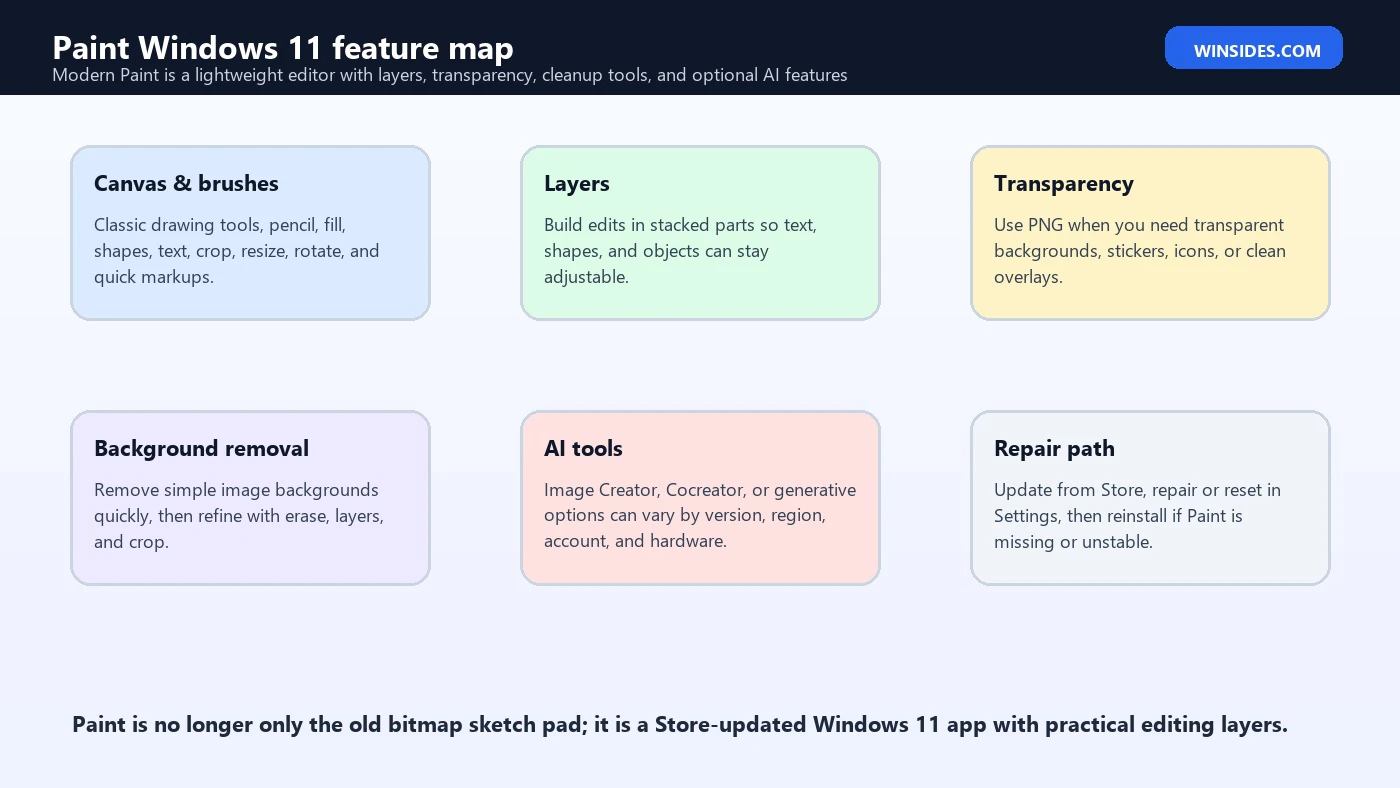
Paint Windows 11 is no longer only the plain drawing utility many users remember from older versions of Windows. It is still simple, fast, and approachable, but the Windows 11 version has become a more capable everyday image editor. Depending on your app version and region, it can include layers, transparency support, background removal, dark mode, redesigned controls, and AI-assisted creation features. That mix makes Paint useful for quick screenshots, how-to graphics, social images, lightweight edits, classroom visuals, support documentation, and simple transparent PNG work.
The important detail is that Paint is now delivered and updated through Microsoft Store. The Paint experience on one Windows 11 PC may not exactly match another PC if the Store app is outdated, if preview features are rolling out gradually, if AI features are unavailable in the region, or if the device does not meet hardware requirements for certain capabilities. That is why troubleshooting Paint is partly about the Windows version and partly about the Paint app version.
This guide explains what Paint does in Windows 11, how to open and update it, how layers and transparency change the workflow, what to know about AI tools, which file formats to choose, and how to repair Paint if it is missing, crashing, or not showing newer options. It also compares Paint with Paint 3D, Photos, Snipping Tool, Microsoft Designer, and heavier editors so you can choose the right tool instead of forcing Paint into jobs it was not designed to do.
For official starting points, use the Microsoft Store listing for Paint and Microsoft Support guidance for repairing apps and programs in Windows. For newer Paint features that may arrive first in preview builds, Windows-focused reporting such as Windows Central coverage of Paint project files and opacity controls is useful context, while The Verge coverage of Paint 3D retirement explains why classic Paint is now the main Microsoft path for lightweight image editing.
Table of contents
Key Takeaways
- Paint on Windows 11 is a Store-updated app. If a feature is missing, update Paint through Microsoft Store before assuming Windows is broken.
- Layers make Paint much more useful. You can separate text, pasted images, shapes, and cleanup work instead of flattening everything immediately.
- PNG matters when transparency matters. Use PNG for transparent backgrounds, diagrams, screenshots, stickers, icons, and crisp text-heavy graphics.
- AI features can vary. Image Creator, Cocreator, and generative tools may depend on region, account, app version, preview channel, or specific Windows hardware.
- Paint 3D is no longer the safe default recommendation. Microsoft has shifted attention back to the modernized classic Paint experience.
- Repair Paint from Settings first. Use Repair before Reset, and reinstall from Microsoft Store only if the app is missing or still unstable.
- Paint is best for quick edits, not professional production. Use dedicated editors for RAW photos, batch workflows, typography-heavy designs, vector work, and complex projects.
What Is Paint in Windows 11?
Paint is the built-in Microsoft image editor that ships with Windows 11 and receives updates through Microsoft Store. It opens quickly, handles common image formats, and gives users a familiar canvas with drawing, cropping, resizing, rotating, shapes, text, selection, fill, color picking, and eraser tools. The modern Windows 11 version keeps that lightweight character but adds features that make it far more useful than the old single-layer Paint many people remember.
The biggest change is that Paint is no longer just a quick bitmap scribble app. It now fits a practical middle ground between Snipping Tool, Photos, Microsoft Designer, and advanced editors like Photoshop, Affinity Photo, GIMP, or Paint.NET. You can capture a screen with Snipping Tool, open or paste it into Paint, add callouts, blur or cover sensitive areas manually, place text on a separate layer, crop the result, and export a clean image for a document or website.
Because Paint stays simple, it is often faster than a professional editor for everyday Windows tasks. If you need to mark a screenshot, trim a picture, create a quick diagram, resize a support image, remove a basic background, prepare a transparent PNG, or combine a few visual elements, Paint can be enough. If you need non-destructive masks, color grading, precise typography, RAW processing, batch export, or vector design, you should use a stronger editor.
How to Open Paint on Windows 11
The fastest method is to open Start, type Paint, and select the Paint app. You can also press Windows logo key + R, type mspaint, and press Enter. If Paint is installed correctly, the app opens to a blank canvas. If Windows cannot find Paint, use Microsoft Store to install it again from the official listing rather than downloading installers from third-party sites.
If you use Paint often, pin it to Start or the taskbar. Right-click Paint in Start search and choose the pin option that matches how you work. For screenshot workflows, open Snipping Tool first, copy the capture, then paste it into Paint. You can also right-click an image file, choose Open with, and select Paint when you need a quick crop or annotation.
On some systems, Windows may offer Edit with Paint from the right-click menu or from image previews. Context menu behavior can vary by app version and Windows build, so Start search remains the most reliable method. The Run command mspaint is also useful when helping someone remotely because it is short, memorable, and independent of Start menu layout.
How to Update Paint
Open Microsoft Store, go to Library, and update apps. Paint updates can add or improve features independently from major Windows feature updates. This matters because two Windows 11 PCs on the same Windows build can still have different Paint feature sets if one has a newer Store package. If layers, transparency, background removal, or AI tools are missing, updating from Store should be the first step.
You can also open the official Paint listing in Microsoft Store and check whether it says Open, Update, Install, or Get. If it says Update, install the update and restart Paint. If Paint was removed, the listing should allow installation. If Store itself is broken, fix Store or Windows Update problems first because Paint depends on that delivery channel.
Do not download Paint packages from random websites. Paint is a Microsoft app and should come from Windows or Microsoft Store. Third-party download mirrors can be outdated, modified, bundled with unwanted software, or simply unnecessary. The official Store path also keeps future updates working normally.
What Changed from the Old Paint?
Older Paint was a single-layer bitmap editor. Once you placed text or a shape and clicked elsewhere, it became part of the picture. That made quick edits easy but made corrections frustrating. Modern Paint on Windows 11 keeps the low-friction interface but adds tools that reduce the need to restart when one object needs adjustment. Layers are the most important example because they let you build an image in separate pieces.
The interface has also been refreshed for Windows 11. The app feels more consistent with modern Windows controls, supports dark mode on supported versions, and offers cleaner tool organization. Background removal and AI creation features have also appeared in newer versions, depending on availability. These additions do not turn Paint into Photoshop, but they do make it much better for quick web and support graphics.
Another change is the direction of Microsoft lightweight image tools. Paint 3D once looked like the future of casual image creation, but Microsoft has moved away from it. Classic Paint has received renewed attention, which makes it the safer app to learn for everyday Windows 11 image edits. Paint 3D may still exist on some older systems, but it should not be the centerpiece of a new Windows 11 editing workflow.
Layers in Paint
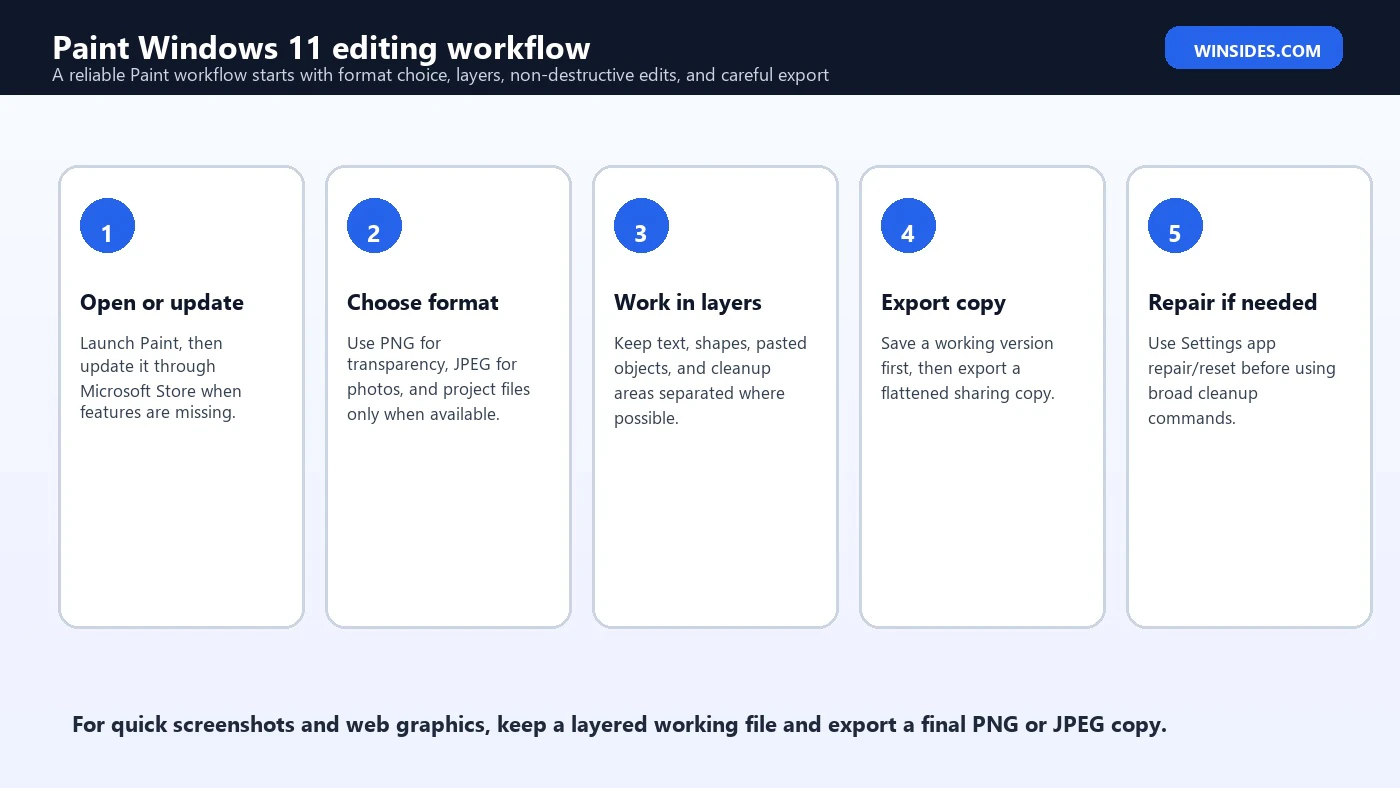
Layers are one of the best reasons to take Paint seriously on Windows 11. A layer lets you keep part of the image separate from the rest of the canvas. For example, you can place a screenshot on the bottom layer, add boxes on another layer, add text on a third layer, and keep a small logo or icon on a fourth layer. If the text is wrong, you can edit or remove that layer without damaging the screenshot below it.
This changes the practical workflow. Instead of committing every edit immediately, you can build a graphic in stages. Keep the original image on a base layer. Add annotations on separate layers. Use transparency where needed. Hide or adjust layers while experimenting. When the image is ready, export a flattened copy for sharing. The editable version should remain separate if your Paint version supports saving project data.
Layers are especially useful for tutorials, support screenshots, labels, comparison graphics, thumbnails, classroom images, and quick diagrams. They are less useful if you only need to crop a photo or resize an image. If you do not see layers in Paint, update the app through Microsoft Store and remember that feature rollout can vary by app version and device state.
Transparency and PNG Support
Transparency is essential when you need a logo, sticker, icon, diagram element, overlay, or web image that does not have a solid rectangular background. In Paint, transparency workflows are tied closely to PNG export and layer behavior. If the final file must preserve transparent areas, use PNG instead of JPEG. JPEG does not support transparency, so it will replace transparent areas with a solid background color.
A common mistake is to remove a background, then save as JPEG and wonder why the background came back. That is expected behavior. Choose PNG when the background should stay transparent. Choose JPEG when the image is photo-like and transparency is not needed. For screenshots with text, PNG is often cleaner because it preserves sharp edges better than JPEG compression.
Transparency also helps when combining images. You can remove a background from a product shot or icon, place it on a new layer, and export the result as a transparent PNG. For precise cutouts, Paint may not be enough, but for simple subjects and quick support graphics it can save time. Always inspect the edges before publishing because automatic background removal may leave small artifacts.
Background Removal in Paint
Background removal is one of the headline modern Paint features on Windows 11. It is designed for quick cleanup, not professional masking. If the subject is clear and the background is simple, it can remove the background quickly. If the image has hair, glass, shadows, translucent objects, complex edges, or a busy background, the result may need manual cleanup or a stronger editor.
The best workflow is to duplicate or preserve the original image first. Use background removal, inspect the edges at a larger zoom level, then use the eraser, selection tools, or layers to fix obvious problems. Export as PNG if the background should remain transparent. If you only need to place the subject on a white background, a JPEG copy may be acceptable, but it will not preserve transparency.
For support graphics, background removal can be helpful when turning screenshots, icons, or UI fragments into cleaner visual elements. For brand work, ecommerce images, or design assets that must look perfect, use a more precise editor. Paint is fast, but speed should not hide rough edges in important images.
AI Tools in Paint
Windows 11 Paint has gained AI-assisted features over time, including image generation or Cocreator-style workflows on supported versions. The exact names, buttons, and availability can change. Some AI features may require a Microsoft account, internet access, regional support, credits, a newer Paint app, a compatible Windows build, or specific Copilot+ PC hardware. Treat AI availability as conditional, not guaranteed.
If an article or video shows an AI button that you do not have, first update Paint from Microsoft Store and update Windows. Then check whether the feature is limited to your region, account, language, preview channel, or hardware. Microsoft often rolls features out gradually, so missing UI does not automatically mean the installation is broken. It may simply not be available to that device yet.
AI tools are useful for rough concepts, backgrounds, illustrations, and creative experiments. For technical screenshots, factual diagrams, and interface documentation, manually built images are usually safer because they avoid hallucinated UI text, incorrect labels, or unrealistic controls. Paint can help assemble and annotate the final image even if the source artwork comes from another tool.
Paint Project Files and Version Differences
Recent Paint development has included project-style file support in preview or newer builds, allowing users to preserve layers and unfinished edits rather than only saving flattened images. This matters because traditional formats like PNG and JPEG are final output formats, not full editing projects. If a project file option is available on your PC, use it for work-in-progress images and export PNG or JPEG copies only when sharing.
Because these features can arrive first in Insider builds or phased rollouts, do not assume every Windows 11 user has them immediately. In a mixed environment, such as an office, school, or support desk, write instructions that mention version dependency. For example, say “if your Paint version supports project files” instead of promising the option is present on every device.
The practical rule is simple: save an editable working version when the option exists, and save a separate final image for publishing. If your Paint version does not support project files, keep a duplicate of the original image and export intermediate copies as needed. That is less elegant, but it still prevents irreversible mistakes.
Best File Formats for Paint
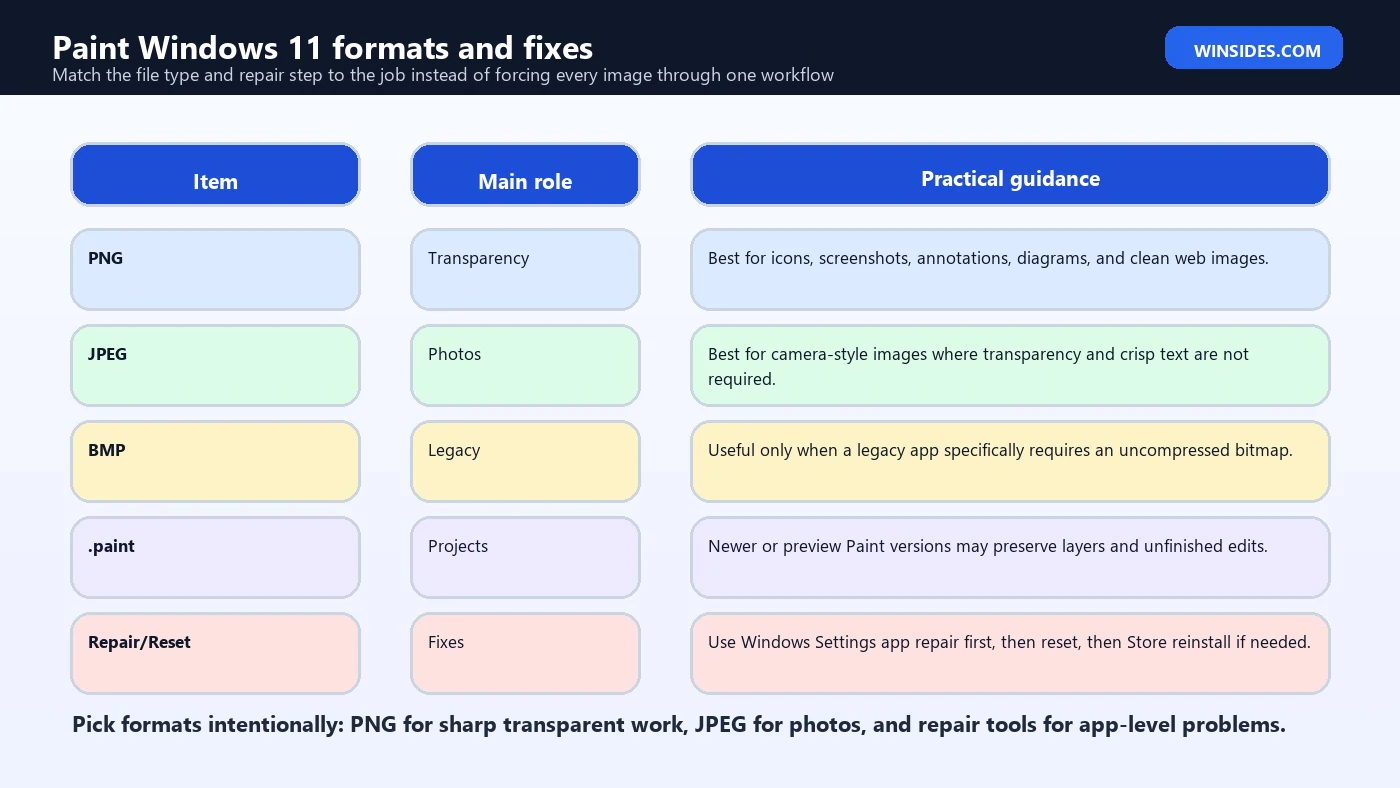
| Format | Best use | Important note |
|---|---|---|
| PNG | Screenshots, diagrams, transparency, icons, UI graphics | Best default for sharp text and transparent backgrounds |
| JPEG | Photos and smaller sharing files | Does not support transparency and may blur text edges |
| BMP | Legacy compatibility | Large file size; rarely the best modern choice |
| GIF | Simple graphics or compatibility | Limited colors; not ideal for photos |
| TIFF | Special workflows and compatibility | Useful only when another app or process requires it |
| Project file | Layered work in supported Paint versions | Availability can vary by Paint version or rollout stage |
For most Winsides-style screenshots, guides, and how-to visuals, PNG is the safest format. It keeps text crisp, supports transparency, and avoids the compression artifacts that make UI screenshots look dirty. Use JPEG for photographs or large decorative images where file size matters more than sharp text. Use BMP only if a legacy program specifically needs it.
If Paint offers a project format on your PC, treat it like the editable source and treat PNG or JPEG as final exports. This is similar to keeping a layered design file in a design app and exporting a web image separately. The export should be easy to share; the project file should be easy to edit later.
Paint vs Snipping Tool
Snipping Tool is for capturing the screen. Paint is for editing an image after it exists. They work very well together. Capture the screen with Snipping Tool, copy the result, paste it into Paint, add text or shapes, crop, resize, and export. If you only need a quick rectangle or highlight, Snipping Tool may be enough. If you need layers, a larger canvas, combined images, or cleaner export control, Paint is the better second step.
This split is useful for troubleshooting guides. Snipping Tool captures exactly what happened. Paint turns that capture into a clearer explanation. You can cover personal data, crop irrelevant areas, add labels, or make a comparison image. For support articles, that combination is often faster than opening a full design editor.
Paint vs Photos
Photos is better for viewing images, light photo adjustments, gallery browsing, and some photo-centric edits. Paint is better for drawing, canvas work, text labels, transparent PNGs, pasted objects, and quick diagrams. If you are correcting brightness, browsing a folder, or cropping a personal photo, Photos may feel more natural. If you are building a support image with labels, Paint is usually better.
The apps overlap, but they do not replace each other. Photos is an image viewer with editing features. Paint is a canvas editor. When you understand that difference, the choice becomes easier. Use Photos to inspect and lightly improve photos; use Paint to construct or annotate an image.
Paint vs Paint 3D
Paint 3D was once Microsoft casual 3D and mixed-media app, but it is no longer the best recommendation for Windows 11 users starting fresh. Microsoft has shifted focus toward the modern Paint app, while Paint 3D has been deprecated from the Microsoft Store path. Some systems may still have Paint 3D installed, but support and availability are not as reliable as classic Paint.
If you already have Paint 3D and need a specific feature from it, you can keep using it while it works. For new guides, teaching, and support workflows, use Paint instead. It is the Windows 11 app Microsoft is actively modernizing, and it is easier to install or repair through Microsoft Store.
Paint vs Microsoft Designer
Microsoft Designer is better for templates, AI-assisted design, social graphics, invitations, marketing-style layouts, and more polished compositions. Paint is better for local quick edits, screenshots, annotations, simple transparent images, and fast image fixes. If you need a designed poster or social graphic, Designer may be the right tool. If you need to crop, mark, and export a support image in thirty seconds, Paint wins.
A practical workflow can use both. Generate or arrange a creative visual in Designer, then use Paint to make small edits, crop variants, annotate a screenshot, or export a quick copy. Just remember that Paint is not a full layout system. It is intentionally lightweight.
Using Paint for Screenshots and Support Images
Paint is very useful for Windows support images. You can paste a screenshot, crop it to the relevant area, add a rectangle around the important button, place short text on a layer, and export a clean PNG. This creates clearer instructions than pasting a full desktop screenshot with too much visual noise. It also helps protect privacy because you can cover email addresses, serial numbers, license details, or personal files before sharing.
For the cleanest result, keep annotations short. Use high contrast. Avoid placing text directly over busy parts of the screenshot. If you need a label, create a small filled shape behind the text. If layers are available, put labels and shapes on their own layers so you can move them. Export as PNG so the text stays sharp.
When documenting errors, include enough surrounding context for the reader to understand where the message appears. Over-cropping can make a screenshot useless. A good support image usually shows the error, the app or setting page where it appears, and the control the user needs to press next. Paint is quick enough to create that kind of image without a heavy design workflow.
Using Paint for Icons, Stickers, and Transparent Images
Paint can be useful for simple icons, stickers, and transparent overlays if you use PNG correctly. Start with a transparent canvas when available or remove the background from an imported image. Keep the subject on a layer, clean the edges, and export as PNG. Test the image by placing it over a dark and light background so you can see whether rough edges remain.
For precise icons, Paint may not replace vector tools. Icons often need exact alignment, consistent stroke widths, and multiple sizes. But for quick stickers, tutorial overlays, rough symbols, and support graphics, Paint can be enough. The key is to avoid JPEG whenever transparency or crisp edges matter.
Using Paint for Resizing and Cropping
Paint remains one of the quickest ways to resize or crop an image. Open the image, use Crop to remove unwanted edges, then use Resize to change dimensions by percentage or pixels. When preparing website images, use exact pixel dimensions where possible. When preparing email or chat images, a percentage resize may be enough. Always save a copy rather than overwriting the original if the original matters.
Be careful with repeated resizing. Each export, especially to JPEG, can reduce quality. If you need several sizes, go back to the original or working file and export each size separately. For screenshots with text, resizing down too much can make the text unreadable. Use preview and zoom to check the final result before publishing.
Cropping is often more useful than resizing. A smaller image that focuses on the relevant button or error message is usually clearer than a full-size desktop screenshot. Paint makes that cleanup fast, and the result can be easier for readers to follow.
Troubleshooting: Paint Is Missing
If Paint is missing, open Microsoft Store and search for Paint, or use the official Paint Store listing. Install it from there. If Store does not install it, check Windows Update, Microsoft Store updates, account state, network access, and available disk space. On managed work or school devices, Store access may be restricted, so an administrator may need to deploy or allow the app.
Do not download random Paint installers. Because Paint is a Microsoft Store app on Windows 11, the supported route is through Windows and Store. If a debloat script removed Paint, reinstalling from Store is still cleaner than copying files from another PC. If multiple built-in apps are missing, the problem may be a broader Windows image or provisioning issue rather than Paint alone.
Troubleshooting: Paint Does Not Open or Crashes
If Paint does not open, first restart the PC and try again. Then update Paint through Microsoft Store. If it still fails, use the Windows app repair path. Open Settings, go to Apps, choose Installed apps, find Paint, open Advanced options if available, and use Repair. If Repair does not work, use Reset. Microsoft documents this repair/reset flow for Windows apps and programs, and it is the safest order.
Reset can remove local app state, so use Repair first. If Paint still crashes after reset, reinstall it from Microsoft Store. Also check whether the problem happens with every image or only one specific file. A corrupted or extremely large image can make an app look broken when the issue is actually the file. Test with a small PNG or JPEG before escalating.
If Paint crashes immediately after a graphics driver update or Windows update, update the Store app and restart. If many apps crash, troubleshoot Windows more broadly. Paint is rarely the only problem when there is system-level corruption, profile damage, or display driver instability.
Troubleshooting: Paint Features Are Missing
If layers, background removal, dark mode, project files, or AI buttons are missing, update Paint from Microsoft Store first. Then update Windows. Next, check whether the feature is region-limited, account-limited, hardware-limited, or still rolling out. Not every screenshot from a preview build represents what every stable Windows 11 user has today.
For AI tools, sign in with the required Microsoft account if prompted and check whether the feature is available in your region. Some AI features may require internet access or credits. Some may depend on Copilot+ PC hardware or preview channel enrollment. If the rest of Paint works, missing AI features are usually an availability issue rather than app corruption.
For layers and transparency, verify that you are actually using a version of Paint that includes those features. If an enterprise device blocks Store updates, the app can stay older for a long time. In that case, ask the administrator to approve the update rather than trying unofficial packages.
Troubleshooting: Paint Saves the Wrong Background
If a transparent image saves with a white or black background, check the export format. PNG supports transparency; JPEG does not. If you saved a transparent image as JPEG, the transparency is gone in that file. Go back to the editable version or original, preserve the transparent areas, and export again as PNG.
Also check the viewer you are using. Some image viewers display transparency as white, black, or a checkerboard pattern. To confirm, place the PNG over a colored background in Paint, Designer, a web page, or another editor. If the background changes correctly, transparency is preserved. If it remains solid, the file was flattened.
Troubleshooting: Text Looks Blurry
Blurry text usually comes from resizing, JPEG compression, or placing small text on a large image and then shrinking the result. For screenshots and diagrams, use PNG. Keep text large enough to read after export. Avoid repeated JPEG saves. If you need a smaller image, resize from the original working file, not from an already compressed export.
When adding text labels, use high contrast and enough spacing. A small label on a busy screenshot can become unreadable even if the file format is correct. If needed, place a solid or semi-solid shape behind the text. Layers make this easier because the label background and label text can remain separate while you adjust placement.
Troubleshooting: Paint Is Slow
Paint is lightweight, so it should not feel slow for normal images. If it becomes sluggish, check the image size, number of layers, available memory, and storage speed. Very large screenshots, high-resolution photos, or many pasted elements can slow down even simple editors. Close unnecessary apps and save a working copy before continuing.
If Paint is slow with every image, update the app, update graphics drivers through supported vendor or Windows Update channels, and restart Windows. If many apps are slow, investigate system performance rather than Paint alone. If only one image is slow, resize a duplicate or use a stronger editor for that file.
Best Practices for Clean Paint Edits
- Keep an untouched original image before editing important files.
- Use layers for text, labels, pasted objects, and temporary elements when available.
- Use PNG for screenshots, transparency, icons, and diagrams.
- Use JPEG only for photo-style images where transparency is not needed.
- Inspect automatic background removal edges before publishing.
- Export a final flattened copy instead of overwriting the editable version.
- Use short labels and high contrast for tutorial screenshots.
- Update Paint through Microsoft Store when features are missing or unstable.
Good Use Cases for Paint
Paint is excellent for quick Windows tasks: cropping a screenshot, marking a button, creating a simple transparent PNG, resizing a support image, removing a simple background, combining two images, adding a label, covering sensitive information, creating a quick classroom graphic, or preparing a lightweight website visual. It is especially useful when speed matters and the edit is simple enough to finish in one sitting.
Paint is also friendly for non-designers. The learning curve is smaller than a professional editor, and the app is already familiar to many Windows users. That makes it easier to explain in tutorials. If you are helping someone remotely, telling them to open Paint is far easier than asking them to install and learn a complex editor.
When Not to Use Paint
Do not use Paint as your main editor for professional photo retouching, RAW image processing, batch resizing, vector illustration, print layout, precise typography, advanced masking, color management, multi-page design, or complex brand graphics. It can help with small edits around those workflows, but it is not designed to replace dedicated creative tools.
If the image needs to remain editable over many revisions, check whether your Paint version supports project files. If it does not, use a tool with proper project support. If the final image needs precise brand typography or vector shapes, use Designer, Illustrator-style tools, Figma, Affinity, or another design editor. Paint is best when the task is practical, visual, and quick.
Frequently Asked Questions
Is Paint included with Windows 11?
Yes, Paint is a Microsoft app available for Windows 11 and updated through Microsoft Store. If it is missing, install it from the official Store listing.
How do I open Paint in Windows 11?
Open Start and search for Paint, or press Windows logo key + R, type mspaint, and press Enter.
Why does my Paint look different from another PC?
Paint is Store-updated, and features can vary by app version, Windows build, region, account, hardware, and rollout stage.
Does Paint support layers on Windows 11?
Modern versions of Paint support layers, but if you do not see the option, update Paint from Microsoft Store and check whether the feature is available on your app version.
Can Paint make transparent backgrounds?
Yes, supported versions can work with transparency. Export as PNG when transparency needs to remain in the final file.
Why did my transparent image become white after saving?
It was probably saved as JPEG or flattened by the workflow. Use PNG for transparency.
Does Paint have AI tools?
Some Windows 11 Paint versions include AI-assisted features, but availability can depend on region, account, credits, app version, Windows build, preview channel, or hardware.
What happened to Paint 3D?
Paint 3D has been deprecated from the Store path, while classic Paint has received modern Windows 11 updates. Paint is the safer app to focus on now.
How do I fix Paint if it crashes?
Update Paint from Microsoft Store, restart Windows, then use Settings > Apps > Installed apps > Paint > Advanced options > Repair. Use Reset only if Repair fails.
Is Paint good enough for screenshots?
Yes. Paint is very good for cropping, annotating, resizing, and exporting screenshots, especially as PNG files.
Conclusion: Paint Is Simple, but It Is No Longer Basic
Paint Windows 11 keeps the speed and familiarity of classic Paint while adding modern features that make it useful for real everyday work. Layers, transparency, background removal, and optional AI tools turn it into a practical editor for screenshots, support graphics, transparent PNGs, quick diagrams, classroom visuals, and lightweight web images. It is still not a professional design suite, but it no longer deserves to be dismissed as only a toy sketch pad.
The best way to use Paint is to match the tool to the job. Use PNG for screenshots and transparency. Use JPEG for photos. Use layers for annotations and objects. Keep an original copy. Export a flattened final version. Update the app from Microsoft Store when features are missing. Repair or reset from Settings if Paint becomes unstable. Those simple habits prevent most Paint problems and make the app much more reliable.
As Microsoft continues to update Paint through Store releases, expect feature availability to vary across devices. When writing instructions or helping another user, mention version differences instead of assuming every PC has the same buttons. That small caution keeps Paint guidance accurate and prevents confusion when one Windows 11 system has newer tools than another.
For more interesting articles, stay tuned to Winsides.com!









Community
Comments (0)