

Introduction to Winamp Windows 11
Winamp Windows 11 is a practical topic because Winamp sits in a strange but useful place in 2026. It is an old-school music player with a modern official website, a long history of skins and plugins, and a loyal audience that still prefers local music files over cloud-first listening. On Windows 11, Winamp can still be useful if you want a focused desktop player for MP3, FLAC, WAV, playlists, internet radio, visualizations, equalizer presets, and a classic compact interface.
The key is to treat Winamp as a local music player first. It is not the same thing as Spotify, Apple Music, YouTube Music, the new Windows Media Player, or Microsoft Designer-style modern apps. Winamp is strongest when you already have audio files, organized albums, playlist collections, ripped CDs, old music folders, radio streams, or a preference for skins and a compact player. If you want a cloud-first subscription app, Winamp may feel nostalgic rather than essential. If you want quick local playback with deep customization, it can still make sense.
The modern Winamp story also needs careful wording. The official Winamp Player page describes a player for locally stored content, personalization, button layouts, and skins. The comeback coverage around the 5.9 era, including Pitchfork reporting on the vintage MP3 software return, explained that the Windows player had been modernized under the hood. Historical references such as Winamp background and version history are useful for context, but the safe download path should still start at the official Winamp site. For Windows repair behavior, Microsoft guidance on repairing apps and programs in Windows is the relevant general Windows reference.
This guide explains how to install Winamp safely on Windows 11, when it is worth using, how to configure local libraries, how to set file associations, how skins and plugins should be handled, what to do about sound or playback issues, and when alternatives such as Windows Media Player, VLC, MusicBee, foobar2000, AIMP, or Audacious may be better. The goal is not to treat Winamp as a magic answer for every music need. The goal is to help you decide whether it fits your Windows 11 setup and then configure it cleanly.
Table of contents
Key Takeaways
- Winamp still makes sense on Windows 11 if you mainly play local music files. It is strongest for MP3, FLAC, WAV, playlists, skins, visualizations, and compact desktop playback.
- Download from the official Winamp site. Avoid old mirror sites, repacked installers, and random “classic Winamp” downloads unless you know exactly what you are doing.
- Do not set Winamp as every default immediately. Test playback first, then assign only the file types you actually want Winamp to open.
- Skins and plugins are both the charm and the risk. Use trusted sources, avoid ancient plugin packs, and add customizations one at a time.
- No-sound problems are usually output-device or mixer problems. Check Winamp output settings, Windows volume mixer, speakers, Bluetooth devices, and exclusive audio mode.
- Winamp is not the same as modern streaming services. It is better for local collections than subscription discovery, lyrics sync, cloud libraries, and mobile-first listening.
- If Winamp crashes, simplify first. Return to a default skin, remove old plugins, rescan the library, and reinstall only after backing up playlists and settings.
What Is Winamp on Windows 11?
Winamp is a desktop media player with roots in the late 1990s MP3 era. Its identity comes from fast playback, playlists, a compact interface, a media library, equalizer controls, visualizations, skins, and plugin support. The classic Winamp design is instantly recognizable, but the player is not only a museum piece. It can still function as a lightweight music player on a modern Windows 11 PC if your expectations are realistic.
On Windows 11, Winamp should be understood as a third-party desktop app rather than a built-in Windows feature. Windows 11 includes Microsoft media apps, but Winamp is separate. That separation is useful if you want a player with a different interface, more nostalgia, old playlists, or a library workflow you already know. It also means you need to install it, update it, and manage file associations yourself.
The best Winamp user in 2026 is someone with local music. That might be a folder full of MP3 files, a FLAC archive, old M3U playlists, ripped CDs, downloaded live sets, archived internet radio recordings, game music, or a curated music collection that is not tied to a streaming subscription. Winamp gives that collection a fast, customizable player without requiring a cloud library.
Is Winamp Compatible with Windows 11?
Modern Winamp builds are designed to run on current Windows versions, and the 5.9 generation was widely discussed as part of Winamp return to a maintained Windows player. Windows 11 compatibility is the reason many users search for Winamp again: they remember the classic interface, but they want to know whether it still opens, plays audio, handles playlists, and respects modern Windows defaults. In normal home use, the answer is yes, but compatibility depends on the build, the installer source, plugins, skins, and audio configuration.
Compatibility is not the same as “every old Winamp plugin will work.” The core player may run, while an old visualization, DSP plugin, skin script, or output plugin may crash or behave badly. That is why a clean install should be tested before adding customization. If the official player opens, scans folders, and plays music with the default skin and default output, Winamp itself is working. If it crashes only after installing a plugin pack from years ago, the plugin is the first suspect.
Windows 11 also has newer security and default-app behavior than Windows XP or Windows 7. SmartScreen, antivirus tools, Controlled Folder Access, Microsoft Store prompts, per-file-type defaults, audio device routing, high-DPI scaling, and Bluetooth output switching can all affect how Winamp feels. These are not necessarily Winamp bugs. They are parts of the modern Windows environment around an older-style desktop player.
Safe Download and Install
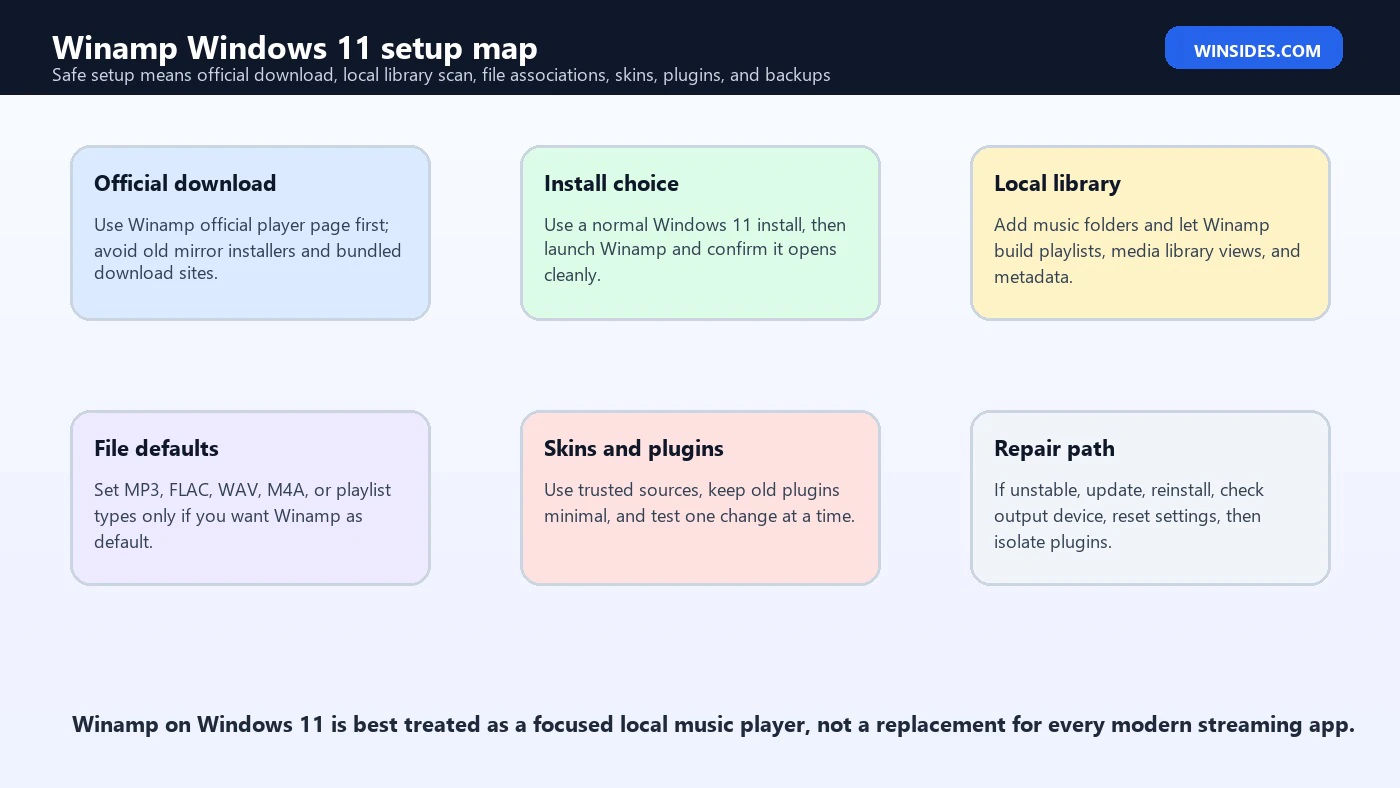
Start from the official Winamp player page. That matters because Winamp has decades of history, many old versions, and many third-party download mirrors. Some mirrors may host outdated builds, repackaged installers, or bundled extras. If the goal is a reliable Windows 11 setup, do not begin with a random archive unless you have a specific legacy reason and you understand the risk. Use the official site first.
After downloading, run the installer normally. If Windows SmartScreen or antivirus prompts appear, confirm that the file came from the official source and that the publisher and filename look reasonable. Do not disable security tools just to run an unknown installer. If you downloaded from a mirror and Windows warns you, that is a sign to go back and use the official site.
During installation, avoid selecting every optional component without thinking. Winamp can include multiple components, file associations, library features, visualizations, and legacy options depending on the build. A conservative setup is better: install the player, keep defaults reasonable, test playback, then add file associations or extra features later. This gives you a cleaner troubleshooting path if something goes wrong.
Should You Use Winamp or Windows Media Player?
Windows 11 already has Microsoft media playback options, including the modern Media Player and legacy Windows Media Player paths on many systems. Those apps fit users who want a supported Microsoft experience, a simple library, familiar Windows integration, and fewer third-party decisions. Winamp fits users who want classic playlists, skins, plugin culture, compact controls, visualizations, and a player that feels separate from the modern Windows media ecosystem.
If you only play a few files occasionally, the built-in player may be enough. If you keep a large local music folder and want a fast player with old-school playlist behavior, Winamp is more interesting. If you need video playback, subtitles, odd codecs, or network streaming across many formats, VLC may be a better default. If you need rich library tagging and modern music organization, MusicBee or foobar2000 may be stronger. Winamp wins when the experience itself is part of the reason you want it.
There is no need to choose one app forever. You can keep Winamp for music and use another player for video. You can set Winamp as the default for MP3 and FLAC while leaving video formats alone. Windows 11 lets you manage defaults by app and file type, so a mixed setup is often cleaner than forcing one player to handle everything.
First Launch Checklist
- Open Winamp once before changing file associations so you know the player launches correctly.
- Play a simple MP3 or WAV file stored on the local drive before scanning a huge library.
- Confirm the correct speaker, headset, DAC, monitor audio device, or Bluetooth device is selected in Windows.
- Check Windows volume mixer if Winamp appears to play but you hear nothing.
- Add one music folder first, then rescan larger libraries after the basic setup works.
- Keep the default skin until playback is stable.
- Export or copy old playlists before changing library paths.
Adding Your Music Library
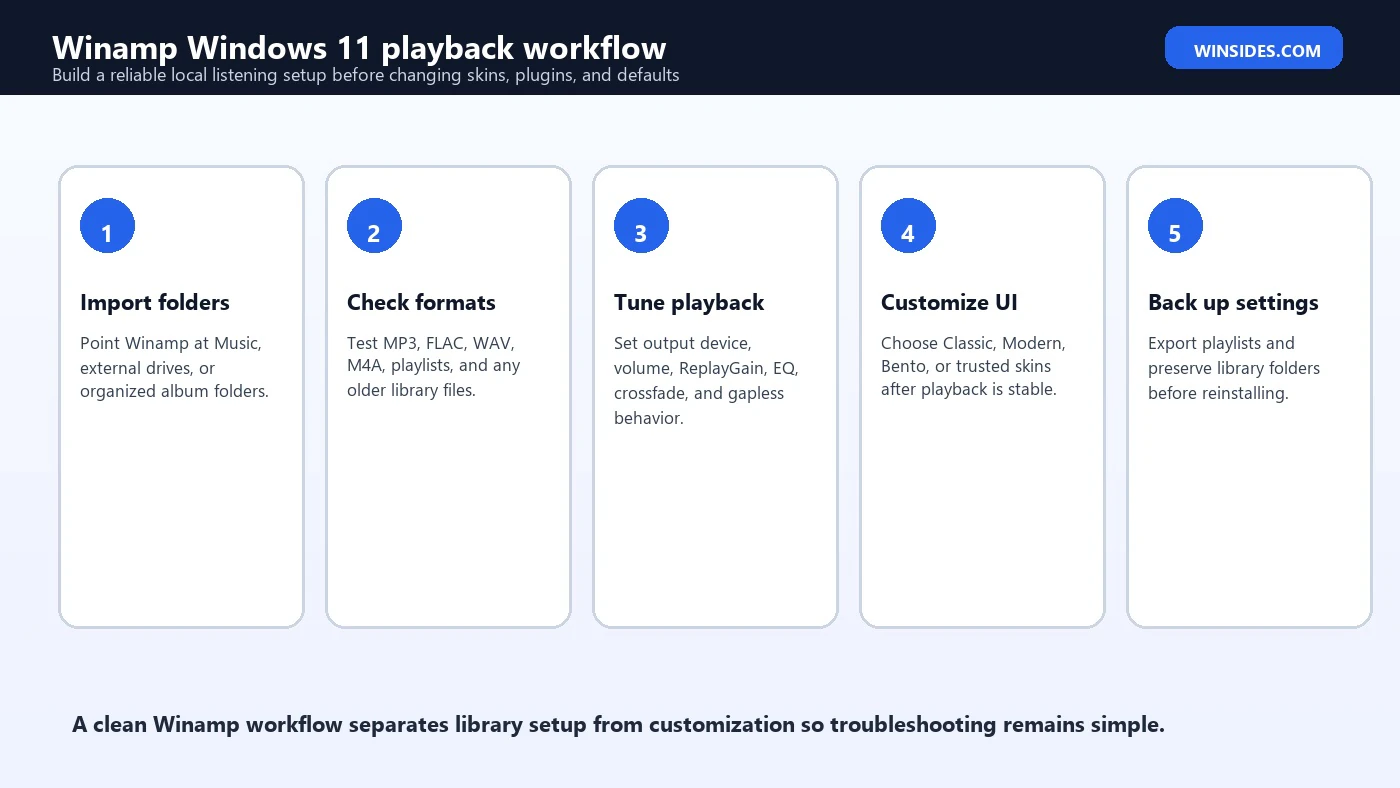
A good Winamp setup starts with organized folders. Before scanning everything, decide where your music actually lives. Many Windows 11 users have music split across the default Music folder, Downloads, external drives, OneDrive, old backup folders, and portable SSDs. If you scan all of them without cleanup, the library can fill with duplicates, broken paths, partial downloads, and inconsistent metadata. Winamp will feel messy even if the player is working correctly.
Start with one known-good folder. Add albums that are tagged well and stored locally. Test browsing by artist, album, and playlist. If that works, add more folders. If you use an external drive, keep the drive letter stable. If the drive letter changes, Winamp may remember old file paths and show tracks that no longer play. Windows Disk Management can assign a consistent drive letter to an external music drive if needed.
Cloud-synced folders need care. OneDrive Files On-Demand can show files that are not fully stored locally. If Winamp tries to scan or play placeholders, behavior may be inconsistent. For a stable Winamp library, keep the music files available offline or store the active library in a normal local folder. Cloud backup is fine, but playback should not depend on files that may not be downloaded yet.
Supported Formats and Realistic Expectations
Winamp is famous for audio format support, especially MP3-era playback, playlists, and plugins. In practical Windows 11 use, test the formats you actually own: MP3, FLAC, WAV, M4A, AAC, WMA, OGG, and playlist files such as M3U or PLS. Most common music libraries should be straightforward, but edge cases depend on codecs, file tags, plugins, and how old the files are.
Lossless formats such as FLAC are a common reason people keep local players. Winamp can be a pleasant way to play a curated FLAC library, but the output quality still depends on the Windows audio path, device settings, DAC, speakers, headphones, and source files. Installing Winamp does not magically improve a low-quality file. It gives you playback controls and library behavior; the audio chain still matters.
For video, Winamp is not the first recommendation on Windows 11. It has historically had some video capability, but VLC, MPC-style players, or the built-in Windows player are usually better choices for subtitles, modern containers, hardware decoding, HDR, and streaming video workflows. Use Winamp mainly for music unless you have a specific reason to use it for video.
Setting Winamp as the Default Music Player
Do not set Winamp as the default for every possible media type during installation. First confirm that it plays your files properly. After that, open Windows 11 Settings, go to Apps, then Default apps, search for Winamp, and assign file types intentionally. Common choices include MP3, FLAC, WAV, M4A, AAC, OGG, M3U, and PLS. Leave video formats alone unless you deliberately want Winamp to handle them.
Windows 11 defaults are granular. That is useful because you can make Winamp the default for local music while keeping another app for videos or streaming links. If double-clicking an MP3 still opens another app, check the file type association. If one format opens in Winamp and another opens in Media Player, that is not unusual. Each extension can have its own default.
You can also right-click a file, choose Open with, select Winamp, and choose whether to always use it for that file type. This is a quick path for one extension, but Settings is cleaner when you want to review several formats. Avoid changing defaults while Winamp is crashing; fix stability first.
Skins on Windows 11
Skins are one of the reasons Winamp remains beloved. A skin can make Winamp look like the classic compact player, a modern single-window layout, a themed stereo, or something completely different. On Windows 11, skins are fun, but they also affect usability. A tiny old skin may look charming on a 1080p monitor and painfully small on a high-DPI 4K display. A more modern or Bento-style layout may be easier to use daily.
Use trusted skin sources and avoid installers that bundle multiple skins with unknown extras. A normal skin file should not require you to install unrelated software. If a skin changes behavior dramatically, test playback, playlist editing, and library browsing after applying it. If Winamp becomes unstable, return to the default skin before blaming the player.
High-DPI scaling is the main Windows 11 skin issue. Old skins were designed for smaller screens and older display densities. If Winamp looks too small, try a different skin, adjust Windows scaling, or use compatibility scaling options carefully. Do not spend hours fighting one old skin if another layout solves the problem in seconds.
Plugins: Useful but Risky
Winamp plugin support is powerful, but old plugins are the most likely source of problems on Windows 11. Input plugins can add file support, output plugins can change audio routing, DSP plugins can alter sound, visualization plugins can create animated graphics, and general-purpose plugins can add features. That flexibility was central to Winamp history. It also means an outdated plugin can crash the app or break playback.
Install plugins one at a time. Test after each plugin. Keep notes on what you added. Avoid giant plugin packs unless they come from a source you trust and match your Winamp version. If a plugin has not been updated in many years, be skeptical. It may still work, but it should not be the first thing you install on a fresh Windows 11 setup.
When troubleshooting, remove plugins before reinstalling Windows or blaming the audio driver. A clean Winamp install with default plugins is the baseline. If the baseline works and a customized setup crashes, the customization is the problem. This saves a lot of wasted time.
Equalizer, ReplayGain, and Output Settings
Winamp users often jump straight to the equalizer because it is part of the classic experience. The equalizer can be useful, but it is also easy to overdo. If the music sounds distorted, flat, or harsh, first turn off aggressive EQ presets and test the same file again. A bad preset can make good speakers sound worse. Use subtle changes, especially if you already have enhancements enabled in your speaker software, headset app, Realtek console, Dolby app, or DAC utility.
ReplayGain or volume-normalization behavior can help when albums have different loudness levels. However, not every file has ReplayGain tags, and different players handle volume normalization differently. If some songs are too quiet or too loud, check metadata and Winamp playback settings before assuming the files are damaged. For carefully mastered albums, you may prefer to leave normalization off.
Output settings matter because Windows 11 may have several audio devices: laptop speakers, monitor HDMI audio, USB DAC, Bluetooth headset, wireless earbuds, docking station, capture card, and virtual audio devices. If Winamp appears to play but there is no sound, check both Winamp output settings and the Windows volume mixer. The player may be sending audio to a device you are not listening to.
Internet Radio and Streaming
Winamp history is tied closely to internet radio and SHOUTcast-style listening. Some stream workflows still work, but the streaming world has changed. Old station URLs may be dead, HTTPS requirements may differ, and some services now require apps, tokens, or web playback rather than simple playlist URLs. If an old playlist stream fails, test whether the station itself still exists and whether the URL is current.
For simple internet radio links, Winamp can still be enjoyable. For subscription streaming, recommendations, cloud libraries, offline mobile sync, and lyrics, dedicated streaming apps are usually better. Do not expect Winamp to become a full modern streaming service unless a current Winamp product specifically offers that workflow in your region and account context.
If streams buffer or fail, check the URL, firewall, VPN, DNS, and whether the stream uses a format Winamp can handle. Also test the stream in another player such as VLC. If VLC fails too, the stream may be down. If VLC works and Winamp does not, focus on Winamp format support, playlist parsing, or network settings.
Managing Playlists
Playlists are a strong reason to use Winamp. M3U and PLS files remain simple, portable, and easy to back up. If you have old playlists, place the music files in the expected folders before opening the playlist. Many old playlists use absolute paths such as D:\Music\Album\song.mp3. If your music is now on E: or inside OneDrive, the playlist may not find the tracks.
When rebuilding a library, export important playlists after cleanup. Keep playlist files with the music collection or in a backed-up folder. If you move to a new PC, copy both the music and playlists, then preserve folder structure where possible. A playlist is only a list of paths unless it uses relative paths and the folder layout remains stable.
For large collections, do not use one giant playlist as a library replacement. Use folders, tags, and the media library where possible. Playlists are best for moods, sets, favorites, DJ-style queues, radio archives, workouts, or temporary listening plans. The media library is better for browsing an entire collection.
Fix: Winamp Has No Sound on Windows 11
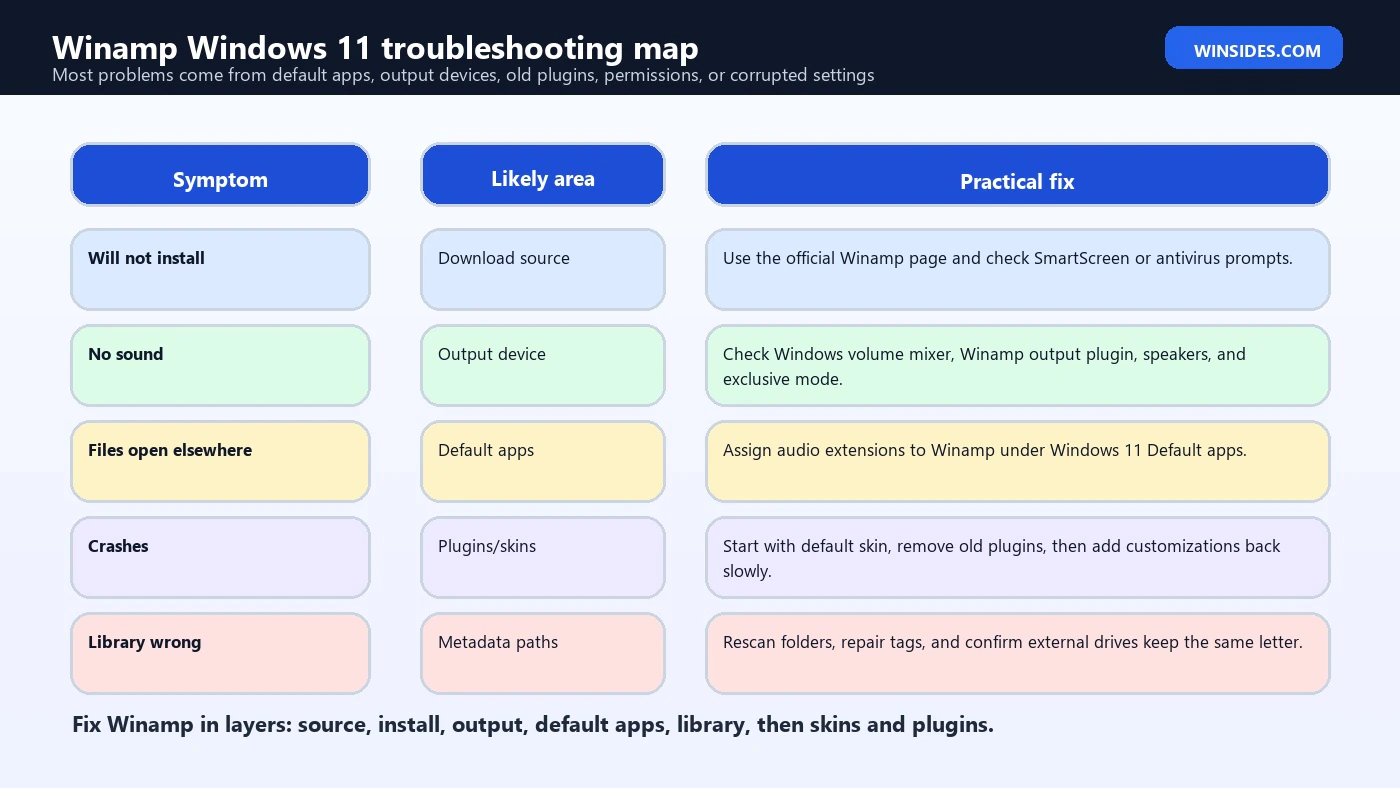
No sound is usually not a mysterious Winamp failure. Start with Windows volume. Right-click the speaker icon, open volume mixer, and confirm Winamp is not muted or routed to the wrong output. Then check the physical device: speakers, headphones, Bluetooth connection, USB DAC, HDMI monitor, or docking station. Windows 11 can switch output devices automatically when devices connect and disconnect.
Next, check Winamp output settings. If you changed output plugins, return to a default output path and test a simple MP3 file. Disable DSP plugins and heavy EQ presets. If sound returns, add changes back one at a time. If only one file is silent, test another file. The issue may be the file, not the player.
If Winamp plays but other apps sound normal, focus on Winamp settings and Windows mixer routing. If no app has sound, troubleshoot Windows audio devices, drivers, and services instead. Keeping that distinction clear prevents unnecessary reinstalling of Winamp when the actual issue is a Bluetooth headset or muted app session.
Fix: Winamp Will Not Open
If Winamp will not open, restart Windows and try again. Then check whether the app is already running in the background. Task Manager can show stuck processes. End the stuck process and reopen Winamp. If it still fails, try launching it without opening a specific media file. A corrupted file or broken playlist can make it look as if the app itself is failing.
Return to default customizations. If the problem started after installing a skin, plugin, or visualization, remove that addition. If Winamp opens after removing it, you have found the cause. If you cannot easily undo changes, reinstalling Winamp may be faster, but back up playlists and library data first.
Also check antivirus quarantine history. If a security tool removed a file from the Winamp folder, the app may not start cleanly. If the installer came from a suspicious mirror, uninstall it and reinstall from the official site. Do not whitelist a suspicious file just because you want the app to open.
Fix: Winamp Crashes When Scanning a Library
Large library scans can expose bad files, broken tags, unusual paths, network drives, placeholders, or old plugins. If Winamp crashes during a scan, do not scan the entire drive again immediately. Add folders in smaller groups. When the crash returns, you have narrowed the problem to a specific folder or file group.
Check for extremely long paths, unusual characters, incomplete downloads, corrupted audio files, and broken tags. External drives can also cause problems if they disconnect during a scan. Cloud folders can cause problems if files are not actually stored locally. Use a local test folder with a few known-good albums to confirm that the player and library scanner work before returning to the full collection.
If you use tag editors, repair metadata outside Winamp and rescan. Bad metadata can make a library messy even when playback works. For serious collections, a dedicated tag editor plus Winamp playback can be a good workflow: clean tags first, then let Winamp read them.
Fix: Files Keep Opening in Another App
If double-clicking an MP3 opens Windows Media Player, VLC, or another app instead of Winamp, the issue is file association. Open Settings > Apps > Default apps, search for Winamp, and assign the relevant file types. Windows 11 handles defaults per extension, so MP3 and FLAC can behave differently. Assign each format you care about.
If Windows does not list Winamp as an option for a file type, reinstall Winamp or use Open with on a sample file. Sometimes the app registration needs to be refreshed. Do not repeatedly reinstall several players at once because each player may compete for defaults and make the result more confusing. Set defaults once after you know which app you prefer for each type.
For shared PCs, defaults can differ by user account. If Winamp opens files correctly in one account but not another, set defaults in the affected account. Windows 11 default app settings are user-specific in many scenarios.
Fix: Skins Are Too Small or Broken
Classic skins may look tiny on modern high-resolution displays. That is not unusual. Try a modern skin or a larger layout before changing system-wide scaling. If only Winamp is too small, changing all of Windows to compensate may make every other app too large. The better fix is usually a skin or layout that fits modern DPI.
If a skin causes missing buttons, unreadable text, or strange behavior, return to the default skin. Old skins were not always designed for current Windows rendering, fonts, or scaling. A skin can be visually nostalgic and still impractical. Keep one reliable fallback skin installed so you can recover quickly.
Do not install skin packs from untrusted executables. A skin should not need permission to modify unrelated parts of Windows. If a skin comes as an installer that also offers toolbars, boosters, driver updates, or unrelated apps, skip it.
Fix: Plugins Break Playback
Plugins can add features, but they can also break a stable setup. If playback fails after installing a plugin, remove the plugin and test again. If you installed several plugins at once, remove all of them, restore playback, then add them back one at a time. This is slower than bulk installing, but much faster than guessing after the system is broken.
Pay special attention to output, DSP, and visualization plugins. Output plugins change how audio leaves Winamp. DSP plugins change the signal. Visualization plugins may use graphics APIs or old code paths that do not behave well on modern Windows. If Winamp crashes only when a visualization starts, the visualization is the issue.
For an everyday Windows 11 music player, fewer plugins are usually better. Keep only what you actually use. If you want a deeply customized audio lab, expect to troubleshoot it like one. If you want reliable music playback, keep the chain simple.
Winamp Alternatives on Windows 11
| App | Best for | Why choose it instead |
|---|---|---|
| Windows Media Player | Simple built-in playback | Good enough for basic users who want Microsoft integration |
| VLC | Video, codecs, network streams | Better for video, subtitles, odd files, and troubleshooting playback |
| MusicBee | Large local music libraries | Stronger tagging, organization, and modern library management |
| foobar2000 | Minimal advanced audio playback | Very customizable, lightweight, and popular with technical users |
| AIMP | Polished local music player | Modern interface with strong local playback features |
| Winamp | Classic player, skins, playlists | Best for nostalgia, compact playback, and old-school customization |
The best alternative depends on why you want Winamp. If the answer is nostalgia, skins, compact playback, and old playlists, Winamp is the right choice. If the answer is modern music library management, MusicBee or foobar2000 may be better. If the answer is video and codecs, VLC is better. If the answer is “I just want to play a file,” the built-in Windows player may be enough.
You can keep several players installed without chaos as long as file defaults are intentional. For example, Winamp for MP3 and FLAC, VLC for video, Windows Media Player for occasional default behavior, and a streaming app for subscription music. Windows 11 can support that mix cleanly if you do not let every installer steal every association.
Security Tips for Old Media Collections
Music files are usually safe, but old collections can include executable installers, plugin files, skin installers, playlist links, archived ZIP files, and old downloads from unknown websites. Treat those extras carefully. Do not run ancient plugin installers just because they were in a backup folder. Scan downloads, use official sources, and avoid giving old utilities administrative rights unless there is a clear reason.
Be cautious with internet radio playlist files from unknown sites. A playlist is not usually dangerous by itself, but it can point to remote URLs, scripts in web contexts, or misleading downloads if obtained from untrusted pages. Keep Winamp focused on audio playback and avoid installing helper tools from sites that look abandoned or cluttered with ads.
If you are restoring a very old Windows XP-era Winamp setup, do it gradually. Copy the music first. Copy playlists second. Add skins third. Add plugins last. That order protects your library and makes it easier to identify exactly what causes a Windows 11 compatibility problem.
Backup and Migration Tips
Before reinstalling Winamp or moving to a new PC, back up your music folders, playlists, and any custom skins or plugin settings you truly need. Playlists are especially important because they represent years of listening habits for many users. If the playlist paths point to old drive letters, fix the folder structure or edit the playlist paths before assuming the files are gone.
When migrating to Windows 11, place the music collection in a stable location such as a dedicated Music folder or a drive letter that will not change. Open Winamp, add the folder, and rebuild the library. Test a few playlists. Once everything works, then apply skins and plugins. Migration is much smoother when the library foundation is clean.
If you use external drives, label them clearly and keep backups. A local music library is only as safe as the storage behind it. Winamp can play your collection beautifully, but it is not a backup tool. Keep a separate backup on another drive or cloud service if the collection matters.
Best Practices for Winamp on Windows 11
- Download from the official Winamp player page first.
- Test playback before setting file associations.
- Set defaults only for music formats you want Winamp to handle.
- Keep music folders organized before scanning a large library.
- Use PNG-quality album art and clean tags where possible.
- Add skins and plugins one at a time.
- Use Windows volume mixer and Winamp output settings when sound is missing.
- Back up playlists before reinstalling or migrating PCs.
- Use VLC or another player for video-heavy workflows.
- Keep expectations realistic: Winamp is excellent for local playback, not every modern streaming need.
Frequently Asked Questions
Does Winamp work on Windows 11?
Yes, modern Winamp builds can work on Windows 11, but stability depends on using a current trusted installer and avoiding broken old plugins or skins.
Where should I download Winamp for Windows 11?
Use the official Winamp player page first. Avoid random mirror sites and repacked classic installers unless you have a specific legacy reason.
Is Winamp better than Windows Media Player?
It depends. Winamp is better for classic playlists, skins, compact playback, and local music nostalgia. Windows Media Player is simpler for basic built-in playback.
Can Winamp play FLAC on Windows 11?
Winamp can be used for common local audio libraries including FLAC workflows, but always test your actual files and plugins after installation.
How do I make Winamp the default music player?
Use Settings > Apps > Default apps, search for Winamp, and assign the audio file extensions you want it to open.
Why is there no sound in Winamp?
Check Windows volume mixer, output device, Winamp output settings, Bluetooth routing, DSP plugins, and whether the file itself plays in another app.
Are old Winamp skins safe?
A skin from a trusted source is usually fine, but avoid executable skin packs from unknown websites. Old skins can also be too small on high-DPI displays.
Should I install old Winamp plugin packs?
Only carefully. Old plugins are a common crash source on Windows 11. Install one at a time and keep only what you use.
Is Winamp good for video on Windows 11?
Use Winamp mainly for music. VLC or another modern video player is usually better for video, subtitles, codecs, and streaming files.
What should I do before reinstalling Winamp?
Back up playlists, note music folder paths, save any trusted skins or settings, then reinstall from the official source.
Conclusion: Winamp Still Works Best When You Use It for the Right Job
Winamp Windows 11 is not about replacing every modern music service. It is about giving a local music collection a fast, familiar, customizable desktop player. If you have MP3s, FLAC files, playlists, old albums, internet radio links, or a love for skins and visualizations, Winamp can still be enjoyable and useful. If your entire music life is streaming recommendations and mobile sync, a subscription app will likely fit better.
The safest setup is simple. Download from the official Winamp site. Install normally. Test playback before changing defaults. Add one music folder first. Set only the file associations you want. Keep skins and plugins minimal until the player is stable. If there is no sound, check Windows output and the volume mixer before reinstalling. If it crashes, remove customizations before blaming Windows 11.
That balance lets Winamp keep its charm without turning your Windows 11 audio setup into a mess. Treat it as a focused local player with a classic personality, and it can still earn a place beside newer tools like Windows Media Player, VLC, MusicBee, foobar2000, and streaming apps.
For more interesting articles, stay tuned to Winsides.com!









Community
Comments (0)