

Start Magnifier after sign-in is available in Settings > Accessibility > Magnifier. It stores whether Magnifier should launch automatically for the current user after a future Windows sign-in. On the reproduced Windows 11 25H2 PC, the exact control began at Off, moved temporarily to On, and returned to Off.
The change is a current-user accessibility preference and required no administrator approval. The controlled test used only a privacy-safe Settings window, changed no personal file, and closed Settings, Magnifier, and ShareX after the rollback.
What does Start Magnifier after sign-in change?
Stores whether magnifier should launch automatically for the current user after a future windows sign-in. This current-user choice is separate from Start Magnifier before sign-in, which affects the sign-in screen. It also does not turn Magnifier on immediately merely because the checkbox is selected.
Enable it when you need magnification every time this account begins a session. Leave it off when Magnifier is only an occasional tool or when automatic zoom would be disorienting.
Microsoft Support documents the current Magnifier feature and its supported Windows interface. The official description matches the labels reproduced on this Windows 11 build, so there is no need for a Registry edit, third-party magnifier, or an assumed legacy control name.
Table of contents
What should you check before changing it?
First, open the target page and record the displayed value. The baseline in this test was Off. Windows applies Magnifier preferences directly, so that note is the rollback reference; there is no separate Apply button.
Close confidential documents, notifications, and account pages before testing any screen-reading or enlargement behavior. Use a disposable Settings page or a neutral local sentence. That precaution matters because magnification and reading tools can make visible or spoken content easier for bystanders to notice.
Change only Start Magnifier after sign-in. The page contains related controls for zoom, view, appearance, following behavior, and reading. Moving a sibling at the same time makes it impossible to attribute the result to one preference.
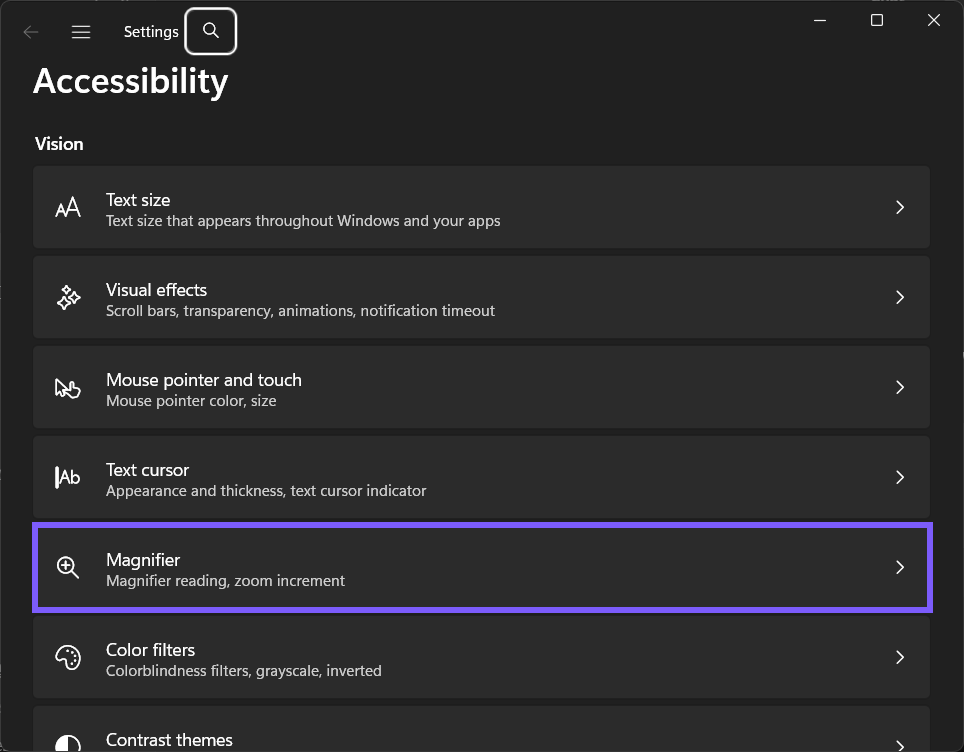
How do you change Start Magnifier after sign-in?
Press Windows logo key + I to open Settings.
Select Accessibility, then select Magnifier under Vision.
Locate Start Magnifier after sign-in. Expand its parent row when the control is inside additional view, startup, or reading choices.
Confirm that the displayed starting value matches the one you recorded. In the reproduced session, it was Off.
For the controlled comparison, select the Start Magnifier after sign-in checkbox. On your own PC, choose the value that suits the behavior you actually want.
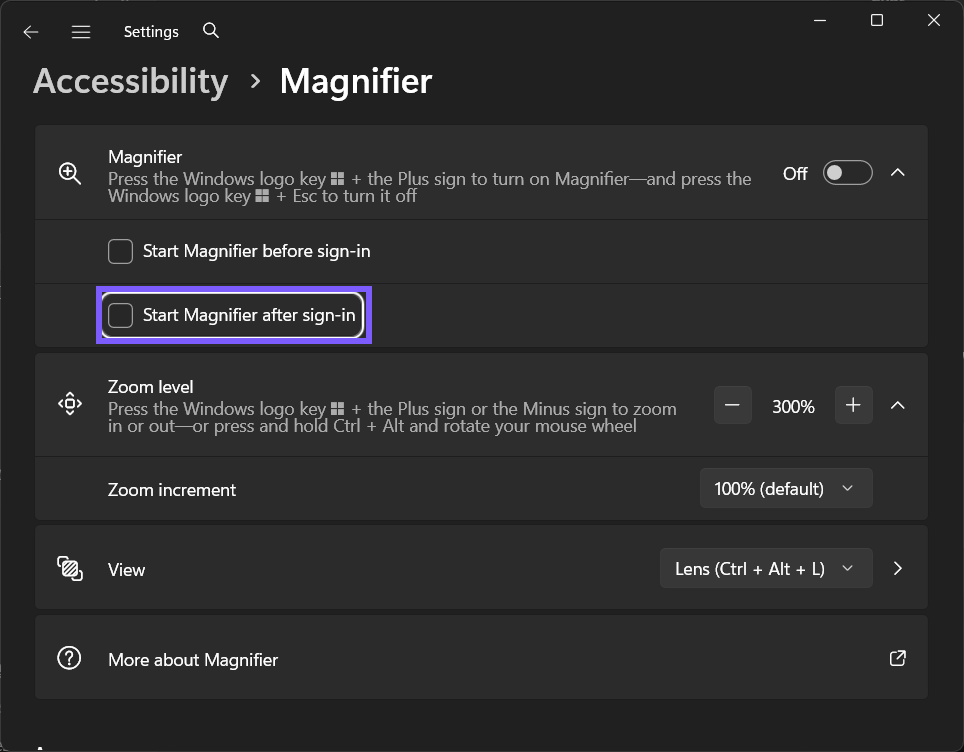
Microsoft Support confirms the relevant Magnifier shortcut or reading boundary. Use the documented Settings interface and shortcuts instead of downloading an unrelated utility.
How can you verify the change safely?
For safety, the reproduced test verified only the checkbox read-back: Off changed to On and returned to Off. It deliberately did not sign out, close applications, or claim that a new-session launch was observed.
Begin by reading the control itself and confirming On. A precise UI read-back is evidence that the preference changed; a behavior check should be narrow, disposable, and free of private content. Do not open email, passwords, customer data, or a personal photo merely to demonstrate Magnifier.
The automatic launch happens at a later sign-in and can be affected by account policy or session type. A managed device may lock the choice.
What did the reproduced comparison show?
The supported checkbox accepted and retained the temporary On value inside Settings; no sign-out was required for the controlled UI verification.
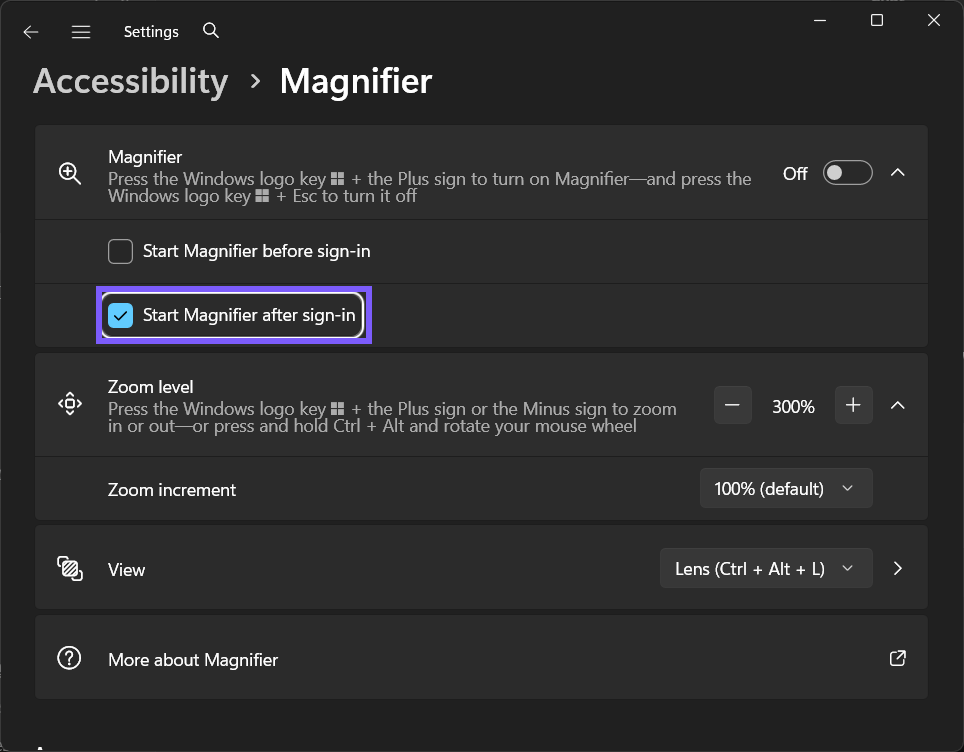
The comparison demonstrates the exact Settings transition on the tested PC. It does not claim that every display, voice package, language, remote session, protected surface, or third-party application will present identical surrounding behavior.
How do you restore the original value?
Return to Settings > Accessibility > Magnifier, locate Start Magnifier after sign-in, and clear the Start Magnifier after sign-in checkbox. Re-read the same control and confirm Off before closing the test surface.
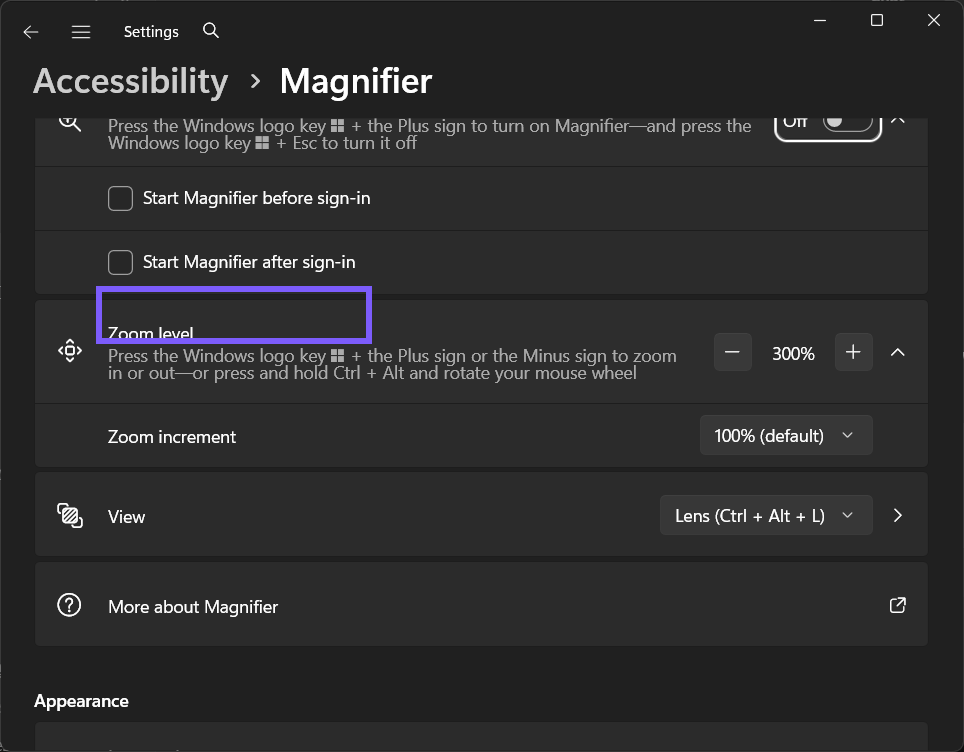
The fresh post-rollback frame is separate from the original baseline and proves the final state. No reset, sign-out, restart, service change, voice-package installation, or administrator command was used for this reversible preference test.
How is this different from nearby Magnifier options?
This current-user choice is separate from Start Magnifier before sign-in, which affects the sign-in screen. It also does not turn Magnifier on immediately merely because the checkbox is selected.
Treat the label as a scope boundary. If the problem concerns a different view, zoom amount, color treatment, reading voice, startup point, or system-wide accessibility feature, return to the parent page and use that exact control rather than changing several choices together.
Common problems and careful checks
Why did Magnifier not start immediately?
This checkbox controls the next sign-in behavior. Use the master Magnifier switch or Windows logo key + Plus for the current session.
Is this the same as starting Magnifier before sign-in?
No. The before-sign-in checkbox covers the sign-in screen; after-sign-in is the current user's session preference.
Do you have to sign out just to confirm the setting?
No. Read the checkbox back in Settings. Sign out only when you intentionally want to test a new session and have saved all work.
Why is the checkbox unavailable?
A work or school policy can manage accessibility startup. Contact the administrator rather than trying to bypass policy.
Does this require administrator rights or a restart?
No administrator rights or restart were required for the reproduced Settings transition. A managed work or school PC can lock an accessibility preference; when that happens, ask the administrator instead of attempting to bypass policy with a script or Registry change.
When a behavior is not immediately visible, first confirm the exact value and the setting's scope. Close and reopen only the harmless test surface if needed. That is safer than resetting Windows accessibility preferences or changing unrelated display and speech settings.
Related display and accessibility options
If enlargement is broader than you need, you can make text larger without magnifying the whole screen. For a different accessibility goal, see how to use a Windows contrast theme. Both links lead to already-live WinSides guides rather than scheduled Magnifier drafts.
Frequently Asked Questions
Where is Start Magnifier after sign-in in Windows 11?
Open Settings > Accessibility > Magnifier, expand the relevant section, and use the exact control shown in the screenshots.
Can you restore the original value after testing?
Yes. Return to the same control, restore Off, and read it back. The reproduced session captured a fresh frame after rollback.
Why might Magnifier behave differently on another PC?
Displays, scaling, monitor layouts, installed voices, language packs, remote sessions, policies, and Windows builds can change the surrounding experience. Compare the same control with harmless content.
Do you need a Registry edit for this Magnifier setting?
No. The supported Settings control changed and rolled back without Registry Editor, elevation, or a restart.
Conclusion
Open Settings > Accessibility > Magnifier, record the starting value, and change only Start Magnifier after sign-in. Verify the narrow result with privacy-safe content, then restore Off whenever the change was only a test.
For more interesting articles, stay tuned to WinSides.com!
Community
Comments (0)