

Start Magnifier before sign-in is a focused Windows 11 accessibility preference under Settings > Accessibility > Magnifier. It stores whether Magnifier should be available on the sign-in screen before any user session begins. The reproduced PC began at Off, moved temporarily to On, and returned to Off.
This guide uses the supported Settings interface, exact UI read-back, and a fresh rollback frame. No administrator approval, Registry edit, sign-out, package installation, personal document, or unrelated Windows change was needed. Magnifier itself remained Off throughout the reproduction, and the PC was not locked or signed out. The evidence therefore proves the saved checkbox transition without exposing a protected sign-in surface.
What does Start Magnifier before sign-in change?
Stores whether magnifier should be available on the sign-in screen before any user session begins. This all-users sign-in-screen choice is separate from Start Magnifier after sign-in, which applies to the current user's later session. Selecting the checkbox does not immediately start Magnifier on the current desktop.
Enable it when someone needs enlargement while choosing an account or entering sign-in information. Leave it off when Magnifier is only needed after the desktop opens.
Microsoft Support documents the current Magnifier choices and their Windows Settings location. The official scope matches the labels reproduced on this Windows 11 25H2 PC, so there is no reason to substitute an old Control Panel label, a third-party accessibility utility, or an unsupported Registry value.
Table of contents
What should you record before changing it?
Open the target page and write down every value you intend to touch. The baseline in this session was Off. Windows applies these accessibility preferences directly, so that note is the rollback reference; there is no separate Apply button to preserve an uncommitted state.
Read the entire label before selecting the switch, checkbox, menu, or slider. The page contains closely related startup, voice, Home, extension, keyboard, and data-service controls. Changing a sibling at the same time would make the result ambiguous and could create behavior that this guide never tested.
Close email, passwords, customer material, notifications, and personal documents. A screen reader or magnifier can make content more noticeable to people nearby, and connected Narrator services can have a data boundary. A privacy-safe Settings page is sufficient for the evidence below.
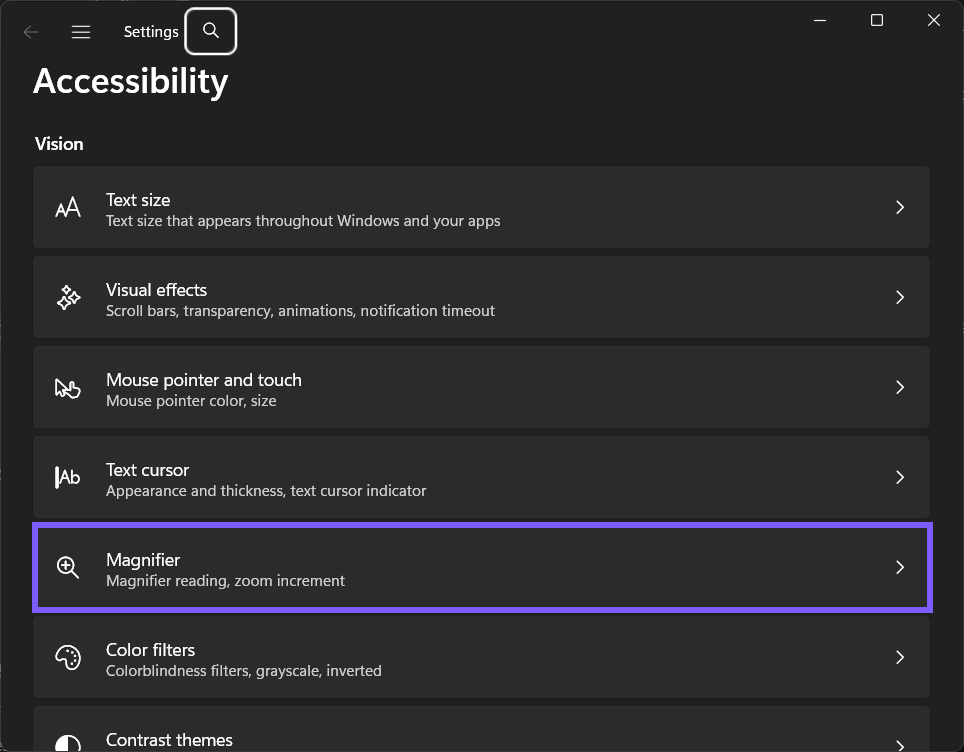
How do you change Start Magnifier before sign-in?
Press Windows logo key + I to open Settings.
Select Accessibility, then select Magnifier.
Follow Settings > Accessibility > Magnifier. Expand Show more settings or the named group when the control is not visible immediately.
Locate Start Magnifier before sign-in and confirm the recorded starting value. On the reproduced PC, it was Off.
For the controlled comparison, select Start Magnifier before sign-in. On your own PC, choose only the value that matches the behavior you want.
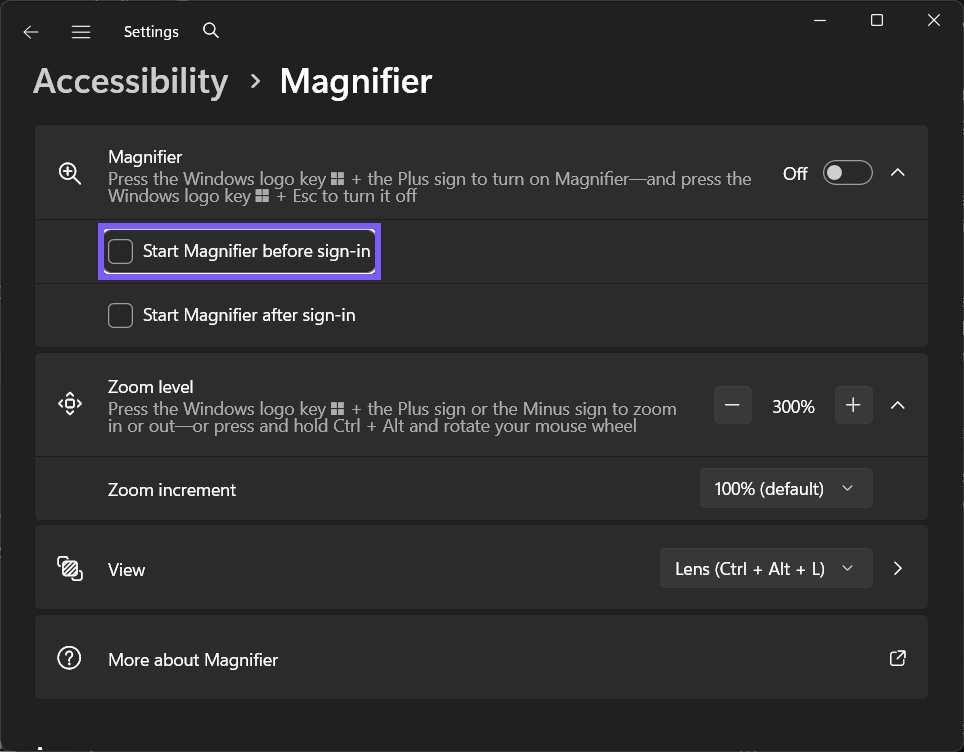
Microsoft Support provides the broader Magnifier guide or behavior boundary. Use the supported Settings route and documented commands instead of downloading an unrelated tool or changing several accessibility defaults together.
How can you verify the preference safely?
The reproduced check changed only the checkbox, read the temporary On state, and restored Off. It deliberately did not sign out, lock the PC, expose an account name, or claim that a fresh sign-in screen was observed.
First, read the exact control again and confirm On. That read-back proves that the preference was stored. It is more precise than guessing from a sound, window, network request, or sign-in behavior that can have several causes.
Do not broaden the test merely to make it dramatic. A later-session startup choice can be validated as a checkbox without ending the current session; a connected service can be validated as a switch without submitting an image; and a Narrator preference can be validated without speaking private text.
The actual pre-sign-in launch occurs on a protected Windows surface and can be affected by device policy. A managed PC may lock the preference.
What did the reproduced comparison show?
The supported checkbox accepted On and then returned to the exact Off baseline without starting Magnifier or leaving the current session.
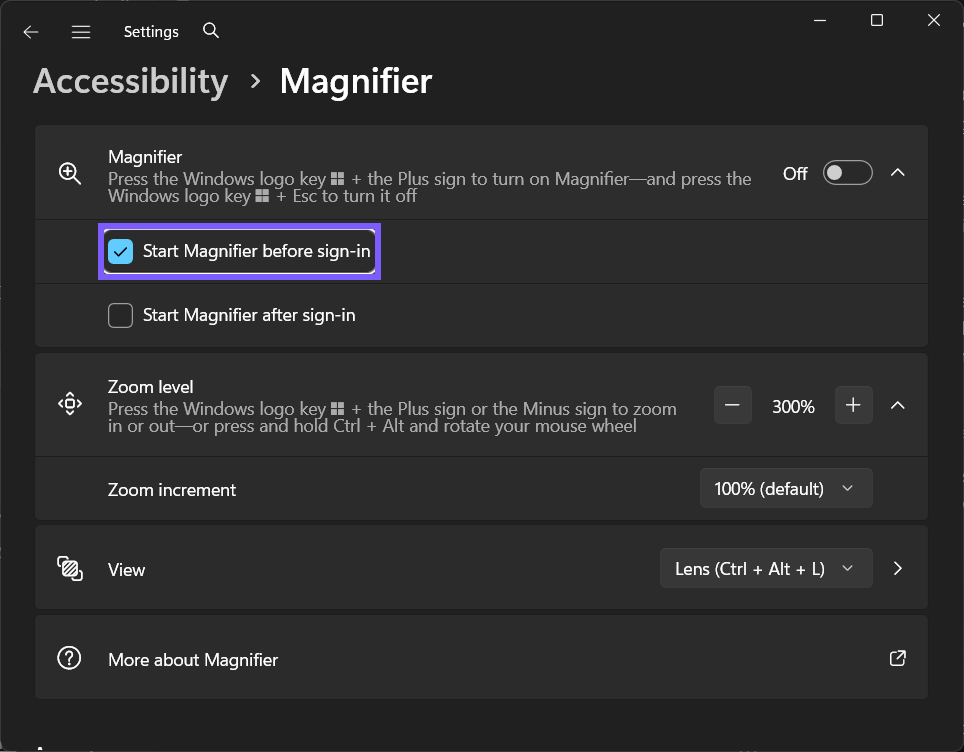
The evidence is intentionally narrow. It proves the exact Windows Settings transition on the tested PC and the absence of a prompt or forced restart. It does not claim that every language, keyboard, voice package, managed device, remote session, Store state, or protected screen presents identical surrounding behavior.
How do you restore the original value?
Return to Settings > Accessibility > Magnifier, locate Start Magnifier before sign-in, and clear Start Magnifier before sign-in. Re-read the control and confirm Off before closing Settings.
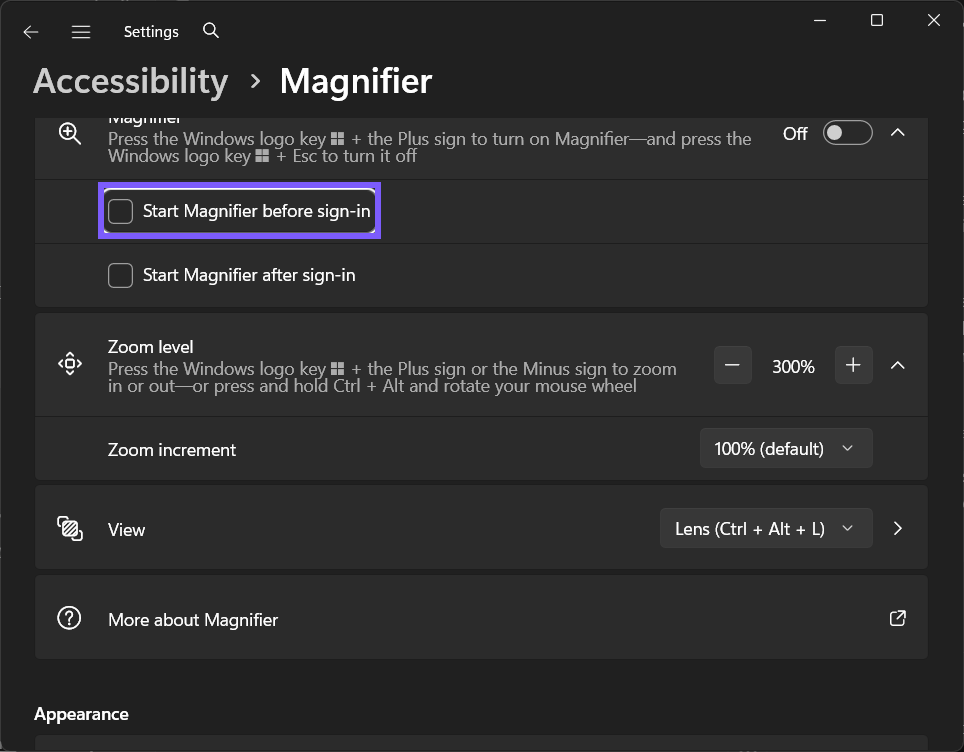
The final image is a fresh post-rollback frame rather than a copy of the baseline. It shows the restored value in a slightly different page position. Settings, Magnifier, ShareX, and all preview tools were closed after the read-back.
How is this different from nearby Magnifier controls?
This all-users sign-in-screen choice is separate from Start Magnifier after sign-in, which applies to the current user's later session. Selecting the checkbox does not immediately start Magnifier on the current desktop.
Treat the label as a scope boundary. A startup checkbox is not the master On/Off switch; an extension-download choice is not an extension-uninstall command; a Home-window option is not speech; and a voice characteristic is not the Windows system volume. Return to the parent page when the symptom belongs to a different owner.
When troubleshooting, change one preference, observe one result, and restore it before moving on. That sequence makes a comparison repeatable and avoids accidentally leaving a second accessibility behavior enabled.
What are the privacy and safety boundaries?
Magnifier itself remained Off throughout the reproduction, and the PC was not locked or signed out. The evidence therefore proves the saved checkbox transition without exposing a protected sign-in surface.
No retained frame contains an account identifier, notification, credential, device name, or personal file. The only temporary mutation was the named standard-user preference. The test did not install or remove a voice or extension, open Outlook or Excel, request an online description, lock the PC, or sign out.
If you intentionally test spoken or connected behavior later, use a disposable local sentence or nonprivate image and stop speech with Ctrl when necessary. Review the Microsoft privacy information before sending content through a connected service.
Common problems and careful checks
Why did Magnifier not start immediately?
This checkbox controls a future sign-in screen, not the current desktop. Use the master Magnifier switch when you need enlargement now.
Is this the same as starting Magnifier after sign-in?
No. Before sign-in applies to the protected account-selection surface; after sign-in applies once the current user session opens.
Must you sign out to confirm the checkbox?
No. Read the checkbox back in Settings. Sign out only for an intentional end-to-end test after saving work and reviewing privacy.
Why is the checkbox unavailable?
An organization can manage accessibility startup. Ask the administrator rather than trying to bypass policy.
Does this require administrator rights or a restart?
No administrator rights, sign-out, or restart were required for the reproduced Settings transition. A future-session startup behavior naturally waits for that later session, but the checkbox itself changed and rolled back immediately.
A managed work or school PC can lock an accessibility preference. When the control is unavailable or reverts because of policy, ask the administrator rather than attempting to bypass management with a script, policy edit, or Registry change.
Related Narrator and accessibility choices
If you are building a broader accessibility workflow, you can make Windows text larger without starting Magnifier. For a different but related need, see how to use a Windows contrast theme. Both are already-live WinSides guides; this article does not link to any future rotation sibling.
Frequently Asked Questions
Where is Start Magnifier before sign-in in Windows 11?
Open Settings > Accessibility > Magnifier, expand the relevant group, and use the exact control shown in the screenshots.
Can you verify this preference without exposing private content?
Yes. Read the exact Settings value. The reproduced session kept the feature inactive where appropriate and used no personal document, account surface, or connected-content request.
Can you restore the original value after testing?
Yes. Return to the same control, restore Off, and read every affected value back. A fresh final frame proves the rollback.
Do you need a Registry edit or restart for this setting?
No. The supported per-user Settings control changed and rolled back without Registry Editor, elevation, or a restart on the reproduced Windows 11 PC.
Conclusion
Open Settings > Accessibility > Magnifier, record the starting value, and change only Start Magnifier before sign-in. Verify the exact read-back with privacy-safe content, respect the setting's scope, and restore Off whenever the change was only a test.
For more interesting articles, stay tuned to WinSides.com!
Community
Comments (0)