Skip to content
Winsides.com

Windows Insides

Winsides.com

Windows Insides

  • Windows 11
  • Windows Features
  • Windows Security
  • Microsoft
    • Microsoft Copilot
    • Microsoft Powertoys
  • Shortcuts
    • Windows Shortcuts
    • Desktop Shortcuts
  • Video Tutorials
  • About
    • What’s New?!
    • About us
    • Contact us
    • Privacy Policy
    • Terms of Use
  • Follow us
    • Reddit
    • Dev.to
    • YouTube
    • Linked In
    • X
    • Tumblr
    • Facebook
    • Instagram
    • Buy Me A Coffee
  • Windows 11
  • Windows Features
  • Windows Security
  • Microsoft
    • Microsoft Copilot
    • Microsoft Powertoys
  • Shortcuts
    • Windows Shortcuts
    • Desktop Shortcuts
  • Video Tutorials
  • About
    • What’s New?!
    • About us
    • Contact us
    • Privacy Policy
    • Terms of Use
  • Follow us
    • Reddit
    • Dev.to
    • YouTube
    • Linked In
    • X
    • Tumblr
    • Facebook
    • Instagram
    • Buy Me A Coffee
Close

Search

Winsides.com

Windows Insides

Winsides.com

Windows Insides

  • Windows 11
  • Windows Features
  • Windows Security
  • Microsoft
    • Microsoft Copilot
    • Microsoft Powertoys
  • Shortcuts
    • Windows Shortcuts
    • Desktop Shortcuts
  • Video Tutorials
  • About
    • What’s New?!
    • About us
    • Contact us
    • Privacy Policy
    • Terms of Use
  • Follow us
    • Reddit
    • Dev.to
    • YouTube
    • Linked In
    • X
    • Tumblr
    • Facebook
    • Instagram
    • Buy Me A Coffee
  • Windows 11
  • Windows Features
  • Windows Security
  • Microsoft
    • Microsoft Copilot
    • Microsoft Powertoys
  • Shortcuts
    • Windows Shortcuts
    • Desktop Shortcuts
  • Video Tutorials
  • About
    • What’s New?!
    • About us
    • Contact us
    • Privacy Policy
    • Terms of Use
  • Follow us
    • Reddit
    • Dev.to
    • YouTube
    • Linked In
    • X
    • Tumblr
    • Facebook
    • Instagram
    • Buy Me A Coffee
Close

Search

Home/Windows Features/Instantly Enable .NET Extensibility 4.8 in Windows 11 PC!

Instantly Enable .NET Extensibility 4.8 in Windows 11 PC!

Vigneshwaran Vijayakumar
By Vigneshwaran Vijayakumar
October 27, 2024 4 Min Read
0

DOT NET Extensibility 4.8 for Windows 11: The .NET Extensibility 4.8 feature in Windows 11 is a component that extends the capabilities of Internet Information Services (IIS), the web server platform in Windows. This feature specifically allows IIS to run web applications built on the .NET Framework 4.8, enabling applications that use .NET technologies like ASP.NET to function properly on the server. .NET Extensibility 3.5 is also an optional feature that allows developers to host the web applications that are built using .NET 3.8 Framework. It is offered as an optional feature in Windows 11 as all users may not use this and allows developers to host or develop .NET web applications on their system. In this article, we will check out How to Enable .NET Extensibility 4.8 in Windows 11 using simple steps. Let’s get started. Check out: How to Enable .NET Extensibility 3.5 in Windows 11?

What is .NET Framework 4.8?
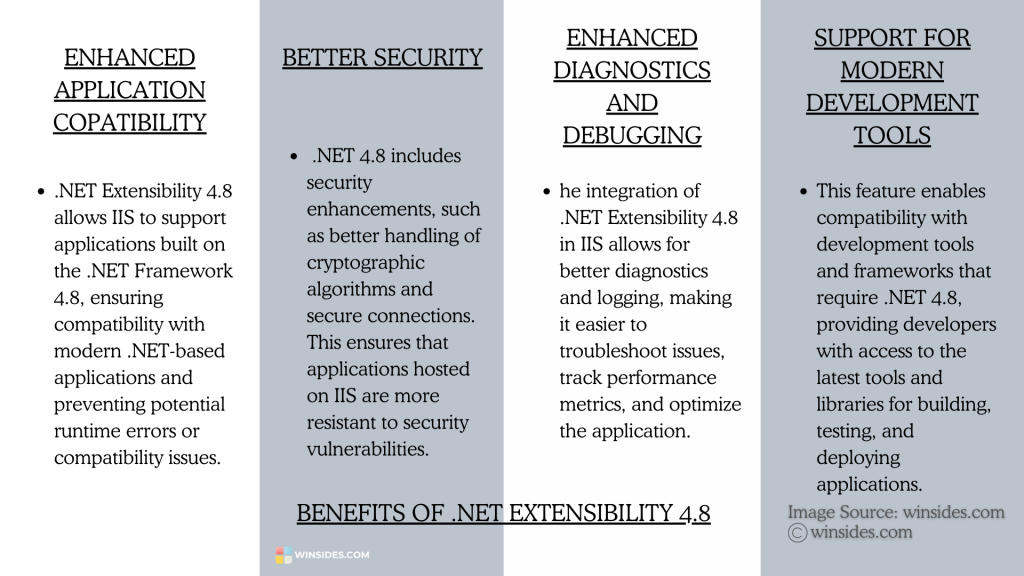
Benefits of .NET Extensibility 4.8

It is the final version of the .NET Framework, a software development platform created by Microsoft to support the building and running of applications primarily on Windows. It was released in April 2019, and updated over a period of time to improve Web Applications support, Performance, Security Enhancements, High DPI and Accessibility, and more.

Simple steps to enable .NET Extensibility 4.8 in Windows 11

  • We will use Windows Features to enable this optional feature in Windows 11. To do so, let’s go to the Run Command using the keyboard shortcut WinKey + R.
  • On the Run command, enter the following command and click OK. appwiz.cpl
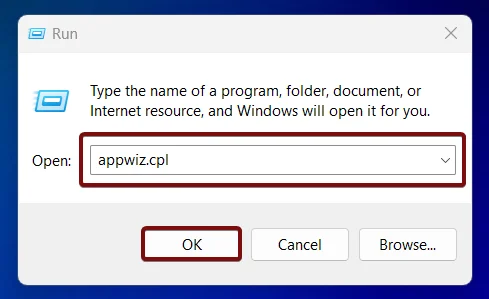
Open Programs and Features using appwiz.cpl
  • Programs and Features window will open now. Here, you will find all the installed applications. On the left pane, you will find the option “Turn Windows Features on or off“. Click on that.
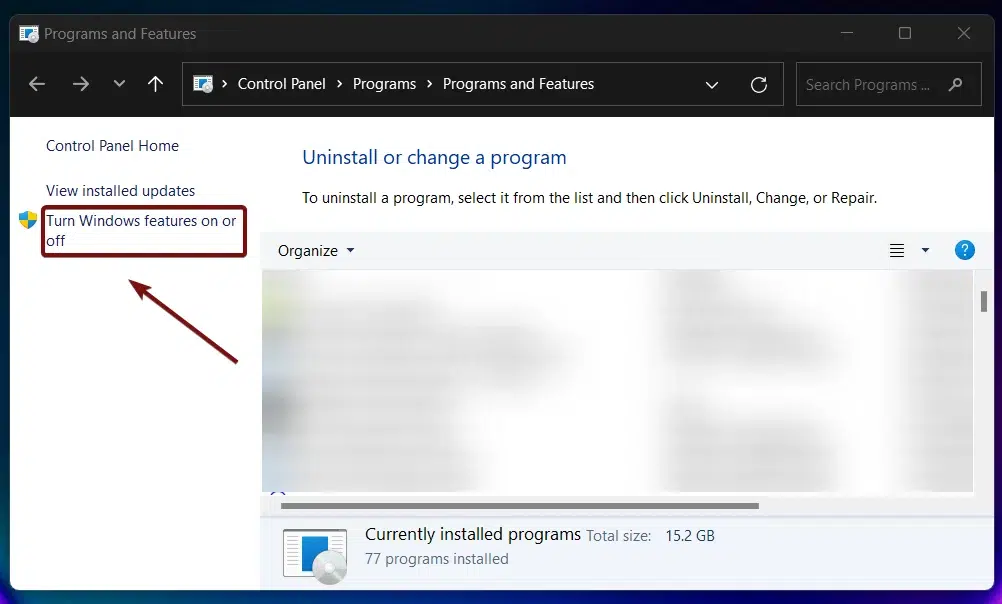
Turn Windows Features on or off
  • Windows Features dialog will pop up now. Here, you can find all the optional features available from the Internet Information Services to Windows Subsystem for Linux, Microsoft Print to PDF, and more.
  • From the list of services available, locate Internet Information Services and click on the plus sign to expand the tree.
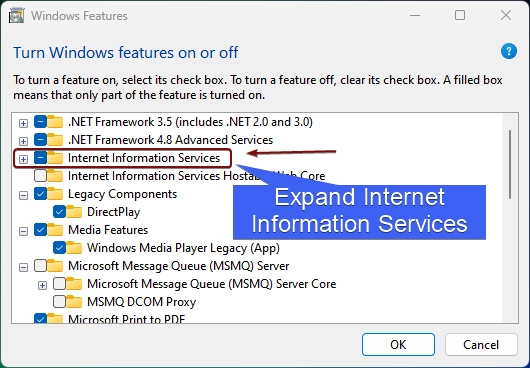
Expand IIS Node
Expand IIS Node
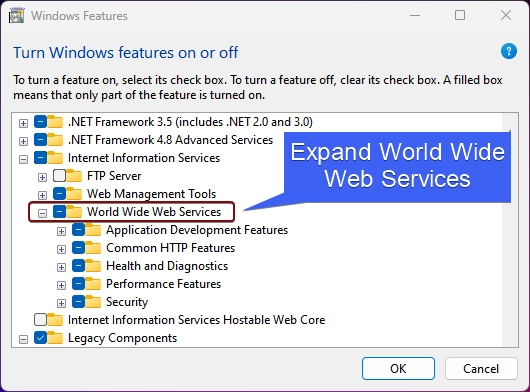
  • Next, expand World Wide Web Services.
Expand World Wide Web Services
  • Here, you will find various features such as Application Development Features, Health and Diagnostics, Security, and more. Expand Application Development Features node.
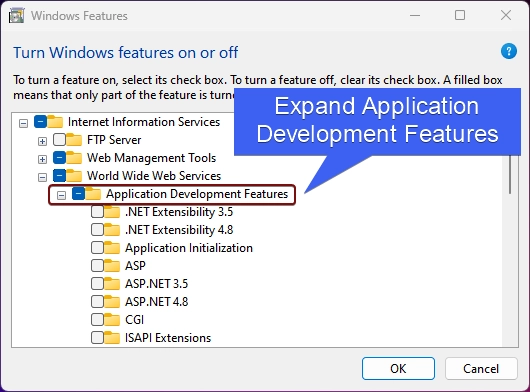
Expand Application Development Features
  • You will find .NET Extensibility 4.8. Click on the checkbox next to it and click OK.
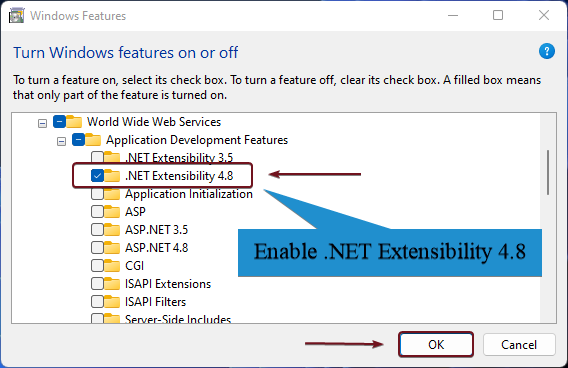
Enable .NET Extensibility 4.8
  • Windows will now search for the required files.
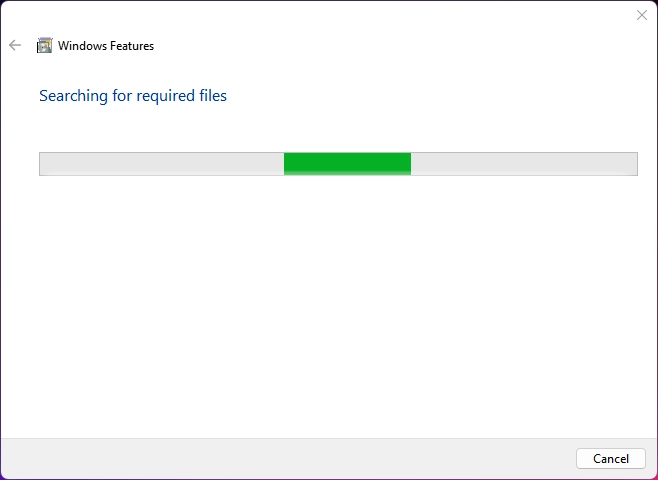
Searching for the required files
  • Then the system will apply the necessary changes.
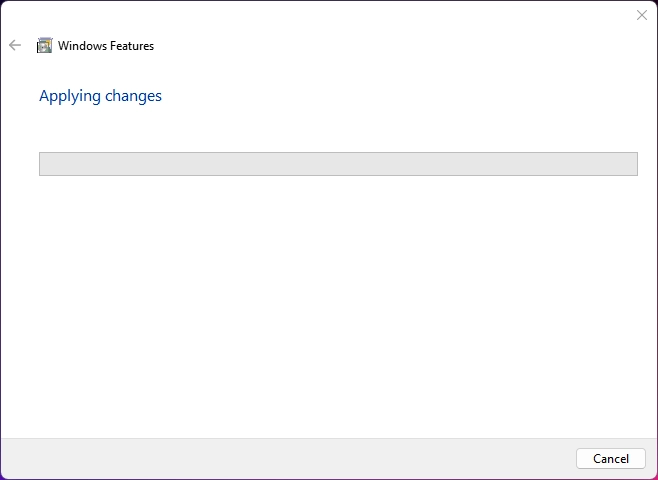
Applying Changes
Applying Changes
  • Finally, the system will prompt for restart. Click on Restart Now. It is highly suggested to do the Restart rightaway.
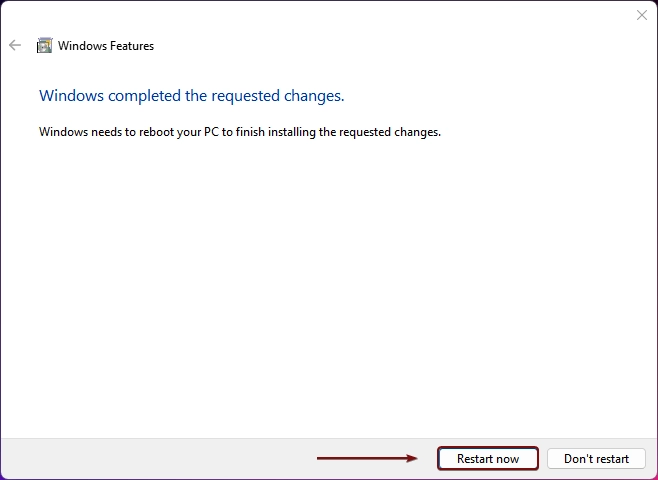
Restart the PC
Restart the PC
  • That is it, .NET Extensibility 4.8 is now enabled in Windows 11 PC.

Facts on the Go!
.NET Extensibility 4.8 is that it introduced support for high-DPI awareness in desktop applications, making .NET apps render more sharply on high-resolution displays. This means applications built on .NET 4.8 and hosted on IIS with the .NET Extensibility 4.8 feature can look much clearer and more visually consistent across various screen resolutions.

Take away

.NET Extensibility 4.8 in Windows 11 provides essential support for running .NET Framework 4.8 based applications on IIS, allowing developers to utilize the capabilities of .NET Framework 4.8 within a robust, server-hosted environment. If you have any queries, do let us know in the comment section. For more interesting articles, visit winsides.com. Happy Coding! Peace out!

Like our article?

Kindly give us a review. We love to hear your feedback.
Tags:

.net frameworkHow to Enable in Windows 11NET Extensibility 4.8windows 11Windows Features
Vigneshwaran Vijayakumar
Author

Vigneshwaran Vijayakumar

Hello, I'm Vigneshwaran, the founder, owner, and author of WinSides.Com. With nearly a decade of experience in blogging across various domains and specializing in Windows-related tutorials for over five years, I bring a wealth of knowledge and expertise to WinSides.Com

Follow Me
Other Articles
How to Open Apps on Taskbar in Windows 11?
Previous

How to Open Apps on Taskbar in Windows 11?- 5 Easy ways!

Enable .NET Extensibility 3.5 in Windows 11
Next

How to Enable .NET Extensibility 3.5 in Windows 11? Quick Guide!

No Comment! Be the first one.

Leave a Reply Cancel reply

Your email address will not be published. Required fields are marked *

  • How to Run Group Policy Editor as Administrator on Windows 11?
  • Easy Way to Enable Windows Subsystem for Linux in Windows 11
  • Enable Windows Subsystem for Linux (WSL 2) using Command Prompt & PowerShell
  • Enable IIS Management Console in Windows 11 [GUI]
  • Quick Steps to Enable Core Isolation in Windows 11
  1. Vigneshwaran Vijayakumar
    Vigneshwaran Vijayakumar on How to Enable Windows PowerShell 2.0 in Windows 11?October 5, 2025

    Hello Mr. Mohamad El-Kheir, Thank you for contacting us. Microsoft has removed PowerShell version 2.0 completely from Windows 11 24H2…

  2. Avatar of Mohamad El-Kheir
    Mohamad El-Kheir on How to Enable Windows PowerShell 2.0 in Windows 11?October 5, 2025

    i have a MSI laptop with windows 11 Home Installed on it. how to install powershell v2.0 on it

  3. Vigneshwaran Vijayakumar
    Vigneshwaran Vijayakumar on DxDiag Windows 11 – What is it & How to use it for Troubleshooting?August 14, 2025

    Hey Myla Shannon Thank you for your valuable feedback. We are delighted to hear your compliment and excited to know…

  4. Avatar of Myla Shannon
    Myla Shannon on DxDiag Windows 11 – What is it & How to use it for Troubleshooting?August 14, 2025

    This content is incredibly informative.

  5. Avatar of seven
    seven on How to Enable IIS [Internet Information Services] in Windows 11?July 29, 2025

    I found this post very helpful.

  • About us
  • What’s New?!
  • Guest Posts on Winsides.com – Terms and Conditions
  • Publication Sitemap
  • Careers
  • Authors
  • Why Trust Winsides.com?
  • Content Removal Request
  • Terms of Use
  • Disclaimer
  • Contact us
Copyright 2024-2026 - Winsides.com. All rights reserved.