Skip to content
Winsides.com

Windows Insides

Winsides.com

Windows Insides

  • Windows 11
  • Windows Features
  • Windows Security
  • Microsoft
    • Microsoft Copilot
    • Microsoft Powertoys
  • Shortcuts
    • Windows Shortcuts
    • Desktop Shortcuts
  • Video Tutorials
  • About
    • What’s New?!
    • About us
    • Contact us
    • Privacy Policy
    • Terms of Use
  • Follow us
    • Reddit
    • Dev.to
    • YouTube
    • Linked In
    • X
    • Tumblr
    • Facebook
    • Instagram
    • Buy Me A Coffee
  • Windows 11
  • Windows Features
  • Windows Security
  • Microsoft
    • Microsoft Copilot
    • Microsoft Powertoys
  • Shortcuts
    • Windows Shortcuts
    • Desktop Shortcuts
  • Video Tutorials
  • About
    • What’s New?!
    • About us
    • Contact us
    • Privacy Policy
    • Terms of Use
  • Follow us
    • Reddit
    • Dev.to
    • YouTube
    • Linked In
    • X
    • Tumblr
    • Facebook
    • Instagram
    • Buy Me A Coffee
Close

Search

Winsides.com

Windows Insides

Winsides.com

Windows Insides

  • Windows 11
  • Windows Features
  • Windows Security
  • Microsoft
    • Microsoft Copilot
    • Microsoft Powertoys
  • Shortcuts
    • Windows Shortcuts
    • Desktop Shortcuts
  • Video Tutorials
  • About
    • What’s New?!
    • About us
    • Contact us
    • Privacy Policy
    • Terms of Use
  • Follow us
    • Reddit
    • Dev.to
    • YouTube
    • Linked In
    • X
    • Tumblr
    • Facebook
    • Instagram
    • Buy Me A Coffee
  • Windows 11
  • Windows Features
  • Windows Security
  • Microsoft
    • Microsoft Copilot
    • Microsoft Powertoys
  • Shortcuts
    • Windows Shortcuts
    • Desktop Shortcuts
  • Video Tutorials
  • About
    • What’s New?!
    • About us
    • Contact us
    • Privacy Policy
    • Terms of Use
  • Follow us
    • Reddit
    • Dev.to
    • YouTube
    • Linked In
    • X
    • Tumblr
    • Facebook
    • Instagram
    • Buy Me A Coffee
Close

Search

Home/Windows 11/CMD & PowerShell/Enable MSMQ Server using CMD & PowerShell

Enable MSMQ Server using CMD & PowerShell

Vigneshwaran Vijayakumar
By Vigneshwaran Vijayakumar
July 29, 2025 4 Min Read
0

Enable MSMQ Server on Windows 11: Microsoft Message Queuing, also known as MSMQ, is an old messaging protocol that is built into Windows, which allows applications running on separate servers to communicate in a loosely-coupled, asynchronous manner. However, modern applications often utilize cloud-based messaging architectures such as Azure Service Bus, RabbitMQ, and more. Hence, Microsoft includes MSMQ Server as an optional feature on Windows 11.

There are different ways to enable the MSMQ server on Windows 11. In this article, we will check out all those methods in detail. Let’s get started.

Various Ways to Enable MSMQ Server on Windows 11

  1. Enable MSMQ Server using Windows Features – GUI Method
  2. Easy way to enable MSMQ Server using Command Prompt – CLI Method
  3. Quick way to enable Microsoft Messaging Queue Server using Windows PowerShell – CLI Method

To enable this optional feature on Windows 11, Microsoft provides both a Graphical User Interface and a Command Line Interface, and users can choose their suitable method accordingly.

MSMQ Server feature availability on various Windows Editions

Windows EditionsAvailability
Windows ServersYes
Windows 11 HomeYes
Windows 11 ProfessionalYes
Windows 11 EducationYes
Windows 11 EnterpriseYes
Windows 11 Pro EducationYes
Windows 11 SENo
Windows 11 IoT EnterpriseNo

Disclaimer

Enabling Microsoft Message Queuing (MSMQ) on Windows 11 may introduce potential security vulnerabilities, especially if improperly configured or exposed to untrusted networks. While MSMQ is a legitimate and supported Windows feature, it has been the subject of past critical security advisories, including remote code execution risks. It is your responsibility to assess the necessity of MSMQ for your specific use case, ensure it is properly secured, and apply all relevant security patches.

Easy Way to Enable MSMQ Server using Command Prompt on Windows 11

In this method, we will use the DISM Tool in the Command Prompt to enable this optional feature on Windows 11. DISM requires elevated privileges, and hence, we need to run the Command Prompt with Administrative Privileges. The following are the steps.

  • Open the Run Command using the keyboard shortcut WinKey + R.
  • Now, the Run will open. In the Run, type the following command, cmd, and press CTRL + SHIFT + ENTER. We have a detailed article explaining different ways to run Command Prompt as Administrator. If you are looking for other options, please refer to the article.
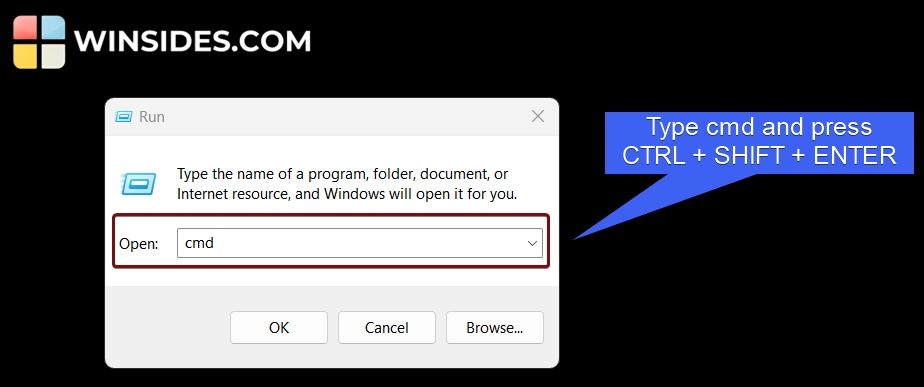
Type cmd and press ctrl + shift + enter
  • This will prompt the system to execute the command with Administrative privileges. The User Account Control will confirm and run CMD as Administrator.
  • We will use the Deployment Image Servicing and Management Tool to enable this optional feature on Windows 11. Kindly execute the following command in the command prompt. dism /Online /Enable-Feature /FeatureName:MSMQ-Server /All /NoRestart
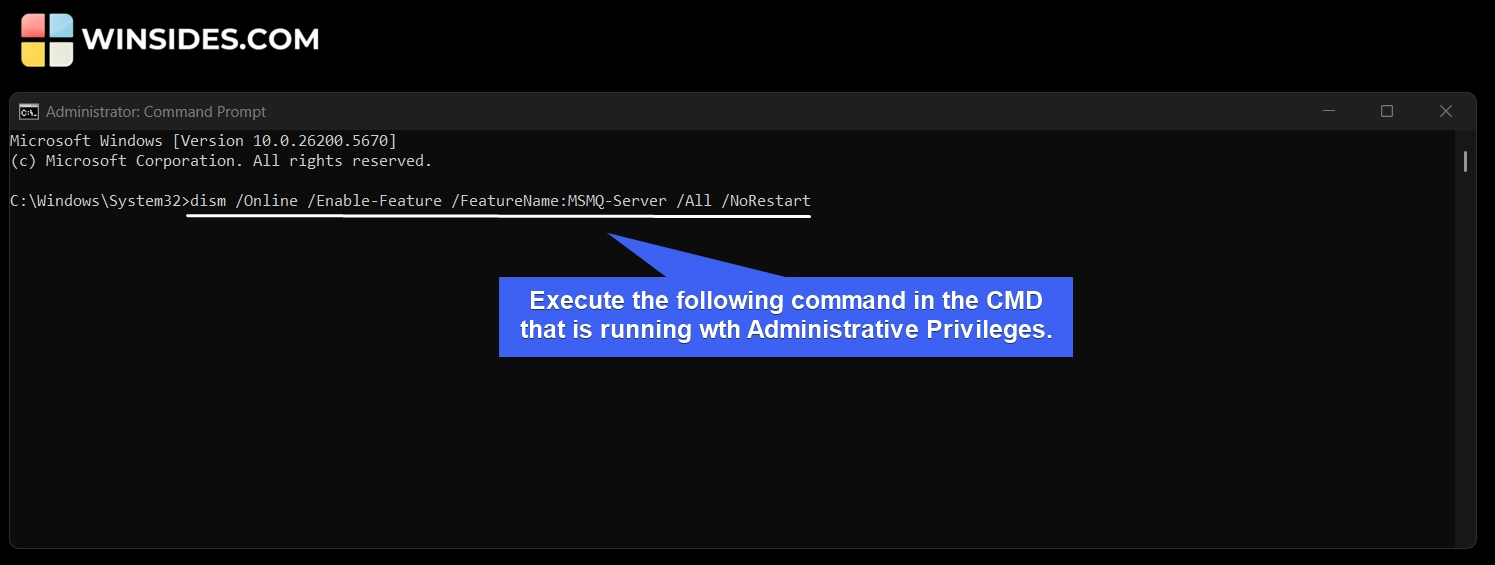
CMD Command to Enable MSMQ Server on Windows 11
  • The DISM tool will now enable MSMQ Server on Windows 11.
  • Once you receive the message “The operation completed successfully“, then the Microsoft Messaging Queue is enabled on your Windows 11 rig.
MSMQ Server successfully enabled on Windows 11

Decoding MSMQ Server Enable Command on Windows 11 using Command Prompt
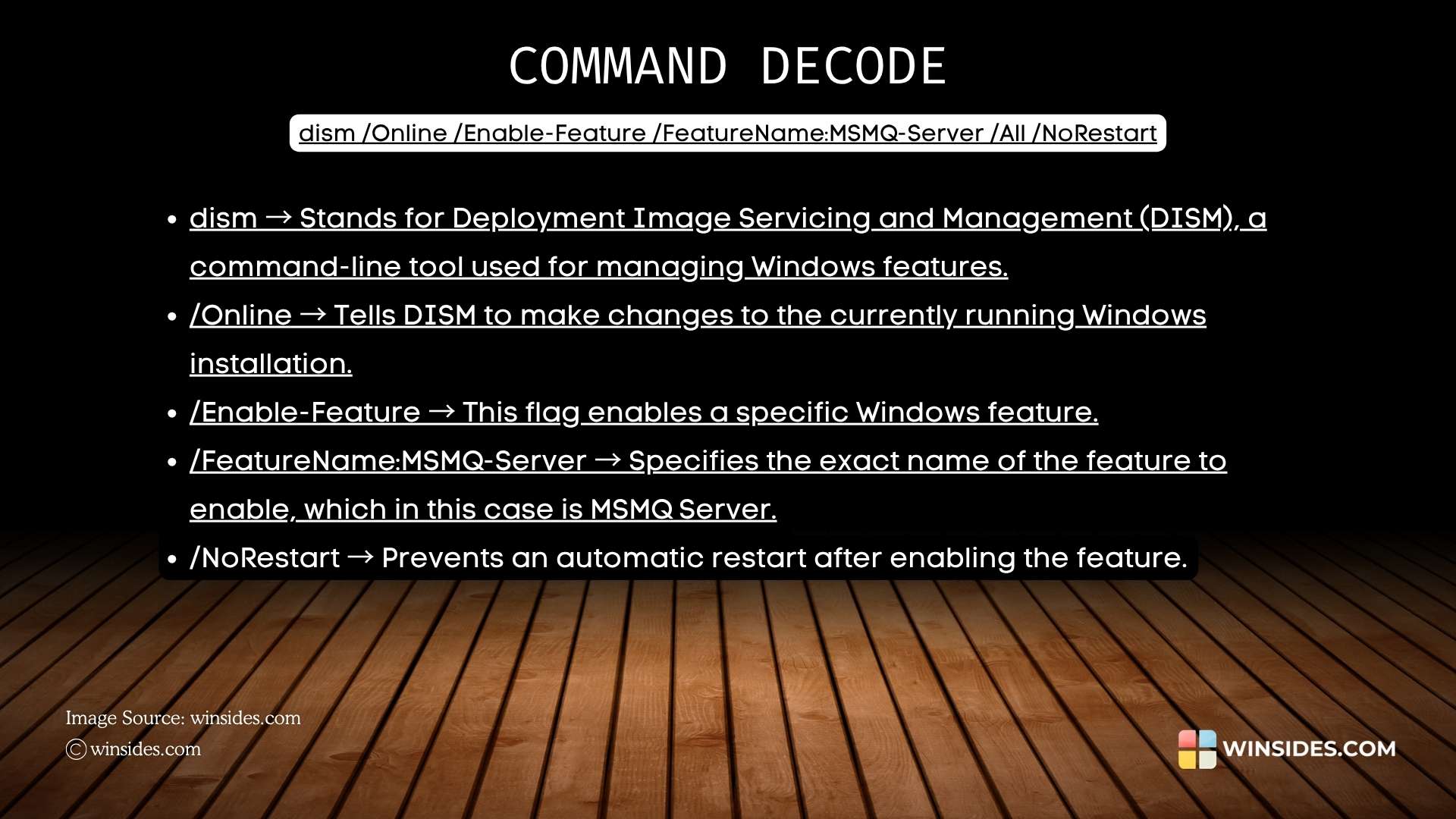
Decoding MSMQ Server Enable Command using CMD

Quick Way to Enable MSMQ Server on Windows 11 using Windows PowerShell

Here, we will use Windows PowerShell to enable Microsoft Messaging Queue on Windows 11. Here are the steps.

  • We have to run Windows PowerShell as Administrator. To do so, kindly go to the Run Command using the keyboard shortcut WinKey + R.
  • Type the following command powershell, and press CTRL + SHIFT + ENTER.
  • The UAC will confirm and open PowerShell with Elevated Privileges.
  • Execute the following command in Windows PowerShell. Enable-WindowsOptionalFeature -Online -FeatureName MSMQ-Server -All -NoRestart
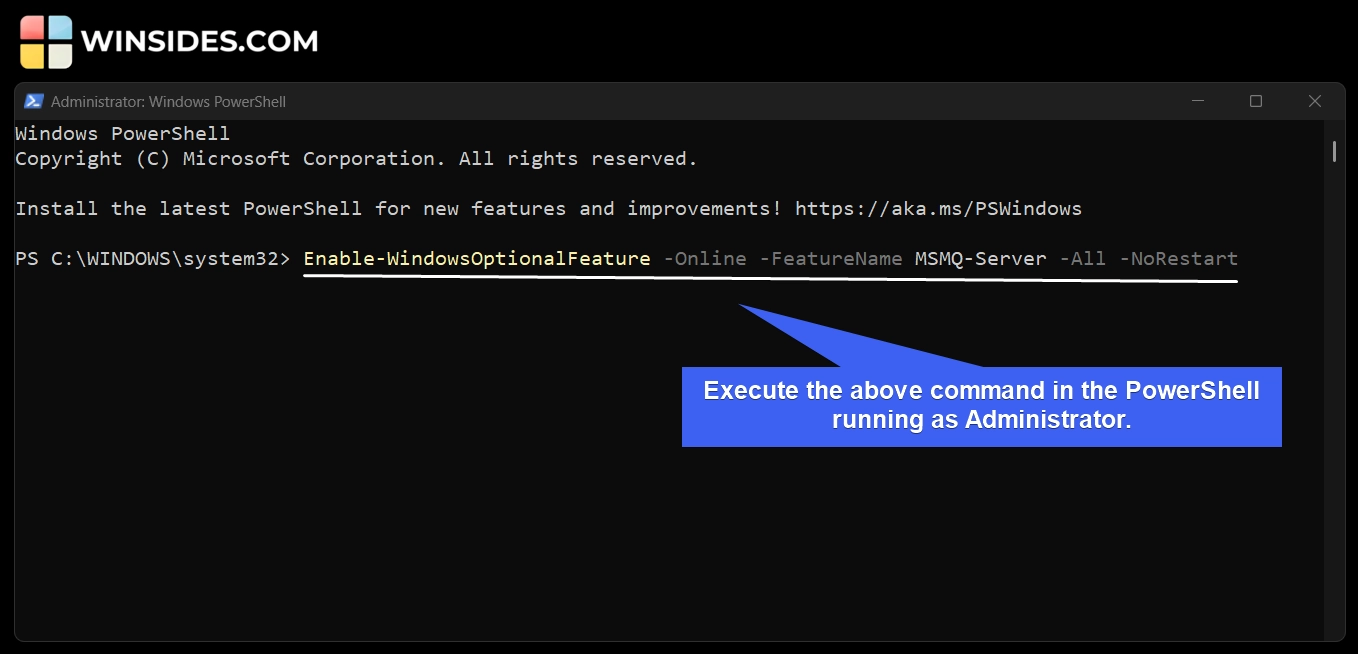
PowerShell Command to Enable MSMQ Server on Windows 11
  • The above command will enable MSMQ Server via Windows PowerShell. Once the operation is completed, the online status will be true.
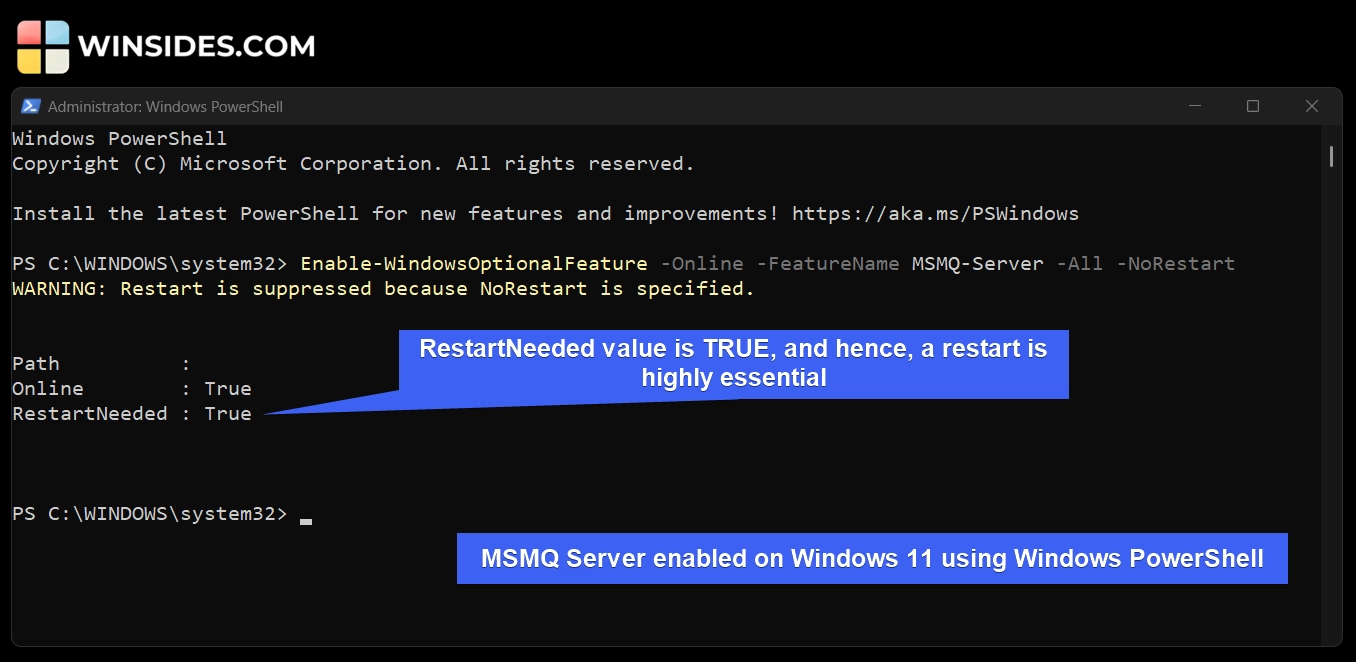
MSMQ Server enabled using Windows PowerShell
  • The RestartNeeded value is True, and hence, a restart is highly essential. The restart is suppressed in the command to avoid restarting right away.

Decoding the Microsoft Messaging Queue Server enable command using Windows PowerShell
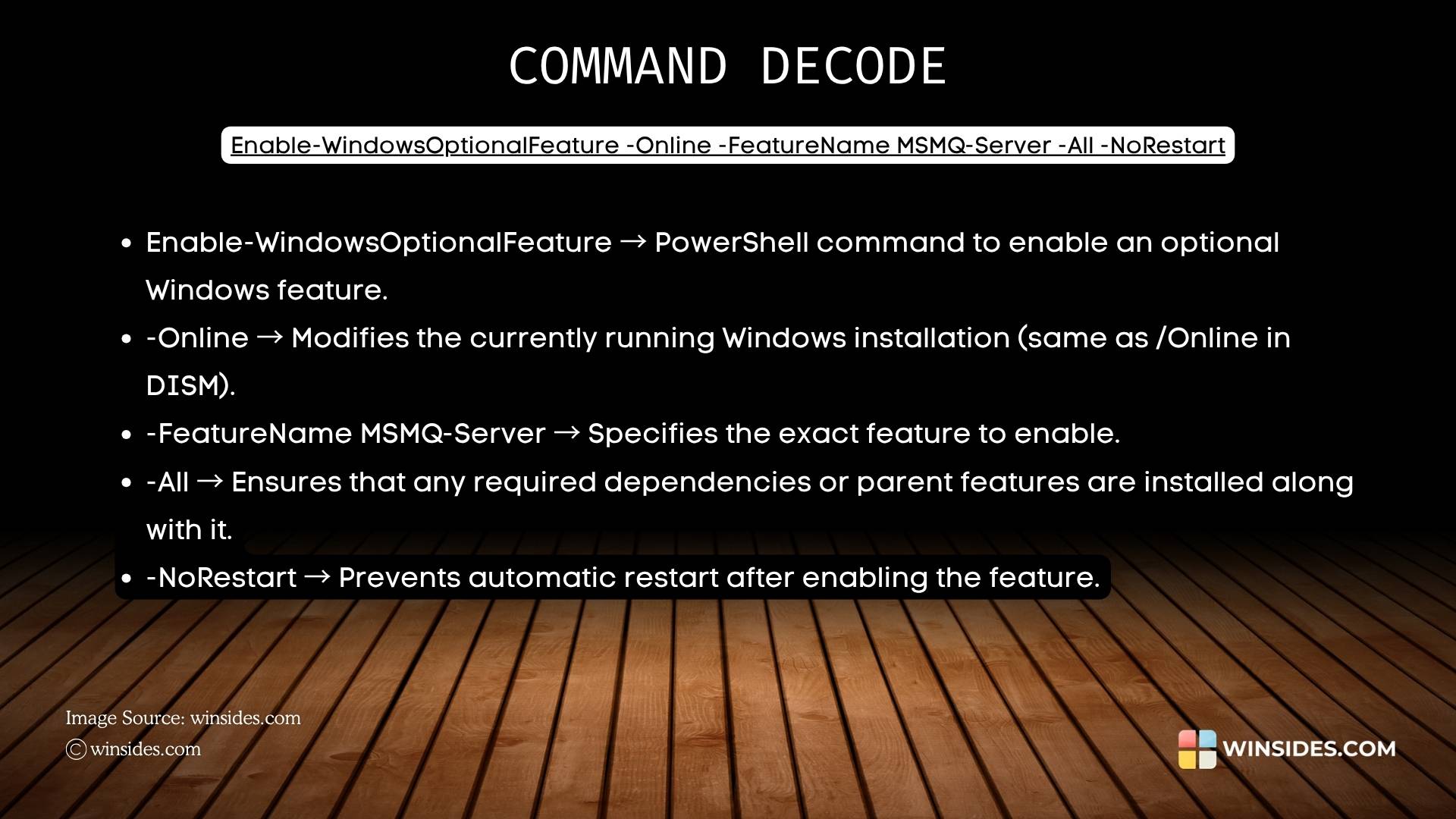
Decoding Microsoft Messaging Queue Enable Command using Windows PowerShell

Take Away

MSMQ remains a valuable tool in Windows 11, and it reflects Microsoft’s strong commitment to background compatibility and long-term enterprise support. MSMQ is a powerful legacy messaging feature that allows reliable and asynchronous communication between distributed applications.

Have Queries?

We hope you are satisfied with our article on how to enable MSMQ Server on Windows 11 using different ways, and if you have any queries, kindly let us know in the comments. For more interesting articles, stay tuned to Winsides.com. Happy Computing! Peace out!


Tags:

Enable MSMQ Server on Windows 11How to Enable in Windows 11windows 11Windows Features
Vigneshwaran Vijayakumar
Author

Vigneshwaran Vijayakumar

Hello, I'm Vigneshwaran, the founder, owner, and author of WinSides.Com. With nearly a decade of experience in blogging across various domains and specializing in Windows-related tutorials for over five years, I bring a wealth of knowledge and expertise to WinSides.Com

Follow Me
Other Articles
Enable TFTP Client on Windows 11 using CMD and PowerShell
Previous

Enable TFTP Client on Windows 11 using CMD & PowerShell

Stellar Converter for OST
Next

Stellar Converter for OST – Fast & Accurate Outlook Data Conversion

No Comment! Be the first one.

Leave a Reply Cancel reply

Your email address will not be published. Required fields are marked *

  • How to Enable Client for NFS in Windows 11?
  • 5+ Easy Methods to Find/Search Video Files Only in Windows 11!
  • Windows 10 officially ends on October 14, 2025
  • Enable Microsoft XPS Document Writer in Windows 11
  • How to Enable IIS [Internet Information Services] in Windows 11?
  1. Vigneshwaran Vijayakumar
    Vigneshwaran Vijayakumar on How to Enable Windows PowerShell 2.0 in Windows 11?October 5, 2025

    Hello Mr. Mohamad El-Kheir, Thank you for contacting us. Microsoft has removed PowerShell version 2.0 completely from Windows 11 24H2…

  2. Avatar of Mohamad El-Kheir
    Mohamad El-Kheir on How to Enable Windows PowerShell 2.0 in Windows 11?October 5, 2025

    i have a MSI laptop with windows 11 Home Installed on it. how to install powershell v2.0 on it

  3. Vigneshwaran Vijayakumar
    Vigneshwaran Vijayakumar on DxDiag Windows 11 – What is it & How to use it for Troubleshooting?August 14, 2025

    Hey Myla Shannon Thank you for your valuable feedback. We are delighted to hear your compliment and excited to know…

  4. Avatar of Myla Shannon
    Myla Shannon on DxDiag Windows 11 – What is it & How to use it for Troubleshooting?August 14, 2025

    This content is incredibly informative.

  5. Avatar of seven
    seven on How to Enable IIS [Internet Information Services] in Windows 11?July 29, 2025

    I found this post very helpful.

  • About us
  • What’s New?!
  • Guest Posts on Winsides.com – Terms and Conditions
  • Publication Sitemap
  • Careers
  • Authors
  • Why Trust Winsides.com?
  • Content Removal Request
  • Terms of Use
  • Disclaimer
  • Contact us
Copyright 2024-2026 - Winsides.com. All rights reserved.