Skip to content
Winsides.com

Windows Insides

Winsides.com

Windows Insides

  • Windows 11
  • Windows Features
  • Windows Security
  • Microsoft
    • Microsoft Copilot
    • Microsoft Powertoys
  • Shortcuts
    • Windows Shortcuts
    • Desktop Shortcuts
  • Video Tutorials
  • About
    • What’s New?!
    • About us
    • Contact us
    • Privacy Policy
    • Terms of Use
  • Follow us
    • Reddit
    • Dev.to
    • YouTube
    • Linked In
    • X
    • Tumblr
    • Facebook
    • Instagram
    • Buy Me A Coffee
  • Windows 11
  • Windows Features
  • Windows Security
  • Microsoft
    • Microsoft Copilot
    • Microsoft Powertoys
  • Shortcuts
    • Windows Shortcuts
    • Desktop Shortcuts
  • Video Tutorials
  • About
    • What’s New?!
    • About us
    • Contact us
    • Privacy Policy
    • Terms of Use
  • Follow us
    • Reddit
    • Dev.to
    • YouTube
    • Linked In
    • X
    • Tumblr
    • Facebook
    • Instagram
    • Buy Me A Coffee
Close

Search

Winsides.com

Windows Insides

Winsides.com

Windows Insides

  • Windows 11
  • Windows Features
  • Windows Security
  • Microsoft
    • Microsoft Copilot
    • Microsoft Powertoys
  • Shortcuts
    • Windows Shortcuts
    • Desktop Shortcuts
  • Video Tutorials
  • About
    • What’s New?!
    • About us
    • Contact us
    • Privacy Policy
    • Terms of Use
  • Follow us
    • Reddit
    • Dev.to
    • YouTube
    • Linked In
    • X
    • Tumblr
    • Facebook
    • Instagram
    • Buy Me A Coffee
  • Windows 11
  • Windows Features
  • Windows Security
  • Microsoft
    • Microsoft Copilot
    • Microsoft Powertoys
  • Shortcuts
    • Windows Shortcuts
    • Desktop Shortcuts
  • Video Tutorials
  • About
    • What’s New?!
    • About us
    • Contact us
    • Privacy Policy
    • Terms of Use
  • Follow us
    • Reddit
    • Dev.to
    • YouTube
    • Linked In
    • X
    • Tumblr
    • Facebook
    • Instagram
    • Buy Me A Coffee
Close

Search

Home/Shortcuts/Keyboard Shortcuts/Create Shutdown Shortcut Button Windows 11

Create Shutdown Shortcut Button Windows 11

Vigneshwaran Vijayakumar
By Vigneshwaran Vijayakumar
April 16, 2024 3 Min Read
0

Create Shutdown Shortcut Button Windows 11: Are you tired of the same old shutdown routine on Windows 11? Let’s shake things up and add a dash of funk to your desktop experience! Say hello to a custom Shutdown button that’s as funky as your playlist. How cool it is!! After a long day, if you can just shut down your Windows 11 PC with a single click, the feel is Godly. The steps are very simple and the process is crunchy. Here in this article, we will check out those cool steps. Don’t worry, they are simple, neat, and easy.

How to Create a One-Click Shutdown Button on Windows 11 PC:

Let us get into the steps right away.

  1. Right-click on the Desktop and the hover over “New” option.
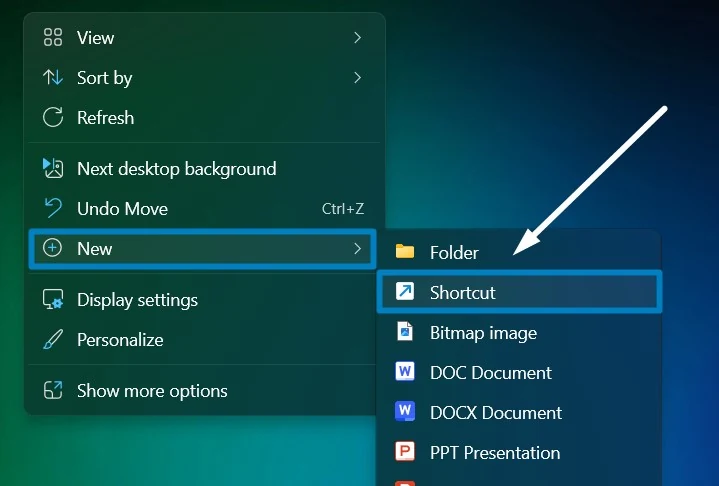
    New Shortcut
    New Shortcut
  2. Now, click on the “Create Shortcut” option.
  3. Create Shortcut window will open now.
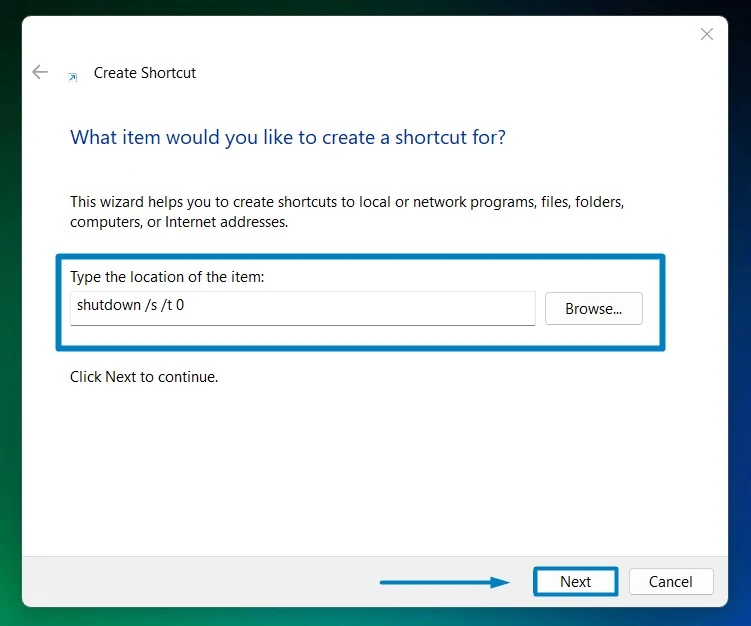
  4. In “Type the location of the item“, copy and paste the following command. shutdown /s /t 0
  5. Now, click Next.

    Type the Location of the item
    Type the Location of the item
  6. We have to type the name for the shortcut now. The recommended shortcut name is shutdown.
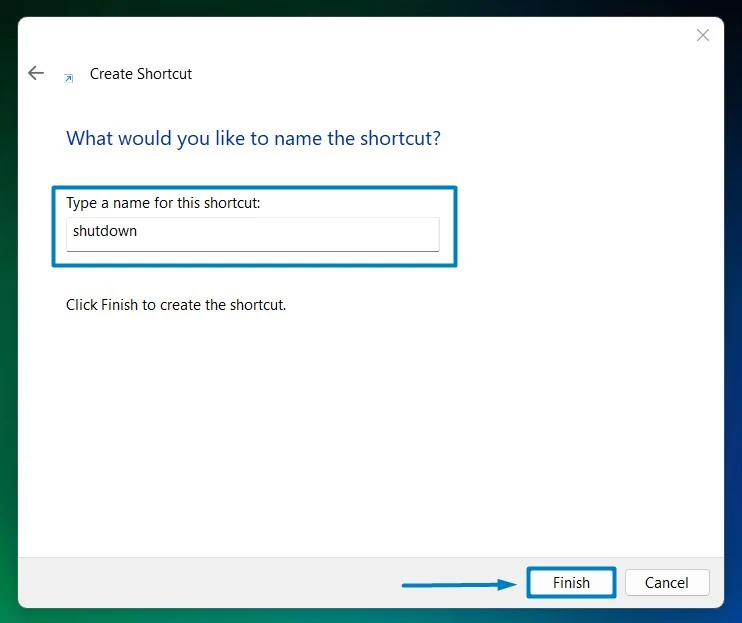
    Name the shortcut
    Name the shortcut
  7. You can find the Shutdown Shortcut created on the Desktop. You can double-click on that to shut down Windows 11.

Wanna make it more cool?

  • Let’s make the shutdown button cooler.
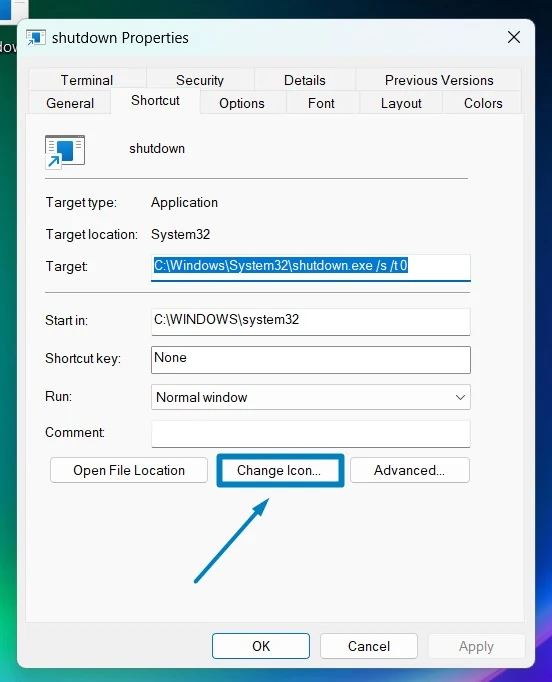
  • Right-click on the shutdown shortcut button, click on Show more options, and then click on Properties.
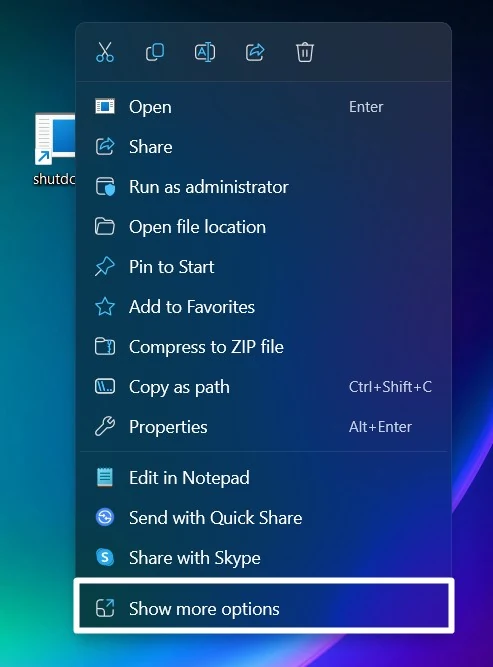
    Show more options
    Show more options
  • Click on the Change Icon.

    Change Icon
    Change Icon
  • Sometimes, a warning may pop up. Ignore that error and click OK.
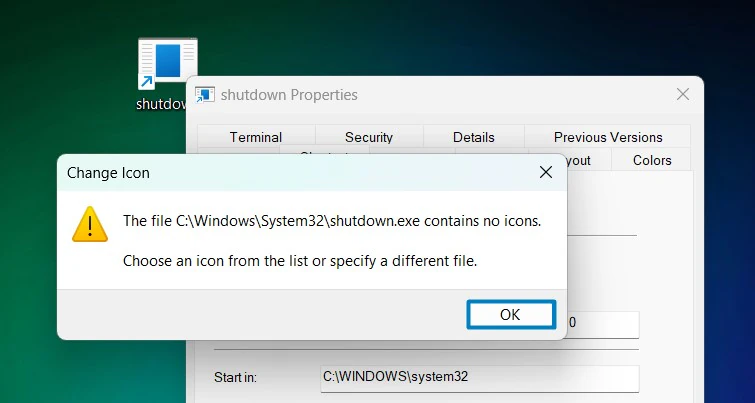
    Click OK
    Click OK
  • Choose the Shutdown icon from the list of icons available. Click OK.
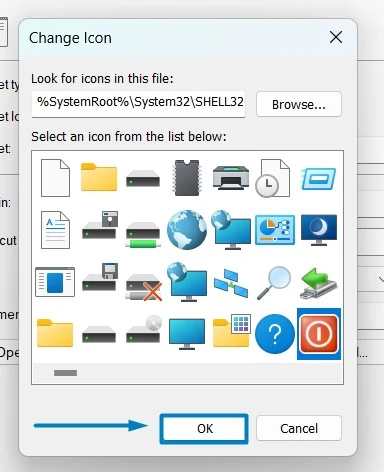
    Choose Shutdown icon
    Choose Shutdown icon
  • Now, click Apply to apply the changes.
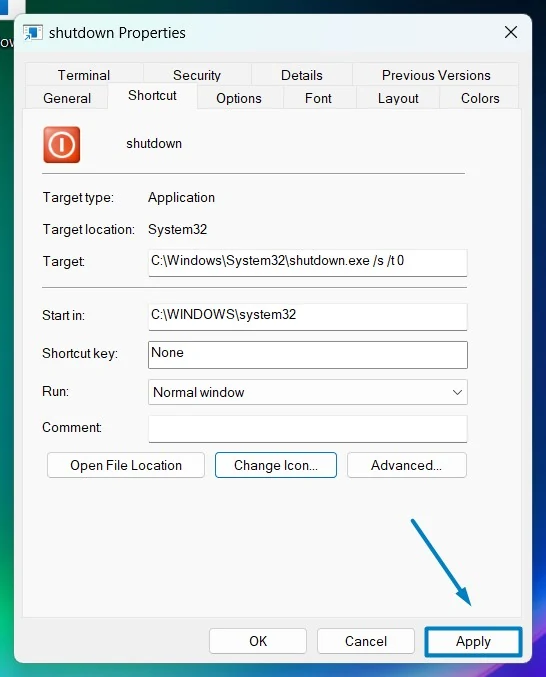
    Apply the changes
    Apply the changes
  • Finally, click OK to close the dialog box.
  • You have the cool Shutdown button on your Desktop now.
  • Make it even cooler by pinning it to the taskbar (just by dragging the icon to the taskbar). That is it. The one-click Shutdown button shortcut is now available for use on your Windows 11 OS.

Article Conclusion:

The above article provides detailed information on How to create a One-Click Shutdown shortcut button in Windows 11. You’ve just added a funky twist to your Windows 11 desktop with a custom Shutdown button. Say goodbye to boring shutdown routines and hello to quick, stylish power management. Keep the party going and enjoy your revamped desktop experience! If you have any queries, kindly write to us in the comment section and we will revert with a solution as soon as possible.

Tags:

create shutdown shortcut button windows 11windows 11
Vigneshwaran Vijayakumar
Author

Vigneshwaran Vijayakumar

Hello, I'm Vigneshwaran, the founder, owner, and author of WinSides.Com. With nearly a decade of experience in blogging across various domains and specializing in Windows-related tutorials for over five years, I bring a wealth of knowledge and expertise to WinSides.Com

Follow Me
Other Articles
Enable Microsoft Print to PDF in Windows 11
Previous

How to Enable Microsoft Print to PDF in Windows 11?

Work Folders Client in Windows 11
Next

How to Enable Work Folders Client in Windows 11

No Comment! Be the first one.

Leave a Reply Cancel reply

Your email address will not be published. Required fields are marked *

  • How to Run Group Policy Editor as Administrator on Windows 11?
  • Easy Way to Enable Windows Subsystem for Linux in Windows 11
  • Enable Windows Subsystem for Linux (WSL 2) using Command Prompt & PowerShell
  • Enable IIS Management Console in Windows 11 [GUI]
  • Quick Steps to Enable Core Isolation in Windows 11
  1. Vigneshwaran Vijayakumar
    Vigneshwaran Vijayakumar on How to Enable Windows PowerShell 2.0 in Windows 11?October 5, 2025

    Hello Mr. Mohamad El-Kheir, Thank you for contacting us. Microsoft has removed PowerShell version 2.0 completely from Windows 11 24H2…

  2. Avatar of Mohamad El-Kheir
    Mohamad El-Kheir on How to Enable Windows PowerShell 2.0 in Windows 11?October 5, 2025

    i have a MSI laptop with windows 11 Home Installed on it. how to install powershell v2.0 on it

  3. Vigneshwaran Vijayakumar
    Vigneshwaran Vijayakumar on DxDiag Windows 11 – What is it & How to use it for Troubleshooting?August 14, 2025

    Hey Myla Shannon Thank you for your valuable feedback. We are delighted to hear your compliment and excited to know…

  4. Avatar of Myla Shannon
    Myla Shannon on DxDiag Windows 11 – What is it & How to use it for Troubleshooting?August 14, 2025

    This content is incredibly informative.

  5. Avatar of seven
    seven on How to Enable IIS [Internet Information Services] in Windows 11?July 29, 2025

    I found this post very helpful.

  • About us
  • What’s New?!
  • Guest Posts on Winsides.com – Terms and Conditions
  • Publication Sitemap
  • Careers
  • Authors
  • Why Trust Winsides.com?
  • Content Removal Request
  • Terms of Use
  • Disclaimer
  • Contact us
Copyright 2024-2026 - Winsides.com. All rights reserved.