Skip to content
Winsides.com

Windows Insides

Winsides.com

Windows Insides

  • Windows 11
    • Windows Features
    • Windows Security
  • Shortcuts
    • Windows Shortcuts
    • Desktop Shortcuts
  • Microsoft
    • Microsoft Copilot
    • Microsoft Powertoys
  • Video Tutorials
  • About
    • What’s New?!
    • About us
    • Contact us
    • Privacy Policy
    • Terms of Use
  • Follow us
    • Reddit
    • Dev.to
    • YouTube
    • Linked In
    • X
    • Tumblr
    • Facebook
    • Instagram
    • Buy Me A Coffee
  • Our Tools
    • PeriodlyWise
    • ClockTools
    • Epoch Converter
    • Livetime.io
  • Windows 11
    • Windows Features
    • Windows Security
  • Shortcuts
    • Windows Shortcuts
    • Desktop Shortcuts
  • Microsoft
    • Microsoft Copilot
    • Microsoft Powertoys
  • Video Tutorials
  • About
    • What’s New?!
    • About us
    • Contact us
    • Privacy Policy
    • Terms of Use
  • Follow us
    • Reddit
    • Dev.to
    • YouTube
    • Linked In
    • X
    • Tumblr
    • Facebook
    • Instagram
    • Buy Me A Coffee
  • Our Tools
    • PeriodlyWise
    • ClockTools
    • Epoch Converter
    • Livetime.io
Close

Search

Winsides.com

Windows Insides

Winsides.com

Windows Insides

  • Windows 11
    • Windows Features
    • Windows Security
  • Shortcuts
    • Windows Shortcuts
    • Desktop Shortcuts
  • Microsoft
    • Microsoft Copilot
    • Microsoft Powertoys
  • Video Tutorials
  • About
    • What’s New?!
    • About us
    • Contact us
    • Privacy Policy
    • Terms of Use
  • Follow us
    • Reddit
    • Dev.to
    • YouTube
    • Linked In
    • X
    • Tumblr
    • Facebook
    • Instagram
    • Buy Me A Coffee
  • Our Tools
    • PeriodlyWise
    • ClockTools
    • Epoch Converter
    • Livetime.io
  • Windows 11
    • Windows Features
    • Windows Security
  • Shortcuts
    • Windows Shortcuts
    • Desktop Shortcuts
  • Microsoft
    • Microsoft Copilot
    • Microsoft Powertoys
  • Video Tutorials
  • About
    • What’s New?!
    • About us
    • Contact us
    • Privacy Policy
    • Terms of Use
  • Follow us
    • Reddit
    • Dev.to
    • YouTube
    • Linked In
    • X
    • Tumblr
    • Facebook
    • Instagram
    • Buy Me A Coffee
  • Our Tools
    • PeriodlyWise
    • ClockTools
    • Epoch Converter
    • Livetime.io
Close

Search

Home/Shortcuts/Keyboard Shortcuts/Create Screen Recorder Shortcut for Windows 11

Create Screen Recorder Shortcut for Windows 11

Vigneshwaran Vijayakumar
By Vigneshwaran Vijayakumar
May 27, 2024 3 Min Read
0

Screen Recorder Shortcut for Windows 11: Screen recording is an essential tool for various purposes, from creating tutorials and demonstrations to capturing gameplay and troubleshooting issues. Windows 11 offers built-in features to facilitate screen recording, but many users find it cumbersome to navigate through multiple steps to start a recording session or to rely on third-party applications. This article aims to simplify that process by guiding you on how to create a dedicated shortcut for screen recording in Windows 11.

  1. Right-click on the Desktop, hover over New, and click on Shortcut.
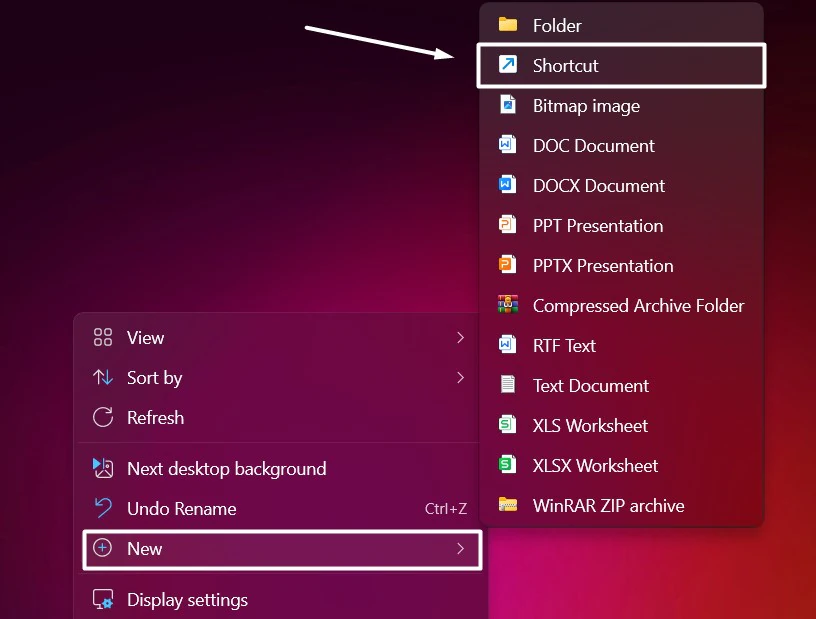
    Create New Shortcut
    Create New Shortcut
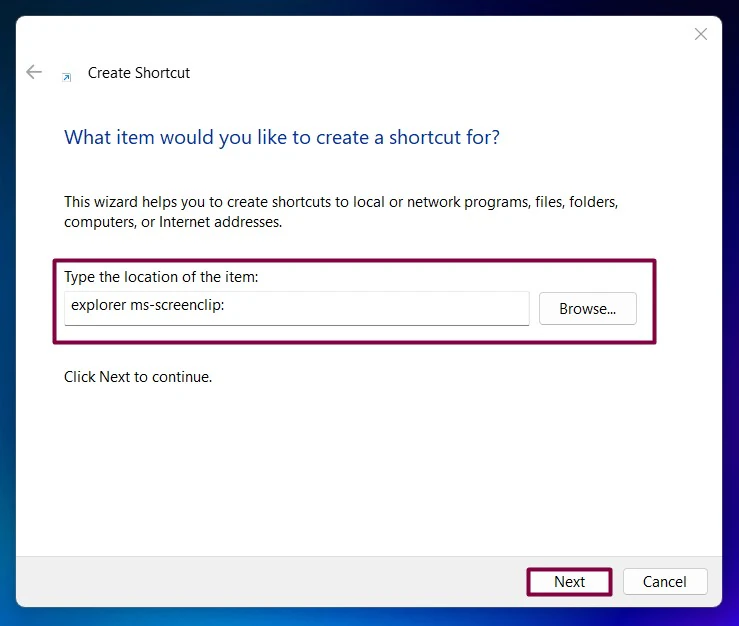
  2. In “Type the location of the item“, enter the following command.explorer ms-screenclip:Screen Recorder Shortcut Location in Windows 11
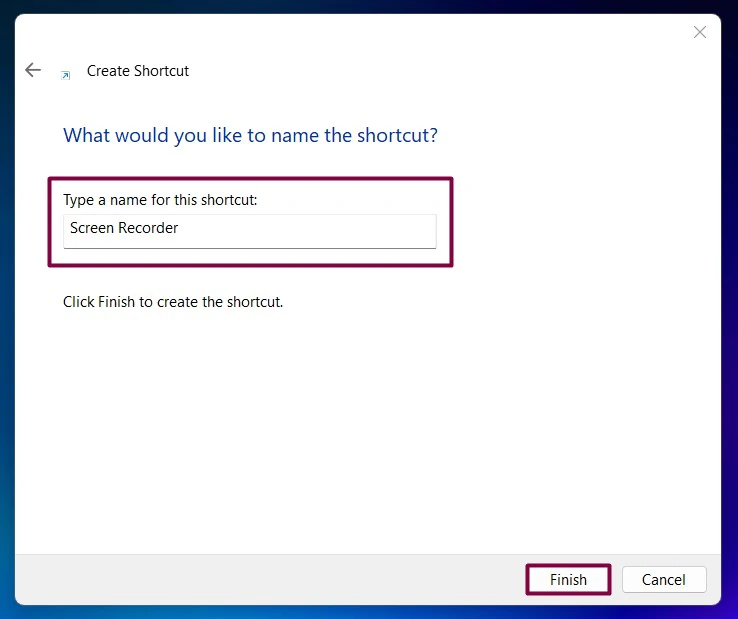
  3. Name it as Screen Recording or as per your convenience. Click Finish.Name of the shortcut 1
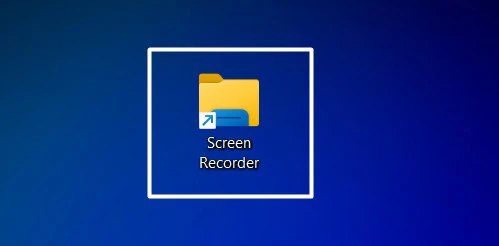
  4. You can find the shortcut created on the Desktop.Screen Recorder in Windows 11
  5. Double-click on that to open the Snipping Tool Feature of Windows 11.
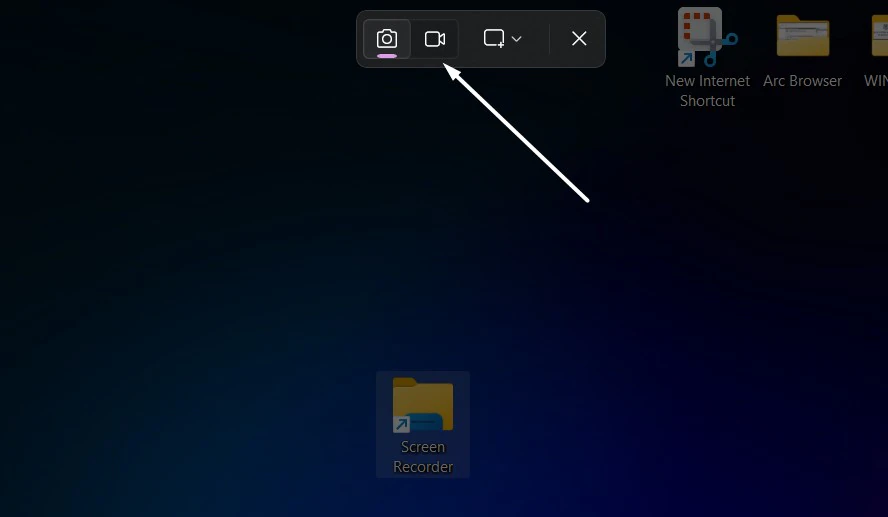
    Default Screen Recorder using Snipping Tool in Windows 11
    Default Screen Recorder using Snipping Tool in Windows 11
  6. This feature allows you to capture screenshots and as well do screen recording. That is it. Enjoy hassle-free Screen Recording in Windows 11.

Let’s Customize the Screen Recorder icon:

This is an optional step, however, it can make things very interesting. Let’s change the icon of the Screen Recorder Shortcut that we created using the above steps.

    • Right-click on the shortcut that we had just created and click Show more options.
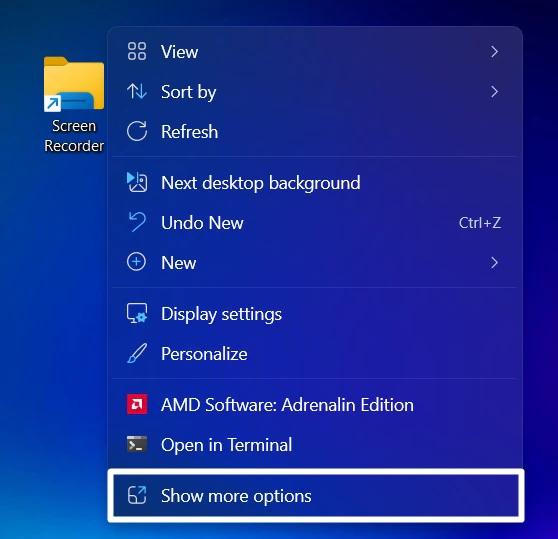
      Show more options
      Show more options
    • Now, click on Properties.
    • The Screen Recorder Properties dialog box will open now. Click on the Change Icon.
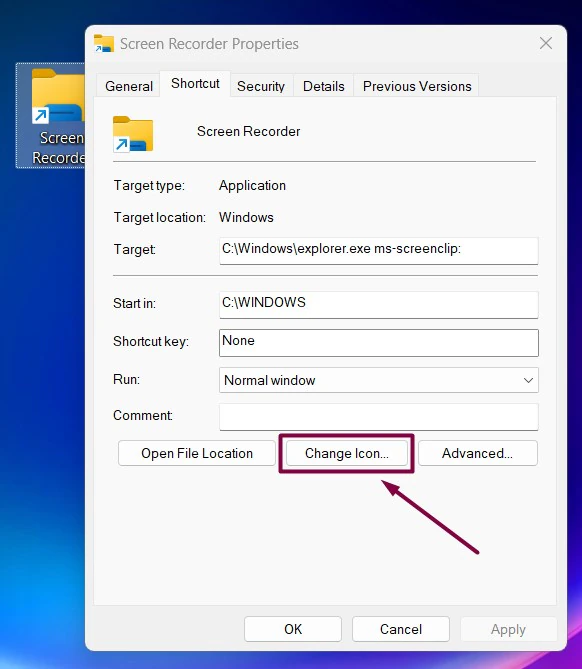
      Change Icon
      Change Icon
    • Choose your favorite icon from the list of icons available. Click OK.
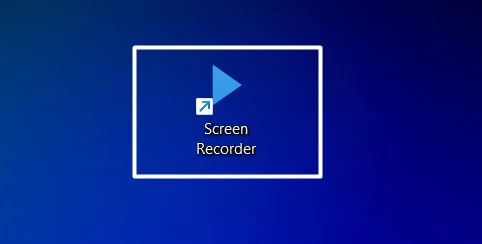
      Screen Recorder for Windows 11
      Screen Recorder for Windows 11

Take away:

By setting up a shortcut, you can instantly access the screen recording function with a single click or key combination using the Snipping Tool, the inbuilt feature of Windows 11, making your workflow more efficient and hassle-free. Whether you’re a gamer, content creator, educator, or professional, this guide will help you streamline your screen recording tasks on Windows 11. If you like this article, give us a rating, Happy Coding! Peace out!

Tags:

Windows 11 Shortcuts
Vigneshwaran Vijayakumar
Author

Vigneshwaran Vijayakumar

Hello, I'm Vigneshwaran, the founder, owner, and author of WinSides.Com. With nearly a decade of experience in blogging across various domains and specializing in Windows-related tutorials for over five years, I bring a wealth of knowledge and expertise to WinSides.Com

Follow Me
Other Articles
MSMQ Triggers in Windows 11
Previous

How to Enable MSMQ Triggers in Windows 11?

Choosing GPT-4o Model
Next

ChatGPT Free Users to Gain Access to GPT-4 Omniverse & Free Tools.

No Comment! Be the first one.

Leave a Reply Cancel reply

Your email address will not be published. Required fields are marked *

  • Windows 11 Version 26H1: Features, Release, & Expectations
  • IIS Admin Service on Windows 11: Comprehensive Guide & Management
  • CNG Key Isolation on Windows 11: Understanding & Management
  • System Image Backup on Windows 11: Comprehensive Guide
  • Declared Configuration Service on Windows 11 Explained
  1. Vigneshwaran Vijayakumar
    Vigneshwaran Vijayakumar on How to Enable Windows PowerShell 2.0 in Windows 11?October 5, 2025

    Hello Mr. Mohamad El-Kheir, Thank you for contacting us. Microsoft has removed PowerShell version 2.0 completely from Windows 11 24H2…

  2. Avatar of Mohamad El-Kheir
    Mohamad El-Kheir on How to Enable Windows PowerShell 2.0 in Windows 11?October 5, 2025

    i have a MSI laptop with windows 11 Home Installed on it. how to install powershell v2.0 on it

  3. Vigneshwaran Vijayakumar
    Vigneshwaran Vijayakumar on DxDiag Windows 11 – What is it & How to use it for Troubleshooting?August 14, 2025

    Hey Myla Shannon Thank you for your valuable feedback. We are delighted to hear your compliment and excited to know…

  4. Avatar of Myla Shannon
    Myla Shannon on DxDiag Windows 11 – What is it & How to use it for Troubleshooting?August 14, 2025

    This content is incredibly informative.

  5. Avatar of seven
    seven on How to Enable IIS [Internet Information Services] in Windows 11?July 29, 2025

    I found this post very helpful.

Winsides.com

At WinSides, we believe in simplifying technology and making it accessible to everyone.

Explore

Windows 11 Windows Features Windows Security Microsoft Shortcuts

Resources

Video Tutorials What’s New?! Publication Sitemap Why Trust Winsides.com?

Company

About us Contact us Authors Careers

Legal

Privacy Policy Terms of Use Disclaimer Content Removal Request

Our Projects

PeriodlyWise ClockTools EpochTools LiveTime

Copyright 2024-2026 Winsides.com. All rights reserved.