Skip to content
Winsides.com

Windows Insides

Winsides.com

Windows Insides

  • Windows 11
  • Windows Features
  • Windows Security
  • Microsoft
    • Microsoft Copilot
    • Microsoft Powertoys
  • Shortcuts
    • Windows Shortcuts
    • Desktop Shortcuts
  • Video Tutorials
  • About
    • What’s New?!
    • About us
    • Contact us
    • Privacy Policy
    • Terms of Use
  • Follow us
    • Reddit
    • Dev.to
    • YouTube
    • Linked In
    • X
    • Tumblr
    • Facebook
    • Instagram
    • Buy Me A Coffee
  • Windows 11
  • Windows Features
  • Windows Security
  • Microsoft
    • Microsoft Copilot
    • Microsoft Powertoys
  • Shortcuts
    • Windows Shortcuts
    • Desktop Shortcuts
  • Video Tutorials
  • About
    • What’s New?!
    • About us
    • Contact us
    • Privacy Policy
    • Terms of Use
  • Follow us
    • Reddit
    • Dev.to
    • YouTube
    • Linked In
    • X
    • Tumblr
    • Facebook
    • Instagram
    • Buy Me A Coffee
Close

Search

Winsides.com

Windows Insides

Winsides.com

Windows Insides

  • Windows 11
  • Windows Features
  • Windows Security
  • Microsoft
    • Microsoft Copilot
    • Microsoft Powertoys
  • Shortcuts
    • Windows Shortcuts
    • Desktop Shortcuts
  • Video Tutorials
  • About
    • What’s New?!
    • About us
    • Contact us
    • Privacy Policy
    • Terms of Use
  • Follow us
    • Reddit
    • Dev.to
    • YouTube
    • Linked In
    • X
    • Tumblr
    • Facebook
    • Instagram
    • Buy Me A Coffee
  • Windows 11
  • Windows Features
  • Windows Security
  • Microsoft
    • Microsoft Copilot
    • Microsoft Powertoys
  • Shortcuts
    • Windows Shortcuts
    • Desktop Shortcuts
  • Video Tutorials
  • About
    • What’s New?!
    • About us
    • Contact us
    • Privacy Policy
    • Terms of Use
  • Follow us
    • Reddit
    • Dev.to
    • YouTube
    • Linked In
    • X
    • Tumblr
    • Facebook
    • Instagram
    • Buy Me A Coffee
Close

Search

Home/Windows Features/Easy way to Enable ASP in IIS on Windows 11

Easy way to Enable ASP in IIS on Windows 11

Vigneshwaran Vijayakumar
By Vigneshwaran Vijayakumar
November 7, 2024 5 Min Read
0

Enable ASP in Windows 11: It enables support for Classic ASP (Active Server Pages), an older scripting language used to create dynamic web pages. You’ll need this feature if you’re working with older web applications built with Classic ASP, as modern versions of IIS don’t enable it by default. Classic ASP was popular in the late ’90s and early 2000s, so enabling this feature is essential if you need to run legacy web applications developed in that era. This article will guide you through the steps on How to Enable ASP in IIS on Windows 11 using simple yet clear steps. Check out: Enable ASP.NET 4.8 for IIS in Windows 11

Table of Contents

  • Key Steps
  • Directions to the ASP Feature in Windows 11
  • Frequently Asked Questions
    • Take away
    • Like our Article?

    Key Steps

    • Go to Programs and Features using the run command appwiz.cpl
    • Click on Turn Windows Features on or off.
    • Expand Internet Information Services node and futher expand World Wide Web Services.
    • Finally, expand Application Development Features.
    • Enable ASP by clicking on the checkbox next to it and click OK.
    • That is it. ASP is now enabled in your Windows 11 PC. You can host and run your IIS Web Server with classic ASP Applications.

    Directions to the ASP Feature in Windows 11
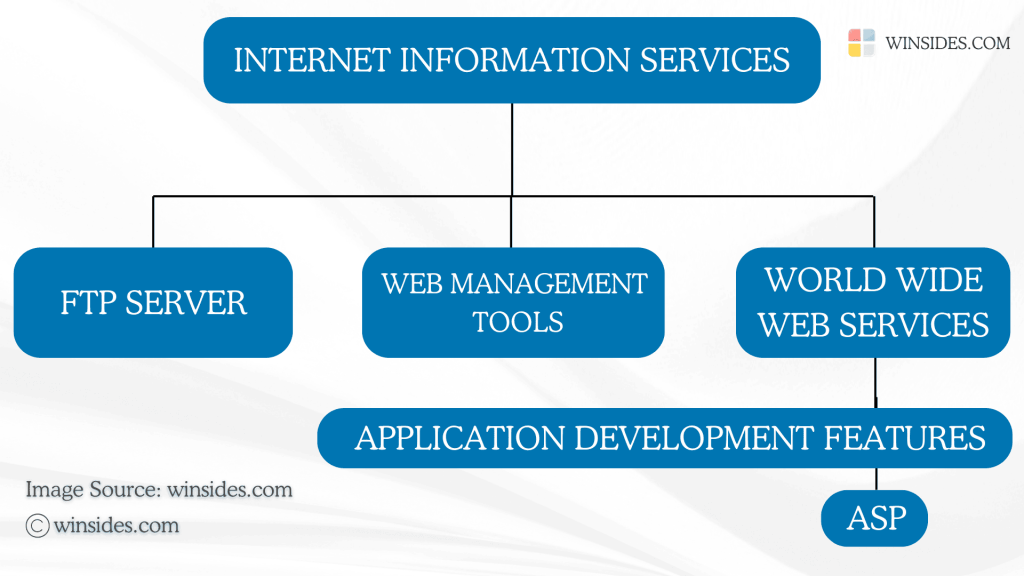
    Directions to ASP Feature in Windows 11
    Directions to ASP Feature in Windows 11

    Here is a detailed explanation. Let’s get started.

    • Open the Run command using the keyboard shortcut Win Key + R.
    • Enter the following command appwiz.cpl and click OK. This command will open the Programs and Features window.
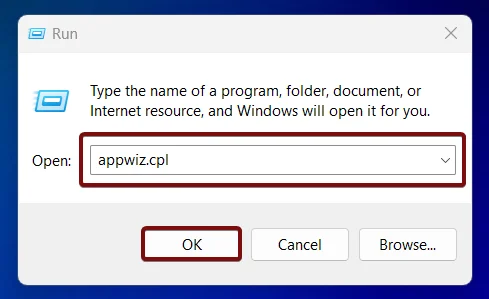
    Open Programs and Features using appwiz.cpl
    Open Programs and Features using appwiz.cpl
    • The Programs and Features window will open now. Here, you can find Turn Windows Features on or off option from the left pane.
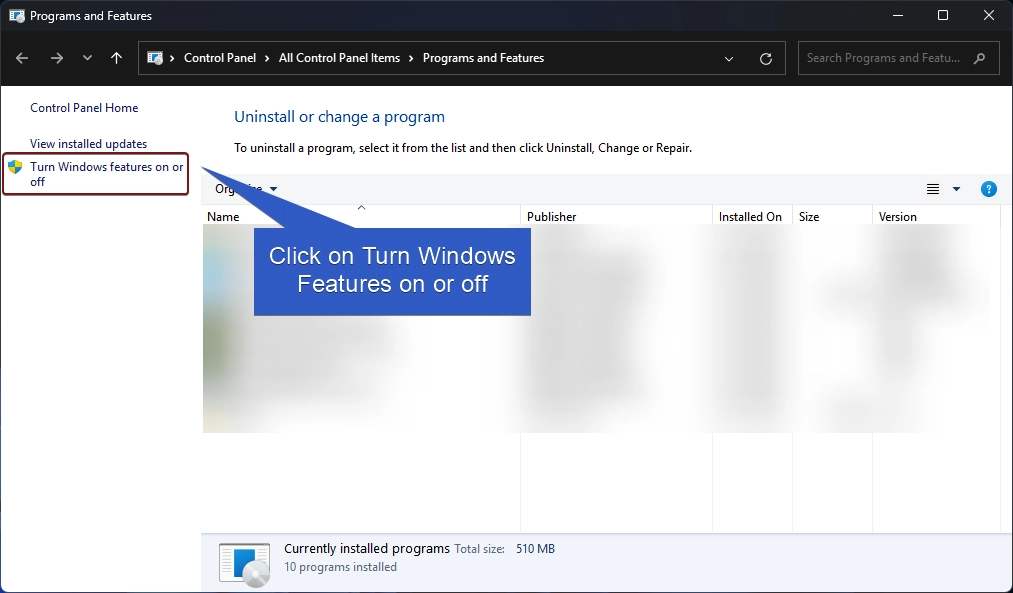
    Turn Windows Features on or off
    Turn Windows Features on or off
    • Clicking on Turn Windows features on or off will open the Windows Features dialog. Here, you can find all the available optional features.
    • Locate Internet Information Services from the list of services available and expand the tree.
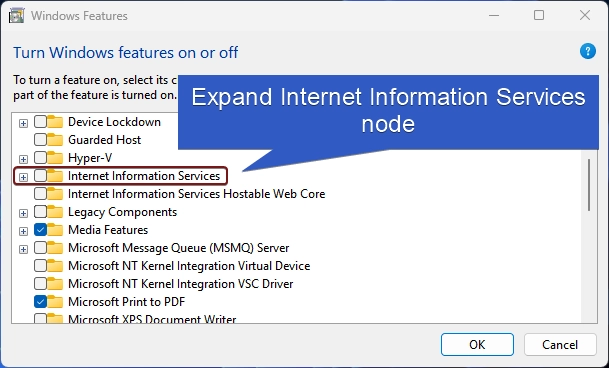
    Expand IIS Tree
    Expand IIS Tree
    • Now, you will find FTP, Web Management Tools, and World Wide Web Services. We have to expand the World Wide Web Services.
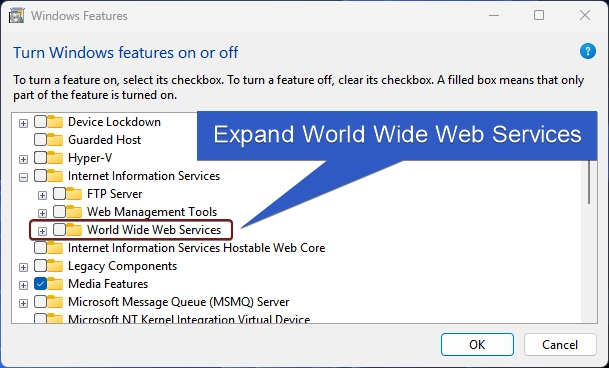
    Expand World Wide Web Services
    Expand World Wide Web Services
    • You will find various features such as Application Development Features, Common HTTP Features, Health and Diagnostics, etc. Expand the Application Development Features node.
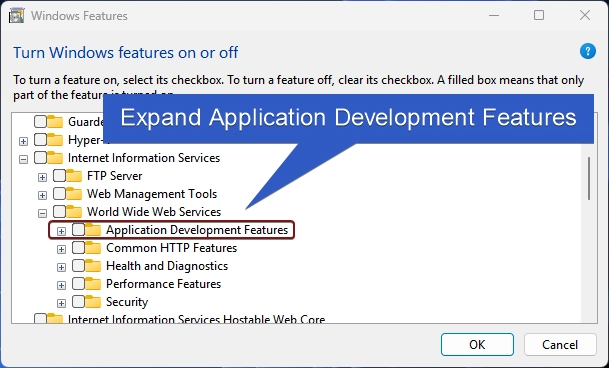
    Expand Application Development features
    Expand Application Development features
    • You can find ASP there. Click on the checkbox next to it to enable it and click OK.
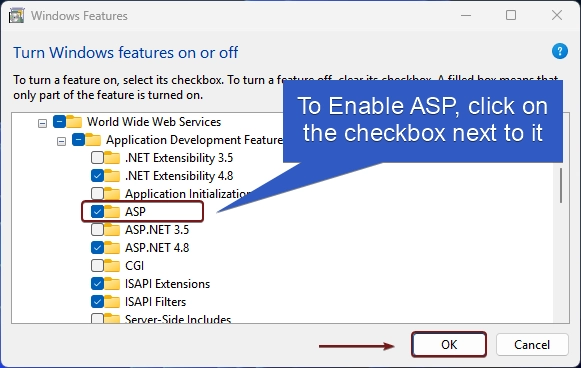
    Enable ASP in IIS on Windows 11
    Enable ASP in IIS on Windows 11
    • Windows will now start searching for the required files.
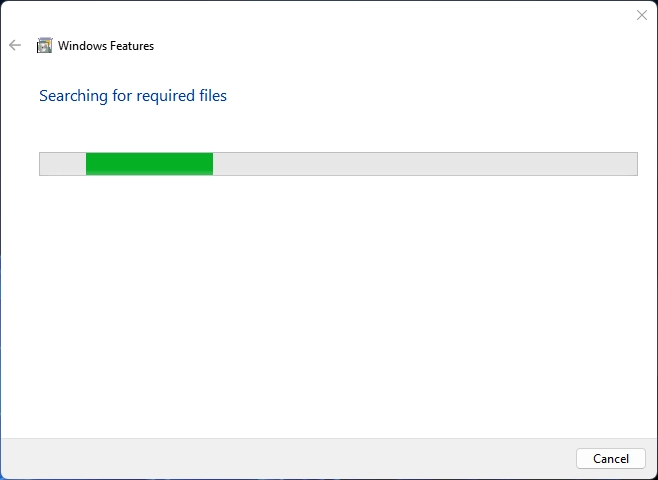
    Windows Searching for the required files
    Windows Searching for the required files
    • Then the system will apply the changes.
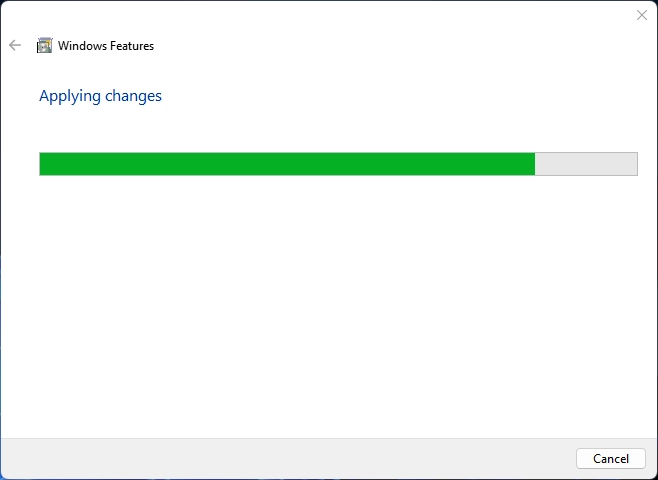
    Applying changes
    Applying changes
    • Click on Close to Close the window. If you are prompted for a Restart Now, then I recommend doing a restart right away.
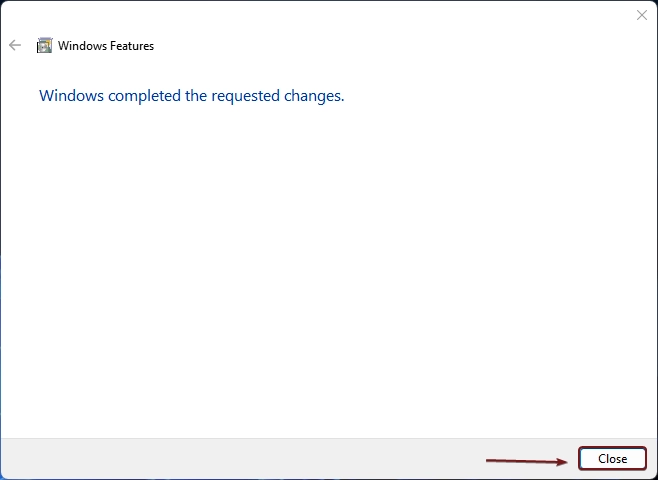
    Windows has completed the changes
    Windows has completed the requested changes
    • Once the restart is complete, that is it. ASP in IIS is now enabled on your Windows 11 PC.

    Information on the Go! ASP and ASP.NET are separate technologies, so enabling ASP does not interfere with or require ASP.NET features.

    Frequently Asked Questions

    Is Classic ASP still supported by Microsoft?

    While Classic ASP is no longer actively developed, Microsoft does still provide limited support for it in IIS for backward compatibility. It’s considered a legacy technology, so it’s recommended only for maintaining existing applications, not for new development.

    Is ASP the same as ASP.NET?

    No, Classic ASP and ASP.NET are different technologies. ASP is a scripting language, typically using VBScript or JScript, whereas ASP.NET is a more modern framework based on .NET, supporting languages like C# and Visual Basic. They’re separate options in IIS, so enabling ASP doesn’t automatically enable ASP.NET.

    Will enabling ASP affect the performance or security of my server?

    Enabling ASP itself doesn’t significantly affect performance. However, Classic ASP is outdated and may have security vulnerabilities if not carefully managed. It’s important to ensure your scripts and server are secure, especially if the application handles sensitive data.

    Can I use ASP alongside newer technologies on the same server?

    Yes, ASP can run alongside other technologies, including ASP.NET and PHP, on the same IIS server. This can be useful if you have a mix of legacy and modern applications that you need to host.

    Take away

    Once ASP is enabled for IIS in Windows 11, you can configure specific settings in IIS, such as session management, script timeouts, and debugging options, to optimize or troubleshoot classic ASP applications. With ASP enabled in IIS, the server can process .asp files, execute the embedded scripts, and deliver dynamically generated HTML content to users. For more interesting articles, stay tuned to Winsides.com. Happy Coding! Peace out!

    Like our Article?

    We love to hear from you. If you have any queries, Kindly let us know in the comment section.

    Tags:

    How to Enable in Windows 11windows 11Windows Features
    Vigneshwaran Vijayakumar
    Author

    Vigneshwaran Vijayakumar

    Hello, I'm Vigneshwaran, the founder, owner, and author of WinSides.Com. With nearly a decade of experience in blogging across various domains and specializing in Windows-related tutorials for over five years, I bring a wealth of knowledge and expertise to WinSides.Com

    Follow Me
    Other Articles
    How to Enable ASP.NET 3.5 Support in IIS on Windows 11
    Previous

    How to Enable ASP.NET 3.5 Support for IIS in Windows 11?

    Enable Centralized SSL Certificate Support for IIS in Windows 11
    Next

    Enable Centralized SSL Certificate Support in Windows 11

    No Comment! Be the first one.

    Leave a Reply Cancel reply

    Your email address will not be published. Required fields are marked *

    • How to check System Information in Windows 11?
    • How to Install and Run X Server in Windows 11?
    • How to Enable Client for NFS in Windows 11?
    • 5+ Easy Methods to Find/Search Video Files Only in Windows 11!
    • How to Enable TFTP Client in Windows 11?
    1. Vigneshwaran Vijayakumar
      Vigneshwaran Vijayakumar on How to Enable Windows PowerShell 2.0 in Windows 11?October 5, 2025

      Hello Mr. Mohamad El-Kheir, Thank you for contacting us. Microsoft has removed PowerShell version 2.0 completely from Windows 11 24H2…

    2. Avatar of Mohamad El-Kheir
      Mohamad El-Kheir on How to Enable Windows PowerShell 2.0 in Windows 11?October 5, 2025

      i have a MSI laptop with windows 11 Home Installed on it. how to install powershell v2.0 on it

    3. Vigneshwaran Vijayakumar
      Vigneshwaran Vijayakumar on DxDiag Windows 11 – What is it & How to use it for Troubleshooting?August 14, 2025

      Hey Myla Shannon Thank you for your valuable feedback. We are delighted to hear your compliment and excited to know…

    4. Avatar of Myla Shannon
      Myla Shannon on DxDiag Windows 11 – What is it & How to use it for Troubleshooting?August 14, 2025

      This content is incredibly informative.

    5. Avatar of seven
      seven on How to Enable IIS [Internet Information Services] in Windows 11?July 29, 2025

      I found this post very helpful.

    • About us
    • What’s New?!
    • Guest Posts on Winsides.com – Terms and Conditions
    • Publication Sitemap
    • Careers
    • Authors
    • Why Trust Winsides.com?
    • Content Removal Request
    • Terms of Use
    • Disclaimer
    • Contact us
    Copyright 2024-2026 - Winsides.com. All rights reserved.