Skip to content
Winsides.com

Windows Insides

Winsides.com

Windows Insides

  • Windows 11
  • Windows Features
  • Windows Security
  • Microsoft
    • Microsoft Copilot
    • Microsoft Powertoys
  • Shortcuts
    • Windows Shortcuts
    • Desktop Shortcuts
  • Video Tutorials
  • About
    • What’s New?!
    • About us
    • Contact us
    • Privacy Policy
    • Terms of Use
  • Follow us
    • Reddit
    • Dev.to
    • YouTube
    • Linked In
    • X
    • Tumblr
    • Facebook
    • Instagram
    • Buy Me A Coffee
  • Windows 11
  • Windows Features
  • Windows Security
  • Microsoft
    • Microsoft Copilot
    • Microsoft Powertoys
  • Shortcuts
    • Windows Shortcuts
    • Desktop Shortcuts
  • Video Tutorials
  • About
    • What’s New?!
    • About us
    • Contact us
    • Privacy Policy
    • Terms of Use
  • Follow us
    • Reddit
    • Dev.to
    • YouTube
    • Linked In
    • X
    • Tumblr
    • Facebook
    • Instagram
    • Buy Me A Coffee
Close

Search

Winsides.com

Windows Insides

Winsides.com

Windows Insides

  • Windows 11
  • Windows Features
  • Windows Security
  • Microsoft
    • Microsoft Copilot
    • Microsoft Powertoys
  • Shortcuts
    • Windows Shortcuts
    • Desktop Shortcuts
  • Video Tutorials
  • About
    • What’s New?!
    • About us
    • Contact us
    • Privacy Policy
    • Terms of Use
  • Follow us
    • Reddit
    • Dev.to
    • YouTube
    • Linked In
    • X
    • Tumblr
    • Facebook
    • Instagram
    • Buy Me A Coffee
  • Windows 11
  • Windows Features
  • Windows Security
  • Microsoft
    • Microsoft Copilot
    • Microsoft Powertoys
  • Shortcuts
    • Windows Shortcuts
    • Desktop Shortcuts
  • Video Tutorials
  • About
    • What’s New?!
    • About us
    • Contact us
    • Privacy Policy
    • Terms of Use
  • Follow us
    • Reddit
    • Dev.to
    • YouTube
    • Linked In
    • X
    • Tumblr
    • Facebook
    • Instagram
    • Buy Me A Coffee
Close

Search

Home/Windows 11/How To?/How to Enable HDR Video Streaming on Windows 11?

How to Enable HDR Video Streaming on Windows 11?

Vigneshwaran Vijayakumar
By Vigneshwaran Vijayakumar
February 3, 2025 4 Min Read
0

Have you ever wondered while playing a Game or Streaming a Movie on Netflix or Amazon Prime, and your Windows 11 Display seem more dull than normal? It is because the High Dynamic Range Settings are turned off on Windows 11. When HDR is turned off, the Standard Dynamic Range (SDR) contents will look normal, however, HDR Contents will appear dull. Most of the Modern Day Streaming Services uses HDR as it enhances the Contrast, Brightness, and the Color range of Visuals. HDR Technology allows for Deeper blacks, Brighter whites, and a wide range of colors compared to the SDR. In this article, we will check out How to Enable HDR Video Streaming on Windows 11. Let’s get Started.

HDR Video Streaming Turned off on Windows 11 Vs HDR Video Streaming Turned on Windows 11
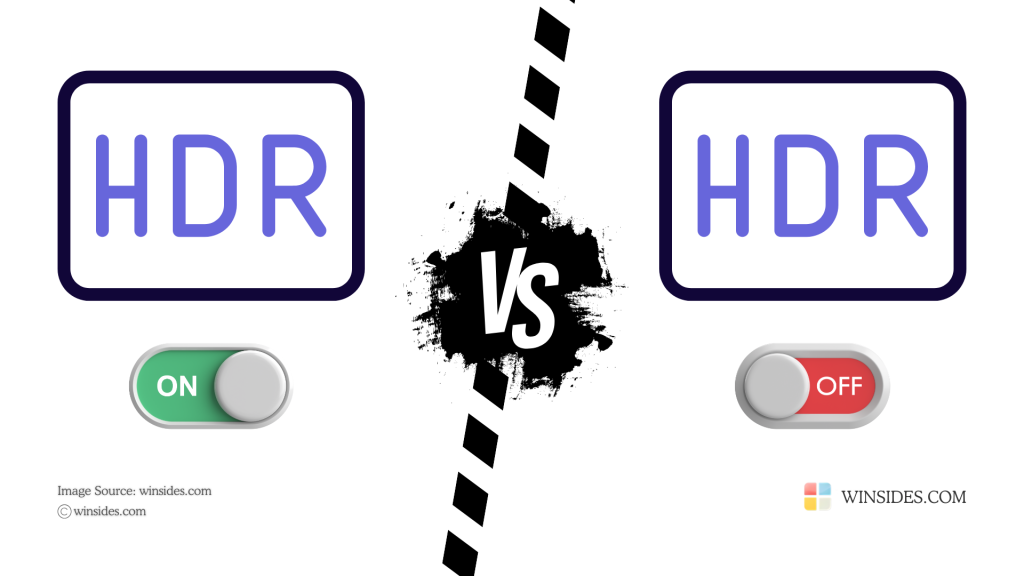
Difference between HDR Video Streaming on and off on Windows 11

Let’s check out how the output on a Windows 11 Display works when HDR Video Streaming is ON and OFF on Windows 11.

FeatureHDR Video Streaming OffHDR Video Streaming ON
Brightness & ContrastStandardHigher Brightness, Deeper Blacks, and Vivid Highlights
Color Depth8-bit (16.7 million colors)10-bit or higher (over 1 billion colors)
ContentHDR Video Contents looks dull or washed outHDR Videos display full dynamic range
Video Details & SharpnessLess Detail in Dark & Bright AreasMore Details in Shadows and Highlights
Energy ConsumptionUses Less Battery (For Laptops)Consumes More Power (For Laptops)

Turn on HDR Video Streaming on Windows 11 using Simple Steps

  • Open Windows Settings using the keyboard shortcut WinKey + I.
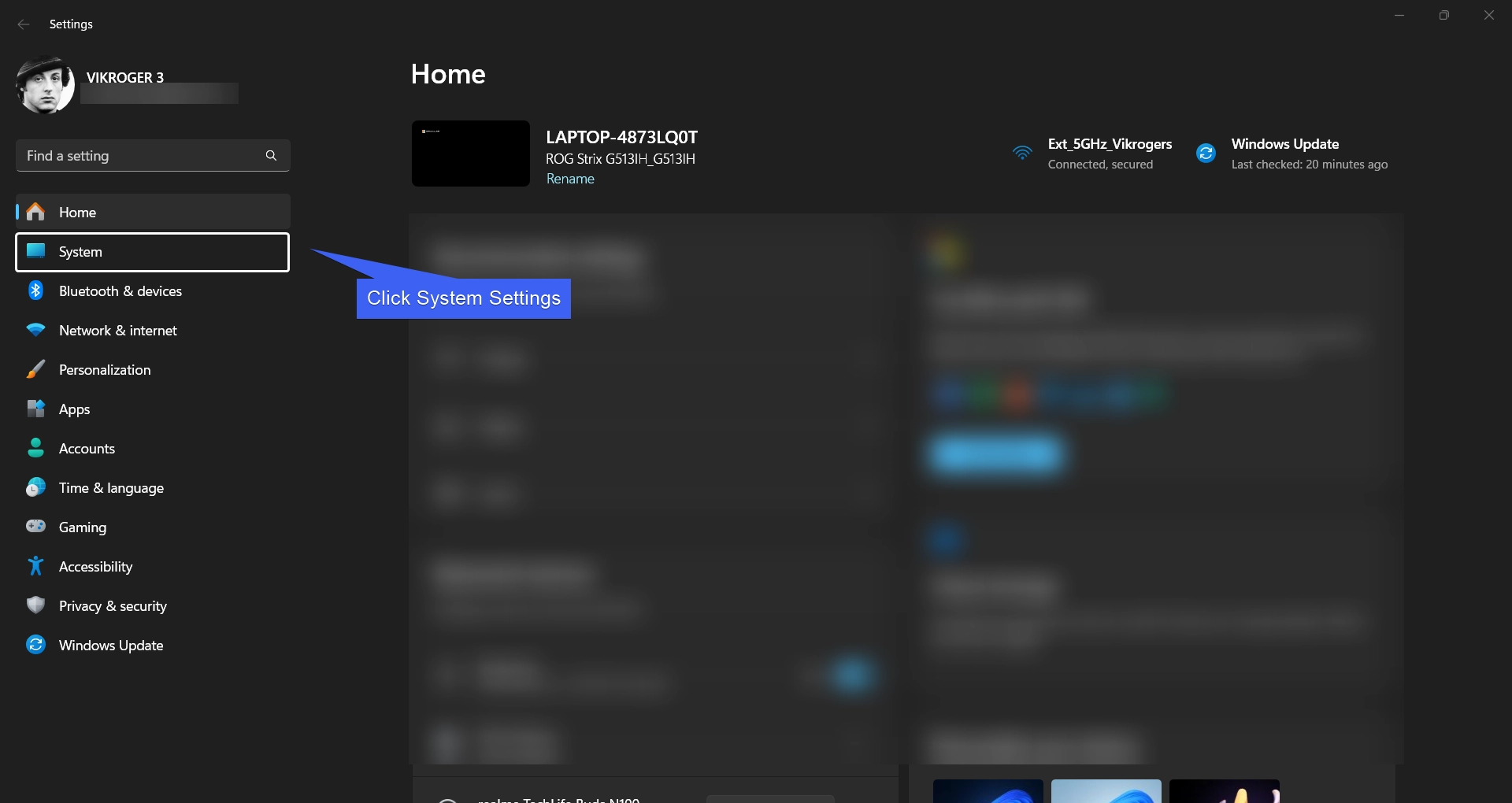
  • From the left pane, click on System.
System Settings
System Settings
  • Under System Settings, the first option is Display. Click on Display.
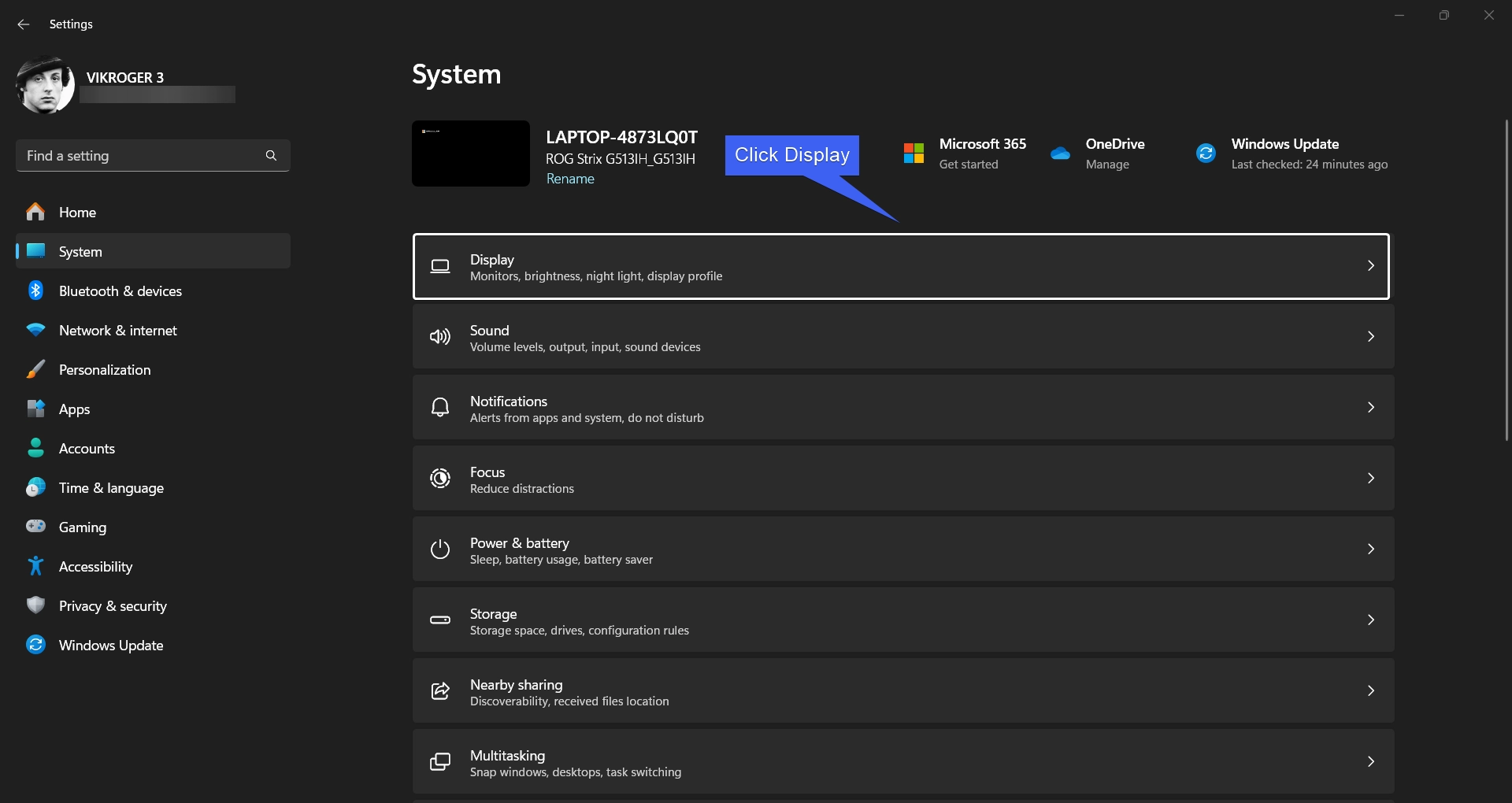
Click on Display
Click on Display
  • You can find HDR under the Brightness & Color. Click HDR.
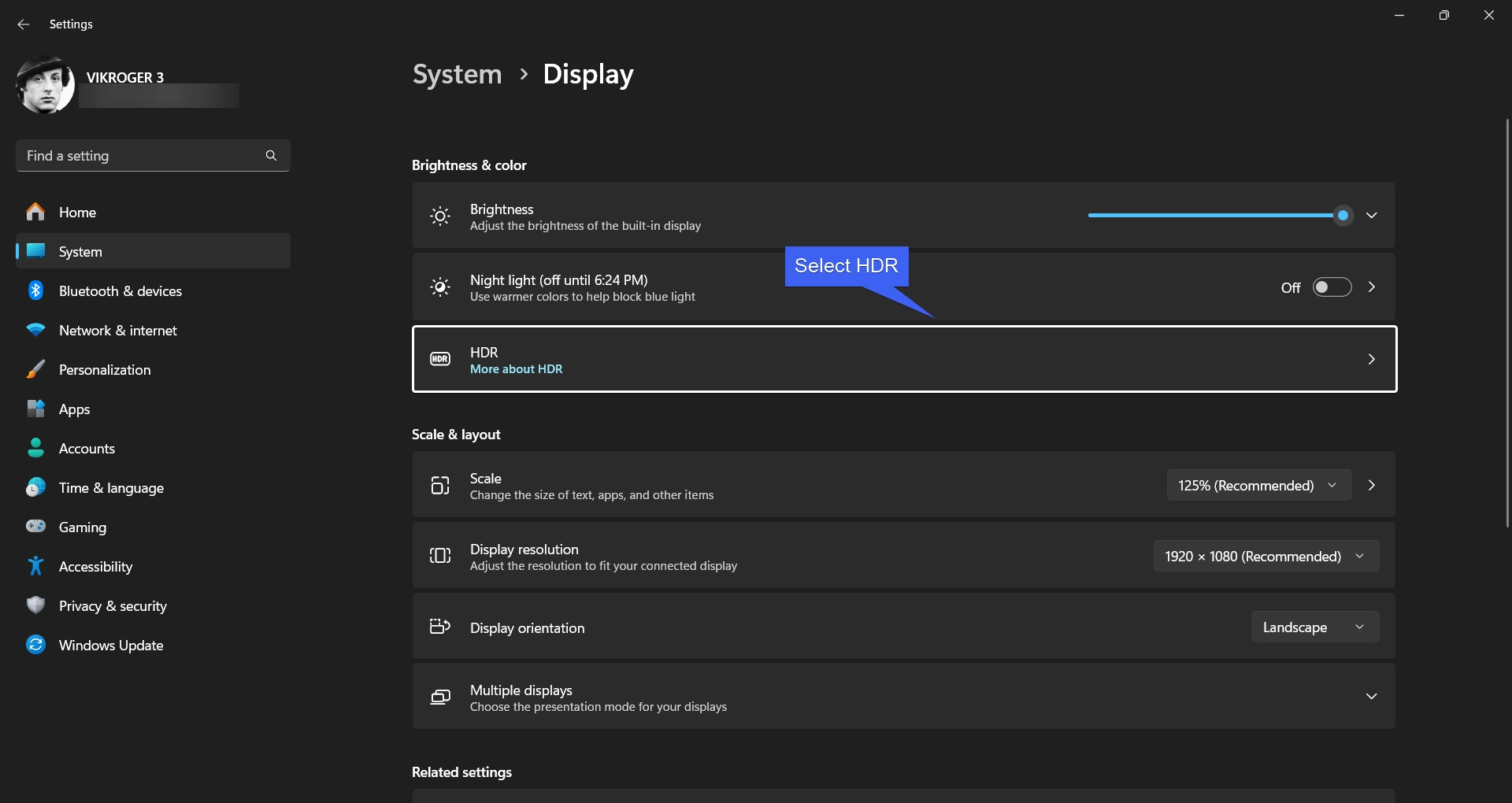
Select HDR
Select HDR
  • Now, we are in the HDR Settings. Toggle HDR Video Streaming ON to turn on HDR Video Streaming on Windows 11.
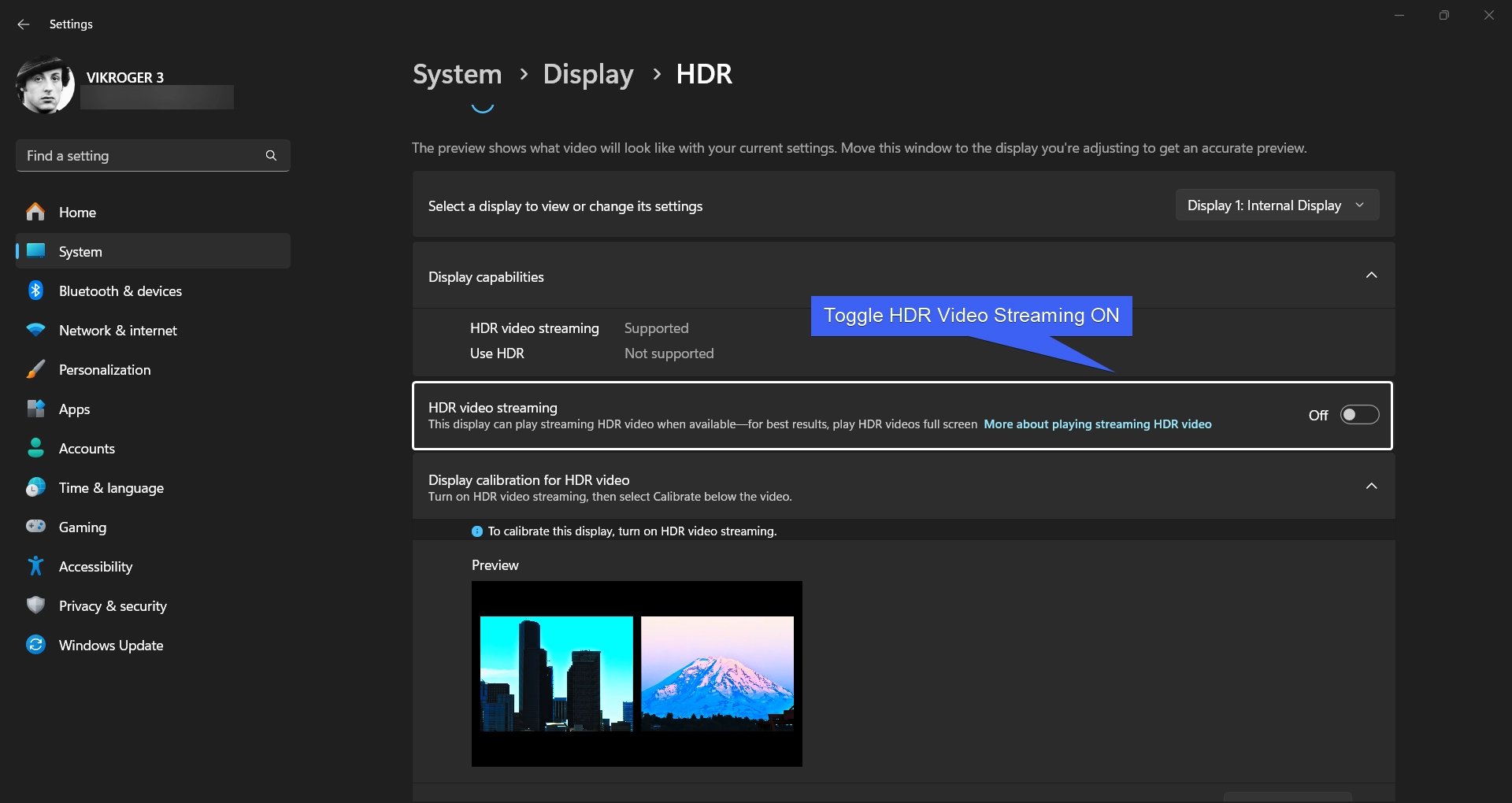
Toggle HDR Video Streaming ON
  • Once the option is on, then the display can play streaming HDR Videos when available.
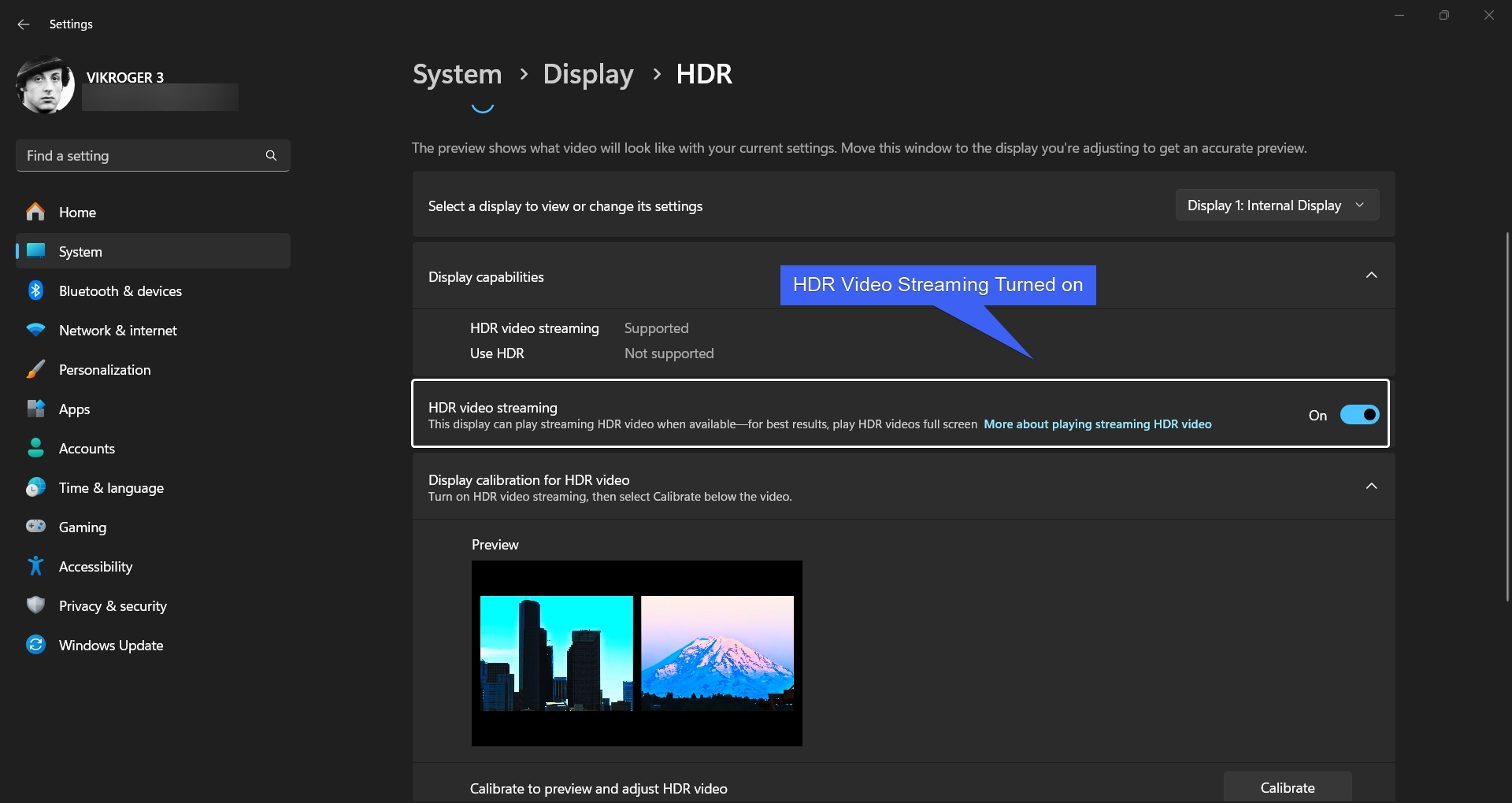
HDR Video Streaming Turned on Windows 11

Calibrate and Adjust HDR Video Streaming Settings on Windows 11

Once the HDR Video Streaming Setting is on, we can calibrate to find a good balance between the details and the vividness. Here are the steps.

  • Under Display Calibration for HDR Video, Click Calibrate.
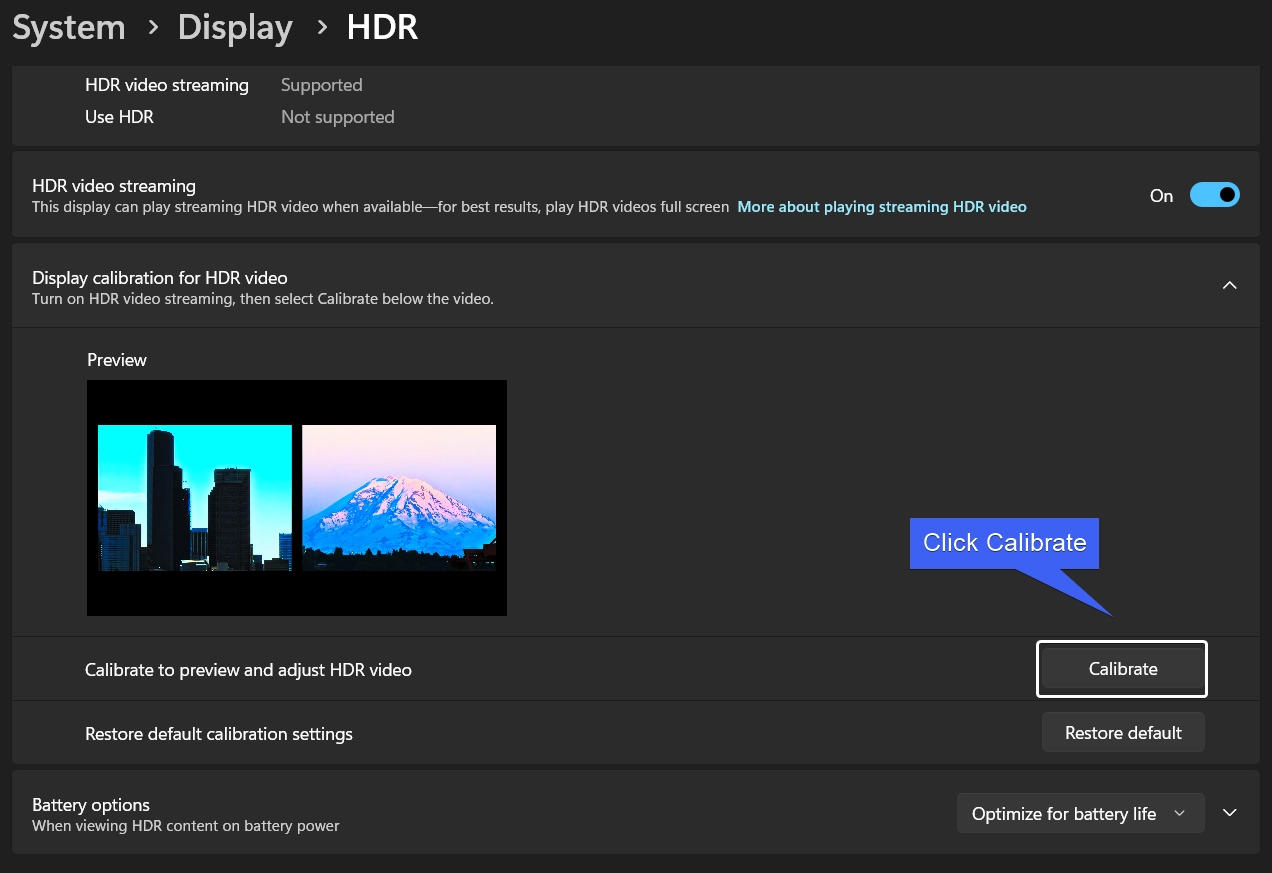
Click Calibrate
Click Calibrate
  • Now, you can adjust the slider until there’s a good balance between the details in the windows on the buildings and the details in the snow on the mountain.
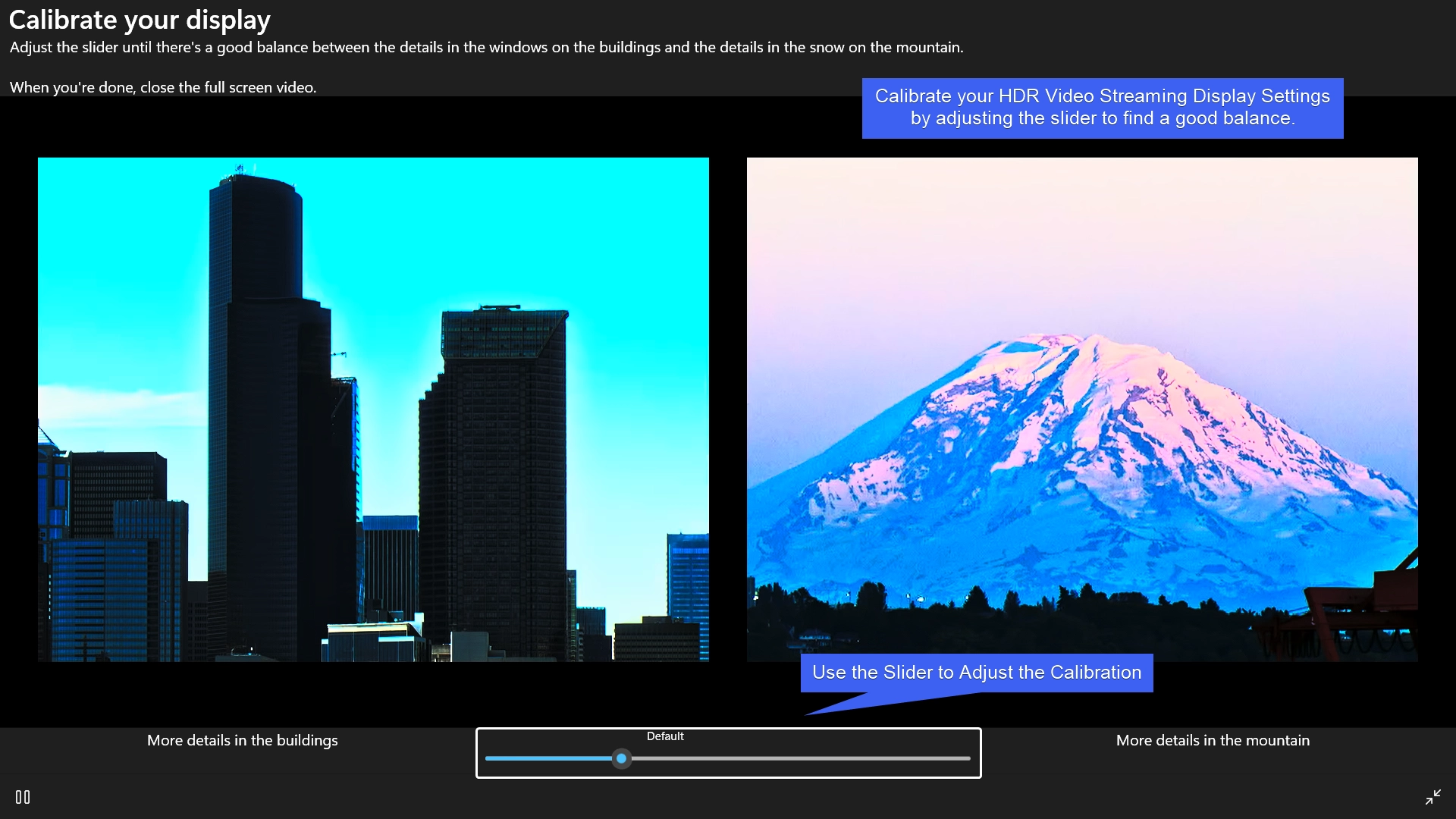
Calibrate your Display
  • Once you find a good balance, you can close the full screen video.
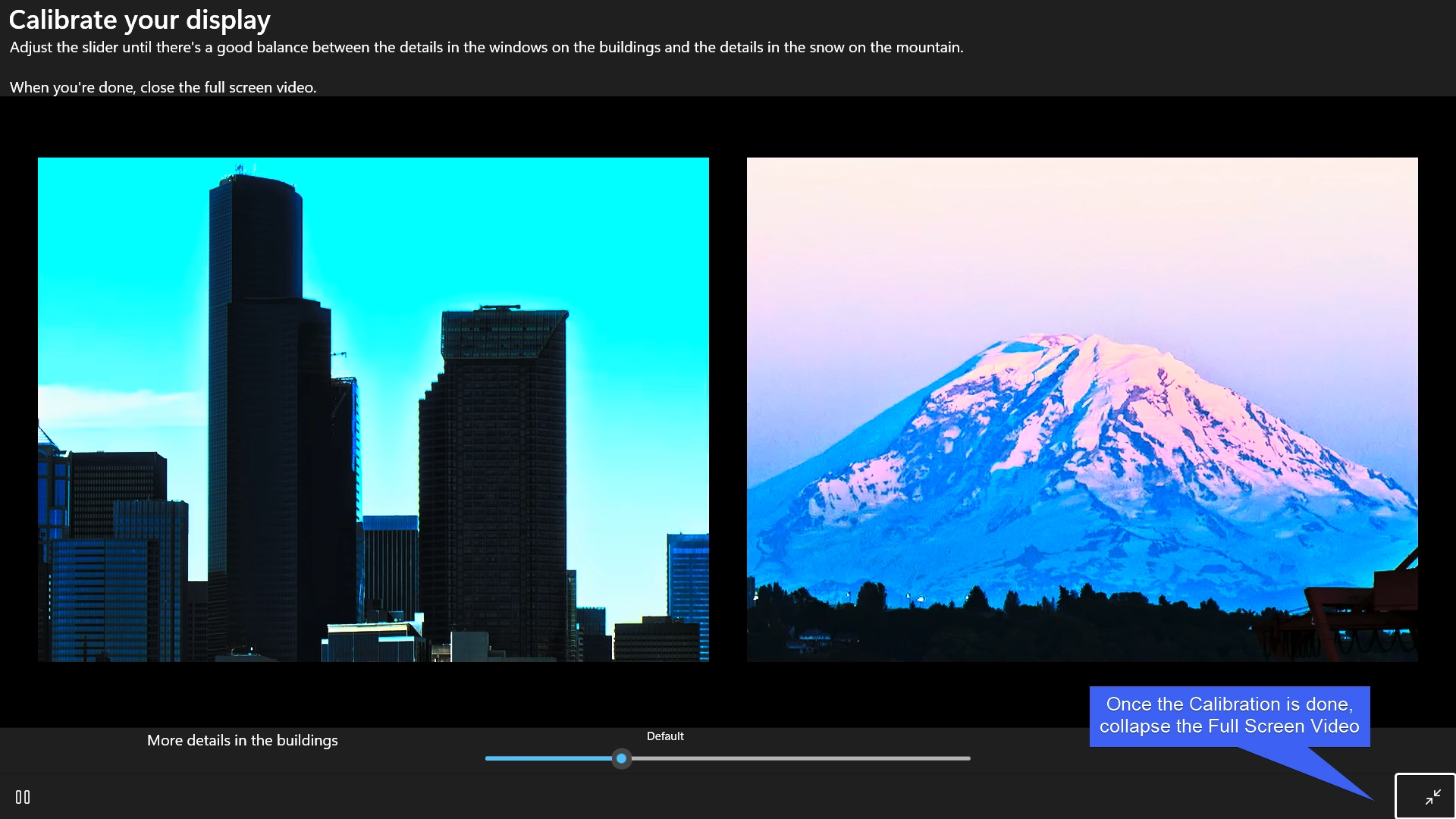
Collapse the Full Screen Video
  • If you would like to restore the default Calibration Settings, then you can click Restore Default.
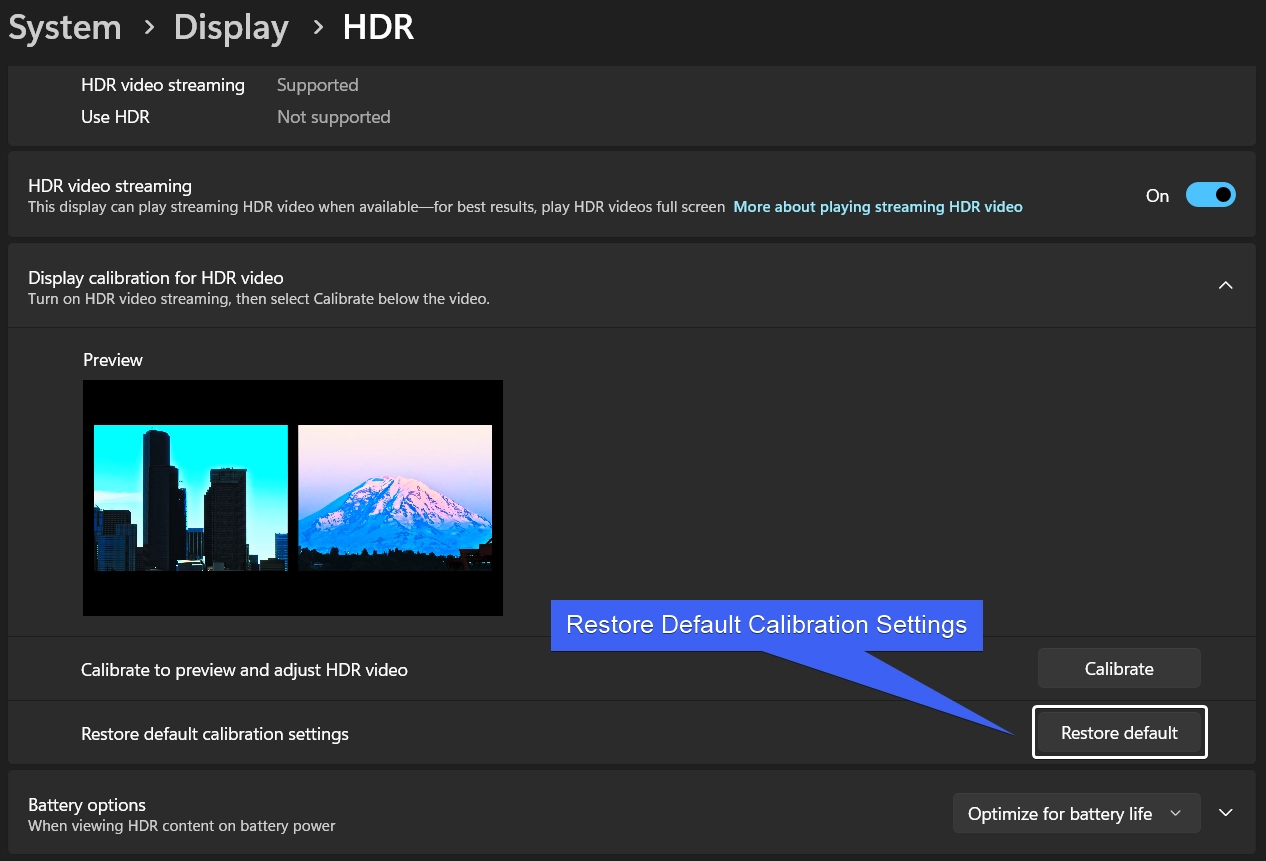
Restore Default Calibration Settings

Battery Options for HDR Video Streaming on Windows 11

HDR Video Streaming provides better display output but at the cost of power consumption. You can choose the behaviour of HDR Video Content on Batter Power for Laptops.

You can choose between Optimize for Battery Life and Optimize for Image Quality depending on your requirements. This Setting is applicable for Laptops on Battery Power.
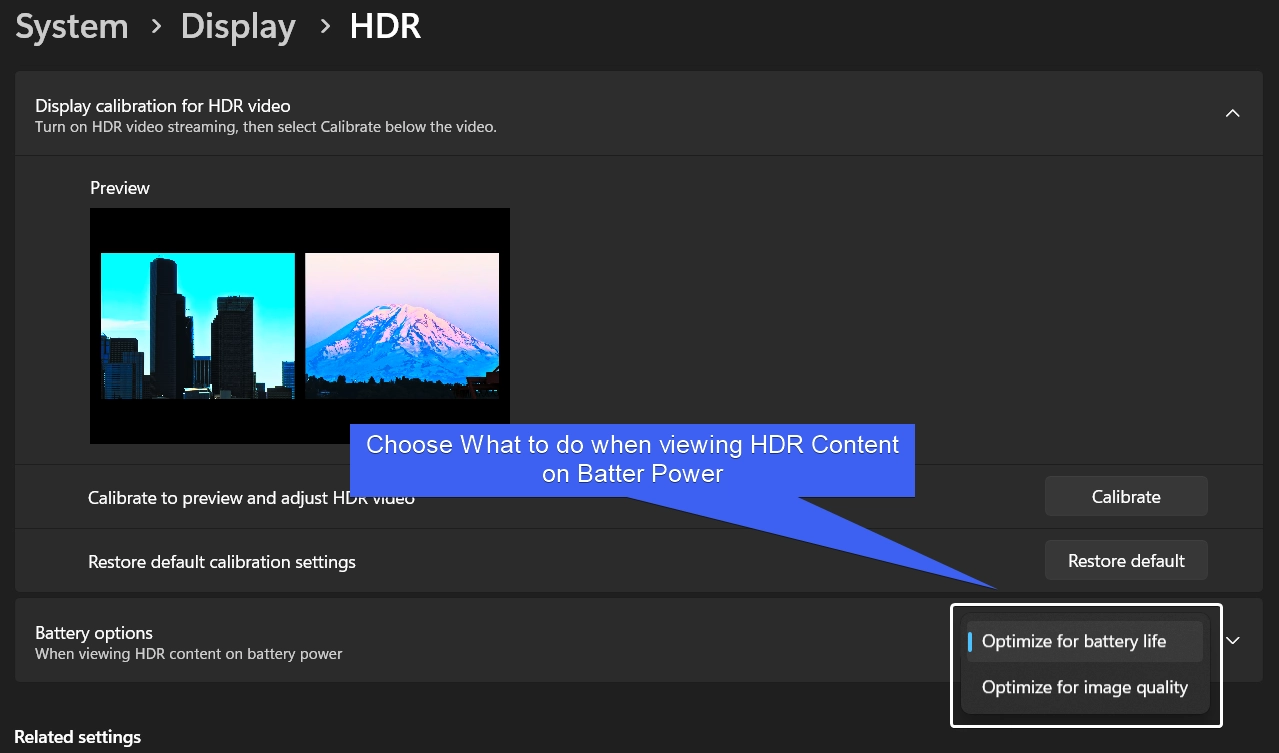
Battery option for Calibration Settings

Popular HDR Formats

  • HDR10
  • Dolby Vision
  • HDR10+
  • HLG (Hybrid Log-Gamma)

HDR10 is the most common format used for Gaming and Streaming. Dolby Vision is an advanced HDR Format with Dynamic Metadata Support, and up-to 12 bit color. HDR10+ is nothing but Samsung’s take on HDR10 with Dynamic Meta Data. For Live Broadcasts, HLG is used.

Interesting Facts: Static Metadata use the same brightness, and color settings for the entire video, on the other hand, Dynamic Metadata adjusts brightness, contrast, and colors frame by frame for more realistic Settings.

Take Away

With Modern Displays supporting higher resolution, and higher refresh rates, optimizing HDR on Windows 11 can improve the viewing experience to a greater extent. With the above article, you can enable HDR Video Streaming on Windows 11 and enjoy a immerse viewing experience. If you have any queries, kindly let us know in the comment section. For more interesting articles, stay tuned to Winsides.com. Happy Computing! Peace out!


Tags:

Display Settingswindows 11
Vigneshwaran Vijayakumar
Author

Vigneshwaran Vijayakumar

Hello, I'm Vigneshwaran, the founder, owner, and author of WinSides.Com. With nearly a decade of experience in blogging across various domains and specializing in Windows-related tutorials for over five years, I bring a wealth of knowledge and expertise to WinSides.Com

Follow Me
Other Articles
Enable TCPIP Services in Windows 11
Previous

How to Enable Simple TCP/IP Services in Windows 11?

Allow an App through Windows Firewall 1
Next

How to Allow an App through Windows Firewall?

No Comment! Be the first one.

Leave a Reply Cancel reply

Your email address will not be published. Required fields are marked *

  • How to check System Information in Windows 11?
  • How to Install and Run X Server in Windows 11?
  • How to Enable Client for NFS in Windows 11?
  • 5+ Easy Methods to Find/Search Video Files Only in Windows 11!
  • How to Enable TFTP Client in Windows 11?
  1. Vigneshwaran Vijayakumar
    Vigneshwaran Vijayakumar on How to Enable Windows PowerShell 2.0 in Windows 11?October 5, 2025

    Hello Mr. Mohamad El-Kheir, Thank you for contacting us. Microsoft has removed PowerShell version 2.0 completely from Windows 11 24H2…

  2. Avatar of Mohamad El-Kheir
    Mohamad El-Kheir on How to Enable Windows PowerShell 2.0 in Windows 11?October 5, 2025

    i have a MSI laptop with windows 11 Home Installed on it. how to install powershell v2.0 on it

  3. Vigneshwaran Vijayakumar
    Vigneshwaran Vijayakumar on DxDiag Windows 11 – What is it & How to use it for Troubleshooting?August 14, 2025

    Hey Myla Shannon Thank you for your valuable feedback. We are delighted to hear your compliment and excited to know…

  4. Avatar of Myla Shannon
    Myla Shannon on DxDiag Windows 11 – What is it & How to use it for Troubleshooting?August 14, 2025

    This content is incredibly informative.

  5. Avatar of seven
    seven on How to Enable IIS [Internet Information Services] in Windows 11?July 29, 2025

    I found this post very helpful.

  • About us
  • What’s New?!
  • Guest Posts on Winsides.com – Terms and Conditions
  • Publication Sitemap
  • Careers
  • Authors
  • Why Trust Winsides.com?
  • Content Removal Request
  • Terms of Use
  • Disclaimer
  • Contact us
Copyright 2024-2026 - Winsides.com. All rights reserved.