

Introduction to Distributed Link Tracking Client
In the intricate ecosystem of Windows 11, countless background services work tirelessly to ensure a seamless and efficient user experience. One such often-overlooked component is the Distributed Link Tracking Client. This service plays a crucial, albeit subtle, role in maintaining the integrity of your files and shortcuts, acting as a silent guardian against broken links and misplaced data. Learn more about the sc config command and file system operations.
Imagine a scenario where you move an important document from one folder to another, or even to a different drive. Without proper mechanisms, any shortcuts pointing to that document would instantly become useless, leading to frustration and wasted time. The Distributed Link Tracking Client on Windows 11 steps in precisely here, ensuring that your system can intelligently locate moved or renamed files, thereby keeping your shortcuts and file references valid.
This comprehensive guide will demystify the DLT Client service, exploring its core functionality, its importance for everyday computing, and how you can manage it effectively. We’ll delve into its operational mechanics, discuss its impact on performance, and provide actionable steps for enabling, disabling, or troubleshooting it. Understanding this service is key to truly mastering your Windows 11 environment.
Table of contents
Key Takeaways
- The Distributed Link Tracking Client (DLT Client) is a vital Windows 11 service that ensures shortcuts and OLE links remain valid even after files are moved or renamed.
- It operates by assigning a unique Object ID (OID) to files and tracking them across NTFS volumes within a single computer or across a network domain.
- DLT Client significantly enhances user experience by preventing broken shortcuts and improving data accessibility, especially for frequently moved or shared files.
- Users can manage the DLT Client service through the Services Manager, Registry Editor, Command Prompt, or PowerShell to control its startup type and status.
- While generally low-impact, disabling DLT Client can offer minor performance gains on systems with limited resources, particularly if link tracking is not a critical requirement.
- Security considerations include potential network traffic in domain environments, though its direct security risk is minimal for typical home users.
- Modern alternatives like cloud storage and advanced file systems offer different approaches to data synchronization and link management, complementing or sometimes superseding DLT’s traditional role.
What is the Distributed Link Tracking Client Service?
The Distributed Link Tracking Client service, often abbreviated as DLT Client, is a fundamental component of the Windows operating system designed to maintain the integrity of file links. It’s an unsung hero that works behind the scenes, ensuring that your shortcuts, OLE (Object Linking and Embedding) links, and other file references continue to function correctly, even if the target files themselves are moved or renamed.
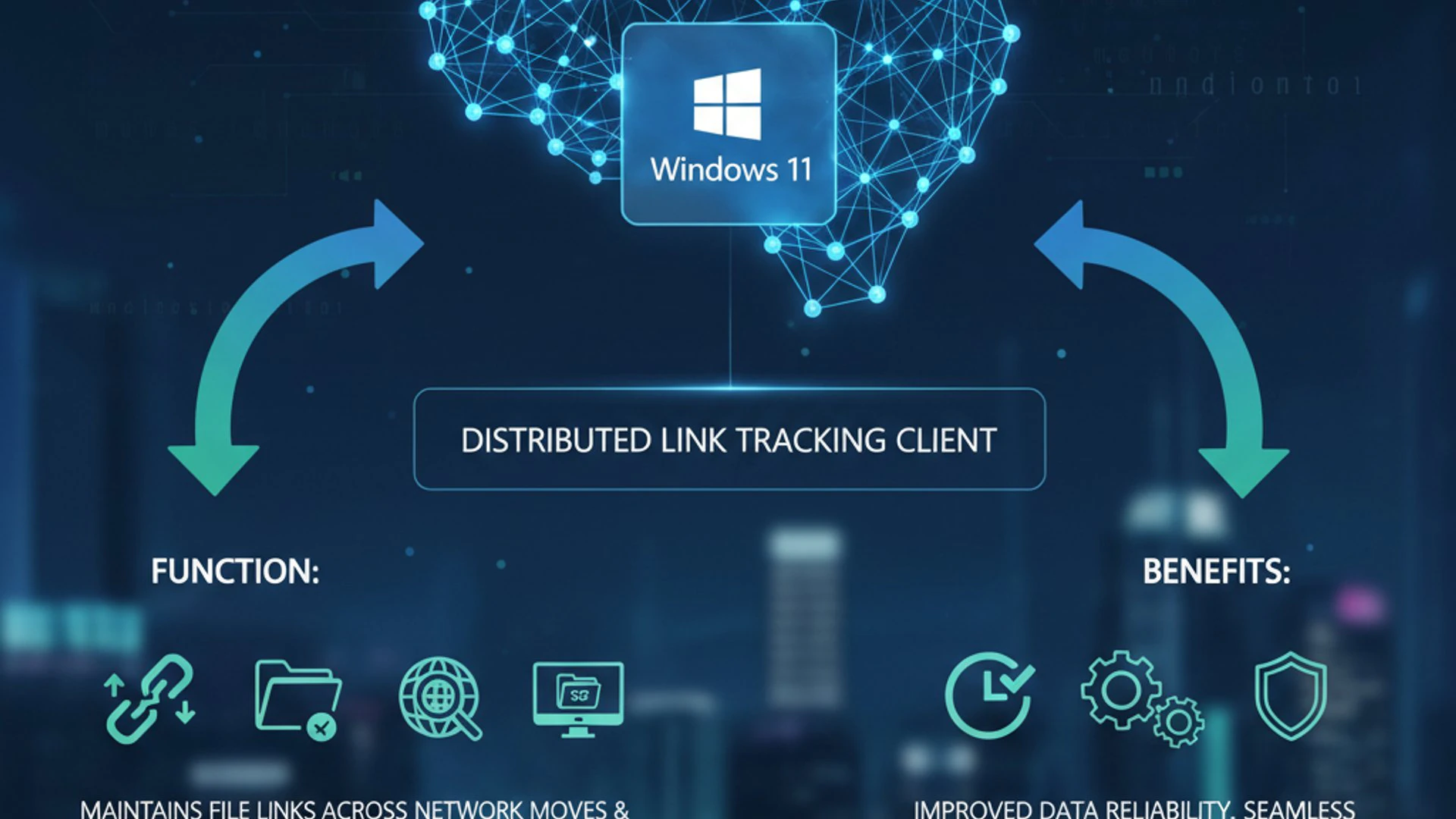
This service is particularly relevant in environments where files are frequently reorganized, shared, or accessed from various locations. Without it, the simple act of moving a document could render dozens of shortcuts obsolete, leading to a frustrating user experience and potential data access issues.
Understanding Distributed Link Tracking (DLT)
Distributed Link Tracking (DLT) is a technology developed by Microsoft to address the challenge of broken links. It’s not just about simple shortcuts on your desktop; it extends to embedded objects within documents, application-specific links, and even references within the operating system itself. The core idea is to make file references resilient to changes in file system location or name.
The DLT system comprises two main parts: the DLT Client and the DLT Server. On a standalone Windows 11 machine, the DLT Client service handles the tracking locally. In a domain environment, the DLT Client communicates with a DLT Server (typically a domain controller) to track links across multiple computers and shared network resources.
This robust mechanism ensures that when you click a shortcut, Windows 11 doesn’t just look for the file at its original path. Instead, it leverages the DLT service to intelligently locate the file, even if its path has changed dramatically. This prevents common errors like “The shortcut target has been changed or moved.”
How DLT Client Works in Windows 11
The operational mechanism of the DLT Client on Windows 11 is quite sophisticated. It relies on unique identifiers assigned to files and directories, which persist even when other file attributes change. This allows the system to track objects rather than just their paths.
When a file is created or moved on an NTFS volume, the DLT Client assigns it a unique Object ID (OID). This OID is stored as a hidden attribute of the file. When a shortcut or link is created, it stores not only the file’s path but also its OID. If the file is subsequently moved, the DLT Client can use the stored OID to query the file system and find its new location.
Tracking File Movement Across Volumes
One of the most impressive capabilities of the DLT Client is its ability to track files not just within the same volume but also across different NTFS volumes on the same computer. For instance, if you move a document from your C: drive to your D: drive, the DLT Client can still resolve the original shortcut.
It achieves this by maintaining a database of OIDs and their corresponding locations. When a file is moved, the DLT Client updates its internal records. If a shortcut points to a file that has moved, the service intercepts the request, consults its database, finds the new path, and redirects the link transparently to the user. This seamless redirection is what makes the service so valuable.
Maintaining Shortcut Integrity
The primary benefit of the DLT Client is its role in maintaining shortcut integrity. Every time you create a shortcut to a file or folder, that shortcut typically stores the target’s path. However, if the target moves, that path becomes invalid.
The DLT Client ensures that shortcuts remain functional by storing additional metadata, specifically the Object ID. When a shortcut is activated, Windows 11 first attempts to use the stored path. If that fails, the DLT Client is invoked to perform a lookup using the Object ID. This proactive approach significantly reduces the occurrence of broken links, improving overall system usability and reducing user frustration.
Why is DLT Client Important for Windows 11?
The Distributed Link Tracking Client, while often operating silently in the background, plays a surprisingly significant role in the daily functionality and user experience of Windows 11. Its importance stems from its ability to maintain the coherence of your digital environment, preventing common frustrations associated with file management.
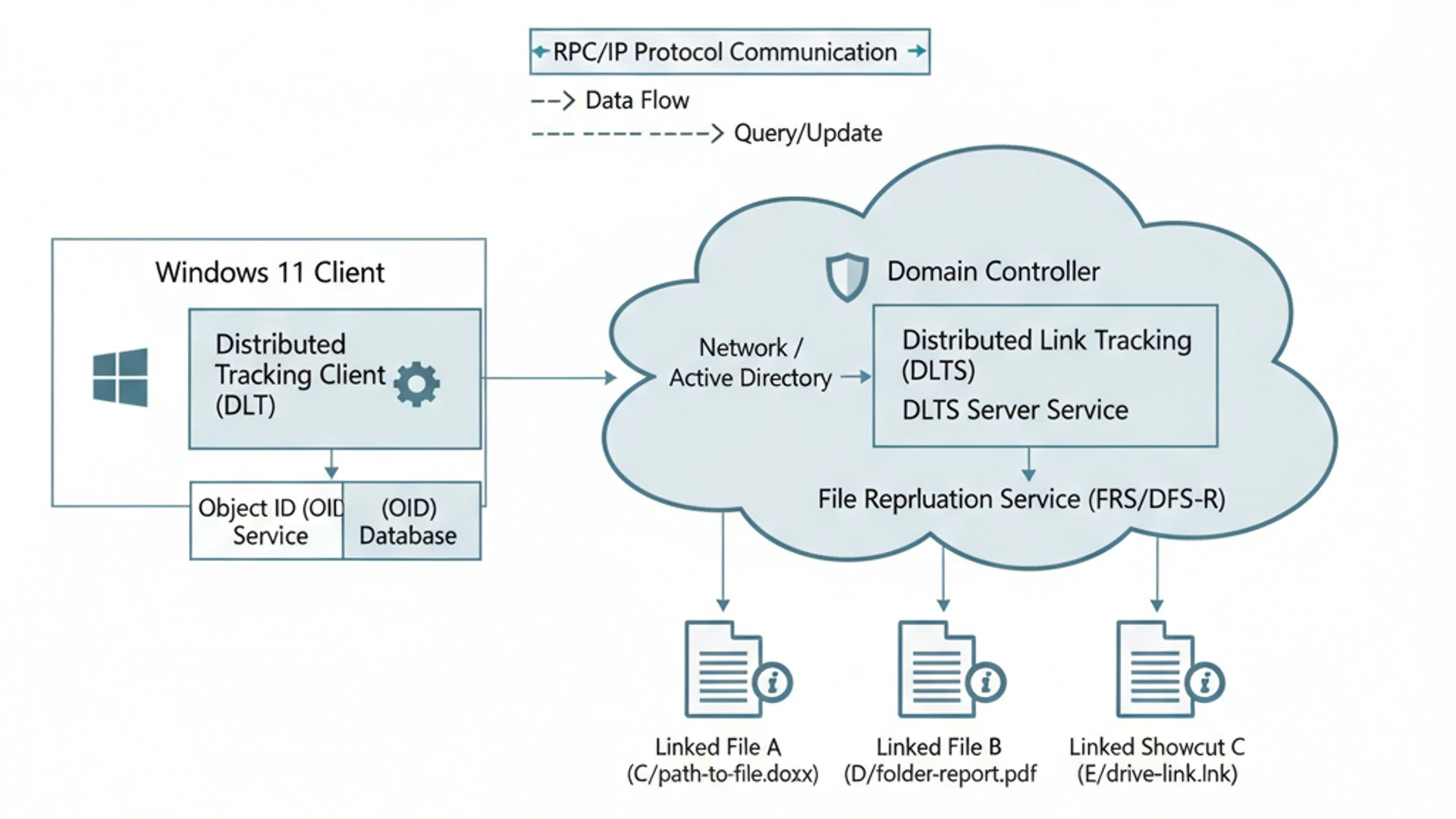
Many users might never consciously interact with this service, yet they benefit from its continuous operation. It’s a testament to good system design when complex functionalities work seamlessly without requiring direct user intervention. Understanding its importance can help you make informed decisions about its management.
Benefits for User Experience and Data Management
The most immediate and tangible benefit of the DLT Client is the enhancement of the user experience. Imagine a world without it: every time you reorganized your “Documents” folder or moved a project file, all existing shortcuts, recent file lists, and embedded objects would break. This would lead to constant manual updates or the tedious process of recreating links.
For data management, the DLT Client is invaluable. It ensures that references to files remain robust, even through routine organizational tasks. This is particularly beneficial for users who frequently download, create, and move files across different directories or drives. It helps maintain a logical structure, even if the physical location of files changes.
Furthermore, applications that embed objects (like an Excel spreadsheet embedded in a Word document) rely on this service. If the source Excel file is moved, the DLT Client helps the Word document find it, preventing errors and ensuring the embedded content remains accessible and up-to-date. This seamless integration is crucial for productivity and data integrity.
Scenarios Where DLT Client is Crucial
Several specific scenarios highlight where the DLT Client’s functionality becomes absolutely critical:
- Frequent File Reorganization: Users who regularly move files between folders, drives, or partitions will find their shortcuts consistently working, saving time and preventing annoyance.
- Shared Documents and Network Drives: In a domain environment, the DLT Client, in conjunction with a DLT Server, ensures that links to files on shared network drives remain valid even if the files are moved on the server. This is vital for collaborative work.
- Application Data References: Many applications store references to external files (e.g., media files in a video editor, texture files in a 3D modeling program). The DLT Client helps these applications maintain those links.
- Backup and Restore Operations: When files are restored from a backup to a different location, the DLT Client can help re-establish links that might have been broken by the change in path.
“The Distributed Link Tracking Client is a foundational service that underpins the reliability of file referencing in Windows 11, silently preventing countless instances of broken links and enhancing overall system resilience.”
Without this service, the operating system would feel far less intelligent and responsive to changes in your file system. Its continuous operation contributes significantly to the perceived stability and user-friendliness of Windows 11, making it a cornerstone of efficient digital workflow.
Locating and Managing DLT Client Service on Windows 11
While the Distributed Link Tracking Client service operates largely in the background, there might be instances where you need to check its status, change its startup type, or troubleshoot potential issues. Windows 11 provides several tools for managing system services, with the Services Manager being the most common and user-friendly option.
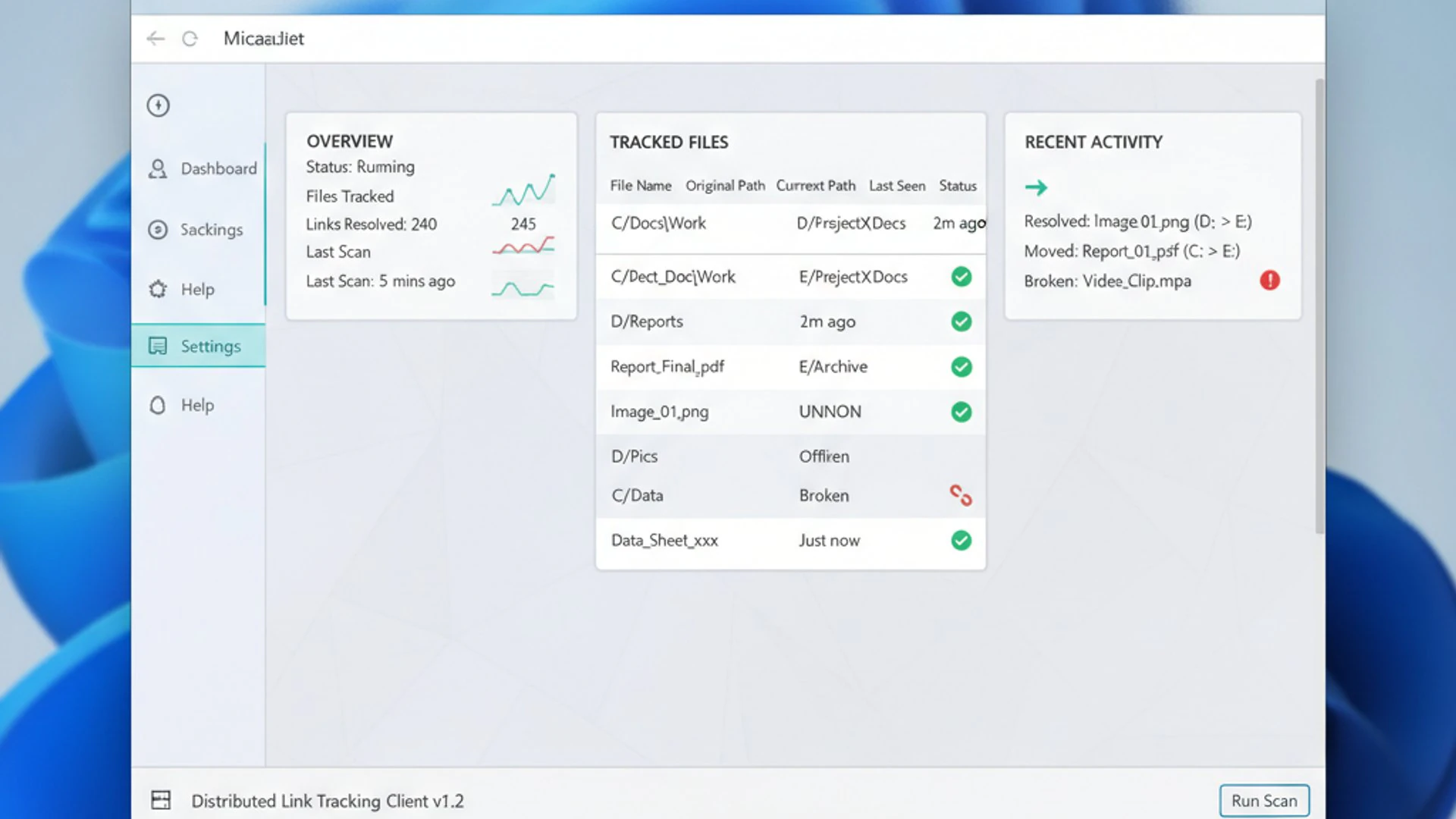
Knowing how to access and interpret the settings for the DLT Client is a valuable skill for any Windows 11 user looking to gain more control over their system’s operations. This section will guide you through the process of finding and assessing the service.
Accessing Services.msc
The primary tool for managing Windows services is the Services Manager, accessible through the services.msc console. This utility provides a comprehensive list of all services installed on your system, along with their current status and configuration.
To open the Services Manager:
- Press
Win + Rto open the Run dialog box. - Type
services.mscand pressEnter. - Alternatively, you can type “Services” into the Windows Search bar and select the “Services” app from the results.
Once the Services window opens, you’ll see a long list of services. These are typically sorted alphabetically. Scroll down until you find “Distributed Link Tracking Client.” You’ll notice other related services like “Distributed Link Tracking Server” if your system is part of a domain, but for most standalone Windows 11 users, the Client service is the relevant one.
Checking Service Status and Startup Type
After locating the Distributed Link Tracking Client service in the Services Manager, you can easily check its current status and startup type. These two parameters are crucial for understanding how the service is configured and whether it’s currently running.
In the main Services window, you’ll see columns for “Status” and “Startup Type.” For the DLT Client, the typical default configuration is:
- Status: Running
- Startup Type: Automatic
If the status is “Running,” it means the service is actively performing its link tracking functions. An “Automatic” startup type indicates that the service starts automatically every time Windows 11 boots up. Other startup types include “Manual” (starts only when needed by another service or application) and “Disabled” (prevents the service from starting at all).
To view more detailed information or to modify these settings, double-click on the “Distributed Link Tracking Client” entry. This will open the service’s Properties window, where you can find tabs for General, Log On, Recovery, and Dependencies. The General tab is where you can change the startup type and manually start or stop the service. Understanding these settings is the first step in effectively managing the DLT Client on your Windows 11 system.
How to Enable or Disable Distributed Link Tracking Client
Managing the Distributed Link Tracking Client on Windows 11 involves understanding how to enable or disable it. While it’s generally recommended to leave this service running for optimal system functionality, there might be specific scenarios, such as performance optimization on older hardware, where disabling it could be considered. This section outlines various methods to control the service.
It’s important to proceed with caution when modifying system services, especially using advanced tools like the Registry Editor. Always ensure you understand the potential implications of your actions before making changes.
Enabling DLT Client via Services Manager
The Services Manager (services.msc) is the safest and most straightforward method for enabling or disabling the DLT Client. If the service is currently disabled or set to Manual, you can easily revert it to its default, recommended state.
To enable the Distributed Link Tracking Client:
- Open the Services Manager (
Win + R, then typeservices.mscand pressEnter). - Locate “Distributed Link Tracking Client” in the list.
- Double-click on the service to open its Properties window.
- In the “General” tab, find the “Startup type” dropdown menu.
- Select “Automatic” from the dropdown.
- Click “Apply,” then click “Start” under “Service status” if the service is not already running.
- Finally, click “OK” to close the window.
Setting the startup type to “Automatic” ensures that the service will start every time your Windows 11 system boots up, providing continuous link tracking capabilities. If you only need it temporarily, you could set it to “Manual” and start it when required, but this is generally not practical for this particular service.
Disabling DLT Client for Performance Optimization
Disabling the DLT Client is a consideration primarily for users seeking to squeeze every bit of performance out of their system, especially those with minimal resources or who rarely move files. However, it comes with the trade-off of potentially broken shortcuts. If you decide to disable it:
- Open the Services Manager (
services.msc). - Locate “Distributed Link Tracking Client.”
- Double-click to open its Properties.
- In the “General” tab, change the “Startup type” to “Disabled”.
- Click “Apply.”
- If the service is currently running, click “Stop” under “Service status.”
- Click “OK.”
This action will prevent the service from starting automatically and will stop it if it’s currently active. Remember, this might lead to broken shortcuts if you move files after disabling the service. Consider your workflow carefully before making this change.
Using Registry Editor for Advanced Control
For advanced users, the Registry Editor offers another way to manage the DLT Client. This method provides granular control but requires extra caution, as incorrect modifications to the registry can cause system instability.
To modify DLT Client settings via Registry Editor:
- Press
Win + R, typeregedit, and pressEnter. Confirm the UAC prompt. - Navigate to:
HKEY_LOCAL_MACHINE\SYSTEM\CurrentControlSet\Services\TrkSvr(for the server component in a domain) orHKEY_LOCAL_MACHINE\SYSTEM\CurrentControlSet\Services\TrkWks(for the client workstation component). - Locate the
StartDWORD value. - Double-click
Startto modify its value:- 2 for Automatic (Enabled)
- 3 for Manual
- 4 for Disabled
- Click “OK” and then close the Registry Editor. A system restart might be required for changes to take full effect.
Always back up your registry before making significant changes. This method is generally reserved for situations where the Services Manager is inaccessible or for scripting purposes.
Command Prompt and PowerShell Methods
For those who prefer command-line interfaces or need to script these changes, both Command Prompt and PowerShell offer efficient ways to manage the Distributed Link Tracking Client.
Using Command Prompt (Admin):
- To disable the service:
sc config TrkWks start= disabled - To enable the service (set to Automatic):
sc config TrkWks start= auto - To stop the service:
net stop TrkWks - To start the service:
net start TrkWks
Using PowerShell (Admin):
- To disable the service:
Set-Service -Name TrkWks -StartupType Disabled -Status Stopped - To enable the service (set to Automatic and start):
Set-Service -Name TrkWks -StartupType Automatic -Status Running - To stop the service:
Stop-Service -Name TrkWks - To start the service:
Start-Service -Name TrkWks
These command-line methods provide quick and powerful ways to manage the service, especially useful for system administrators or for automating system configurations. Remember to run both Command Prompt and PowerShell with administrator privileges for these commands to execute successfully.
Potential Issues and Troubleshooting with DLT Client
While the Distributed Link Tracking Client is designed to be a reliable background service, like any software component, it can occasionally encounter issues. These problems are relatively rare but can manifest as unexpected resource consumption or errors. Understanding how to identify and address these issues is crucial for maintaining a healthy Windows 11 system.
Most DLT Client problems are minor and can be resolved with basic troubleshooting steps. However, persistent issues might require a deeper dive into system logs or more advanced diagnostic tools.
High CPU or Disk Usage Concerns
One of the most common concerns users might have about any background service is its impact on system resources. While the Distributed Link Tracking Client is generally lightweight, there are rare instances where it might exhibit unusually high CPU or disk usage.
If you notice your system slowing down and Task Manager points to TrkWks.exe (the executable for the DLT Client) as a culprit, consider the following:
- Recent Large File Operations: Have you recently moved a massive amount of files, especially across different drives? The DLT Client might be working overtime to update its database. This activity should be temporary.
- Corrupted Database: A corrupted DLT database can cause the service to continuously try and re-index files, leading to sustained high resource usage.
- Malware Interference: Although rare, malware can sometimes masquerade as legitimate services or interfere with their normal operation, causing resource spikes.
To troubleshoot, first, monitor the usage. If it’s temporary after a large file move, it’s likely normal. If it persists, a restart of the service or even the entire system can often resolve transient glitches. If the problem continues, consider checking system logs for errors related to the service.
Resolving DLT Client-Related Errors
Errors related to the DLT Client are not common, but if they occur, they typically appear in the Event Viewer. These errors might indicate problems with the service’s ability to track links or interact with the file system.
To check for errors:
- Press
Win + R, typeeventvwr.msc, and pressEnter. - Navigate to “Windows Logs” > “System”.
- Filter the logs by “Source” and look for entries related to “Distributed Link Tracking Client” or “TrkWks.”
Common resolutions for DLT Client errors include:
- Restarting the Service: Often, simply stopping and starting the service via Services Manager can clear minor internal issues.
- Running System File Checker (SFC): Corrupted system files can affect service operation. Open Command Prompt as administrator and run
sfc /scannow. - Checking Disk Health: Issues with your hard drive (especially NTFS volume corruption) can impact the DLT Client’s ability to read/write its database. Run
chkdsk /f /rfrom an elevated Command Prompt. - Disabling and Re-enabling: As a last resort, disabling the service, restarting your computer, and then re-enabling it might reset its state and resolve persistent errors.
If you are in a domain environment and experiencing issues, it might be related to the Distributed Link Tracking Server on your domain controller. In such cases, consulting your network administrator or IT support is advisable. For more general service troubleshooting, you might find our guide on RPC Endpoint Mapper on Windows 11 helpful, as many services rely on RPC.
Security Implications and Best Practices
When discussing any background service, it’s natural to consider its security implications. The Distributed Link Tracking Client, by its very nature, interacts deeply with the file system and, in domain environments, with network resources. Understanding these aspects is key to ensuring your Windows 11 system remains secure and performs optimally.
For most home users, the security risks associated with the DLT Client are minimal. However, for corporate environments or users with specific security requirements, a closer look is warranted.
DLT Client and Network Security Considerations
On a standalone Windows 11 machine, the Distributed Link Tracking Client operates locally, tracking files only within that specific computer’s NTFS volumes. In this scenario, its direct network security implications are negligible. It does not open ports or communicate over the network unless explicitly configured to do so by other services or applications.
However, in a Windows domain environment, the DLT Client communicates with a Distributed Link Tracking Server, typically hosted on a domain controller. This communication occurs over the network to track files moved across different computers within the domain. This network traffic uses specific RPC (Remote Procedure Call) protocols.
While this communication is generally secure within a properly configured domain, it does represent a potential attack surface. Ensuring your domain controllers are secure, patched, and that network traffic is monitored can mitigate any theoretical risks. For home users, this aspect is largely irrelevant.
When to Keep DLT Client Enabled or Disabled
Deciding whether to keep the DLT Client enabled or disabled involves weighing its benefits against potential, albeit usually minor, drawbacks. Here are some best practices:
- Keep Enabled for Most Users: For the vast majority of Windows 11 users, especially those who frequently move files, use shortcuts, or work with applications that embed objects, it is strongly recommended to keep the DLT Client enabled and set to “Automatic” startup. The benefits of unbroken links and enhanced file management far outweigh the minimal resource consumption.
- Consider Disabling for Minimalist Systems: If you are running Windows 11 on very old hardware with extremely limited RAM and CPU, or if you are an advanced user who meticulously manages files and avoids shortcuts, disabling the service might offer a tiny performance improvement. However, be prepared for broken shortcuts if you move files.
- Domain Environments: In corporate or domain-joined environments, the DLT Client is almost always essential. Disabling it could lead to significant issues with shared network resources, application functionality, and user productivity. Consult your IT department before making any changes.
“For optimal user experience and robust file management on Windows 11, the Distributed Link Tracking Client should generally remain enabled. Its role in maintaining link integrity is a cornerstone of a seamless computing environment.”
Always prioritize functionality and stability unless you have a clear, tested reason to disable a core system service. For more insights into managing Windows services, you can explore resources like How to Optimize HV Host Service on Windows 11.
Performance Impact of DLT Client on Windows 11
A common question regarding any background service is its impact on system performance. Users are often keen to optimize their Windows 11 experience, and sometimes this involves scrutinizing services that might consume resources. The Distributed Link Tracking Client is generally a very lightweight service, but it’s worth understanding its resource footprint.
Its design prioritizes efficiency, ensuring that its operations do not significantly impede the overall responsiveness of your system. However, specific scenarios or system configurations can influence its perceived impact.
Analyzing Resource Consumption
Under normal operating conditions, the Distributed Link Tracking Client consumes minimal CPU, RAM, and disk I/O. Its primary activities involve:
- Startup: During system boot, it initializes its database and registers with the operating system. This is a brief, one-time activity.
- File System Monitoring: It passively monitors NTFS file system changes for files with OIDs. This monitoring is highly optimized and event-driven, not a constant scan.
- Database Updates: When a file with an OID is moved or renamed, the service updates its internal database. This involves a small amount of disk write activity.
- Link Resolution: When a broken link is encountered, the service performs a lookup in its database to find the new location. This is a quick operation.
You can observe its resource usage in Task Manager. Look for the process TrkWks.exe under the “Details” tab. Typically, you will see its CPU usage at 0% for most of the time, with occasional, brief spikes when file movements occur. Memory consumption is also usually in the low single-digit megabytes, which is negligible for modern Windows 11 systems.
Significant, sustained high resource usage by TrkWks.exe is abnormal and usually indicative of an underlying issue, such as a corrupted database or a system-wide file system problem, rather than the service itself being inherently resource-intensive.
Balancing Functionality with System Responsiveness
The decision to keep the DLT Client enabled or disabled often comes down to balancing its valuable functionality against any perceived impact on system responsiveness. For the vast majority of Windows 11 users, the balance heavily favors keeping it enabled.
The benefits of having robust, self-healing shortcuts and file references contribute significantly to a smooth and frustration-free computing experience. The time saved by not having to manually fix broken links or search for misplaced files far outweighs the minuscule resources consumed by the service.
However, if you are running Windows 11 on a machine with very limited resources (e.g., an older system with 4GB RAM and a slow HDD), and you are an expert user who rarely uses shortcuts and manages files meticulously, then disabling the service might free up a few megabytes of RAM and prevent very occasional, minor disk activity. This is a niche scenario, and for most, the default “Automatic” setting is the optimal choice.
Ultimately, the Distributed Link Tracking Client is a prime example of a service designed to enhance user experience with minimal performance overhead. Its role is to make your system feel more intelligent and resilient, contributing positively to overall system responsiveness by preventing workflow interruptions.
Alternatives and Modern Approaches to Link Tracking
While the Distributed Link Tracking Client has been a cornerstone of Windows file management for decades, the landscape of data storage and access has evolved significantly. Modern computing environments offer various alternatives and complementary approaches to ensuring data accessibility and link integrity, often leveraging cloud technologies and advanced file system features.
These newer methods don’t necessarily replace the DLT Client entirely but rather provide different paradigms for managing files and their references, especially in distributed or collaborative settings.
Cloud Storage and Synchronization Services
One of the most pervasive modern alternatives to traditional local link tracking is the widespread adoption of cloud storage and synchronization services. Platforms like Microsoft OneDrive, Google Drive, Dropbox, and iCloud fundamentally change how files are accessed and referenced.
When you store a file in the cloud, its “location” becomes less about a specific path on a local drive and more about a persistent URL or a synchronized copy across devices. These services handle the complexity of keeping files updated and accessible from multiple locations and devices. If you move a file within your cloud storage, any links or shared references typically update automatically, as the service manages the underlying data integrity.
For example, a shared link to a OneDrive document remains valid even if you reorganize the file within your OneDrive folders. The DLT Client’s role becomes less critical for files exclusively managed by these cloud services, as their internal mechanisms provide superior, cross-device link management. However, for files stored locally and then synchronized, the DLT Client still ensures local shortcuts point to the correct synchronized copy.
Advanced File System Features
Beyond cloud services, modern file systems and operating system features also contribute to robust data management, sometimes overlapping with or enhancing the capabilities of the DLT Client.
- ReFS (Resilient File System): While primarily focused on data integrity and availability, ReFS in Windows Server (and some specific Windows 11 configurations) introduces features like integrity streams and block cloning that enhance data resilience. Although not directly a link-tracking mechanism, its robust nature reduces the likelihood of data corruption that could indirectly affect link validity. Learn more about Optimize ReFS Dedup Service on Windows 11.
- Symbolic Links and Junctions: These advanced NTFS features allow for creating flexible links to files and folders that behave like the original item. While they don’t offer the “self-healing” capabilities of DLT (if the target moves, the symlink breaks), they provide powerful ways to organize and reference data, especially for developers and system administrators.
- File History and Versioning: Features like File History in Windows 11 provide version control for your files. While not directly about link tracking, they ensure that previous states of a file are accessible, which can be crucial if a file is accidentally moved, deleted, or corrupted, offering a recovery mechanism that complements link integrity.
These modern approaches highlight a shift towards more distributed, resilient, and intelligent data management. While the DLT Client remains a valuable component for traditional local file system operations, its role is increasingly complemented by these advanced technologies, offering users a more robust and flexible computing experience.
Conclusion
The Distributed Link Tracking Client on Windows 11 is a prime example of a sophisticated background service designed to enhance the user experience without demanding direct attention. Its core mission is to ensure that your shortcuts, embedded objects, and file references remain valid and functional, even when the underlying files are moved, renamed, or reorganized across your system’s drives.
For the vast majority of users, the DLT Client is an indispensable component that silently prevents countless instances of broken links, thereby contributing significantly to system stability and user productivity. Its resource consumption is typically minimal, making it an excellent example of efficient system design. While advanced users might consider disabling it for niche performance gains, the benefits of its continuous operation usually far outweigh any perceived drawbacks.
Understanding how to locate, manage, and troubleshoot this service empowers you to maintain a more robust and responsive Windows 11 environment. Whether through the intuitive Services Manager or advanced command-line tools, you have the control to configure it according to your specific needs. As data management continues to evolve with cloud storage and advanced file systems, the DLT Client remains a foundational element, working in concert with newer technologies to ensure your digital world stays connected and accessible.









Community
Comments (0)