

Introduction to Dolby DAX API Service on Windows 11
In the digital age, where multimedia consumption dominates our daily lives, the quality of our audio experience has become paramount. Whether you’re engrossed in a blockbuster movie, immersed in a high-stakes gaming session, or simply enjoying your favorite music, superior sound can elevate the entire experience. Windows 11, Microsoft’s latest operating system, continues to push boundaries, and a crucial, yet often overlooked, component contributing to this enhanced audio landscape is the Dolby DAX API Service. For official context, Dolby’s Windows developer platform explains how its technologies integrate with Windows, while Microsoft’s Windows services documentation clarifies how background services work. You can also refer to Microsoft’s optimizing sound settings on Windows guide and Dolby’s Dolby Atmos technology overview for broader audio context.
This service acts as a vital bridge, enabling advanced Dolby audio technologies to integrate seamlessly with your system’s sound capabilities. It ensures that the rich, dynamic, and often spatial audio designed by content creators is delivered faithfully to your ears. Understanding the Dolby DAX API Service on Windows 11 is not just for audiophiles; it’s for anyone who values a truly immersive digital experience.
Over the years, audio technologies on Windows have evolved dramatically, moving from basic stereo output to sophisticated multi-channel and object-based sound. Dolby, a pioneer in audio innovation, has consistently been at the forefront of this evolution, bringing groundbreaking advancements like Dolby Digital and Dolby Atmos to the PC platform. This article will delve deep into the intricacies of the Dolby DAX API Service, exploring its functions, benefits, management, and troubleshooting, ensuring you can harness its full potential for an unparalleled audio journey on Windows 11.
Table of contents
Key Takeaways
The Dolby DAX API Service is a cornerstone for advanced audio on Windows 11. Here are the most crucial points to remember:
- The Dolby DAX API Service on Windows 11 is a background process that facilitates the integration and operation of Dolby audio enhancements, such as Dolby Atmos and Dolby Digital, with your system’s sound hardware and software.
- It is essential for delivering an immersive and high-fidelity audio experience, enabling features like spatial sound, dynamic range optimization, and enhanced clarity across various applications.
- The service acts as an intermediary, processing audio streams to apply Dolby’s proprietary algorithms before they reach your speakers or headphones.
- Users can manage the service via the Windows Services Manager, allowing for manual control over its startup, stopping, and restarting, which can be useful for troubleshooting or performance optimization.
- While generally beneficial, understanding its impact on system resources and knowing when to disable or re-enable it can help resolve specific audio conflicts or performance issues.
- Optimal audio quality often requires adjusting associated Dolby settings and profiles within dedicated Dolby applications, which leverage the DAX API Service.
- Troubleshooting common audio problems on Windows 11 often involves checking the status and functionality of the Dolby DAX API Service, as it directly influences sound output quality.
Understanding Dolby DAX Technology
Before we dissect the specific API service, it’s crucial to grasp the broader context of Dolby DAX technology. Dolby Laboratories has been a dominant force in audio innovation for decades, setting industry standards for sound quality in cinema, home entertainment, and personal computing. Their technologies are designed to create more engaging and realistic soundscapes, transforming how we perceive audio.

The term “DAX” itself often refers to Dolby Audio Experience or Dolby Access, which are applications and frameworks that leverage Dolby’s core audio processing capabilities. These technologies go beyond simple equalization, aiming to provide a comprehensive audio solution that adapts to different content types and playback devices.
Dolby’s influence extends across various platforms, ensuring that whether you’re watching a movie on a streaming service or playing a game, the audio is delivered with maximum impact. This foundational understanding helps illuminate why a dedicated service like the Dolby DAX API Service is necessary for Windows 11.
The Evolution of Dolby Audio on Windows
The journey of Dolby audio on Windows has been one of continuous advancement, mirroring the increasing sophistication of PC hardware and software. Initially, Dolby technologies were primarily associated with DVD and Blu-ray playback, offering multi-channel surround sound experiences through formats like Dolby Digital.
As personal computers became powerful multimedia hubs, the demand for cinematic audio quality on desktops and laptops grew. This led to closer integration, with hardware manufacturers often bundling Dolby software and drivers with their sound cards and integrated audio solutions.
With the advent of Windows 10 and now Windows 11, Dolby’s presence has become even more intrinsic. Microsoft has actively collaborated with Dolby to ensure that advanced audio capabilities are not just an add-on but a core part of the operating system’s multimedia framework. This partnership has paved the way for more seamless and robust audio experiences, moving beyond simple codecs to comprehensive spatial audio solutions.
Dolby Digital vs. Dolby Atmos Integration
To truly appreciate the Dolby DAX API Service, it’s helpful to distinguish between two prominent Dolby technologies: Dolby Digital and Dolby Atmos. While both aim to enhance audio, they operate on different principles and offer distinct experiences.
Dolby Digital is a foundational audio compression technology that provides multi-channel surround sound. It encodes audio into discrete channels (e.g., 5.1 or 7.1), delivering a directional sound experience where specific sounds emanate from designated speakers. It’s widely used in broadcast, DVDs, and many streaming services.
Dolby Atmos represents a significant leap forward. It’s an object-based audio format, meaning sounds are treated as individual “objects” that can be precisely placed and moved in a three-dimensional space, rather than being restricted to channels. This allows for a much more immersive and realistic spatial audio experience, even with headphones. Windows 11 offers native support for Dolby Atmos, often requiring the Dolby Access app to fully enable and configure it.
Tip: While Dolby Digital focuses on channel-based surround, Dolby Atmos introduces a revolutionary object-based approach, creating a truly three-dimensional soundscape that can be experienced even with standard stereo headphones.
The Dolby DAX API Service plays a critical role in managing and delivering both these technologies, ensuring that whether your content is Dolby Digital or Dolby Atmos, your Windows 11 system can process and output it correctly, leveraging the full potential of your audio hardware.
What is the Dolby DAX API Service?
The Dolby DAX API Service on Windows 11 is a crucial background process that facilitates the advanced audio processing capabilities provided by Dolby technologies. Essentially, it acts as a software interface (API – Application Programming Interface) that allows various applications and the operating system itself to communicate with Dolby’s audio engine.
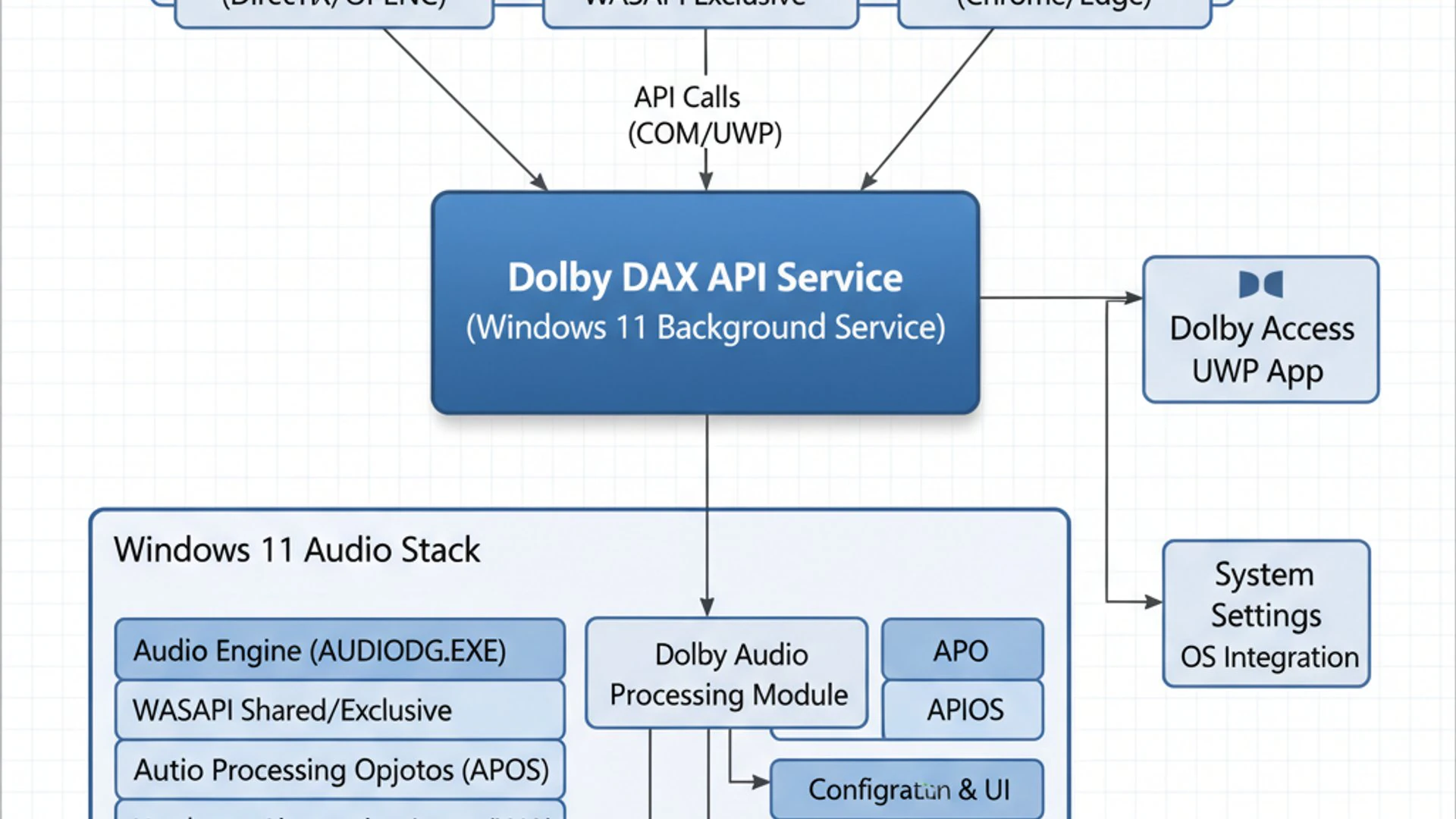
Without this service, your Windows 11 system would not be able to fully utilize the sophisticated sound enhancements offered by Dolby. It’s not an application you directly interact with, but rather a silent workhorse running in the background, ensuring that your audio is consistently optimized according to Dolby’s standards.
Think of it as a specialized translator and processor for sound. When an application requests Dolby-enhanced audio, the DAX API Service intercepts the audio stream, applies the necessary Dolby algorithms (like spatialization, dynamic range compression, or equalization), and then passes the processed audio to your sound card or integrated audio chip for output. This ensures a consistent and high-quality audio experience across different hardware configurations.
Core Functions and Responsibilities
The Dolby DAX API Service has several core functions that are vital for its operation and for delivering a superior audio experience on Windows 11. Its primary responsibility is to manage and execute the proprietary Dolby audio processing algorithms.
Firstly, it handles the real-time audio processing. This means it takes raw audio data from applications, applies Dolby effects like virtual surround sound, bass enhancement, or dialogue clarity, and then outputs the modified audio. This processing happens continuously while audio is playing.
Secondly, the service is responsible for interfacing with Dolby applications, such as the Dolby Access app. These applications provide user interfaces for configuring Dolby settings and profiles. The DAX API Service translates these user preferences into actionable commands for the underlying audio engine.
- Audio Stream Interception: It captures audio data from various sources within Windows 11.
- Dolby Algorithm Application: Applies specific Dolby processing, including spatial audio, dynamic range adjustments, and frequency response shaping.
- Hardware Abstraction: Ensures Dolby enhancements work consistently across different audio hardware.
- Profile Management: Implements user-defined audio profiles (e.g., Movie, Game, Music) managed through Dolby applications.
Finally, it plays a role in managing audio device capabilities. It can detect the type of audio output device (headphones, speakers, soundbars) and tailor the Dolby processing accordingly to deliver the best possible experience for that specific hardware.
How it Integrates with Windows 11 Audio Stack
The integration of the Dolby DAX API Service within the Windows 11 audio stack is a sophisticated process that ensures seamless operation. The Windows audio stack itself is a complex layered architecture, and the DAX API Service slots into this structure as a key component.
Typically, when an application plays audio, the sound data travels through several layers: from the application, through Windows’ audio APIs (like WASAPI or DirectSound), to the audio drivers, and finally to the hardware. The Dolby DAX API Service usually resides between the Windows audio APIs and the audio drivers, or sometimes directly within the audio driver’s processing chain.
This strategic placement allows the service to intercept the audio stream before it reaches the final output stage. It then applies its enhancements and passes the modified stream down the chain. This integration is often facilitated by audio drivers provided by hardware manufacturers (e.g., Realtek, Intel HD Audio) that are certified to work with Dolby technologies.
Key Insight: The Dolby DAX API Service acts as a crucial middleware, ensuring that Dolby’s proprietary audio processing is applied effectively and efficiently within the complex Windows 11 audio architecture, enhancing the raw audio data before it reaches your ears.
This tight integration means that when you enable Dolby Atmos for headphones, for instance, the DAX API Service is actively working in the background, transforming standard stereo output into a rich, three-dimensional soundscape, all without requiring manual intervention from the user beyond initial setup.
Benefits of the Dolby DAX API Service
The presence and proper functioning of the Dolby DAX API Service on Windows 11 bring a multitude of benefits, primarily centered around significantly enhancing the user’s audio experience. These advantages extend beyond mere volume boosts, delving into the realm of immersion, clarity, and dynamic range.
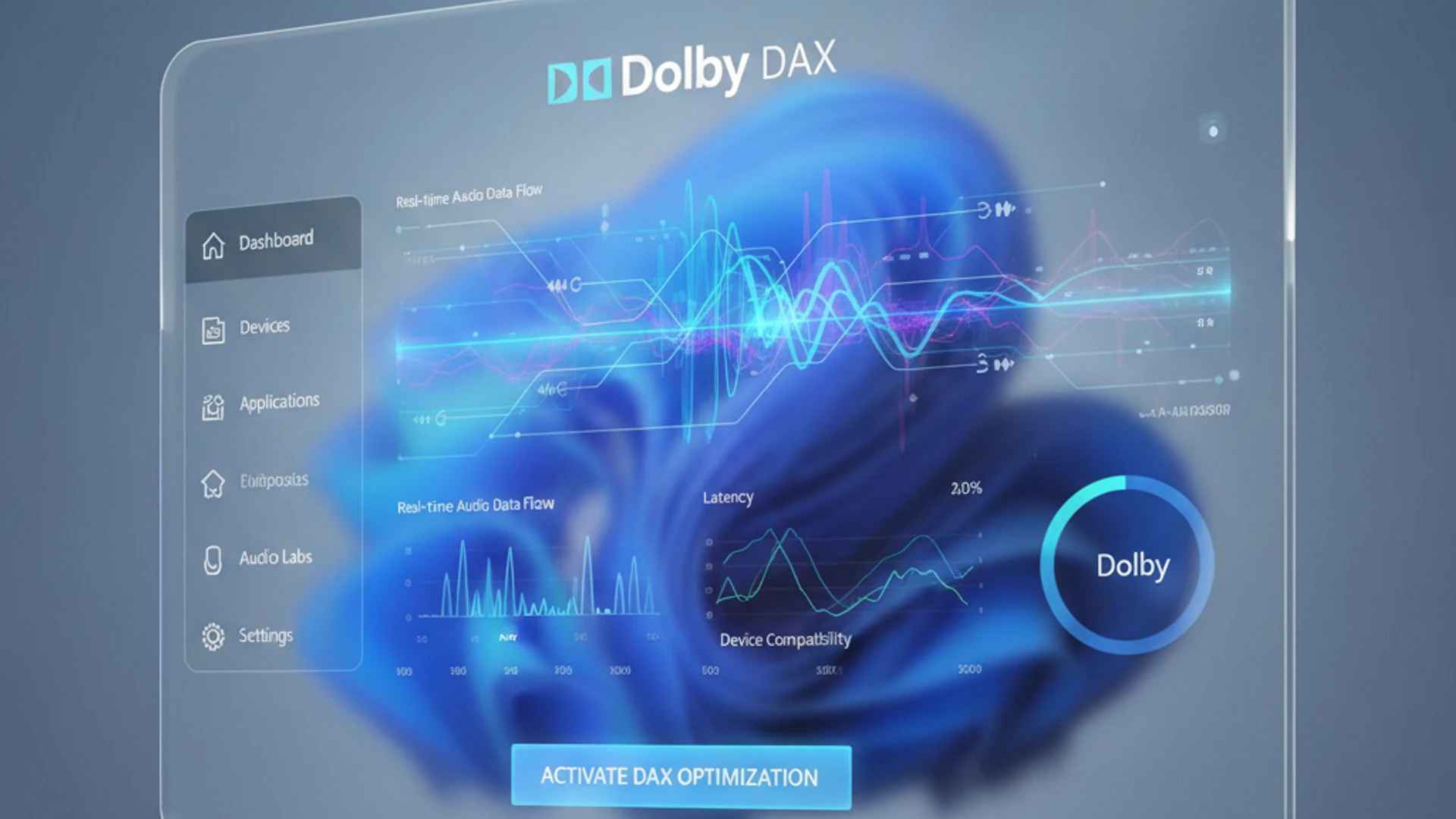
For many users, especially those with standard headphones or integrated speakers, the improvements can be quite dramatic. It transforms what might otherwise be flat or uninspired audio into something much more engaging and lifelike. This is particularly noticeable in content designed with Dolby technologies in mind, such as modern video games and streaming movies.
The service ensures that the intricate audio details, which content creators painstakingly craft, are not lost in translation by your playback system. Instead, they are amplified and presented in a way that maximizes their impact, drawing you deeper into the content.
Enhanced Audio Experience and Immersion
The most significant benefit of the Dolby DAX API Service is its contribution to an enhanced and immersive audio experience. This is achieved through several key technologies that the service manages.
Firstly, spatial sound is a game-changer. With technologies like Dolby Atmos, the service can create the illusion of sound coming from all around you, even above and below. This is incredibly impactful for gaming, allowing you to pinpoint enemy footsteps or the direction of an explosion with greater accuracy. For movies, it places you right in the center of the action, making dialogue, music, and effects feel more natural and enveloping.
Secondly, the service optimizes dynamic range. This means it intelligently adjusts the difference between the loudest and quietest sounds. For example, it can prevent sudden loud explosions from being overwhelmingly jarring while ensuring that subtle whispers remain audible, even in quiet passages. This leads to a more comfortable and less fatiguing listening experience.
- Spatial Audio: Creates a three-dimensional sound field for greater immersion in games and movies.
- Dynamic Range Optimization: Balances loud and soft sounds for a more consistent listening experience.
- Dialogue Enhancement: Improves the clarity of spoken words, making conversations easier to follow.
- Bass Boost: Adds depth and richness to low-frequency sounds without distortion.
Finally, overall sound clarity is dramatically improved. The Dolby DAX API Service often includes features like dialogue enhancement, which isolates and boosts spoken words, making them stand out against background noise. It can also apply intelligent equalization to bring out details across the entire frequency spectrum, resulting in a richer, more detailed sound profile. This comprehensive approach to audio processing elevates every aspect of your listening on Windows 11.
Identifying and Accessing the Dolby DAX API Service
While the Dolby DAX API Service operates silently in the background, knowing how to identify and access it within Windows 11 can be incredibly useful. This knowledge empowers you to check its status, troubleshoot issues, or simply confirm its presence on your system. It’s a standard Windows service, meaning it’s managed through the operating system’s built-in tools.
Accessing services doesn’t require any special software; it’s a straightforward process available to all Windows 11 users. Understanding where to find it is the first step towards taking control of its operation and ensuring your Dolby audio experience is always optimal. This section will guide you through the exact steps to locate this specific service.
Locating the Service in Windows Services Manager
The primary tool for managing background processes like the Dolby DAX API Service is the Windows Services Manager. Here’s how you can find it:
- Press the
Windows key + Rto open the Run dialog box. - Type
services.mscinto the Run dialog and pressEnter. This will open the Services window. - In the Services window, you’ll see a long list of services running on your system. These are typically sorted alphabetically by default.
- Scroll down the list until you find entries related to Dolby. You are looking for a service that is usually named something like “Dolby DAX API Service” or “Dolby Audio X2 Windows API Service” or similar variations. The exact name might differ slightly depending on your specific Dolby software installation or hardware manufacturer.
- Once you locate it, you can see its Status (e.g., “Running”) and its Startup Type (e.g., “Automatic”).
Double-clicking on the service name will open its Properties window, providing more details and options for management. This window is where you can see a description of the service, its executable path, and configure its startup behavior. Knowing how to navigate to this manager is fundamental for any advanced system management on Windows 11.
Managing the Dolby DAX API Service on Windows 11
Understanding how to manage the Dolby DAX API Service is crucial for maintaining optimal audio performance and troubleshooting potential issues. Like other Windows services, you have control over its operational state and how it starts with your system. This management is performed directly within the Services Manager, offering a centralized location for controlling background processes.
Proper service management can prevent conflicts, conserve system resources, or simply reset the audio engine if you encounter glitches. It’s a powerful tool that, when used correctly, ensures your audio experience remains top-notch. Let’s explore the practical steps involved in controlling this important service.
Starting, Stopping, and Restarting the Service
Once you’ve located the Dolby DAX API Service in the Windows Services Manager, you can easily control its operational state. These actions are fundamental for troubleshooting or applying changes.
- To Stop the Service:
- Right-click on the “Dolby DAX API Service” (or similar name) in the Services list.
- Select “Stop” from the context menu. The service’s status will change from “Running” to blank, indicating it’s no longer active.
- To Start the Service:
- Right-click on the “Dolby DAX API Service” in the Services list.
- Select “Start” from the context menu. The status should change to “Running” within a few moments.
- To Restart the Service:
- This is often the most useful action for resolving minor glitches without a full system reboot.
- Right-click on the “Dolby DAX API Service” in the Services list.
- Select “Restart” from the context menu. This action will automatically stop and then start the service, effectively refreshing its operation.
Restarting the service is often the first troubleshooting step if you notice any sudden degradation in Dolby audio quality or if the associated Dolby applications aren’t functioning correctly. It can resolve temporary hang-ups or resource conflicts without affecting other system operations.
Configuring Startup Type for Optimal Performance
Beyond simply starting or stopping, you can also configure how the Dolby DAX API Service behaves when your Windows 11 system boots up. This is controlled by its Startup type, which can significantly impact system boot times and resource allocation.
To change the startup type:
- Double-click on the “Dolby DAX API Service” in the Services list to open its Properties window.
- In the “General” tab, locate the “Startup type” dropdown menu.
- You’ll typically see a few options:
- Automatic: The service starts automatically when Windows 11 boots. This is the default and recommended setting for most users, ensuring Dolby audio enhancements are always available.
- Automatic (Delayed Start): The service starts automatically but only after other critical services have loaded. This can slightly improve boot times by deferring non-essential services.
- Manual: The service will not start automatically but can be started manually by a user or another program. This is generally not recommended unless you specifically want to disable Dolby audio by default and only enable it when needed.
- Disabled: The service is completely prevented from starting. This effectively disables all Dolby audio enhancements provided by this service.
- Select your desired startup type and click “Apply”, then “OK”.
For most users, keeping the service set to Automatic is ideal to ensure consistent Dolby audio. However, if you’re experiencing slow boot times and suspect this service might be a contributor, or if you rarely use Dolby audio, you might consider “Automatic (Delayed Start)” or “Manual.” Disabling it should only be done if you encounter persistent issues or explicitly do not want Dolby processing.
Troubleshooting Common Dolby DAX API Service Issues
Even with advanced services like the Dolby DAX API Service, issues can occasionally arise, leading to problems with your audio experience on Windows 11. These problems can range from a complete lack of sound to distorted audio or features not working as expected. Understanding how to troubleshoot these common issues is a valuable skill for any Windows user.
Many audio problems can be traced back to service-related errors, conflicts with other software, or incorrect configurations. This section will walk you through typical scenarios and provide actionable solutions to get your Dolby audio back on track. Remember, systematic troubleshooting is key to quickly identifying and resolving the root cause.
Addressing Audio Playback Problems
If you’re experiencing audio playback problems that seem related to Dolby enhancements, the Dolby DAX API Service is a prime suspect. Here are some common issues and their solutions:
- No Sound or Distorted Sound:
- Restart the Service: As mentioned, a simple restart of the Dolby DAX API Service often resolves temporary glitches. Navigate to
services.msc, find the service, and choose “Restart.” - Check Default Playback Device: Ensure your desired output device (headphones, speakers) is set as the default in Windows Sound Settings. Right-click the speaker icon in the taskbar, select “Sound settings,” and verify the output device.
- Update Audio Drivers: Outdated or corrupt audio drivers are a frequent cause of sound issues. Visit your PC manufacturer’s website or the sound card manufacturer’s website to download and install the latest drivers. You can also check Device Manager.
- Restart the Service: As mentioned, a simple restart of the Dolby DAX API Service often resolves temporary glitches. Navigate to
- Dolby Features Not Working (e.g., Spatial Sound Absent):
- Verify Dolby Access App: Ensure the Dolby Access application (if installed) is running and correctly configured. Sometimes, the settings within this app can become corrupted or reset.
- Check Windows Spatial Sound Settings: Right-click the speaker icon in the taskbar, go to “Sound settings,” then select your output device. Under “Spatial sound,” ensure “Dolby Atmos for Headphones” or “Dolby Atmos for Home Theater” is selected if applicable.
Always test your audio after each troubleshooting step to pinpoint when the problem is resolved. Sometimes, the issue might not be directly with the Dolby DAX API Service but with its interaction with other system components.
Resolving Service-Related Errors and Crashes
Occasionally, the Dolby DAX API Service itself might encounter errors, fail to start, or crash unexpectedly. These situations require a more focused approach:
- Service Fails to Start:
- Check Dependencies: In the service’s Properties window (double-click in
services.msc), go to the “Dependencies” tab. Ensure all services listed as dependencies are running. If not, start them manually. - Examine Event Viewer: Open the Event Viewer (search for it in the Start menu) and navigate to “Windows Logs” > “System.” Look for error messages related to the Dolby DAX API Service around the time the issue occurred. These logs can provide specific error codes or clues.
- Reinstall Dolby Software: If the service consistently fails to start, consider uninstalling any Dolby-related software (like Dolby Access or Dolby Audio drivers) from “Apps & features” in Windows Settings, then reinstalling them. This can replace corrupted service files.
- Check Dependencies: In the service’s Properties window (double-click in
- Service Crashes Unexpectedly:
- Check for Software Conflicts: Other audio enhancement software or conflicting drivers can cause the Dolby service to crash. Try temporarily disabling other audio utilities to see if the problem persists.
- System File Checker (SFC) Scan: Corrupted system files can sometimes affect service stability. Open Command Prompt as administrator and run
sfc /scannow. - Clean Boot: Perform a clean boot to identify if a third-party application or service is causing the conflict. Instructions for a clean boot are available on Microsoft’s support website.
Important: Before making significant changes like driver uninstallation or system file checks, it’s always a good practice to create a system restore point. This allows you to revert your system to a previous working state if something goes wrong.
By systematically addressing these potential issues, you can often resolve problems with the Dolby DAX API Service and restore your premium audio experience on Windows 11. For more general troubleshooting tips on Windows services, you might find articles like RPC Endpoint Mapper on Windows 11: Explained & Managed helpful for understanding service interactions.
When to Disable or Re-enable the Dolby DAX API Service
While the Dolby DAX API Service is integral to an enhanced audio experience, there might be specific scenarios where disabling or re-enabling it becomes necessary. This decision usually hinges on balancing audio quality with system performance, or resolving persistent compatibility issues. It’s not a service that typically needs frequent toggling, but knowing when and why to do so is part of advanced system management.
Disabling the service should not be a default action, as it will remove the Dolby audio enhancements. However, in certain troubleshooting contexts or for users with very specific needs, it can be a valuable tool. Conversely, if you’ve previously disabled it, knowing when to re-enable it ensures you’re getting the full audio potential from your Windows 11 system.
Performance Considerations and Resource Usage
Like any background service, the Dolby DAX API Service consumes a certain amount of system resources, including CPU cycles and RAM. For most modern Windows 11 systems, this consumption is minimal and negligible. However, on older hardware or systems already under heavy load, every bit of resource usage can contribute to overall system sluggishness.
If you notice your system is unusually slow, or if you’re experiencing micro-stutters during gaming or other demanding tasks, and you suspect an audio-related service might be contributing, you could consider temporarily disabling the Dolby DAX API Service as a diagnostic step. Monitor your system’s performance afterward.
Another reason to consider disabling it is if you prefer a completely “raw” audio output, without any post-processing, perhaps because you use external audio equipment with its own processing capabilities or professional audio software that might conflict. In such niche scenarios, disabling the service ensures that Dolby’s processing doesn’t interfere with your preferred audio chain.
Consideration: While the Dolby DAX API Service typically has a low resource footprint, temporarily disabling it can be a valid troubleshooting step to isolate performance bottlenecks or audio conflicts, especially on resource-constrained systems.
To disable the service, set its “Startup type” to “Disabled” in the Services Manager and then stop the service. To re-enable it, simply set the startup type back to “Automatic” or “Automatic (Delayed Start)” and then start the service. This flexibility allows users to tailor their system’s behavior to their specific needs and preferences, optimizing both performance and audio fidelity on Windows 11.
Optimizing Your Audio Experience with Dolby DAX
The Dolby DAX API Service lays the groundwork for superior audio, but to truly optimize your listening experience, you need to interact with the user-facing tools that leverage this service. These tools, primarily the Dolby Access application, provide a gateway to fine-tune Dolby settings and profiles, allowing you to customize the sound output to your preferences and specific content types.
Simply having the service running isn’t enough; actively engaging with its associated applications unlocks its full potential. This section will guide you through the process of adjusting these settings, ensuring you get the most out of the Dolby DAX API Service on your Windows 11 machine.
Adjusting Dolby Settings and Profiles
The primary way to adjust Dolby settings and profiles is through the Dolby Access app, which can be downloaded from the Microsoft Store. This application serves as the control panel for Dolby Atmos and other Dolby audio enhancements.
- Install Dolby Access: If you don’t have it, search for “Dolby Access” in the Microsoft Store and install it. It’s often required to fully enable Dolby Atmos for headphones or home theater systems.
- Launch Dolby Access: Open the app from your Start menu.
- Configure Devices: The app will typically guide you through setting up Dolby Atmos for your headphones or home theater system. Follow the on-screen instructions, which may involve selecting your audio output device.
- Explore Profiles: Dolby Access provides various preset audio profiles optimized for different content types. These often include:
- Game: Enhances spatial cues and impact for gaming.
- Movie: Optimizes dialogue, surround effects, and dynamic range for cinematic content.
- Music: Aims for a balanced and rich musical reproduction.
- Voice: Prioritizes clarity for spoken content like podcasts or video calls.
- Custom Equalizer: Many Dolby solutions also offer a custom equalizer, allowing you to manually adjust frequency bands to suit your personal hearing preferences or compensate for speaker/headphone characteristics. Experiment with these settings to find what sounds best to you.
The changes you make within the Dolby Access app are communicated to the Dolby DAX API Service, which then applies these preferences in real-time to your audio stream. Regularly checking for updates to the Dolby Access app and your audio drivers can also ensure you have the latest features and optimizations for your Dolby audio experience. This proactive approach ensures that the Dolby DAX API Service on Windows 11 consistently delivers the best possible sound quality.
Frequently Asked Questions about Dolby DAX API Service
Users often have questions about the Dolby DAX API Service, ranging from its necessity to its impact on system performance. Here are answers to some of the most common queries:
Q1: Is the Dolby DAX API Service essential for my Windows 11 PC?
A1: While not strictly “essential” for basic audio playback, it is crucial for experiencing Dolby audio enhancements like Dolby Atmos and Dolby Digital. If you want the best possible immersive sound, especially for gaming and movies, it should be running.
Q2: Can I uninstall the Dolby DAX API Service?
A2: You cannot directly uninstall the service as a standalone component. It’s part of the Dolby audio drivers or software package (like Dolby Access). If you uninstall the associated Dolby software, the service will typically be removed or become non-functional. However, simply disabling it is usually sufficient if you don’t want its functionality.
Q3: Does the Dolby DAX API Service consume a lot of system resources?
A3: Generally, no. On modern Windows 11 systems, its resource consumption (CPU and RAM) is minimal and designed to run efficiently in the background without noticeably impacting performance. Only on very old or heavily loaded systems might its impact be discernible.
Q4: My Dolby Atmos isn’t working. Is the DAX API Service the problem?
A4: It could be. The Dolby DAX API Service is responsible for processing Dolby Atmos audio. If it’s stopped, disabled, or encountering errors, Dolby Atmos won’t function. Check its status in the Services Manager and restart it if necessary. Also, ensure the Dolby Access app is installed and configured correctly, and your audio drivers are up to date.
Q5: What’s the difference between the Dolby DAX API Service and the Dolby Access app?
A5: The Dolby DAX API Service is a background process that performs the actual audio processing and integration. The Dolby Access app is the user interface that allows you to configure and manage Dolby settings, profiles, and enable features like Dolby Atmos. The app sends commands to the service, which then executes them.
Q6: Should I disable the Dolby DAX API Service if I’m not using Dolby audio?
A6: If you are absolutely certain you never use any Dolby audio enhancements and want to free up the absolute minimum amount of system resources, you could disable it. However, for most users, leaving it on “Automatic” is recommended to ensure that Dolby audio is available when content requires it, without any noticeable performance penalty.
Q7: How do I know if the Dolby DAX API Service is working correctly?
A7: The easiest way is to check its status in the Windows Services Manager (services.msc) to ensure it’s “Running.” More importantly, if your Dolby audio enhancements (like spatial sound in games or movies) are functioning as expected and you can adjust settings in the Dolby Access app, then it’s likely working correctly.
Conclusion
The Dolby DAX API Service on Windows 11 stands as a critical, albeit often unseen, component in delivering a truly premium audio experience. It’s the silent workhorse that bridges your applications and hardware with Dolby’s cutting-edge audio technologies, transforming ordinary sound into an immersive, dynamic, and crystal-clear auditory journey. From enhancing spatial awareness in games with Dolby Atmos to optimizing dynamic range for cinematic blockbusters, its contributions are profound.
Understanding this service, how to identify it, and how to manage its operations empowers you to take full control of your audio environment. Whether you’re troubleshooting a sudden loss of sound quality, optimizing system performance, or simply fine-tuning your audio profiles, the knowledge of the Dolby DAX API Service is invaluable. It ensures that your Windows 11 system is not just playing sound, but truly delivering an experience.
By leveraging the capabilities of this service through associated applications like Dolby Access, users can unlock the full potential of their audio hardware, making every listening session more engaging and enjoyable. In an era where multimedia consumption is central to our digital lives, the Dolby DAX API Service is a testament to the continuous pursuit of audio excellence on the Windows platform, ensuring that every sound is heard as the creators intended.
For more interesting articles, stay tuned to Winsides.com!









Community
Comments (0)