Skip to content
Winsides.com

Windows Insides

Winsides.com

Windows Insides

  • Windows 11
    • Windows Features
    • Windows Security
  • Shortcuts
    • Windows Shortcuts
    • Desktop Shortcuts
  • Microsoft
    • Microsoft Copilot
    • Microsoft Powertoys
  • Video Tutorials
  • About
    • What’s New?!
    • About us
    • Contact us
    • Privacy Policy
    • Terms of Use
  • Follow us
    • Reddit
    • Dev.to
    • YouTube
    • Linked In
    • X
    • Tumblr
    • Facebook
    • Instagram
    • Buy Me A Coffee
  • Our Tools
    • PeriodlyWise
    • ClockTools
    • Epoch Converter
    • Livetime.io
  • Windows 11
    • Windows Features
    • Windows Security
  • Shortcuts
    • Windows Shortcuts
    • Desktop Shortcuts
  • Microsoft
    • Microsoft Copilot
    • Microsoft Powertoys
  • Video Tutorials
  • About
    • What’s New?!
    • About us
    • Contact us
    • Privacy Policy
    • Terms of Use
  • Follow us
    • Reddit
    • Dev.to
    • YouTube
    • Linked In
    • X
    • Tumblr
    • Facebook
    • Instagram
    • Buy Me A Coffee
  • Our Tools
    • PeriodlyWise
    • ClockTools
    • Epoch Converter
    • Livetime.io
Close

Search

Winsides.com

Windows Insides

Winsides.com

Windows Insides

  • Windows 11
    • Windows Features
    • Windows Security
  • Shortcuts
    • Windows Shortcuts
    • Desktop Shortcuts
  • Microsoft
    • Microsoft Copilot
    • Microsoft Powertoys
  • Video Tutorials
  • About
    • What’s New?!
    • About us
    • Contact us
    • Privacy Policy
    • Terms of Use
  • Follow us
    • Reddit
    • Dev.to
    • YouTube
    • Linked In
    • X
    • Tumblr
    • Facebook
    • Instagram
    • Buy Me A Coffee
  • Our Tools
    • PeriodlyWise
    • ClockTools
    • Epoch Converter
    • Livetime.io
  • Windows 11
    • Windows Features
    • Windows Security
  • Shortcuts
    • Windows Shortcuts
    • Desktop Shortcuts
  • Microsoft
    • Microsoft Copilot
    • Microsoft Powertoys
  • Video Tutorials
  • About
    • What’s New?!
    • About us
    • Contact us
    • Privacy Policy
    • Terms of Use
  • Follow us
    • Reddit
    • Dev.to
    • YouTube
    • Linked In
    • X
    • Tumblr
    • Facebook
    • Instagram
    • Buy Me A Coffee
  • Our Tools
    • PeriodlyWise
    • ClockTools
    • Epoch Converter
    • Livetime.io
Close

Search

Home/Windows Features/How to Enable TCP Port Sharing in Windows 11?

How to Enable TCP Port Sharing in Windows 11?

Vigneshwaran Vijayakumar
By Vigneshwaran Vijayakumar
May 14, 2024 3 Min Read
0

Enable TCP Port Sharing in Windows 11: TCP Port Sharing in Windows 11 refers to the ability of multiple network services or applications to share the same TCP port on a single machine. This feature is particularly useful in scenarios where multiple services need to be accessible over the network but have restrictions on the number of ports they can use. It enhances resource utilization, simplifies network configuration, and improves network services’ scalability by efficiently managing TCP ports across multiple applications or services. In this article, we will check out the quick steps of How to Enable TCP Port Sharing in Windows 11. Check out: Enable TCP Activation in Windows 11

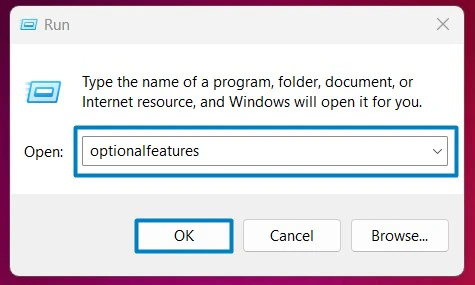
  • Open the Run command box using the shortcut Win Key + R.
  • Enter optionalfeatures in the run command box.

    Optional Features
    Optional Features
  • Windows Features dialog box will open now.
  • Locate .NET 4.8 Advanced Services and expand it.
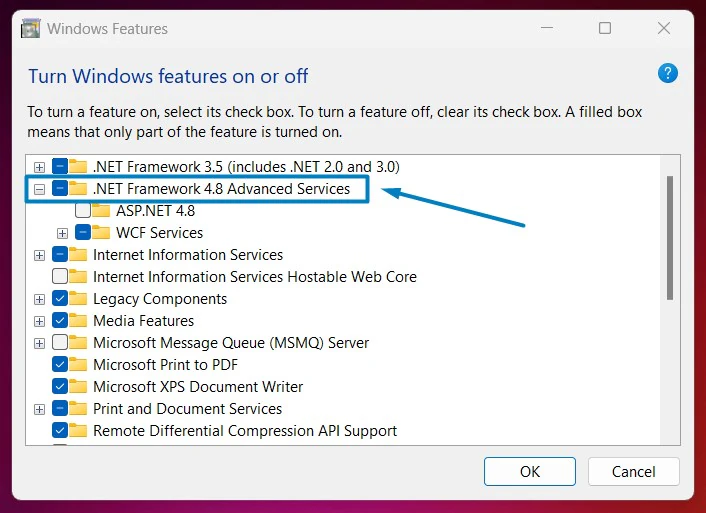
    DOT NET 4.8 Advanced Services
    DOT NET 4.8 Advanced Services
  • You can find WCF Services. Click on the plus sign next to it to expand it.
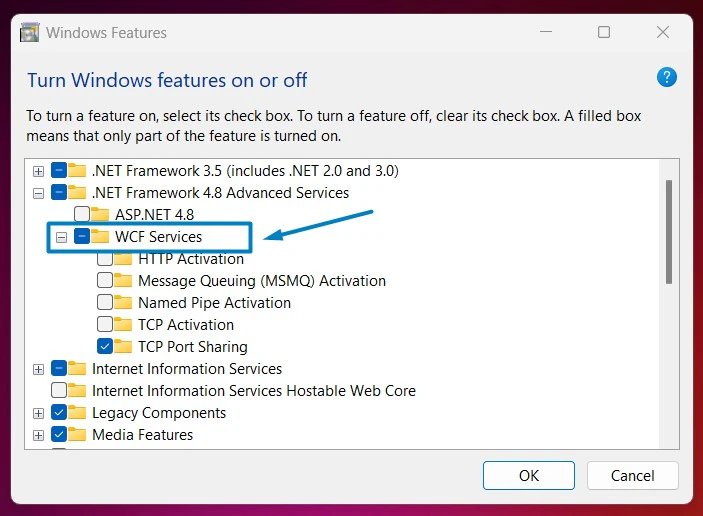
    WCF Services
    WCF Services
  • Now, you can find the TCP Port Sharing Feature. Click on the checkbox next to it, and click OK.
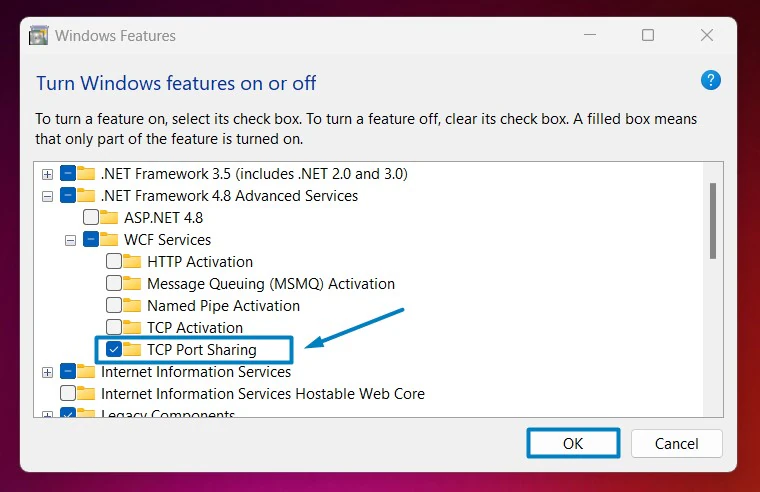
    Enable TCP Port Sharing in Windows 11
    Enable TCP Port Sharing in Windows 11
  • That is it, Windows 11 will now search for the required files.
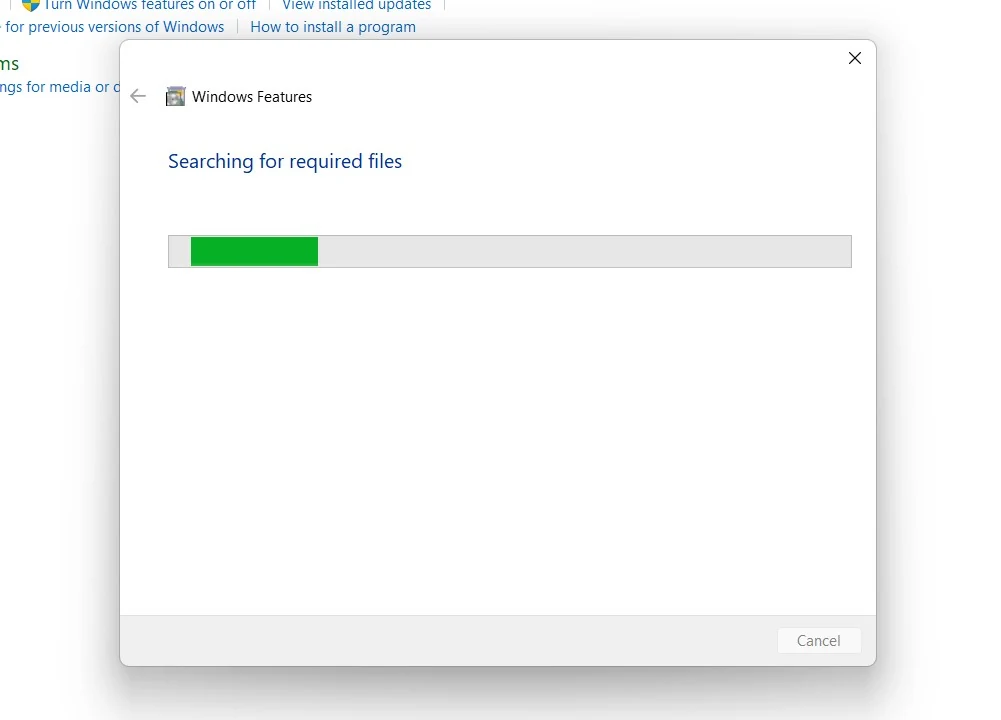
    Searching for the required files
    Searching for the required files
  • Then, it will apply the necessary changes.
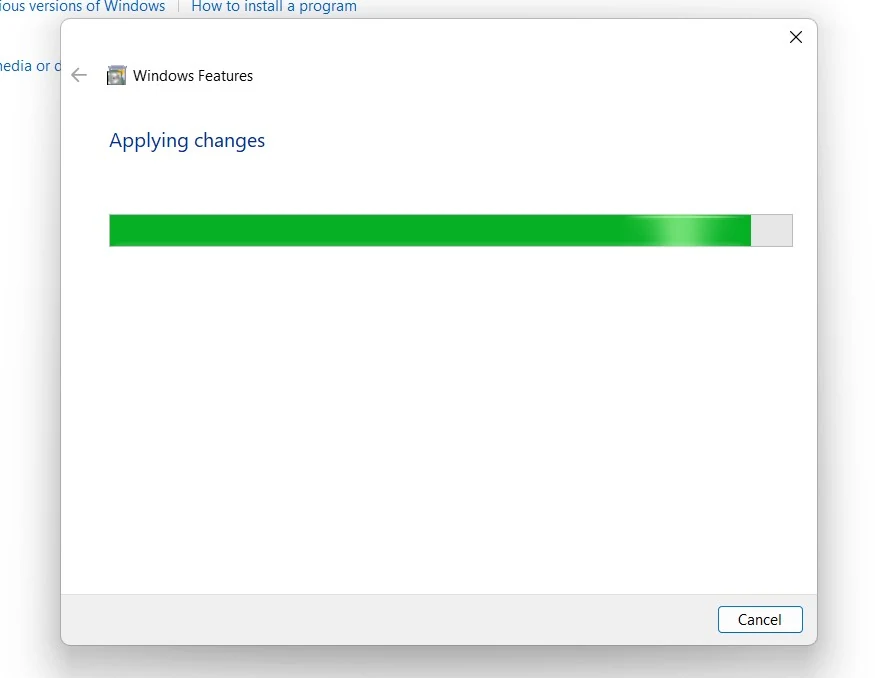
    Applying Changes
    Applying Changes
  • Click Restart if you are prompted to restart or click Close accordingly. However, it is suggested to restart right away so that the changes made will reflect.
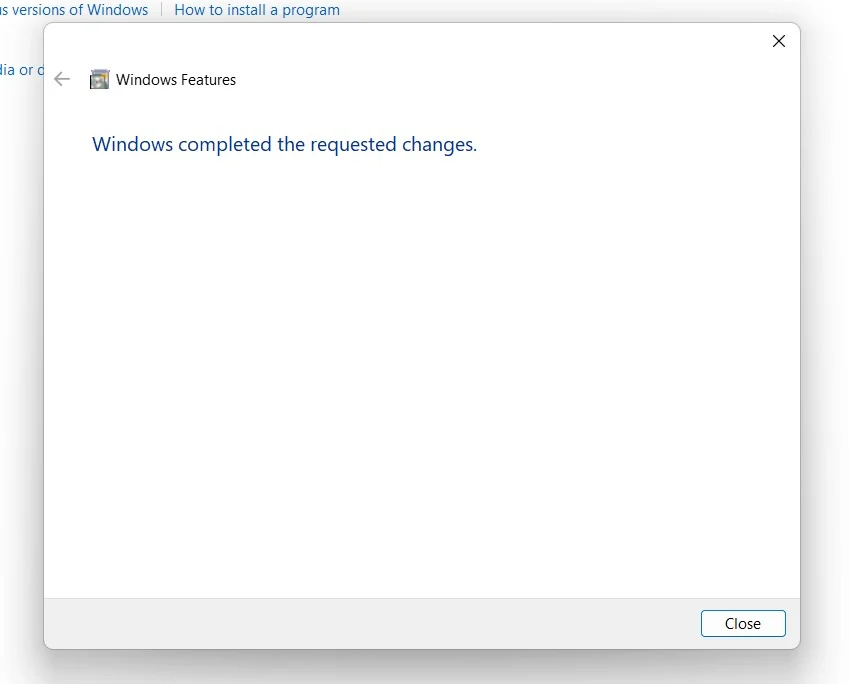
    Close
    Close
  • TCP Port Sharing is now enabled on your Windows 11 PC.

Make sure to Enable .NET 4.8 Advanced Services and WCF Services to ensure the proper functioning of TCP Port Sharing.

Intriguing Facts about TCP Port Sharing:

  1. Windows Process Activation Service(WAS) can manage TCP ports for WCF services hosted in IIS. It allows multiple WCF services to share the same TCP port, improving resource utilization and enabling efficient communication over the network.
  2. When hosting WCF Services in Windows 11 using .NET 4.8 Advanced Services, TCP Port Sharing becomes important for optimizing resource usage and enabling multiple services to share the same TCP port.

Take away:

TCP Port Sharing in Windows 11, along with .NET 4.8 Advanced Services and WCF Services, involves the coordination between WAS, which manages the hosting environment, and the .NET framework, which includes WCF Services for building and managing communication protocols. Together, they enable efficient sharing of TCP ports among multiple services, enhancing scalability and resource utilization in network communication. Happy Networking! Peace out!

Tags:

Enable TCP Port Sharing in Windows 11How to Enable in Windows 11windows 11
Vigneshwaran Vijayakumar
Author

Vigneshwaran Vijayakumar

Hello, I'm Vigneshwaran, the founder, owner, and author of WinSides.Com. With nearly a decade of experience in blogging across various domains and specializing in Windows-related tutorials for over five years, I bring a wealth of knowledge and expertise to WinSides.Com

Follow Me
Other Articles
Use Smartphone as a connected camera in Windows 11
Previous

Use Smartphone Camera as Webcam for Apps in Windows 11

MSMQ SERVER CORE in Windows 11
Next

Enable Microsoft Message Queue (MSMQ) Server Core in Windows 11

No Comment! Be the first one.

Leave a Reply Cancel reply

Your email address will not be published. Required fields are marked *

  • CNG Key Isolation on Windows 11: Understanding & Management
  • System Image Backup on Windows 11: Comprehensive Guide
  • Declared Configuration Service on Windows 11 Explained
  • DHCP Client on Windows 11: Comprehensive Setup & Troubleshooting
  • Epochtools.app: Features, Benefits, and Comprehensive Guide
  1. Vigneshwaran Vijayakumar
    Vigneshwaran Vijayakumar on How to Enable Windows PowerShell 2.0 in Windows 11?October 5, 2025

    Hello Mr. Mohamad El-Kheir, Thank you for contacting us. Microsoft has removed PowerShell version 2.0 completely from Windows 11 24H2…

  2. Avatar of Mohamad El-Kheir
    Mohamad El-Kheir on How to Enable Windows PowerShell 2.0 in Windows 11?October 5, 2025

    i have a MSI laptop with windows 11 Home Installed on it. how to install powershell v2.0 on it

  3. Vigneshwaran Vijayakumar
    Vigneshwaran Vijayakumar on DxDiag Windows 11 – What is it & How to use it for Troubleshooting?August 14, 2025

    Hey Myla Shannon Thank you for your valuable feedback. We are delighted to hear your compliment and excited to know…

  4. Avatar of Myla Shannon
    Myla Shannon on DxDiag Windows 11 – What is it & How to use it for Troubleshooting?August 14, 2025

    This content is incredibly informative.

  5. Avatar of seven
    seven on How to Enable IIS [Internet Information Services] in Windows 11?July 29, 2025

    I found this post very helpful.

Winsides.com

At WinSides, we believe in simplifying technology and making it accessible to everyone.

Explore

Windows 11 Windows Features Windows Security Microsoft Shortcuts

Resources

Video Tutorials What’s New?! Publication Sitemap Why Trust Winsides.com?

Company

About us Contact us Authors Careers

Legal

Privacy Policy Terms of Use Disclaimer Content Removal Request

Our Projects

PeriodlyWise ClockTools EpochTools LiveTime

Copyright 2024-2026 Winsides.com. All rights reserved.