Skip to content
Winsides.com

Windows Insides

Winsides.com

Windows Insides

  • Windows 11
  • Windows Features
  • Windows Security
  • Microsoft
    • Microsoft Copilot
    • Microsoft Powertoys
  • Shortcuts
    • Windows Shortcuts
    • Desktop Shortcuts
  • Video Tutorials
  • About
    • What’s New?!
    • About us
    • Contact us
    • Privacy Policy
    • Terms of Use
  • Follow us
    • Reddit
    • Dev.to
    • YouTube
    • Linked In
    • X
    • Tumblr
    • Facebook
    • Instagram
    • Buy Me A Coffee
  • Windows 11
  • Windows Features
  • Windows Security
  • Microsoft
    • Microsoft Copilot
    • Microsoft Powertoys
  • Shortcuts
    • Windows Shortcuts
    • Desktop Shortcuts
  • Video Tutorials
  • About
    • What’s New?!
    • About us
    • Contact us
    • Privacy Policy
    • Terms of Use
  • Follow us
    • Reddit
    • Dev.to
    • YouTube
    • Linked In
    • X
    • Tumblr
    • Facebook
    • Instagram
    • Buy Me A Coffee
Close

Search

Winsides.com

Windows Insides

Winsides.com

Windows Insides

  • Windows 11
  • Windows Features
  • Windows Security
  • Microsoft
    • Microsoft Copilot
    • Microsoft Powertoys
  • Shortcuts
    • Windows Shortcuts
    • Desktop Shortcuts
  • Video Tutorials
  • About
    • What’s New?!
    • About us
    • Contact us
    • Privacy Policy
    • Terms of Use
  • Follow us
    • Reddit
    • Dev.to
    • YouTube
    • Linked In
    • X
    • Tumblr
    • Facebook
    • Instagram
    • Buy Me A Coffee
  • Windows 11
  • Windows Features
  • Windows Security
  • Microsoft
    • Microsoft Copilot
    • Microsoft Powertoys
  • Shortcuts
    • Windows Shortcuts
    • Desktop Shortcuts
  • Video Tutorials
  • About
    • What’s New?!
    • About us
    • Contact us
    • Privacy Policy
    • Terms of Use
  • Follow us
    • Reddit
    • Dev.to
    • YouTube
    • Linked In
    • X
    • Tumblr
    • Facebook
    • Instagram
    • Buy Me A Coffee
Close

Search

Home/Windows Features/Enable Tracing for ASP.NET Apps in Windows 11 – Quick way

Enable Tracing for ASP.NET Apps in Windows 11 – Quick way

Vigneshwaran Vijayakumar
By Vigneshwaran Vijayakumar
October 31, 2024 3 Min Read
0

Tracing in ASP.NET applications and failed request tracing in Windows 11 are diagnostic tools used to help identify and resolve performance or functional issues in web applications and their hosting environments. It helps in monitoring and troubleshooting web applications by logging detailed information about the requests processed by the application. It can track request timing, error details, and performance metrics and the data collected includes HTTP request details, session data, authentication information, etc. This article will guide you through the steps of How to Enable Tracing for ASP.NET Apps in Windows 11. Let’s get started.

Route Map for Tracing for ASP.NET Applications and failed Requests in Windows 11
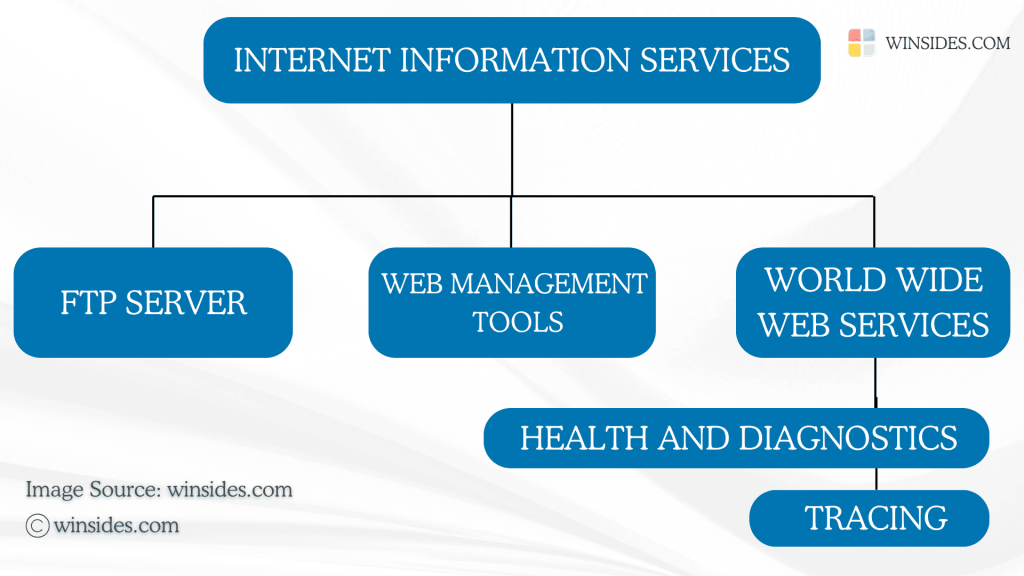
Tracing for ASP.NET Apps and failed request route map
  • You can use the Run command to open the Windows Features. Use Win Key + R to open the Run command and then run the following command. appwiz.cpl
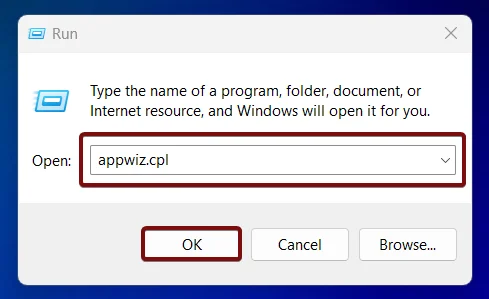
Open Programs and Features using appwiz.cpl
  • The Programs and Features window will open now. On the left pane, you can find Turn Windows Features on or off option. Click on that.
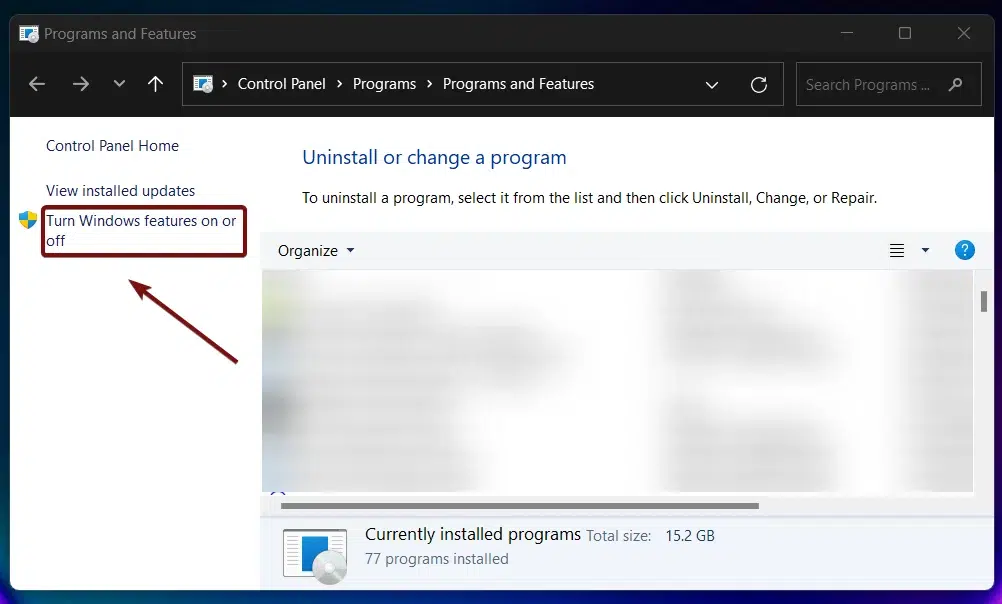
Turn Windows Features on or off
  • Now, the Windows Features dialog will open. Here, you can find all the available optional features.
  • Find the Internet Information Services from the list of services available and expand it.
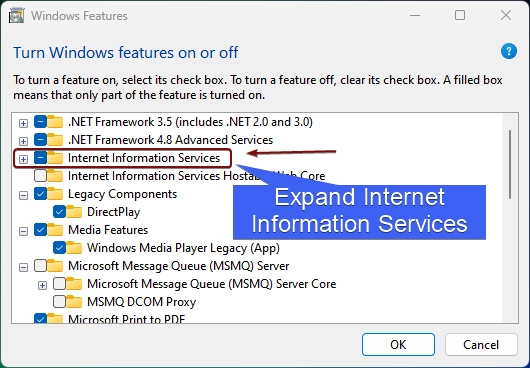
Expand IIS Node
Expand IIS Node
  • You will find FTP Server, Web Management Tools, and World Wide Web Services. All of these features are related to the IIS. We have to expand the World Wide Web Services.
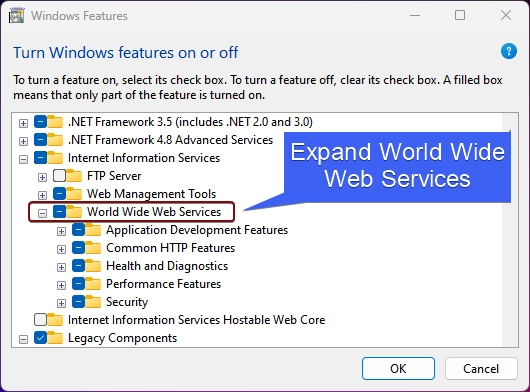
Expand World Wide Web Services
  • You will find various features such as Application Development Features, Common HTTP Features, Health and Diagnostics, etc. Expand Health and Diagnostics.
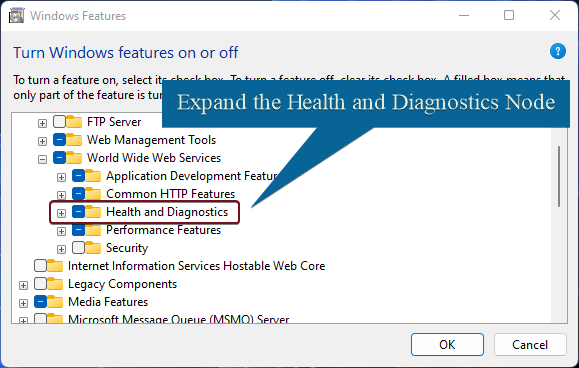
Expand Health and Diagnostics Tree
  • Here, You can find the option Tracing, preferably at the last in the list. Enable it.
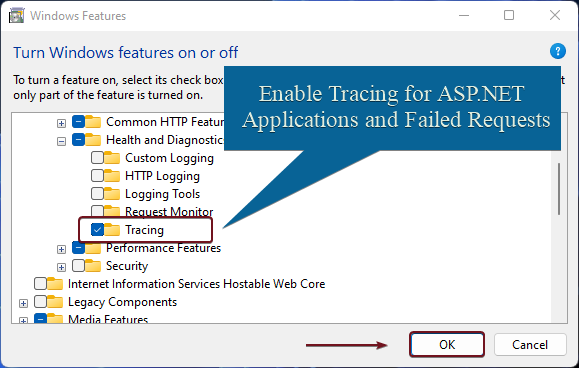
Enable Tracing for ASP.NET Apps
  • Windows will now start searching for the required files.
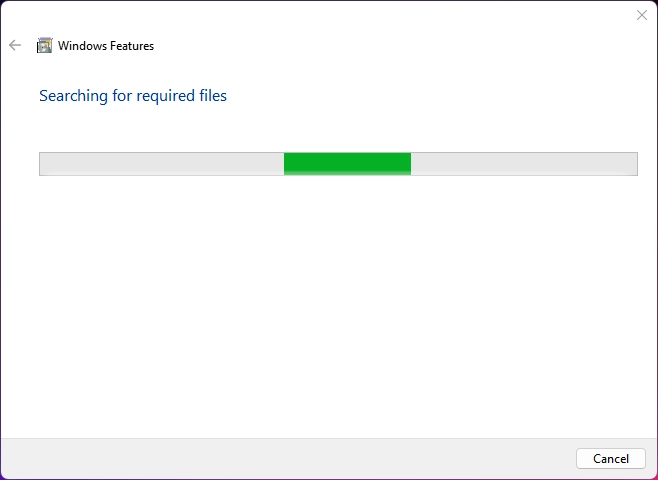
Searching for the required files
  • Then the system will apply the changes.
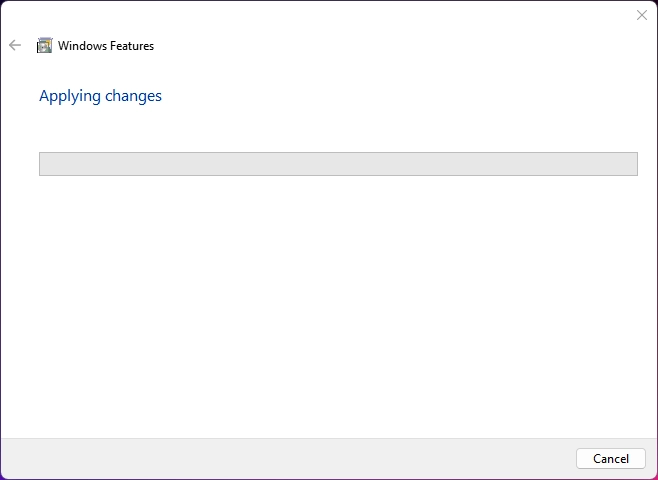
Applying Changes
Applying Changes
  • You will be prompted to do a restart. Click on Restart now. We highly recommend doing the restart right away so that the changes made will be reflected in the system.
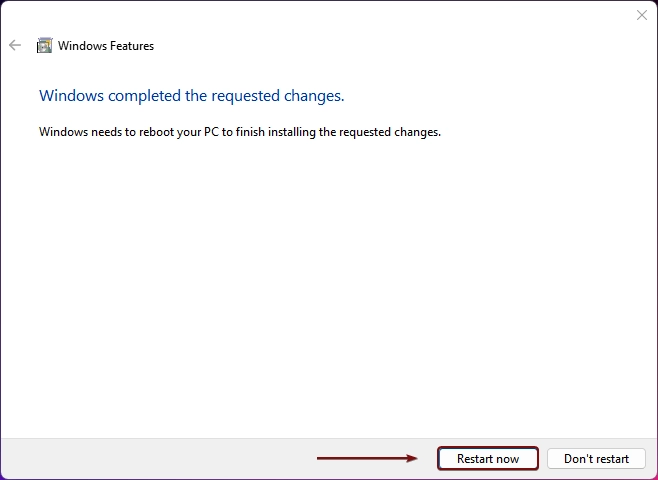
Restart the PC
Restart the PC

That is it. Tracing for ASP.NET Applications and failed requests is now enabled on your Windows 11 PC.

Take away

This diagnostic approach helps developers and administrators identify, understand, and resolve issues in web applications and server environments. Tracing for ASP.NET Applications and failed requests in Windows 11 provides a robust toolkit for troubleshooting, optimizing, and maintaining reliable web applications that are running on the IIS Server. If you have any queries, kindly let us know in the comment section, and for more interesting articles, stay tuned to winsides.com. Happy Coding! Peace out!

Like our Article

Kindly give us a review. We love you hear from you!

Tags:

Enable Tracing for ASPHow to Enable in Windows 11IISTracing for ASP.NET Appswindows 11Windows Features
Vigneshwaran Vijayakumar
Author

Vigneshwaran Vijayakumar

Hello, I'm Vigneshwaran, the founder, owner, and author of WinSides.Com. With nearly a decade of experience in blogging across various domains and specializing in Windows-related tutorials for over five years, I bring a wealth of knowledge and expertise to WinSides.Com

Follow Me
Other Articles
Enable ISAPI Extensions in Windows 11
Previous

Easy way to enable ISAPI Extensions in Windows 11

Find Your Windows 11 is 64-bit, 32-bit. or ARM using 8 Top Methods!
Next

Find Your Windows 11 is 64-bit, 32-bit, or ARM using 8 Top Methods!

No Comment! Be the first one.

Leave a Reply Cancel reply

Your email address will not be published. Required fields are marked *

  • How to Run Group Policy Editor as Administrator on Windows 11?
  • Easy Way to Enable Windows Subsystem for Linux in Windows 11
  • Enable Windows Subsystem for Linux (WSL 2) using Command Prompt & PowerShell
  • Enable IIS Management Console in Windows 11 [GUI]
  • Quick Steps to Enable Core Isolation in Windows 11
  1. Vigneshwaran Vijayakumar
    Vigneshwaran Vijayakumar on How to Enable Windows PowerShell 2.0 in Windows 11?October 5, 2025

    Hello Mr. Mohamad El-Kheir, Thank you for contacting us. Microsoft has removed PowerShell version 2.0 completely from Windows 11 24H2…

  2. Avatar of Mohamad El-Kheir
    Mohamad El-Kheir on How to Enable Windows PowerShell 2.0 in Windows 11?October 5, 2025

    i have a MSI laptop with windows 11 Home Installed on it. how to install powershell v2.0 on it

  3. Vigneshwaran Vijayakumar
    Vigneshwaran Vijayakumar on DxDiag Windows 11 – What is it & How to use it for Troubleshooting?August 14, 2025

    Hey Myla Shannon Thank you for your valuable feedback. We are delighted to hear your compliment and excited to know…

  4. Avatar of Myla Shannon
    Myla Shannon on DxDiag Windows 11 – What is it & How to use it for Troubleshooting?August 14, 2025

    This content is incredibly informative.

  5. Avatar of seven
    seven on How to Enable IIS [Internet Information Services] in Windows 11?July 29, 2025

    I found this post very helpful.

  • About us
  • What’s New?!
  • Guest Posts on Winsides.com – Terms and Conditions
  • Publication Sitemap
  • Careers
  • Authors
  • Why Trust Winsides.com?
  • Content Removal Request
  • Terms of Use
  • Disclaimer
  • Contact us
Copyright 2024-2026 - Winsides.com. All rights reserved.