Skip to content
Winsides.com

Windows Insides

Winsides.com

Windows Insides

  • Windows 11
  • Windows Features
  • Windows Security
  • Microsoft
    • Microsoft Copilot
    • Microsoft Powertoys
  • Shortcuts
    • Windows Shortcuts
    • Desktop Shortcuts
  • Video Tutorials
  • About
    • What’s New?!
    • About us
    • Contact us
    • Privacy Policy
    • Terms of Use
  • Follow us
    • Reddit
    • Dev.to
    • YouTube
    • Linked In
    • X
    • Tumblr
    • Facebook
    • Instagram
    • Buy Me A Coffee
  • Windows 11
  • Windows Features
  • Windows Security
  • Microsoft
    • Microsoft Copilot
    • Microsoft Powertoys
  • Shortcuts
    • Windows Shortcuts
    • Desktop Shortcuts
  • Video Tutorials
  • About
    • What’s New?!
    • About us
    • Contact us
    • Privacy Policy
    • Terms of Use
  • Follow us
    • Reddit
    • Dev.to
    • YouTube
    • Linked In
    • X
    • Tumblr
    • Facebook
    • Instagram
    • Buy Me A Coffee
Close

Search

Winsides.com

Windows Insides

Winsides.com

Windows Insides

  • Windows 11
  • Windows Features
  • Windows Security
  • Microsoft
    • Microsoft Copilot
    • Microsoft Powertoys
  • Shortcuts
    • Windows Shortcuts
    • Desktop Shortcuts
  • Video Tutorials
  • About
    • What’s New?!
    • About us
    • Contact us
    • Privacy Policy
    • Terms of Use
  • Follow us
    • Reddit
    • Dev.to
    • YouTube
    • Linked In
    • X
    • Tumblr
    • Facebook
    • Instagram
    • Buy Me A Coffee
  • Windows 11
  • Windows Features
  • Windows Security
  • Microsoft
    • Microsoft Copilot
    • Microsoft Powertoys
  • Shortcuts
    • Windows Shortcuts
    • Desktop Shortcuts
  • Video Tutorials
  • About
    • What’s New?!
    • About us
    • Contact us
    • Privacy Policy
    • Terms of Use
  • Follow us
    • Reddit
    • Dev.to
    • YouTube
    • Linked In
    • X
    • Tumblr
    • Facebook
    • Instagram
    • Buy Me A Coffee
Close

Search

Home/Windows 11/How To?/How to Run System Properties as Administrator on Windows 11?

How to Run System Properties as Administrator on Windows 11?

Vigneshwaran Vijayakumar
By Vigneshwaran Vijayakumar
April 4, 2026 7 Min Read
0

System Properties is a powerful tool that contains a set of characteristics and settings that define and control a computer system’s behavior, which includes information about the system’s hardware, software, configuration settings, and much more. While it is accessible to standard users, certain administrative tasks, like configuring system protection or modifying startup settings, require running System Properties with elevated privileges. Follow these steps mentioned below to run system properties as administrator on windows 11 pc.

Table of Contents

  • Different Methods to Run System Properties as Administrator on Windows 11
  • 1. How to use Run Command and Open System Properties with Administrative Privileges?
  • 2. Open CMD or Windows PowerShell with Administrative Privileges and run System Properties
  • 3. Run New Task to Open System Properties with Administrative Privileges on Windows 11
  • 4. Always Open System Properties as Administrator by Creating a Dedicated Shortcut
  • 5. How to Open Sysdm.cpl using the Start Menu on Windows 11?
  • 6. Access File Explorer and Launch System Properties with Elevated Privileges
  • Kindly be Cautious while running an App as Administrator
  • Various Options in the System Properties (sysdm.cpl)
  • Verdict:
  • Have Queries?

Different Methods to Run System Properties as Administrator on Windows 11

There are several ways to open this Application as an admin on Windows 11. You can follow any of these methods.

  • Use the Run Command and Access System Properties with Administrative Privilege.
  • Open Command Prompt or Windows PowerShell with Elevated Permissions and Run System Properties as Administrator.
  • Create a New Task to Open System Properties with Elevated Privileges using the Task Manager.
  • Create a Dedicated Desktop Shortcut and always run System Properties with Administrative Permissions.
  • Launch sysdm.cpl using the Start menu on Windows 11
  • Access sysdm.cpl using the File Explorer.

IMPORTANT: Running applications as an administrator grants elevated privileges that can significantly affect your system. Please use caution when doing so, as it can lead to Unintended System Modifications, Security Vulnerabilities, Accidental Data Loss, Unauthorized Access, Irreversible Changes, etc.

1. How to use Run Command and Open System Properties with Administrative Privileges?

  • Go to The Run Command. You can either use the Start menu, or you can just use the key combination WinKey + R.
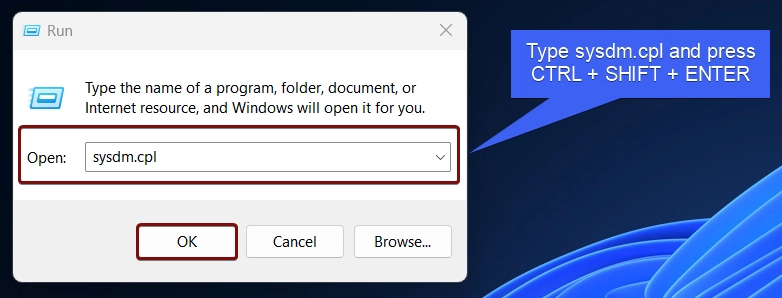
  • In the Run Command, type the following command sysdm.cpl and press CTRL + SHIFT + ENTER.
Type sysdm.cpl and press Ctrl + Shift + Enter
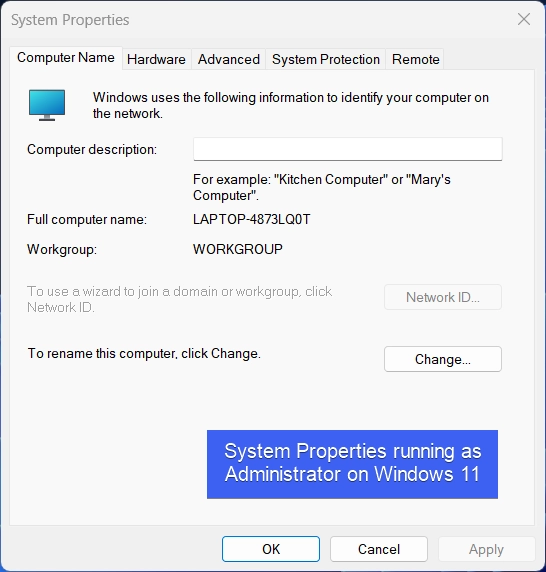
  • System Properties will pop up now.
System Properties Running as Administrator on Windows 11

2. Open CMD or Windows PowerShell with Administrative Privileges and run System Properties

For this method, you can either use Command Prompt or Windows PowerShell. For Explanation, I will use the Command Prompt on Windows 11.

  • Go to the Start menu, search for Command Prompt, right-click on it, and click Run as Administrator.
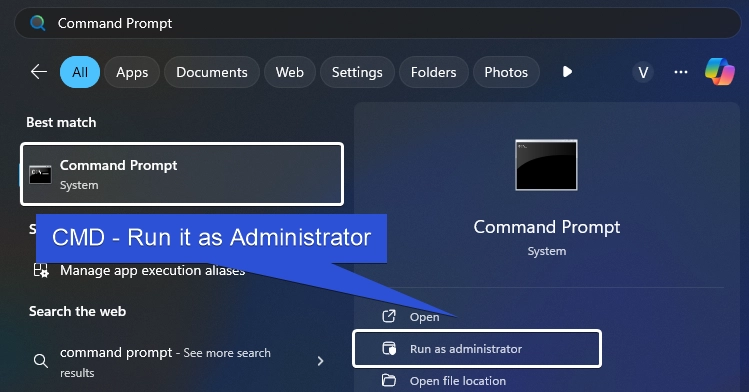
Open Command Prompt as Administrator
  • The User Account Control will confirm and open Command Prompt as Administrator.
  • In the CMD, execute the following command. sysdm.cpl
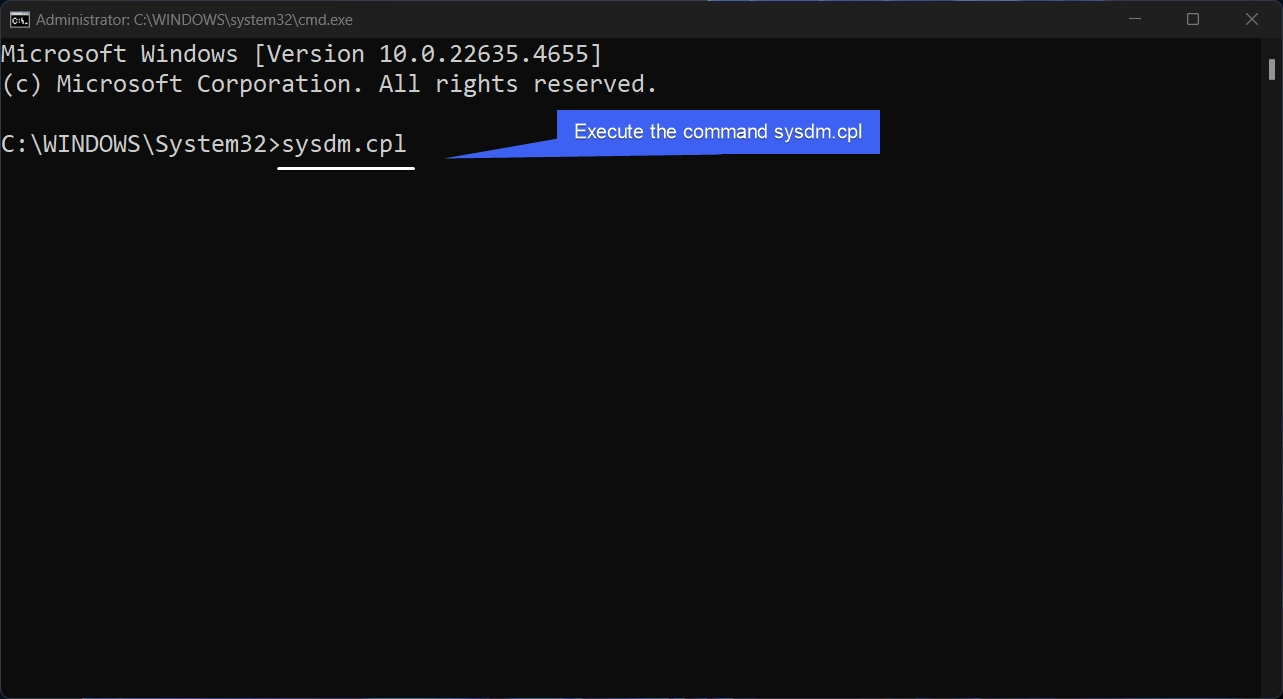
Execute the command sysdm.cpl with Administrative Privileges
  • This command will open sysdm.cpl with Elevated Permissions.

3. Run New Task to Open System Properties with Administrative Privileges on Windows 11

  • Right-click on the Taskbar and click Task Manager. You can also use the shortcut CTRL + SHIFT + ESC. This combination will open Task Manager directly.
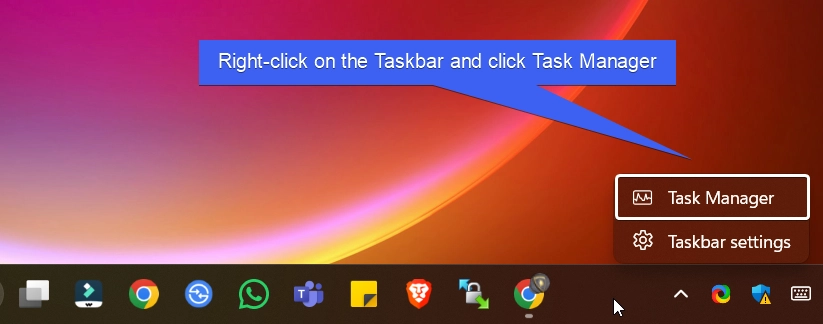
Right-click on the Taskbar and click Task Manager
  • In the Task Manager, under Processes, click on Run New Task. The Create New Task dialog will pop up now.
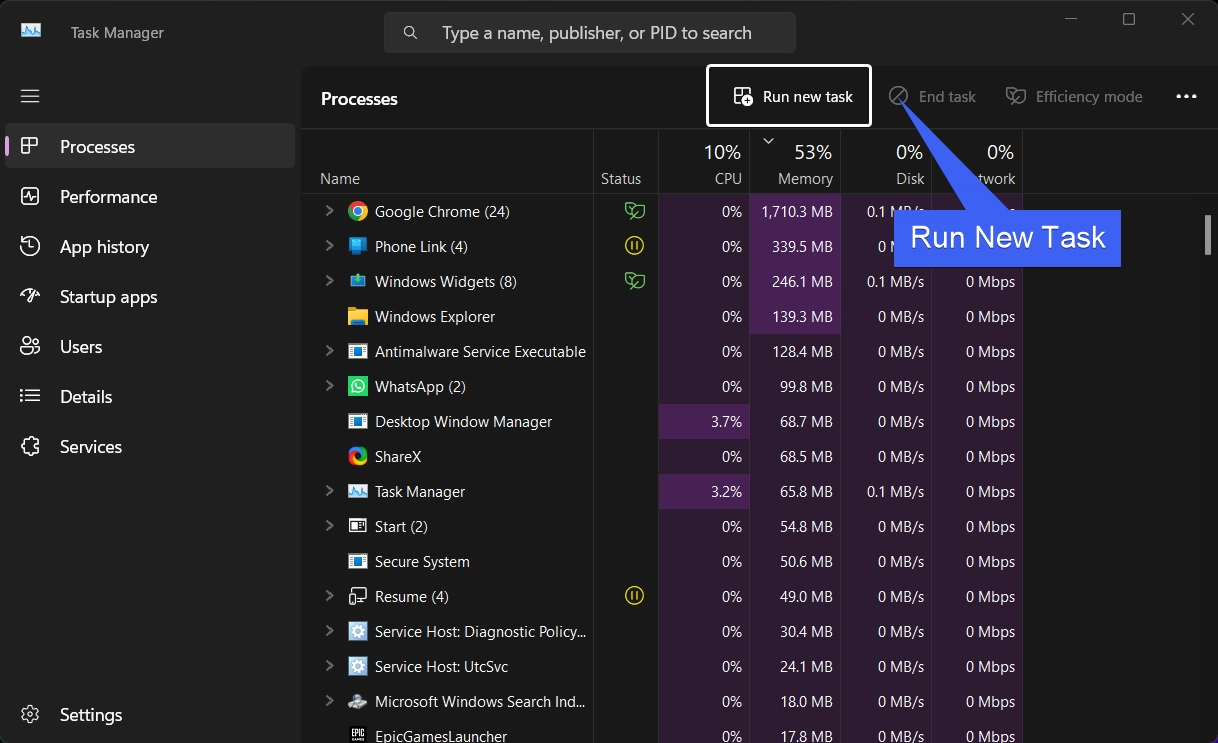
Run New Task
Run New Task
  • Type the command sysdm.cpl and enable the checkbox “Create this Task with Administrative Privileges“. Finally, click OK.
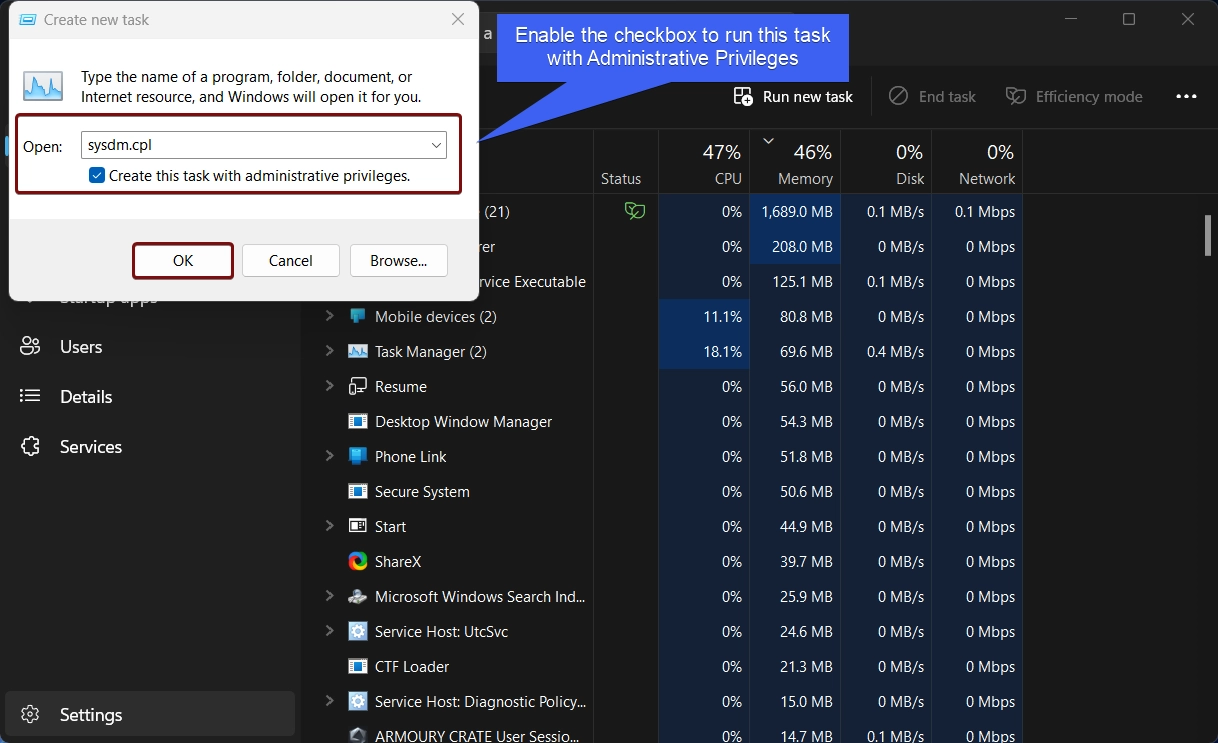
Enable the checkbox to create this task as administrator

4. Always Open System Properties as Administrator by Creating a Dedicated Shortcut

  • Right-click on the space of the Desktop, and click New > Shortcut.
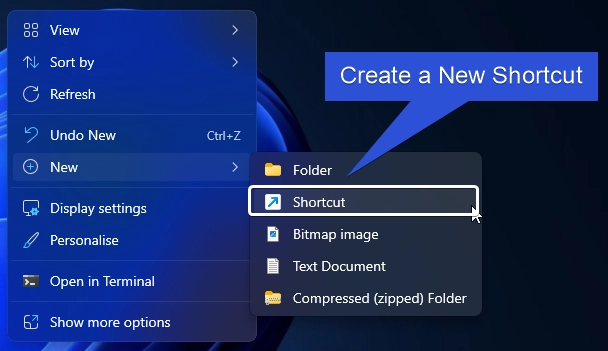
Create a new Shortcut
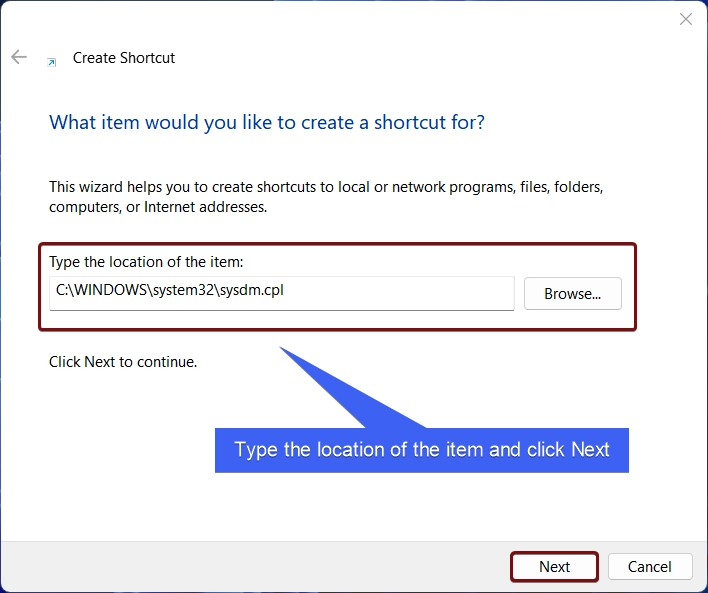
  • The Create Shortcut dialog box will open now. In “Type the Location of the Item“, enter the command C:\WINDOWS\system32\sysdm.cpl and click Next.
Type the location of the item and click Next
  • The system will assign the shortcut name sysdm.cpl. Kindly change it to System Properties. Finally, click Finish.
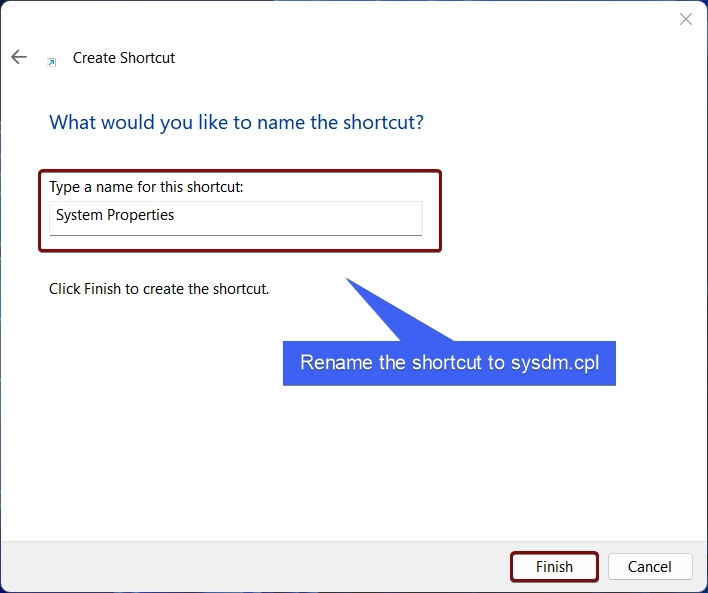
Rename the shortcut to System Properties and click Finish
  • System Properties Desktop Shortcut will be created.
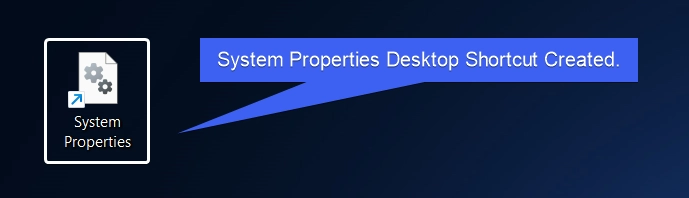
System Properties Desktop Shortcut Created
  • Right-click on the Shortcut and click on Properties.
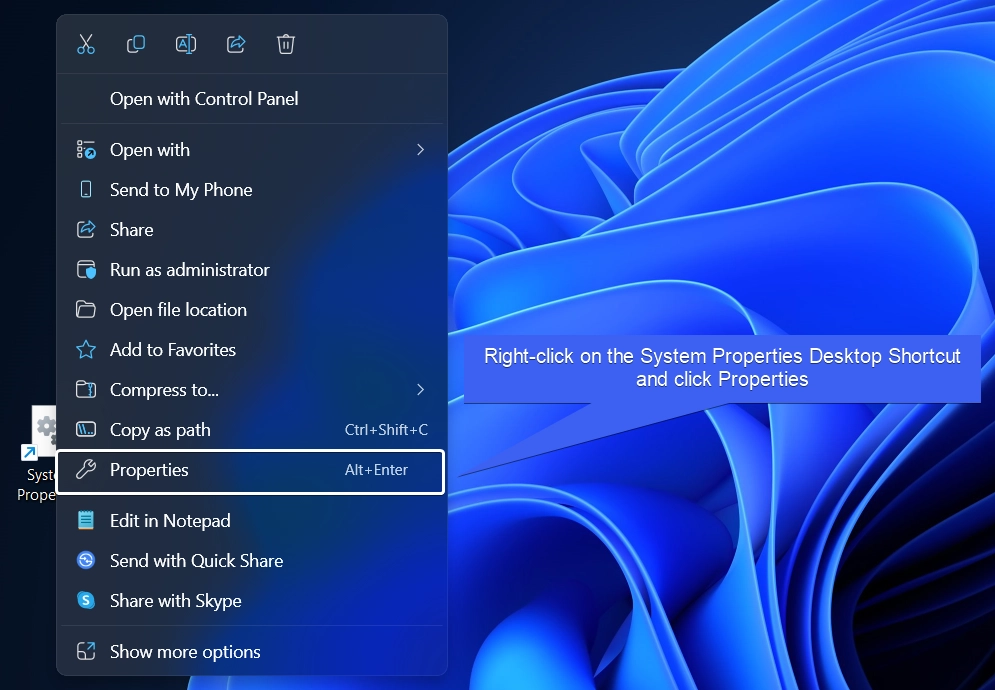
Right-click and click Properties
  • System Properties Shortcut will open now. Click Advanced.
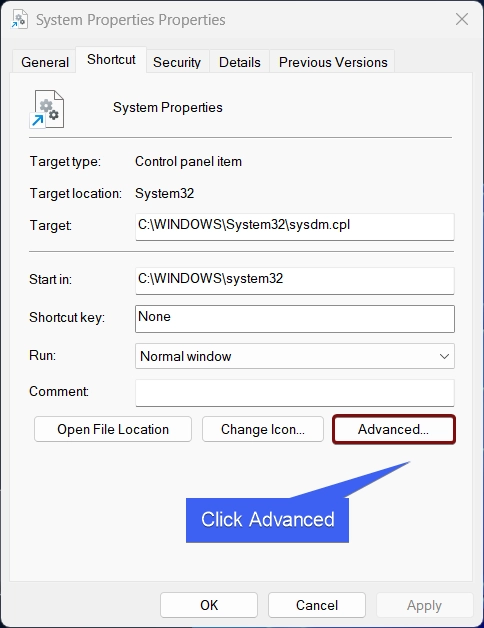
Click Advanced
Click Advanced
  • In Advanced Properties, make sure to enable the checkbox “Run as Administrator“. Finally, click OK, and then Apply.
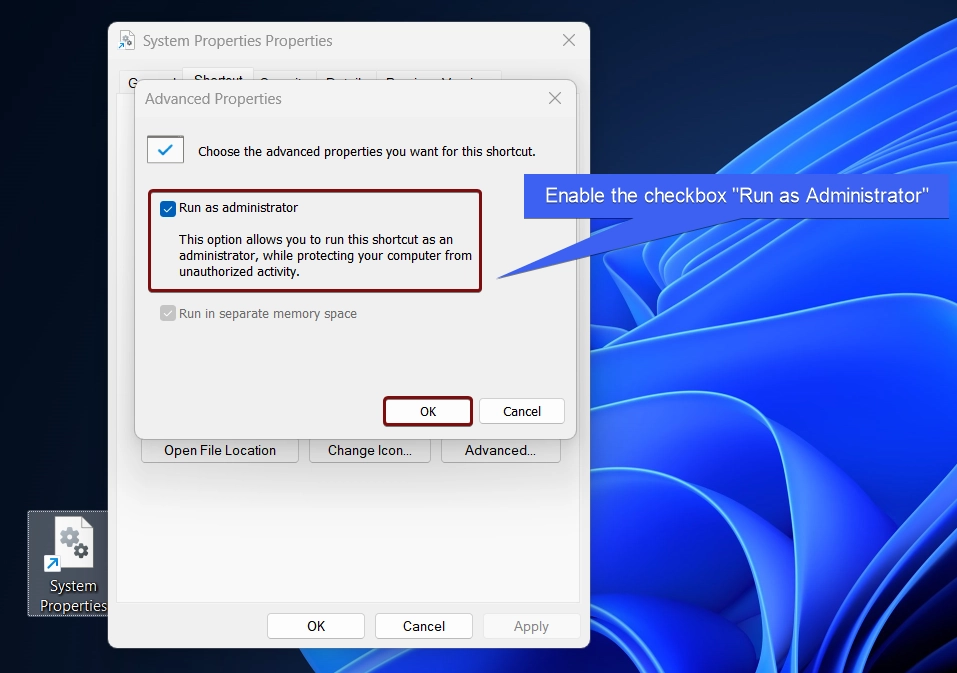
Enable the checkbox run as administrator
Enable the checkbox to run as administrator
  • This option allows you to run this shortcut as administrator, while protecting your computer from unauthorized activity.

5. How to Open Sysdm.cpl using the Start Menu on Windows 11?

This is the easiest way to access System Properties via the Start menu.

  • Open the Start Menu and search for sysdm.cpl. Once you find the application, right-click on it and click Run as Administrator.
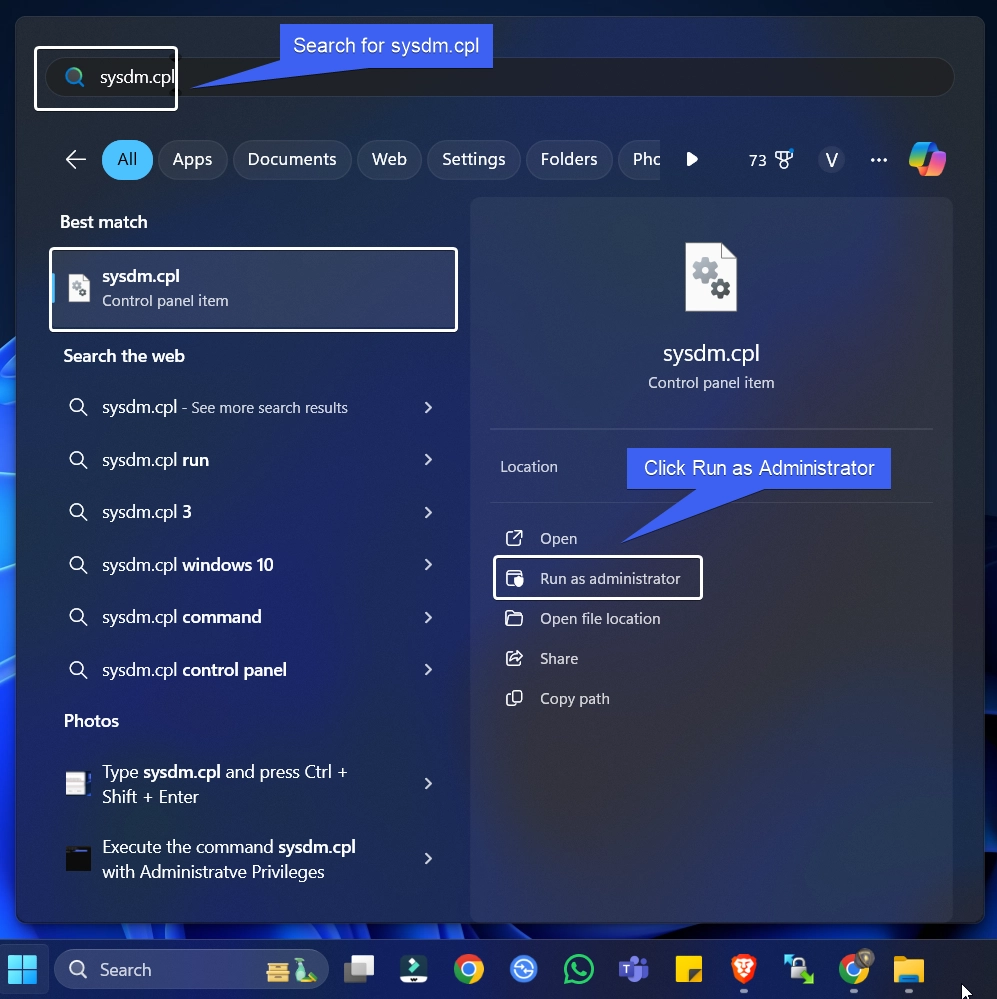
Search for sysdm.cpl
  • This will open System Properties with Administrative Privileges.

6. Access File Explorer and Launch System Properties with Elevated Privileges

This method is handy for users who work frequently with Integrated Development Environments like Visual Studio.

  • Use the key combination WinKey + E and open File Explorer.
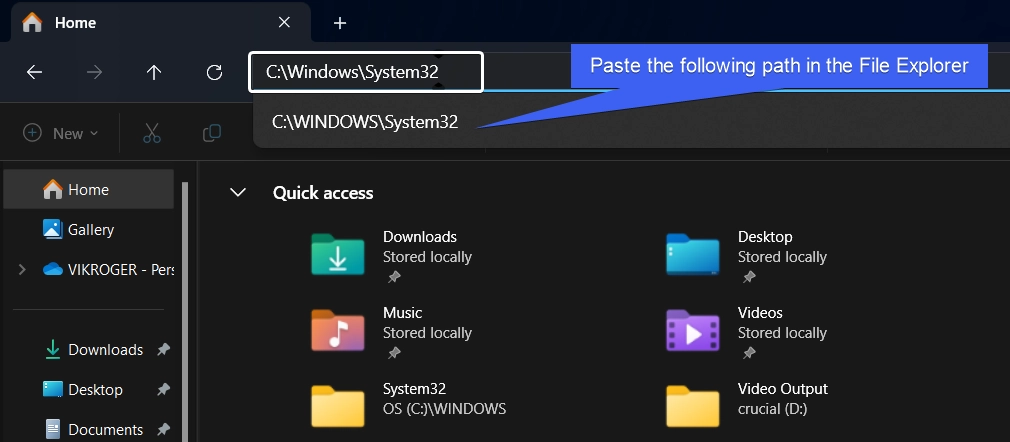
  • In the search bar, paste the following path C:\Windows\System32 and click Enter.
paste the following path and click Enter
Paste the following path and click Enter
  • The System32 Folder will open now. Go to the search bar using the key combination WinKey + F and search for sysdm.cpl.

Search for sysdm.cpl
  • Once you find the application, right-click on it and click Run as Administrator.
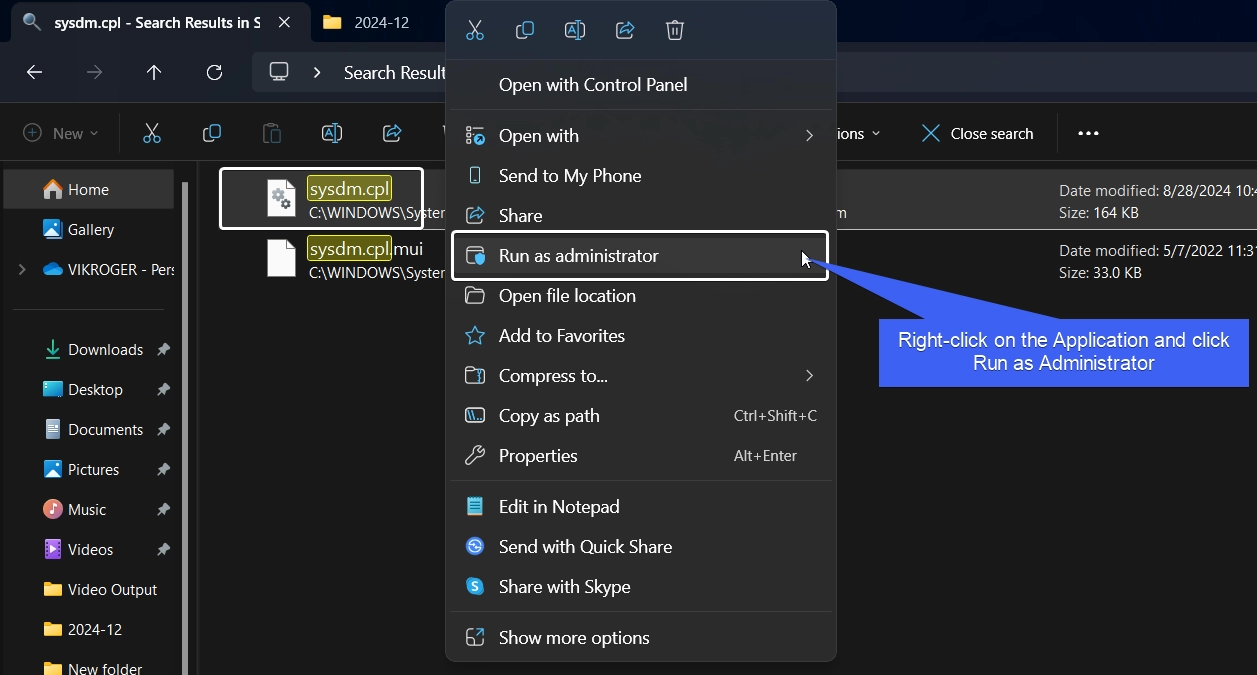
Right-click and click Run as Administrator
  • The UAC will confirm and open System Properties as Admin on Windows 11.

Kindly be Cautious while running an App as Administrator
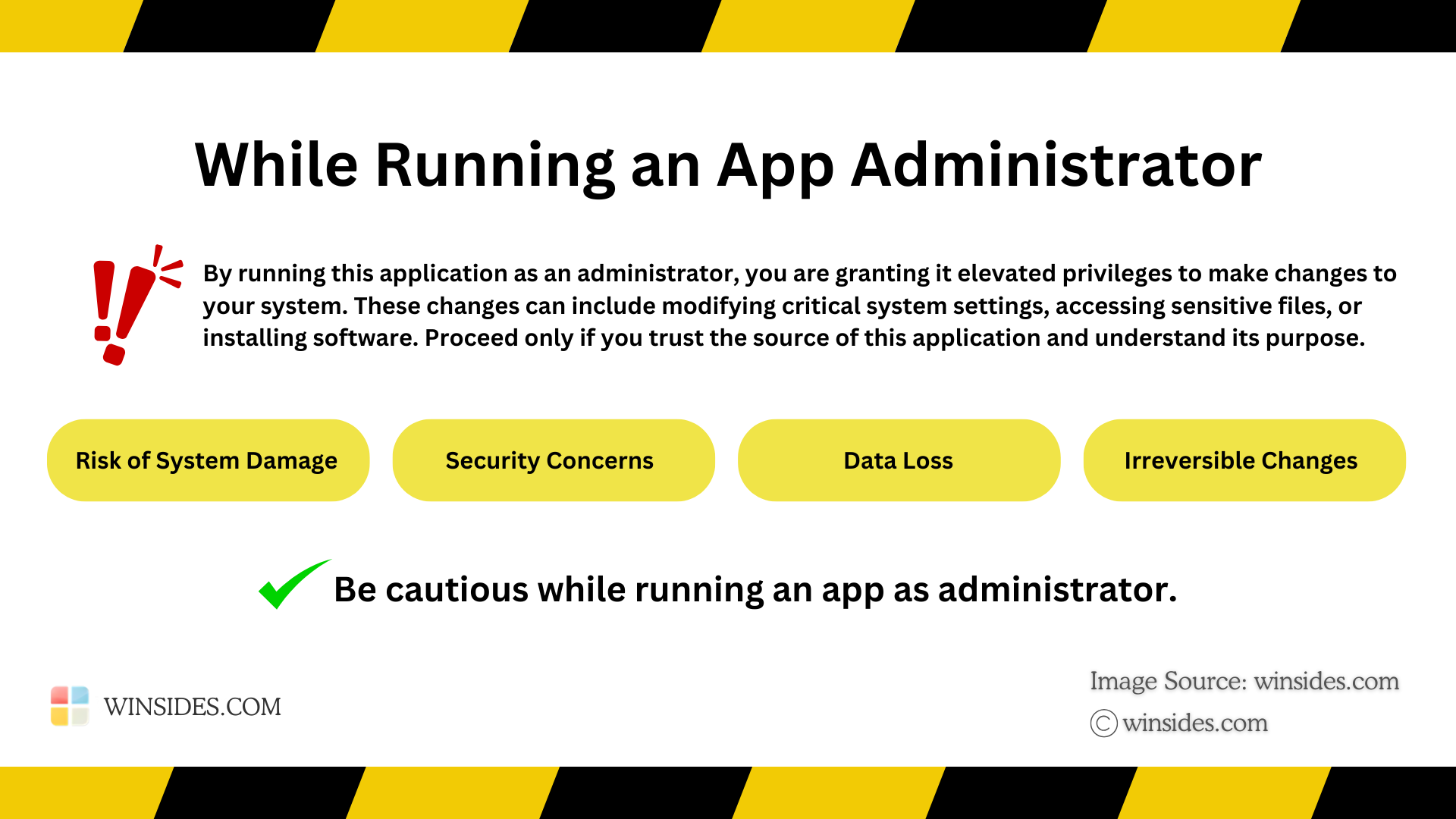
Be cautious while running an app as administrator
Be cautious while running an app as an administrator

While RunningSystem Properties as Administrator on Windows 11 grants it elevated privileges, which can potentially bypass system security restrictions. Please proceed with care and only run trusted applications in this mode. At Winsides.com, we advise our users to use Administrator privileges only when necessary to perform tasks requiring elevated rights. Misuse of administrative privileges may lead to System Vulnerabilities, Data Loss, System Instability, Security Concerns, Irreversible Changes, etc.

Various Options in the System Properties (sysdm.cpl)
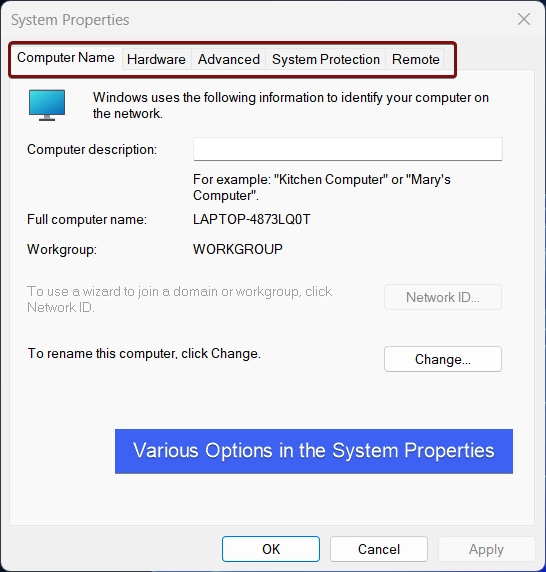
Various Options in the System Properties

It provides a Centralized Control to access various crucial system settings like System Performance optimization, Troubleshooting, Customization, Remote Access Management, Hardware Settings, and Advanced System Security, etc.

Verdict:

Running System Properties as an administrator in Windows 11 is essential for making advanced system configurations and troubleshooting complex issues.

Have Queries?

If you have queries related to the above topic, and comment below, and we will solve your queries as soon as possible. Find more interesting and informational tutorials on Winsides.com. Happy Computing! Peace out!
Tags:

Run Application as AdministratorRun As AdminRun as Administratorwindows 11
Vigneshwaran Vijayakumar
Author

Vigneshwaran Vijayakumar

Hello, I'm Vigneshwaran, the founder, owner, and author of WinSides.Com. With nearly a decade of experience in blogging across various domains and specializing in Windows-related tutorials for over five years, I bring a wealth of knowledge and expertise to WinSides.Com

Follow Me
Other Articles
Enable Windows PowerShell 2.0 on Windows 11
Previous

How to Enable Windows PowerShell 2.0 in Windows 11?

ENABLE SERVICES FOR NFS ON WINDOWS 11
Next

How to Enable Services for NFS in Windows 11?

No Comment! Be the first one.

Leave a Reply Cancel reply

Your email address will not be published. Required fields are marked *

  • How to Install and Run X Server in Windows 11?
  • How to Enable Client for NFS in Windows 11?
  • 5+ Easy Methods to Find/Search Video Files Only in Windows 11!
  • How to Enable TFTP Client in Windows 11?
  • Windows 10 officially ends on October 14, 2025
  1. Vigneshwaran Vijayakumar
    Vigneshwaran Vijayakumar on How to Enable Windows PowerShell 2.0 in Windows 11?October 5, 2025

    Hello Mr. Mohamad El-Kheir, Thank you for contacting us. Microsoft has removed PowerShell version 2.0 completely from Windows 11 24H2…

  2. Avatar of Mohamad El-Kheir
    Mohamad El-Kheir on How to Enable Windows PowerShell 2.0 in Windows 11?October 5, 2025

    i have a MSI laptop with windows 11 Home Installed on it. how to install powershell v2.0 on it

  3. Vigneshwaran Vijayakumar
    Vigneshwaran Vijayakumar on DxDiag Windows 11 – What is it & How to use it for Troubleshooting?August 14, 2025

    Hey Myla Shannon Thank you for your valuable feedback. We are delighted to hear your compliment and excited to know…

  4. Avatar of Myla Shannon
    Myla Shannon on DxDiag Windows 11 – What is it & How to use it for Troubleshooting?August 14, 2025

    This content is incredibly informative.

  5. Avatar of seven
    seven on How to Enable IIS [Internet Information Services] in Windows 11?July 29, 2025

    I found this post very helpful.

  • About us
  • What’s New?!
  • Guest Posts on Winsides.com – Terms and Conditions
  • Publication Sitemap
  • Careers
  • Authors
  • Why Trust Winsides.com?
  • Content Removal Request
  • Terms of Use
  • Disclaimer
  • Contact us
Copyright 2024-2026 - Winsides.com. All rights reserved.