

Archive Apps on Windows 11: This interesting feature on Windows 11 allows users to automatically archive infrequently used apps. This action will save storage space and also the Internet Bandwidth. When this option is enabled, user’s files and data will still be saved, and the app’s full version will be restored on the next use if it is still available.
Another interesting option is this section in Choose where to get Apps. We have a detailed article explaining this feature, kindly refer to it and let’s check out How to Enable Archive Apps on Windows 11.
Enable Archive Apps on Windows 11 – Quick Steps
Archive Apps Feature was first introduced on Windows 10, and to this day, this feature quietly appears as a part of Effective Storage Management options on Windows 11. This option is very similar to Offload Apps on iOS Devices. The important thing is that this setting is applicable only for Microsoft Store Applications.
If you have an application installed outside (.exe installations) the Microsoft Store, then this option will be ineffective for those applications. Any Apps that are added to the Microsoft Store or removed from the Microsoft Store will have an impact on this setting accordingly. Here are the steps to enable Archive Apps on Windows 11.
- Go to the Windows Settings using the Keyboard Shortcut Win Key + I.
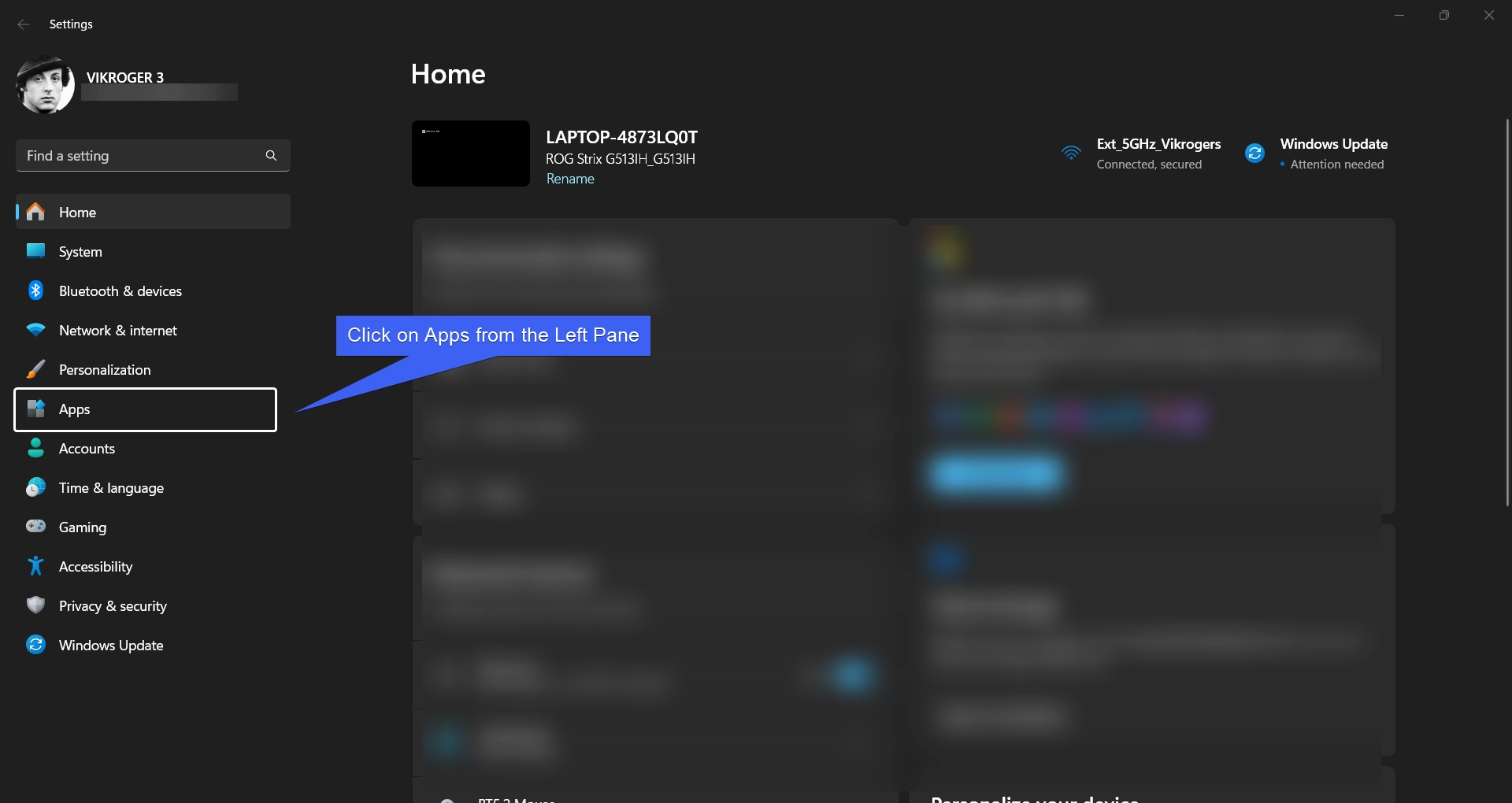
- On the Windows Settings, click on Apps from the left pane.
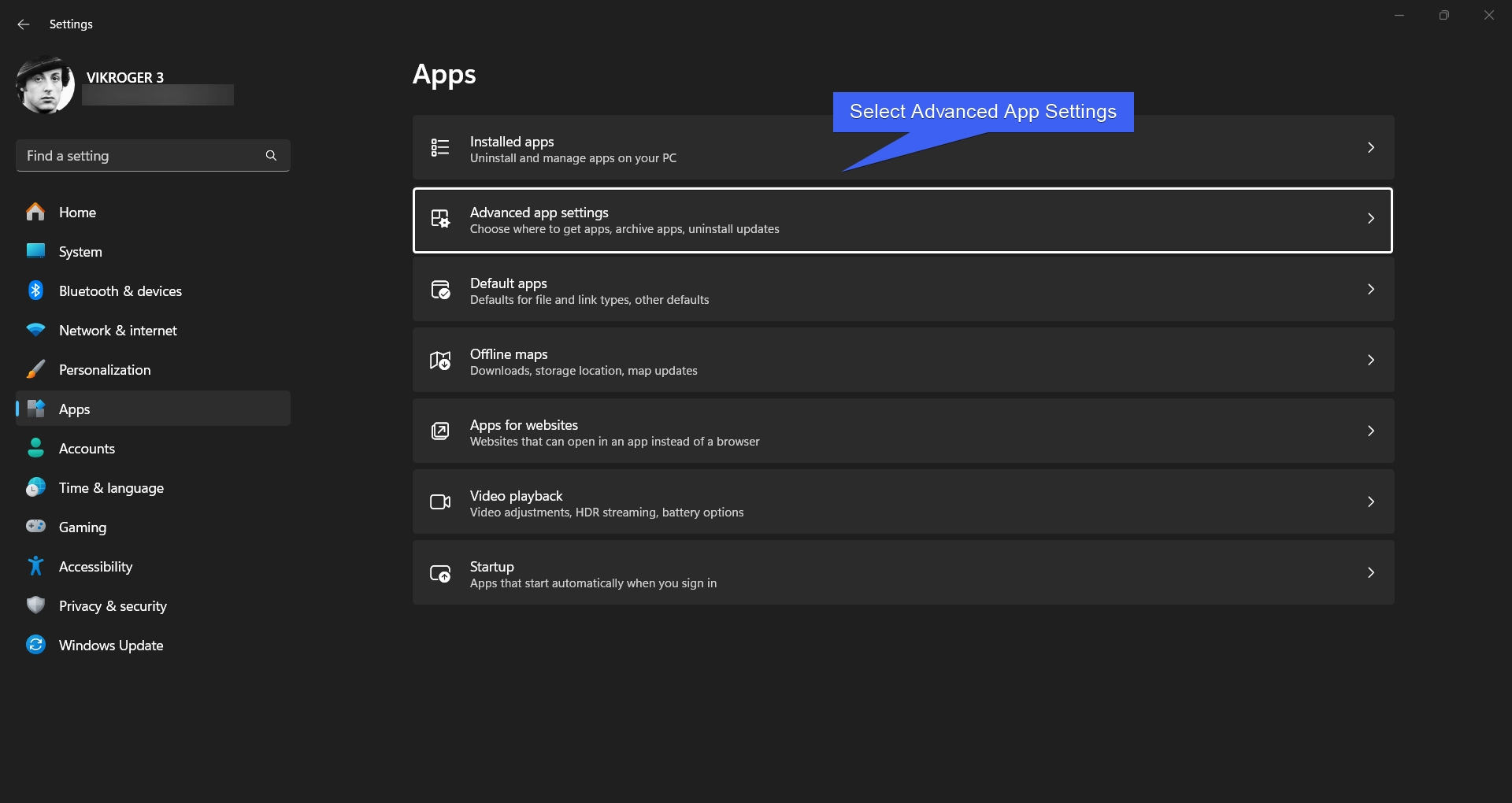
- Now, click on Advanced App Settings.
- Here, you can find the option “Archive Apps“. If this option is not enabled, toggle the switch ON to Enable Archive Apps on Windows 11.
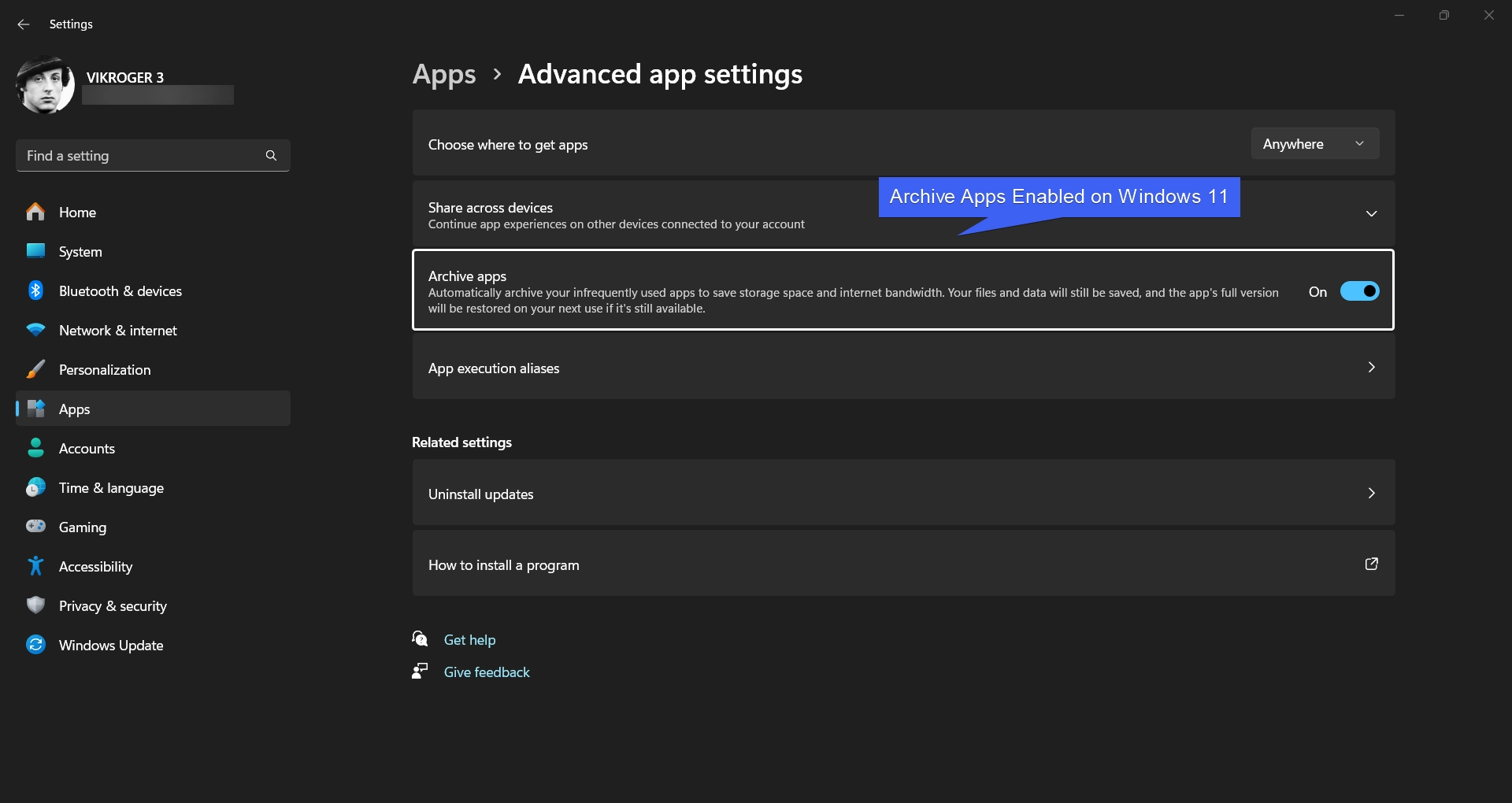
It is worth noting that the Archive Apps on Windows 11 Setting is enabled by default as a part of Smart Storage Management Tool. It will automatically save storage space without user intervention.
Table of contents
Advantages of Archive Apps on Windows 11
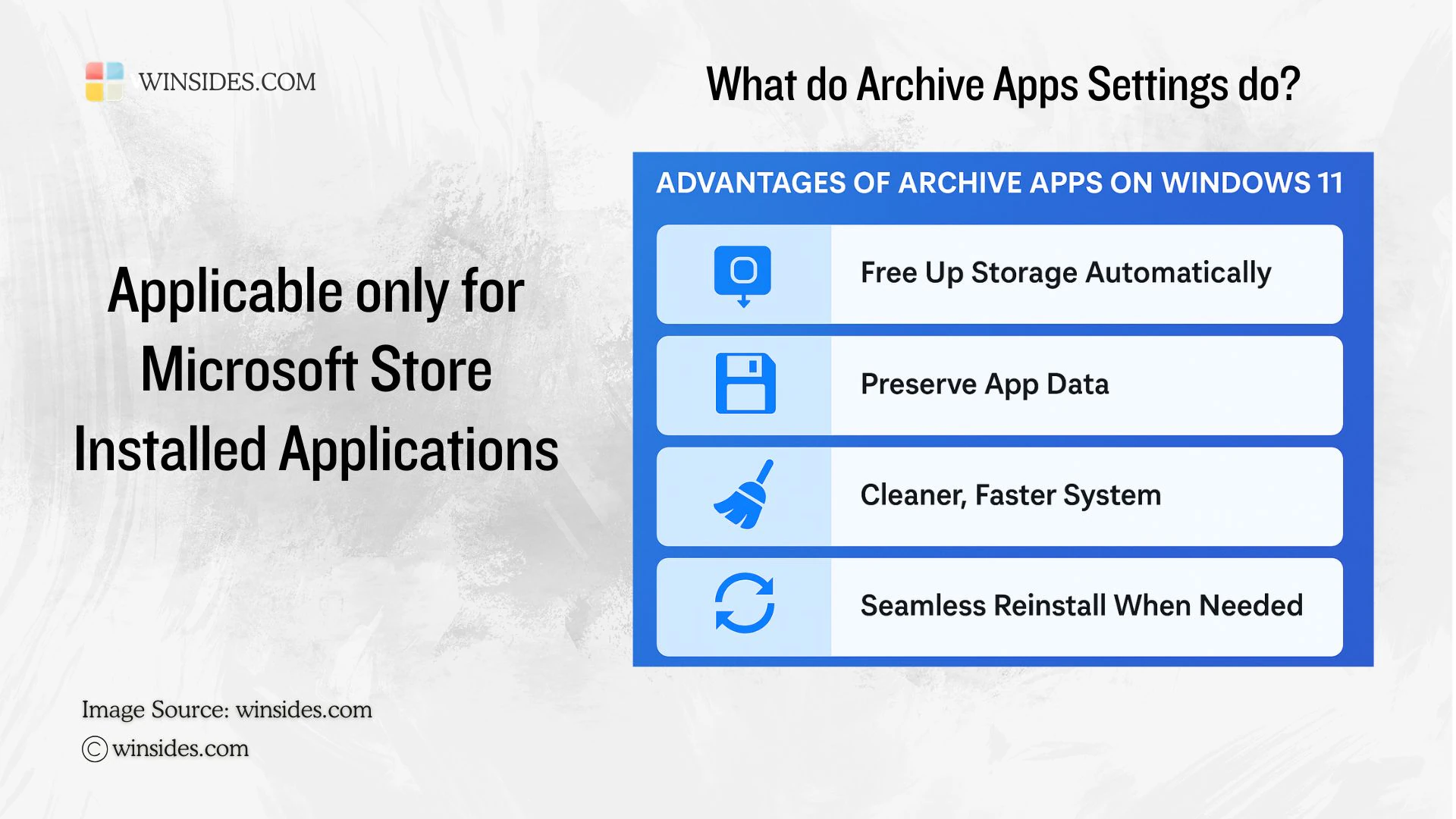
With Archive Apps, there are a few points worth considering. Here is the benefits of keeping Archive Apps Enabled on Windows 11.
- The World is booming towards AI and Quantum Computing, which intends to make life easy, Archive Apps on Windows 11 brings Automation for an effective storage management. It is worth discussing about Storage Sense which is an another automation that will clean up disk space automatically.
- If you are worried about the User Data, and the Application Files, Archive Apps on Windows 11 preserve these data. They are safely stored and we can pick up where we left later. The process is completely automated.
- This feature improves the storage management, obviously a clean and fast system.
- It is a safe and reliable option and additionally, you can also reverse it back if you are not comfortable with this feature.
- Archive Apps is very effective for devices with SSDs under 256 GB, Ultra books, and student laptops where the storage devices are limited.
How to Disable Archive Apps on Windows 11?
Should you disable this feature on Windows 11? Well, this feature by no means affect any of the Windows 11 operations. I mean, this feature is enabled by default, the unused apps are automatically offloaded and data is automatically stored. If anything it helps the users well, however, if you would like to disable Archive Apps on Windows 11, the following are the steps.
- Open Windows Settings.
- Navigate to the Apps Section.
- Select Advanced App Settings.
- Toggle Archive Apps Switch to OFF.
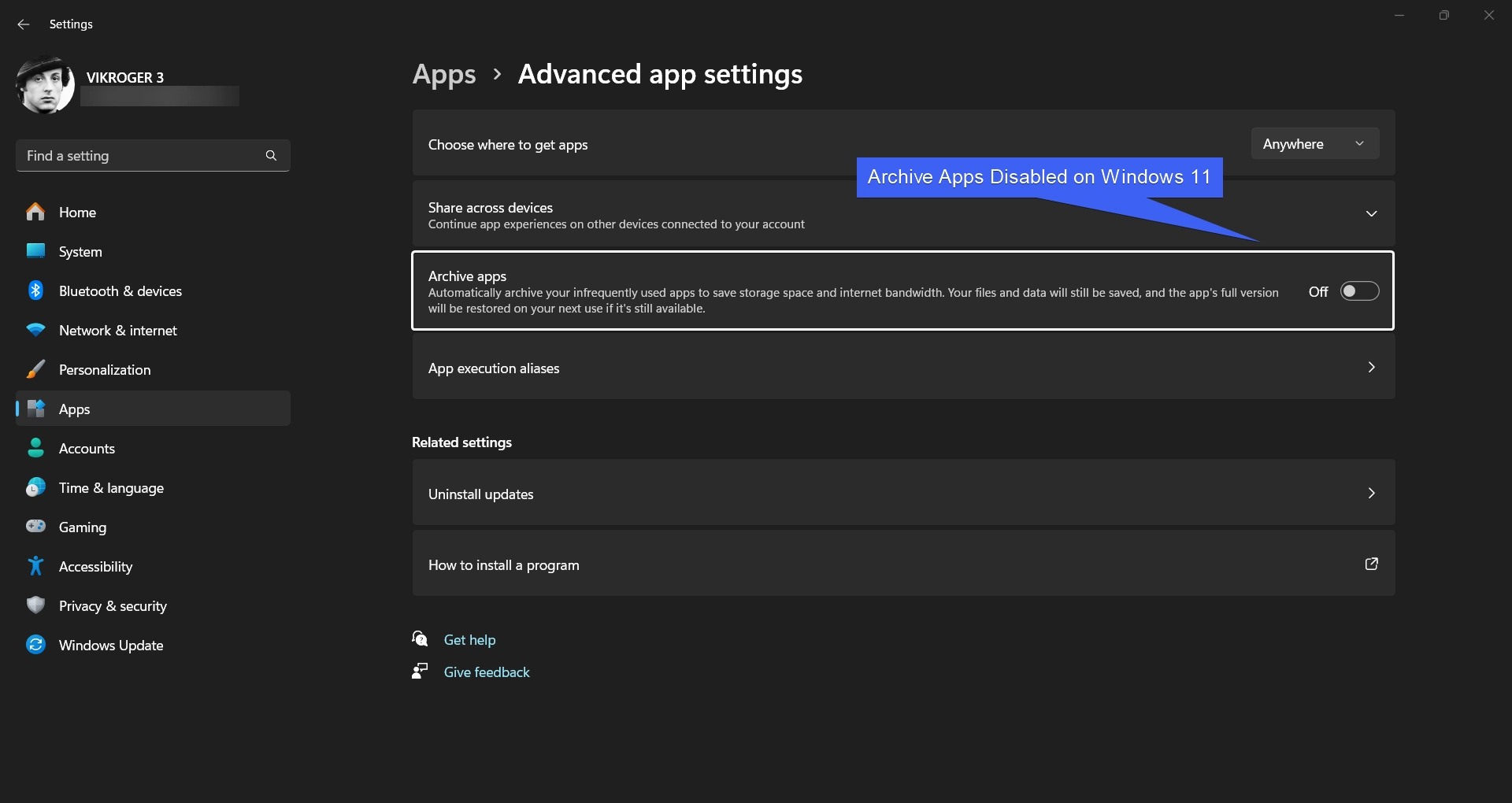
- That’s it. Archive Apps is disabled on Windows 11.
Take Away
Archive Apps on Windows 11 is quiet an uneventful Windows Setting, however, on devices with limited storage options, and if you install your apps from Microsoft Store mostly, then this can be an effective smart feature. Personally, I would like to keep this option enabled on my Windows 11.
Have Queries?
We hope you are satisfied with our article, and if you have any queries, kindly let us know in the comments section. For more interesting articles, stay tuned to Winsides.com. Happy Computing! Peace out!









Community
Comments (0)