

Skip to content
Winsides.com

Windows Insides

Winsides.com

Windows Insides

  • Windows 11
  • Windows Features
  • Windows Security
  • Microsoft
    • Microsoft Copilot
    • Microsoft Powertoys
  • Shortcuts
    • Windows Shortcuts
    • Desktop Shortcuts
  • Video Tutorials
  • About
    • What’s New?!
    • About us
    • Contact us
    • Privacy Policy
    • Terms of Use
  • Follow us
    • Reddit
    • Dev.to
    • YouTube
    • Linked In
    • X
    • Tumblr
    • Facebook
    • Instagram
    • Buy Me A Coffee
  • Windows 11
  • Windows Features
  • Windows Security
  • Microsoft
    • Microsoft Copilot
    • Microsoft Powertoys
  • Shortcuts
    • Windows Shortcuts
    • Desktop Shortcuts
  • Video Tutorials
  • About
    • What’s New?!
    • About us
    • Contact us
    • Privacy Policy
    • Terms of Use
  • Follow us
    • Reddit
    • Dev.to
    • YouTube
    • Linked In
    • X
    • Tumblr
    • Facebook
    • Instagram
    • Buy Me A Coffee
Close

Search

Winsides.com

Windows Insides

Winsides.com

Windows Insides

  • Windows 11
  • Windows Features
  • Windows Security
  • Microsoft
    • Microsoft Copilot
    • Microsoft Powertoys
  • Shortcuts
    • Windows Shortcuts
    • Desktop Shortcuts
  • Video Tutorials
  • About
    • What’s New?!
    • About us
    • Contact us
    • Privacy Policy
    • Terms of Use
  • Follow us
    • Reddit
    • Dev.to
    • YouTube
    • Linked In
    • X
    • Tumblr
    • Facebook
    • Instagram
    • Buy Me A Coffee
  • Windows 11
  • Windows Features
  • Windows Security
  • Microsoft
    • Microsoft Copilot
    • Microsoft Powertoys
  • Shortcuts
    • Windows Shortcuts
    • Desktop Shortcuts
  • Video Tutorials
  • About
    • What’s New?!
    • About us
    • Contact us
    • Privacy Policy
    • Terms of Use
  • Follow us
    • Reddit
    • Dev.to
    • YouTube
    • Linked In
    • X
    • Tumblr
    • Facebook
    • Instagram
    • Buy Me A Coffee
Close

Search

Home/Windows 11/Install Braille Display with Narrator on Windows 11

Install Braille Display with Narrator on Windows 11

Vigneshwaran Vijayakumar
By Vigneshwaran Vijayakumar
January 31, 2025 3 Min Read
0

Braille Display with Narrator on Windows 11: Braille is a tactical writing system for visually impaired individuals to read and write. In 1824, it was developed by Louis Braille based on Six-dot system who lost his sight due to an accident at the age of three. Currently, it is used worldwide in Books, Signs, Digital Braille Displays, ATM, etc, to assist visually impaired users. Windows 11 also provides this support for visually impaired users, in this article, we will check out How to Download and Install Braille Display with Narrator on Windows 11 with clear steps.

For our Visually impaired friends and community members, tools like Braille displays and Narrator on Windows 11 are more than just features. At Winsides.com, We stand with you, committed to making technology accessible. Together, we can build a world where everyone has the opportunity to thrive, regardless of ability. Let’s get Started.

How to Download and Install Braille Display with Narrator on Windows 11?

The steps are simple and quite straight-forward.

  • On Windows 11, Open Windows Settings using the keyboard combination WinKey + I.
  • Once the Windows Settings open, from the left pane, click Accessibility.
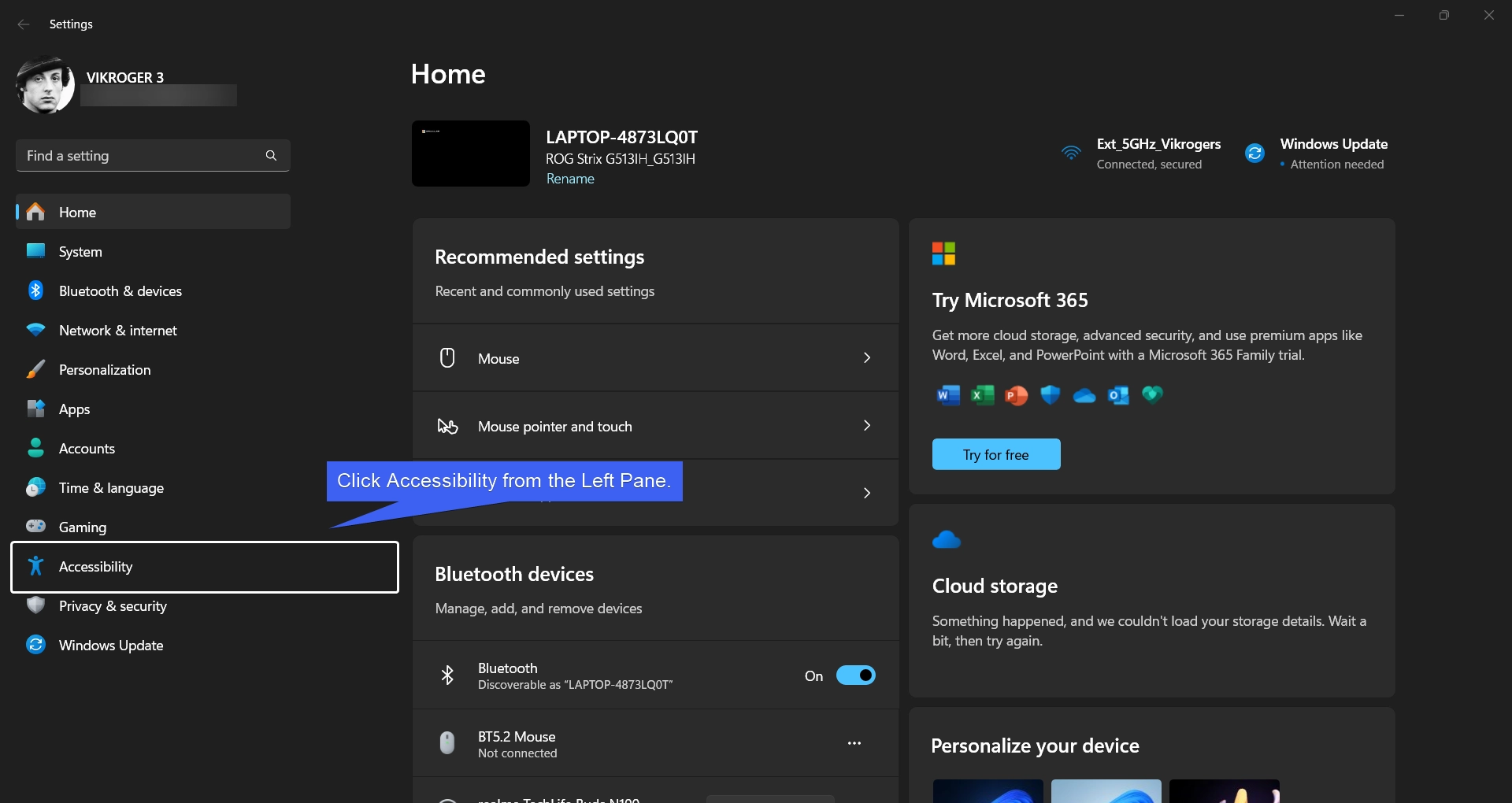
Click Accessibility on Windows Settings
  • Under Vision, you can find Narrator. Select Narrator.
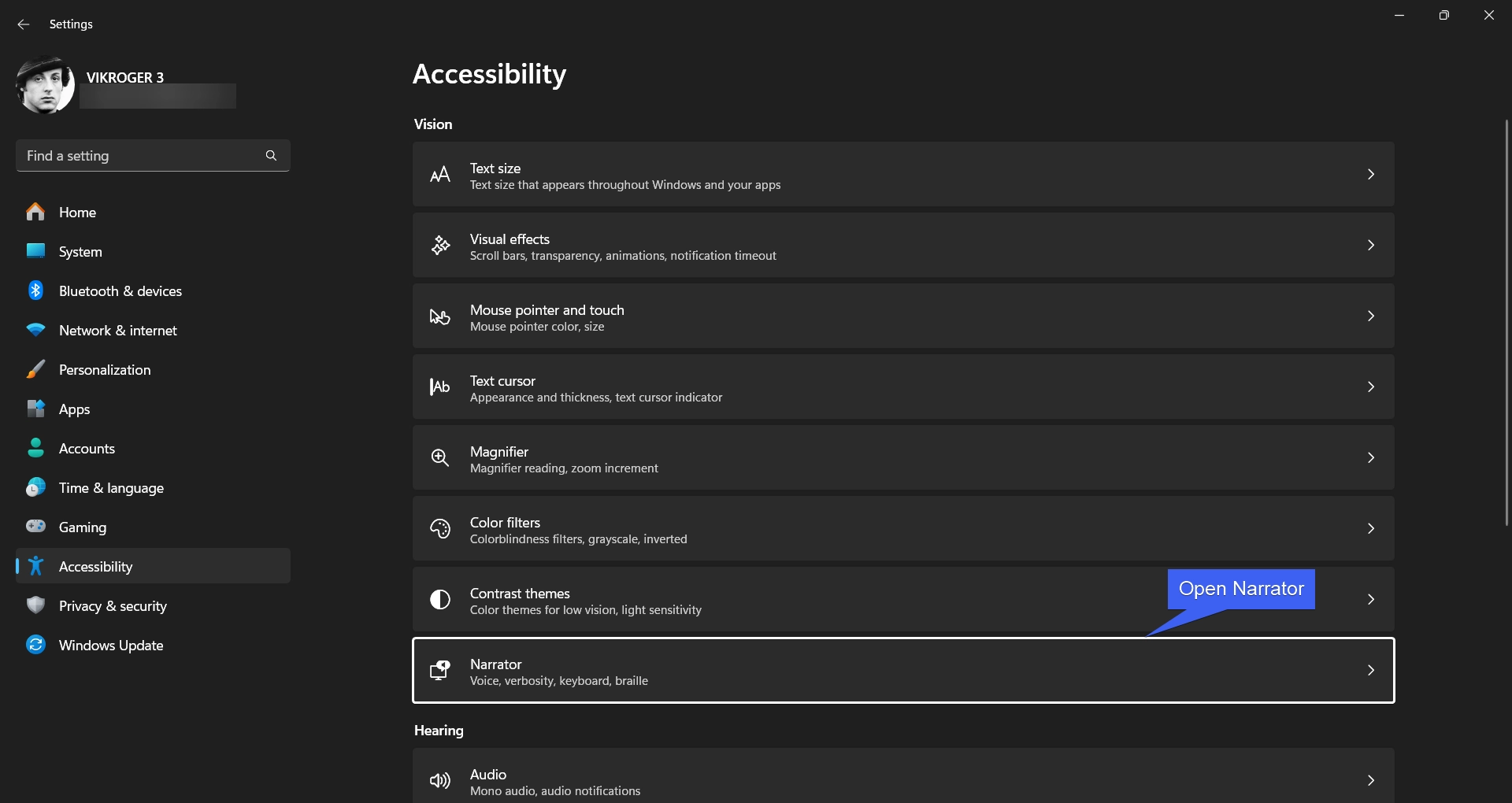
Under Vision, open Narrator
  • Narrator Settings will open now. Scroll Down and locate “Use a Braille Display with Narrator” under Braille.
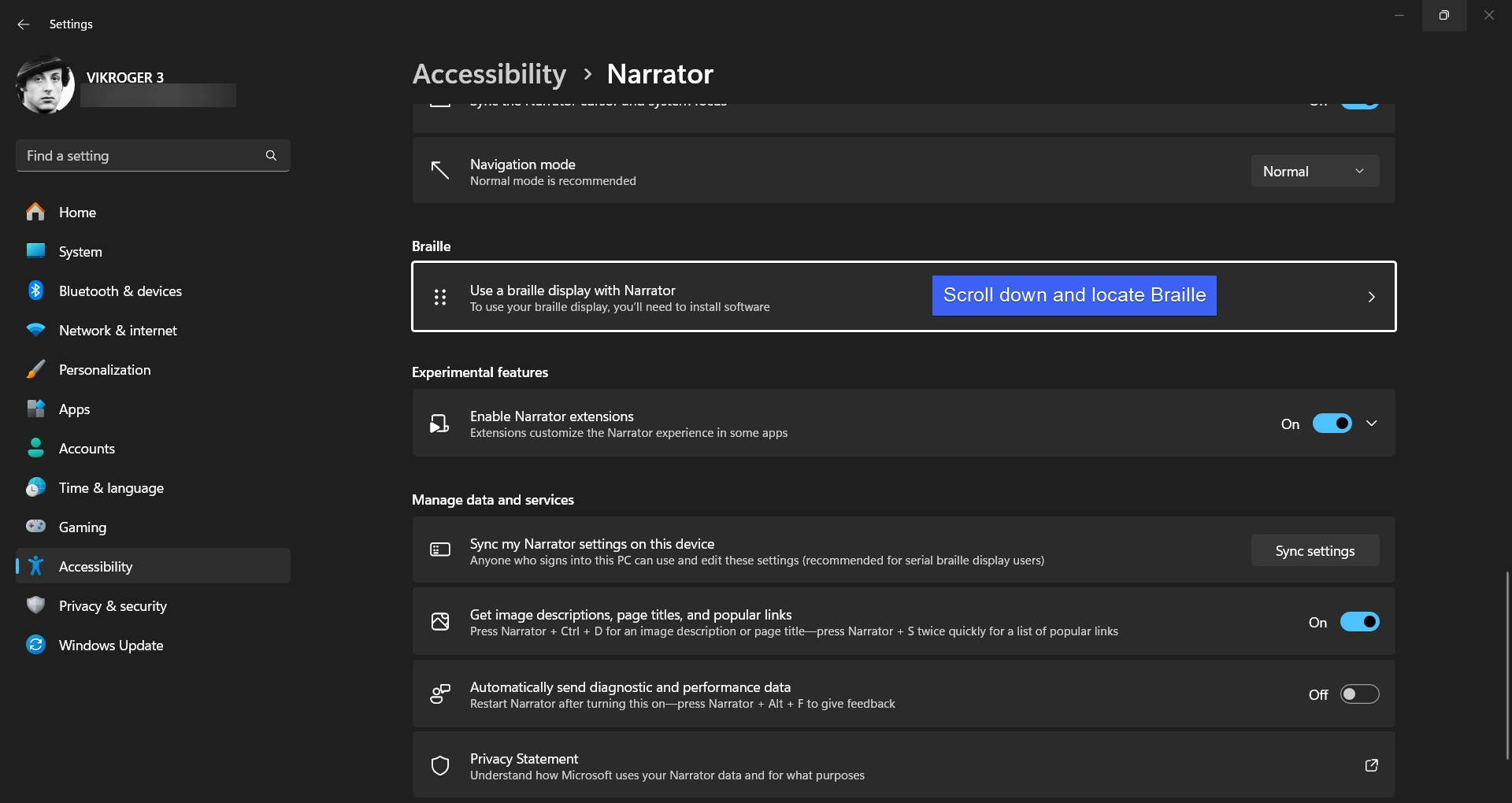
Scroll down and locate braille
  • You can now find the option “Use a Braille Display with Narrator“. This option will allow you to add and configure braille displays. Click Download and Install Braille.
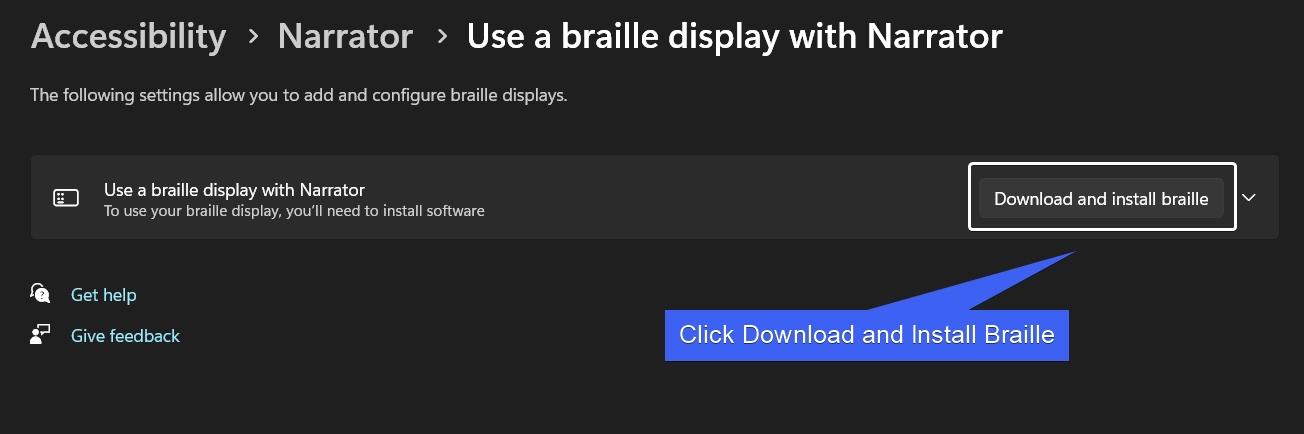
Click Download and Install Braille

Note: To use Braille Display on Windows 11, you will need to install the software from BRLTTY, and Liblouis distributed by BRLTTY and Liblouis Developers.

  • The system will start downloading the file. The process will take some. Kindly be patient.
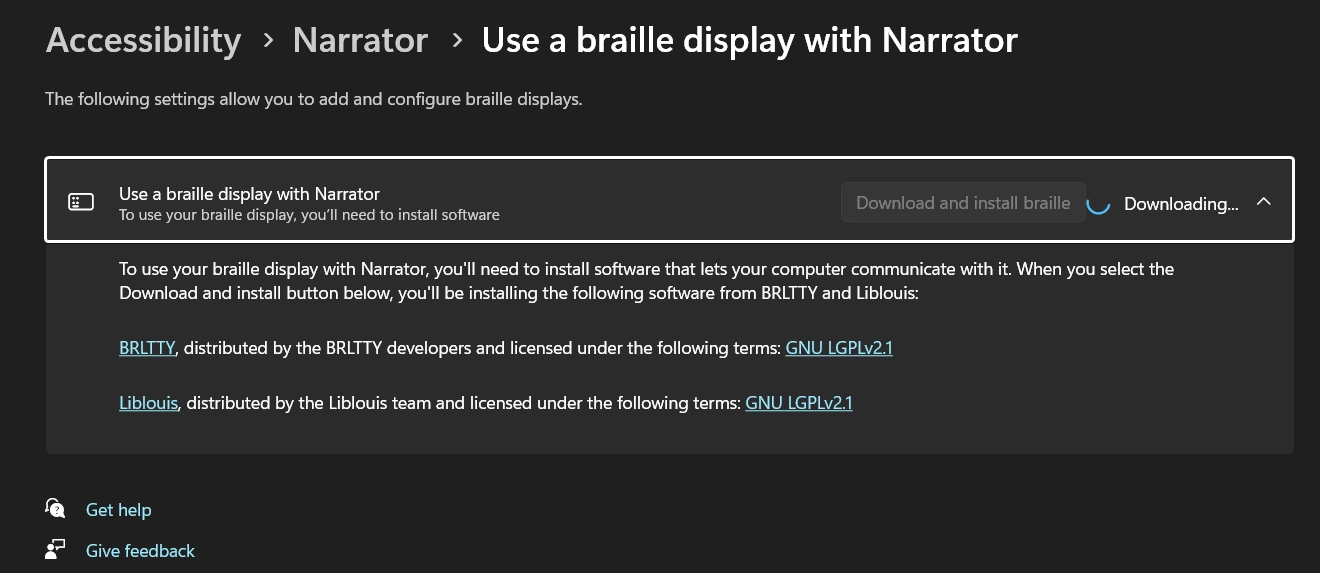
Downloading BRLTTY and Liblouis
  • Braille Display with Narrator on Windows 11 is now is installed. The system will prompt for a restart. Save all your works, and click Restart Now.
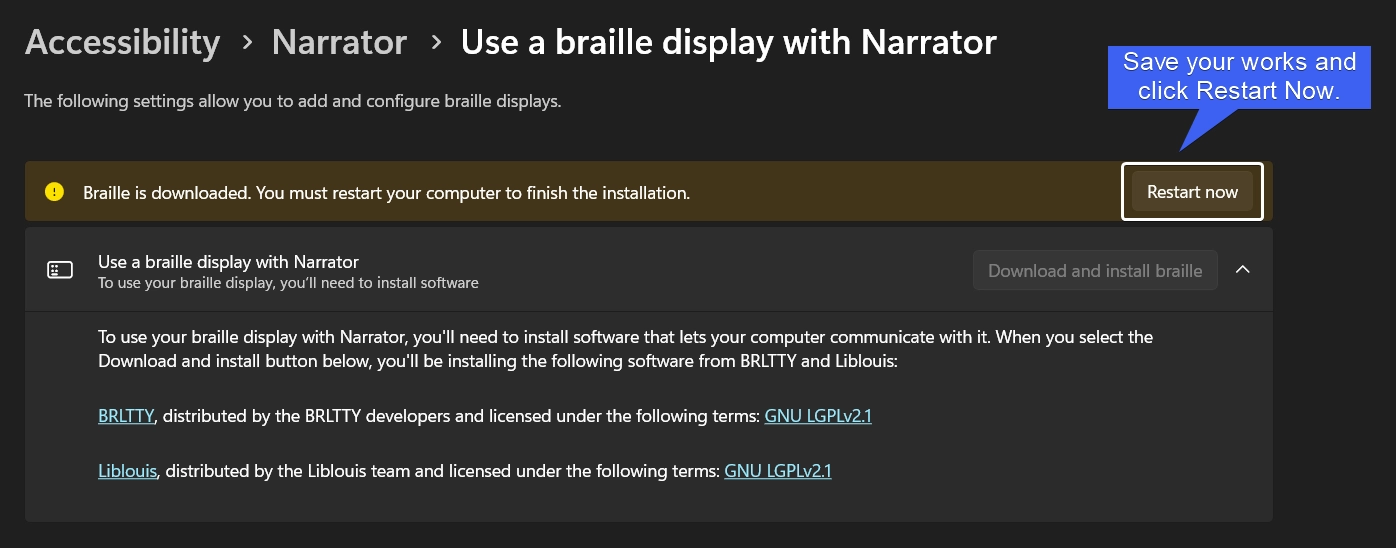
Braille with Display Software Downloaded
  • After the Restart, navigate back to the Accessibility and then to the Narrator.
  • Now, you can find Turn on Braille is Enabled.
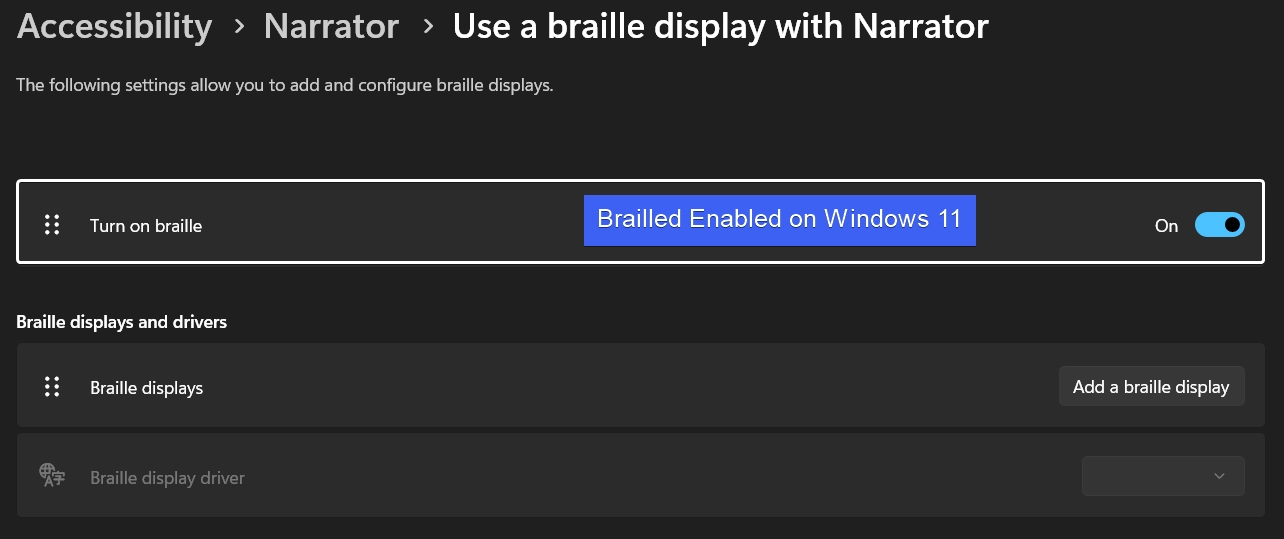
Braille Enabled on Windows 11
  • Under Braille Displays and Drivers, click Add a Braille Display.
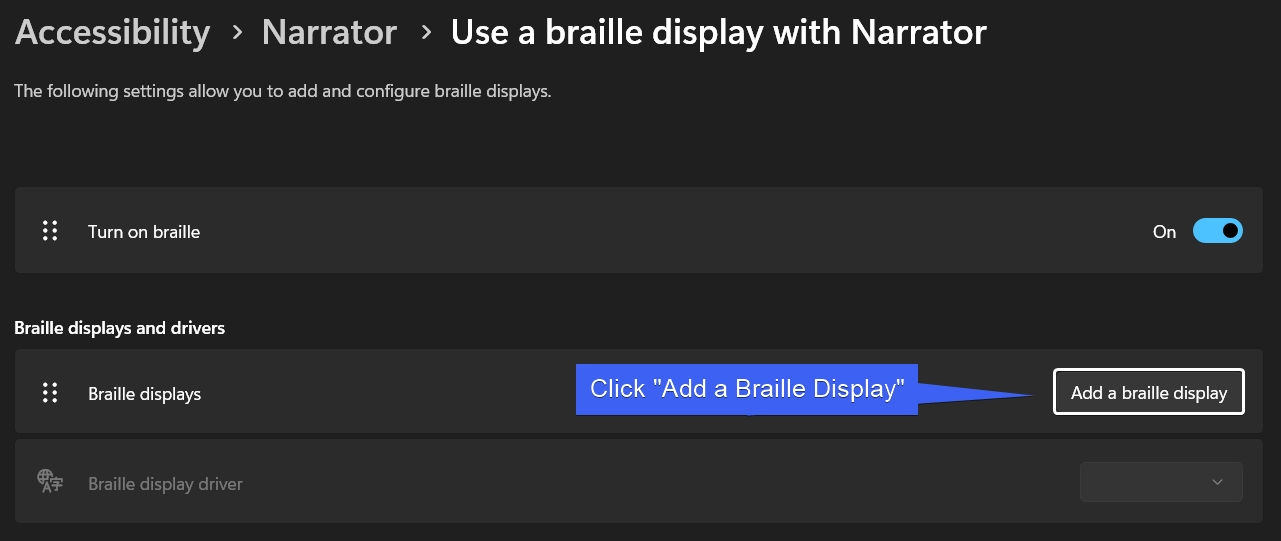
Add a Braille Display on Windows 11
  • You can select Braille Display Manufacturer, and Connection Type and then click Add.
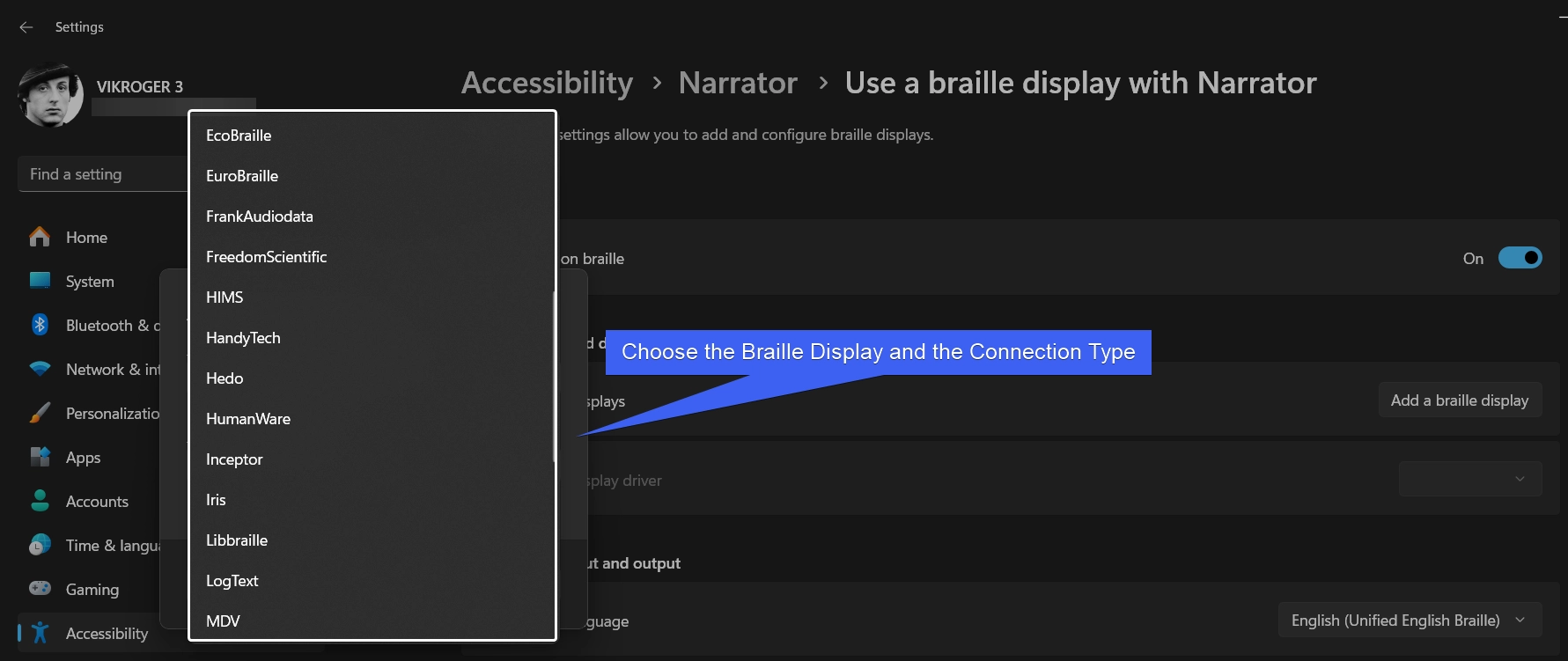
Choose the Braille Display and Connection Type
  • That’s it. You can start using Braille Display with Narrator on Windows 11.

Take Away:

Braille display with Narrator in Windows 11 offer an essential tool for visually impaired users to navigate and interact with their devices. It helps binding Tactical Reading, and Technology and opens-up a world of possibility. If you have any queries with the above article, kindly let us know in the comment section. For more essential articles, stay tuned to Winsides.Com. Happy Computing! Peace out!

References:

  • Microsoft Support Team: Using Narrator with braille. Retrieved from microsoft support team on (1.1.25).


Tags:

Braille DisplayNarratorwindows 11
Vigneshwaran Vijayakumar
Author

Vigneshwaran Vijayakumar

Hello, I'm Vigneshwaran, the founder, owner, and author of WinSides.Com. With nearly a decade of experience in blogging across various domains and specializing in Windows-related tutorials for over five years, I bring a wealth of knowledge and expertise to WinSides.Com

Follow Me
Other Articles
How to Change Mouse Pointer Style on Windows 11
Previous

How to Change Mouse Pointer Style on Windows 11?

Enable TCPIP Services in Windows 11
Next

How to Enable Simple TCP/IP Services in Windows 11?

No Comment! Be the first one.

Leave a Reply Cancel reply

Your email address will not be published. Required fields are marked *

  • How to Install and Run X Server in Windows 11?
  • How to Enable Client for NFS in Windows 11?
  • 5+ Easy Methods to Find/Search Video Files Only in Windows 11!
  • How to Enable TFTP Client in Windows 11?
  • Windows 10 officially ends on October 14, 2025
  1. Vigneshwaran Vijayakumar
    Vigneshwaran Vijayakumar on How to Enable Windows PowerShell 2.0 in Windows 11?October 5, 2025

    Hello Mr. Mohamad El-Kheir, Thank you for contacting us. Microsoft has removed PowerShell version 2.0 completely from Windows 11 24H2…

  2. Avatar of Mohamad El-Kheir
    Mohamad El-Kheir on How to Enable Windows PowerShell 2.0 in Windows 11?October 5, 2025

    i have a MSI laptop with windows 11 Home Installed on it. how to install powershell v2.0 on it

  3. Vigneshwaran Vijayakumar
    Vigneshwaran Vijayakumar on DxDiag Windows 11 – What is it & How to use it for Troubleshooting?August 14, 2025

    Hey Myla Shannon Thank you for your valuable feedback. We are delighted to hear your compliment and excited to know…

  4. Avatar of Myla Shannon
    Myla Shannon on DxDiag Windows 11 – What is it & How to use it for Troubleshooting?August 14, 2025

    This content is incredibly informative.

  5. Avatar of seven
    seven on How to Enable IIS [Internet Information Services] in Windows 11?July 29, 2025

    I found this post very helpful.

  • About us
  • What’s New?!
  • Guest Posts on Winsides.com – Terms and Conditions
  • Publication Sitemap
  • Careers
  • Authors
  • Why Trust Winsides.com?
  • Content Removal Request
  • Terms of Use
  • Disclaimer
  • Contact us
Copyright 2024-2026 - Winsides.com. All rights reserved.






