Skip to content
Winsides.com

Windows Insides

Winsides.com

Windows Insides

  • Windows 11
  • Windows Features
  • Windows Security
  • Microsoft
    • Microsoft Copilot
    • Microsoft Powertoys
  • Shortcuts
    • Windows Shortcuts
    • Desktop Shortcuts
  • Video Tutorials
  • About
    • What’s New?!
    • About us
    • Contact us
    • Privacy Policy
    • Terms of Use
  • Follow us
    • Reddit
    • Dev.to
    • YouTube
    • Linked In
    • X
    • Tumblr
    • Facebook
    • Instagram
    • Buy Me A Coffee
  • Windows 11
  • Windows Features
  • Windows Security
  • Microsoft
    • Microsoft Copilot
    • Microsoft Powertoys
  • Shortcuts
    • Windows Shortcuts
    • Desktop Shortcuts
  • Video Tutorials
  • About
    • What’s New?!
    • About us
    • Contact us
    • Privacy Policy
    • Terms of Use
  • Follow us
    • Reddit
    • Dev.to
    • YouTube
    • Linked In
    • X
    • Tumblr
    • Facebook
    • Instagram
    • Buy Me A Coffee
Close

Search

Winsides.com

Windows Insides

Winsides.com

Windows Insides

  • Windows 11
  • Windows Features
  • Windows Security
  • Microsoft
    • Microsoft Copilot
    • Microsoft Powertoys
  • Shortcuts
    • Windows Shortcuts
    • Desktop Shortcuts
  • Video Tutorials
  • About
    • What’s New?!
    • About us
    • Contact us
    • Privacy Policy
    • Terms of Use
  • Follow us
    • Reddit
    • Dev.to
    • YouTube
    • Linked In
    • X
    • Tumblr
    • Facebook
    • Instagram
    • Buy Me A Coffee
  • Windows 11
  • Windows Features
  • Windows Security
  • Microsoft
    • Microsoft Copilot
    • Microsoft Powertoys
  • Shortcuts
    • Windows Shortcuts
    • Desktop Shortcuts
  • Video Tutorials
  • About
    • What’s New?!
    • About us
    • Contact us
    • Privacy Policy
    • Terms of Use
  • Follow us
    • Reddit
    • Dev.to
    • YouTube
    • Linked In
    • X
    • Tumblr
    • Facebook
    • Instagram
    • Buy Me A Coffee
Close

Search

Home/Windows 11/How To?/System/Enable End Task in Taskbar by Right-click on Windows 11?

Enable End Task in Taskbar by Right-click on Windows 11?

Vigneshwaran Vijayakumar
By Vigneshwaran Vijayakumar
April 3, 2025 5 Min Read
0

Enable End Task in Taskbar by Right-click: When we are using applications on Windows 11, when our work is done, we close the application by clicking on the Close Button (X) in the Top bar of the application. We can also close an application using the ALT + F4 key combination. Either way, the system will ensure the application is shut down properly, saving the data before exiting. Certain Applications, like Discord, Chrome Web Browser, may continue running in the background. On the other hand, End Task is like a Brutal Force Close. The system will not consider whether the data is saved, or a process is going on, etc, rather it terminates the application immediately.

Why is End Task so Brutal and Powerful?
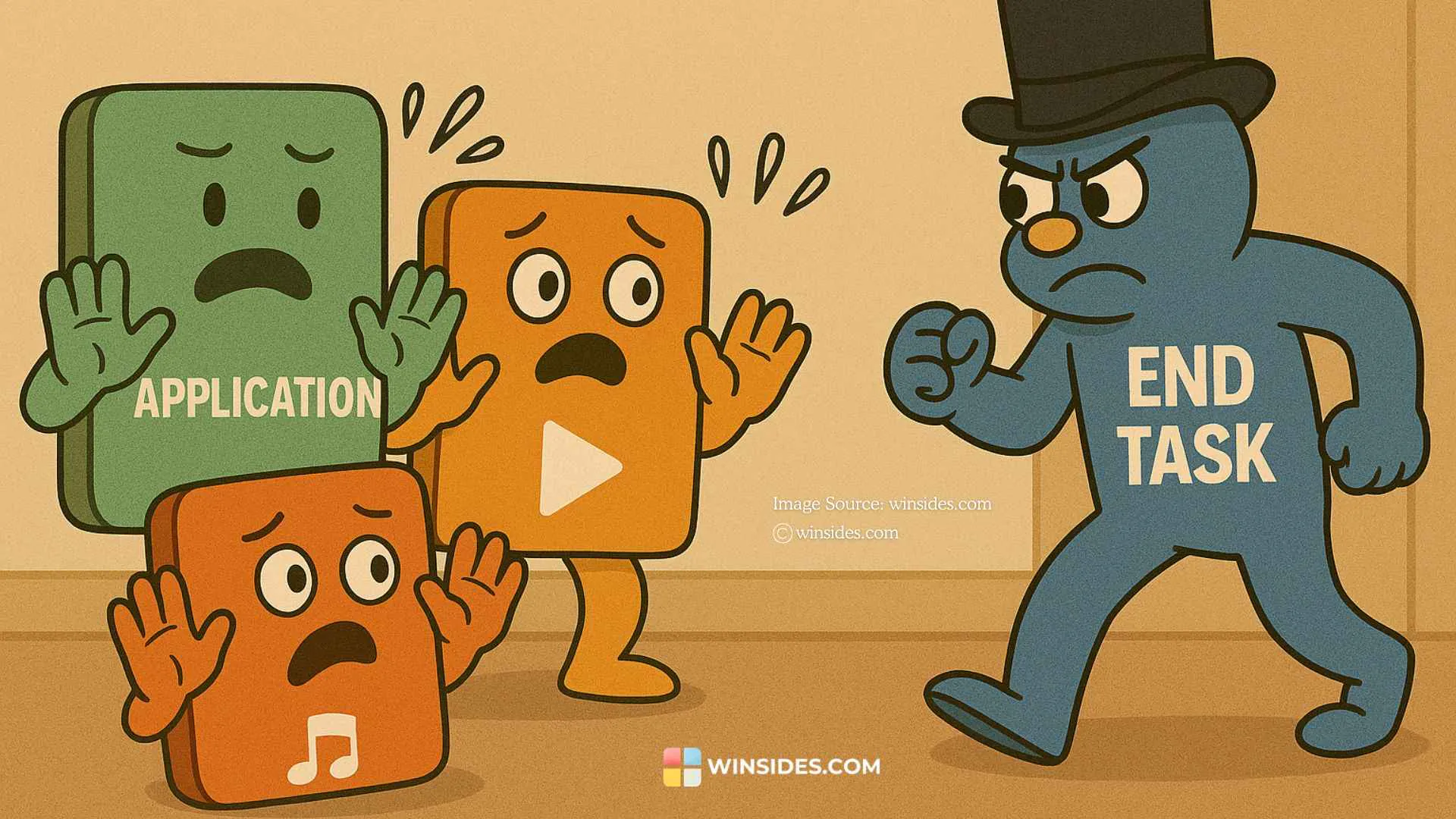
End Task option terminates a process immediately

End Task does not care about what the application is doing currently, or what happens to the Data, or anything. It takes a straightforward command from the OS and completes the command. Sometimes it can be tedious if an application becomes unresponsive or frozen, then we may have to wait quite a long time for the application to become responsive, and sometimes, it takes forever. To regain control of the system, we can use the End Task option and kill the process immediately, so that the system can reach its normal status.

Be Cautious while using End Task on Windows 11
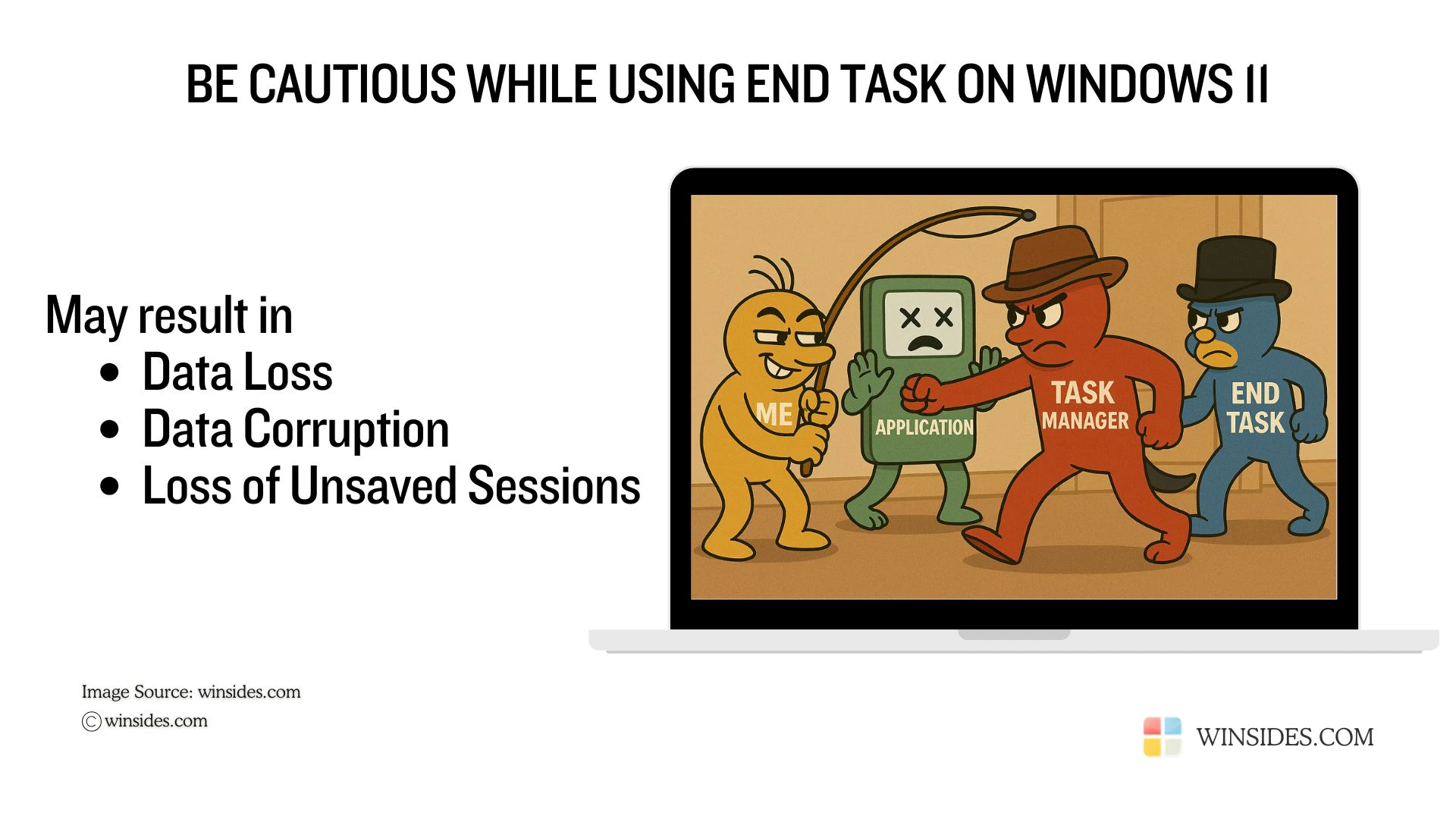
Be cautious while using End Task on Windows 11

While this option brings the System to its normal status, it comes with a cost. All the Unsaved work will be lost.

  • For Example, if you are working on a Word Document, and you have typed a 500-word paragraph. It is not saved yet, and for some reason, the Word Application becomes unresponsive. In that case, if you use the End Task option, you will regain your system’s functionality, however, the Word Application will be terminated immediately, and all the data will be lost.
  • When a Data Transfer is happening and you end those Tasks, then it may result in possible Data Corruption.
  • The most frequently faced situation is when Google Chrome becomes unresponsive because of inadequate system resources when we open several tabs. We will have to use the End Task option in such a case, we will lose all the unsaved Browser Tabs, and Sessions.

Different Ways to End Task on Windows 11

The most popular and traditional way is to use the Task Manager. However, in certain situations, even the Task Manager can become unresponsive. There are so many Memes on the Internet related to this. You are supposed to Kill them and not join them. The other ways to End Task on Windows 11 will be

  • Using the Command Prompt (Kill Process)
  • Using the Windows PowerShell(Stop Process)

The above two methods are not popular among conventional users. However, for Developers and IT people who work with Windows Servers, these methods can be useful.

There is one more method, and this whole article is about that method. In the latest Windows 11 22H2 update that was released at the end of 2023, a new feature called “End Task in the taskbar by Right-Click” has been introduced.

What does End Task in the Taskbar by Right-click do?

When we open a application on Windows 11, the application’s icon will appear in the Taskbar. The Taskbar shows various useful infromation including different active applications. You can minimize and switch between applications using the Taskbar. End Task in the Taskbar provides the option of “End Task” when we right-click on the application’s icon in the Taskbar. This provides a quick access to End Task option and can be useful for developers and IT people.

How to Enable End Task in Taskbar by Right-click on Windows 11?

To enable this option on Windows 11, we have to make sure that the Developer Mode is on. The first part of this process is to enable the Developer Mode on Windows 11. We have a detailed article explaining How to Enable Developer Mode on Windows 11 with clear steps. Kindly refer to it.

[su_box title=”Important”]Enabling Developer Mode in Windows 11 comes with some risks like Security Vulnerabilities, System Instability, Privacy Concerns, Unauthorized Access, etc. It is mostly for people who are into Development. Hence, kindly be aware of the risks in enabling this mode on Windows 11 and proceed accordingly. [/su_box]

Let’s get to the Second part. The following are the steps to enable end task in taskbar by right-click on Windows 11.

  • Use the Keyboard Combination Win Key + I to open Windows Settings.
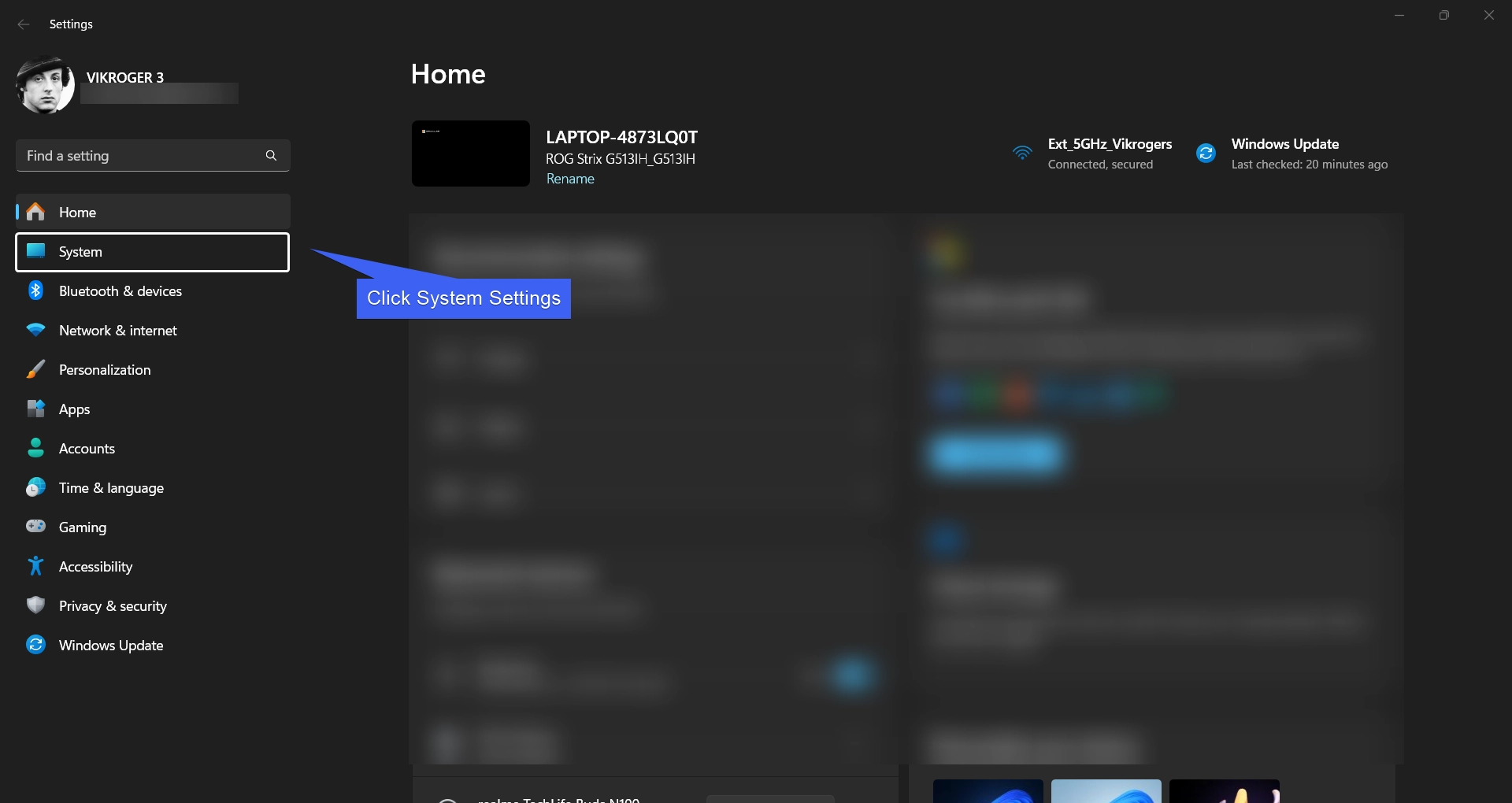
  • Click on System from the Left pane.
System Settings
System Settings
  • Scroll down and locate “For developers” option and open it.
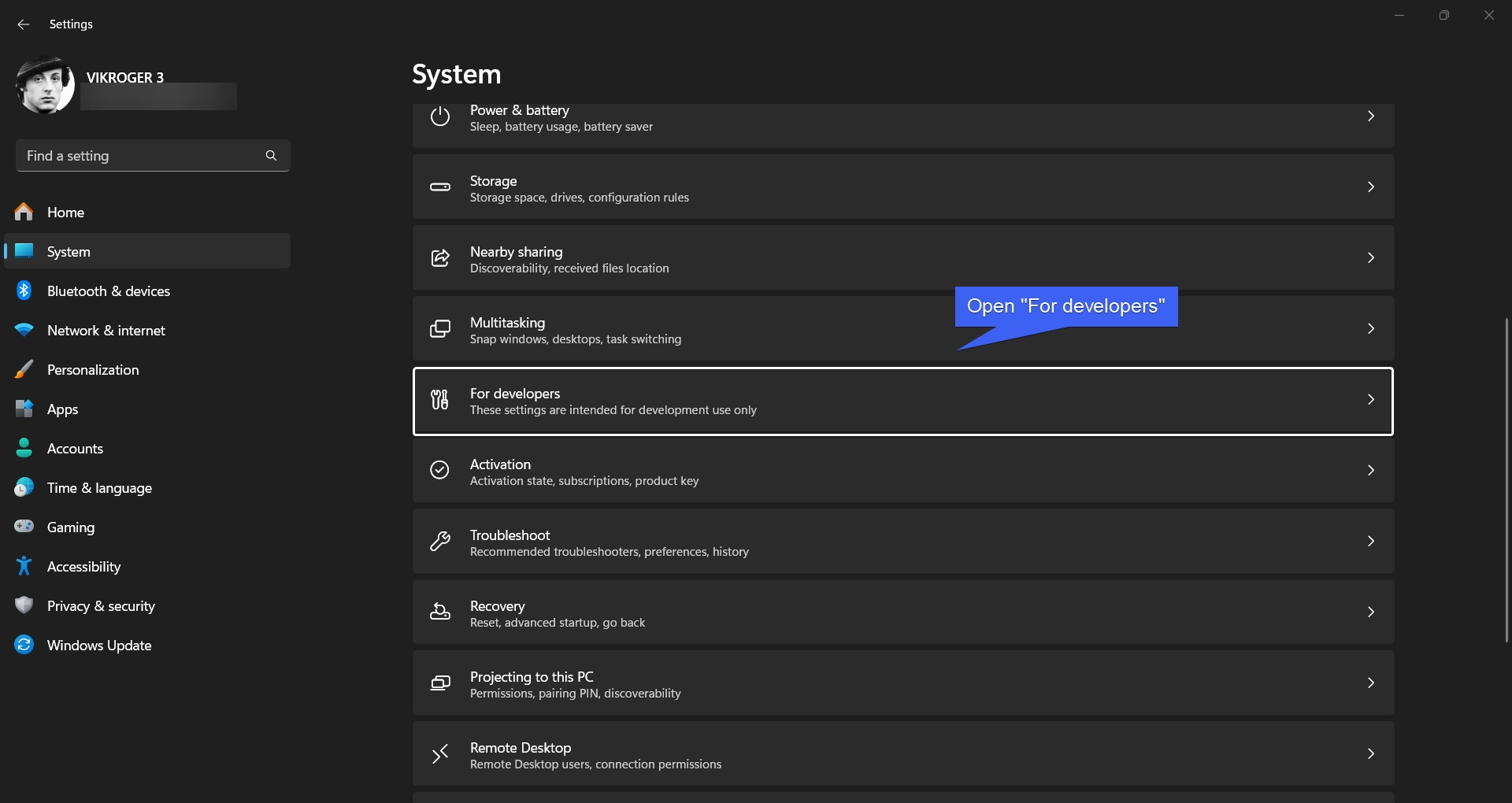
Open For Developers
Open For Developers
  • Under “For developers” option, you can find the option End Task. This option enables end task in taskbar by right-click.
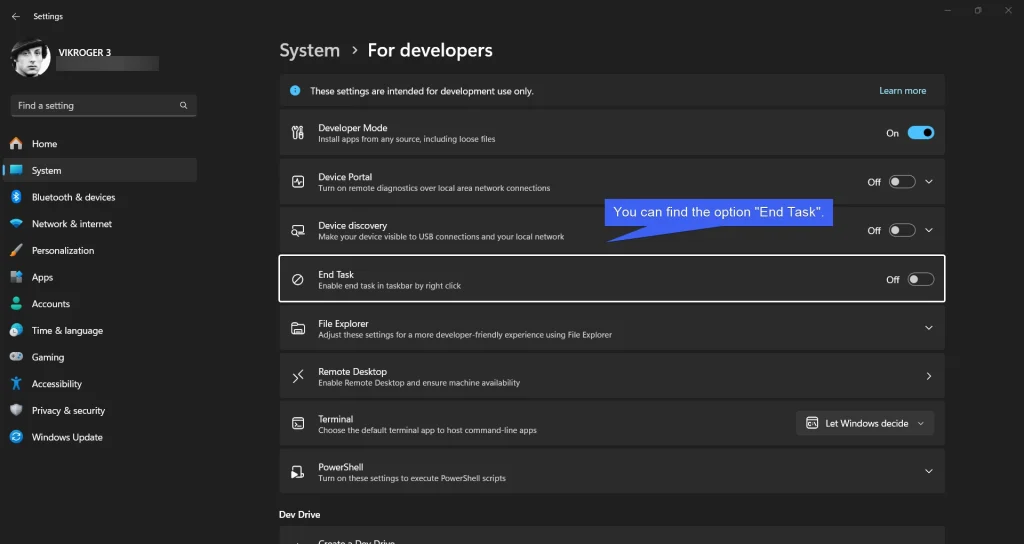
You can find the option End Task
  • Toggle the End Task switch to ON to enable this option on Windows 11.
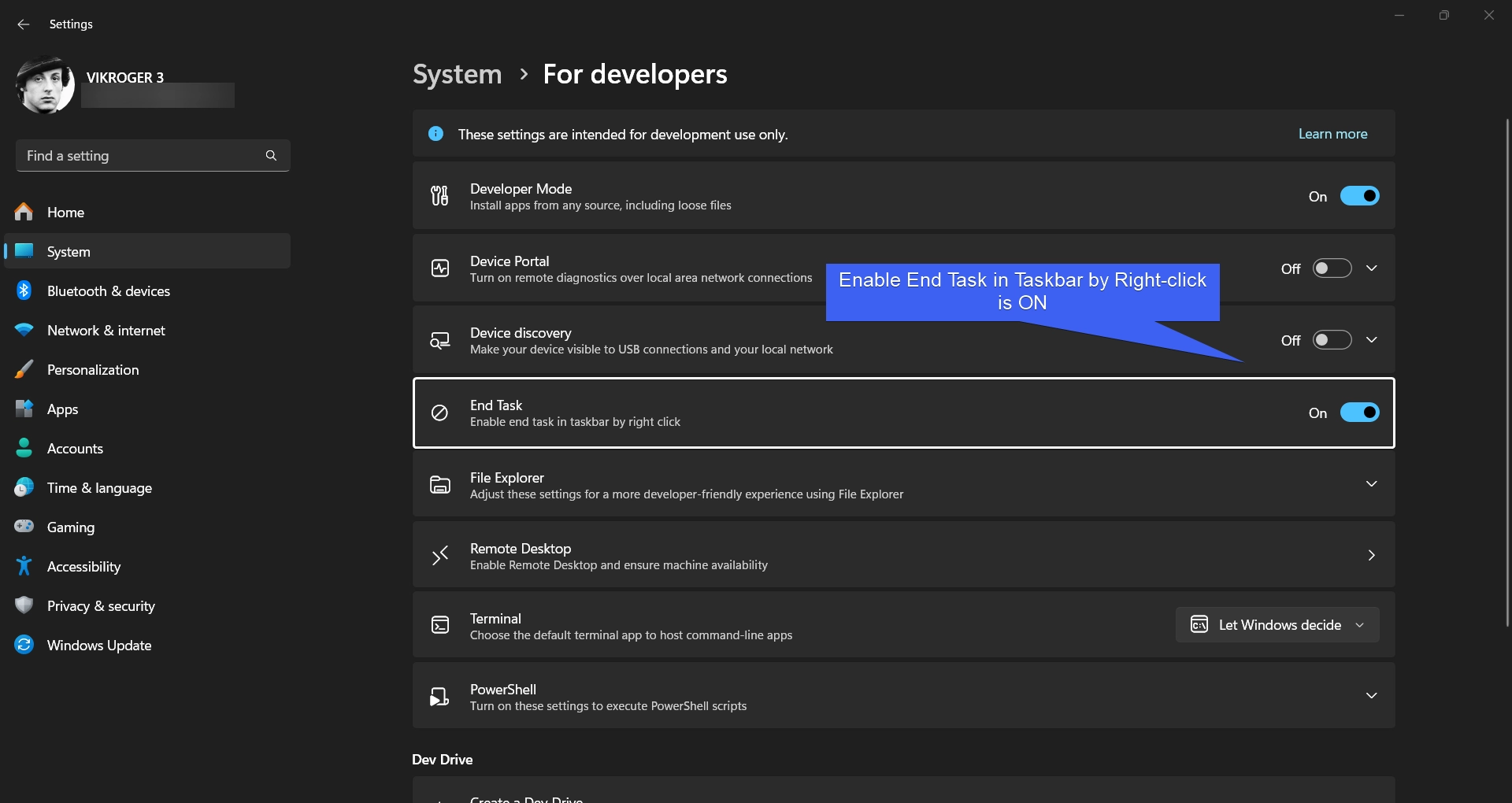
Enable End Task in Taskbar by Right-click is ON
  • That’s it. End Task Option is enabled on Windows 11.
  • Let’s check it out. I am using Chrome Web Browser for making this article, let’s right-click on the Chrome Application in the taskbar and check for the End Task option.
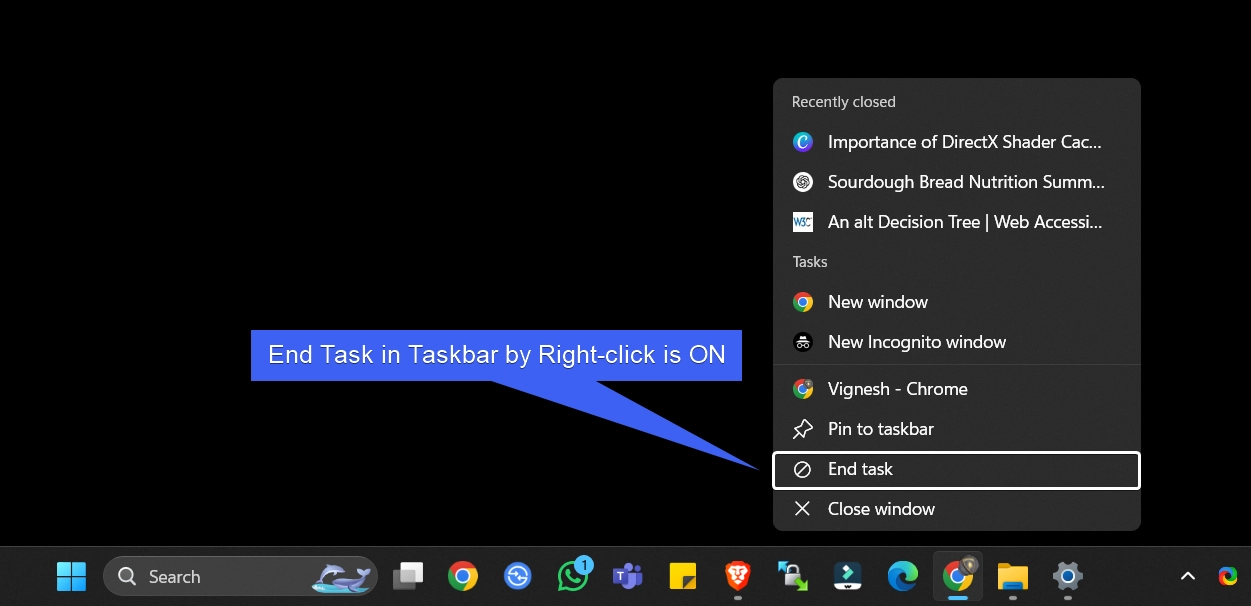
End Task option in Taskbar by Right-click is enabled for Applications

Take Away

Enable End Task in Taskbar by Right-click on Windows 11 can be a useful feature for Developers, who faces Unresponsive application issues frequently. However, if you are worried about enabling Developer Mode on Windows 11, you can stick with the conventional method of Task Manager to End Task when an Application becomes unresponsive. The choice is yours.

Have Queries?

If you have any queries, kindly let us know in the Comment Section. For more interesting articles, visit Winsides.com. Happy Computing! Peace out!
Tags:

How to Enable in Windows 11windows 11
Vigneshwaran Vijayakumar
Author

Vigneshwaran Vijayakumar

Hello, I'm Vigneshwaran, the founder, owner, and author of WinSides.Com. With nearly a decade of experience in blogging across various domains and specializing in Windows-related tutorials for over five years, I bring a wealth of knowledge and expertise to WinSides.Com

Follow Me
Other Articles
What is Activity History on Windows 11
Previous

What is Activity History on Windows 11?

How to Clean C Drive in Windows 11?
Next

How to Clean C Drive in Windows 11?

No Comment! Be the first one.

Leave a Reply Cancel reply

Your email address will not be published. Required fields are marked *

  • How to Enable IIS [Internet Information Services] in Windows 11?
  • Download & Install Google App for Windows 11
  • How to Batch Rename Files using PowerRename in Windows 11?
  • Windows 10 officially ends on October 14, 2025
  • Enable Microsoft Message Queue (MSMQ) Server in Windows 11
  1. Vigneshwaran Vijayakumar
    Vigneshwaran Vijayakumar on How to Enable Windows PowerShell 2.0 in Windows 11?October 5, 2025

    Hello Mr. Mohamad El-Kheir, Thank you for contacting us. Microsoft has removed PowerShell version 2.0 completely from Windows 11 24H2…

  2. Avatar of Mohamad El-Kheir
    Mohamad El-Kheir on How to Enable Windows PowerShell 2.0 in Windows 11?October 5, 2025

    i have a MSI laptop with windows 11 Home Installed on it. how to install powershell v2.0 on it

  3. Vigneshwaran Vijayakumar
    Vigneshwaran Vijayakumar on DxDiag Windows 11 – What is it & How to use it for Troubleshooting?August 14, 2025

    Hey Myla Shannon Thank you for your valuable feedback. We are delighted to hear your compliment and excited to know…

  4. Avatar of Myla Shannon
    Myla Shannon on DxDiag Windows 11 – What is it & How to use it for Troubleshooting?August 14, 2025

    This content is incredibly informative.

  5. Avatar of seven
    seven on How to Enable IIS [Internet Information Services] in Windows 11?July 29, 2025

    I found this post very helpful.

  • About us
  • What’s New?!
  • Guest Posts on Winsides.com – Terms and Conditions
  • Publication Sitemap
  • Careers
  • Authors
  • Why Trust Winsides.com?
  • Content Removal Request
  • Terms of Use
  • Disclaimer
  • Contact us
Copyright 2024-2026 - Winsides.com. All rights reserved.