

Introduction to akams myrecoverykey
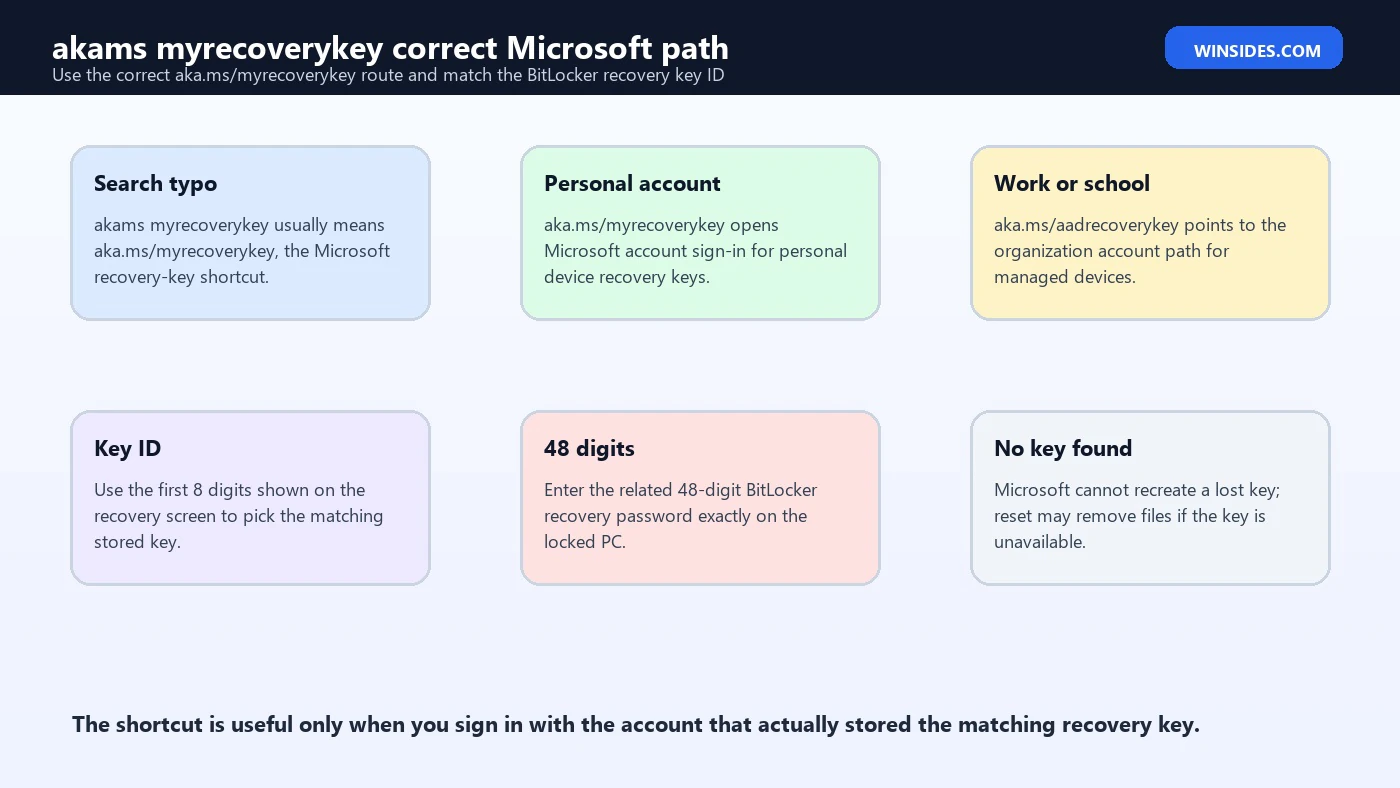
akams myrecoverykey is usually a search typo for aka.ms/myrecoverykey, the Microsoft shortcut that takes users to the Microsoft account page where BitLocker recovery keys may be stored. The difference looks small, but it matters when you are locked out of a Windows 11 PC and staring at a BitLocker recovery screen. The correct shortcut is https://aka.ms/myrecoverykey, not a random search-result download page, not a third-party recovery tool, and not an unofficial key finder.
The shortcut is useful when a BitLocker recovery key was backed up to a personal Microsoft account. After signing in, you may see one or more stored recovery keys. You then match the recovery key ID shown on the locked PC with the key ID listed online and enter the related 48-digit recovery password. If the device belongs to a work or school organization, the correct path may instead be https://aka.ms/aadrecoverykey or the organization help desk.
This topic is stressful because many users do not know BitLocker or device encryption was enabled until Windows asks for a recovery key. Windows 11 can store a recovery key in a Microsoft account or a work/school account depending on how the device was set up. Microsoft Support explains that the recovery key is needed when BitLocker cannot automatically unlock an encrypted drive, and that the key is a 48-digit number used to regain access. Microsoft also warns that Support cannot retrieve, provide, or recreate a lost BitLocker recovery key.
This guide explains what akams myrecoverykey means, how to use the correct aka.ms/myrecoverykey link, how to match the key ID, how to handle work or school devices, why the page may show no keys, what to do if the key does not work, and how to avoid this problem next time. It is based on Microsoft Support guidance for finding your BitLocker recovery key and Microsoft Learn guidance on BitLocker recovery.
Table of contents
Key Takeaways
- akams myrecoverykey is usually a typo. The correct Microsoft shortcut is aka.ms/myrecoverykey.
- Use the official Microsoft page only. Do not use third-party key finder pages, fake recovery tools, or search ads that ask for sensitive information.
- aka.ms/myrecoverykey is for personal Microsoft accounts. Sign in with the account that set up or encrypted the device.
- aka.ms/aadrecoverykey is for work or school account paths. Managed devices may require IT help desk approval.
- Match the recovery key ID. The first 8 digits shown on the BitLocker screen help identify the correct stored key.
- The unlock value is a 48-digit recovery password. Enter the related 48-digit key exactly on the locked computer.
- If no key exists, Microsoft cannot recreate it. Resetting may remove files if the recovery key cannot be found and the trigger cannot be undone.
What Does akams myrecoverykey Mean?
The phrase akams myrecoverykey is not the official Microsoft URL. It is a common way people type or search for aka.ms/myrecoverykey. The official Microsoft short-link format is aka.ms, followed by a slash and the destination name. In this case, the correct address is aka.ms/myrecoverykey. It redirects to Microsoft account sign-in and then to the recovery-key area for the signed-in account.
That correction is more than spelling. When a PC is locked at a BitLocker recovery screen, users may search quickly and click the first result. This is risky because a BitLocker recovery key is sensitive. Any page asking you to upload keys, download unlocking software, pay for a universal recovery tool, or paste a 48-digit recovery password should be treated with suspicion. Use the official Microsoft account route.
If you typed akams myrecoverykey into a browser search bar, the practical answer is: open aka.ms/myrecoverykey from another device, sign in with the correct Microsoft account, and match the key ID shown on the locked PC. If the device is managed by work or school, use aka.ms/aadrecoverykey or contact IT.
What Is aka.ms/myrecoverykey?
aka.ms/myrecoverykey is a Microsoft shortcut that helps users reach the Microsoft account recovery-key page. It is designed for personal Microsoft accounts. If the BitLocker recovery key for a personal Windows device was backed up to the account, the page can show saved keys. You still need to choose the correct one by matching the key ID. The page does not magically create a key that was never backed up.
A typical use case looks like this: a Windows 11 laptop starts at the BitLocker recovery screen after firmware changes, TPM changes, a boot configuration change, a Windows update event, or another startup-state change. The screen shows a recovery key ID and asks for a 48-digit recovery key. From another phone or computer, the user opens aka.ms/myrecoverykey, signs in, finds a stored key with the matching ID, and types the 48-digit recovery password into the locked laptop.
If you sign in and see no keys, do not assume BitLocker is impossible to unlock. You may be in the wrong account. The device may have been set up by someone else. It may be a work or school device. The recovery key may be printed or stored on a USB drive. The key may be in an older Microsoft account. The next sections walk through those possibilities safely.
How to Use aka.ms/myrecoverykey Safely
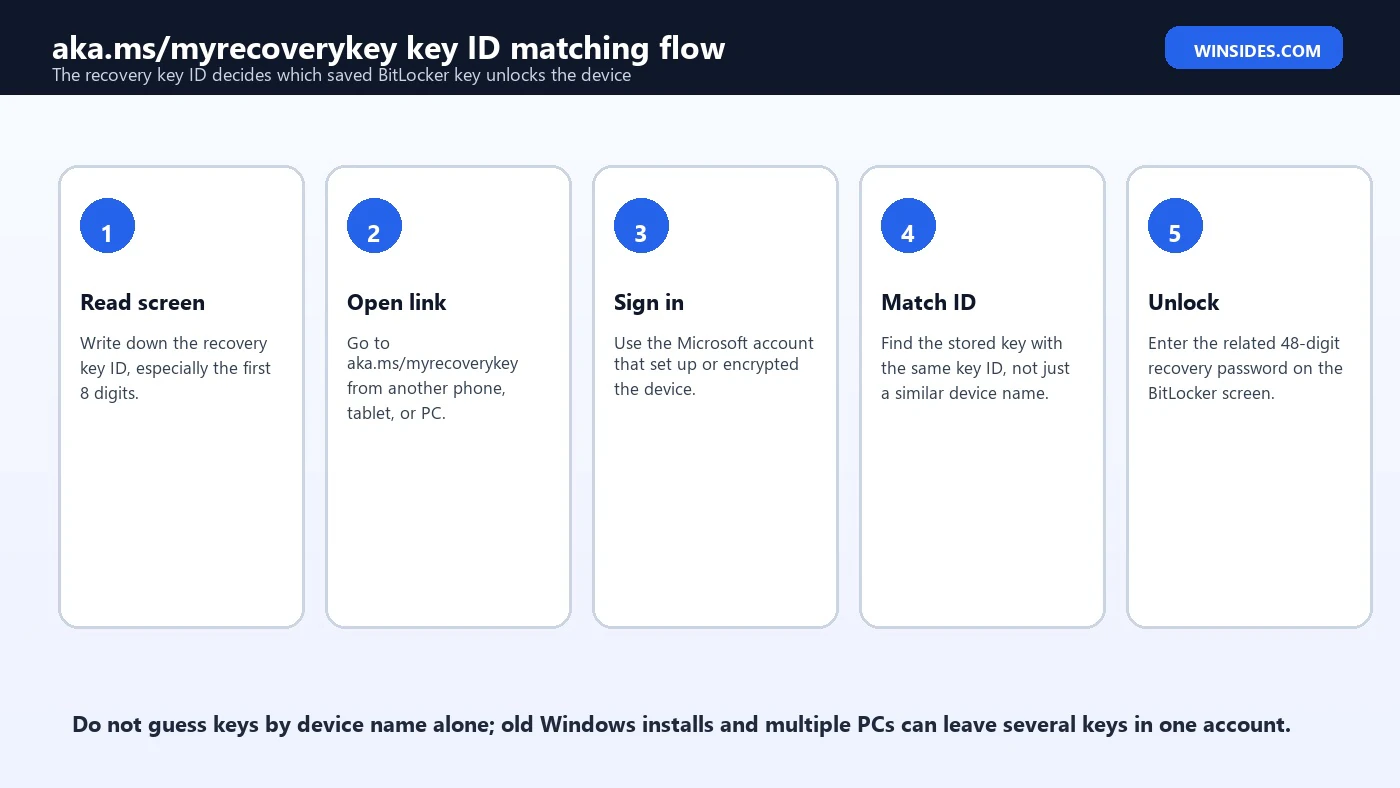
- Use another device, such as a phone, tablet, or second computer.
- Open the exact address: https://aka.ms/myrecoverykey.
- Sign in with the Microsoft account that was used to set up or encrypt the locked PC.
- Look at the BitLocker recovery screen and write down the first 8 digits of the recovery key ID.
- Find the stored key with the matching key ID on the Microsoft account page.
- Enter the related 48-digit recovery password on the locked PC.
- After Windows starts, back up the key again and check why recovery was triggered.
The most common mistake is signing into the wrong Microsoft account. Many people have old Outlook, Hotmail, Live, Xbox, school, or family accounts. The account used today may not be the account used when the device was first set up. If the recovery page shows no keys, try the setup account, not just the account you remember using most recently.
Why the Key ID Matters
Microsoft Support tells users to take note of the first 8 digits of the recovery key ID because it helps identify which recovery key to use when more than one is available. This is critical. A Microsoft account can contain keys from old laptops, reinstalled Windows copies, external drives, repaired devices, family PCs, and previous BitLocker configurations. Device names alone may not be reliable.
On the locked PC, the BitLocker screen shows a recovery key ID. On the Microsoft account recovery page, each stored key has identifying information. Match the ID first. Once you find the matching ID, use the related 48-digit recovery password. Do not type every key from the account at random. It wastes time and creates confusion.
If the key ID does not match any key in the personal Microsoft account, switch search paths. Check other Microsoft accounts, the work or school route, printed records, USB drives, saved text files, password manager notes, or IT support. The key ID is your compass; follow it rather than guessing.
Personal Microsoft Account vs Work or School Account
aka.ms/myrecoverykey is the personal Microsoft account route. If the device was set up with a personal Microsoft account, that is usually the best first place to check. If the device was ever signed into or managed by an organization, the recovery key may instead belong to a work or school account. Microsoft Support points users to aka.ms/aadrecoverykey for that path.
A work or school device may not allow the user to view the key directly. The organization may store keys in Microsoft Entra ID, Active Directory, Intune, or another management system. In that case, contact IT and provide the recovery key ID, device name, serial number, asset tag, or user account details. Do not expect your personal Microsoft account to show a key for a company-managed laptop.
This distinction also matters for used devices. If you bought a second-hand business laptop and it asks for a BitLocker recovery key controlled by the old organization, you may not be able to retrieve it. The seller should remove management and reset or decrypt the device before sale. A recovery key tied to someone else account or organization is not recoverable by guessing.
Why Windows Is Asking for the Recovery Key
BitLocker asks for recovery when the drive cannot unlock through the normal trusted path. Microsoft Learn lists many triggers, including wrong PIN attempts, boot order changes, TPM changes, motherboard replacement, firmware updates, changes to early startup components, hiding or clearing the TPM, moving a protected drive into another computer, PXE boot, and other startup-state changes.
This does not automatically mean your files are gone. In many cases, the drive is still intact, but BitLocker wants proof before unlocking it. The recovery key is that proof. Once the correct 48-digit recovery password is entered, Windows may boot normally. If the prompt appears again and again, the underlying boot or TPM state may need repair after you get back into Windows.
The recovery prompt can feel sudden because device encryption may have been enabled during Windows setup. Newer Windows 11 devices can store recovery keys in Microsoft account or work/school account contexts. That convenience helps when you know the account. It becomes painful when the device owner never checked where the key was stored.
If aka.ms/myrecoverykey Shows No Keys
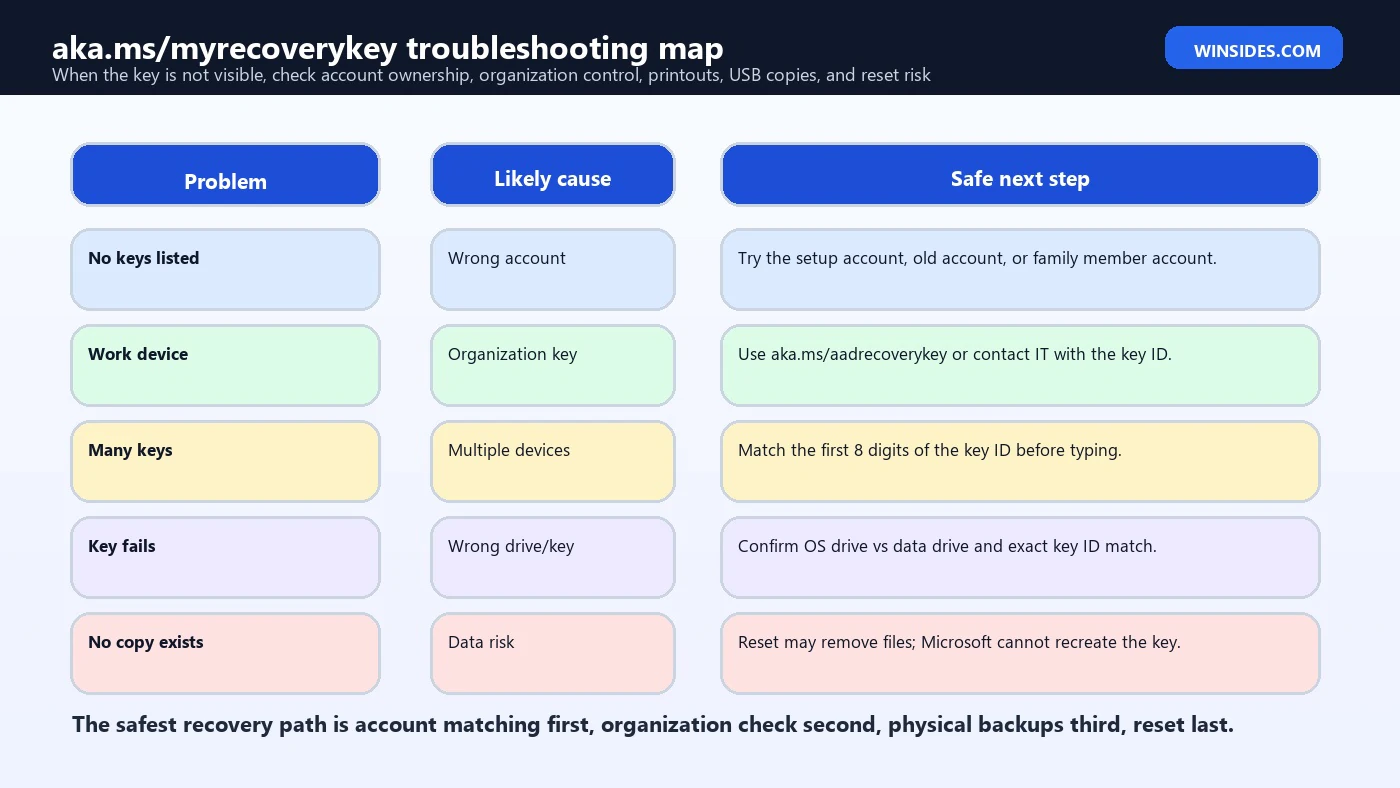
If the page shows no keys, slow down and check account ownership. Try every Microsoft account that might have been used on the PC: Outlook, Hotmail, Live, Xbox, family organizer, parent account, older account, or the account used during first setup. If someone else set up the PC or turned on BitLocker, the key might be in that person account.
Next, check whether the PC is work or school managed. If the sign-in screen, device name, login email, or ownership history points to an organization, use the work/school route or contact IT. A personal account page will not list keys held by an organization tenant. Conversely, an organization portal will not list keys for a purely personal PC.
Then check physical and local backups: printed key, USB drive, exported text file, password manager, secure note, OneDrive documents, external backup, setup folder, repair paperwork, or admin documentation. Microsoft Support also mentions printouts and USB drives as possible storage locations. The important rule is that the copy must be outside the locked encrypted drive.
If the Recovery Key Does Not Work
If a recovery key does not work, the most likely cause is a mismatch. You may be typing a valid BitLocker key for a different device, different drive, old Windows installation, external drive, or previous protector. Compare the key ID again. The first 8 digits should match the locked screen. If they do not, keep searching.
Also check typing accuracy. The recovery password is 48 digits. One wrong digit is enough to fail. Make sure Num Lock, keyboard layout, and the input field are behaving as expected. If possible, read the key in groups and enter carefully. Do not add spaces unless the recovery screen automatically handles grouping.
If the matching key still fails, document the exact screen and device. For a managed PC, escalate to IT. For a personal PC, confirm whether the prompt is for the operating system drive or a data/external drive. A key for C: will not necessarily unlock another protected drive, and vice versa.
What If You Cannot Find Any Key?
If no recovery key can be found and the triggering change cannot be undone, the options become limited. Microsoft Support clearly says it cannot retrieve, provide, or recreate a lost BitLocker recovery key. If the device is managed by an organization, check with IT. If it is personal and every account and backup location has been exhausted, resetting the device may be necessary, and Microsoft warns that reset removes files.
That is not a trick or artificial inconvenience. It is what strong drive encryption is meant to do. Without a valid unlock method, the encrypted data should remain inaccessible. This protects stolen or tampered devices. The same protection can lock out the legitimate owner if every recovery copy is lost.
Before reset, review all possible storage paths one more time. Personal Microsoft accounts, work or school accounts, old accounts, family accounts, printouts, USB drives, text files, password managers, backup folders, repair documents, and IT portals are worth checking. Reset should be the last step, not the first panic click.
How to Back Up the Key After You Recover
After Windows starts, do not just continue as if nothing happened. Open Manage BitLocker and confirm the recovery key is backed up. Save another copy in a safe place. Depending on your edition and account type, options may include Microsoft account backup, work/school escrow, USB drive, file, printout, or organization management. The right choice depends on whether you value convenience, privacy, organization policy, or offline control most.
A strong backup plan has at least two places. For example, Microsoft account plus printed copy, work/school escrow plus help desk process, or password manager plus secure offline printout. Do not keep the only copy on the encrypted drive. Do not keep the only copy in an account you cannot access without the locked PC. Test access from another device while the PC is healthy.
If the key was exposed during recovery, consider rotating the recovery password after you are safely back into Windows. Organizations often have policies for rotating or invalidating used recovery passwords. Home users can at least ensure the key is not sitting in an unsafe chat, screenshot, or public place.
Security Tips When Using aka.ms/myrecoverykey
Treat the BitLocker recovery key as sensitive. Anyone with the correct recovery password can unlock the protected drive in a recovery scenario. Do not post it in forums, send it in casual chat, upload it to random support tools, or paste it into non-Microsoft pages. If you need help, share the recovery key ID or a screenshot with the actual 48-digit key hidden, unless your organization has a secure recovery process.
Use a trusted browser and check the address. The official shortcut is aka.ms/myrecoverykey, and it redirects into Microsoft sign-in. If a page asks for your Microsoft password but the address is not a Microsoft login page, stop. If a page asks you to download an unlocker, stop. If a page says it can bypass BitLocker without a key, assume it is unsafe or misleading.
If you use a shared or public computer to retrieve the key, sign out afterward and do not save the password in the browser. If possible, use your own phone or a trusted second device. The recovery key is a high-value secret, not just another support code.
When to Use aka.ms/aadrecoverykey Instead
Use aka.ms/aadrecoverykey when the device is connected to a work or school organization. Microsoft Support says a device that was ever signed into an organization using a work or school account may have its recovery key stored in that organization account. Depending on policy, you may be able to view it yourself, or you may need IT support.
This path is common for company laptops, school laptops, nonprofit devices, shared workstations, and PCs enrolled in management tools. It can also apply to devices that feel personal but were joined to a tenant or set up with a work account. If the locked PC shows an organization account on the sign-in screen, start there.
When contacting IT, provide the key ID from the BitLocker recovery screen. The first 8 digits are especially useful. Also provide device name, serial number, asset tag, username, and any recent changes such as BIOS update, motherboard repair, Windows update, or boot order change. The better the context, the faster IT can choose the correct key.
Common Mistakes to Avoid
- Do not type akams as if it were the official Microsoft short domain; use aka.ms/myrecoverykey.
- Do not click recovery-key download ads or third-party unlock tools.
- Do not ignore the recovery key ID when several keys are listed.
- Do not assume the newest Microsoft account is the setup account.
- Do not use the personal account page for a work-managed device without also checking the organization path.
- Do not clear TPM, change firmware settings, or reinstall Windows while still searching for the key.
- Do not store the only key copy on the encrypted drive.
- Do not reset the PC until all account, organization, printout, USB, and file locations have been checked.
Useful Commands After Windows Unlocks
These commands are for after the PC is unlocked. They do not bypass BitLocker recovery. They help you check status, protectors, and recovery configuration once you are back inside Windows.
manage-bde -status
manage-bde -protectors -get C:\n
PowerShell:
Get-BitLockerVolume
(Get-BitLockerVolume -MountPoint C).KeyProtector
If you are not comfortable with Terminal, use Start search and open Manage BitLocker. For business devices, follow IT policy rather than changing protectors yourself. The goal is to confirm that BitLocker is healthy and that the recovery key is backed up where you can actually find it next time.
If the Device Was Set Up by Someone Else
Many aka.ms/myrecoverykey failures happen because the current user is not the person who originally set up the PC. A parent, spouse, IT technician, repair shop, former employee, previous owner, or family organizer may have signed in during first setup. If BitLocker or device encryption saved the recovery key at that moment, the key can belong to that account rather than the account you normally use today.
Think through the device history. Was it bought used? Was it repaired? Was Windows reinstalled? Was a family member asked to finish setup? Was it once a school or work laptop? Did you switch from a Microsoft account to a local account later? Each of those events can explain why aka.ms/myrecoverykey looks empty even though the key exists somewhere.
The safest next step is to use the recovery key ID as evidence. Ask the person or organization who might have set up the device to check their recovery-key page for the matching first 8 digits. Do not ask them to send every key they see. They should match the ID first and share only the needed recovery password through a secure method.
If You Are Preparing for a BIOS, TPM, or Hardware Change
If you are reading this before you are locked out, take advantage of the calm moment. Confirm that aka.ms/myrecoverykey actually shows the key for your PC. Then save another copy in a secure place. Before BIOS or UEFI updates, motherboard repairs, TPM changes, Secure Boot changes, boot-drive work, or storage controller changes, make sure you have the key in hand.
For planned maintenance, BitLocker can often be suspended before the work and resumed afterward. Suspension is not the same as decrypting the drive; the data remains encrypted, but BitLocker avoids treating the planned change as suspicious during startup. Business users should follow their organization process because IT may have automated suspension and recovery-key escrow policies.
Do not clear the TPM or change boot settings casually. Those actions can make a normal TPM unlock fail and force recovery. If a support guide tells you to change firmware settings, confirm the recovery key first. The right order is key backup, planned change, reboot test, then resume protection.
How to Tell Whether You Are on the Real Microsoft Page
Because this keyword often starts as a search, users may land on pages that are not Microsoft. The real shortcut begins with aka.ms and redirects to Microsoft sign-in or Microsoft account pages. A fake page may ask for payment, ask you to upload a drive image, offer a recovery-key generator, or claim it can unlock any BitLocker drive. Those are red flags.
The real Microsoft path does not ask you to download a BitLocker unlocker. It does not generate a new key for a locked drive. It only shows recovery keys that were already stored in the account you signed into. If the correct key was never backed up there, the page cannot invent one.
Use a trusted device and a clean browser session when possible. If you are using a shared computer, sign out afterward. If you copied the recovery key into a temporary note, delete the note after the emergency and store the key properly. Recovery-key hygiene matters because the 48-digit recovery password is a real unlock secret.
Frequently Asked Questions
Is akams myrecoverykey the correct Microsoft link?
No. It is usually a typo or search phrase. The correct Microsoft shortcut is aka.ms/myrecoverykey.
What does aka.ms/myrecoverykey do?
It takes you to Microsoft account sign-in so you can view BitLocker recovery keys saved to that personal Microsoft account.
What is aka.ms/aadrecoverykey?
It is the work or school account path for organization-managed BitLocker recovery keys.
What if aka.ms/myrecoverykey shows no keys?
You may be signed into the wrong Microsoft account, the key may belong to a work or school account, or it may be stored as a printout, USB file, saved text file, or IT-admin record.
What is the BitLocker key ID?
It is an identifier shown on the recovery screen. The first 8 digits help match the locked drive to the correct stored recovery key.
How many digits is the BitLocker recovery key?
The recovery password used on the recovery screen is 48 digits.
Can Microsoft Support recreate my lost key?
No. Microsoft Support says it cannot retrieve, provide, or recreate a lost BitLocker recovery key.
Can I bypass BitLocker without the key?
No safe general bypass exists. BitLocker is designed to protect encrypted data without a valid unlock method.
Why did Windows suddenly ask for my recovery key?
Common triggers include firmware or TPM changes, boot order changes, Windows recovery, motherboard replacement, too many PIN attempts, or other startup-state changes.
Should I save the recovery key after I unlock Windows?
Yes. Back it up to a safe location outside the encrypted drive and confirm you can access it from another device.
Conclusion: Use the Correct Link and Match the Key ID
akams myrecoverykey usually means the user is trying to reach aka.ms/myrecoverykey in a hurry. The correct Microsoft shortcut is aka.ms/myrecoverykey. Use it from another trusted device, sign in with the Microsoft account that stored the key, and match the recovery key ID shown on the BitLocker screen before entering the 48-digit recovery password.
If the device is work or school managed, use aka.ms/aadrecoverykey or contact IT. If no keys appear, check other accounts, old setup accounts, family accounts, printouts, USB drives, saved files, password managers, and organization records. Do not trust third-party pages promising an easy bypass.
Once you recover, back up the key properly and keep a copy outside the encrypted drive. The next recovery prompt should be a quick lookup, not a data-loss crisis.
For more interesting articles, stay tuned to Winsides.com!









Community
Comments (0)