

Introduction to declared configuration service Windows 11
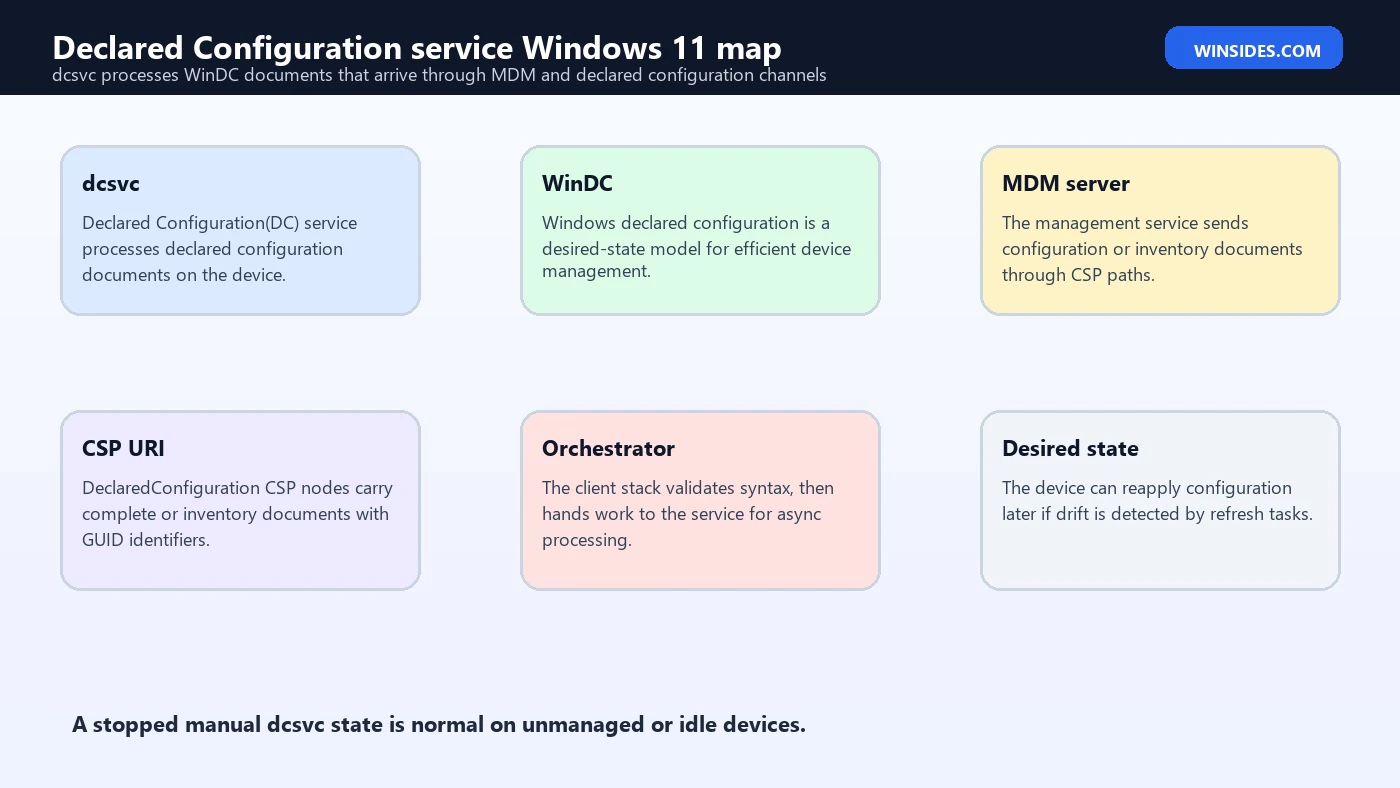
declared configuration service Windows 11 refers to the Windows service named dcsvc, displayed in Services as Declared Configuration(DC) service. Its local Windows service description says it processes Declared Configuration documents received from MDM and other channels and performs configurations on the device. That short description is the key: this service is not a normal consumer app, not a performance booster, and not a feature most home users will open directly. It belongs to the device management and desired-state configuration path used by Windows management infrastructure.
On many Windows 11 PCs, dcsvc can show as Manual and Stopped. That is not automatically a fault. A stopped manual state can be normal when the PC is not actively processing declared configuration work, especially on unmanaged personal devices. The problem is different: an MDM-managed computer failing to apply declared configuration, event logs showing document processing errors, device management drift not correcting, or an administrator seeing WinDC document failures in the management channel.
Microsoft describes Windows declared configuration, or WinDC, as a desired-state device configuration model for efficient and reliable Windows device management. It uses OMA-DM SyncML to provide necessary settings in a single batch through a dedicated OMA-DM server, and the WinDC client stack processes those settings on the device to reach the desired state. See Microsofts Windows declared configuration protocol overview for Microsofts protocol overview. That is the world where dcsvc matters.
This guide explains what the Declared Configuration service does, how it relates to WinDC, MDM, DeclaredConfiguration CSP, DMClient CSP, Policy CSP, event logs, and device drift, how to check whether the service is healthy, and how to troubleshoot without disabling a Windows management service or guessing at registry fixes.
Table of contents
Key Takeaways
- The service name is
dcsvc. Its display name is Declared Configuration(DC) service. - Manual and stopped can be normal. On an idle or unmanaged Windows 11 PC, the service does not need to run continuously.
- It processes declared configuration documents. Local service metadata says it handles Declared Configuration documents received from MDM and other channels.
- WinDC is a desired-state model. Microsoft describes Windows declared configuration as a model where the device processes batched settings and maintains desired state.
- The DeclaredConfiguration CSP is the management entry point. MDM sends Complete or Inventory documents through CSP URI paths.
- Most problems are document, enrollment, or policy problems. Scope mismatch, document ID mismatch, typo in OMA-URI, policy conflict, or MDM enrollment trouble is more likely than a random broken service.
- Use MDM logs instead of service toggles. DeviceManagement-Enterprise-Diagnostics-Provider logs and MDM diagnostic reports are the right places to look.
- Do not disable dcsvc for performance. It is part of Windows management plumbing and may be needed by work, school, or enterprise configuration.
What the Declared Configuration Service Is
The Declared Configuration service is the Windows service behind declared configuration processing. Its service name is dcsvc. Its display name is Declared Configuration(DC) service. Its executable path is hosted through svchost.exe, which is normal for many Windows services. The local description says it processes Declared Configuration documents received from MDM and other channels and performs configurations on the device.
That service description is more useful than a vague internet definition. The service is not there to speed up Windows, monitor ordinary app installs, or manage normal home settings. It is part of a management path where configuration data arrives as documents and the Windows client processes those documents to apply or maintain state.
The closest Microsoft documentation is not a service page named after dcsvc. The closest official documentation is the Windows declared configuration protocol overview and the DeclaredConfiguration CSP reference. Microsofts overview says WinDC is a desired-state device configuration model designed for efficient and reliable management of Windows devices. The service exists to support that kind of local processing.
If your Windows 11 PC is personally owned, not connected to work or school, and not managed through MDM, you may never see the service do anything visible. If your PC is enrolled in Intune or another MDM system, the service may become relevant when policies, resource access configuration, inventory requests, or declared configuration scenarios are applied.
Why dcsvc Can Be Stopped While Idle
A common mistake is to open Services, see Declared Configuration(DC) service stopped, and assume Windows is broken. That is usually too quick. Many Windows services do not run continuously. They start when work exists and sit idle when there is no work. dcsvc is commonly Manual. On an unmanaged device, there may be no declared configuration document to process.
Use PowerShell to observe the service without changing it:
Get-Service -Name dcsvc | Format-List Name,DisplayName,Status,StartTypeFor more detail:
Get-CimInstance Win32_Service -Filter "Name='dcsvc'" |
    Select-Object Name,DisplayName,State,StartMode,PathName,Description
If it shows Manual and Stopped, interpret that in context. Is the device enrolled in MDM? Is it connected to work or school? Is there a current management problem? Are MDM logs showing Declared Configuration errors? If none of those are true, the service state is not meaningful by itself.
The warning signs are different. A managed device may report failed policy application, drift that never corrects, WinDC document parsing errors, scope mismatch errors, or MDM sync failures. In those cases, the service can be part of the troubleshooting path, but the root cause may still be the MDM server payload or the declared configuration document, not the service startup type.
How Windows Declared Configuration Works
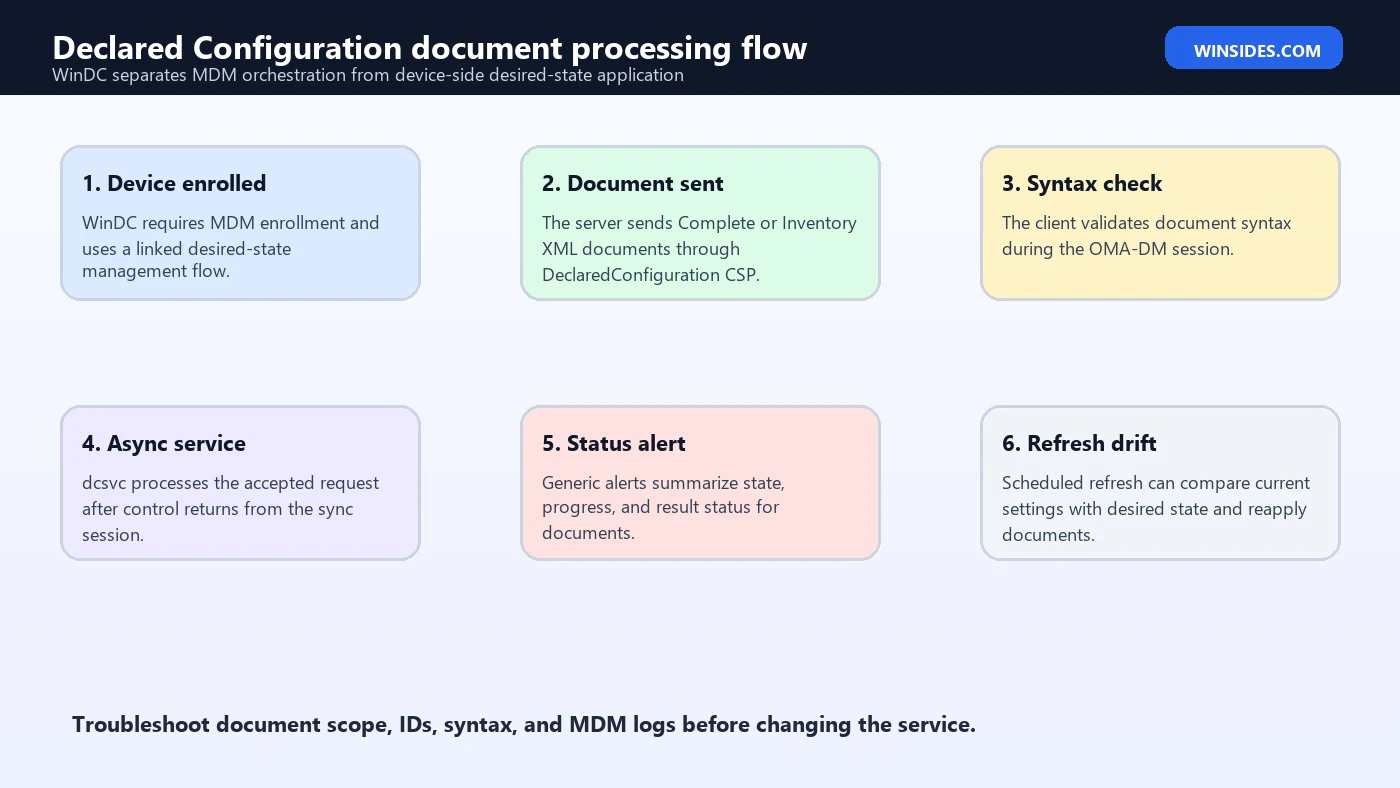
Microsofts WinDC overview says the protocol uses OMA-DM SyncML to deliver all necessary settings in a single batch through a dedicated OMA-DM server. The WinDC client stack on the device processes those settings to achieve the desired state. This is different from a model where the server constantly orchestrates every small step and waits for the client synchronously.
The important phrase is desired state. The management service declares what configuration state should exist. The Windows client stack then works to achieve that state. This design reduces server-side orchestration and lets the client apply device-aware knowledge while processing configuration locally.
The overview also explains that WinDC requires a separate OMA-DM enrollment and that this dual enrollment is allowed only if the device is already enrolled into a primary MDM server. In other words, WinDC is not a feature that random home apps should be using. It is part of Windows device management.
After enrollment, the OMA-DM server can send complete collections of setting names and values for a scenario through the DeclaredConfiguration CSP. Microsoft says the WinDC stack on the device handles the configuration request and maintains its state, including updates to the scenario. That maintenance role is why disabling the service is a poor troubleshooting shortcut.
DeclaredConfiguration CSP and dcsvc
The DeclaredConfiguration CSP is the documented management interface. Microsoft says the Windows declared configuration model requires the server to deliver all setting values for a scenario, and the server sends them asynchronously in batches through the DeclaredConfiguration CSP. See Microsofts DeclaredConfiguration CSP reference for the CSP reference.
The CSP contains paths such as:
./Device/Vendor/MSFT/DeclaredConfigurationFor complete configuration documents, the path can include:
./Device/Vendor/MSFT/DeclaredConfiguration/Host/Complete/Documents/{DocID}/DocumentFor inventory documents, the path can include:
./Device/Vendor/MSFT/DeclaredConfiguration/Host/Inventory/Documents/{DocID}/DocumentMicrosoft describes these documents as XML documents that contain settings and values for a scenario. The document ID should be a GUID. The declared configuration stack verifies syntax. If syntax passes, the request is passed to a Windows service for asynchronous desired-state configuration.
That last part is where dcsvc comes into the story. The service is not the author of the configuration. It is the local processing engine that handles accepted declared configuration work on the device. If the document is malformed, scoped incorrectly, sent through the wrong URI, or mismatched with its ID, the service may appear in logs, but the fix belongs to the document or MDM policy.
Complete and Inventory Documents
DeclaredConfiguration CSP uses document concepts. Complete documents contain a self-contained set of setting/value pairs for a configuration scenario. Inventory documents request the retrieval of setting values. Both flows use XML documents and unique document IDs.
A Complete request is about desired configuration. The management service tells the client what state should exist. The client validates the document and then attempts to apply the state asynchronously. An Inventory request asks the device to retrieve state. The result can be returned through corresponding results nodes.
The document ID matters because Microsofts examples and troubleshooting notes show that mismatches between the URI document ID and the ID inside the document can produce failures. Scope matters too. If the OMA-URI uses Device scope while the document specifies User context, the Admin event log can record a command failure.
These details are why service-only troubleshooting is not enough. If a WinDC deployment fails, restarting dcsvc does not fix a wrong GUID, a wrong scope, a malformed XML payload, or a typo in the OMA-URI. The service can process only what the management channel gives it.
Supported Platforms and Preview Notes
Microsofts declared configuration protocol overview applies to Windows 11 and Windows 10. It states that WinDC enrollment for Microsoft Entra joined devices is supported for all versions of Windows 10 and Windows 11. It also lists specific Windows 11 and Windows 10 update requirements for Microsoft Entra registered device support.
The DeclaredConfiguration CSP page includes an important preview note: some settings are under development and applicable only for Windows Insider Preview builds. That does not mean the dcsvc service itself is fake or unsupported. It means administrators should read the scope and version information for the exact CSP nodes and WinDC scenarios they plan to use.
For readers, the practical message is simple. If you are a normal home user, seeing dcsvc does not mean you need to configure anything. If you are an administrator, do not assume every DeclaredConfiguration CSP feature applies to every Windows build or enrollment type. Check OS version, build, enrollment state, and CSP node applicability.
This is especially important because declared configuration is not a simple local setting. It intersects with MDM enrollment, Microsoft Entra join or registration state, OMA-DM sessions, CSP payloads, and management server behavior.
How Desired State Refresh Works
The WinDC overview says the refresh schedule is created whenever a WinDC document is present on the device and no refresh scheduled task exists. Microsoft says the task runs every four hours by default and can be configured. Each time the refresh task runs, it checks for drift by comparing current system configuration with the server intention in the WinDC documents.
If drift exists, the WinDC engine tries to reapply the documents to fix it. If a document cannot be reapplied because instance data is missing, the document can be marked in a drifted state and a new sync session can be triggered to notify the server.
This is one of the clearest reasons not to disable dcsvc. A desired-state system needs a local mechanism to process and maintain state. If a managed device is supposed to keep a VPN, resource access scenario, policy surface, or other declared scenario aligned with server intent, the local processing path must remain available.
It also explains why some issues appear later instead of during the original MDM session. A document can arrive, be accepted, then later fail during processing or refresh. The right troubleshooting question becomes: did the device accept the document, process it, maintain it, or report drift?
Where MDM and DMClient Fit
The Declared Configuration service is not the whole management stack. It works around MDM enrollment and OMA-DM behavior. Microsofts DMClient CSP reference describes enterprise-specific mobile device management configuration settings, including settings that identify the device in the enterprise domain and support server-triggered enterprise unenrollment. See Microsofts DMClient CSP reference for that reference.
The WinDC overview says declared configuration enrollment uses DMClient CSP policies for dual enrollment. That means a WinDC problem can come from enrollment state or management account configuration, not the service executable. A device that is not correctly enrolled cannot process a management path as expected.
For users, this often shows up under Settings, Accounts, Access work or school. A work or school account can represent device management, user enrollment, or account connection depending on how it was added. For administrators, tools such as Intune portal state, Entra device state, enrollment logs, and MDM diagnostic reports matter more than Services.msc.
If a device is not managed, dcsvc may simply sit idle. If a device is managed and declared configuration fails, check enrollment and management server state before editing local service settings.
Policy CSP and Configuration Conflicts
Declared configuration can intersect with normal policy configuration. Microsofts Policy CSP reference says the Policy configuration service provider enables enterprises to configure policies on Windows 10 and Windows 11. It includes config paths for setting policies and result paths for reading enforced policy state. See Microsofts Policy CSP reference for Microsofts Policy CSP reference.
This matters because device configuration may come from more than one source. Group Policy, MDM Policy CSP, provisioning packages, security baselines, Intune profiles, scripts, and declared configuration can all influence final device state. A failure may not mean dcsvc cannot run. It may mean a policy source conflicts, a setting is not applicable to the device scope, or the result path shows a different effective value than expected.
Microsofts Policy CSP documentation also distinguishes user scope and device scope. Some policies are device-wide, while others are user-specific. Declared configuration documents also carry context. If the service is processing a document whose scope does not match the target URI or scenario, the error belongs to the payload and management design.
For troubleshooting, keep these questions separate: Did the service start? Did MDM deliver the document? Did the CSP accept the document? Did the document parse? Did the scenario apply? Did another policy source win? Did refresh later detect drift? Those are different stages.
Common Symptoms of Declared Configuration Issues
On a personal Windows 11 PC, there may be no symptoms at all. The service exists and stays quiet. On managed devices, symptoms are usually seen through management tooling rather than by the end user. Intune or another MDM platform may show configuration failure. A device may not apply a desired-state scenario. A policy may appear compliant at one layer and drifted at another. Event logs may mention DeclaredConfiguration or MDM command failures.
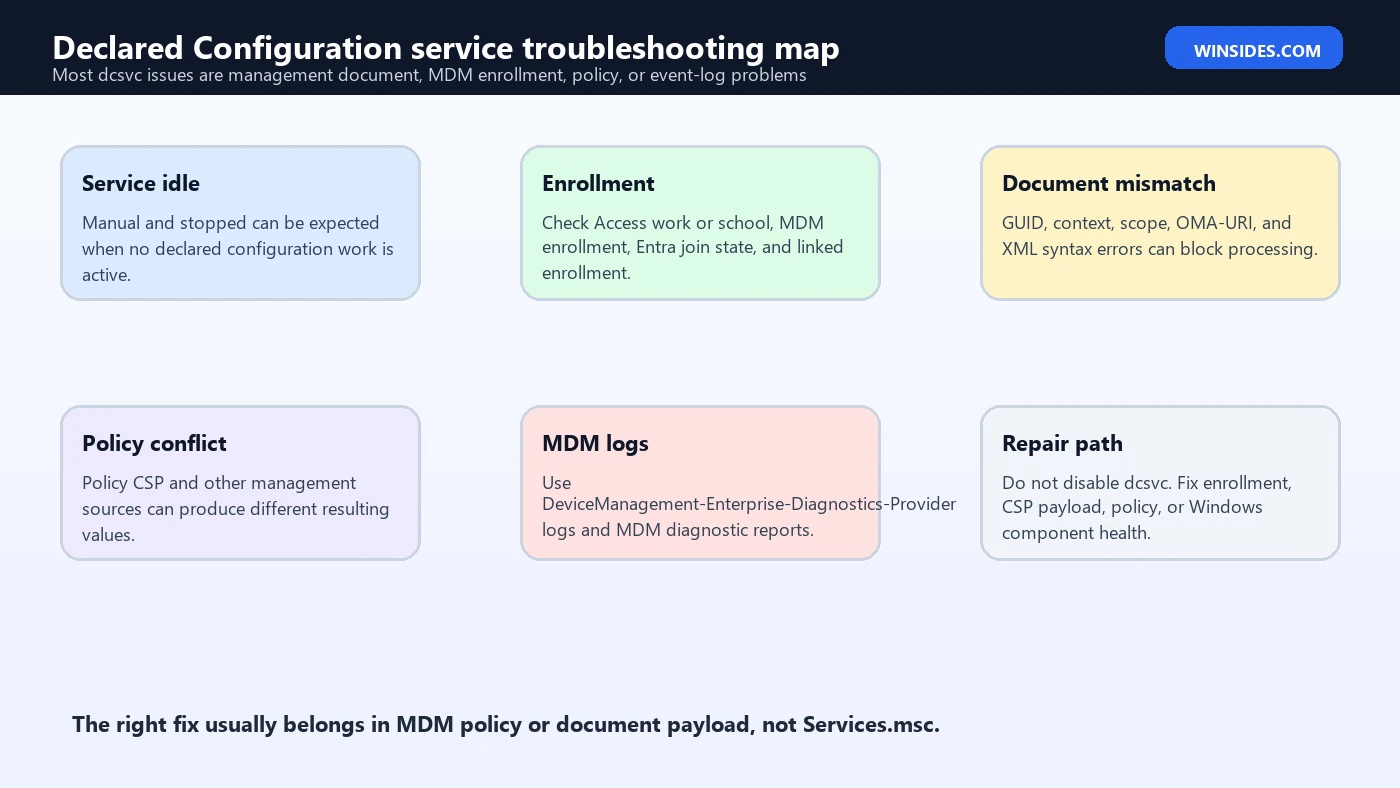
Microsofts declared configuration troubleshooting section gives examples of common errors. One example is using Device scope while the DeclaredConfiguration document specifies User context. Another is a mismatch between the document ID in the URI and the ID inside the document. Another is a typo in the OMA-URI, such as a path segment spelled incorrectly. These are document and management payload problems.
The symptoms can be subtle because WinDC is asynchronous. The initial OMA-DM session may validate syntax and return control before final processing is complete. Later, the device sends a generic alert that summarizes document state, progress, and result. If an administrator watches only the first sync response, they may miss the later processing result.
For a local technician, the sign of trouble is not that dcsvc is stopped. The sign of trouble is that a managed configuration request, inventory request, refresh task, or event log result shows failure. That distinction keeps troubleshooting sane.
How to Check Service State Safely
Start with read-only checks. Do not change startup type. Do not disable the service. Do not delete service registry keys. Do not replace dcsvc.dll or modify svchost groups. Observe first.
Use PowerShell:
Get-Service -Name dcsvc | Format-List Name,DisplayName,Status,StartTypeUse CIM for description and path:
Get-CimInstance Win32_Service -Filter "Name='dcsvc'" |
    Select-Object Name,DisplayName,State,StartMode,PathName,Description
If the service is Manual and Stopped, that can be normal. If it is Disabled on a managed device, investigate who disabled it and why. If it fails to start when a declared configuration document needs processing, capture the exact error. A service start error and a document processing error are not the same problem.
Also check whether the device is managed:
dsregcmd /statusThat command can help show Entra join and device registration context. It does not diagnose declared configuration by itself, but it helps you avoid chasing MDM behavior on an unmanaged device.
Event Logs for Declared Configuration
Microsofts WinDC overview says declared configuration document processing failures are logged to Windows event logs. It lists Admin events under:
Application and Service LogsMicrosoftWindowsDeviceManagement-Enterprise-Diagnostics-ProviderAdminIt also lists Operational events under:
Application and Service LogsMicrosoftWindowsDeviceManagement-Enterprise-Diagnostics-ProviderOperationalMicrosofts MDM log collection guidance also says MDM logs are captured in Event Viewer at Applications and Services Logs, Microsoft, Windows, DeviceManagement-Enterprise-Diagnostic-Provider. See Microsofts MDM log collection guidance for the log collection reference.
For local troubleshooting, Event Viewer is often better than Services. The Admin channel can show command failures, CSP URI, enrollment name, provider name, result code, and context. Operational logs may show declared configuration processing messages. When you collect logs, keep timestamps aligned with the MDM sync or policy deployment time.
Do not enable debug logs permanently on production devices without a reason. Enable them when needed, reproduce the problem, export the logs, then turn detailed tracing off if appropriate. More logging is useful only when someone will read it.
Collecting MDM Diagnostic Reports
Microsoft provides built-in ways to collect MDM logs. The graphical route is Settings, Accounts, Access work or school, select the work or school account, choose Info, then Create report. Microsoft says the report can be exported and found under C:UsersPublicDocumentsMDMDiagnostics.
The command-line route is:
mdmdiagnosticstool.exe -area "DeviceEnrollment;DeviceProvisioning;Autopilot" -zip "c:userspublicdocumentsMDMDiagReport.zip"The MDM diagnostic report can include an HTML summary, XML report, registry dump from common MDM locations, and event logs such as DeviceManagement-Enterprise-Diagnostics-Provider Admin events. For declared configuration issues, these logs can show whether the problem is enrollment, CSP processing, document content, or later refresh.
For administrators, attach the MDM diagnostic report to the ticket along with the expected policy or WinDC document ID, device ID, user, OS build, enrollment type, and MDM server profile name. A declared configuration issue usually cannot be solved from a screenshot of Services alone.
Safe Troubleshooting Order
Use a troubleshooting order that respects management ownership.
First, confirm whether the device is managed. If it is not connected to work or school and no MDM channel is active, a stopped dcsvc service is usually just idle.
Second, check service state, but only as observation. Manual and stopped is not failure by itself.
Third, collect MDM logs. Use Event Viewer and MDM diagnostic reports. Look for DeclaredConfiguration, ConfigurationManager, Provider Name, CSP URI, document ID, result codes, and timing.
Fourth, compare the OMA-URI and the document content. Check Device versus User scope, document GUID, context, XML syntax, schema, checksum, scenario name, and target CSP paths.
Fifth, check enrollment and DMClient state. A linked enrollment or primary MDM enrollment problem can prevent declared configuration from functioning correctly.
Sixth, review Policy CSP and other configuration sources. A different policy source may override or conflict with the intended state.
Seventh, repair Windows component health only if there is evidence that the local OS management stack is damaged:
DISM /Online /Cleanup-Image /RestoreHealth
sfc /scannow
Eighth, escalate to MDM platform support or Microsoft support with logs, document IDs, policy names, and result codes.
What Not to Do
Do not disable the Declared Configuration service because you do not recognize it. It is a legitimate Windows service. Disabling it may break managed configuration scenarios on work or school devices.
Do not assume stopped means broken. The service can be Manual and Stopped while idle.
Do not edit the service registry key casually. The service uses Windows system files and svchost hosting. Registry edits can create a worse problem than the one you are trying to fix.
Do not remove work or school enrollment just to quiet a service warning unless that is the intended management action. Removing enrollment can remove policies, certificates, Wi-Fi/VPN profiles, compliance state, and access to organizational resources.
Do not blame dcsvc when the WinDC document has a scope mismatch, GUID mismatch, XML syntax error, unsupported CSP node, typo in OMA-URI, or policy conflict. Fix the management payload.
Do not use random service-optimization tools on managed devices. They often disable services they do not understand, then enterprise policy and enrollment workflows fail later.
Managed Device Guidance
For Intune or other MDM environments, declared configuration troubleshooting should be handled like a management workflow. Identify the target group, device ID, user, OS build, enrollment type, policy assignment, expected document ID, and failure time. Compare one failing device with one working device on the same assignment.
If the failure affects many devices, suspect the server-side payload, assignment, OS applicability, or CSP node support. If only one device fails, suspect local enrollment state, corrupted management cache, missing update, profile issue, or device drift. If only one user is affected, check user scope and user context.
Use the management platform to confirm whether the policy or declared configuration scenario is actually assigned. Then use the device logs to confirm whether the client received, validated, processed, and reported results. Those are distinct checkpoints.
When you open a support case, include MDM diagnostics, Event Viewer exports, screenshots of assignment state, WinDC document IDs, OMA-URI paths, and result codes. The phrase “Declared Configuration service is stopped” is not enough. The phrase “document GUID mismatch in DeviceManagement-Enterprise-Diagnostics-Provider Admin at policy sync time” is useful.
FAQ
What is declared configuration service in Windows 11?
It is the Windows service named dcsvc, displayed as Declared Configuration(DC) service. It processes declared configuration documents received from MDM and other channels.
Is dcsvc a virus?
No. dcsvc is a legitimate Windows service hosted through Windows system components. The correct path should be under Windows system service hosting, not a random user folder.
Should Declared Configuration service be running?
Not necessarily. It can be Manual and Stopped when idle. On unmanaged or idle devices, that is usually normal.
Can I disable dcsvc?
No, not as a normal fix. Disabling it can break declared configuration processing on managed devices.
Why is dcsvc on my personal Windows 11 PC?
Windows includes many management-capable services even if you do not actively use them. If the PC is unmanaged, the service may simply remain idle.
What is WinDC?
WinDC means Windows declared configuration. Microsoft describes it as a desired-state device configuration model for efficient and reliable management of Windows devices.
What is DeclaredConfiguration CSP?
It is the configuration service provider path used by MDM to send declared configuration and inventory documents to the Windows client.
Where are declared configuration errors logged?
Microsoft points to DeviceManagement-Enterprise-Diagnostics-Provider Admin and Operational logs for declared configuration processing failures.
What should I check before changing the service?
Check MDM enrollment, Event Viewer, MDM diagnostic reports, document ID, scope, context, OMA-URI, XML syntax, and policy conflicts.
Does this affect home users?
Usually not directly. Home users may see the service, but declared configuration is mainly relevant to managed Windows devices.
Conclusion: Keep dcsvc Available for Managed Configuration
Declared configuration service Windows 11 is a management service, not a mystery app. The service name is dcsvc, and its job is to process Declared Configuration documents received from MDM and other channels. On many PCs it can be Manual and Stopped while idle, especially when no declared configuration document is active.
For managed devices, the real troubleshooting path is the WinDC and MDM path: enrollment, DeclaredConfiguration CSP, document scope, GUIDs, XML syntax, OMA-URI paths, Policy CSP conflicts, refresh drift, and DeviceManagement-Enterprise-Diagnostics-Provider logs. Restarting or disabling the service is rarely the right first fix. The payload and management state usually matter more.
Keep dcsvc available, read the management logs, and fix the declared configuration document or MDM assignment that is actually failing. That approach protects both Windows stability and enterprise configuration accuracy.
For more interesting articles, stay tuned to Winsides.com!









Community
Comments (0)