

Introduction to disk at 100 in task manager
disk at 100 in task manager is one of the most common Windows 11 performance complaints because it looks dramatic. You open Task Manager, the Disk column is locked at 100%, apps hesitate, File Explorer takes too long to open, the Start menu feels sticky, and even typing can lag. The natural reaction is to search for a quick switch to turn off, but 100% disk usage is not a diagnosis by itself. It is a visible symptom that the storage device is busy, slow to respond, or being hit by a workload Windows has not finished yet.
Task Manager shows disk active time, not simply how many megabytes per second are moving. A hard drive can reach 100% active time with a small amount of random I/O because the mechanical head is constantly seeking. A cheap or nearly full SSD can also show high active time if background writes, firmware cleanup, low free space, or driver latency slow the queue. That is why one PC can show 100% disk at 5 MB/s while another SSD feels fine at hundreds of MB/s. The percentage must be interpreted with process names, response time, queue behavior, drive type, and recent changes.
This guide uses a safe troubleshooting approach. First, identify what is using the disk. Then decide whether the activity is normal, temporary, excessive, or a sign of failure. Microsofts drive-space documentation explains that low storage can cause slower performance and trouble installing updates, and it points users toward Storage Sense and Cleanup recommendations: Microsofts drive space guidance. Microsoft also documents proper driver handling through Device Manager: updating drivers through Device Manager. For deeper evidence, Microsoft Sysinternals Process Monitor can show real-time file system activity, and Windows Performance Recorder can capture ETW performance traces for analysis: Process Monitor and Windows Performance Recorder.
The goal is not to disable Windows Search, SysMain, Defender, OneDrive, Windows Update, or every startup item blindly. The goal is to prove the cause and apply the least risky fix. Sometimes the right answer is to wait because Windows is finishing updates. Sometimes it is to free space. Sometimes it is to stop a broken sync loop. Sometimes it is a driver, an antivirus scan, a paging problem caused by low RAM, or a storage device that needs to be backed up and replaced. This article walks through that decision path carefully.
Table of contents
Key Takeaways
- 100% disk is a symptom, not the cause. Find the process, service, file path, and pattern before changing settings.
- Task Manager active time can be misleading. A slow HDD can hit 100% with little throughput, while a fast SSD may handle much more without lag.
- Normal background work can look scary. Windows Update, indexing, Defender scans, Store updates, and OneDrive sync can temporarily use the disk heavily.
- Persistent high latency is more serious. If usage stays pinned with freezes, errors, clicking HDD sounds, or storage events, back up immediately.
- Use Resource Monitor for file-level clues. It shows which process is reading or writing which files, which Task Manager often hides.
- Free space matters. Low storage can worsen updates, paging, temporary files, browser caches, and SSD performance.
- Do not disable core services blindly. Search, Defender, SysMain, and Windows Update should be investigated, not randomly turned off as a permanent fix.
What 100% Disk Means in Task Manager
In Task Manager, the Disk column in the Processes view helps identify which processes are currently reading or writing. The Disk graph in the Performance view shows active time, throughput, average response time, and sometimes drive type or interface depending on the Windows 11 build and storage device. The important detail is that 100% does not necessarily mean the drive is transferring data at its maximum advertised speed. It means Windows sees the disk as fully busy during the measurement window.
On a traditional hard disk drive, random reads and writes are expensive. Opening a browser, syncing files, scanning antivirus data, reading thumbnails, writing logs, and updating apps can force the head to jump across the platter. Throughput may look low, but active time stays high because the drive spends time seeking. On an SSD or NVMe drive, high active time usually points to a heavier workload, queueing, firmware behavior, throttling, driver trouble, low free space, or a process performing many small writes.
This difference explains why old laptops with HDDs often feel unusable at 100% disk, while modern SSD systems may show short spikes with no visible slowdown. If the PC becomes responsive again after startup, update installation, or a scheduled scan finishes, the spike may be normal. If the PC freezes every day, takes minutes to open apps, shows disk errors, or has high response time even with almost no throughput, treat it as a real fault and start with backup.
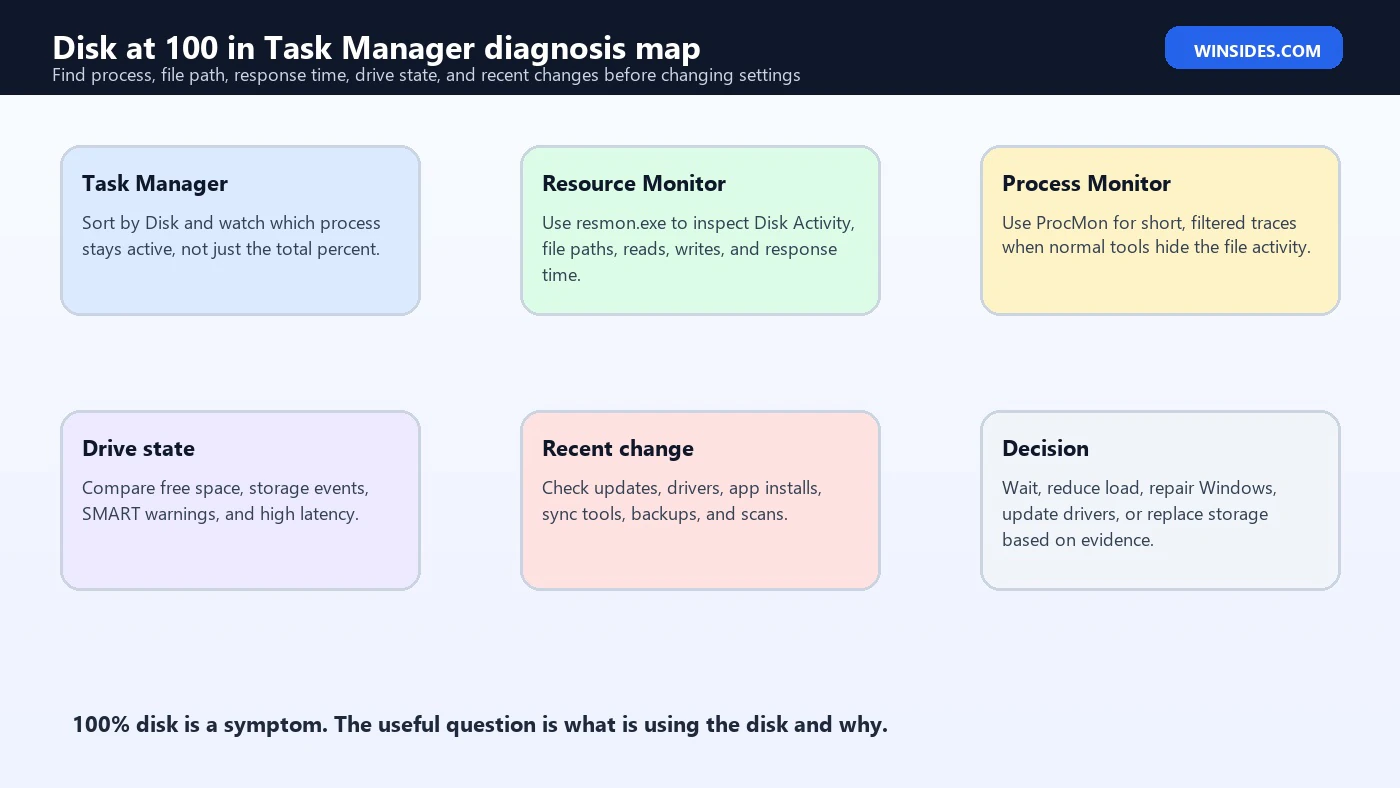
First Check: Temporary Spike or Persistent Problem
Before changing anything, observe the pattern. Restart the PC once, sign in, and give Windows several minutes to settle. A short burst after boot can be normal because startup apps, Windows Security, indexing, cloud sync, update servicing, browser update tasks, and vendor utilities all wake up together. If the disk drops after a few minutes and the PC feels normal, you may only need to reduce startup load or move from HDD to SSD for a better experience.
Persistent 100% disk usage is different. If the Disk graph stays pinned for ten to fifteen minutes with no obvious update, if apps freeze, if the average response time is very high, or if a single process keeps writing nonstop, you have a troubleshooting target. Write down the process name, disk rate, drive letter, response time, and what you were doing when the spike started. Evidence saves time later.
Also check whether the issue appears only on battery, only after waking from sleep, only when a browser opens, only while OneDrive syncs, only during Windows Update, only after installing a driver, or only when an external drive is connected. A repeatable trigger is better than a guess. If the machine has important data and the drive is old, noisy, or showing errors, back up first and troubleshoot second.
Use Task Manager Correctly
- Open Task Manager. Press Ctrl + Shift + Esc or right-click Start and choose Task Manager.
- Sort by Disk. In Processes, click the Disk column so the busiest process appears at the top.
- Watch for persistence. A process that appears for one second may not matter; one that stays at the top deserves attention.
- Check Performance. Select the Disk view and note active time, read speed, write speed, and average response time.
- Open file location carefully. For user apps, right-clicking a process may show the executable path; do not delete system files.
- Compare after restart. If the same process returns immediately, it is more meaningful than a one-time burst.
Task Manager is the first triage tool, not the final answer. It may show System, Service Host, Antimalware Service Executable, a browser, a game launcher, OneDrive, Windows Modules Installer Worker, Search Indexer, or another process. Some of those names are containers for services or system activity. If the name is not enough, open Resource Monitor next.
Use Resource Monitor for File-Level Clues
Resource Monitor is built into Windows and is often the best next step because it shows file paths. Press Windows + R, type resmon.exe, press Enter, and open the Disk tab. Under Processes with Disk Activity, select the process that looks suspicious. Then inspect Disk Activity to see which files are being read or written. This can reveal whether the workload is a browser cache, Windows Update file, antivirus scan target, OneDrive sync folder, pagefile, search index, log file, game asset, or failing external drive.
File paths are powerful clues. If the busy files are under C:\Windows\SoftwareDistribution, Windows Update may be downloading or staging updates. If they are under a OneDrive folder, sync may be active or stuck. If they are browser cache files, a tab, extension, download, or profile issue may be involved. If pagefile.sys dominates and memory is nearly full, the real issue may be low RAM or too many apps. If an antivirus process is reading many user files, it may be a scan rather than a disk fault.
Do not rush to kill system processes. Use Resource Monitor to understand what the process is doing first. End a user app if it is clearly stuck and your work is saved. Avoid terminating Windows Update, storage drivers, security services, or system processes unless you are following a planned repair path. A forced stop can corrupt downloads, interrupt servicing, or hide the evidence you need.
resmon.exeCommon Causes of 100% Disk Usage
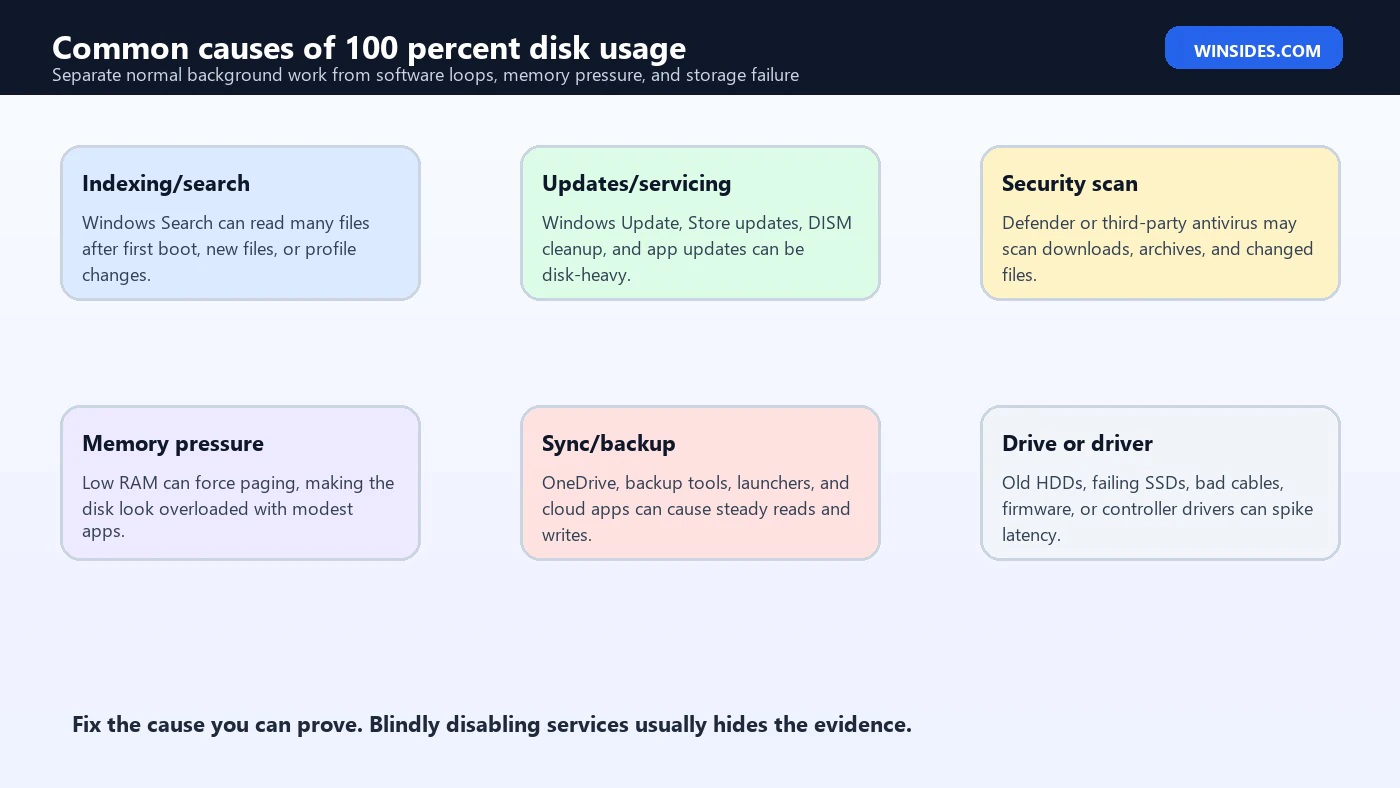
Windows Update and servicing can use a lot of disk because Windows downloads packages, verifies them, stages files, updates the component store, writes logs, and prepares rollback data. If Windows Update is the top disk user and the PC recently received updates, let it run on AC power, restart when requested, and return to Settings > Windows Update to see whether more action is needed. If the same update loops for hours or returns after every restart, treat it as an update problem rather than a disk usage problem.
Search indexing can also look heavy. SearchIndexer.exe may read many files after a new user profile, a major update, a large file copy, a cloud sync event, or adding a folder with many documents. On an HDD, indexing can feel severe because it reads many small files. On an SSD, it is usually less disruptive, but a very large mailbox, development folder, photo archive, or cloud folder can still make it visible.
Security scans are another normal cause. Microsoft Defender or a third-party antivirus may inspect downloads, archives, scripts, executables, browser caches, email attachments, and recently changed files. The disk can sit at 100% while the scan touches many files, especially on HDDs. If this happens at the same time every day and then ends, change the scan schedule or let the PC stay on long enough to finish maintenance.
Cloud sync tools create many small reads and writes. OneDrive, backup utilities, game launchers, photo sync tools, and phone companion apps can all keep the disk busy when files change. Resource Monitor helps here because the file paths usually point directly to the synced folder. If the sync tool is processing thousands of files, the fix may be to pause sync, resolve file conflicts, remove massive folders from sync, or wait for the first sync to complete.
Windows Update, Store Updates, and Servicing
If Windows Update is using the disk, do not interrupt it immediately. Windows servicing does more than copy files; it stages components, verifies signatures, updates manifests, writes rollback data, and may continue cleanup after the visible restart. That work can be painful on an HDD. If the PC is usable enough, connect power, leave it awake, and let the update finish. Afterward, restart fully and check update history.
If the update process appears stuck, collect the error code before resetting anything. Check free space, run the Windows Update troubleshooter from Settings, and use DISM and SFC if servicing corruption is suspected. Cache resets can help in certain Windows Update failures, but they should not be the first move because they erase useful local history and may interrupt an update that was merely slow.
DISM /Online /Cleanup-Image /RestoreHealth
sfc /scannow
Search Indexing Without Breaking Search
Do not disable search permanently just because it appears once in Task Manager. First, check whether the activity settles. If it repeatedly scans locations that do not need indexing, reduce indexed locations through Windows search settings. Avoid indexing massive build folders, game libraries, virtual machine folders, backup directories, or cloud archives unless you truly search them. The better fix is scope control, not removing a useful Windows feature from every workflow.
If Windows Search keeps reindexing the same area, check for constantly changing files. Development outputs, log folders, browser profiles, mail databases, and sync folders can churn all day. Excluding high-churn folders from indexing can keep search useful while reducing disk pressure. After a large cleanup or folder move, give Windows time to rebuild the index before judging performance.
Antivirus Scans and Exclusions
Be careful with antivirus exclusions. Excluding a folder can reduce disk work, but it can also reduce protection. Only exclude trusted, low-risk, high-churn folders when you understand the tradeoff, such as certain build output folders on a development PC. Do not exclude Downloads, Desktop, browser cache, or random app folders just to silence Task Manager. If a third-party security suite causes constant disk usage, check for updates, repair the suite, or temporarily remove it only after confirming Windows Security is active.
If Defender appears busy after downloading a large archive, extracting software, opening a new project, or connecting an external drive, the scan may be doing exactly what it should. The warning sign is not one scan. The warning sign is repeated scanning of the same file set, high disk usage all day, or a security suite that conflicts with another security tool. Keep one trusted protection stack, update it, and avoid overlapping real-time scanners.
OneDrive, Backup, and Sync Loops
If OneDrive or another sync tool is the top disk user, open its status window. Look for a first sync, a stuck file, a conflict, a permission problem, or a folder with thousands of tiny files. Pausing sync for fifteen minutes is a useful test because it is reversible. If disk usage drops immediately, the next step is not to uninstall OneDrive; it is to identify which folder or file pattern caused the loop.
Backup tools can create the same symptom. A backup job reading every file on a slow HDD will make the system feel frozen, especially if the destination is a slow external drive. Schedule backups when the PC is idle, avoid backing up temporary folders, and check that the backup destination is healthy. If a backup repeatedly starts over, inspect its logs before changing Windows services.
Low RAM and Pagefile Activity
Sometimes the disk is blamed when memory is the real bottleneck. If RAM is nearly full, Windows uses the pagefile to move memory pages between RAM and storage. In Resource Monitor, heavy pagefile.sys activity plus high memory use points to memory pressure. Closing browser tabs, virtual machines, game launchers, Teams, design tools, or background apps may drop disk usage immediately. If this pattern happens every day, adding RAM or reducing startup load is more effective than tweaking disk settings.
On an HDD, paging is painful because random reads and writes are slow. Upgrading from HDD to SSD can transform the same system, but that does not mean paging is harmless. A PC constantly paging to an SSD may feel better than one paging to an HDD, yet it still indicates the workload wants more memory. Use Task Manager Memory view, Startup apps, and app-specific settings to reduce pressure before blaming Windows storage services.
Free Up Space Before Deep Repairs
Low free space can make almost every disk problem worse. Windows needs room for updates, temporary files, browser caches, app installers, crash dumps, thumbnails, indexing, restore data, and pagefile growth. Microsofts drive-space guidance recommends checking available space in File Explorer and using Storage Sense or Cleanup recommendations to remove temporary files, unused apps, large files, and cloud-backed files where appropriate. That guidance is directly relevant when disk usage and sluggishness happen together.
Open Settings > System > Storage and review Cleanup recommendations. Delete temporary files you understand, move personal videos or downloads to another drive, empty Recycle Bin after confirming nothing important is there, and keep enough free space for Windows Update. Avoid deleting system folders manually. Do not use random cleanup utilities that promise huge performance boosts; they often remove logs, caches, or registry entries without solving the real disk workload.
- Check C: free space. File Explorer > This PC shows available space under the drive.
- Use Storage Sense. Let Windows remove safe temporary files and Recycle Bin items based on your settings.
- Review Cleanup recommendations. Windows can surface temporary files, large files, unused files, and cloud content.
- Move personal media. Videos, installers, ISO files, and old downloads can consume space quickly.
- Keep rollback in mind. Deleting Windows.old after a major upgrade removes the option to go back.
Check Drive Type and Drive Health
An older HDD is the most common hardware reason for unbearable 100% disk usage. Windows 11 can run on systems with HDDs in some situations, but modern background activity feels much heavier on mechanical storage. If Task Manager shows the system drive is an HDD and the PC is slow at every boot, the best fix may be replacing it with an SSD rather than spending hours disabling services. Back up first, then plan a proper migration or clean install.
Drive health matters more than any software tweak. Warning signs include repeated freezes, clicking sounds from an HDD, disappearing drives, file copy errors, bad blocks, Event Viewer disk warnings, SMART warnings from vendor tools, or very high response time with tiny throughput. If those symptoms appear, stop experimenting and back up important data. Running repairs on a failing drive can stress it further. Preserve data before running long scans.
For file system checks, Microsoft documents CHKDSK as a tool that checks file system and metadata errors, with repair switches such as /f and deeper physical-sector checks such as /r. Microsoft also notes that CHKDSK may need administrative rights and can take a long time on large disks. Use it deliberately, not as a casual first click. See Microsofts CHKDSK documentation for official command behavior.
chkdsk C: /scanDefrag, Optimize Drives, and SSDs
Fragmentation can contribute to poor HDD performance, but it is not usually the first explanation for a sudden 100% disk spike. Windows already runs scheduled drive optimization. Microsofts defrag command documentation explains that defrag locates and consolidates fragmented files on local volumes, requires administrative permissions for command use, and performs the proper optimization for each media type with the /o option. It also notes that dirty volumes should be checked with CHKDSK before defragmentation. See Microsofts defrag documentation for details.
For SSDs, do not obsessively defragment. Windows Optimize Drives handles SSD maintenance differently, including retrim behavior. If the drive is almost full, overheated, failing, or using a bad driver, Optimize Drives will not magically fix the root cause. Use it as a maintenance check, not as the centerpiece of troubleshooting. If disk usage is stuck because a process is constantly writing logs or syncing files, defrag does not solve that process loop.
Driver and Firmware Issues
Storage drivers, chipset drivers, NVMe drivers, firmware, BIOS, and controller settings can affect disk latency. Microsofts driver guidance says Windows Update normally provides recommended driver updates, while Device Manager can update, reinstall, or roll back a driver when needed. This matters when 100% disk usage begins after a driver update, BIOS change, Windows update, or new storage device installation.
Use trusted sources only: Windows Update, Device Manager, the PC manufacturer, the motherboard manufacturer, or the storage vendor. Avoid driver booster utilities. They often install mismatched storage, chipset, or controller drivers and make the problem worse. If the issue began immediately after a driver update, Device Manager rollback may be safer than installing something newer from an unknown site. If a firmware update is recommended by the SSD vendor, read the instructions carefully and keep backups before applying it.
On laptops, vendor storage drivers and power management can also interact with sleep, hibernation, and Modern Standby. If disk usage spikes only after wake, check vendor updates, BIOS releases, and storage firmware. If it happens only on battery, compare the power mode, antivirus schedule, sync state, and whether the drive is repeatedly spinning up from low-power states.
Use Process Monitor for Deep File Activity
When Task Manager and Resource Monitor do not reveal enough, Sysinternals Process Monitor can capture real-time file system, registry, and process activity. Microsoft describes Process Monitor as an advanced monitoring tool for Windows that shows real-time file system, Registry, and process/thread activity, with filters and detailed event properties. That makes it useful when a mystery process constantly reads or writes files and the normal UI does not explain why.
ProcMon can also overwhelm you with data. Start capture only for a short window, reproduce the disk spike, stop capture, and filter by process name or path. Look for repeated access denied events, repeated writes to one log file, a loop over the same folder, antivirus scanning the same archive, or an app repeatedly opening a missing file. Do not leave ProcMon capturing for a long time on a busy system because the trace itself can consume disk and memory.
Use ProcMon as an evidence tool, not as a magic repair button. Once you know which app or path is noisy, fix that app, update it, clear its cache, move its data, repair permissions, change sync scope, or uninstall it if necessary. The value is knowing what to fix instead of guessing.
Use Windows Performance Recorder for Hard Cases
For stubborn cases, Windows Performance Recorder is the professional trace path. Microsoft documents WPR as part of the Windows Assessment and Deployment Kit and explains that it records system and application events based on Event Tracing for Windows, which can then be analyzed in Windows Performance Analyzer. This is more advanced than Task Manager, but it is the right direction when a PC has repeatable storage latency that ordinary tools do not explain.
A WPR trace can show disk I/O, CPU scheduling, storage stacks, services, drivers, and timing relationships. That matters when the visible process is only System, when a driver is causing storage stalls, when boot is slow, or when enterprise devices show the same disk symptom across a model line. Home users rarely need WPR, but knowing it exists helps separate serious performance analysis from random registry tweaks.
If you capture traces, keep them short and avoid sharing them publicly without review because traces can include file paths, process names, user names, and other sensitive information. For work devices, coordinate with IT. For personal PCs, use WPR only after simpler evidence has failed.
Safe Fix Order
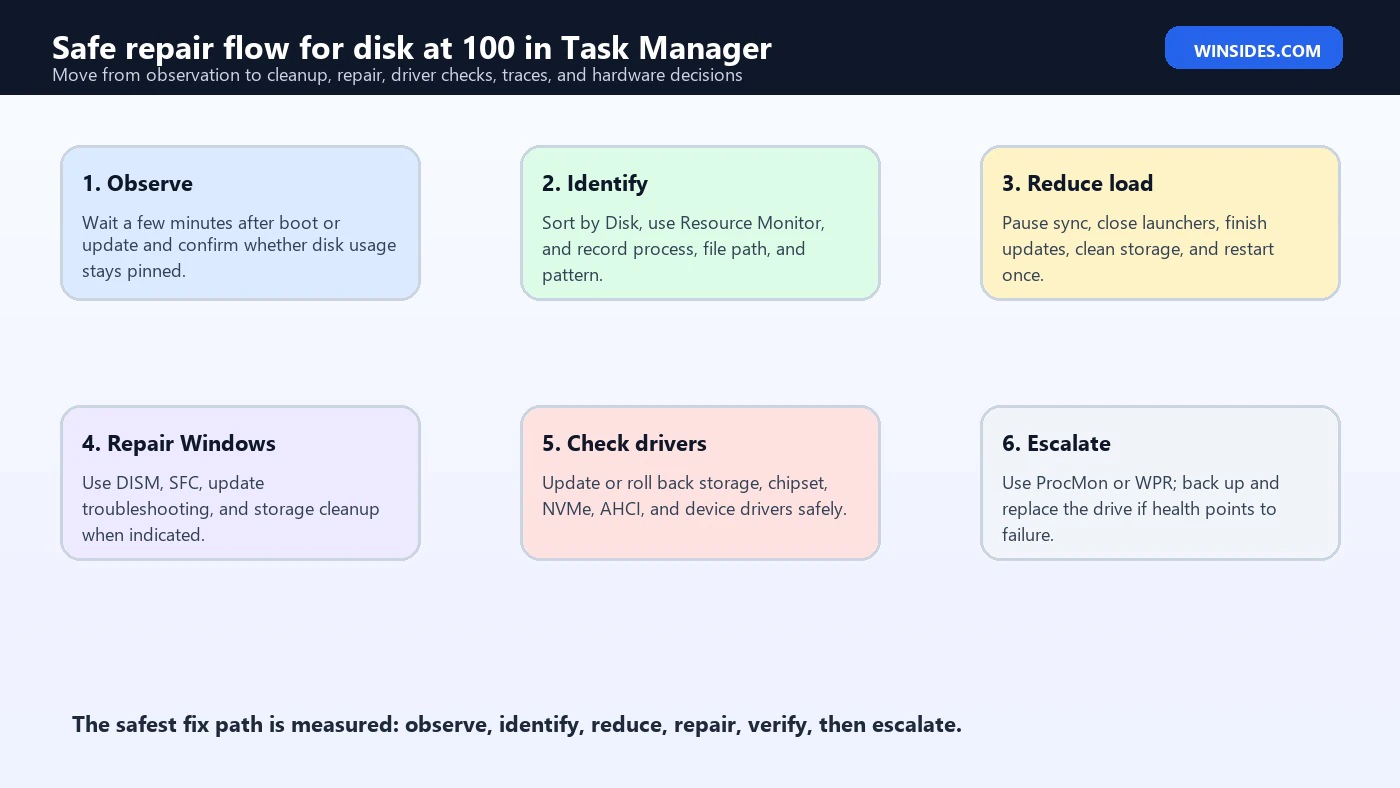
- Back up important files. Do this immediately if the drive is old, noisy, freezing, or showing errors.
- Restart once. A clean restart can finish pending updates and clear stuck app activity.
- Observe after boot. Give Windows several minutes, then confirm whether the issue persists.
- Identify the process and path. Use Task Manager and Resource Monitor before disabling anything.
- Finish updates. Let Windows Update and Microsoft Store complete; restart when requested.
- Free storage. Use Storage Sense and Cleanup recommendations instead of deleting system folders manually.
- Pause noisy sync or backup jobs. Resolve stuck files, conflicts, or runaway backup tasks.
- Repair system health if needed. Use DISM and SFC when updates or system files appear broken.
- Update or roll back drivers. Use Windows Update, Device Manager, OEM support, or storage vendor tools.
- Escalate with ProcMon or WPR. Capture evidence if the visible process is unclear.
- Replace failing storage. If health, errors, or latency point to hardware, stop tweaking and replace the drive.
What Not to Do
Do not permanently disable Windows Update because the disk is busy once. Updates are essential for security and reliability. If Windows Update is stuck, troubleshoot the update. Do not turn off Microsoft Defender because Antimalware Service Executable appears in Task Manager. If the scan is excessive, check schedule, exclusions, and third-party conflicts. Do not disable Windows Search everywhere because indexing runs after a big file change. If indexing is noisy, reduce scope.
Do not edit the registry based on old Windows 10 myths, do not delete the pagefile, do not remove random files from C:\Windows, do not install driver booster utilities, and do not run unknown fix scripts. These steps can make a sluggish PC unstable. Also avoid repeated CHKDSK /r scans on a drive that may be failing before you back up data. Long surface scans are not a substitute for backups.
Do not assume every 100% disk screenshot has the same fix. A gaming desktop with an NVMe SSD, a budget laptop with a 5400 RPM HDD, a work device under Intune policy, and a PC with a failing SATA cable can all show the same Task Manager percentage for completely different reasons. The fix follows the evidence.
When to Replace the Drive
Replace or migrate the drive when evidence points to hardware limitation or failure. If the system drive is an HDD and Windows 11 feels slow every day, an SSD upgrade is often the most meaningful performance improvement. If the drive shows SMART warnings, Event Viewer disk errors, disappearing volumes, file corruption, repeated freezes, or extreme response times, replacement becomes a reliability decision, not just a performance upgrade.
Back up before migration. Use File History, OneDrive, another cloud backup, external storage, or a full image backup depending on the situation. Verify that important files open from the backup. If the drive is failing, avoid unnecessary stress. Copy irreplaceable files first, then consider cloning only if the drive is stable enough. Sometimes a clean Windows install on a new SSD is safer than cloning a corrupted or overloaded old installation.
FAQ
Why does Task Manager show disk at 100 but low MB/s?
Because the percentage reflects active time and queue behavior, not only throughput. A slow HDD or high-latency storage path can be fully busy with low transfer rates.
Is 100% disk usage always bad?
No. Short spikes during startup, updates, indexing, security scans, or file copies can be normal. Persistent 100% usage with freezes or high response time needs investigation.
Should I disable SysMain?
Not as a first move. Identify the actual process and pattern first. If a service is proven to cause repeatable trouble on a specific system, test changes carefully and document the result.
Can Windows Search cause 100% disk?
Yes, especially after big file changes or on HDDs. Prefer reducing indexed locations over permanently disabling search for every user.
Can low RAM cause 100% disk?
Yes. If memory is full, paging can make disk usage spike. Check memory pressure and pagefile activity before blaming the drive.
Will CHKDSK fix 100% disk usage?
Only if file system errors are part of the problem. CHKDSK is not a general speed booster, and repair scans should be used carefully after backups when hardware failure is suspected.
Is an SSD upgrade worth it?
If the Windows 11 system drive is an HDD, yes in many cases. It often fixes the everyday sluggishness that looks like constant 100% disk usage.
What should I do first if the PC is freezing badly?
Back up important files if possible, then identify the disk process and check drive health. Severe freezes plus disk errors can mean the drive is failing.
Conclusion: Fix the Cause, Not the Percentage
disk at 100 in task manager is frustrating, but the percentage is only the starting clue. A safe fix begins by identifying the process, file path, workload, timing, and drive behavior. Task Manager shows the symptom. Resource Monitor shows more detail. Process Monitor and Windows Performance Recorder can go deeper when needed. Storage settings, driver tools, CHKDSK, defrag, DISM, and SFC each have a place, but none of them should be used blindly.
If the activity is temporary, let Windows finish maintenance and reduce startup noise. If it is caused by updates, sync, indexing, scanning, paging, or low space, fix that condition directly. If the drive is old, slow, unhealthy, or showing errors, protect your data and replace the storage instead of trying endless tweaks. The best repair is the one that follows evidence and keeps the system stable.
For more interesting articles, stay tuned to Winsides.com!









Community
Comments (0)