

Introduction to Kernel Plug and Play (PNP) on Windows 11
In the intricate world of modern computing, the seamless integration of hardware is not merely a convenience; it’s an absolute necessity. Imagine a time when installing a new printer or graphics card required manual configuration of jumpers, IRQ settings, and DMA channels – a daunting task even for seasoned tech enthusiasts. Fortunately, those days are largely behind us, thanks to the remarkable technology known as Plug and Play (PNP). For additional context, see introduction to Plug and Play, Plug and Play architecture, PnP Manager’s architecture, Windows Driver Model (WDM), and device installation process.
Within the Windows 11 operating system, this crucial function is handled by Kernel Plug and Play. It’s the silent, unsung hero working deep within the system’s core, ensuring that when you connect a new device, your computer not only recognizes it instantly but also configures it correctly, often without any user intervention. This sophisticated mechanism is fundamental to the intuitive and user-friendly experience we expect from Windows today.
This article aims to demystify Kernel PNP on Windows 11, shedding light on its critical role in automatic hardware detection and configuration. We will explore its operational mechanics, delve into common issues and their solutions, and provide practical insights into managing and optimizing your hardware through effective PNP practices. Understanding Kernel PNP empowers you to maintain a more stable, efficient, and responsive Windows 11 environment.
Table of contents
Key Takeaways
- Kernel PNP Definition: Kernel Plug and Play is a core Windows 11 technology that automatically detects, configures, and manages hardware devices, eliminating the need for manual setup.
- Core Functions: It handles device enumeration, resource allocation (IRQs, DMAs), conflict resolution, and driver loading, ensuring devices function correctly upon connection.
- Device Manager’s Role: The Device Manager is the primary user interface for interacting with PNP, allowing users to view device status, update drivers, and troubleshoot issues.
- Common Issues: Problems like unrecognized devices, error codes (e.g., Code 10, Code 12), and driver conflicts often stem from PNP issues and require specific troubleshooting steps.
- Advanced Tools: Event Viewer, PnPUtil, and DevCon are powerful utilities for diagnosing and resolving complex Kernel PNP problems.
- Optimization Tips: Keeping drivers updated and following best practices for connecting new hardware are crucial for optimal performance and system stability.
- System Stability: Efficient Kernel PNP management contributes significantly to faster boot times, overall system responsiveness, and prevents hardware-related crashes.
What is Kernel Plug and Play (PNP)?
At its heart, Plug and Play (PNP) is a standard designed to allow hardware devices to be added to a computer system with minimal or no manual configuration. It’s the technology that enables your Windows 11 PC to recognize a newly plugged-in USB drive, a monitor, or a network adapter almost instantaneously, making it ready for use without you needing to install specialized software from a CD or manually adjust system settings.
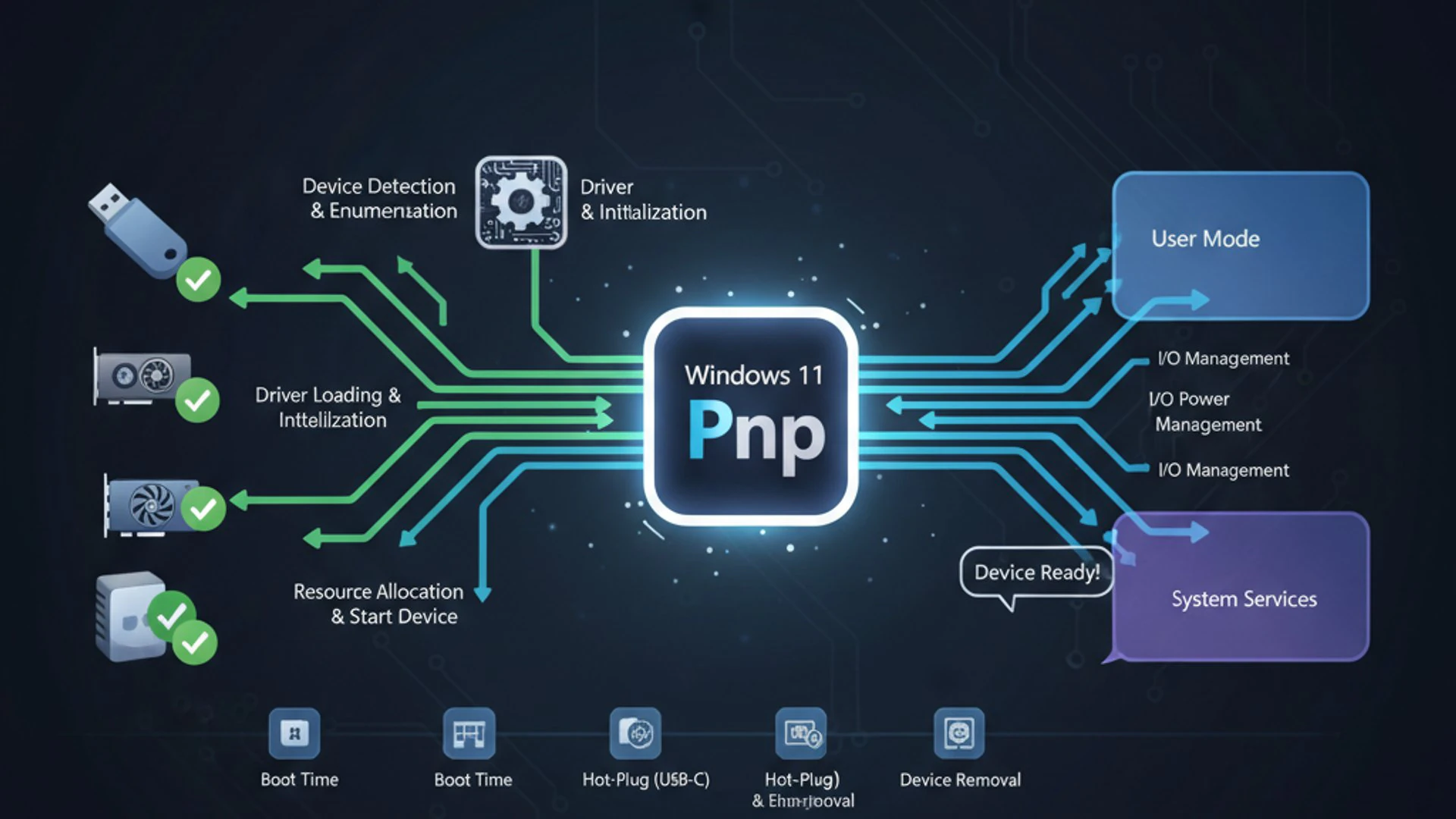
This automated process is crucial for the modern computing experience. Without it, every new piece of hardware would require a complex setup procedure, demanding a deep understanding of system resources and device drivers. Kernel PNP abstracts this complexity, presenting a user-friendly interface while handling the intricate negotiations between hardware and the operating system behind the scenes.
The “Kernel” in Kernel Plug and Play signifies that these operations are deeply integrated into the Windows 11 operating system’s core. It’s not an optional service but a fundamental component that orchestrates the detection, installation, and management of virtually every hardware component connected to your PC, from internal components like your CPU and RAM to external peripherals.
The Evolution of PNP in Windows
The journey of Plug and Play has been a long and transformative one, reflecting the rapid advancements in computing hardware and software. Its origins can be traced back to the mid-1990s, an era characterized by significant challenges in hardware installation. Early implementations were often clunky, earning the moniker “Plug and Pray” from frustrated users.
Over the decades, Microsoft has continuously refined PNP, integrating it more deeply and making it significantly more robust with each successive version of Windows. What started as a promising but imperfect solution has matured into a cornerstone of modern operating systems, defining much of our interaction with hardware.
Early Implementations vs. Modern Windows
The contrast between early PNP and its current state in Windows 11 is stark. In the early days, devices often came with physical jumpers that needed to be set to specific configurations to avoid conflicts with other hardware. The operating system’s role was limited, often requiring users to manually specify IRQ (Interrupt Request) lines, DMA (Direct Memory Access) channels, and I/O (Input/Output) addresses.
Conflicts were common, leading to system instability, device malfunctions, or even preventing the system from booting. Troubleshooting these issues was a complex and time-consuming process that demanded specialized knowledge. The promise of “just plug it in” was often met with disappointment.
Fast forward to Windows 11, and the landscape is entirely different. Modern Kernel PNP handles these resource allocations dynamically and automatically. When you connect a device, the system enumerates it, queries its capabilities, allocates necessary resources, and loads the appropriate drivers – all without user intervention. This seamless integration is a testament to decades of engineering effort.
Windows 11’s Kernel PNP not only simplifies the user experience but also enhances system stability by intelligently managing hardware resources. It can even detect and attempt to resolve conflicts proactively, ensuring that multiple devices can coexist and function efficiently. This evolution has transformed hardware interaction from a technical hurdle into a smooth, almost invisible process.
How Kernel PNP Functions in Windows 11
Understanding the operational mechanics of Kernel Plug and Play in Windows 11 provides valuable insight into how your system manages hardware. It’s a multi-stage process that begins the moment a new device is connected or detected during system startup. This intricate dance ensures that every component has the resources it needs to function correctly.
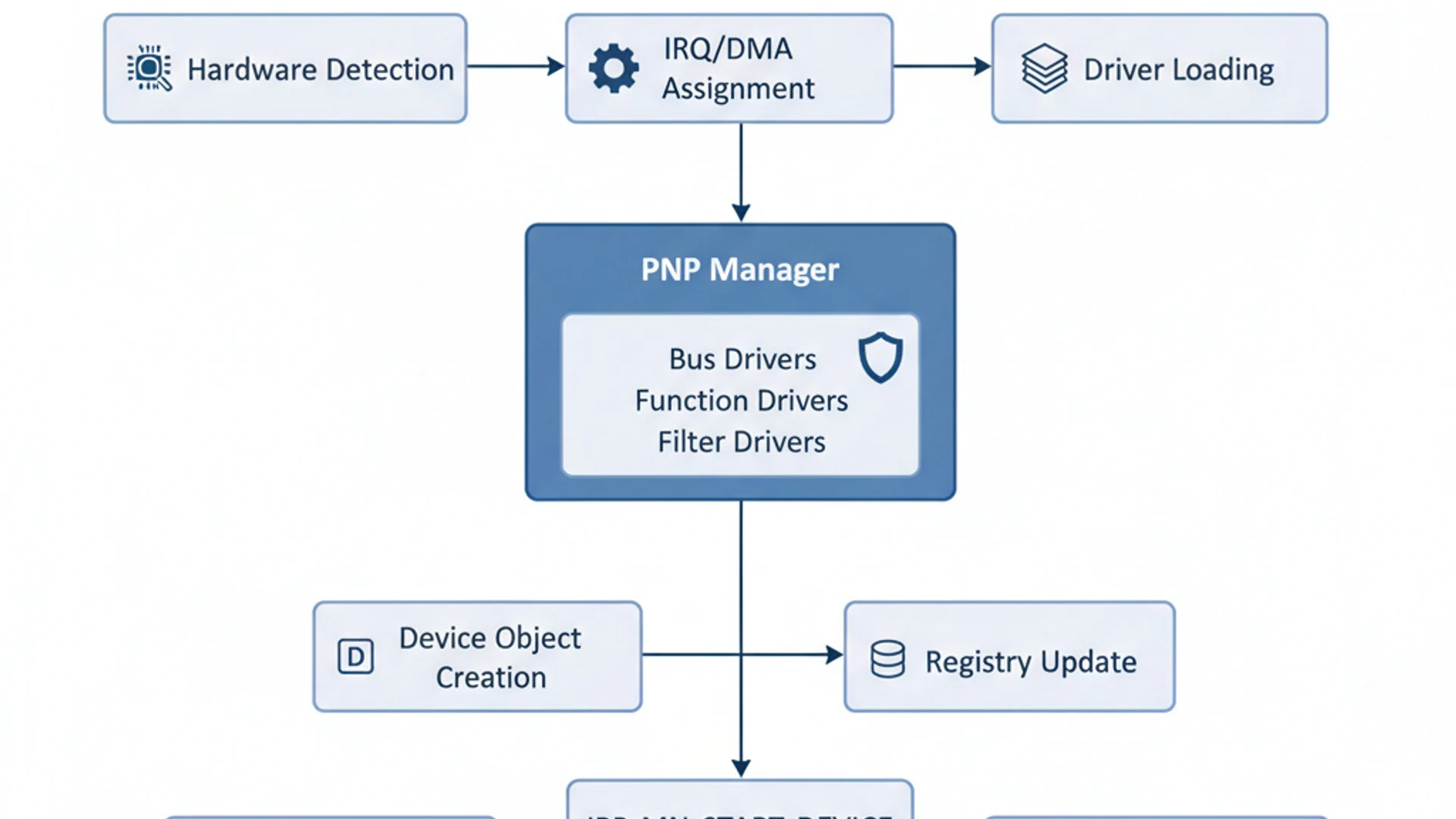
The process is orchestrated by the PnP Manager, a critical component within the Windows kernel. It acts as a central coordinator, interacting with device drivers, the hardware abstraction layer (HAL), and other system services to achieve seamless hardware integration. This manager is constantly monitoring for changes in the hardware landscape.
Device Enumeration and Identification
The first crucial step in the Kernel PNP process is device enumeration and identification. When a new device is connected to your Windows 11 PC (e.g., via USB, PCIe, or SATA), the PnP Manager is notified. This notification can come from the bus driver (e.g., USB controller driver) or directly from the BIOS/UEFI during boot-up.
Upon detection, the PnP Manager queries the device to obtain its unique identifiers. These identifiers typically include a Vendor ID, Product ID, Revision ID, and a unique serial number. This information is critical because it allows the operating system to precisely identify the device and determine its type and capabilities. Without accurate identification, the system wouldn’t know which driver to load or what resources to allocate.
The system then compares these identifiers against its internal database of known hardware. This database helps in finding a suitable driver package that matches the device. If a driver is already installed for that specific device, the process moves swiftly to resource allocation. If not, Windows 11 will attempt to locate and install one.
Resource Allocation and Conflict Resolution
Once a device is identified, the next critical phase is resource allocation. Every hardware component requires specific system resources to operate. These include I/O ports, memory addresses, Interrupt Request (IRQ) lines, and Direct Memory Access (DMA) channels. The PnP Manager is responsible for assigning these resources to each device in a way that prevents conflicts.
In older systems, resource conflicts were a major headache, often leading to devices not working or even system crashes. Modern Kernel PNP on Windows 11 is designed to dynamically allocate resources, negotiating with devices and other drivers to find a compatible set of resources. It prioritizes existing devices and attempts to find available resources for new ones.
If a conflict is detected, the PnP Manager employs sophisticated algorithms to resolve it. This might involve reassigning resources to other devices or, in rare cases, disabling a device if no conflict-free configuration can be found. This intelligent management is vital for maintaining system stability and allowing multiple peripherals to operate simultaneously without interference.
Interrupt Requests (IRQs) and DMA Channels
Interrupt Requests (IRQs) are essential communication lines that hardware devices use to signal the CPU when they need attention. For example, when you press a key on your keyboard or move your mouse, an IRQ is generated, prompting the CPU to process that input. Each device typically requires a unique IRQ line to avoid confusion and ensure timely processing.
Direct Memory Access (DMA) channels allow certain hardware devices to read from or write to system memory directly, without involving the CPU. This significantly speeds up data transfer for high-bandwidth devices like hard drives or network adapters. Like IRQs, DMA channels must be uniquely assigned to prevent data corruption and ensure efficient operation.
The Kernel PNP manager meticulously assigns these critical resources. It understands the architecture of the system and the requirements of various devices, dynamically allocating IRQs and DMA channels to ensure each device has exclusive access to its necessary communication pathways. This intelligent resource management is a cornerstone of a stable and responsive Windows 11 system.
Driver Loading and Initialization
With identification complete and resources allocated, the final stage is driver loading and initialization. A device driver is a piece of software that allows the operating system to communicate with a specific hardware device. Without the correct driver, even a perfectly identified and resourced device remains a useless piece of silicon.
The PnP Manager, having identified the device, searches for the appropriate driver package. Windows 11 maintains a vast repository of drivers, both locally and through Windows Update. If a suitable driver is found, it is loaded into memory, and the device is initialized. This involves configuring the device according to the driver’s instructions and making it ready for use by applications.
If a driver is not immediately available, Windows 11 might prompt the user to install one, search Windows Update, or use a generic driver if one exists. Once the driver is loaded and the device initialized, it is registered with the system, and its status is updated in the Device Manager. This entire process, from connection to readiness, is often completed in mere seconds, showcasing the efficiency of Kernel PNP on Windows 11.
The Role of Device Manager in PNP Operations
While Kernel PNP works diligently behind the scenes, the Device Manager serves as the primary user-facing interface for interacting with and overseeing these operations. It’s an indispensable tool for anyone looking to understand, manage, or troubleshoot the hardware connected to their Windows 11 system. Think of it as your window into the kernel’s hardware world.
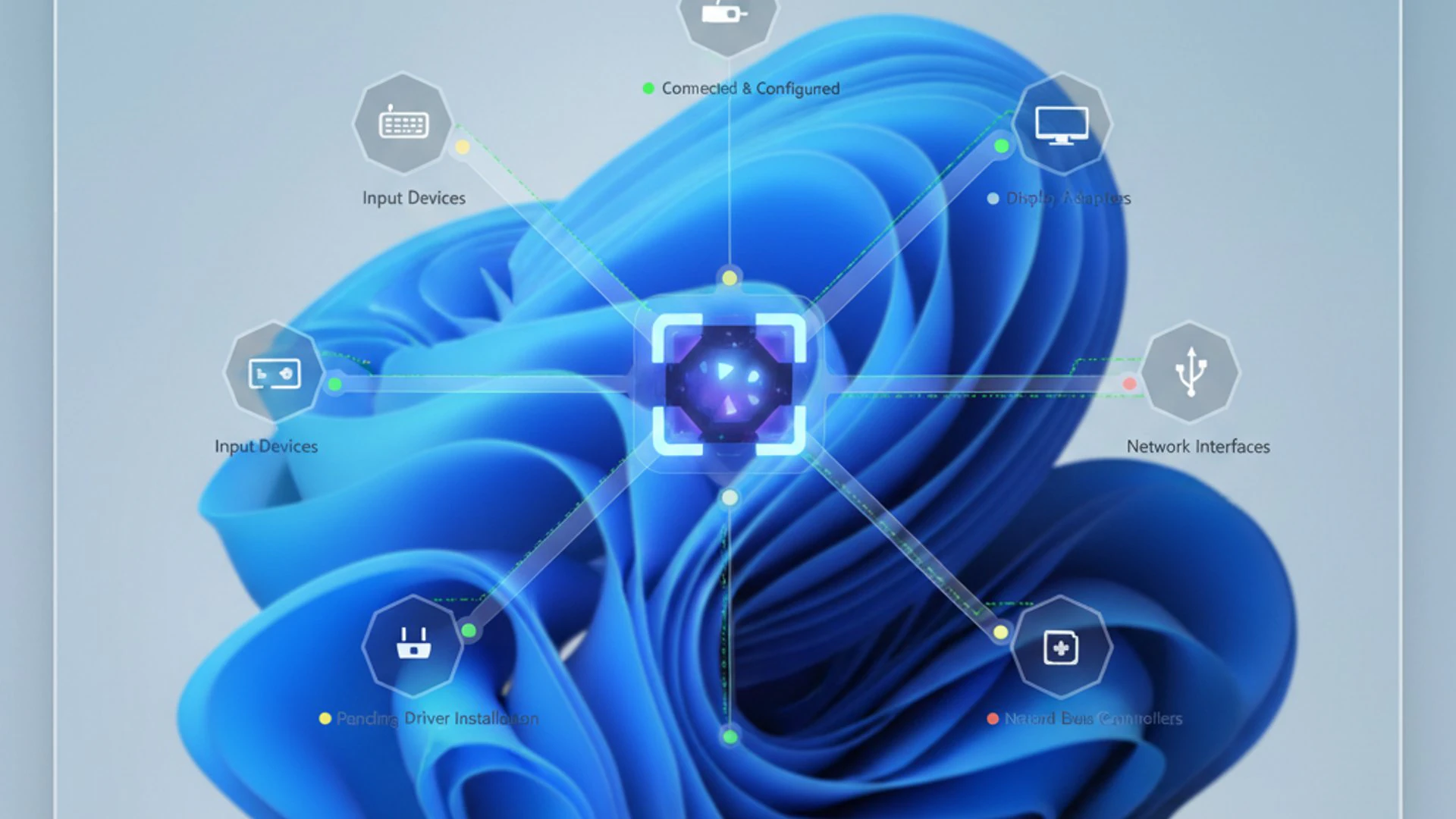
Accessing the Device Manager is straightforward: you can right-click the Start button and select “Device Manager,” or type “Device Manager” into the Windows Search bar. Once open, it presents a hierarchical view of all hardware components, categorized by type. This organized layout makes it easy to locate specific devices and understand their status.
Viewing and Managing Devices
Within the Device Manager, you can see a comprehensive list of all hardware components, both internal and external, currently recognized by your Windows 11 system. Each entry provides valuable information. If a device is functioning correctly, it will typically appear without any special icons. However, if there’s an issue, you’ll see distinctive symbols like a yellow exclamation mark or a red ‘X’.
Right-clicking on any device in the list brings up a context menu with several management options. You can choose to “Update driver,” “Disable device,” “Uninstall device,” or view its “Properties.” The Properties window is particularly useful, offering tabs for General information, Driver details, Events, and often a “Details” tab that provides granular technical specifications and status codes.
For instance, if you’re troubleshooting a USB device that isn’t working, you can navigate to “Universal Serial Bus controllers,” locate the problematic entry, and check its properties. This allows you to quickly ascertain if the device is recognized, if its driver is loaded, and if there are any reported errors. This direct control is vital for effective hardware management.
Driver Updates and Rollbacks
One of the most frequent uses of Device Manager related to Kernel PNP is managing device drivers. Drivers are the software bridge between your hardware and Windows 11. Keeping them up-to-date is crucial for performance, security, and compatibility. The Device Manager provides a direct way to check for and install driver updates.
- Updating a Driver: Right-click the device, select “Update driver,” and then choose “Search automatically for drivers.” Windows will then look for the best available driver on your system and online via Windows Update. Alternatively, you can select “Browse my computer for drivers” if you have a driver file downloaded manually.
- Rolling Back a Driver: Sometimes, a new driver update can introduce unforeseen issues. The Device Manager offers a safety net with the “Roll Back Driver” option, found in the Driver tab of a device’s properties. This allows you to revert to the previously installed driver version, often resolving new problems without extensive troubleshooting.
This functionality empowers users to take direct control over their hardware configurations, ensuring that devices operate with the most stable and compatible drivers. Regular driver maintenance through Device Manager can prevent many common hardware-related issues and optimize your system’s performance.
Common Kernel PNP Issues and Troubleshooting
Despite the sophistication of Kernel PNP on Windows 11, issues can still arise, leading to devices not functioning as expected. These problems can range from minor annoyances to critical failures that impact system usability. Understanding common PNP issues and knowing how to approach them is a fundamental skill for any Windows user.
Troubleshooting often begins in the Device Manager, where Windows provides visual cues and error codes to help pinpoint the problem. A systematic approach to diagnostics can save significant time and frustration. Always start with the simplest solutions before delving into more complex ones.
Device Not Recognized or Working
One of the most frustrating Kernel PNP problems is when a device is simply not recognized by Windows 11, or it appears in Device Manager but isn’t working. This can happen with new peripherals or existing ones that suddenly stop functioning. There are several initial steps you can take:
- Physical Connection Check: Ensure the device is securely plugged into the correct port. Try a different port (especially for USB devices) or a different cable if possible.
- Reboot System: A simple restart can often resolve temporary glitches in the PnP Manager or driver loading process.
- Check Device Manager: Open Device Manager. If the device is listed with a yellow exclamation mark, it indicates a problem. If it’s not listed at all, Windows isn’t detecting it. Try “Scan for hardware changes” (Action menu) to force a re-enumeration.
- Test on Another PC: If possible, connect the device to another computer to determine if the issue lies with the device itself or your Windows 11 system.
These initial steps can often resolve basic detection issues. If the problem persists, delving into error codes becomes the next logical step in diagnosing the underlying cause of the malfunction.
Code 10, Code 12, and Other Device Manager Errors
When a device isn’t working, the Device Manager often provides an error code in the device’s properties (under the “General” tab). These codes are invaluable diagnostic clues. Here are some common ones related to Kernel PNP:
- Code 10: “This device cannot start.”
This is one of the most generic and frequently encountered errors. It typically means the device’s driver failed to load, or the device itself is experiencing hardware issues. Troubleshooting involves updating or reinstalling the driver, checking for hardware compatibility, or testing the device on another system.
- Code 12: “This device cannot find enough free resources that it can use.”
This error directly points to a resource conflict, indicating that Kernel PNP couldn’t allocate unique IRQs, DMA channels, or I/O ports. This can occur with older hardware or if you have many devices competing for limited resources. Disabling other non-essential devices or updating chipset drivers might help.
- Code 28: “The drivers for this device are not installed.”
A straightforward error indicating that Windows 11 lacks the necessary software to communicate with the device. The solution is to install the correct drivers, either through Windows Update, the manufacturer’s website, or a driver disk.
- Code 43: “Windows has stopped this device because it has reported problems.”
This is another general error often associated with driver issues or a failing device. It could mean the device itself is faulty, or its driver is corrupted or incompatible. Reinstalling the driver or testing the device on another system is recommended.
Always consult the specific device manufacturer’s support resources for detailed troubleshooting related to their hardware and driver issues. Error codes provide a starting point, but context is key.
Driver Conflicts and Stability Problems
Driver conflicts can lead to a range of stability problems, from minor glitches to frequent system crashes (Blue Screen of Death, or BSOD). A conflict occurs when two drivers attempt to use the same system resources or when one driver interferes with the operation of another. Kernel PNP tries to prevent these, but sometimes issues slip through, especially with third-party drivers.
Symptoms of driver conflicts include:
- Frequent application crashes or freezes.
- Unexpected system restarts or BSODs.
- Specific hardware devices intermittently failing.
- Poor system performance.
To address driver conflicts:
- Identify Recent Changes: Think about any new hardware or software installed recently. The problem often correlates with the last change made to your system.
- Update All Drivers: Ensure all your critical drivers (chipset, graphics, network) are up-to-date from the manufacturer’s official websites.
- Roll Back or Uninstall Problematic Drivers: If you suspect a specific driver, try rolling it back in Device Manager or uninstalling it completely and then reinstalling a fresh copy.
- Use System Restore: If the problem started after a specific update or installation, a System Restore Point can revert your system to a previous stable state.
Resolving driver conflicts is crucial for maintaining the overall stability and performance of your Windows 11 system. Patience and methodical troubleshooting are essential when dealing with these types of issues.
Advanced Troubleshooting Techniques for Kernel PNP
When basic troubleshooting steps don’t resolve persistent Kernel PNP issues, it’s time to delve into more advanced techniques. These methods involve utilizing powerful Windows tools that provide deeper insights into system events and offer more granular control over device management. Mastering these tools can significantly enhance your ability to diagnose and fix complex hardware problems.
These techniques are particularly useful for IT professionals, advanced users, or anyone facing stubborn hardware malfunctions that defy simpler solutions. They move beyond the surface-level Device Manager view to examine the underlying logs and system interactions.
Using Event Viewer for PNP Diagnostics
The Event Viewer is an incredibly powerful, yet often underutilized, diagnostic tool in Windows 11. It records a detailed log of system events, including those related to hardware detection, driver loading, and PNP operations. When a device fails to start or encounters an issue, Event Viewer often holds the key to understanding why.
To use Event Viewer for PNP diagnostics:
- Press
Win + Xand select “Event Viewer.” - Navigate to
Windows Logs > System. - Look for events with a “Warning” or “Error” level that occurred around the time the hardware issue started.
- Filter the log: In the right-hand pane, click “Filter Current Log…” and in the “Event sources” dropdown, select
PnPManager,Kernel-PnP, orDeviceSetupManager. This narrows down the results to relevant PNP events. - Examine the details of each relevant event. The “General” and “Details” tabs often provide specific error codes, device IDs, and descriptions that can point to the root cause, such as a driver signing issue, resource conflict, or device failure.
Analyzing these logs can reveal patterns or specific error messages that are not visible in Device Manager. For example, an event might indicate that a specific driver failed to load due to a corrupted file, guiding you directly to reinstall that particular driver. The Event Viewer is your system’s black box, recording critical information.
Command-Line Tools for Device Management
For even more granular control and scripting capabilities, Windows 11 offers several command-line utilities for advanced device management. These tools are indispensable for automation, remote troubleshooting, and resolving issues that might be difficult to address through the graphical interface.
-
PnPUtil (
pnputil.exe):This command-line tool allows you to manage driver packages. You can use it to add, delete, export, or enumerate driver packages in the driver store. It’s particularly useful for pre-installing drivers or cleaning up old, unused driver packages.
Example Usage:
pnputil /add-driver "C:\Drivers\newdriver.inf" /installThis command adds and installs a new driver package from a specified INF file. This can be crucial when Windows Update or Device Manager fails to find the correct driver.
-
DevCon (
devcon.exe):DevCon is a command-line utility that acts as an alternative to Device Manager. It allows you to enable, disable, restart, update, remove, and query individual devices or groups of devices. It’s an excellent tool for scripting hardware management tasks.
Example Usage:
devcon disable "USB\VID_045E&PID_00CB"This command disables a specific USB device using its hardware ID. You can find hardware IDs in the Device Manager’s properties for a device, under the “Details” tab, property “Hardware Ids.”
These command-line tools offer a level of control that goes beyond the standard graphical interface, making them powerful assets for advanced troubleshooting of Kernel PNP issues. They are particularly useful for managing devices in environments where a GUI is not available or for automating routine tasks.
Optimizing Hardware Performance with Proper PNP Management
Effective Kernel PNP management isn’t just about troubleshooting problems; it’s also about proactive maintenance to ensure your hardware performs optimally and your system remains stable. A well-managed hardware ecosystem contributes significantly to the overall responsiveness and longevity of your Windows 11 PC.
By adopting best practices, users can minimize the likelihood of encountering hardware-related issues and maximize the efficiency of their devices. This involves a combination of regular updates and thoughtful interaction with new components.
Ensuring Up-to-Date Drivers
The single most important aspect of optimizing hardware performance through PNP management is keeping your device drivers up-to-date. Drivers are constantly being refined by manufacturers to improve performance, fix bugs, enhance compatibility, and address security vulnerabilities. Outdated drivers are a common source of performance bottlenecks, instability, and even security risks.
Here’s why driver updates are critical:
- Performance Enhancements: New drivers often include optimizations that can unlock better performance from your hardware, especially for graphics cards and chipsets.
- Bug Fixes: Manufacturers regularly release updates to fix known issues, preventing crashes, glitches, and unexpected behavior.
- Compatibility: Updates ensure your hardware remains compatible with the latest Windows 11 versions and new software applications.
- Security Patches: Drivers, like any software, can have vulnerabilities. Updates often include patches to protect against potential exploits.
While Windows Update handles many driver updates automatically, it’s often beneficial to periodically check the official websites of your hardware manufacturers (e.g., NVIDIA, AMD, Intel, Realtek) for the latest drivers, especially for critical components like graphics cards, chipsets, and network adapters. Always download drivers from official sources to avoid malware.
Best Practices for Connecting New Hardware
Connecting new hardware to your Windows 11 PC, while generally seamless thanks to Kernel PNP, still benefits from a few best practices to ensure smooth integration and prevent future issues:
- Read the Manual: Before connecting, quickly review the device’s manual. It might contain specific installation instructions or driver requirements.
- Install Drivers First (If Recommended): For some complex devices (e.g., certain printers, specialized peripherals), the manufacturer might recommend installing the driver software *before* connecting the device. Follow these instructions carefully.
- Use Correct Ports: Ensure you’re using the correct port type (e.g., USB 3.0 for a USB 3.0 device) and that the port is functioning correctly.
- Connect One Device at a Time: When installing multiple new devices, connect and test them one by one. This makes it easier to identify the source of any issues.
- Allow Windows to Install Drivers: After connecting, give Windows 11 a moment to detect the device and attempt to install drivers automatically. Check the notification area for progress.
- Verify in Device Manager: Once connected, open Device Manager to confirm the device is recognized and has no error symbols.
- Test Functionality: After installation, thoroughly test the new hardware to ensure it’s working as expected.
Following these simple steps can significantly reduce the chances of encountering problems and ensure your new hardware integrates flawlessly into your Windows 11 environment, leveraging the full power of Kernel PNP.
Kernel PNP and System Stability on Windows 11
The efficiency and reliability of Kernel Plug and Play extend far beyond just recognizing new devices; they are fundamental to the overall stability and responsiveness of your Windows 11 operating system. A well-functioning PNP system ensures that your hardware and software coexist harmoniously, preventing conflicts that can lead to frustrating performance issues or catastrophic system failures.
When Kernel PNP operates optimally, it creates a robust foundation for the entire computing experience. It’s a testament to the intricate engineering that allows complex hardware interactions to feel effortless to the end-user.
Impact on Boot Times and System Responsiveness
Efficient Kernel PNP management directly contributes to faster boot times and enhanced system responsiveness. During startup, the PnP Manager is responsible for enumerating all connected devices, allocating their resources, and loading their respective drivers. If this process is streamlined and free of conflicts, your system can boot up much more quickly.
Conversely, issues with Kernel PNP, such as corrupted drivers, resource conflicts, or devices failing to initialize correctly, can significantly prolong boot times. The system might spend extra time attempting to resolve these issues, retrying driver loads, or waiting for unresponsive hardware. This delay can manifest as a slow startup or even a failure to boot entirely.
Beyond startup, a stable PNP system ensures that devices are ready when applications need them. This translates to smoother operation, quicker application launches, and seamless transitions between tasks. When devices are correctly configured and their drivers are loaded efficiently, the CPU can focus on application processing rather than managing hardware conflicts, leading to a more responsive user experience.
Preventing Hardware-Related Crashes
Perhaps the most critical contribution of efficient Kernel PNP is its role in preventing hardware-related crashes, including the dreaded Blue Screen of Death (BSOD). Many BSODs are triggered by faulty device drivers, resource conflicts, or hardware malfunctions that the PnP Manager fails to resolve gracefully.
When a driver misbehaves, it can corrupt system memory, access unauthorized areas, or cause a deadlock, leading to a critical system error. Kernel PNP’s job is to ensure that drivers are correctly initialized and that devices have exclusive access to their allocated resources, thereby minimizing the chances of such conflicts. Regular driver updates, as discussed earlier, are paramount in this regard.
By meticulously managing device resources and ensuring driver integrity, Kernel PNP acts as a vital guardian of system stability. It helps to isolate hardware issues, preventing a single faulty component or driver from bringing down the entire operating system. This robust management is essential for a reliable and uninterrupted computing experience on Windows 11.
Future of PNP and Hardware Integration in Windows
The evolution of Plug and Play is an ongoing journey, constantly adapting to new hardware paradigms and computing trends. As technology advances, so too will the mechanisms within Windows that manage hardware integration. The future promises even more seamless and intelligent device management, building upon the strong foundation of Kernel PNP on Windows 11.
Microsoft continues to invest in refining its hardware ecosystem, aiming for a future where devices are not just plug-and-play, but truly “zero-configuration” and self-healing.
Advancements in Device Management Technologies
The trajectory of device management points towards increased automation, predictive maintenance, and enhanced security. Future versions of Windows are likely to feature even more sophisticated PnP managers that leverage artificial intelligence and machine learning to anticipate and resolve hardware issues before they impact the user.
We can expect improvements in driver validation and distribution, with tighter integration between hardware manufacturers and Windows Update to ensure that only the most stable and secure drivers are deployed. Technologies like declarative device setup, where device configurations are specified and enforced, will likely become more prevalent, reducing the potential for configuration drift and errors.
Furthermore, the move towards modular hardware designs and standardized interfaces will simplify the PnP process, making it easier for the operating system to understand and manage a diverse range of components. This will lead to even greater reliability and less user intervention.
Cloud-Managed Hardware and IoT Integration
The rise of cloud computing and the Internet of Things (IoT) will profoundly influence the future of PNP. We are already seeing the emergence of cloud-managed hardware, where device configurations, firmware updates, and even diagnostics are handled remotely through cloud services. Kernel PNP will play a crucial role in integrating these cloud-managed devices into the local operating system environment.
For IoT devices, which often have limited local processing power and rely heavily on network connectivity, the ability of Windows to seamlessly discover, configure, and manage them will be paramount. This could involve extended PNP capabilities that securely provision IoT devices, manage their network identities, and ensure their drivers are correctly loaded and updated, even in headless or embedded scenarios.
The vision is a truly interconnected ecosystem where devices, regardless of their complexity or location, can be effortlessly integrated and managed by Windows, further enhancing the user experience and expanding the capabilities of modern computing environments. The core principles of Kernel PNP will remain, but its scope and intelligence will undoubtedly expand dramatically.
Conclusion
Kernel Plug and Play on Windows 11 is far more than just a convenient feature; it is an indispensable core technology that underpins the entire hardware experience. From the moment you connect a new peripheral to the ongoing stability of your system, PNP works tirelessly behind the scenes, ensuring that devices are detected, configured, and managed with remarkable efficiency. Its evolution from a complex, error-prone process to the seamless integration we enjoy today is a testament to continuous innovation in operating system design.
Understanding the operational mechanics of Kernel PNP, from device enumeration and resource allocation to driver loading, empowers users to better manage their hardware. The Device Manager remains your primary interface for monitoring device status and performing essential driver maintenance, while advanced tools like Event Viewer and command-line utilities offer deeper diagnostic capabilities for persistent issues.
Ultimately, a well-managed Kernel PNP system is crucial for optimal hardware performance, faster boot times, enhanced system responsiveness, and, most importantly, preventing hardware-related crashes. As Windows continues to evolve and integrate with emerging technologies like cloud-managed hardware and IoT, the fundamental principles of PNP will remain at the forefront, ensuring a future of even more intuitive and reliable hardware interaction. Your role in keeping drivers updated and adhering to best practices ensures that this powerful mechanism can deliver its full potential, providing you with a stable and efficient Windows 11 computing environment.
For more interesting articles, stay tuned to Winsides.com!









Community
Comments (0)