

Introduction to Base Filtering Engine Windows 11
Base Filtering Engine Windows 11 refers to the Windows service named BFE, displayed as Base Filtering Engine in Services. It is one of those background services most users never notice until Windows Firewall, VPN software, endpoint protection, or network filtering starts behaving strangely. When BFE is healthy, firewall rules, IPsec policies, filtering providers, and many security products can work through the Windows Filtering Platform. When BFE is broken, disabled, damaged by malware, or blocked by a bad third-party driver, the symptoms can look like firewall errors, VPN failures, apps losing network access, Microsoft Defender Firewall refusing to start, or security tools reporting that filtering services are unavailable.
Microsoft documents Windows Filtering Platform, or WFP, as a set of APIs and system services for creating network filtering applications. WFP lets software interact with packet processing at several layers of the operating system networking stack, and it is used by firewalls, intrusion detection systems, antivirus programs, network monitoring tools, parental controls, IPsec policy management, diagnostics, and stateful filtering. Microsoft also explains that Windows Firewall with Advanced Security is implemented using WFP. See Microsofts Windows Filtering Platform overview for the official WFP overview.
That makes BFE important, but it also means it is not a performance tweak. You should not disable Base Filtering Engine to make Windows 11 faster, fix a game, bypass a VPN issue, or silence a firewall alert. It is core filtering infrastructure. Microsofts Windows Firewall overview says Windows Firewall is enabled by default, filters incoming and outgoing traffic, supports IPsec, uses network profiles, and should not be disabled by stopping the firewall service. That same conservative mindset applies to BFE. If BFE is involved in a problem, fix the underlying service, policy, driver, or product conflict; do not remove the network security layer.
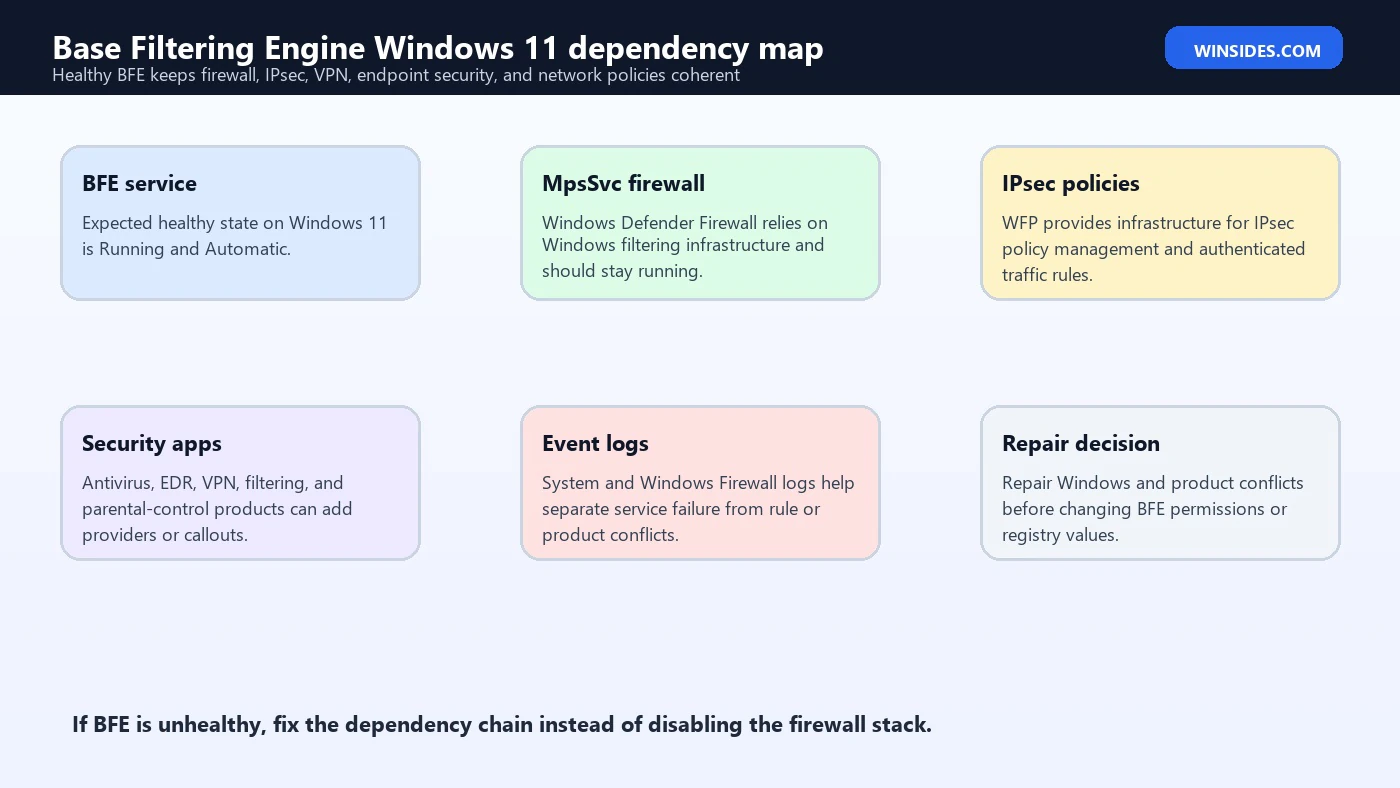
On a healthy Windows 11 computer, BFE is normally Running and Automatic. The Windows Defender Firewall service, MpsSvc, is also normally Running and Automatic. If either is stopped unexpectedly, Windows Security, firewall rules, VPNs, or third-party security tools may complain. This guide explains what BFE does, how it fits into WFP, which symptoms point to BFE trouble, how to check it safely, how to repair common causes, and what not to do.
Table of contents
Key Takeaways
- BFE is the Base Filtering Engine service. It supports Windows Filtering Platform policy, filters, providers, callouts, and network filtering state.
- Windows Firewall depends on WFP infrastructure. Microsoft documents that Windows Firewall with Advanced Security is implemented using Windows Filtering Platform.
- A healthy Windows 11 baseline is BFE Running and Automatic. Windows Defender Firewall, service name
MpsSvc, should also normally be Running and Automatic. - Do not disable BFE for performance. It is core network security infrastructure, not an optional startup app.
- Symptoms can be indirect. Firewall errors, VPN failures, blocked apps, Event Viewer messages, IPsec issues, and security-product alerts can all involve BFE or WFP.
- Repair should be evidence-based. Check service state, Event Viewer, Windows Security, recent updates, VPN/security tools, DISM, SFC, and firewall policy before resetting anything.
- Avoid registry permission hacks. BFE permission damage is serious; random registry ACL fixes can weaken security or break Windows further.
What Base Filtering Engine Does
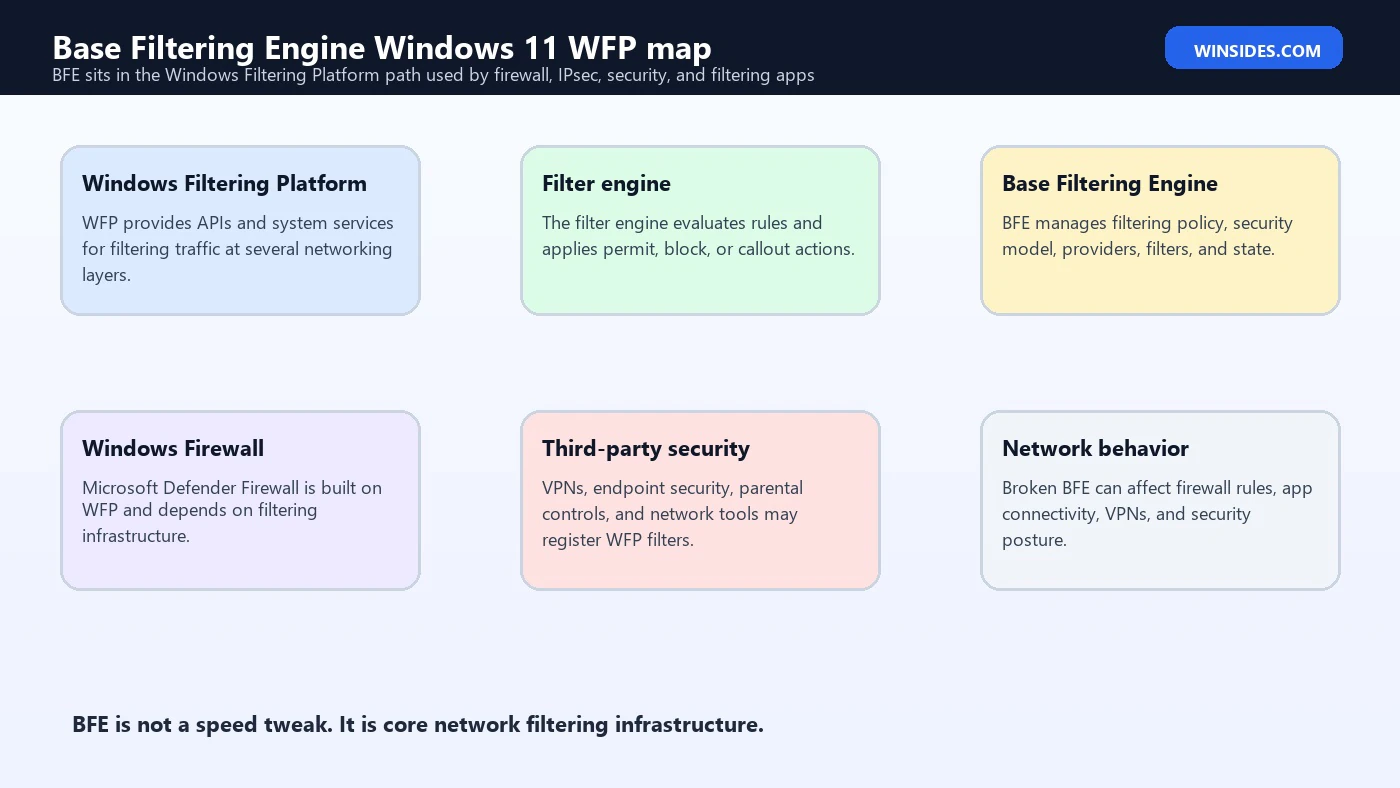
Base Filtering Engine is the Windows service that supports the filtering policy layer used by Windows Filtering Platform. WFP itself is the broader platform. Microsofts WFP documentation says network data can be filtered and modified before reaching its destination, and WFP provides infrastructure for firewalls, antivirus programs, network monitoring tools, parental controls, IPsec policy management, diagnostics, and stateful filtering. BFE is the service users and administrators most commonly see when this filtering foundation is unhealthy.
In plain English, BFE helps Windows keep track of filtering policy. That policy can include firewall rules, IPsec rules, providers registered by Windows, and providers registered by supported security or networking software. When an application opens a socket, when a packet enters or leaves, when a firewall rule applies, or when IPsec policy is evaluated, the WFP stack and filter engine are involved. BFE is not the packet engine alone; it is part of the management and policy infrastructure that lets this all remain coherent.
This is why BFE trouble can be confusing. The visible error might mention Windows Defender Firewall, a VPN client, a game launcher, an endpoint security agent, or a network profile. The real issue may be that the filtering platform cannot load policy, cannot start the service, cannot talk to a provider, or is blocked by corrupt rules or a third-party callout driver. Fixing the visible app without checking BFE can waste time.
Windows Filtering Platform and BFE Relationship
Microsofts WFP architecture overview explains that the filter engine performs filtering operations on TCP/IP-based network data, and that filtering layers pass network data to the filter engine for processing. If filtering conditions are true, the filter engine applies the filters action. Microsoft also describes callout drivers as a way to provide additional filtering functionality by registering callouts with the filter engine. See Microsofts WFP architecture overview for the architecture overview.
BFE fits into this world as the service that supports the base filtering policy and management side. Firewalls and security products do not each need to reinvent a packet filtering engine. Instead, they can use WFP APIs and register rules, filters, providers, sublayers, or callouts. Windows then arbitrates filtering behavior through the platform. This design is powerful, but it also means one damaged driver or broken provider can affect more than one app.
For normal Windows 11 users, you do not need to understand every WFP layer. You do need to know that BFE is foundational. If BFE is stopped or cannot start, the firewall stack and many filtering-dependent features can fail. If BFE is running but a third-party provider is broken, the symptoms may appear only in certain apps, VPN connections, DNS flows, or firewall rules. That is why the repair process starts with service state and recent changes, then moves toward providers and policy.
Why Windows Firewall Depends on Filtering Infrastructure
Microsofts Windows Firewall overview says Windows Firewall filters network traffic entering and exiting the device. It can filter by source and destination IP address, protocol, port, services, and applications. It is enabled by default on Windows editions, uses domain, private, and public network profiles, and supports IPsec for authenticated or encrypted communication. See Microsofts Windows Firewall overview for the official firewall overview.
That firewall behavior is not separate from WFP. Microsofts WFP overview states that Windows Firewall with Advanced Security is implemented using WFP, and that applications developed with the WFP API or the Windows Firewall with Advanced Security API use the common filtering arbitration logic built into WFP. In practice, Windows Defender Firewall relies on this common filtering foundation. If BFE is unavailable, the firewall cannot behave normally.
This is also why Microsoft warns against stopping the Windows Firewall service as a way to disable firewall behavior. Their firewall overview says stopping the Windows Firewall service is not supported and can cause problems such as Start menu issues, modern app install or update failures, phone activation failures, and app or OS incompatibilities that depend on Windows Firewall. If stopping MpsSvc is unsupported, randomly disabling BFE is even more dangerous because BFE sits lower in the filtering dependency chain.
Healthy Service Baseline on Windows 11
A healthy Windows 11 system normally shows BFE as Running and Automatic. Windows Defender Firewall, service name MpsSvc, is also normally Running and Automatic. You can check both with PowerShell:
Get-Service -Name BFE,MpsSvc | Format-List Name,DisplayName,Status,StartTypeYou can also use Services by running services.msc, but PowerShell is quicker and less tempting for accidental changes. If BFE is running, do not restart it casually on a production machine. Restarting filtering services can disrupt active network connections, VPN tunnels, security tools, and firewall policy. Use observation first.
If BFE is stopped, disabled, missing, or fails to start, record the exact error before changing settings. The error message matters. Access denied points in a different direction from service dependency failure, file corruption, missing registry configuration, malware damage, or a third-party security product conflict. A vague fix from an old forum can make things worse if it targets the wrong cause.
Common Symptoms of BFE Problems
BFE problems rarely announce themselves with a friendly “BFE is broken” message. More often, users see symptoms in other layers. Windows Security may say firewall status is unavailable. Windows Defender Firewall may fail to turn on. A VPN client may connect but pass no traffic. Apps may be blocked even after firewall rules are changed. Network profiles may behave strangely. Event Viewer may show service-control errors, firewall policy errors, WFP-related warnings, or third-party filter-driver problems.
Some symptoms are not BFE problems at all. DNS failures, router issues, proxy settings, broken Wi-Fi drivers, expired VPN credentials, captive portals, and security-suite configuration can look like filtering trouble. That is why you should not jump directly to BFE repair. Check whether the internet works in general, whether the issue affects all apps or one app, whether a VPN changes the behavior, whether Windows Firewall UI opens normally, and whether BFE and MpsSvc are running.
A BFE-specific suspicion becomes stronger when Windows Defender Firewall cannot start, when services report dependency failure, when multiple firewall or VPN products fail at once, when Event Viewer mentions BFE or filtering platform errors, or when a recent security product removal left filtering drivers behind. It also becomes stronger after malware cleanup, because some malware attempts to damage firewall and filtering services to keep network access open.
What Can Break BFE
The most common categories are service state, policy corruption, system file corruption, security product conflicts, malware damage, and bad filter drivers. A user or utility may disable services. A “debloat” script may change service startup settings. A third-party firewall or VPN may install WFP callout drivers and fail to remove them cleanly. Malware may alter permissions or disable network security services. A Windows update interrupted by disk or servicing problems may leave components unhealthy.
Security suites are a frequent suspect because they legitimately integrate with WFP. Endpoint protection, EDR, VPN clients, DNS filtering tools, parental control software, data-loss prevention agents, traffic inspection tools, and corporate firewall products can all hook into network filtering. When they work correctly, this is normal. When they are outdated, partly removed, or incompatible with a Windows build, BFE symptoms can appear.
Permission damage is another hard case. BFE has security descriptors and registry configuration that should not be casually edited. Some online fixes tell users to import registry files or grant broad permissions to service keys. Avoid that unless you are following vendor or Microsoft guidance for a known scenario. Broad permissions can weaken the service security model and create a larger problem than the original startup failure.
Safe First Checks
Start with non-destructive checks. Confirm service state, firewall status, Windows Security state, and recent changes. Ask what changed before the problem began: Windows update, VPN install, antivirus removal, “privacy tool,” debloat script, registry cleaner, malware cleanup, driver update, or company policy change. That timeline is often more useful than the first error message.
Use these commands for observation:
Get-Service -Name BFE,MpsSvc | Format-List Name,DisplayName,Status,StartTypeGet-NetFirewallProfile | Format-Table Name,Enabled,DefaultInboundAction,DefaultOutboundActionGet-EventLog -LogName System -Newest 50 | Where-Object {$_.Source -match 'Service Control Manager|Microsoft-Windows-Windows Firewall'}On newer systems, Get-WinEvent is often better for targeted log queries, but the point is the same: collect evidence. If BFE is running and firewall profiles are enabled, the problem may be a rule, profile, VPN, DNS, proxy, or app issue rather than the service itself.
Repair Order for BFE Issues
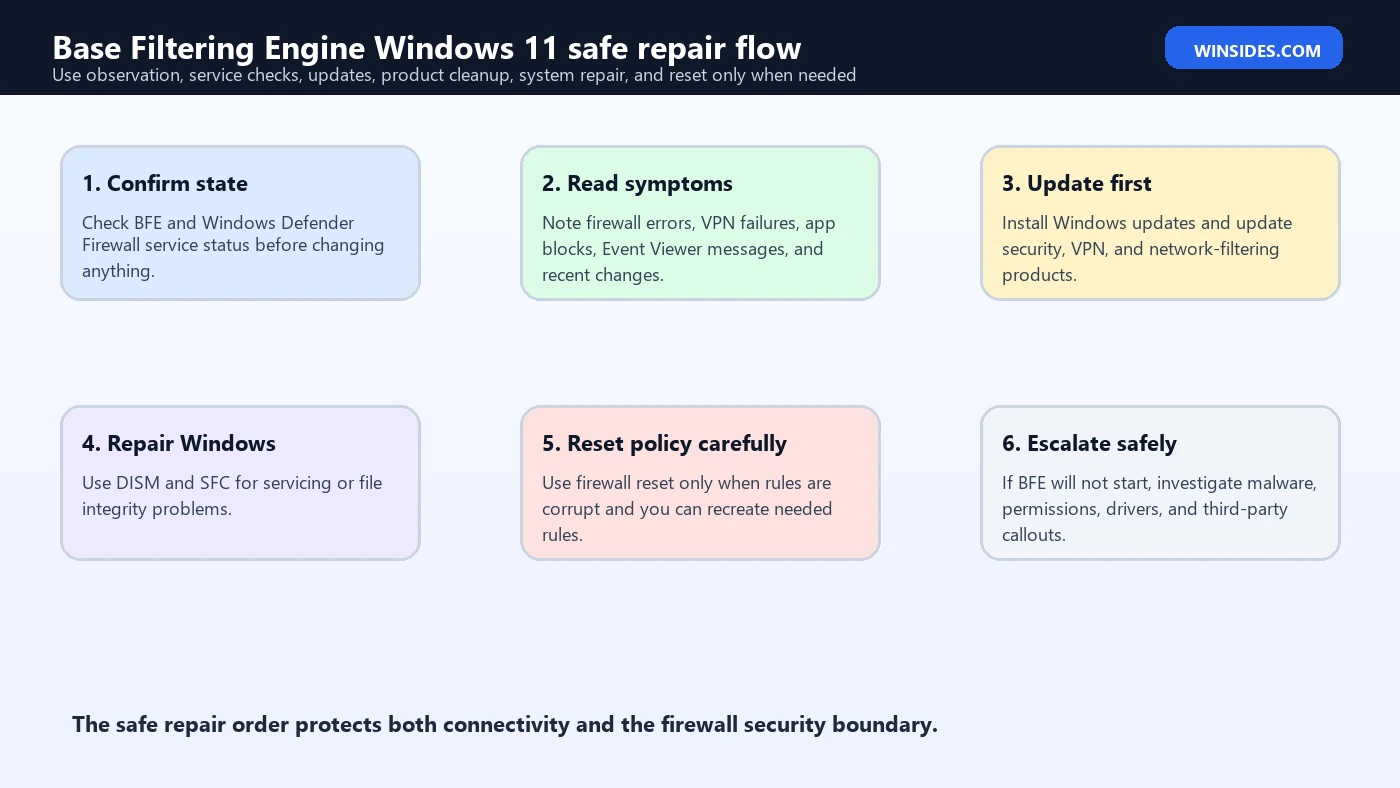
Use a conservative repair order. First, restart the computer once. That sounds simple, but pending updates, service transitions, and stuck product installers can leave filtering policy in a bad runtime state. After restart, check BFE and MpsSvc again. If they are running, test the original symptom before making more changes.
Second, install Windows updates and update security/VPN/network software from trusted sources. WFP callout drivers are sensitive kernel or network-path components. An outdated VPN or security driver can break filtering after a Windows feature update. Update the product, or if the problem began after an update, check the vendor for a known issue before resetting Windows networking.
Third, repair Windows component health and system files when corruption is suspected:
DISM /Online /Cleanup-Image /RestoreHealth
sfc /scannow
Fourth, remove broken third-party filtering products cleanly. Use the vendors official cleanup tool when available. Do not simply delete driver files. Leftover network filter drivers can be worse than the original application. If the device is managed by an organization, coordinate with IT because security tools may be enforced by policy and will reinstall.
Firewall Reset: Useful but Not First
A firewall reset can help when rules are badly corrupted or a misconfigured rule set is causing the issue. It is not a first response to every BFE complaint because it removes custom firewall rules. If you reset rules on a server, developer workstation, remote support machine, or business app host, you may break legitimate inbound or outbound access until rules are recreated.
Before resetting, export or document existing rules where possible. For home users, a reset is usually less risky, but it can still affect games, local servers, printer discovery, remote desktop, development tools, and vendor apps. In Windows Security, the reset option is usually under Firewall & network protection. From an elevated command prompt, administrators may use firewall command-line tools, but they should know the consequences first.
If BFE itself cannot start, a firewall rule reset may not be enough. BFE startup failure is lower-level than a bad allow/block rule. In that case, prioritize service errors, system file repair, malware review, third-party driver cleanup, and permissions integrity. A reset fixes policy state; it does not repair every broken service dependency.
VPN and Third-Party Firewall Conflicts
VPN clients and third-party firewall products often rely on WFP so they can steer, block, inspect, or protect traffic. This is normal. Problems arise when two products fight over the same path, when a product is partly uninstalled, when a driver is incompatible, or when a corporate policy expects the product to be present but the local machine is out of sync.
If the problem started after installing a VPN, updating endpoint protection, removing an antivirus suite, or running a cleanup tool, test that path first. Update the product. Reinstall it cleanly. Use the vendor removal tool if uninstall left drivers behind. Check Device Manager for hidden network adapters or filter drivers only if you know what you are doing; do not remove random network components from a production device.
For managed devices, do not bypass corporate security software to make BFE look clean. Open a ticket with the exact service state, Windows build, product version, Event Viewer messages, and whether the issue appears on or off VPN. BFE problems in enterprise environments are often fleet issues, policy issues, or product-version issues rather than one-machine mysteries.
Malware and Permission Damage
If BFE is disabled, access denied, or repeatedly turned off, consider malware or unwanted software. Firewall and filtering services are attractive targets because they control network protection. Malware may try to weaken filtering, block security updates, or prevent security tools from communicating. If BFE broke after malware cleanup, the cleanup may have removed the threat but left service permissions or registry configuration damaged.
Run a trusted security scan. Use Microsoft Defender Offline or your organizations approved EDR workflow if compromise is suspected. Do not import random BFE registry fixes from the web. If service permissions are damaged, use a known-good repair source, vendor guidance, enterprise baseline, in-place repair install, or system restore point rather than broad manual ACL changes.
When compromise is plausible, preserve evidence. Note timestamps, suspicious services, unknown firewall rules, recently installed apps, and security alerts. Fixing BFE is important, but understanding why it broke matters more. If malware disabled BFE once, it may have changed other security controls too.
What Not to Do
Do not disable BFE because a game, app, or VPN is blocked. Create the correct firewall rule, update the app, fix the VPN, or check the profile. Do not stop Windows Defender Firewall service to “test” networking. Microsoft specifically says stopping the Windows Firewall service is unsupported and can cause problems. Do not run scripts that disable dozens of services to improve performance. BFE is not a bloatware item.
Do not delete WFP providers, callouts, network drivers, or firewall registry keys without a recovery plan. Do not grant Everyone full control over BFE registry keys. Do not install multiple third-party firewall products and expect stable filtering. Do not ignore BFE errors on a machine that handles sensitive work, remote access, or business traffic.
Most importantly, do not choose connectivity over security without understanding the tradeoff. If turning something off makes the internet work, you have learned that filtering is involved; you have not learned that filtering is unnecessary. The right fix restores secure connectivity, not just connectivity.
Advanced Diagnostics
For advanced administrators, WFP state can be inspected with Windows networking diagnostics and event logs. The exact tooling depends on the Windows version, role, and whether the machine is managed. In enterprise cases, collect System logs, Windows Firewall logs, security product logs, VPN logs, and policy reports. Compare a broken machine with a healthy machine on the same build and policy ring.
Useful evidence includes BFE service status, MpsSvc status, Windows build, installed VPN/security products, recent driver updates, Event Viewer errors, firewall profile state, applied Group Policy, and whether the issue affects all networks or one profile. If only public Wi-Fi fails, check profile and network category. If only VPN traffic fails, inspect the VPN client and routes. If every app fails and BFE is stopped, focus lower in the service stack.
Developers and security vendors working directly with WFP should use Microsofts WFP documentation rather than consumer repair guides. WFP includes user-mode and kernel-mode APIs, providers, filters, layers, sublayers, callouts, and arbitration behavior. A user troubleshooting a Windows 11 PC should not need to manipulate those internals directly.
Managed Devices and Group Policy
On business devices, BFE and firewall behavior may be controlled by Group Policy, Intune, Microsoft Defender for Endpoint, VPN profiles, or another endpoint management platform. A local administrator may not be the authority for firewall state. If policy disables a profile, enforces rules, or deploys a third-party firewall product, local changes may be reverted.
Use policy reports before assuming corruption:
gpresult /h %TEMP%\gpresult.htmlFor Intune-managed devices, check the management portal, device configuration profiles, endpoint security firewall policy, and security baseline assignment. A BFE problem may be a policy conflict between Windows Firewall, endpoint security, VPN, and a third-party agent. The repair is policy cleanup, not local service tweaking.
Document the affected device group, user group, OS version, policy names, and product versions. If multiple devices fail after the same rollout, pause the deployment and compare with a control group. BFE is central enough that a bad policy can look like a widespread network outage.
Firewall Profiles and BFE Symptoms
Windows Firewall uses domain, private, and public profiles. Microsofts firewall overview explains that these profiles let Windows apply different rule sets depending on the network type. Public networks are treated more restrictively, while private and domain networks can allow different trusted communication. BFE is not the component that decides whether your Wi-Fi is public or private, but BFE supports the filtering policy that ultimately applies after Windows knows the active profile.
This matters during troubleshooting because a profile mistake can look like a BFE problem. A file-sharing rule may work on a private network but fail on a public network. Remote Desktop may be allowed on the domain profile but blocked on public Wi-Fi. A developer server may work at home and fail at a hotel. In those cases, BFE may be perfectly healthy; the active firewall profile and rules are simply doing what they were configured to do.
Use PowerShell to check the active network profile and firewall profiles before changing services:
Get-NetConnectionProfile
Get-NetFirewallProfile | Format-Table Name,Enabled,DefaultInboundAction,DefaultOutboundAction
If the profile is wrong, fix the network category or policy rather than touching BFE. If the profile is right but a rule does not apply, inspect the rule scope, program path, service binding, protocol, port, interface type, and profile selection. BFE should be considered a suspect only when the filtering foundation itself is failing, not when an ordinary rule or profile explains the block.
FAQ
What is Base Filtering Engine in Windows 11?
Base Filtering Engine is the Windows service named BFE. It supports Windows Filtering Platform policy and filtering infrastructure used by Windows Firewall, IPsec, and many security or network filtering products.
Should BFE be running?
Yes. On a healthy Windows 11 system, BFE is normally Running and Automatic. Windows Defender Firewall, service name MpsSvc, is also normally Running and Automatic.
Can I disable Base Filtering Engine?
No, not as a normal fix. Disabling BFE can break firewall, IPsec, VPN, security products, and network filtering behavior. It can also weaken system security.
Why is Windows Firewall failing when BFE is stopped?
Windows Firewall is implemented using Windows Filtering Platform. If BFE or the filtering infrastructure is unavailable, firewall policy and filtering behavior cannot work normally.
How do I check BFE status?
Run Get-Service -Name BFE,MpsSvc in PowerShell or open Services and check Base Filtering Engine and Windows Defender Firewall.
What causes BFE access denied errors?
Possible causes include damaged service permissions, malware, broken security software, bad cleanup tools, or registry/ACL changes. Avoid random permission fixes and use trusted repair methods.
Will resetting Windows Firewall fix BFE?
Only if the problem is corrupt or bad firewall policy. A firewall reset will not fix every BFE startup failure, driver conflict, malware change, or permission problem.
What is the safest repair path?
Restart once, check service state and logs, install updates, update or cleanly remove conflicting VPN/security tools, run DISM and SFC, then reset firewall policy only when appropriate.
Conclusion: Keep BFE Healthy, Running, and Protected
Base Filtering Engine Windows 11 is core network filtering infrastructure. It supports the Windows Filtering Platform path that Windows Firewall, IPsec, VPN clients, endpoint security tools, and other filtering products rely on. A healthy system should show BFE running automatically, with Windows Defender Firewall also running. If BFE is broken, the symptoms may appear in many different places because many network security features sit above it.
The safest troubleshooting path is measured. Confirm service state, read Event Viewer, identify recent changes, update Windows and third-party filtering products, repair system files with DISM and SFC, and reset firewall policy only when rules are corrupt or unrecoverable. If access denied, malware damage, or driver conflict appears, treat it as a serious integrity problem rather than a simple toggle.
Do not disable BFE for performance or convenience. Do not weaken service permissions with random registry fixes. Restore the filtering stack so Windows 11 has both connectivity and protection. When BFE is healthy, firewall rules, IPsec policy, VPN behavior, and security tools have the platform they need to work correctly.
For more interesting articles, stay tuned to Winsides.com!









Community
Comments (0)